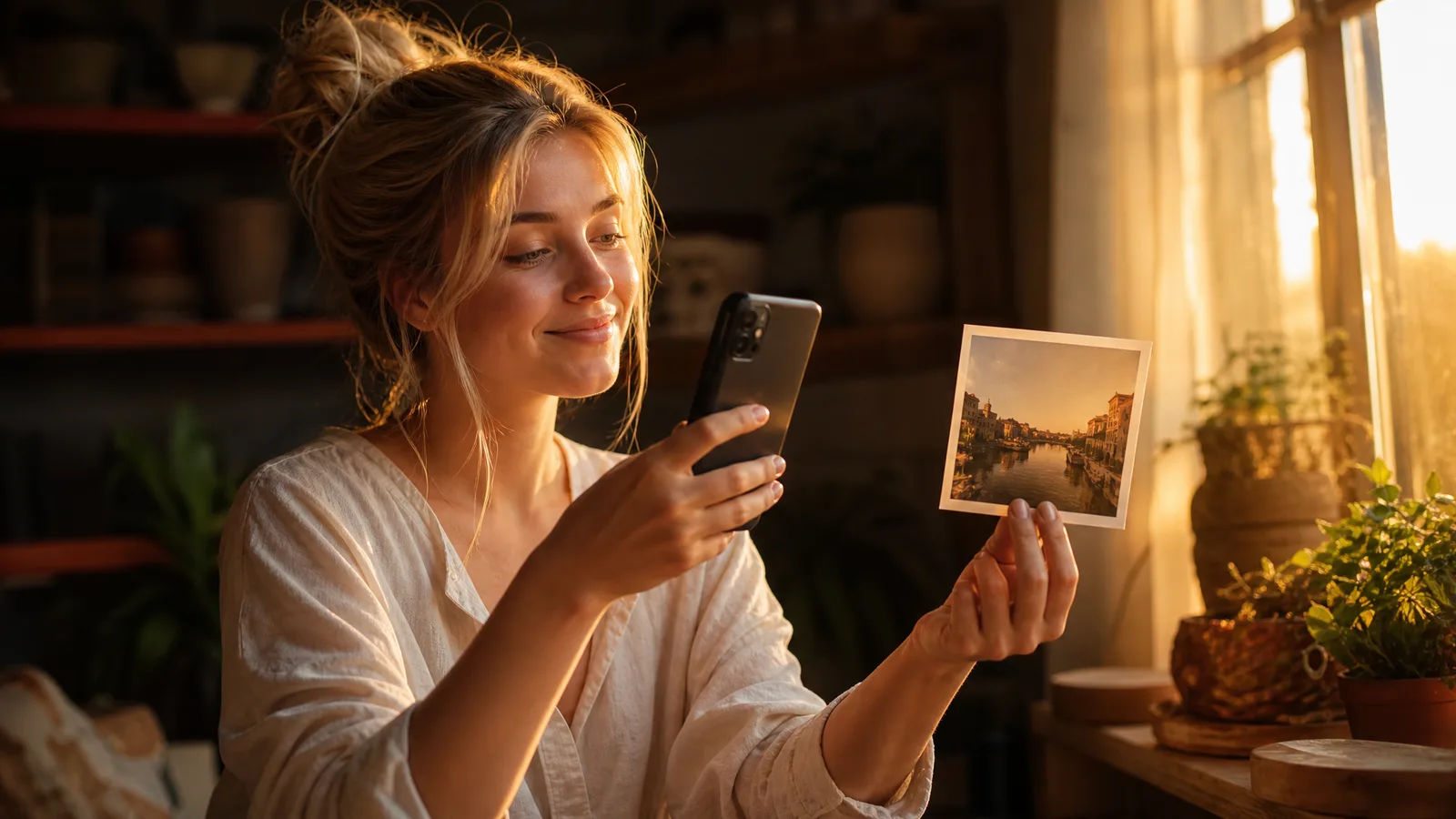
To make a video out of photos with AI, upload one clear photo to a browser-based image-to-video tool, describe one motion in a short prompt, check the model and credit quote, then generate and download the MP4. For a longer video, make one clip per photo and join them in an editor.
You do not need editing software, a timeline, or design skills for any of this.
How to Make a Video Out of Photos in 3 Steps
Upload, describe the motion, then generate and review. Each step below takes a single photo to a short clip you can post or edit further.
Step 1: Upload a Clear Photo
Start with one clear, high-resolution image. A sharp, well-lit photo with a single obvious subject gives the model a clear starting composition, which makes the finished clip easier to judge and refine.
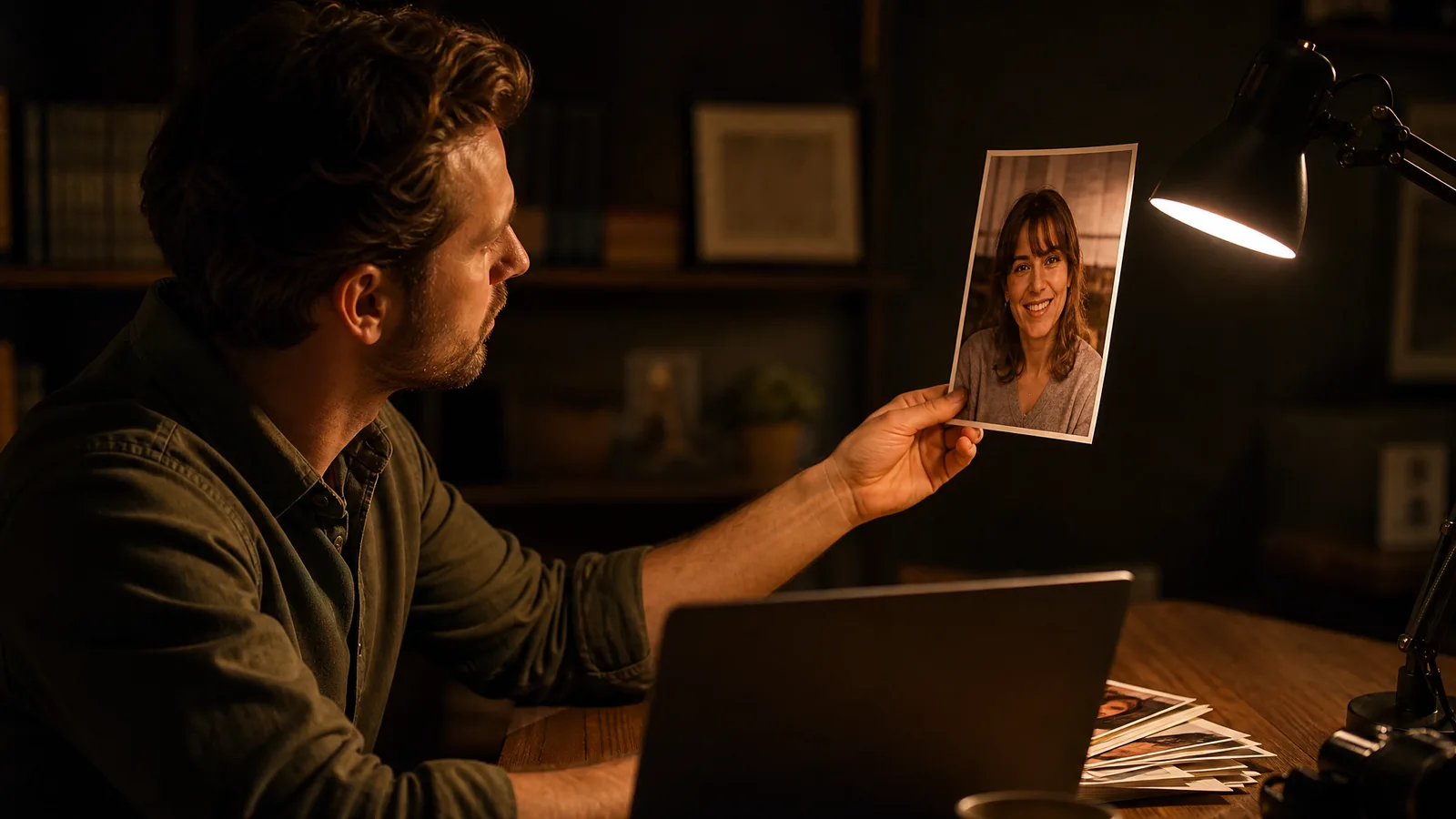
With ImgVid, open the photo to video generator and drag your image onto the upload area. The workspace runs in the browser and generation runs on provider infrastructure, so the same flow works on a laptop or a phone.
Accepted formats and file sizes depend on the selected model. JPG and PNG are the most widely supported, so check the upload hint before converting other formats.
AI models animate what they can see, so the cleaner the input, the more believable the motion. Before you upload, check:
- A sharp, in-focus subject. Blurry or heavily compressed photos give the model less to hold onto and can produce warped motion.
- Good lighting. Even, natural light reads far better than harsh shadows or blown-out highlights once the scene moves.
- One clear subject. A single face, product, or focal point animates more reliably than a busy frame.
- Enough resolution. A larger image (1024px on the long edge or more) leaves room for a crisp 720p or 1080p export.
- Little tiny text and few hands. Fine details are where current models distort most when they add movement.
You do not need a studio-perfect shot. A decent phone photo of a person, pet, landscape, or product is enough for a first run.
Crop before you upload: a little breathing room around the subject gives the model space to add camera motion without cutting off what you care about. For the background on what happens inside the model, see our explainer on what image to video AI is.
See image to video AI in action
Give a photograph its next moment. Describe the movement and explore a short scene for your story, campaign or creative project.
Try it freeStep 2: Describe One Motion
Type a short prompt that tells the AI how the scene should move: a slow camera push, gentle wind, a subtle head turn, or a product rotation. The model animates your frame to match instead of guessing.
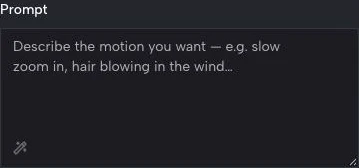
A short, concrete prompt beats a long, vague one, so think in terms of one clear movement. Good starting prompts:
- "Slow camera push in, soft natural light": cinematic and safe for almost any photo.
- "Gentle wind through hair and background": portraits and outdoor shots.
- "Slow 360 product rotation on a clean background": e-commerce and image to video UGC ads.
- "Subtle smile and blink, eyes to camera": headshots and avatars.
- "Drifting clouds and slow parallax": depth for landscapes and travel shots.
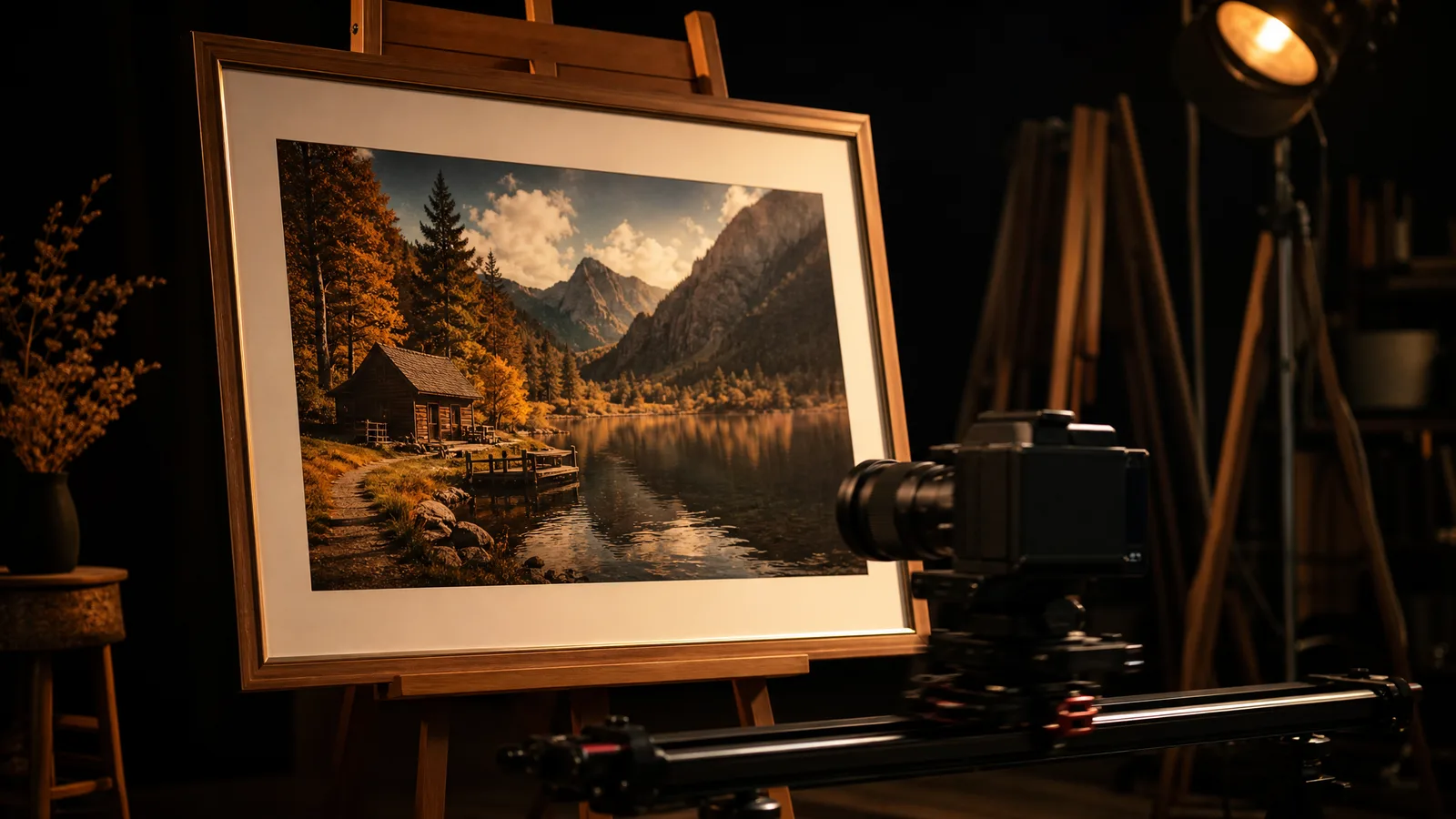
Next, choose a compatible engine in the model picker. ImgVid does not select the best model for your photo, and this guide provides no measured ranking of model strengths. Review the engine's current mode, media inputs, framing, duration and cost.
Duration, resolution, audio, frame settings and reference inputs differ by model. There is no universal motion-strength slider in ImgVid, and you should not assume every clip is five to ten seconds at a fixed frame rate. The prompt guide gives starting ideas, not tested guarantees across every engine.
Turn your image into a video now
Start with a photo and a motion idea. Create a moving scene for a personal story, a product reveal or your next social post.
Get startedStep 3: Generate, Review and Download
Review the quote, generate, and wait for the provider to process the selected configuration. Processing time varies with the model and queue; a queued or running job is not a promise of completion within a set number of minutes.
When the preview appears, watch it a couple of times and ask:
- Does the subject stay consistent? Faces and products should hold their identity across the clip.
- Is the motion believable? Natural drift beats jittery or rubbery movement.
- Are the details intact? Check hands, text, and edges for warping.
- Does it end cleanly? For social posts, a clean start and end matters.
When you are happy, download the MP4. Exports typically land at 720p or 1080p, depending on the model and settings. Post it to Instagram, TikTok, or YouTube Shorts, or drop it into an editor.
If the Clip Looks Wrong, Change One Thing
Identify the problem, then revise one instruction or one supported setting before regenerating. Keep the source photo and the other settings unchanged, so you can see what made the difference.
| What you see | What to change |
|---|---|
| Warped face or melting details | Use a sharper source photo with one clear subject |
| Too much or chaotic movement | Simplify the prompt to one restrained action |
| Distorted hands or text | Pick a photo where they are small or absent |
| Subject cut off by camera motion | Re-crop with more space around the subject |
Distortion can also come from the model or configuration itself. Every new attempt consumes the current quoted credits, and neither processing time nor the number of attempts is guaranteed. Record your settings so you can repeat a look that works.
Can You Make a Video Out of Photos for Free?
You can on an eligible free-tier configuration, as long as your available credits cover the quote. Free-tier eligibility and available credits are separate requirements, and generation needs a signed-in, eligible account.
On ImgVid, eligible new accounts get free signup credits automatically, and you can check in once a day for extra daily credits. Eligible rewards add to your balance but do not guarantee enough credits for the attempt you select.
Free generations include an ImgVid watermark; eligible paid generations export without it. A free-related search does not mean unlimited generation, access to paid models, or watermark-free output. A subscription or pack has its own access and grant conditions, so choose one based on the task and expected usage.
How Do You Turn Several Photos Into One Video?
Generate one clip per photo, then join the clips in any basic video editor. Each generation is an individual clip; assembling a longer sequence is a separate task.
For example, three 8-second shots joined in an editor make a short montage. You can also add music there or turn the set into an AI music video from your photos. For short social video, our walkthrough on making Instagram Reels with photos shows the full assembly.
Open the photo to video workspace to inspect the model options before committing to an attempt.
FAQ
How to transform image into video without editing skills?
You need no editing experience. Image-to-video tools run in the browser: you upload one photo, type a short motion prompt like "slow camera push," and the AI generates the movement. There is no timeline, no keyframes, and no software to install.
How long are the videos I can make from a photo?
The selected model and mode determine duration, resolution and frame settings. Check the displayed options. For a longer montage, generate separate clips and assemble them in an editor; one generation is not a complete album-editing workflow.
What kind of photos work best for making a video?
Sharp, well-lit images with a single clear subject animate the most reliably. Avoid heavy motion blur, cluttered backgrounds, and tiny text or hands, which current models can distort when they add movement. A crisp phone photo of a person, pet, product, or landscape is enough to start.
How to make a video with pictures on my phone?
Open the browser-based tool on your phone and follow the same steps as on a desktop: upload a photo from your camera roll, add a short motion prompt, generate, and download the MP4. A stable connection matters more than device power, since generation runs on remote servers.
How many photos do I need to create a video from pictures?
One photo is enough for a short AI clip, because the model animates a single frame. For a longer montage or a full reel, generate a short clip from each of several images and stitch them together in a basic editor. Clip duration depends on the selected model and mode.
Which AI models power photo to video generation?
ImgVid offers configured engines and variants through its model picker. Choose one that supports your inputs and inspect its controls and quote. The workspace does not automatically select a measured best model, and family names alone do not describe each variant.