Best friends in different places
Bring two separate portraits into one performance when you cannot film together. Choose familiar expressions and clothing so the joke comes from recognizing the pair.

AI Rap Duo brings two separate photos into a shared performance. Try the existing orange-studio rap template: an orange studio, two performers, and model-generated rap audio.
Per image · JPG, PNG or WebP · up to 20.0 MB · at least 300×300px · up to 6000×6000px · aspect ratio 1:2.5–2.5:1
This page uses the orange-studio rap generator and examples. Check the displayed credit cost before creating your duet.
A shared stage
A strong duo starts with two recognizable subjects. Compare the space between the performers, the view of each face, and the energy of the pairing. Clear references help you judge the result throughout the clip.
Build your pairing
Start with one clear reference for each performer, then use the rap preset. The creative choice is the pairing: friends, a couple, or an owner and pet. You do not need a photograph of both subjects together, and you do not need to assemble a reference performance yourself.
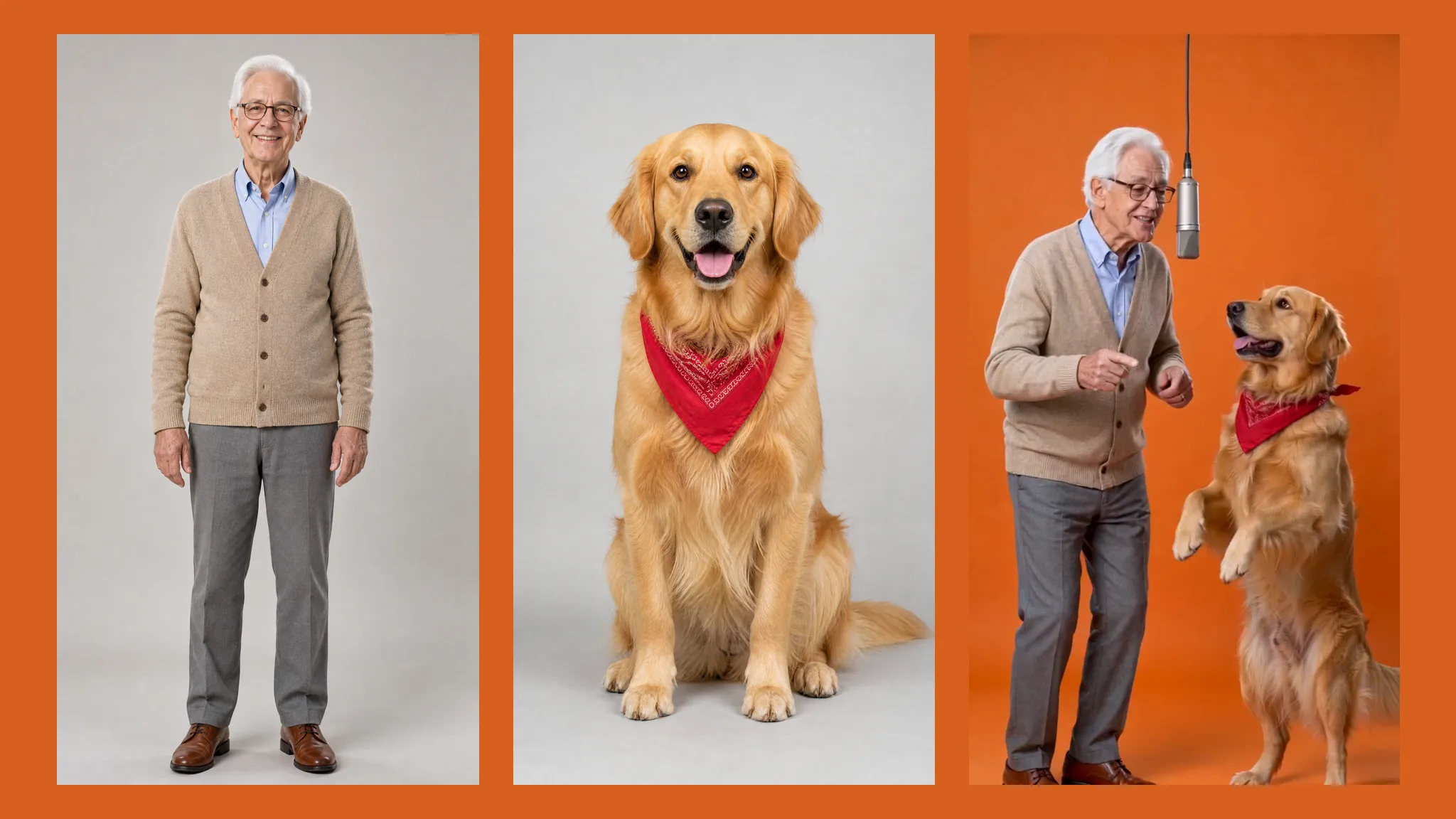
Upload a separate picture into each slot. Look for visible eyes, an unobstructed face, and enough of the subject to understand their appearance. Avoid a distant person in a crowded photo or a portrait hidden behind a hand. Keep the left and right references distinct so you can check which person the result places on each side.
The orange-studio rap scene is already built in. You may add an optional styling note; you do not need to write the whole performance. Seedance 2.0 Mini is the default, with Seedance 2.0 Fast available as another choice. Select 480p or 720p and check the credit cost shown by the generator before starting.
The output is a 15-second vertical 9:16 video. Play the whole take, not just the first frame. Look at both faces while they move, check the space between the subjects, and listen to the generated audio. If a reference is hard to recognize, choose a clearer photo before another attempt. Export the selected clip without a watermark.
What makes the duet work
The appeal is recognition: familiar people in a setting they would not usually share. Focus on the references and the relationship between the performers. The orange-studio preset supplies the scene; it does not offer a custom music editor or a library of famous voices.
The photos can come from different places and different days. A duet does not require matching original backgrounds, but both faces should be easy to see. Choose references with comparable clarity rather than pairing a sharp portrait with a tiny cropped face. Keep the subjects separate at upload; a group photograph makes it harder to identify the intended performer in each slot.
Try the shared templateThe present template uses an orange studio and a shared microphone, giving the scene a clear visual focus. Both subjects should remain readable as a pair. If you want a different location, camera routine, or a precise recreation of another performance, treat that as a separate creative requirement. An optional styling note does not turn this fixed scene into a full video editor.
Preview the duet workflowThe model generates sound for the performance. This workflow does not take your own audio file, clone a chosen voice, or attach a specific song recording. Judge the clip by what you actually hear. If you want to add a particular sound later, use an editing or publishing workflow that supports it and check the sound source before sharing.
Explore the rap presetA convincing first frame does not settle the whole result. Check the second performer while the first is active, then watch the switch in attention. Look for blended faces, changing accessories, or a hand crossing a face. A simpler reference can be more useful than a longer note when identity is unclear. Compare complete clips before choosing one for a friend or a public post.
Prepare your two photosBefore you press Create
Good preparation gives you a clearer way to evaluate the result. These checks describe what to look for; they are not guarantees that every generated take will preserve every detail.
Use a reference where the face is large enough to inspect. Sunglasses, strong blur, and heavy filters can conceal the details you want the model to retain.
Keep one intended performer per image. Two independent photos make the pairing explicit and let you replace a weak reference without changing the other subject.
Decide why these two belong together: a friendship, a family joke, or a celebration. That simple choice makes the result more personal than adding unrelated scene instructions.
Listen before posting. Generated vocals are part of the output, but the preset is not a way to request exact lyrics, a particular singer, or a supplied music track.
Watch the entire vertical clip at its intended viewing size. A face that seems clear in a small thumbnail may look different once the movement fills a phone screen.
Use photos you own or are allowed to use. Show a personal joke to the people involved before sharing it more widely, and make the AI nature of the performance clear.
Choose your duo
Start with the relationship, then choose the pictures. Pair friends, partners, relatives, or a person and their pet, using a clear photo for each performer.
Bring two separate portraits into one performance when you cannot film together. Choose familiar expressions and clothing so the joke comes from recognizing the pair.
Use a portrait of each partner for a playful alternative to a posed selfie. Keep any message in your accompanying caption rather than expecting the generator to render readable text.
Pair the birthday person with a willing friend or relative. Preview the whole clip before including it in a greeting, and add the written birthday message separately.
The rap preset accepts a pet reference as a performer. Choose a clear animal photo and review the result as a fictional performance, not a realistic record of animal behavior.
Pick two relatives who would enjoy the joke. Photos with clear faces make the references easier to judge; ask before turning a private family picture into a public post.
Use the duet as a short shared introduction or playful collaboration idea. Review each person individually so one recognizable performer does not hide problems with the other.
Before your first take
An AI rap duo is a generated performance featuring two chosen subjects. On imgvid, the page uses the orange-studio rap template to bring two separate photo references into an orange-studio duet.
Use two separate photos, one for each performer. You do not need a picture of them together. Keep the intended face visible in each upload rather than using a crowded group shot.
No full scene prompt is needed for the rap template. The performance is built in, with an optional styling note. That note does not provide a new background editor or precise control over every gesture.
The preset defaults to Seedance 2.0 Mini. You can also select Seedance 2.0 Fast, with 480p or 720p output. Check the price displayed for your selected settings before generating.
Exact song selection is not supported; the model generates the sound. Listen to the entire result before sharing. If you add music in a separate video editor afterward, use a recording you have permission to use.
Yes, the two references can come from different places. Choose similarly clear images with visible faces. Matching the quality of the references matters more than matching their original backgrounds.
The site offers starter credits, and generation spends credits. The cost depends on the selected model and settings; check the displayed amount and your balance. Finished video exports are watermark-free.
Review that subject throughout the clip, then try a clearer reference. Avoid heavy filters, obstructions, and tiny faces. A new attempt may differ, so compare the whole performance rather than its thumbnail.
More tools
Prepare two clear photos and try the orange-studio rap performance above. Review the faces, movement, and generated sound before sharing your pairing.
Try AI Rap Duo