FLUX.2 Image Generator

Build a visual concept around the details that matter

Black Forest Labs' FLUX.2 develops a still from a written brief or from reference images you supply. Name the subject, the light and the style for a product shot, a portrait or a storyboard frame, then compare FLUX.2 takes and keep the one that fits your layout.

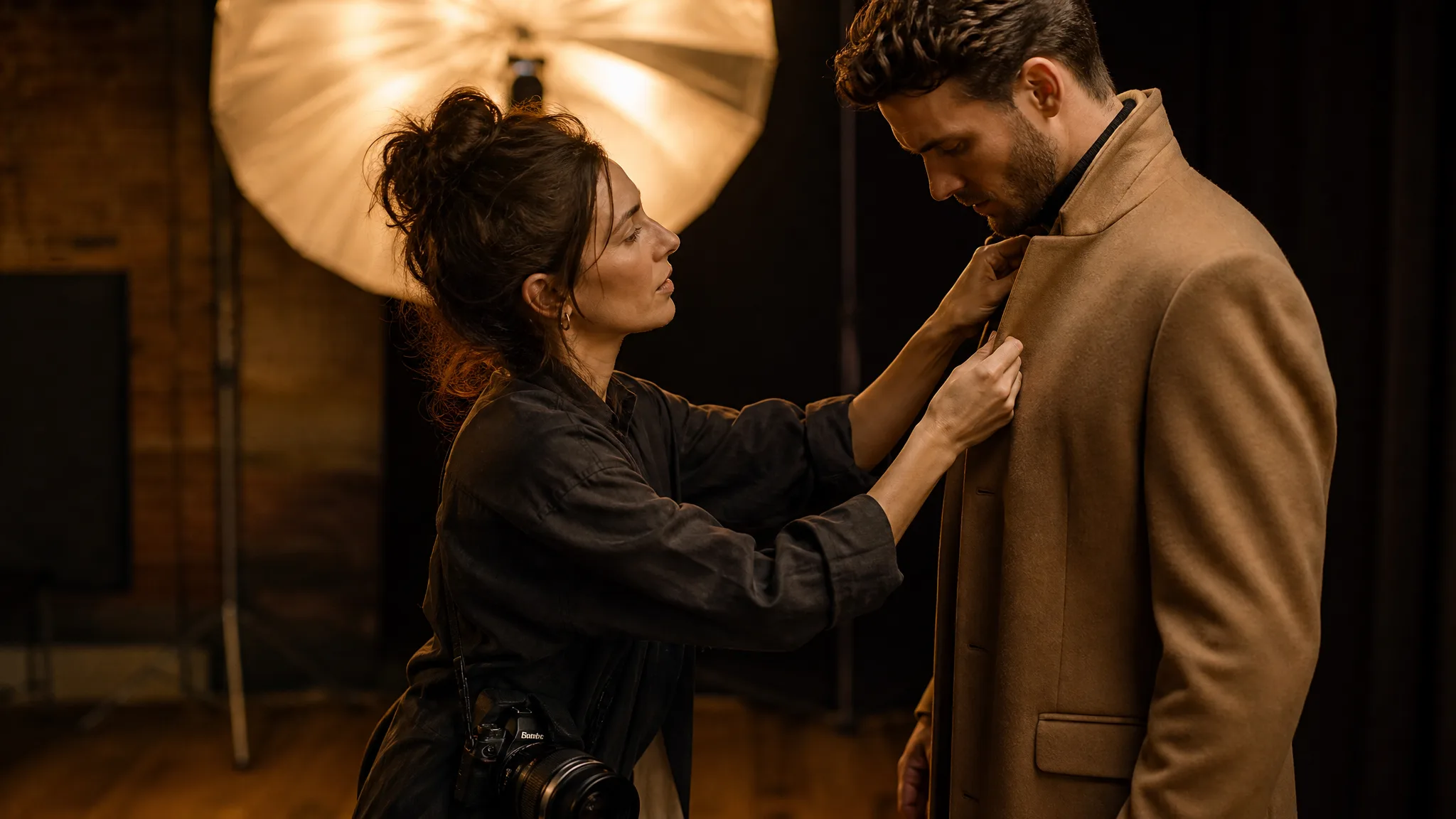
Fashion photographer adjusting a model's coat collar in a warmly lit studio
A focused subject in your composition
Creative changes from a visual brief
Lighting that sets the scene
Styles for a coherent visual direction
New takes for your next design
FLUX.2
Prompt
0/5000
Aspect ratio
Resolution
Number of generations
Public Visibility
Required credits
10
Examples
Fashion photographer adjusting a model's coat collar in a warmly lit studio

Explore Image Ideas with FLUX.2

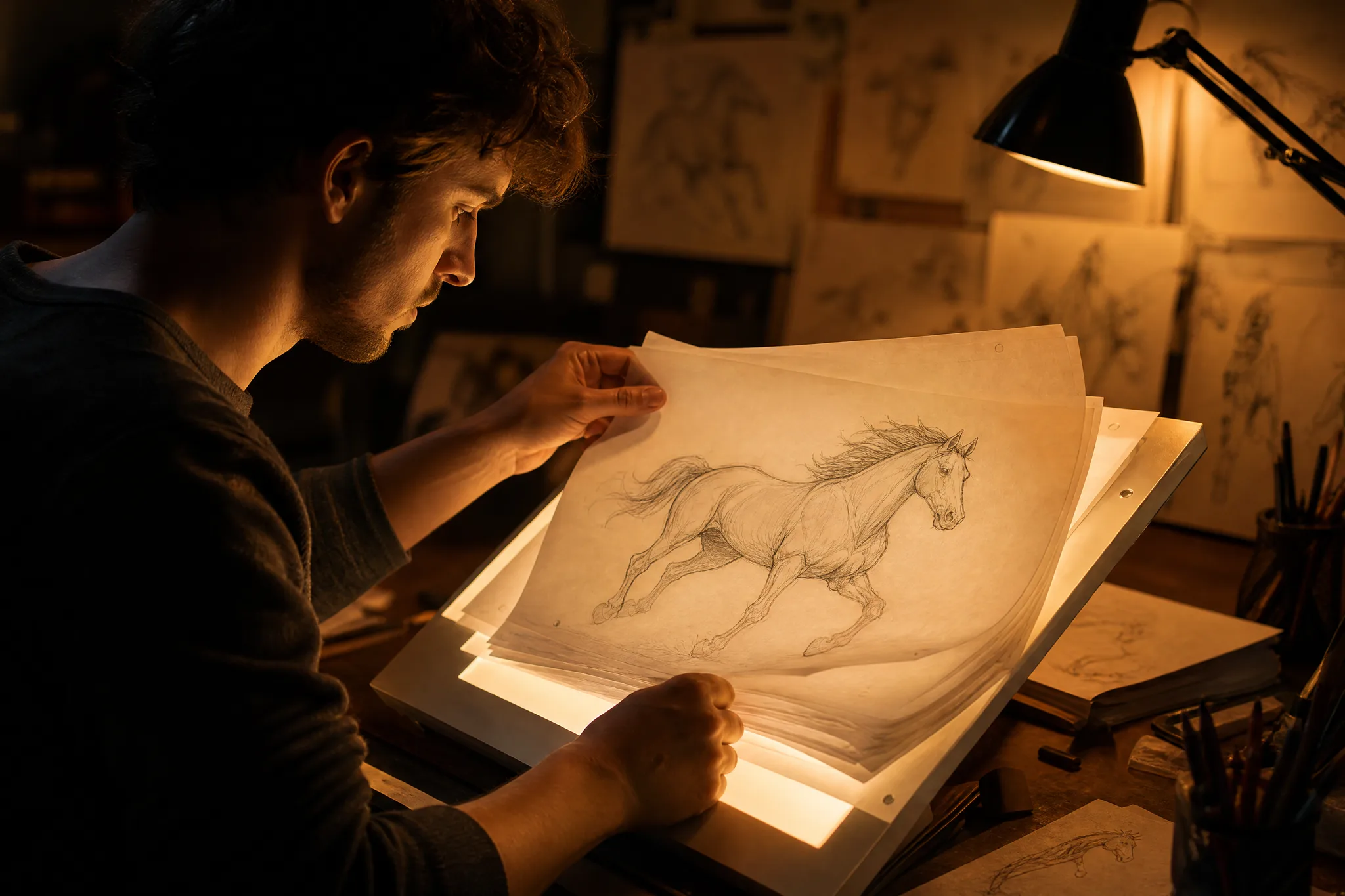
An animator flipping through pencil drawings of a galloping horse knows a sketch can carry a whole scene. FLUX.2 works the same way: describe that idea, or attach your drawing as a reference, and develop it into a finished still you can compare with the original.

Generate with FLUX.2
Animator flipping pencil drawings of a galloping horse on a glowing light table

How to Create with FLUX.2

FLUX.2 works from a prompt or from reference images, and it rewards a brief built around one clear subject. These four steps cover writing, framing, comparing and finishing a take.

1

Describe your image idea

Write a FLUX.2 prompt that puts one subject at the center, then add its setting, light and color direction. If you are reworking an existing image, attach it in image-to-image mode and say which detail should change and which should stay.

2

Choose the composition

Pick an aspect ratio for the destination, such as 3:2 for a hero banner or 2:3 for a poster. Describe where the FLUX.2 subject should sit so the frame keeps space for whatever text or graphics come later.

3

Explore the image

Create a FLUX.2 take and compare it with your brief. If the light or background is off, change only that phrase and run it again; one decision per take makes it clear which choice produced the improvement you see.

4

Choose and finish your take

Download your preferred take and review faces, hands, product edges and small background details at full size. Complete the crop, labels and layout in your creative tool, with the FLUX.2 image serving as the concept the design develops from.

Best AI Image Tools for Creative Projects

Create a new image from text or edit one you already have with the right image tool.

What Can You Create with FLUX.2?

FLUX.2 responds to focused instructions about one subject and one change at a time. The five rows cover reinterpreting an image, targeted changes, subject focus, light and color, and step-by-step refinement.

Explore a new interpretation of your image

An existing image can anchor a new interpretation. FLUX.2 image to image accepts up to 8 references, so attach the source, describe the new creative direction, and check that the subject in the take still reads as the same person, product or place you started with.
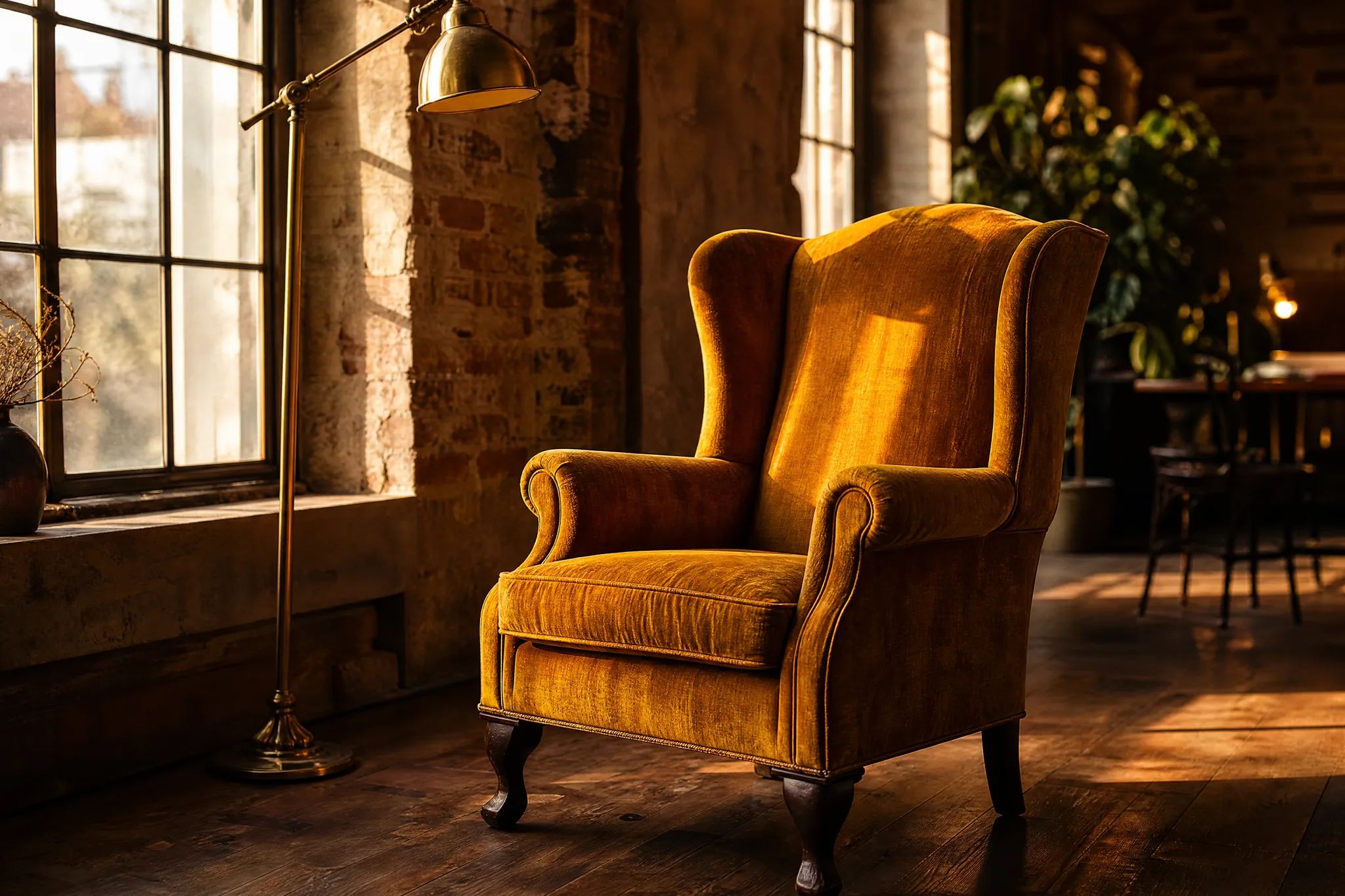
Vintage wingback armchair in ochre velvet in a sunlit loft beside a brass lamp

Name the detail you want to change

A focused change gives the brief a clear purpose. Ask FLUX.2 for a new background, a different atmosphere or one altered detail, such as swapping a summer garden for autumn leaves, instead of combining many unrelated requests that are hard to judge in a single take.

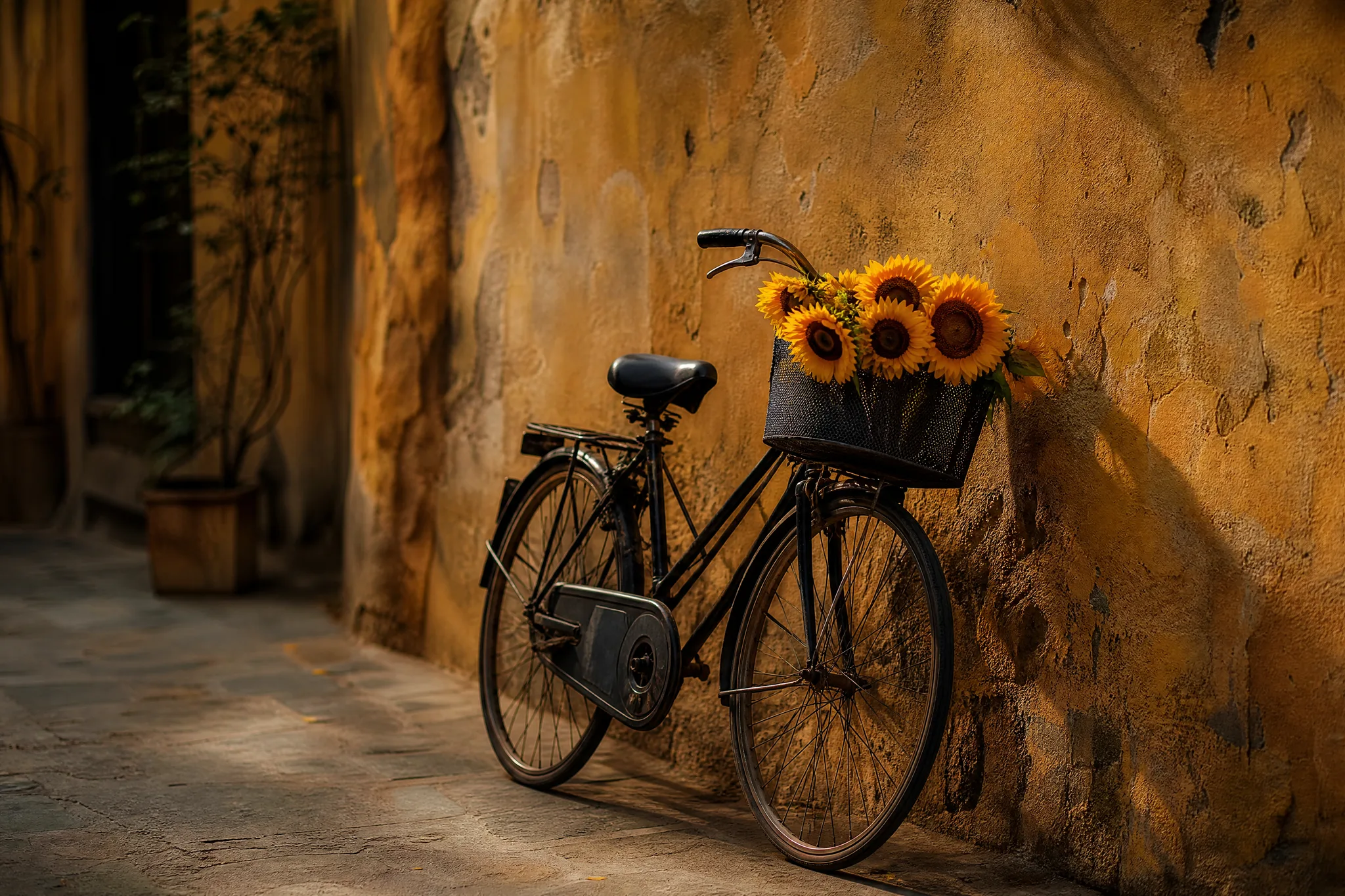
Black bicycle against an ochre wall with a basket full of sunflowers

Keep the subject central to the brief

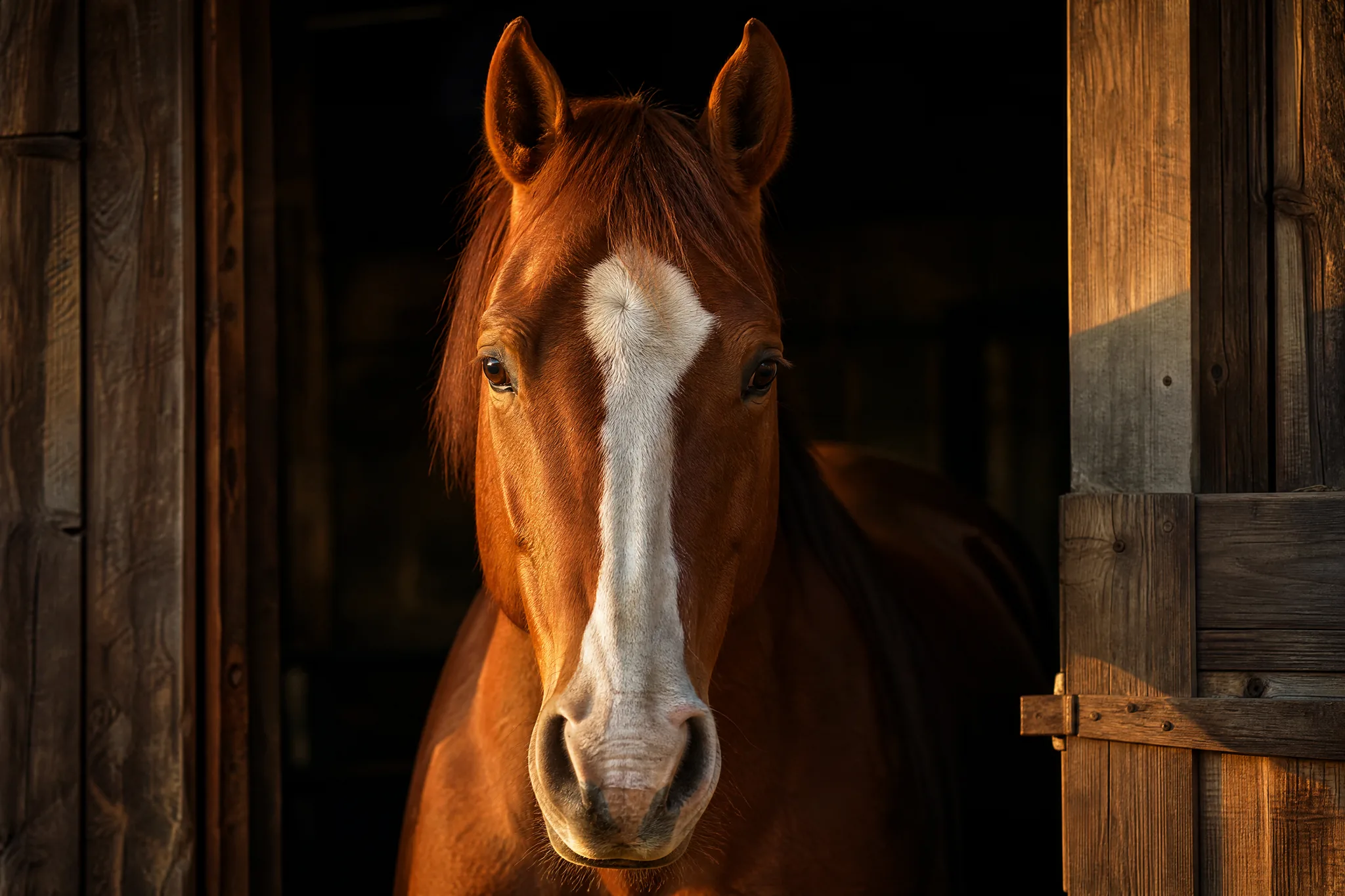
Keep the subject and its role at the center of the description, for example a chestnut horse looking out of a stable doorway. That gives FLUX.2 a clear focal point, and you can review the composition and key details before selecting a result for a design project.

Chestnut horse with a white blaze looking out from a stable doorway, centred in frame

Develop the lighting and color direction

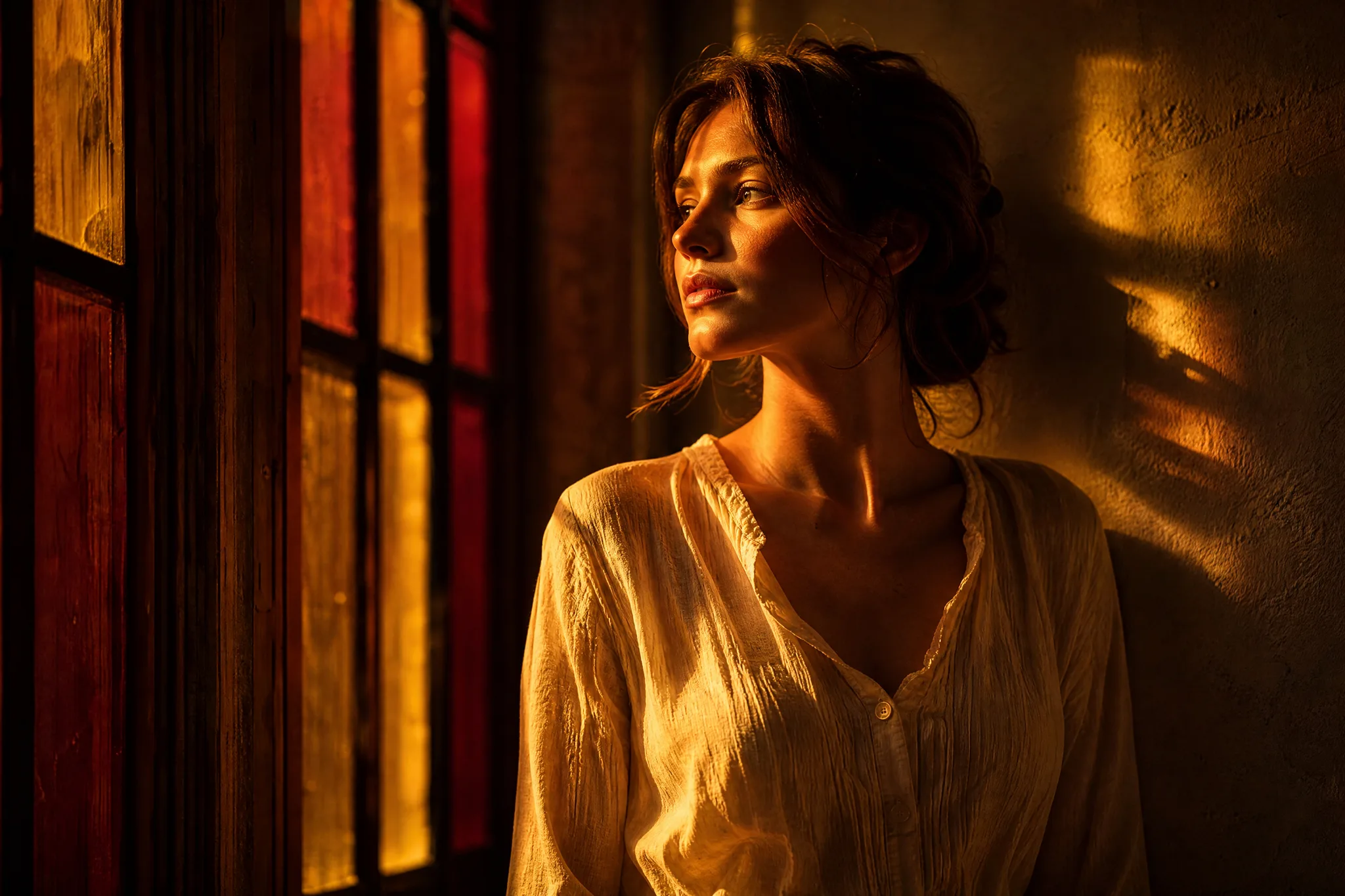
Lighting and palette can move the same idea into a different mood, from cool overcast blues to warm late-afternoon amber. Describe how the light falls on the subject in your FLUX.2 text to image prompt so the whole image follows one coherent, deliberate color direction.

Woman by a tall window bathed in amber and crimson evening light

Refine one prompt decision at a time

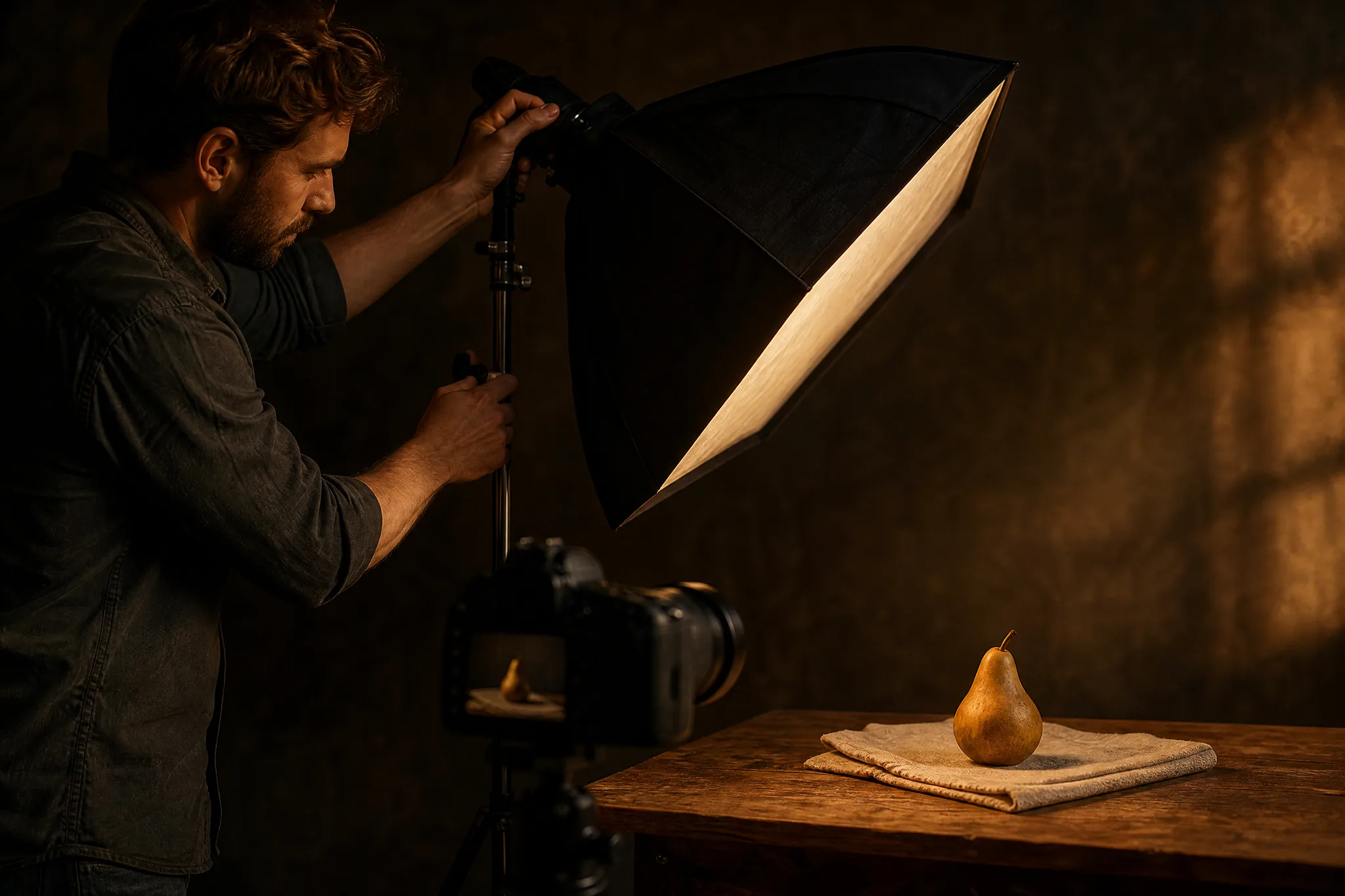
Compare takes by changing one important part of the brief at a time, such as the light, the lens or the background. Working this way with FLUX.2 makes it easier to see which creative choice moved the image closer to the result you want for the project.

Photographer adjusting a single softbox toward a pear on a linen still-life set

FLUX.2 Use Cases

FLUX.2 fits projects where one subject needs a new setting, light or style. Six roles below show what each would brief and how the reviewed take feeds the next step.

Product scenes that tell a story

Product teams can place a sneaker on wet asphalt under neon light, or rework an existing packshot in a new setting with FLUX.2. The chosen concept guides the real shoot or the next round of design.

Portraits with a clear visual mood

Portrait concept artists can test a subject in rim light, overcast daylight or a smoky club with FLUX.2. They compare expression and framing, check faces closely and keep the best take as a reference for the shoot.

Illustrations from a written idea

Illustrators can describe a scene from a story outline, like a lighthouse in a storm seen from a small boat, and let FLUX.2 propose a composition. The take guides palette and staging for the final drawing.

Campaign concepts before the final layout

Campaign art directors can generate a lifestyle and a graphic direction for one message with FLUX.2, keeping headline space in each. The winning version moves into the design file for final type and brand assets.

Storyboard moments for a visual narrative

Storyboard artists can create a key moment, like a door opening onto a sunlit courtyard, as a FLUX.2 frame. It gives the team a shared picture of composition and atmosphere before the shoot is planned.

Social visuals with a recognizable direction

Social designers can hold one subject and palette steady across a FLUX.2 series, changing only the crop per platform. Each image is reviewed on its own before captions are added and the posts are scheduled.

Creative Scenarios with FLUX.2 Image Creation

Scenarios for using FLUX.2 image creation in real projects, from the photos or ideas you start with to the take you keep.

I'd give FLUX.2 a product reference to explore a different presentation for our catalog. Describing the background and light would set a clear direction, and comparing the takes would help me pick a useful concept. I'd check the product's proportions and printed details before carrying it into the layout.

Product Designer
Creative workflow

FLUX.2 Frequently Asked Questions

These FLUX.2 answers explain what the model does, how references and prompts work, what access requires, which shapes are available and how to handle rights in campaigns.

FLUX.2 is a Black Forest Labs image model in the ImgVid image workspace that creates stills from a prompt or from reference images. Describe the subject, setting, light and style, choose the take that answers your brief and inspect its details before publication.

Yes — FLUX.2 accepts up to 8 reference images in image-to-image mode. Attach a clear reference and say what should change; starting from a text prompt also works.

Lead a FLUX.2 prompt with the subject, then describe setting, composition, lighting and style. A product scene needs a surface and background, a portrait needs framing and mood. Change one decision per take so you can see what each instruction does.

FLUX.2 requires eligible paid access when the paid-plan gate is enabled, and credits are used for each generation. The workspace shows the current estimate for your chosen variant and settings before you start.

FLUX.2 lets you pick from these aspect ratios: 1:1, 4:3, 3:4, 16:9, 9:16, 3:2, 2:3. Resolution can be 1K, 2K, though some combinations may be restricted. Compose for your intended crop instead of resizing at the end.

FLUX.2 images can be used in campaign concepts when your inputs are cleared and the output is reviewed. Supply only images you hold rights to, check trademarks, likenesses, facts and suitability, and finish crop, type and brand assets in your editor. Generation grants no third-party permissions.

FLUX.2 images are not published automatically, and references you attach stay unpublished. Free accounts and visitors keep Public Visibility on, so a finished FLUX.2 still may be selected for Explore after review; with a subscription or one-time pack, generations start private and product shots stay internal.

Bring Your Next Image Idea to Life with FLUX.2

Describe one subject and the change you want, attach a reference if you have one, and let FLUX.2 create a focused still you can compare and refine. Open the workspace to start your next take.

Create with FLUX.2
Two friends clinking glasses on a balcony above terracotta rooftops at sunset