
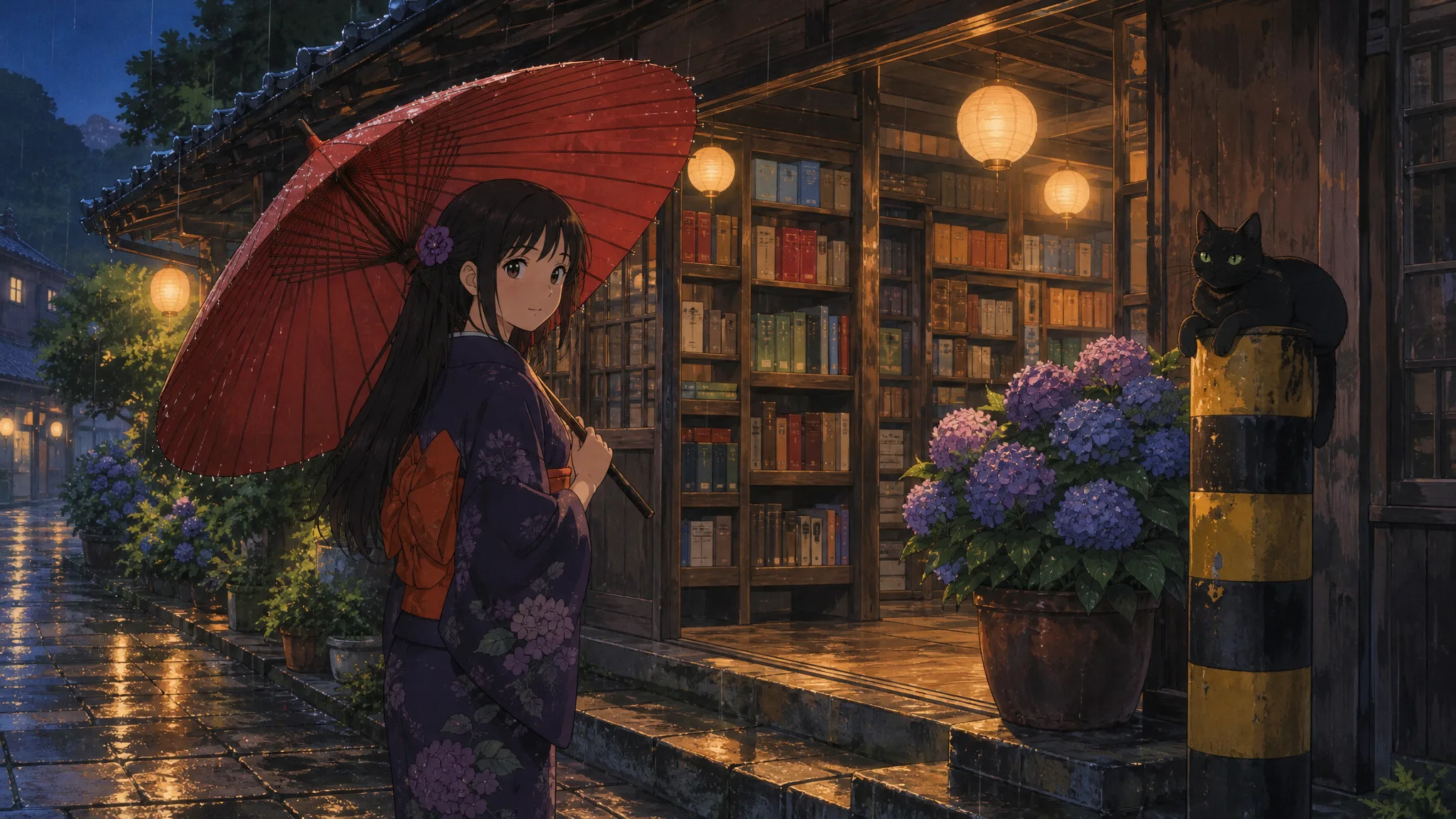
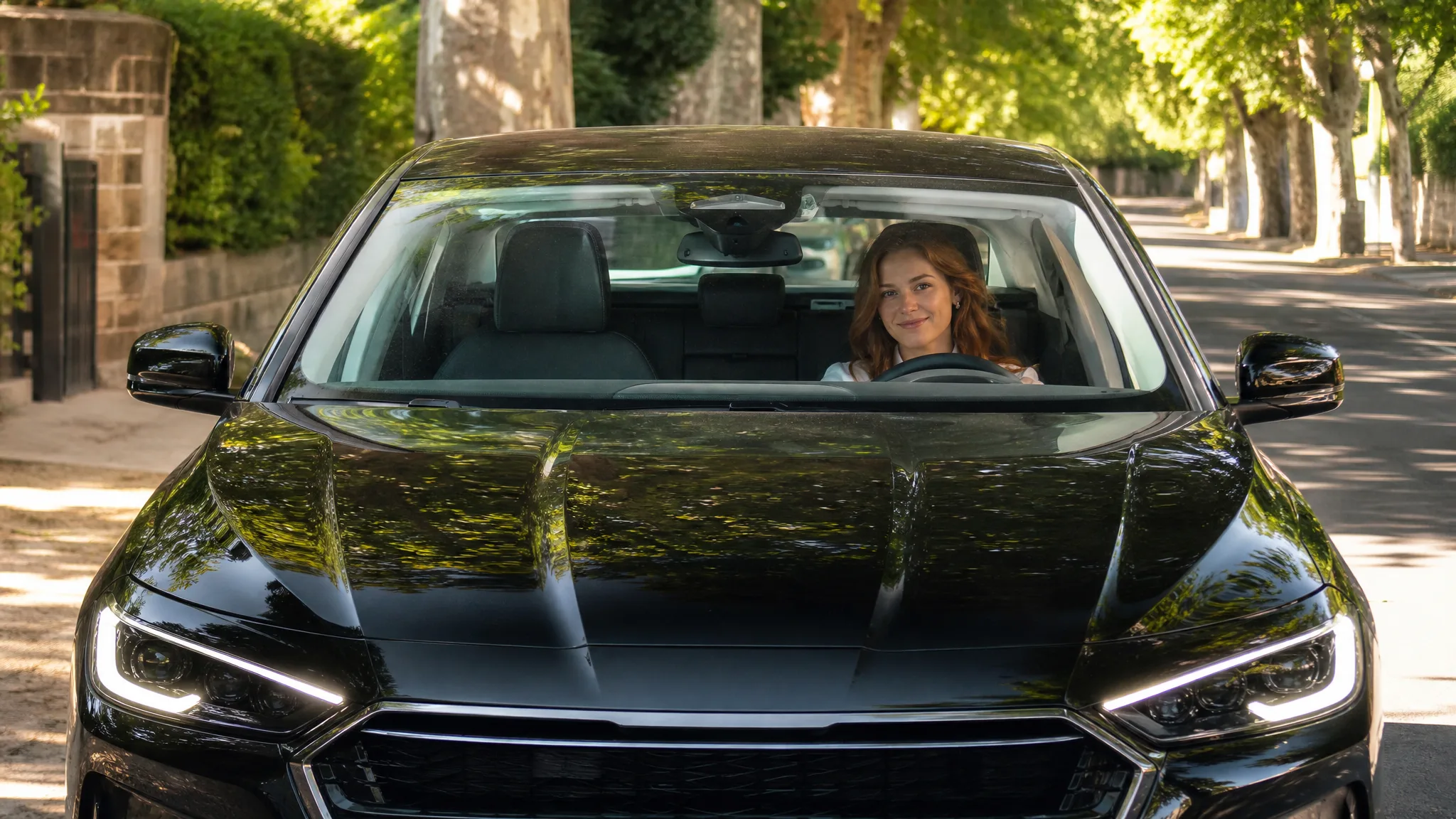
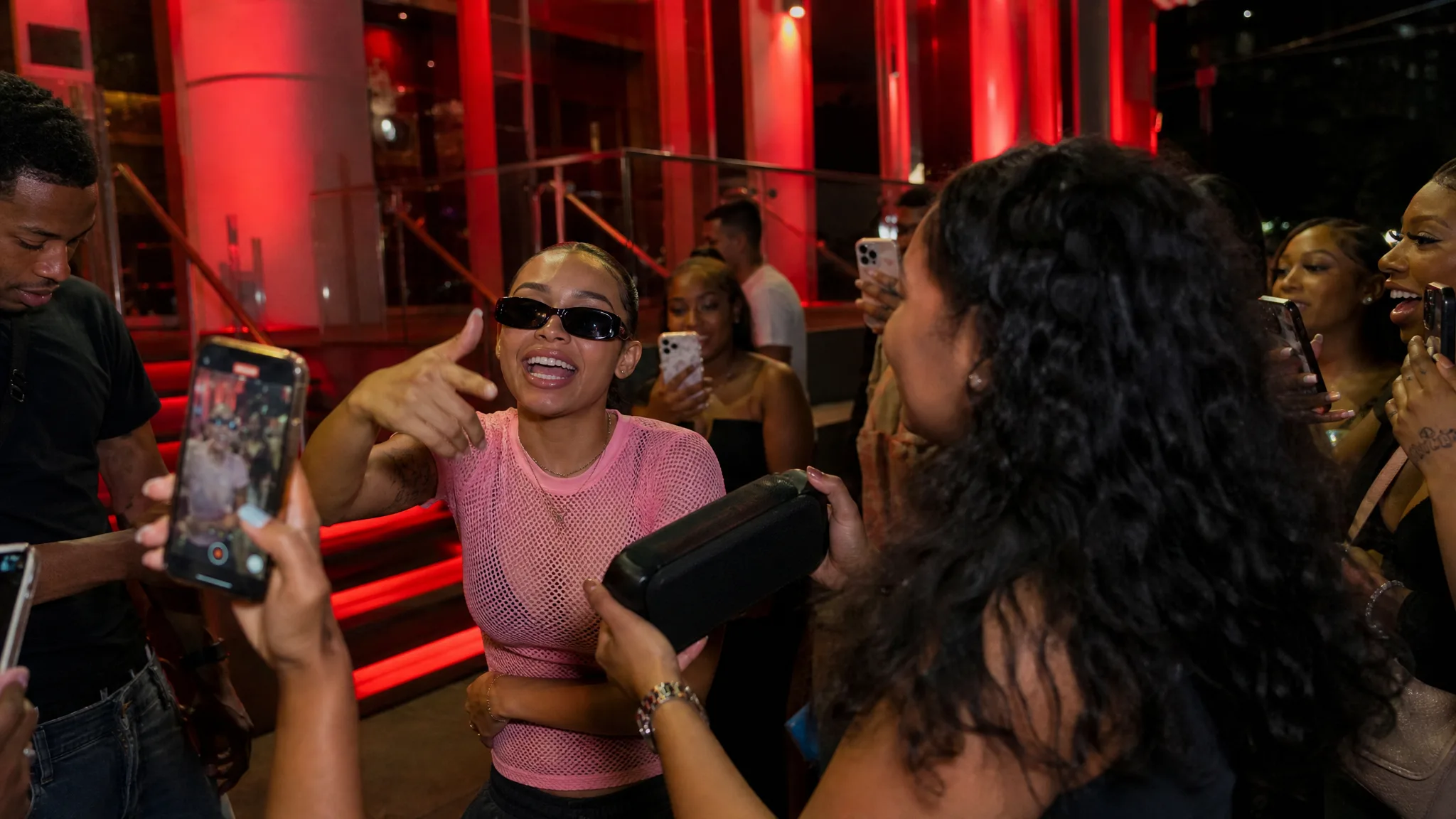
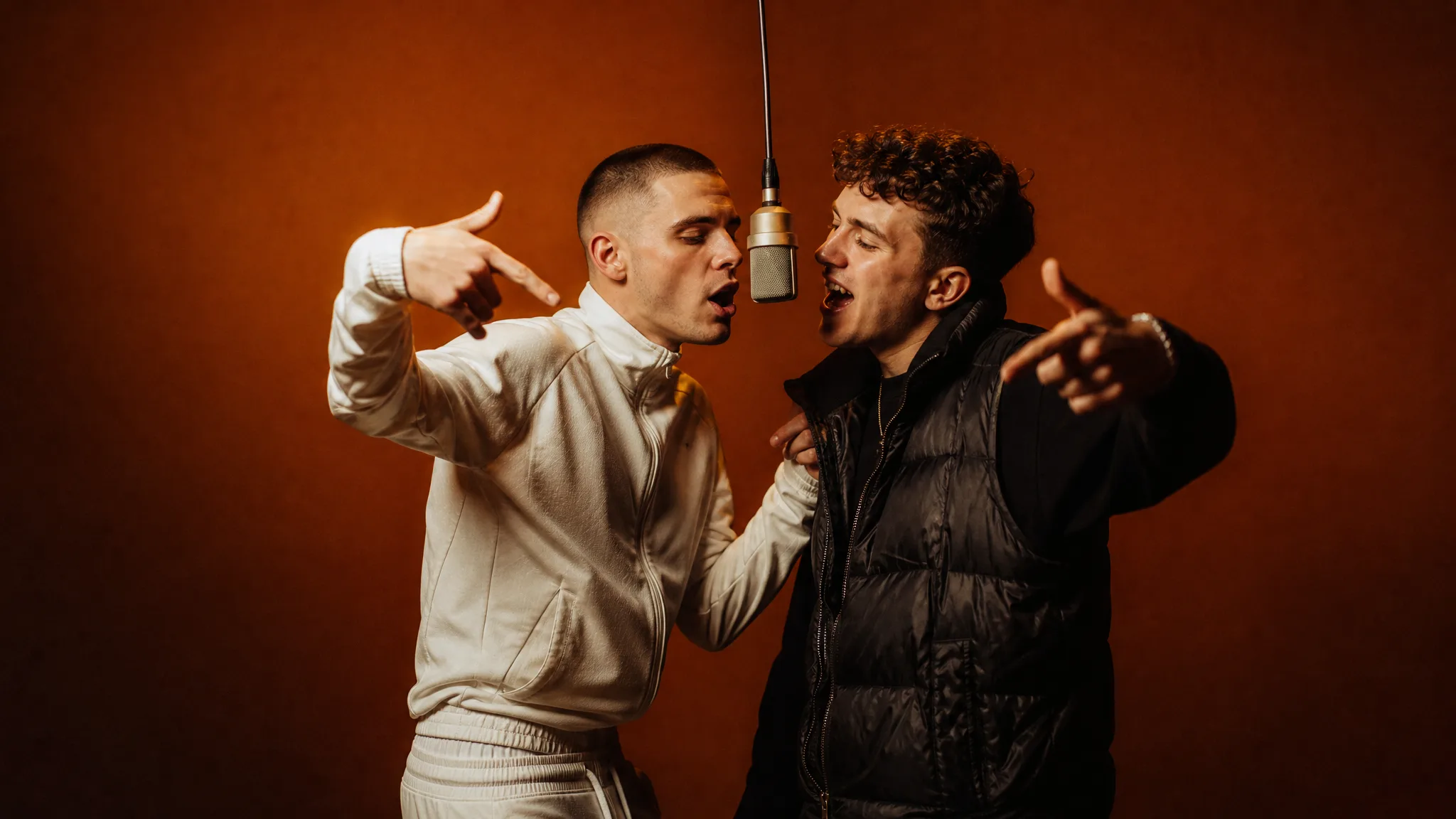







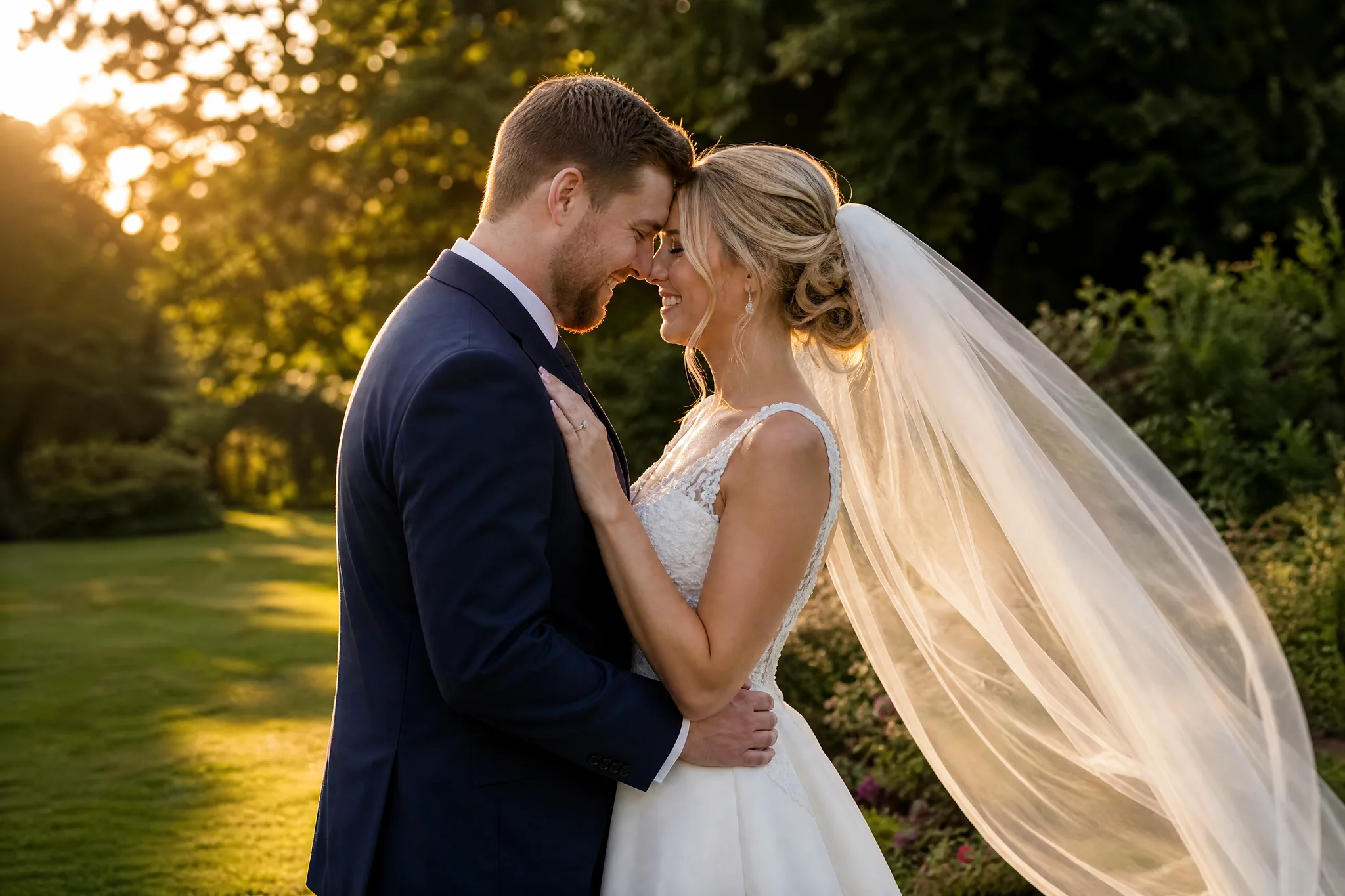
Reference to Video AI: Guide the Subject and Style

Guide your next scene with the images that define it

Upload a character, product or style image, describe the action and camera view, and explore a reference to video clip built around that image for a storyboard, product edit or creative project.

Woman with a black bob, red coat and mustard scarf at a lantern-lit winter market turning toward the camera with a warm smile
Visual reference ideas
Character and product scenes
Creative shot direction
Clip downloads
Reference-led storyboard exploration
Reference to Video
Reference images
Prompt
0/4000
Duration
Resolution
Aspect ratio
Translate prompt
Number of outputs
Public Visibility
Required credits
30
Sample videos

Create a Story Around Your Reference Images

Keep a character, product or visual style at the centre of your idea. Reference to video uses your images to guide a new scene, so you can explore different actions and settings around a recognisable subject.

Try Reference to Video
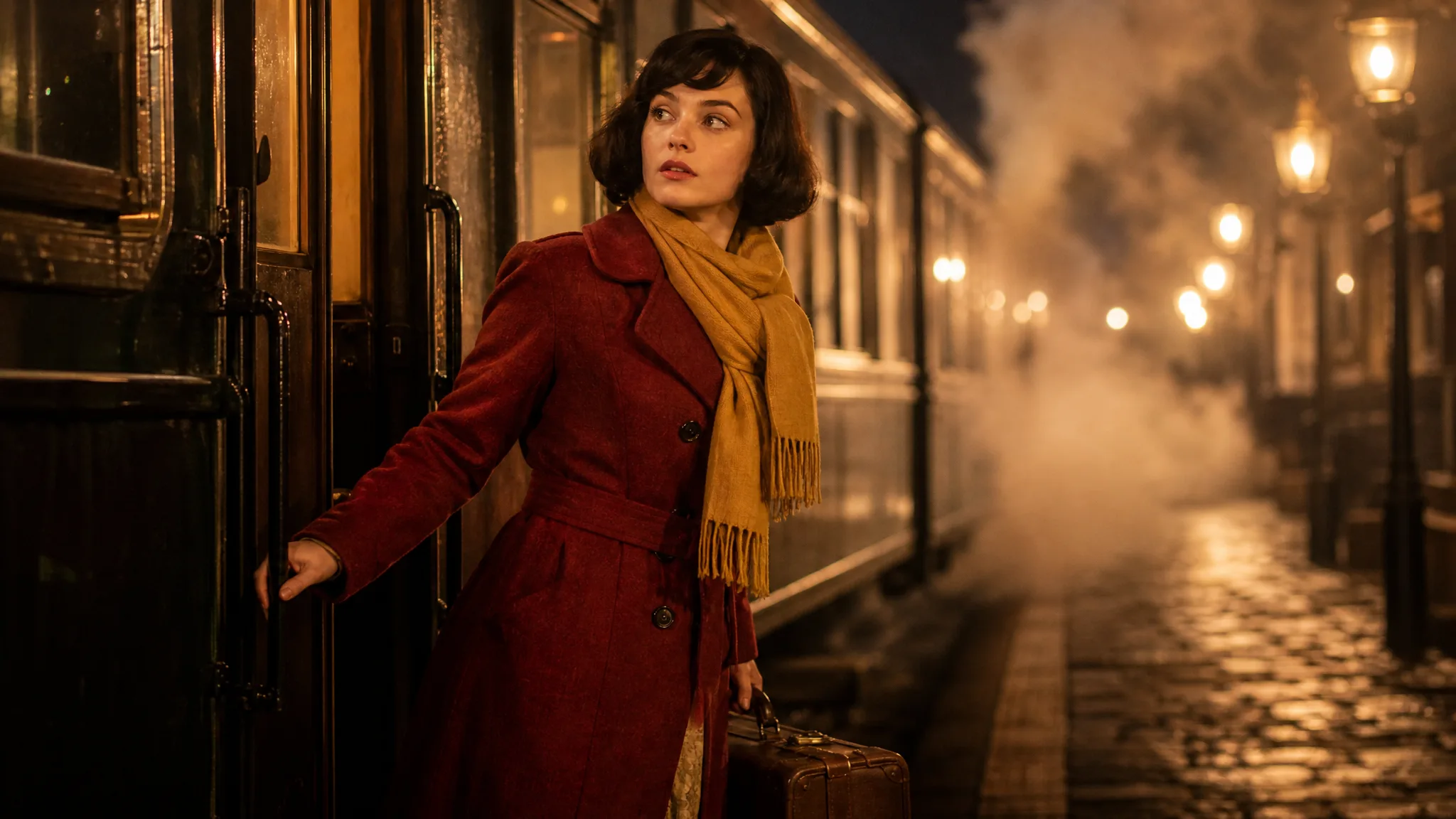
Woman with a black bob, red wool coat and mustard scarf holding a suitcase beside a train on a lantern-lit platform at night

How to Guide a Video with a Reference Image

Reference to video works in four steps: choose the visual references, describe the new scene, generate the clip and select a take for your story.

1

Choose the references that explain the idea

Upload a clear character, product or style image using the slots available for the selected model; reference to video input limits differ by model. Choose references that agree on the appearance you want the scene to develop, since a front-facing portrait and a stylized drawing of the same person can pull the result in two directions.

2

Describe the subject in a new scene

Give the character or object a place, one action and a camera view. In reference to video, the image explains the starting appearance and the prompt explains how the new scene should unfold, so describe the setting and movement rather than repeating what the reference already shows.

3

Create the motion concept

When your references and scene direction are ready, generate the clip. The job status shows when the reference to video preview is ready to review, and the generated scene can place your subject somewhere the reference photo never showed.

4

Keep a take for the project

Watch the completed preview and compare faces, objects and visual details with the references, because a reference guides appearance but does not lock every detail. Download the take that suits the story, or revise the scene direction and try another attempt with the same references.

Build a New Scene Around a Visual Reference

Give each image a clear role in reference to video: the subject, the object or the visual direction you want to develop.

Reference to video for a new character moment

Use a readable character image to establish the appearance, then describe the setting and action. Reference to video AI lets you explore a scene around that subject rather than describing every visible detail from scratch, and a front-facing reference with visible clothing gives the model clearer information about who should appear.
Set a visual direction for the scene

A style image can give the new shot a palette, texture or atmosphere to aim for. Describe the parts of the look that matter, such as brushwork or lighting, and keep the subject described in words so reference to video can tell which image sets the style and which sets the content. Choose a take that fits the project’s visual direction.

Develop a shot around the product

Choose a clear product reference and describe the camera view or action that introduces it. Review labels, shape and identifying details before selecting a scene for the wider product edit, because small printed text and logos are the details that need the closest review in a generated clip.

Reference to video chaining ideas

Reuse suitable references and recurring prompt details when developing another shot. Reference to video chaining is a manual way to explore related scenes; ImgVid does not stitch them automatically, so review face, outfit and style continuity across takes and assemble the chosen clips separately in your own editor.

Reference Image AI Video Ideas for Creative Projects

Use reference to video to develop a character scene, product shot or illustrated story from a visual starting point.

Character story scenes

Writers and animators can use a clear character reference and describe one story action in a new setting. Reference to video places that character in the scene, and reviewing the face and outfit before choosing a take keeps the sequence consistent for the next shot.

Product creative shots

Product marketers can introduce an item with a reference and a camera or atmosphere idea. Check the identifying details, such as labels and proportions, before using the reference to video clip in a product presentation or launch edit.

Style-led visual concepts

Art directors can use a visual reference to develop a palette and texture for a scene. Comparing several reference to video takes side by side gives a creative-direction discussion something concrete to react to before a larger production begins.

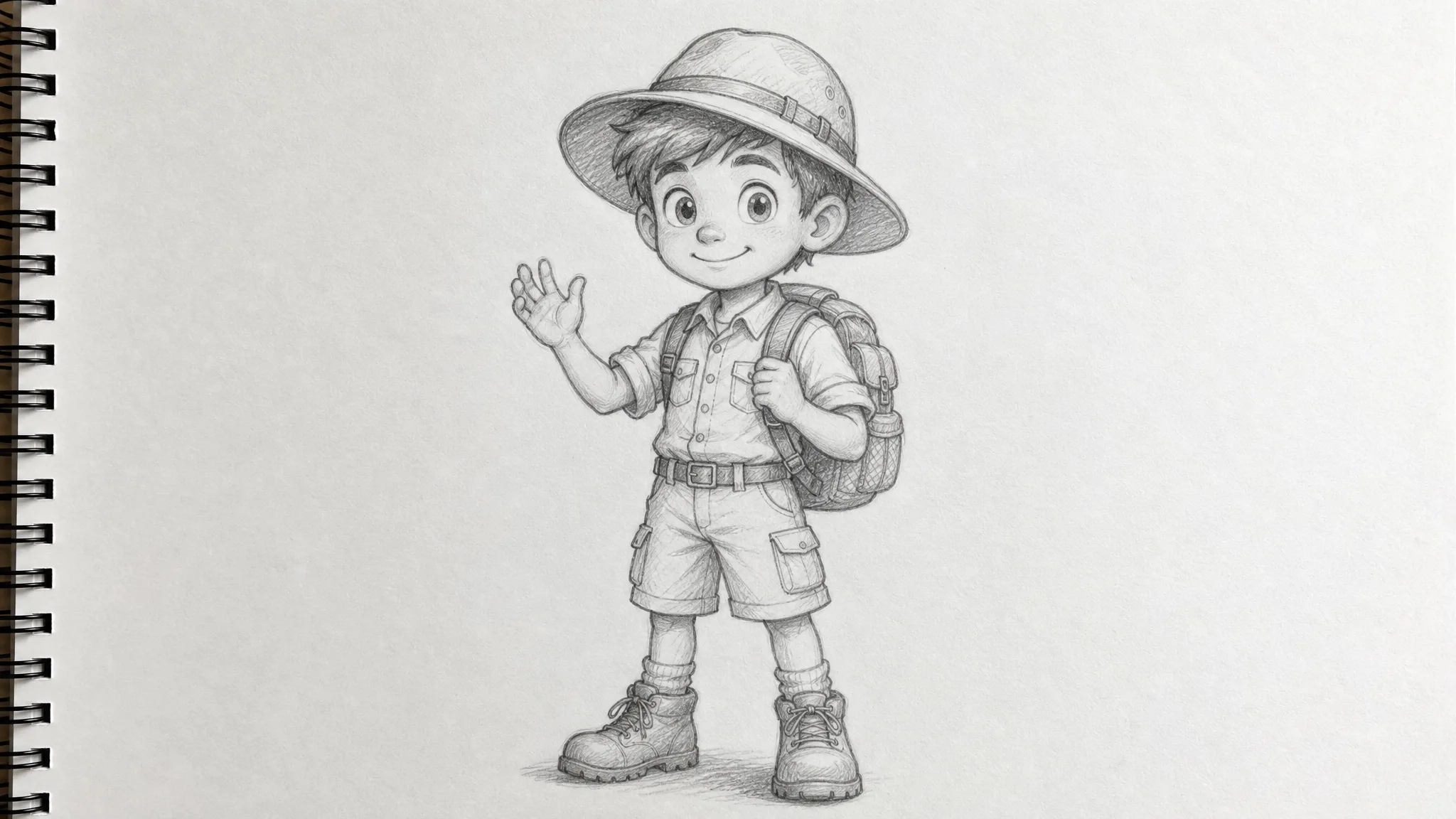
Mascot storytelling

Brand and community teams can give a mascot reference a place and a simple gesture. Use the chosen scene in a message or story, checking the colors, proportions and distinctive marks through the whole motion, since a mascot that changes shape can confuse your audience.

Explanation and demo concepts

Teachers and explainer-video makers can start reference to video from an object reference and develop a scene around one visible action. Review whether the movement supports the explanation before adding the final labels or narration in your editor.

Music-project visuals

Musicians and visual artists can develop atmosphere shots around a visual reference for an existing release. Place lyric text and exact timing in the final edit, pairing the shots with a recording you have permission to use.

Creative Scenarios with Reference to Video

Projects where reference to video could keep a subject recognisable, from an original character at a lantern-lit station to a mascot greeting shoppers.

I’d upload a clear reference of my original character and use reference to video to show them arriving at a lantern-lit station. After inspecting the face and outfit, I’d bring the selected take to our storyboard discussion to explain the proposed story beat.

Story Artist
Creative workflow

Reference to Video Questions

Find answers about using reference images in reference to video, continuing a scene and guiding a character’s next moment, including how references and end frames serve different parts of a video idea.

Reference to video is a generation mode that uses uploaded images and a prompt to guide a new clip’s subject, objects or style. Reference input limits, aspect ratios and other settings depend on the selected model, and a reference does not lock every detail. Veo 3.1 Lite is the default model here and makes 4, 6 or 8-second clips.

Reference to video chaining means manually reusing reference images and prompt details in another generation. ImgVid does not automatically stitch those clips into a multi-shot story, so compare identity and style across every take.

In reference to video, references guide appearance; start and end frames guide the opening and ending of a clip. Neither guarantees the exact motion path between the endpoints.

A character will not necessarily stay identical across reference to video clips: references help guide it, but faces, clothing and other details can drift. Use clear references, focused prompts and consistent settings, then inspect every result.

Use clear views of the subject or the style you want. Avoid conflicting references. Check the selected model’s upload slots, accepted formats and limits before adding images. Framing options follow the chosen model and mode, and auto-framing modes take their proportions from the uploaded image.

Reference to video clips can support commercial projects when you have permission to use every character, product and artwork reference you upload. Review each take for likenesses, trademarks and product details; generation does not grant third-party permissions.

Your reference images are not published, and clips are not published automatically. With a subscription or a one-time pack, Public Visibility starts off and your clips stay private; free accounts keep it on, so a successful clip can be shown publicly after review. References are processed by the selected model provider, so review the Privacy Policy before uploading sensitive images.

Reference to video is free to try within limits: after you sign in, you can use free credits on eligible free-tier models and settings when the credits cover the displayed quote. Models and settings that require paid access open upgrade options before generation; free-tier results include an ImgVid watermark.

Build Your Next Scene Around a Reference

A character, product or setting can give your scene its starting point. Upload your reference, describe the action and let reference to video develop a shot that fits the story you want to tell. Compare the take with your reference before you download it.

Create a Reference-Led Video
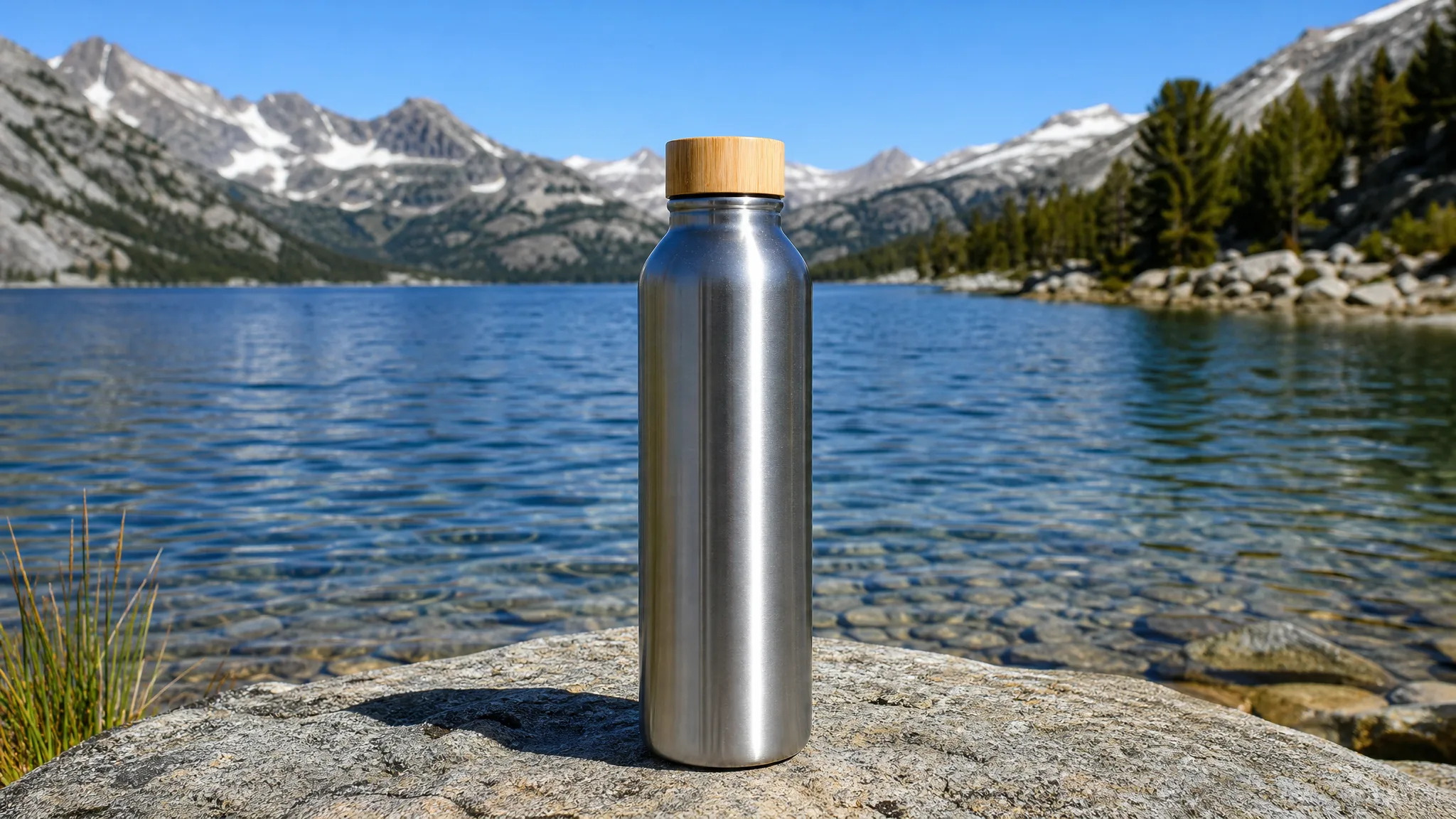
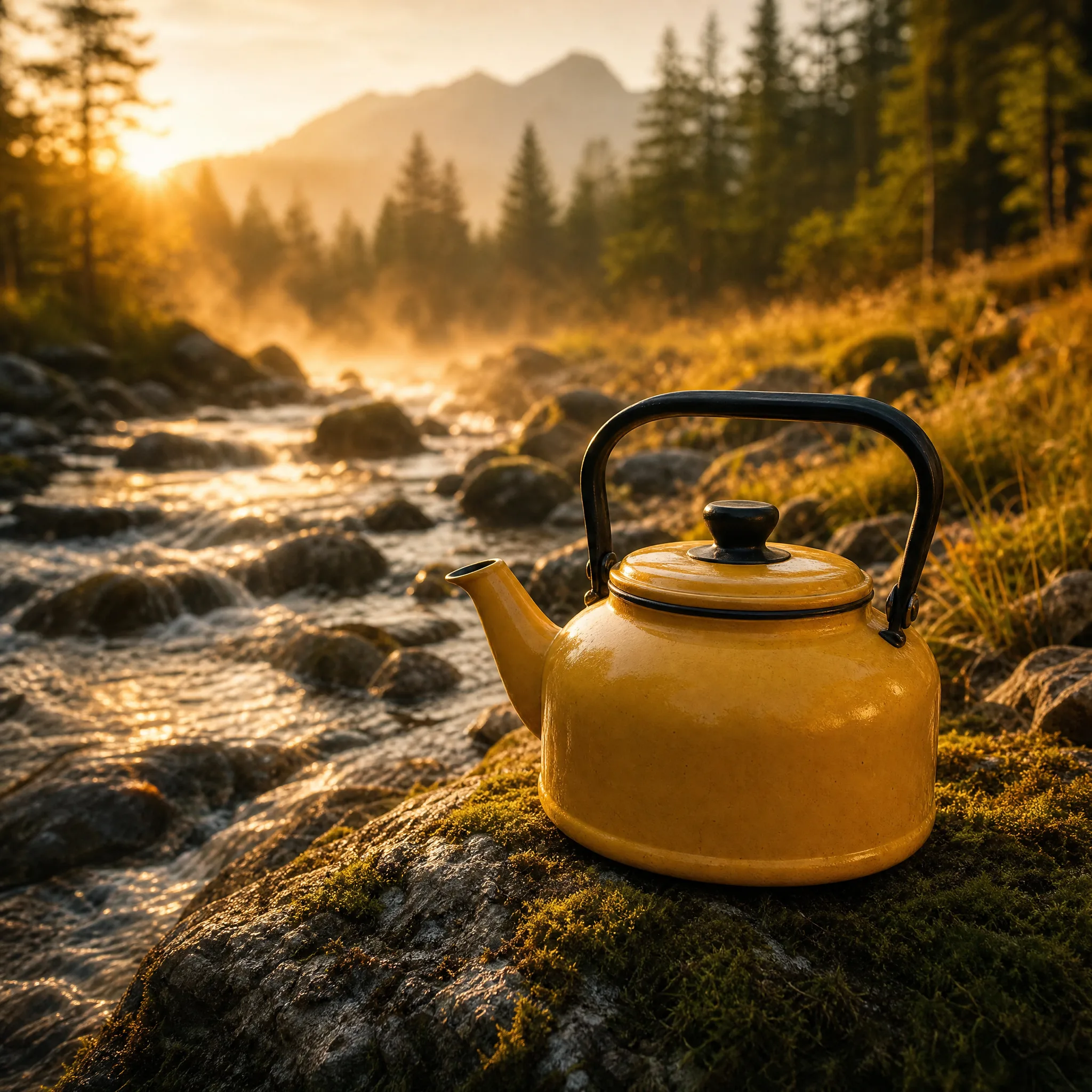
Yellow enamel kettle on a mossy bank beside a sunlit mountain creek