






Text to Video
Prompt
0/4000
Duration
Resolution
Aspect ratio
Translate prompt
Number of outputs
Public Visibility
Required credits
30
Sample videos

Text to Video AI: Turn a Written Scene into a Short Clip

Describe a scene and explore its next moving moment

Put the scene in your head into words, then see it move. Text to video creates a short clip from your description of a subject, an action and a camera move. Explore story ideas, product concepts and social visuals without starting from a photograph.

Create a Video from Text
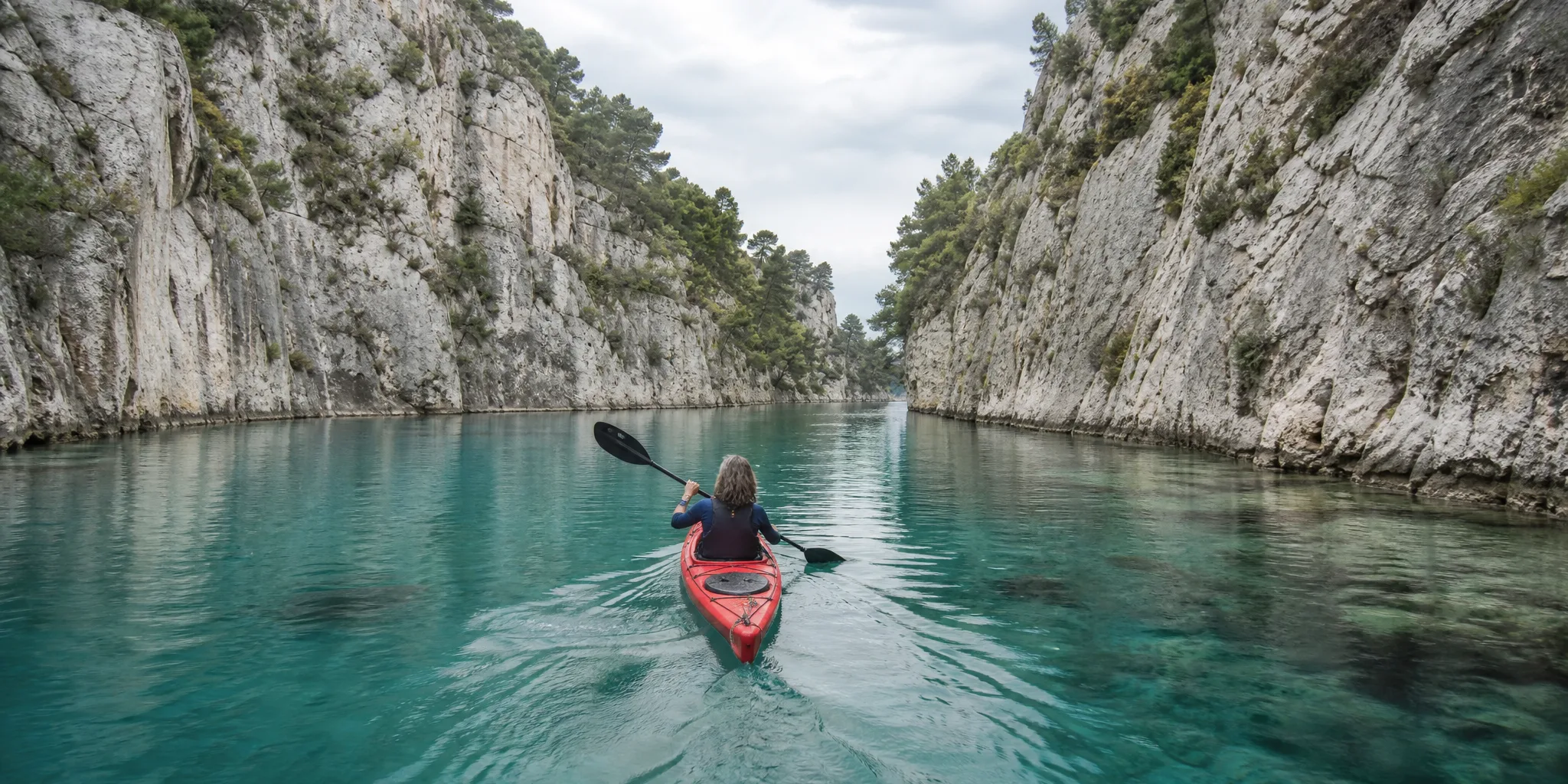
Kayaker in a red kayak paddling through a narrow turquoise gorge between pale limestone cliffs on an overcast day
Written scene ideas|No source photo required|Creative shot concepts|Clip downloads

Explore Different Text to Video Directions

A portrait scene, a product reveal and a cinematic setting call for different creative directions. Compare ways to bring your text to video idea into view, starting with the subject and the mood you want.

Story-led visual moments

Describe one scene with a visible change and purposeful camera direction, such as snow drifting past a glowing greenhouse while the camera rises over the pines. Explore a Seedance text to video take for a storyboard moment, creative opening or product reveal, and judge whether the movement stays focused on the action you wrote.

How Text to Video Works

Text to video starts with a written scene: describe it, choose the shot format that fits your idea, then preview and download completed clips.

1

Describe the scene you can picture

Name the subject, setting and one visible action in plain language, then add the camera view and lighting when they explain the shot. Text to video begins with your description rather than a source photograph: for example, describe a glass bottle on a weathered table as morning light crosses the label and the camera slowly approaches.

2

Choose the shot settings

Select a compatible text to video model and the available output settings for the project. Vertical, square and widescreen output are available depending on the selected model and mode, so choose the shot format that fits where the clip will appear.

3

Generate the clip

Generate the text to video clip when your prompt and settings are ready, then follow the job status until the preview is ready to watch. If the motion or framing misses, change one detail in the prompt or one setting and run another take.

4

Review and keep a take

Watch the completed text to video preview and decide whether its action, composition and pacing communicate the idea; with Veo 3.1 Lite, listen to the generated sound as well. Download a take for your storyboard, presentation or social edit, then add final titles and replacement sound in your editor.

Give Your Written Scene Movement and Atmosphere

Give your written scene a subject, an action and a sense of place. Text to video can help you explore a campaign opening, a character moment or a cinematic idea before the final edit.

Create the scene you have not photographed

Describe an imagined place, character or product concept when there is no source image. The text to video generator develops new frames from the scene direction, giving you a moving idea to explore, so the description carries everything a photo would normally show: who is there, what they wear and where they stand.

Let the action explain the shot

A character entering a room or a camera approaching an object gives the viewer something clear to follow. Describe the movement that belongs to the scene instead of a list of unrelated effects; a single readable action is easier to review in a text to video take than several competing ones in a short clip.

Choose an atmosphere for the story

Light, weather and a camera view can make the same setting feel calm, mysterious or celebratory. Audio-capable models can also generate sound from the direction; available controls depend on the model, so describe ambient sound only when the selected model shows that it generates audio.

Start the Video with the Idea You Have

Text to video gives the scene its purpose before you generate: a subject, an action and a useful camera view.

Begin with a scene in words

A subject, place and visible action provide the starting brief. Text to video lets you develop an idea before arranging a shoot or choosing a source photograph, which helps when the location does not exist yet or the product is still a concept sketch.

Text to Video Ideas for Stories and Creative Projects

Use text to video to develop a moving visual for a pitch, a lesson or a story before you have footage.

Photo-free social concepts

Social creators can describe a scene for a post when they have an idea but no photograph. Text to video produces a short take to pair with the final caption, sound and edit, and vertical framing is available on the models and modes that support it.

Concept and pitch visuals

Agencies and freelancers can develop a moving scene that explains a proposed setting, product or story. Present the text to video draft to discuss the direction with a client or collaborator, labeling it as a concept so nobody mistakes it for final footage.

Product creative directions

Product designers can explore different viewpoints or moods around a described product concept. Keep the chosen scene as a visual reference for the creative discussion, and check proportions, materials and any visible text, since a generated object is an interpretation of your description.

Lesson and explanation visuals

Teachers can describe one visible action that supports the topic of a lesson, such as a leaf falling through autumn light. Review whether the text to video scene communicates the concept, then add the final explanation, labels and narration around it in your slides or editor.

Website atmosphere shots

Web designers can create a scene whose subject and mood fit a landing page or header. Finish loop timing, cropping and delivery requirements separately when preparing the website asset, and check how the clip reads behind headline text at different screen sizes.

Storyboard previews

Filmmakers and storyboard artists can turn a written shot description into a moving draft with text to video. Use separate takes to discuss the action and pacing before planning the complete sequence, then schedule the real shoot with a clearer idea of each camera move.

Creative Scenarios with Text to Video

How a creator, a teacher or a storyboard artist might use text to video before any footage exists, starting from a paper boat, a seedling or a foggy bridge.

I have no source photo for this idea, so I'd use text to video to describe a paper boat drifting through a puddle under warm streetlights. After choosing a compatible model, I'd keep a take with a clear action to open a short post and add the caption while editing.

Social Content Creator
Creative workflow

Text to Video Questions

Learn how text to video turns a written idea into a clip, how to build a useful prompt and how to plan the scene you want to create, from getting started to a selected take.

Text to video AI is a generation workflow that creates a new clip from a written scene description, without a source image. It generates new footage rather than assembling stock clips or converting a document into a slideshow; an AI video generator from text describes the same task.

A text to video prompt should describe the subject, setting, main action and camera move. Keep a first attempt focused on one scene, then compare the take with your description and change one detail in the next prompt.

Free text to video AI on ImgVid is available within limits, not unlimited: after you sign in, you can use free credits on eligible free-tier models and settings when those credits cover the displayed quote. Other models and settings require a paid plan or credit pack. Free generations include an ImgVid watermark; eligible paid generations export without it.

Generation requires sign-in and sufficient credits. Eligible free credits can cover supported requests, but they do not provide unlimited generation or access to every model.

Compare the compatible text to video models in the picker by duration, resolution, sound and available controls. There is no single best model for every scene or budget.

Some text to video models generate sound and others do not; Veo 3.1 Lite, the default model on this page, makes 4, 6 or 8-second clips and always generates sound. The audio control or status shows what the selected model supports, and generated sound is not a guarantee of exact dialogue or lip synchronization.

Yes — vertical text to video output is available when the selected model supports a 9:16 aspect ratio. Review its available framing and output controls before generating; controls are not identical across models.

The workspace calculates the required credits for the model and settings you choose, including supported duration, resolution and audio options. Review that total before starting.

Text to video processing time depends on the model, queue, inputs and output settings. Follow the job status in the workspace. No fixed completion time is guaranteed.

Text to video clips can support commercial projects after you review each take for likenesses, trademarks, legible text and factual details. Generation does not grant third-party permissions, so finish exact branding and titles separately.

Text to video clips are not published automatically. Free accounts and visitors keep Public Visibility on, so a successful text to video clip may be selected for Explore after review; a subscription or one-time pack starts generations private. Prompts are processed by the selected model provider, so review the Privacy Policy before including sensitive details.

Turn Your Scene Idea into a Video

Describe the subject, action and camera view you can picture. Text to video turns that description into a short shot for a storyboard, social concept or creative presentation, ready to preview and download. Write your first scene to begin.

Start Text to Video
Folded paper boat floating along a rain-soaked street gutter at golden hour