AI Image Tools
Prompt
0/5000
Aspect ratio
Image size
Number of generations
Public Visibility
Required credits
7
Examples
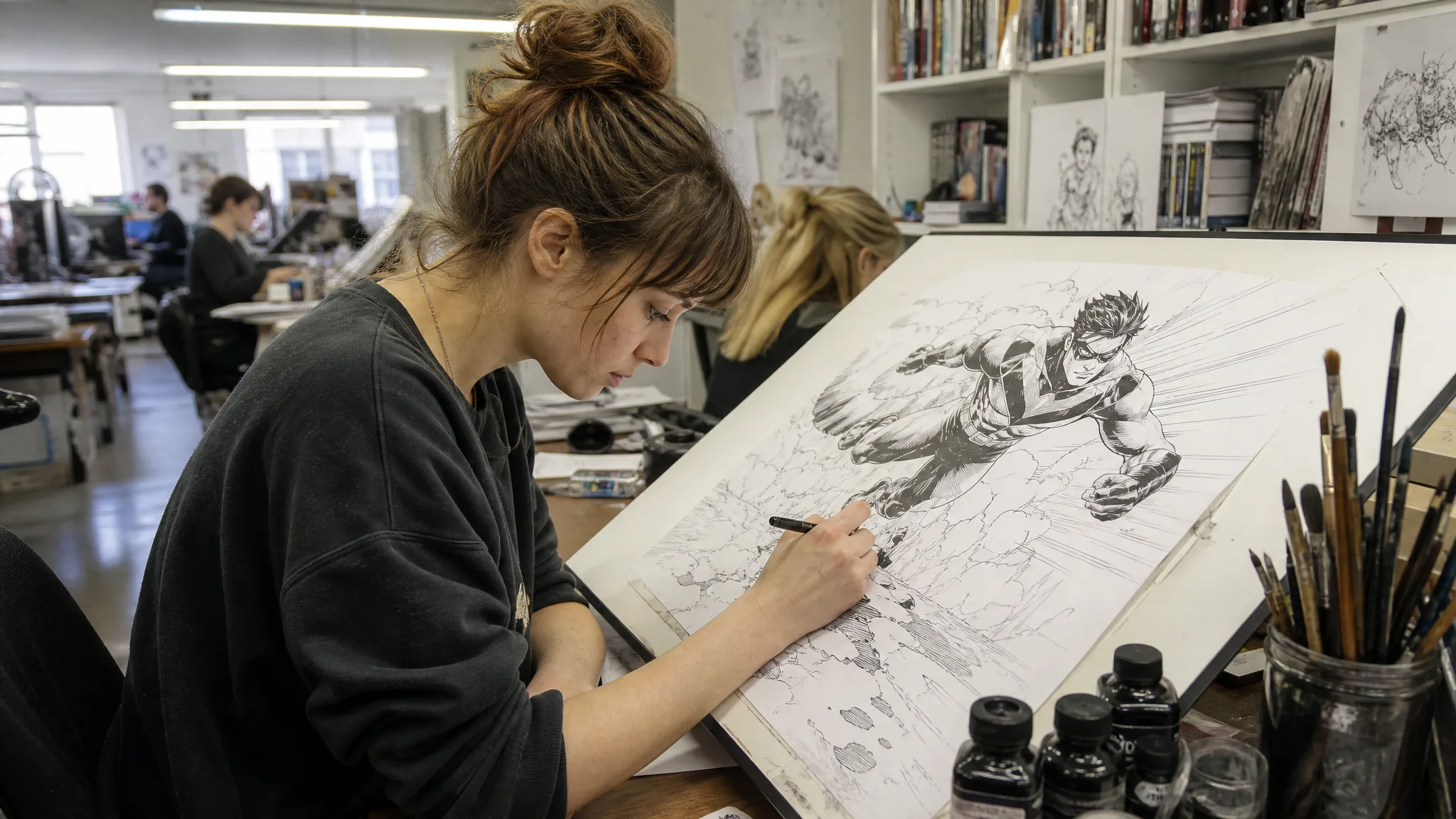
Comic artist inking a drawing of a running hero on a tilted drafting table in a busy studio under fluorescent light

Featured AI Image Models

Nano Banana ProHOTGoogle image creation and editing with configurable output settings.Seedream 5.0 ProByteDance image creation and editing with multimodal reference inputs.

AI Image Tools for Product Shots, Portraits and Concept Art

Give a written idea a visual form, or build a new look around a photo you already have. Create a character, explore a product setting or restyle a portrait, then keep the images that help your project take shape.

Start generating

AI Image Tools for Ideas, Photos and Creative Projects

Use ImgVid AI image tools to build a picture from a written idea or develop a new direction from an image you already have.

Turn a written idea into a scene

Describe a character, place or product concept and give it a setting, light and visual style. Text to Image, one of the ImgVid AI image tools, develops a picture you can compare with the scene in your imagination.

Explore a different visual style
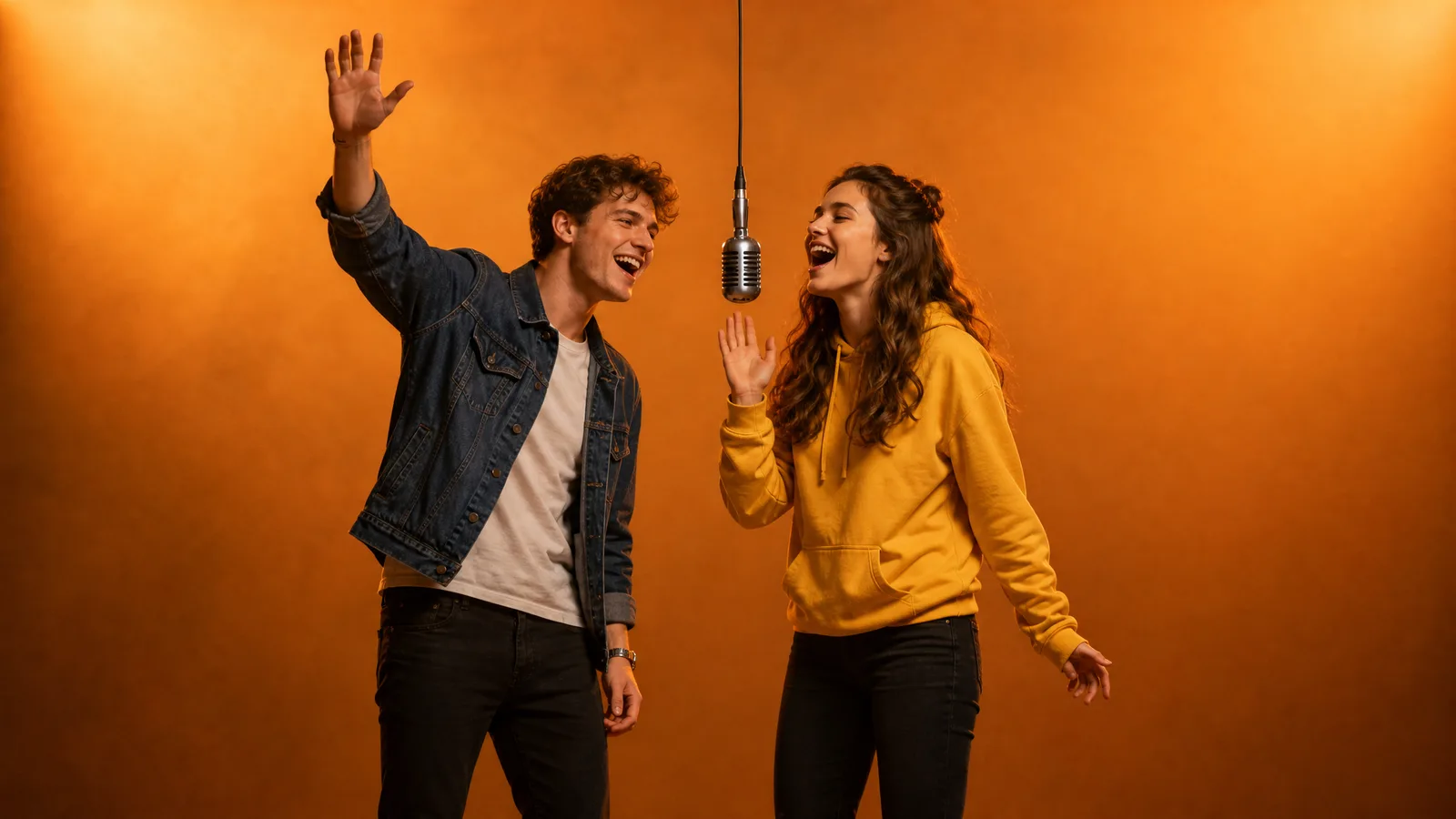
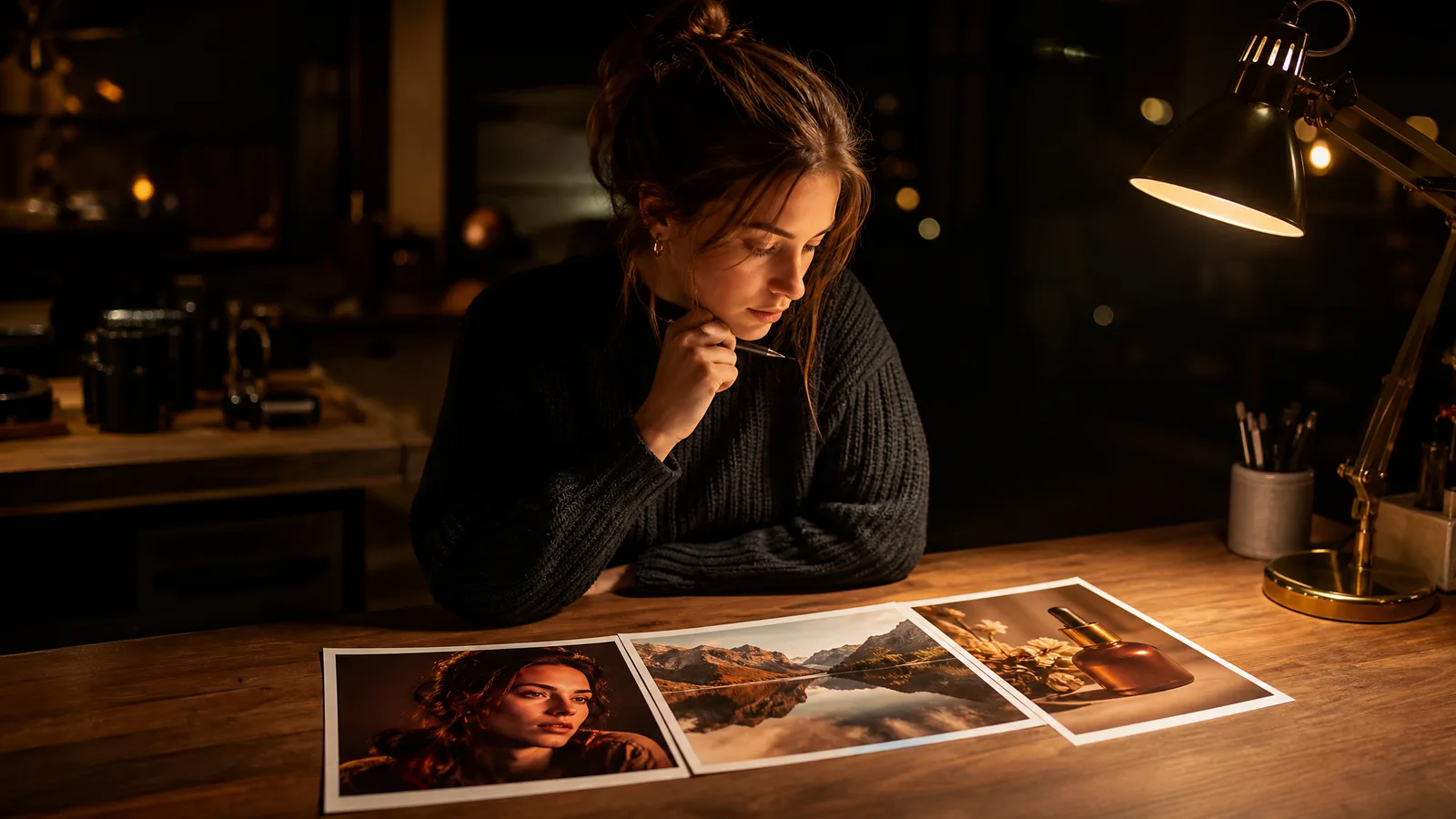
A photographic portrait, an ink illustration and a painterly scene communicate different moods. Describe the look that suits your project, and the AI image tools explore a new interpretation of your subject in that style.

Give an existing photo a new direction

Start with a portrait or product photograph and explain what should change. With Image to Image, the AI image tools explore a different background, atmosphere or finish while using the source as a visual reference. Review the important details in the new image.

Carry a finished picture into motion

A picture made with the AI image tools can become the starting point of a short video. Open an image-to-video tool, choose the picture from your assets and describe the next action or camera movement for the story.

Develop visuals for a real project

Create concepts for a presentation, campaign, portfolio or personal story. Choose the image that communicates the idea and check its details, input rights and applicable terms before using it in a finished project.

Keep the creative process in one workspace

Begin with words or photographs, preview the completed images and keep the direction you want to develop. Your Asset Library gives the next stage of the project a place to start when you return.

Why Create with ImgVid AI Image Tools?

Explore the look, composition and atmosphere that make the picture belong to your project, using ImgVid AI image tools from the first prompt to the final download.
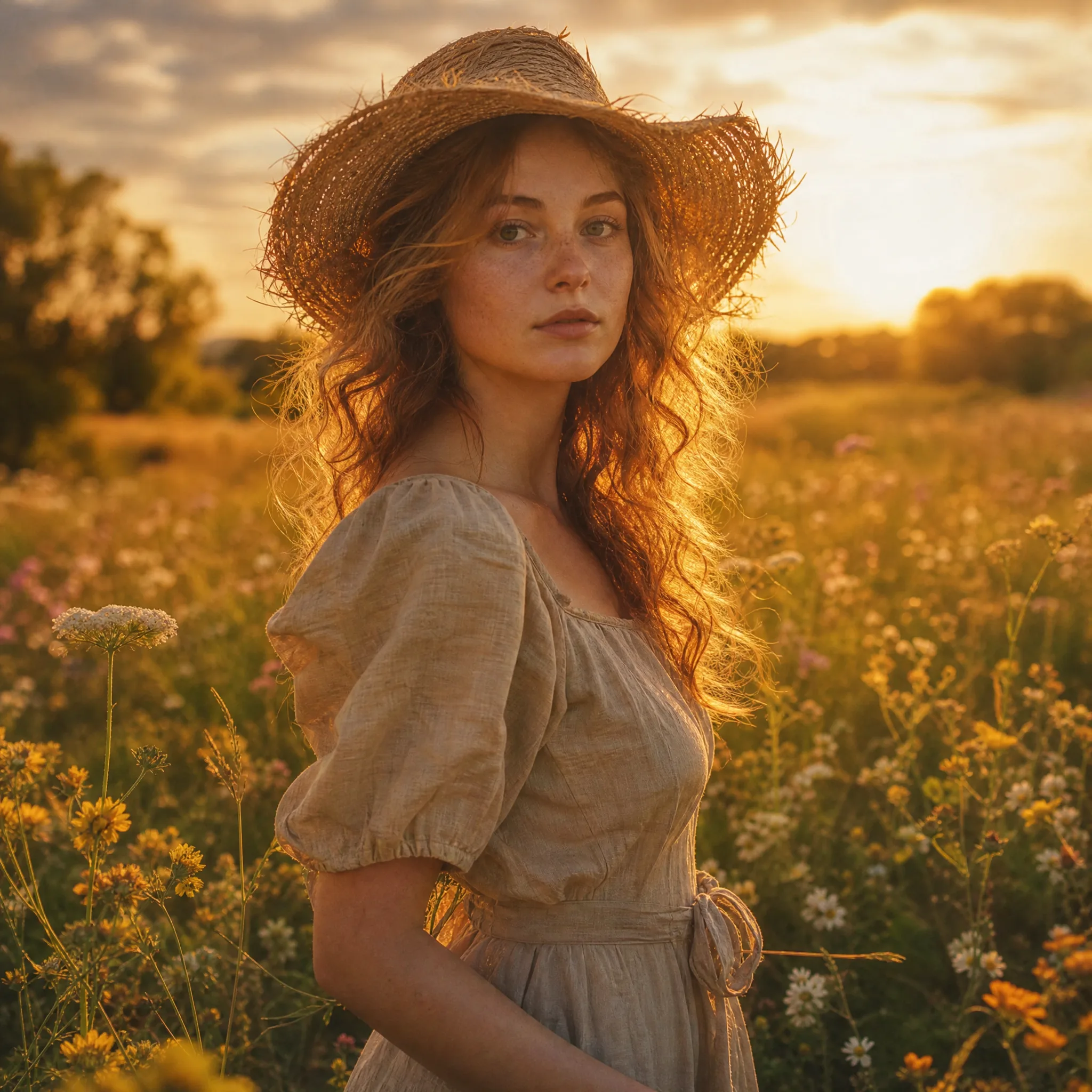
Woman in a straw hat and linen dress standing in a wildflower meadow under painterly golden backlight

A visual direction for your idea

Find the mood that fits the message

Use a clean illustration, a photographic scene or an expressive painting as the direction for your prompt. The AI image tools return interpretations you can compare, so choose the look that makes the subject easy to understand.

Bring an Image Idea into the Next Part of Your Project

Use a picture from the AI image tools as a creative starting point, then choose the workflow the project needs next.

Visualize architectural and design ideas

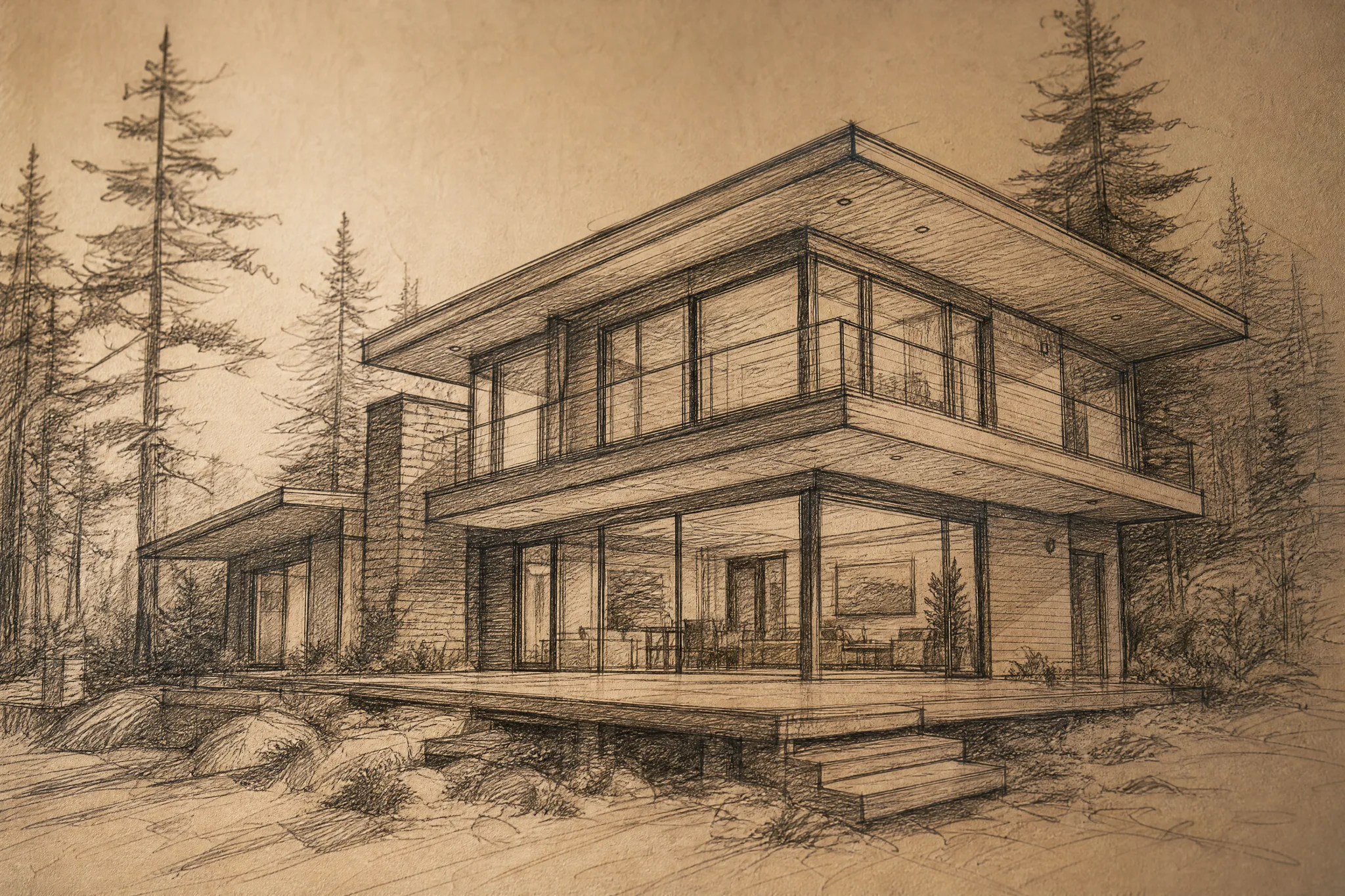
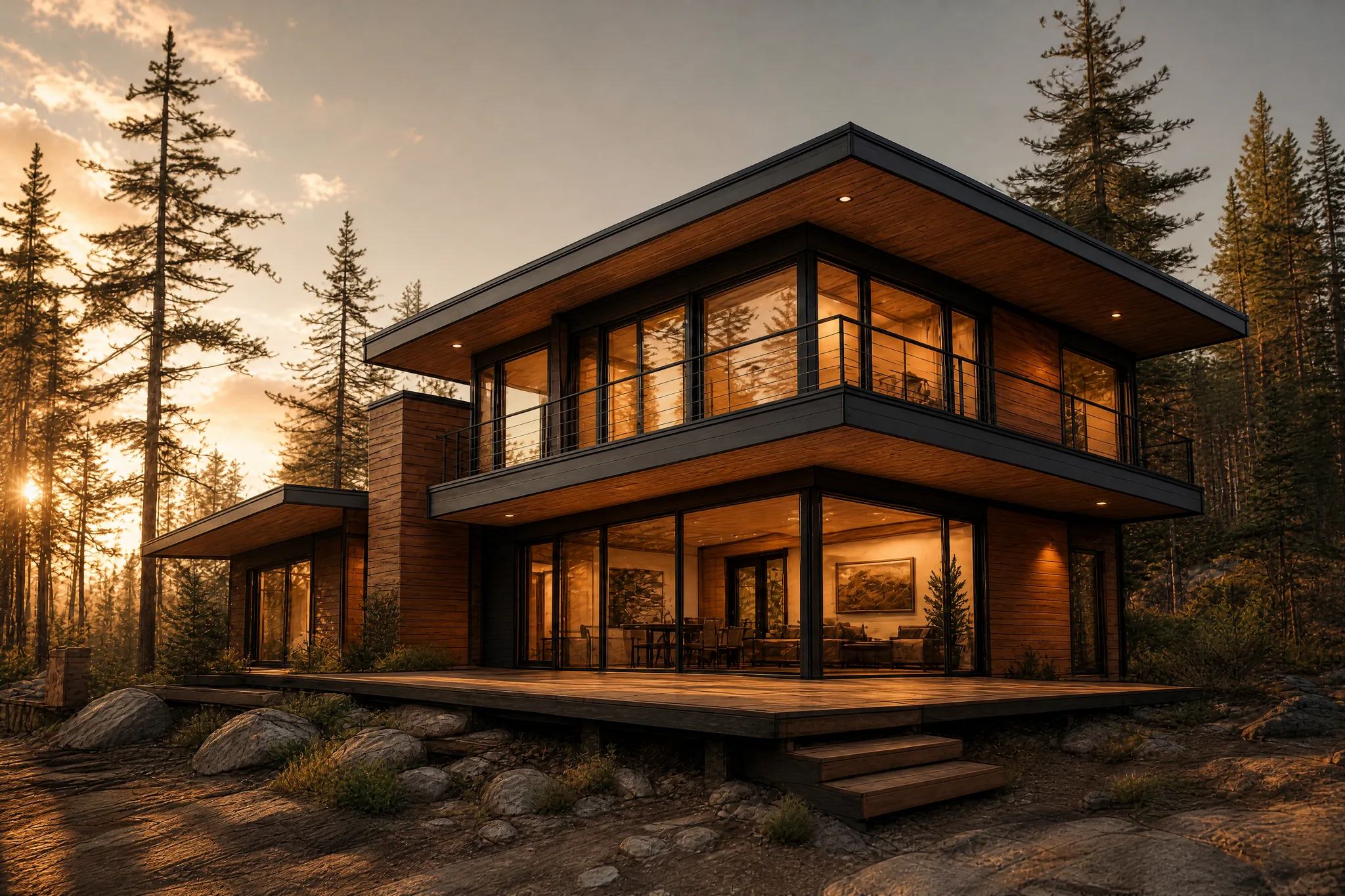
Turn a sketch or written concept into an architectural image. Explore materials, light and surroundings with the AI image tools, then compare the interpretation with your starting idea before developing the design.
Pencil sketch of a modern two-storey house with a timber deck among pine treesBefore
The same house from the sketch rendered as a photograph, with cedar cladding and glowing windows among pines at golden hourAfter

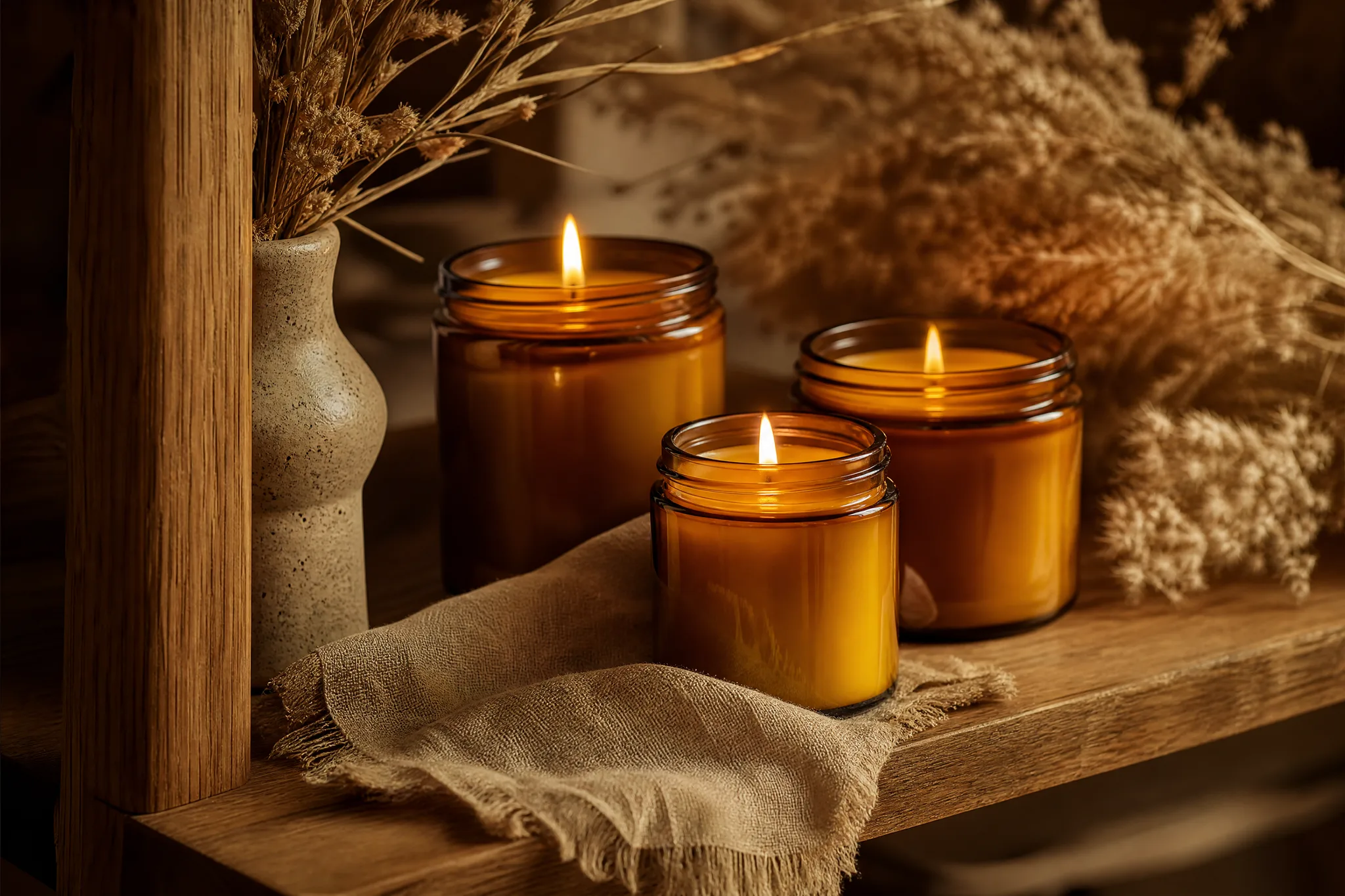
Explore product images for an online store
Give a product photograph a setting that suits the collection. Use Image to Image in the AI image tools to explore a styled background, warm light or a clean display, and check the product details before choosing an image for your store.

Handmade beeswax candles in amber glass jars styled on an oak shelf with dried grasses and linen

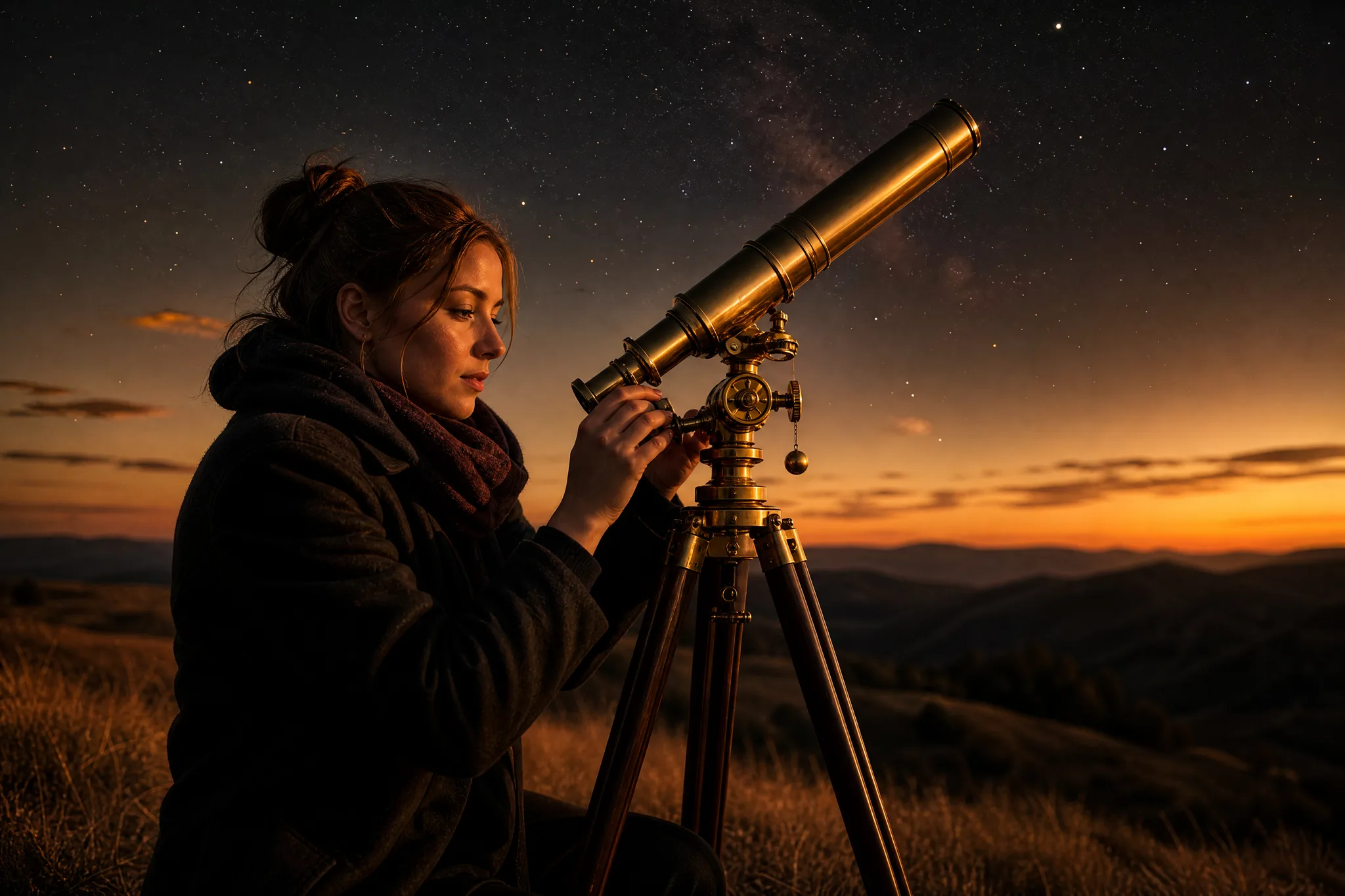
Create visuals for articles and creative content

Build an illustration around the subject of an article, presentation or social story with the AI image tools. Describe the scene and visual style in Text to Image, then choose a picture that makes the idea easy for your audience to understand.

Woman adjusting a brass telescope on a grassy hilltop as the first stars appear at twilight

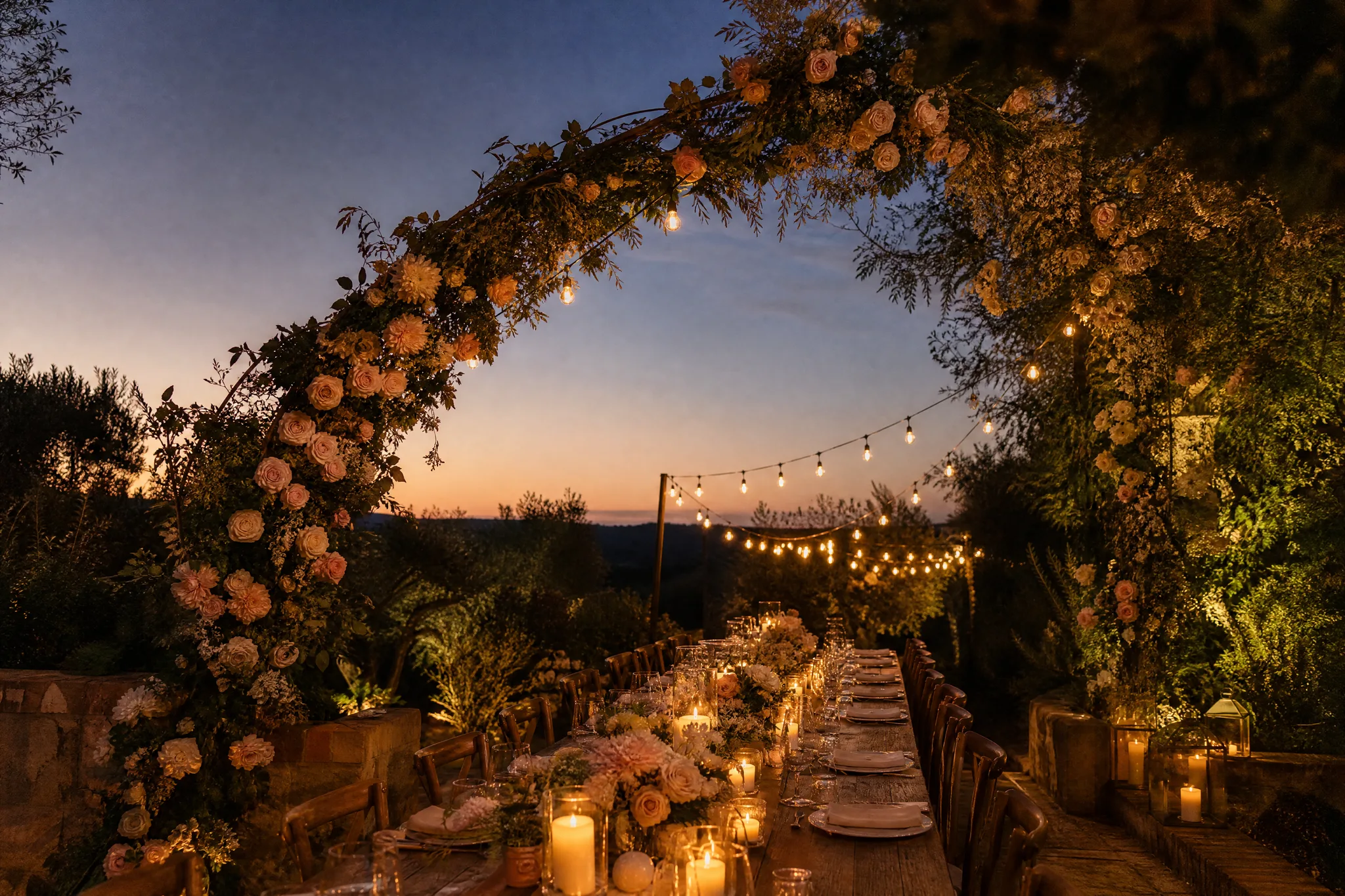
Set the visual mood for an event

Explore floral artwork, a seasonal scene or a playful illustration for an invitation or event concept. Choose a composition with space for your message, then finish exact event details and typography in your preferred editor.

Arch of blush roses over a long candlelit garden dinner table at dusk, with open sky above

How to Use the AI Image Generator and Editor

Start from a written idea or a photo in the AI image generator and editor, describe the picture and compare takes in one workspace, then keep the image that fits your project.

1

Start with an idea or a photo

Choose Text to Image for a picture described in words, or Image to Image to build on your photographs. The AI image tools then list the models compatible with that starting point.

2

Describe the picture you want

Name the subject, setting and visual style. Give the picture a useful composition and choose the framing and resolution the AI image tools offer for your model.

3

Explore a visual direction

Generate your image in the AI image tools and follow its status until the takes are ready; run up to 4 separate generations where available. Compare the composition, color and details before choosing which image to download for your creative project.

4

Keep the picture for your project

Preview and download the images you want to use. Find them again in My images and your Asset Library when you return to develop the project.

Pictures for the Projects You Care About

Create an image idea for a social post, a product story or a creative presentation with AI image tools. Start with what the picture should communicate, then develop the subject and visual mood for that project.

Social posts and thumbnails

A creator uses the AI image tools to develop a thumbnail around the subject of the next episode, then explores a matching story background. Choose the framing your model offers and finish the post with your own text and layout.

Product and shop pictures

A shop owner starts with a product photograph and describes a shelf, tabletop or lifestyle setting in the AI image tools. The image gives the next campaign a visual direction without arranging every concept as a physical shoot.

Concept art and storyboards

A filmmaker explores a character, location or lighting idea with AI image tools before production. Keep the images that explain the mood and use them to discuss the scene with the rest of the team.

Personal photo edits

A photo enthusiast gives a portrait a new illustrated look or explores another season around a landscape. The original picture remains the creative starting point for a new interpretation.

Creative Scenarios with AI Image Tools

A product launch can take several visual directions before the design is settled. I'd use the AI image tools to compare a clean studio scene with a lived-in kitchen setting, then check that the product shape and label read correctly. The chosen composition would go straight into my launch mood board.

Product Image Designer
Creative workflow

AI Image Generator FAQ

Learn how ImgVid AI image tools create pictures from prompts and photos, which model fits each task, and how to use the images you keep.

ImgVid AI image tools create pictures from a prompt and develop new interpretations of reference photos. Use Text to Image for a written idea or Image to Image when a picture already gives the project its subject and composition.

No — the AI image tools here do not provide a manual brush-based erase or outpainting editor. Image to Image interprets an uploaded reference and your description, so ask for a change in the prompt, review the generated interpretation and use your usual editor for precise final adjustments.

The AI image generator is free to start: eligible new accounts get free credits, which you can spend on Z-Image Turbo. Other models need eligible paid access through a plan or credit pack. The workspace shows the credit cost for each generation before you start.

Yes — use the AI image generator from a photo in Image to Image: upload a JPG, PNG or WebP photo and describe a new backdrop, visual style or other edit. The selected model controls reference limits, with some accepting up to 16 images. The workspace lists compatible models for your source.

There is no ranked best model in the AI image tools; the free plan currently includes Z-Image Turbo. Z-Image Turbo has the lowest starting cost at 2 credits per generation. Check each model's supported input types before you start.

The AI image tools run up to 4 separate generations at once. Some models return multiple images in one generation. Review each completed take in your Asset Library and choose the composition that fits your project.

No separate app is needed — use the ImgVid AI image generator in a desktop or mobile browser. Open the image workspace on either device to create and review your images.

Generated images are saved in My images on the right side of the workspace and in the Image filter of your Asset Library, where you can view and download them again.

Create Your Next Picture with AI Image Tools

Begin with the scene you imagine or the photo you want to develop, and the AI image tools turn it into a visual direction for a post, a product story or a personal project. Open the generator to start.

Open the generator
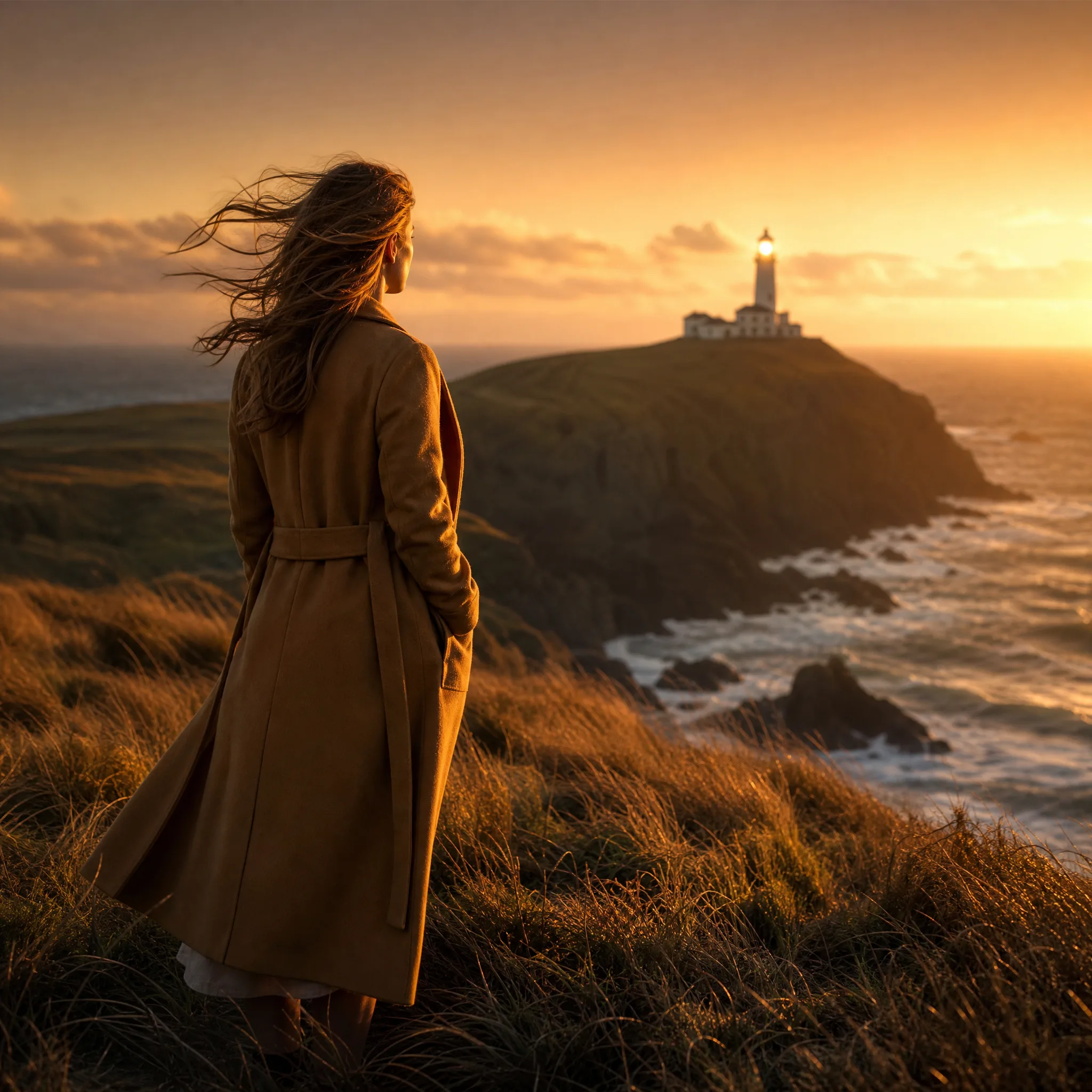
Woman in an ochre coat on a windswept clifftop meadow at sunset, looking toward a distant lighthouse