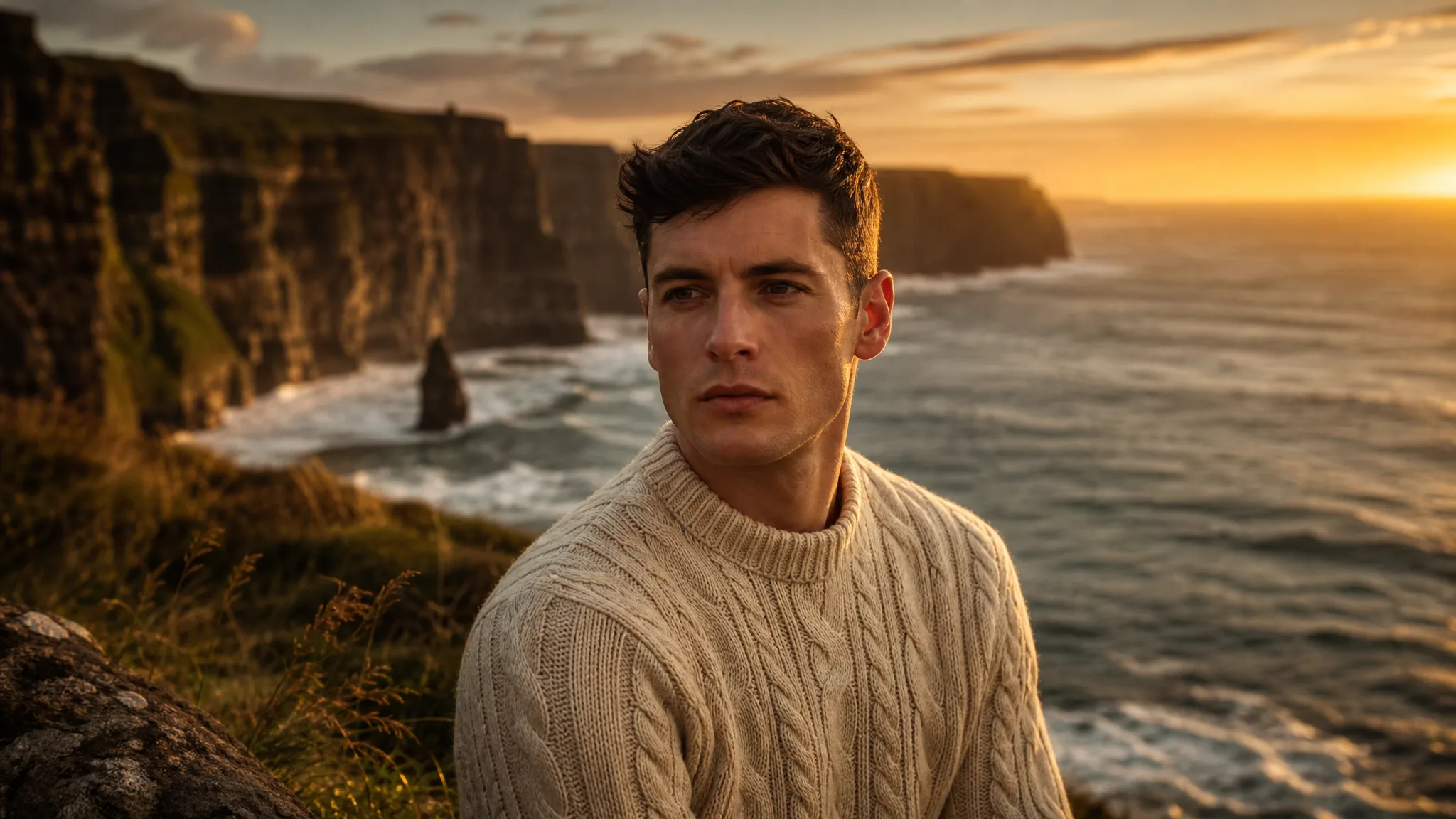
Nano Banana Pro
Prompt
0/20000
Reference images

This media input is not available yet.

Aspect ratio
Resolution
Number of generations
Public Visibility
Required credits
16
Examples
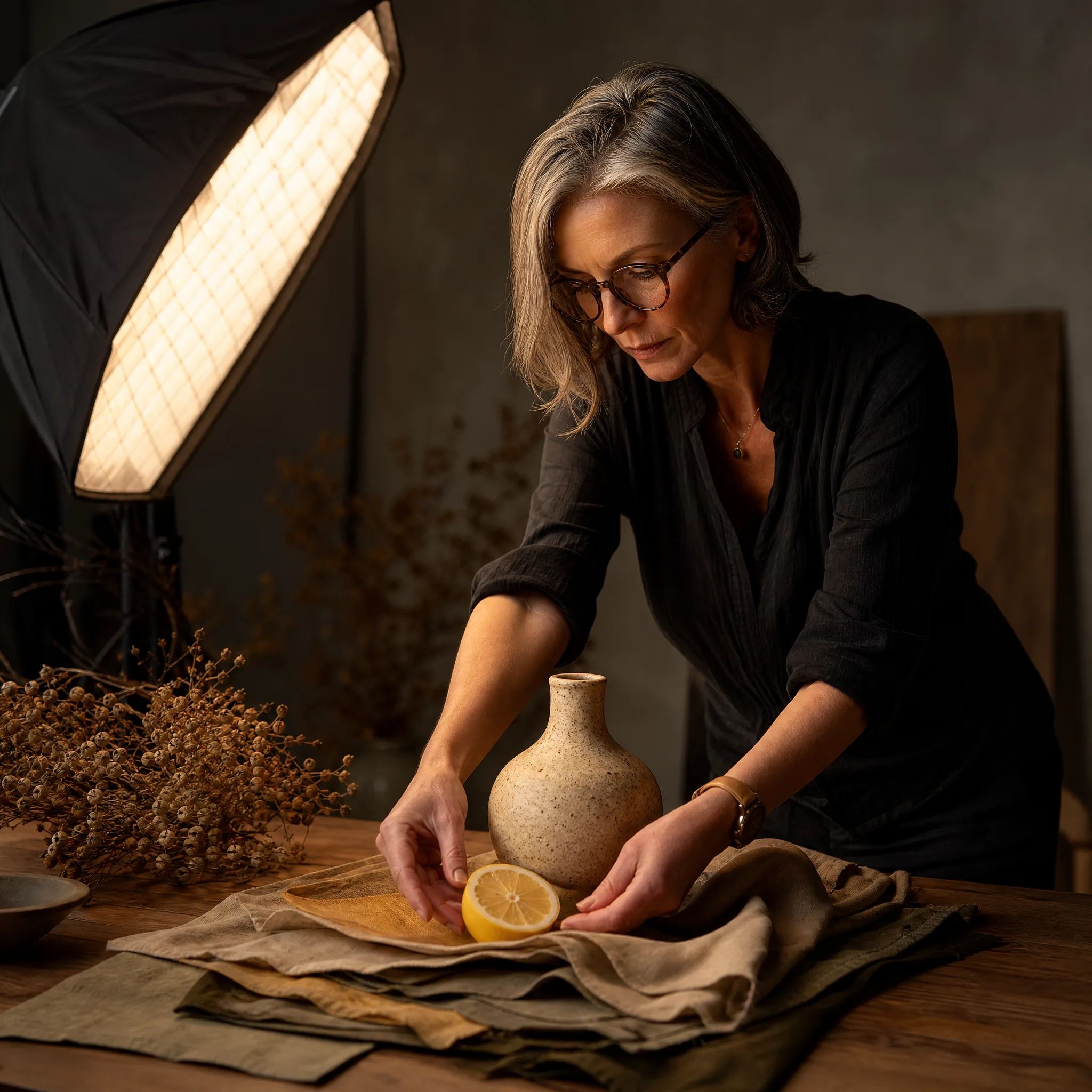
Art director arranging a lemon, a ceramic vase and linen swatches on a tabletop photo set

Nano Banana Pro Image Generator

Explore image ideas with a thoughtful creative brief

Google's Nano Banana Pro turns a brief or your reference images into a polished still for packaging, portraits and campaign concepts. Describe the subject, the setting and the light, plan any lettering, and compare Nano Banana Pro takes against your references before you finish.

Generate with Nano Banana Pro
Art director arranging a lemon, a ceramic vase and linen swatches on a tabletop photo set
Product scenes that tell a story|Portraits with a clear visual mood|Illustrations from a written idea|Campaign concepts before the final layout

How to Create with Nano Banana Pro

Nano Banana Pro starts from a written brief, with or without reference images, and returns one still per take. The steps below go from writing that brief to checking text and detail before a design uses the image.

1

Describe your image idea

Write a Nano Banana Pro prompt that states what viewers should notice first, then the setting and mood. If the concept depends on a real product or character, attach reference images in image-to-image mode and say which parts must stay recognizable.

2

Choose the composition

Choose the aspect ratio for where the picture will live, for example 4:5 for a feed post or 16:9 for a slide. Tell Nano Banana Pro where the message area belongs so the subject does not crowd the space your copy needs.

3

Explore the image

Generate a take and compare it with the brief line by line. If the take includes rendered wording, read every letter; when one element is wrong, adjust only that sentence of the Nano Banana Pro prompt and run it again.

4

Choose and finish your take

Download the take that fits, then inspect faces, packaging, small objects and any text at full size. Place approved copy and exact brand assets in your layout tool, because a Nano Banana Pro preview is a starting point for the design, not the finished file.

Best AI Image Tools for Creative Projects

Create a new image from text or edit one you already have with the right image tool.

What Can You Create with Nano Banana Pro?

Nano Banana Pro rewards a brief that links subject, setting and message. These three rows cover composition, campaigns for different markets and the small details that make a concept feel specific.

A thoughtful brief for your composition

Nano Banana Pro builds the composition from how you connect the pieces of a brief. State what the viewer sees first, where it sits in the frame and how the surroundings support it, so the brief itself gives the image a reading order. Review that hierarchy in each take before choosing one.
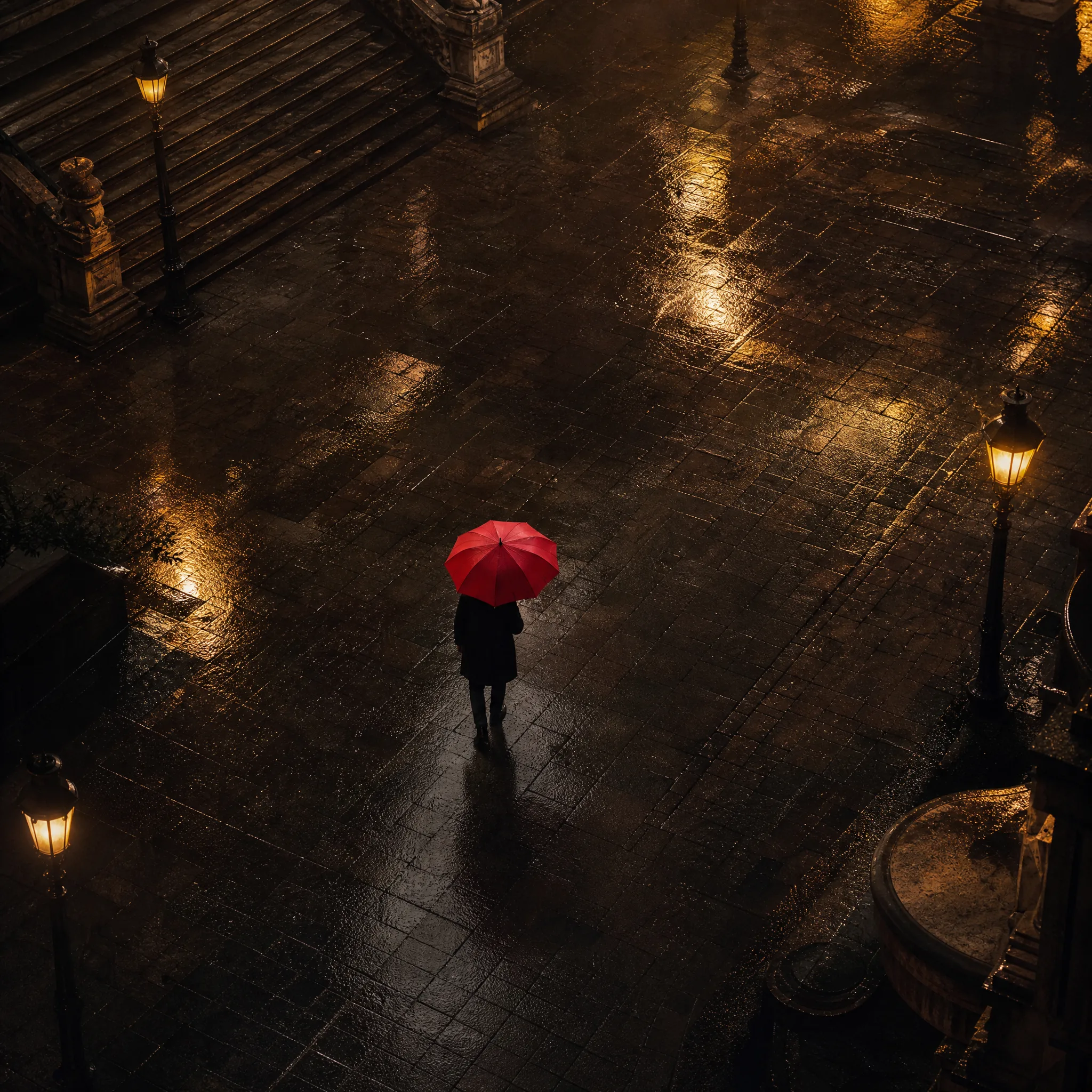
High view of a man with a red umbrella crossing an empty rain-slick stone plaza

Visual concepts for international audiences

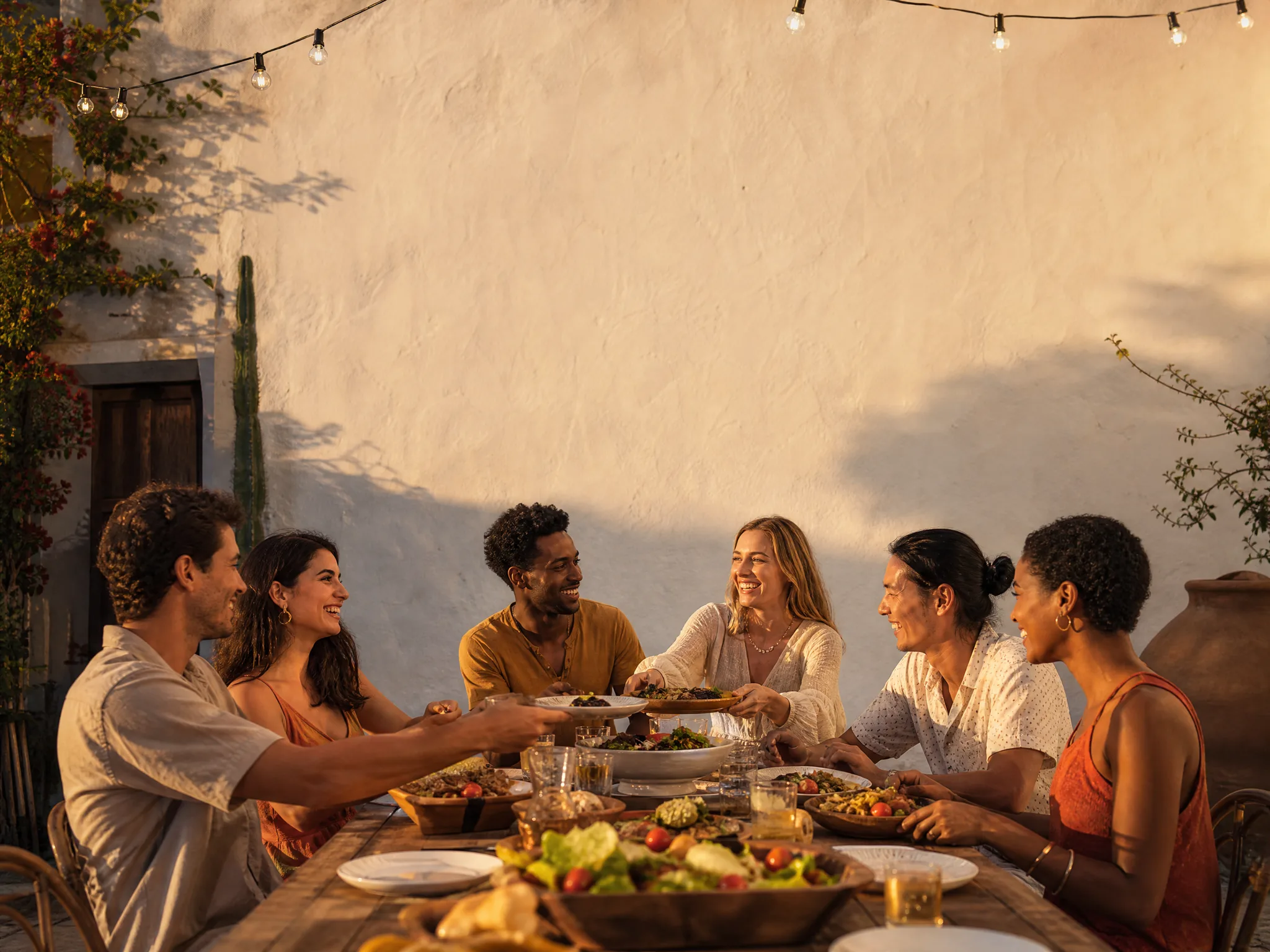
When one concept has to work in several markets, describe the setting and leave a defined message area in your Nano Banana Pro prompt. Check any rendered wording letter by letter, then place the approved local copy in the layout file so each regional version uses verified text.

Six friends sharing dinner at a long table in a Mediterranean courtyard with a plain wall above

Detail for your intended final image

Materials, light and small props make a concept feel specific: brushed steel, washed linen, a chipped mug on a desk. Include only details that support the purpose of the image, then inspect them at full size when picking a Nano Banana Pro take, since small objects are where errors hide.

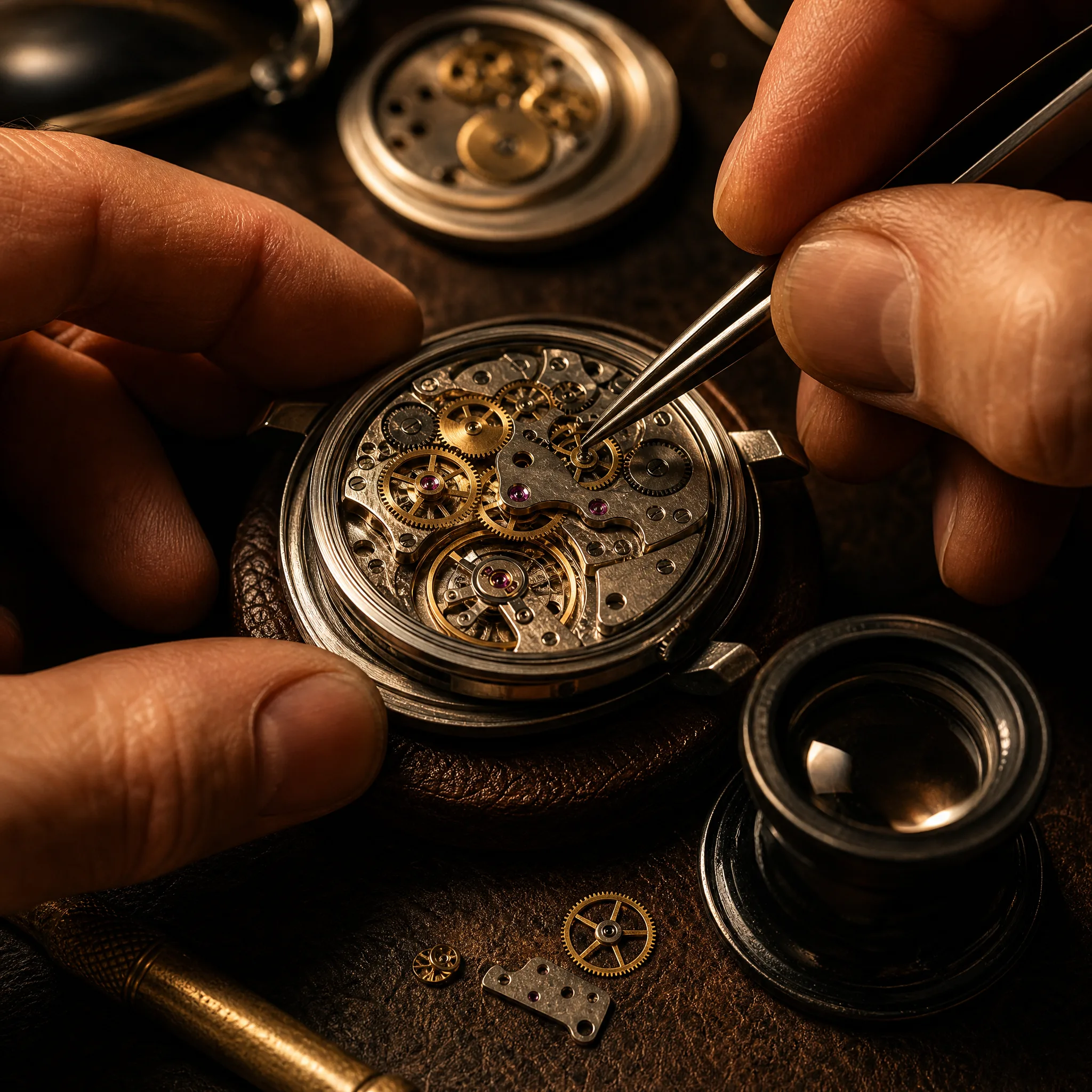
Watchmaker's tweezers working on an open mechanical watch movement with brass gears under a warm lamp

Develop Your Nano Banana Pro Image Idea

Nano Banana Pro image to image and text prompts both serve the projects below. Each row shows what to describe for a product, a portrait, an illustration or a campaign concept.

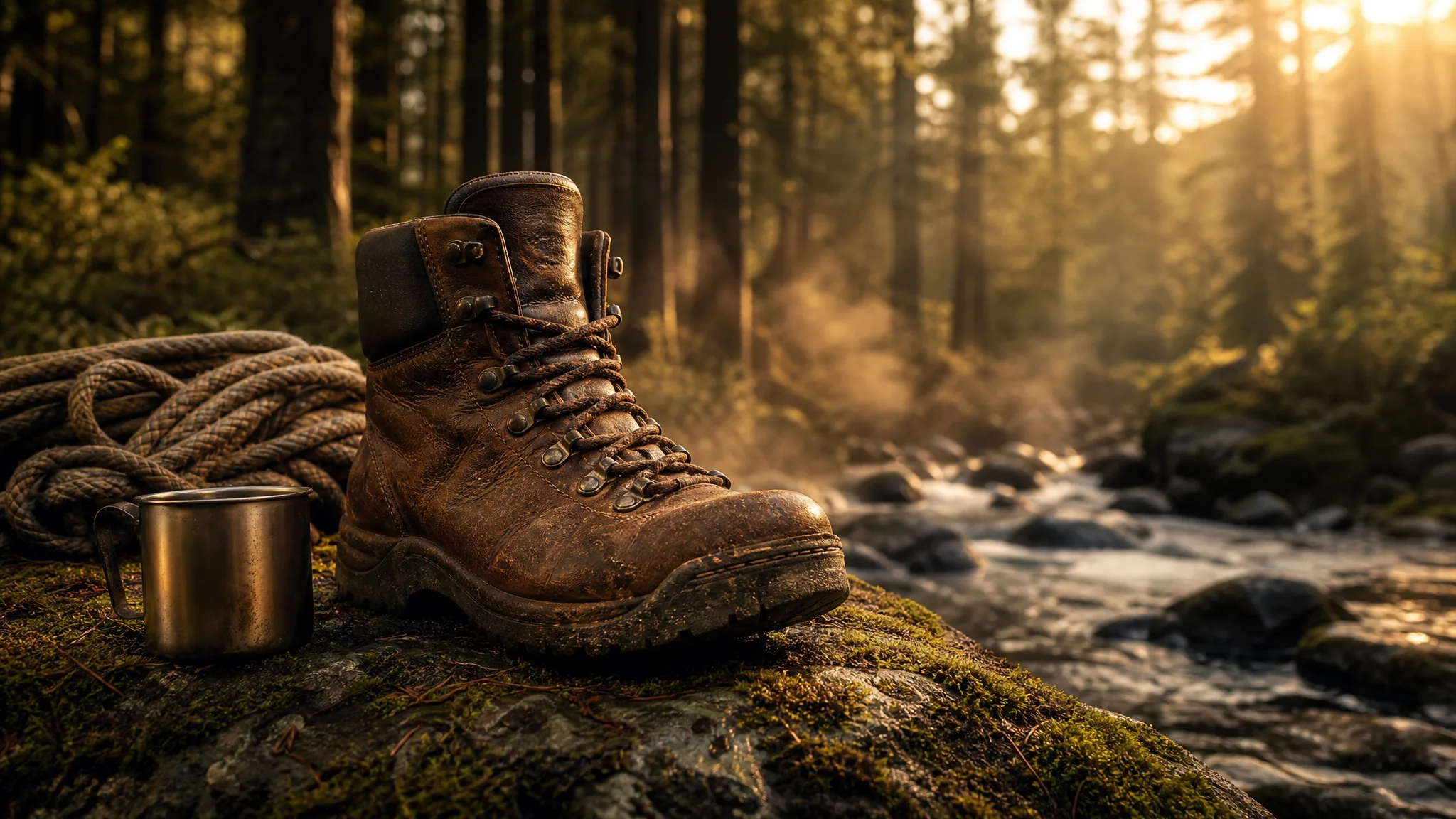
Worn leather hiking boot on a mossy rock beside a misty mountain stream

Product scenes that tell a story

For a product scene, attach a clean packshot to Nano Banana Pro and describe the surface, backdrop and light you want around it. Compare the packaging shape and logo against your reference in every take, and keep the one where the product still matches the real item.

Nano Banana Pro Use Cases

Teams use Nano Banana Pro when a concept has to be seen before it is built. The six cases below name who briefs the image, what they ask for and where the take goes next.

Product scenes that tell a story

Packaging and product designers can show a new item on a marble counter or inside a pastel studio set with Nano Banana Pro. The chosen take becomes the visual reference for the photographer and for the retouching notes that follow.

Portraits with a clear visual mood

Portrait concept artists explore lighting setups and expressions for a character with Nano Banana Pro before booking a model or starting a painting. The best take goes into the mood board with notes on what to keep.

Illustrations from a written idea

Writers and illustrators can test a scene from a manuscript, like a night market under paper lanterns, as a Nano Banana Pro image. It gives the artist a shared reference for palette and staging before the final artwork.

Campaign concepts before the final layout

Campaign art directors compare a lifestyle frame and a graphic layout for the same message using Nano Banana Pro. The stronger direction moves into the design file, where the final headline, legal copy and brand assets are set.

Storyboard moments for a visual narrative

Storyboard artists can sketch an opening shot, an entrance or a key prop as a Nano Banana Pro still. A concrete frame helps the crew agree on staging, light and continuity before cameras or animation tools come out.

Social visuals with a recognizable direction

Social designers can hold one subject and palette steady across a set of Nano Banana Pro posts while changing the crop for each format. They review every take on its own and write captions in the scheduling tool.

Creative Scenarios with Nano Banana Pro Image Creation

Scenarios for using Nano Banana Pro image creation in real projects, from the photos or ideas you start with to the take you keep.

I'd start with a packaging reference and a brief for a softer campaign setting in Nano Banana Pro. After comparing the takes, I'd choose one that supports the product mood and check the packaging text and logo against the original. That image would give our layout work a clear starting point.

Brand Designer
Creative workflow

Nano Banana Pro Frequently Asked Questions

Questions about Nano Banana Pro cover references, prompting, access, image shapes, rights, series consistency, motion and the final check. Each answer reflects how the model works in the ImgVid workspace.

Nano Banana Pro is a Google image model in the ImgVid image workspace that creates stills from a text brief or from reference images. Describe the subject, setting, light and style, select the take that carries your message, and review its details before publishing.

Yes — Nano Banana Pro accepts up to 8 reference images in image-to-image mode. Give it clear photos and say exactly what should change; a text prompt on its own works too.

Lead your Nano Banana Pro prompt with the subject, then add setting, composition, light and style. For packaging, describe the surface behind it; for a portrait, the crop and expression. Keep the brief focused, because a short list of related decisions is easier to refine than many effects.

Nano Banana Pro requires eligible paid access when the paid-plan gate is enabled, and every generation uses credits. You will see the current estimate for your chosen settings in the workspace before anything runs.

Nano Banana Pro supports these aspect ratios: 1:1, 2:3, 3:2, 3:4, 4:3, 4:5, 5:4, 9:16, 16:9, 21:9. You can pick 1K, 2K, 4K resolution, although some ratio and resolution pairs may be restricted. Choose the final crop before generating rather than resizing later.

Nano Banana Pro images can support a campaign when you control the inputs and review the output. Supply only images you have rights to use, check results for trademarks, likenesses and factual errors, and finish crop, type and brand assets in your design tool. Generating an image does not grant third-party permissions.

Keep the subject description, palette and style constant across Nano Banana Pro prompts, and reuse a suitable reference image when you have one. Compare each result for continuity, because a shared direction helps but does not guarantee identical faces, products or details.

Nano Banana Pro creates still images only in this workspace. For motion, take a finished image to the separate image-to-video tool, choose a compatible video model and describe the action or camera move you want.

To refine a Nano Banana Pro result, use image-to-image mode with that image or another suitable reference and describe the new interpretation. Change one part of the brief at a time, such as light, framing or background, and compare results before picking a final.

Before downloading a Nano Banana Pro image, view it at a useful size and inspect faces, hands, product shapes, rendered text and the background. Choose the take that fits the job, then make precise fixes and layout changes in a proper editor.

Nano Banana Pro images are not published automatically, and reference images you attach stay unpublished. Free accounts and visitors keep Public Visibility on, so a finished Nano Banana Pro still may be selected for Explore after review; accounts with a subscription or one-time pack start private, which suits unreleased packaging.

Bring Your Next Image Idea to Life with Nano Banana Pro

Write a brief or attach reference images, let Nano Banana Pro generate a still for your product, portrait or campaign concept, and review the take before it goes into your layout. Start your next concept in the workspace.

Create with Nano Banana Pro
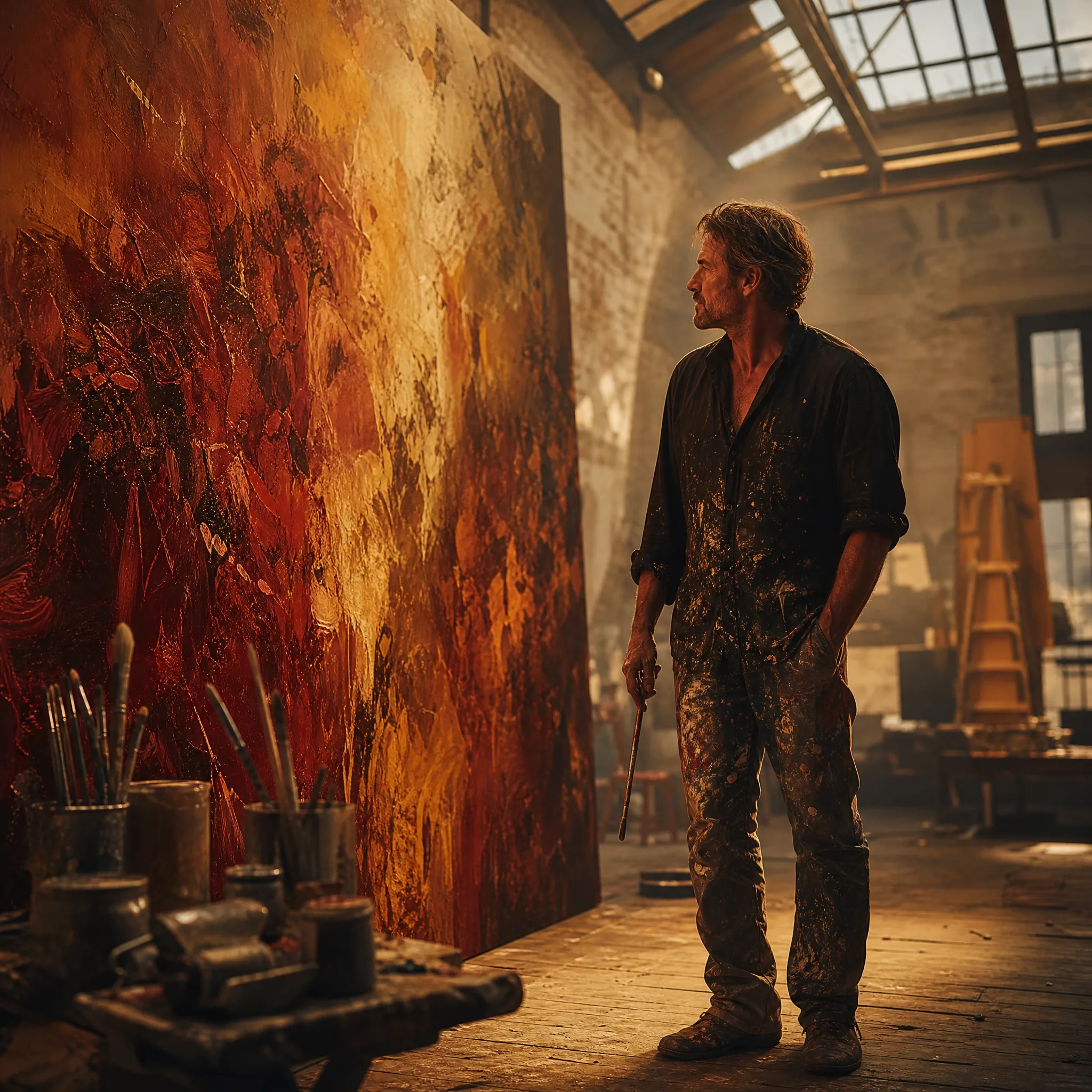
Painter stepping back to study a large warm-toned abstract canvas in a skylit studio