














Sketch to Video
Reference images
Prompt
0/4000
Duration
Resolution
Aspect ratio
Translate prompt
Number of outputs
Public Visibility
Required credits
30
Sample videos

Sketch to Video with AI: Animate Your Drawing

See the movement inside your drawing

Sketch to video with AI gives your drawing its next moment. Upload a sketch and describe the action, from a character looking up to a landscape coming alive. Turn your visual idea into a moving concept you can share or develop further.

Animate Your Sketch
Character actions|Cartoon scene motion|Lesson explainer clips|Clip downloads

How Sketch to Video AI Works

Sketch to video with AI follows three steps: choose a drawing, imagine its next action and develop a moving shot for your project.

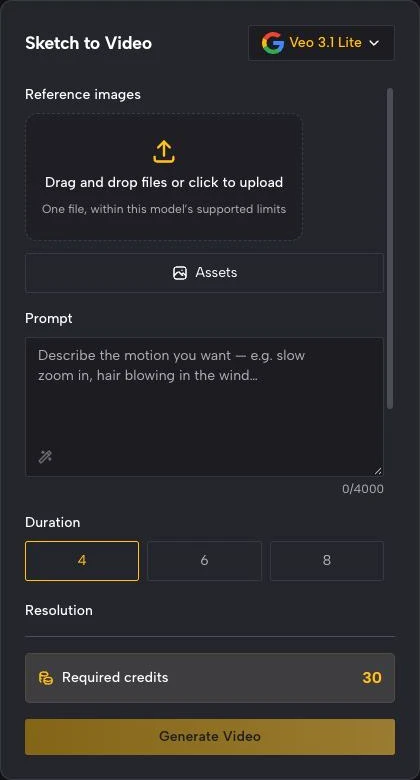
Sketch to Video panel with Veo 3.1 Lite selected, an empty image drop zone, a prompt box and 4, 6 or 8 second options

Upload your drawing

Upload a JPG, PNG or WebP version of your sketch, character drawing or storyboard frame. A clear subject and readable line work give sketch to video with AI a visual starting point, so scan or photograph paper drawings in even light and crop away the desk, tape and shadows before you upload.

Give Your Sketch a Character, a Moment and a Use

Give a drawn character a gesture, a cartoon scene a next action or a classroom illustration a moving explanation. Sketch to video starts with your artwork and the story inside it.

Give a drawn character its next action

A wave, a glance or a small step can turn a character sketch into a readable moment. Describe the action and camera view, using the drawing as the visual starting point; sketch to video with AI then generates frames that carry the pose into motion, which helps you test whether a gesture reads before you animate it by hand.

Develop a cartoon scene

Give a comic panel or character drawing a breeze, a background movement or a camera reveal. Sketch to video cartoons can help you explore how a scene might feel before you build a wider story, and simple flat colors or clean outlines give the generated motion clear shapes to follow.

Turn sketches into educational videos

Use a clear drawing to introduce a lesson concept or visual example. Turning that sketch to video with AI lets one focused movement draw attention to the part you want to explain, such as a seed splitting open or water moving through a diagram; add accurate labels and narration when you assemble the wider lesson.

Why Creators Use This Sketch to Video AI

Sketch to video with AI adds a small movement that can make a drawn idea easier to discuss, present or share.

See the idea in motion

A character action or camera move lets you explore more than the drawing’s opening pose. Sketch to video with AI gives you a generated take to discuss how the moment could develop on screen, which is useful before anyone commits time to frame-by-frame animation.

Begin with your visual language

Start from the lines, shapes and composition you have already drawn. Describe movement that fits the artwork; sketch to video with AI uses your drawing as the visual starting point, and you choose the take that best carries its character into motion.

Explore a cartoon moment

A drawn face, a drifting cloud or a small gesture can give a cartoon scene personality. Use the movement as a short opening, reaction or visual detail in a larger edit, and keep it brief so the drawn style stays the focus rather than the motion itself.

Make a lesson idea visible

A moving sketch can introduce an example for a class or course. Choose one concept to show with sketch to video with AI and place the selected clip alongside your explanation, labels and supporting material, so students see the idea move and then read why it matters.

Creative Scenarios with Sketch to Video with AI

Scenarios for using sketch to video with AI in real projects, from the photos or ideas you start with to the take you keep.

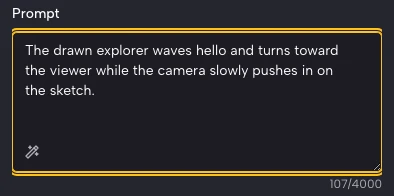
I’d upload a clean sketch of my cartoon explorer and try sketch to video with AI for a small wave. After checking the hand and line work through the preview, I’d use the selected take to introduce the character in a presentation beside the original drawing.

Character Designer
Creative workflow

Sketch to Video FAQ

Explore how sketch to video works, what kind of drawing to upload and how to describe a cartoon character’s movement before creating your clip.

Sketch to video with AI creates a moving clip from a drawing and a written motion direction. A character sketch, illustration or storyboard frame gives the scene its starting image; the prompt describes what happens next. It generates new frames, so it is not an editable animation rig.

Upload the drawing, describe one action and generate the clip. Sketch to video then needs a character action or camera move in the prompt and the settings shown in the workspace. Watch the completed preview and download the take that fits your project.

Veo 3.1 Lite is the default model for sketch to video with AI on this page. You can switch to other video models in the workspace; each one sets its own inputs, duration, resolution and sound. Aspect controls vary by model and mode, and auto-framing modes adopt the shape of your drawing.

Yes — sketch to video cartoons start from a clear cartoon drawing. Add a small action, expression or environmental movement, preview the generated clip and choose the take that suits the character and scene. Flat colors and clean outlines give the motion clear shapes to follow.

Yes — sketch to video clips can go into commercial work when you own the drawing or may use it. That includes any characters or logos the drawing shows. Generation does not grant rights to third-party artwork, so check licences before a client pitch or campaign.

Sketch to video with AI is free to try within limits. After signing in, your free credits can animate a drawing on free-tier settings, for instance Veo 3.1 Lite at 720p and no longer than 8 seconds. Other models and settings need a paid plan or credit pack, and free generations carry an ImgVid watermark.

Your uploaded drawings are not published. On a free account Public Visibility stays on, so a successful sketch to video clip may be shown publicly after review; with a subscription or one-time pack it starts off and you can keep clips private. Avoid uploading unreleased client artwork from a free account.

See Your Sketch as a Moving Shot

Bring a character drawing, storyboard frame or concept sketch into the workspace. Describe a small action or camera move, and sketch to video with AI develops a short clip that shows how your idea could feel on screen. Upload your drawing to begin.

Animate Your Sketch