












Image to Video Ad
Reference images
Prompt
0/3562
Duration
Resolution
Aspect ratio
Translate prompt
Number of outputs
Public Visibility
Required credits
30
Sample videos
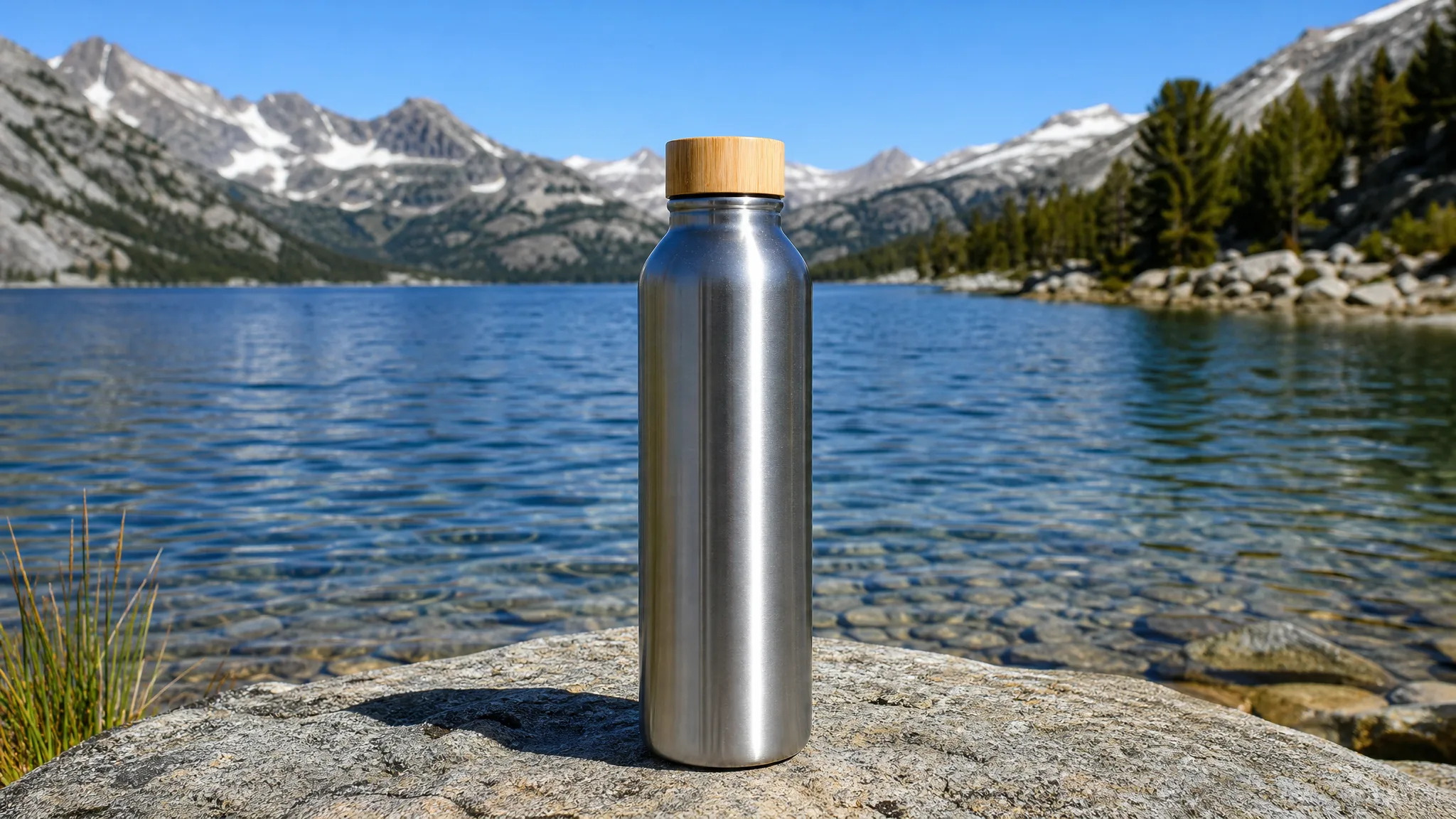
Stainless steel water bottle with a bamboo cap on a granite rock by a clear alpine lake on a sunny day

Image to Video UGC Ad Generator for Product Photos

Turn a product photograph into a moving campaign idea

Make your product photo the opening shot of your next promotion. Use an image to video UGC ad generator workflow to explore a close-up, a lifestyle moment or a camera-led reveal, then take the clip into your ad edit.

Create Your Video Ad
Creator in a sunlit kitchen holding a sage-green ceramic pour-over coffee dripper toward the camera
Product-photo ideas|Camera-led reveals|Lifestyle scene concepts|Campaign clip downloads

How the Ad Generator Works

Use the image to video UGC ad generator to give the product a clear visual moment, then take the selected shot into your campaign edit.

1

Prepare a clear product photo

Choose the packshot or lifestyle image that establishes the product, and upload it to the image to video UGC ad generator. Give the label, shape and important details room to stay visible, and avoid tight crops that cut off the packaging, since the source photo is what the generated motion builds on.

2

Direct the product reveal

Start with the built-in product reveal direction, or add your own idea for a close-up, light change or restrained camera pass. Choose a compatible model to frame the product moment; the selected model determines supported inputs, duration, framing, resolution and audio.

3

Create the motion concept

When the product image and motion brief are ready, start the image to video UGC ad generator and follow the job status until the preview appears. Keep the direction to one clear action, such as a slow turn or a light sweep, so the take is easier to judge against your campaign brief.

4

Develop the selected shot into an ad

Inspect the label, logo and product shape across the whole clip, not only the first frame. Download a useful take from the image to video UGC ad generator, then finish the advertisement with your copy, verified offer, licensed sound and campaign timing in an editor.

Give Your Product a Moment People Can See

Give your product a moving introduction, a lifestyle setting or a clear campaign mood. An image to video ad generator starts with the object people should notice and the story you want it to tell.

Give your product its opening shot

Use a clear packshot and describe what should draw the eye first. A close approach, a light sweep or a quiet reveal gives the image to video UGC ad generator a specific visual direction, and keeping one focal point helps the label and silhouette stay readable when the clip opens a campaign post or product page.
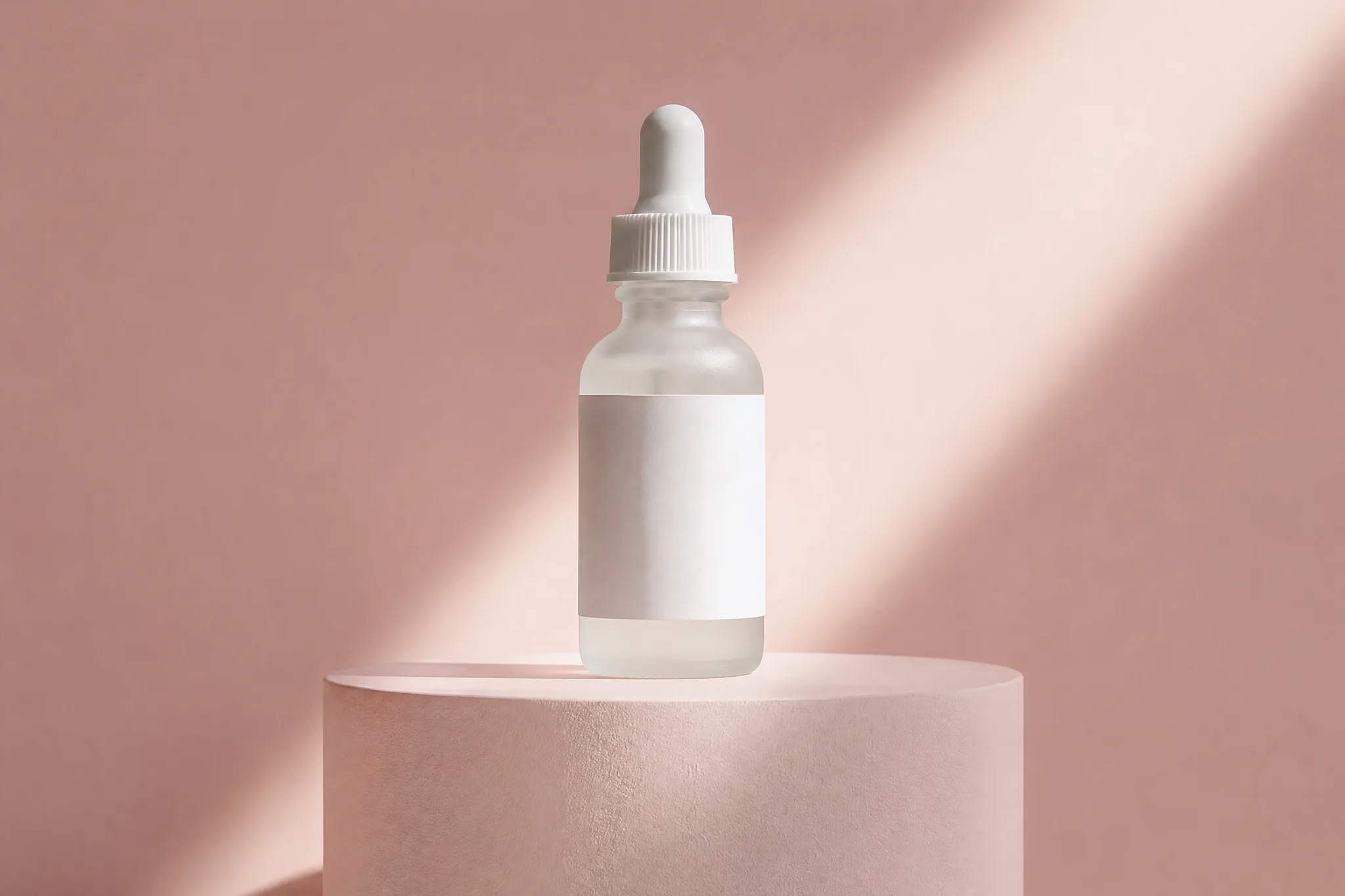

Frosted glass serum dropper bottle on a pale pink plinth with a diagonal beam of light

Explore a lifestyle scene

Place the product idea in a mood that suits its audience: a calm morning routine, a lively kitchen or a clean studio. The image to video UGC ad generator develops a camera-led, creator-style shot from your photo, giving a wider ad edit lifestyle material without a filmed creator. It is generated visual material, not a real customer testimonial.

Woman pouring oat milk from a glass bottle into a bowl of granola at a bright white kitchen counter

Turn product photos to video ads

Develop a motion idea from a product photograph, then take the selected clip into your advertisement. Add the campaign message, verified offer and finishing sound in your editor so the shot serves a clear story, and check that any on-screen claims match what the product actually does.

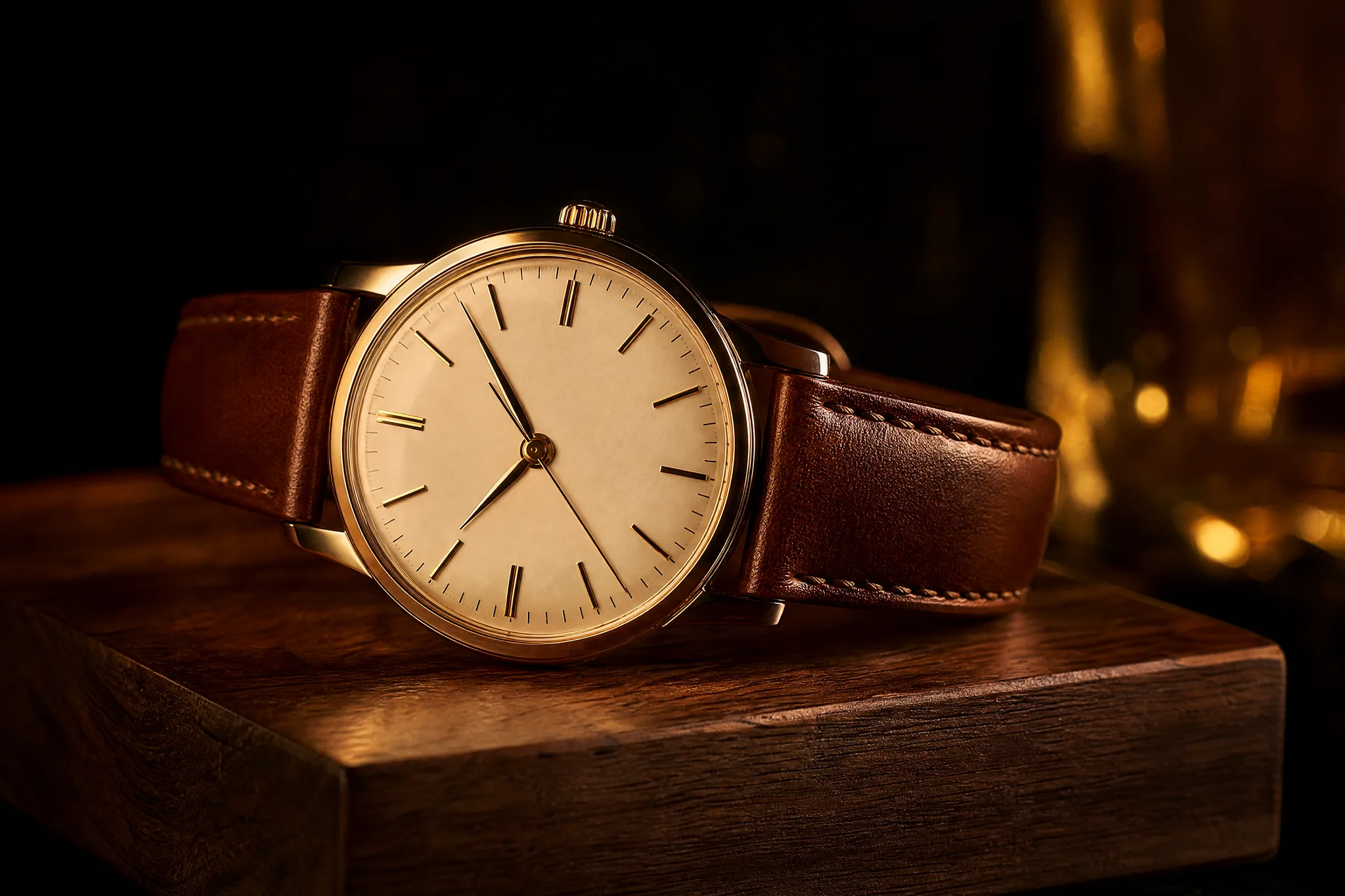
Wristwatch with a cognac leather strap on a walnut block under dramatic warm light

Find a direction for the campaign

Explore a quiet reveal, a closer product detail or a different atmosphere from the same source image. Running several directions through the image to video UGC ad generator gives your team moving concepts to compare side by side before you commit to a final creative direction or brief an editor.

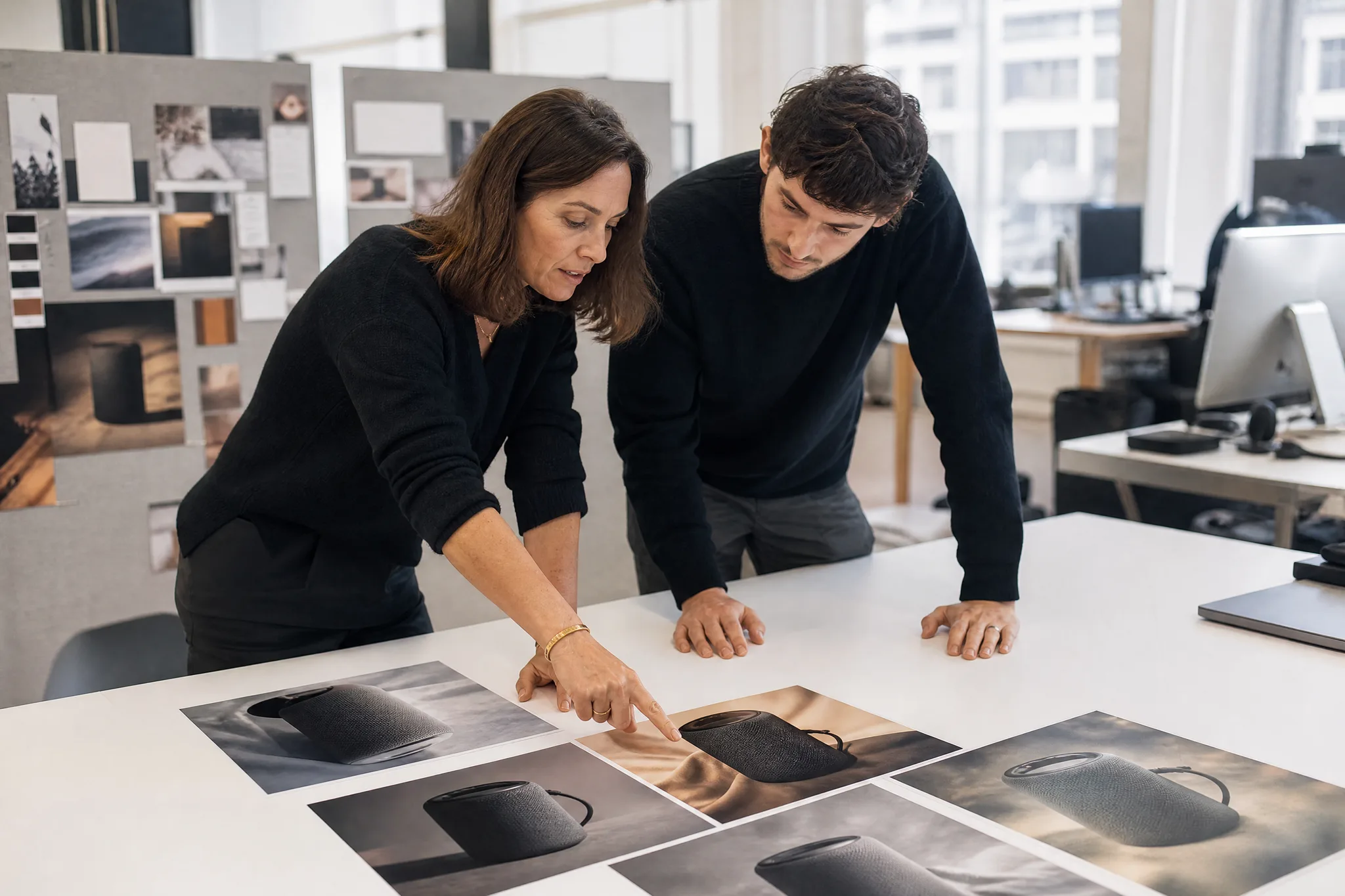
Two colleagues in a bright office comparing printed photos of a charcoal portable speaker laid side by side

Create UGC-Style Ads from a Product Image

Use a product shot with the image to video UGC ad generator to introduce a launch, develop a storefront concept or explore a new campaign direction.

Product-launch openings

Brand teams can introduce a new item with a clear reveal and closing view from the image to video UGC ad generator. Use the chosen shot as part of the launch edit, with the verified product message, price and availability added around it in your editor.

Instagram Reels concepts

Social media managers can explore a lifestyle moment or close-up from a product photograph and generate a vertical take with the image to video UGC ad generator where the selected model supports that framing. Use the clip in a Reel edit whose caption and context explain the product story.

Storefront visual stories

Ecommerce sellers can develop a moving product view for a website presentation or listing gallery. Pair the selected clip with accurate product photographs and written information so the scene supports the listing rather than replacing the details shoppers need before they buy.

Catalog creative exploration

Merchandisers with several products can choose one image per item and develop a focused motion idea for each. Repeat the image to video UGC ad generator workflow item by item when your catalog needs distinct visual concepts, keeping every brief specific to that product's shape and use.

Agency campaign discussions

Agencies can use a product image to video generator to explore a client's camera or lighting brief before a shoot is booked. Present the moving concept alongside the source materials when discussing the direction, and label it as a generated concept rather than final footage.

Creative Scenarios with Image to Video UGC Ad Generator

Scenarios for using image to video UGC ad generator in real projects, from the photos or ideas you start with to the take you keep.

We’re launching a new ceramic mug, so I’d upload a tabletop product photo to the image to video UGC ad generator and ask for a slow approach to the handle. If the shape stays readable, that take would be my opening shot, with verified product details added in the ad editor.

Ecommerce Founder
Creative workflow

Product Video Ad FAQ

Learn how a product photo becomes a video ad concept in the image to video ad generator, which images work as a starting point and how to prepare the clip for your final campaign edit.

An image to video UGC ad generator creates product-photo motion for creator-style advertising concepts. Upload the image and start with the built-in product reveal direction, or add a scene or camera idea of your own. On ImgVid, the result is a generated clip to use in your wider ad edit, not a real customer endorsement.

Upload the product photograph to the image to video ad generator and generate the clip. The built-in commercial direction gives the shot a starting brief, and an optional creative idea adds your preferred action or camera view. Download a selected take, then finish campaign copy, sound and sequencing in your editor.

Veo 3.1 Lite is the default model in the image to video UGC ad generator. You can switch to another video model when you need different duration, resolution or sound settings; each model sets its own inputs. Preview how it handles the packaging and label before you keep a take.

Yes — the source image and prompt can set a lifestyle scene or camera feel in the image to video UGC ad generator. The output is AI-generated visual material; it does not record a real customer using or recommending the product.

Ecommerce teams can build launch shots and storefront visuals with an AI image to video ad generator. Start from existing product imagery, pair the selected clips with verified product details, then finish and evaluate the advertisement through your normal campaign process.

A slideshow arranges existing photographs and transitions. Generated product motion creates new frames from a source image and direction, developing the subject or scene into a short moving shot.

Yes, when you own the product photo and have rights to any logos, people or props in it. Clips from the image to video UGC ad generator do not grant third-party permissions, and you must check that packaging, labels and claims match the real product before publishing an ad.

The image to video UGC ad generator is free to try within limits. Signed-in accounts can spend free credits to test a product shot on free-tier settings like Veo 3.1 Lite at 720p, up to 8 seconds long. Free clips carry an ImgVid watermark, so a clean ad export needs a paid plan or credit pack.

Uploaded product photos are not published. Free accounts keep Public Visibility on, so a successful clip may be shown publicly after review; with a subscription or one-time pack it starts off. Use a paid account for unreleased products in the image to video UGC ad generator.

Give Your Product Photo Its Opening Shot

Start with a clear packshot and the detail you want buyers to notice. Upload it to the image to video UGC ad generator, create a reveal or close-up, then finish the selected clip with your campaign titles, sound and timing. Bring your product photo and build the first shot.

Create a Product Clip
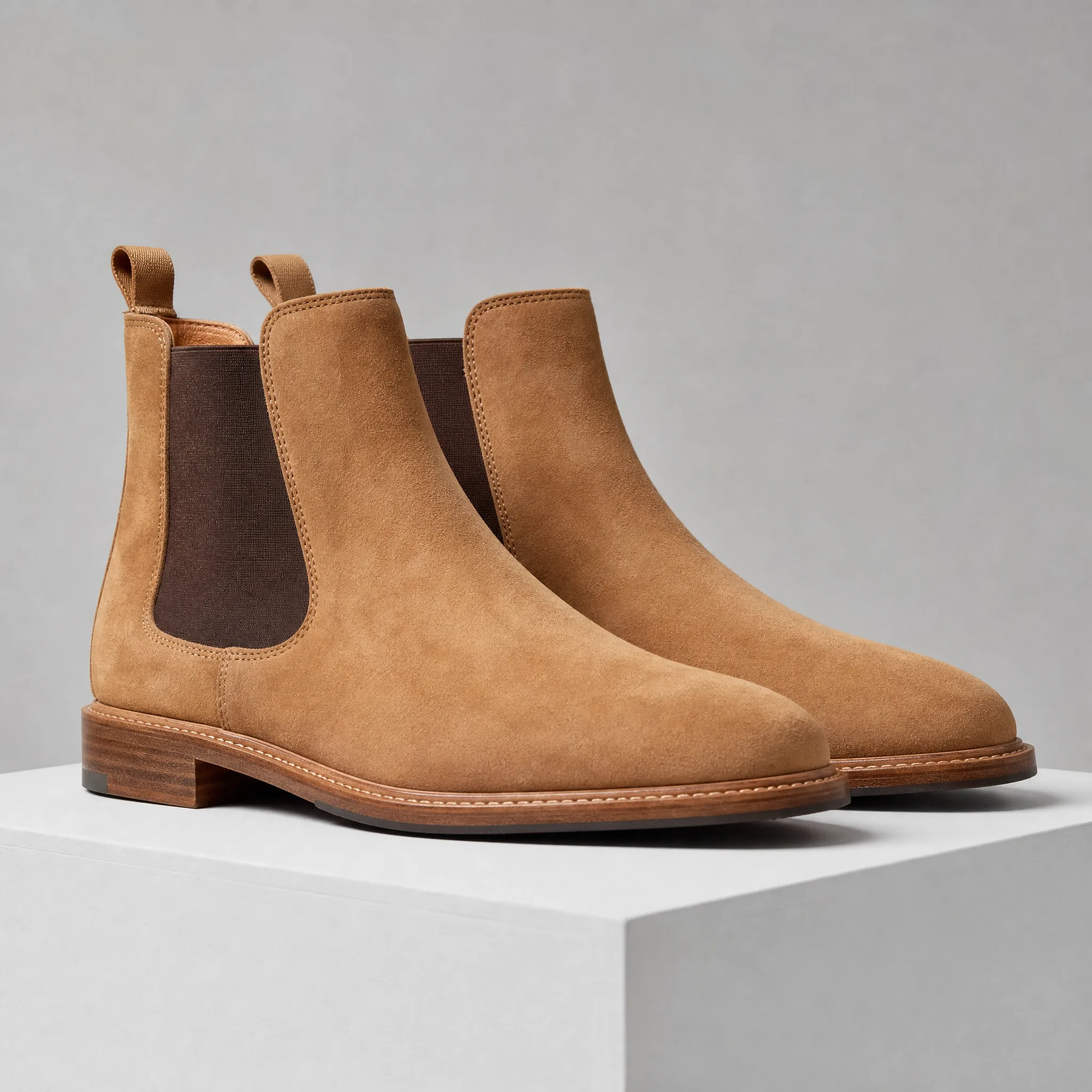
Pair of tan suede chelsea boots on a white plinth against a light-grey studio backdrop