Seedream 5 Image Generator

Shape a visual idea into a complete scene

ByteDance's Seedream 5 develops a still from a written scene or a reference photo you supply. Describe the subject, the light and the mood for a launch concept, an editorial portrait or a storyboard frame, then compare Seedream 5 takes before you finish the layout.

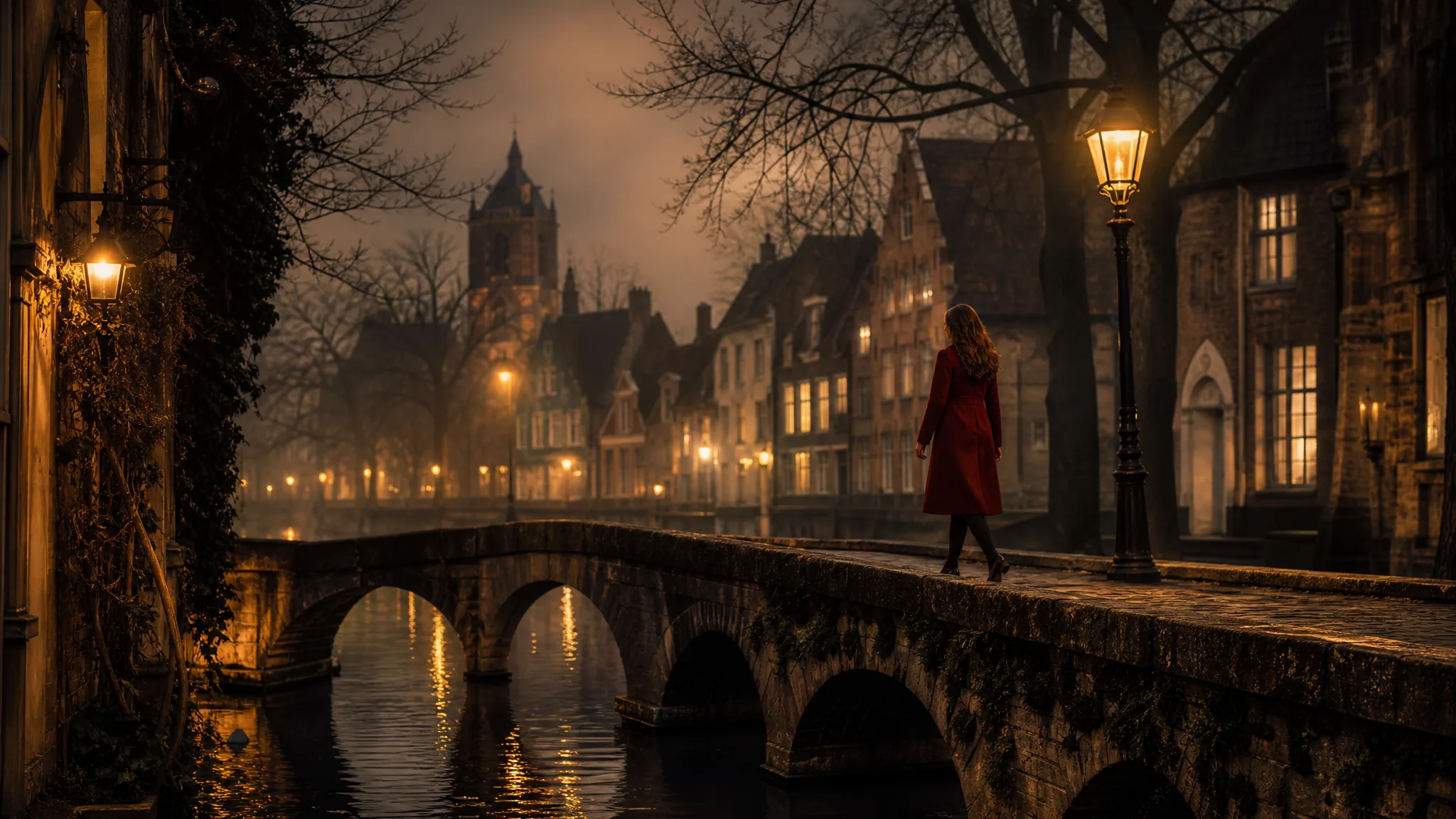
Woman in a red wool coat crossing a stone canal bridge in a misty lamplit old town at dusk
Richly detailed visual scenes
Photographic and illustrated directions
Creative concepts for your next project
Seedream 5
Prompt
0/5000
Aspect ratio
Quality
Number of generations
Public Visibility
Required credits
14
Examples
Woman in a red wool coat crossing a stone canal bridge in a misty lamplit old town at dusk

Explore Image Ideas with Seedream 5

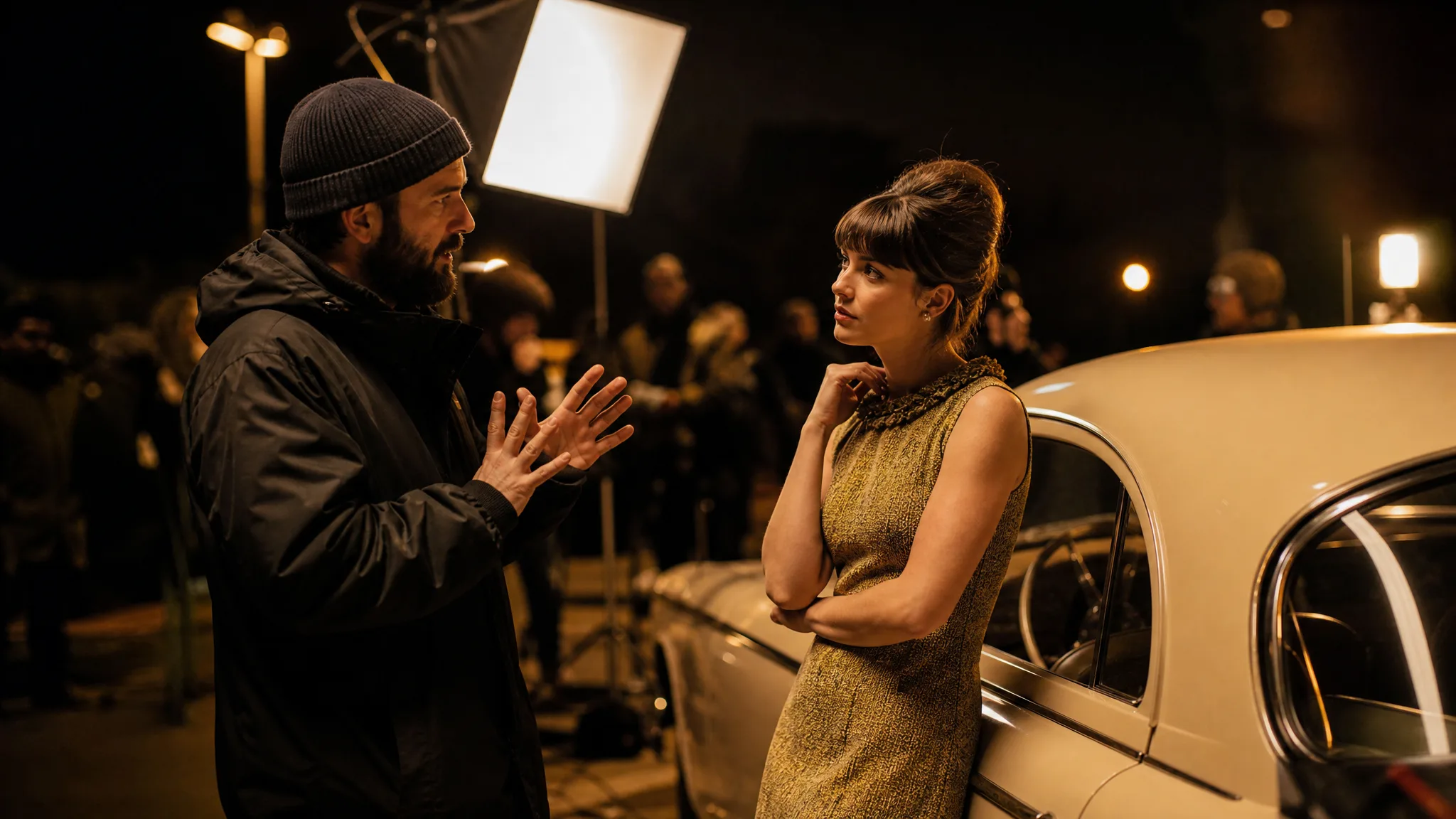
A film director talking an actress through a night scene beside a vintage car is shaping mood, light and framing at once. With Seedream 5, write those choices into your brief and compare the generated still with the scene you had in mind.

Generate with Seedream 5
Film director discussing a scene with an actress beside a vintage car on a warmly lit night set

How to Create with Seedream 5

Seedream 5 works from a written scene or a reference photo you supply. These four steps cover the prompt, the frame, the first take and the review that decides whether an image is ready for your layout.

1

Describe your image idea

Write a Seedream 5 prompt that names the subject first, then the setting, the light and the mood. If you already have a product photo or a sketch, switch to image-to-image and attach it so the scene grows from material you own.

2

Choose the composition

Pick the aspect ratio before you generate, because Seedream 5 composes the scene for that frame. A wide 21:9 suits a banner, 9:16 suits a story, and a square works for a feed. Leave empty space where a headline will sit later.

3

Explore the image

Generate a first Seedream 5 take and read it against your brief: is the subject where you placed it, does the light match the mood you named, do the materials look believable? Change one phrase at a time when something is off so you can see which word moved the result.

4

Choose and finish your take

Download the take that answers the brief, then zoom in on faces, hands, labels and edges before it leaves the workspace. Finish the crop, real typography and brand assets in your design tool, and treat the Seedream 5 image as a concept until that review is done.

Best AI Image Tools for Creative Projects

Create a new image from text or edit one you already have with the right image tool.

What Can You Create with Seedream 5?

Seedream 5 handles detailed scenes in photographic, cinematic and illustrated treatments. Each row below explains one decision in your brief and what it changes in the image you take into a project.

Photographic scenes with a clear mood

Seedream 5 reads light, material and framing as one description, so a photographic concept gets its character from how they relate to the subject. Write wet clay under a low workshop lamp or worn leather beside a window, and let the mood come from those choices rather than from adjectives stacked at the end of the prompt.
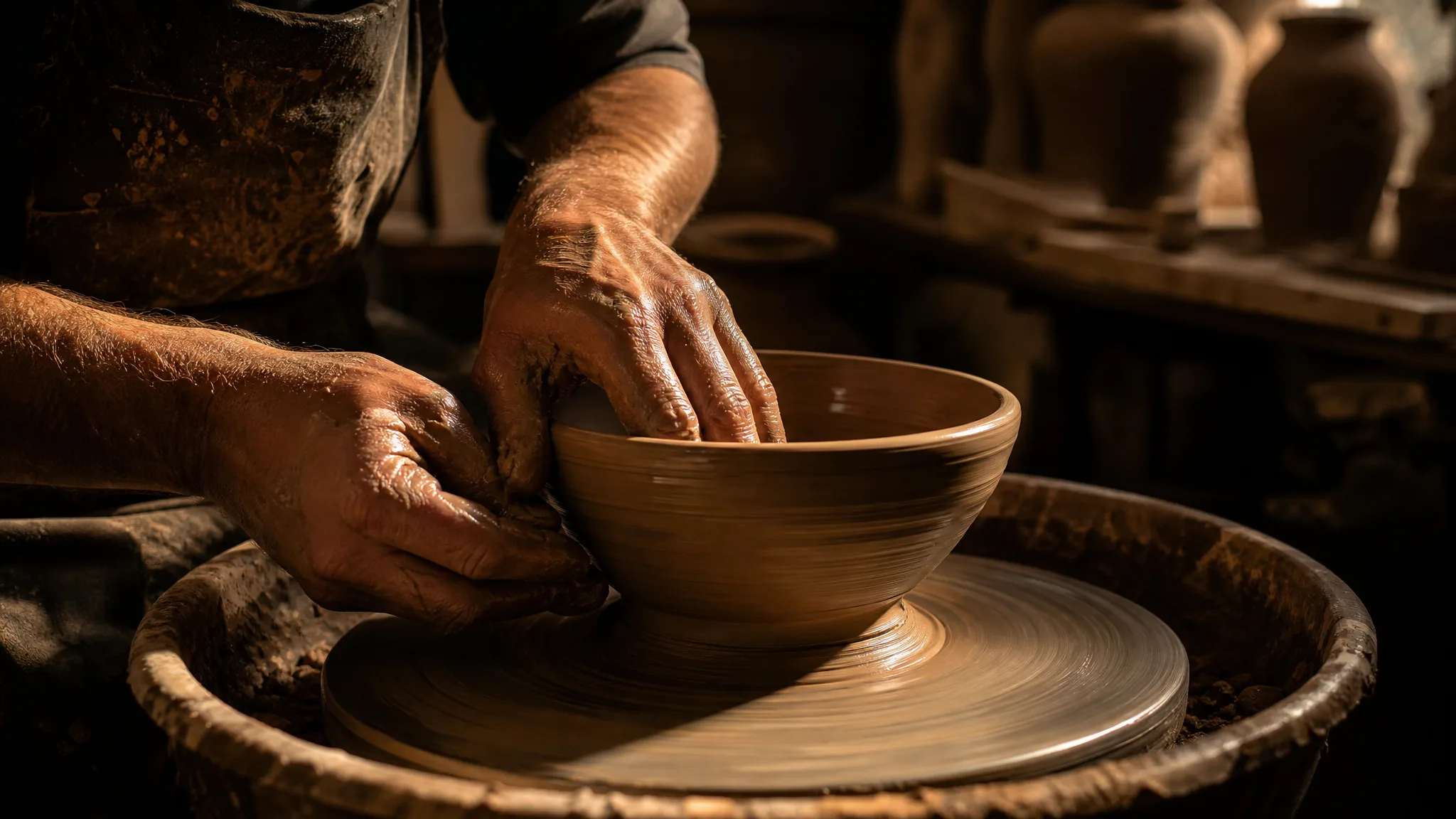

Potter's hands shaping a glossy wet clay bowl on a wheel in a single shaft of window light

Cinematic and illustrated directions

The same story can become a cinematic still or a hand-drawn illustration. Name the medium and the atmosphere in your Seedream 5 text to image prompt, run each version separately, and compare which treatment carries the idea better before you commit a team to one direction.

Lone rider on horseback cresting a desert dune at sunset in a cinematic wide shot

Poster concepts and visual hierarchy

A poster needs a focal point and breathing room. Ask Seedream 5 for the subject in one part of the frame and a calm area for the headline, then check that the hierarchy still reads at thumbnail size. Add the actual title and logo in your layout software, not in the prompt.

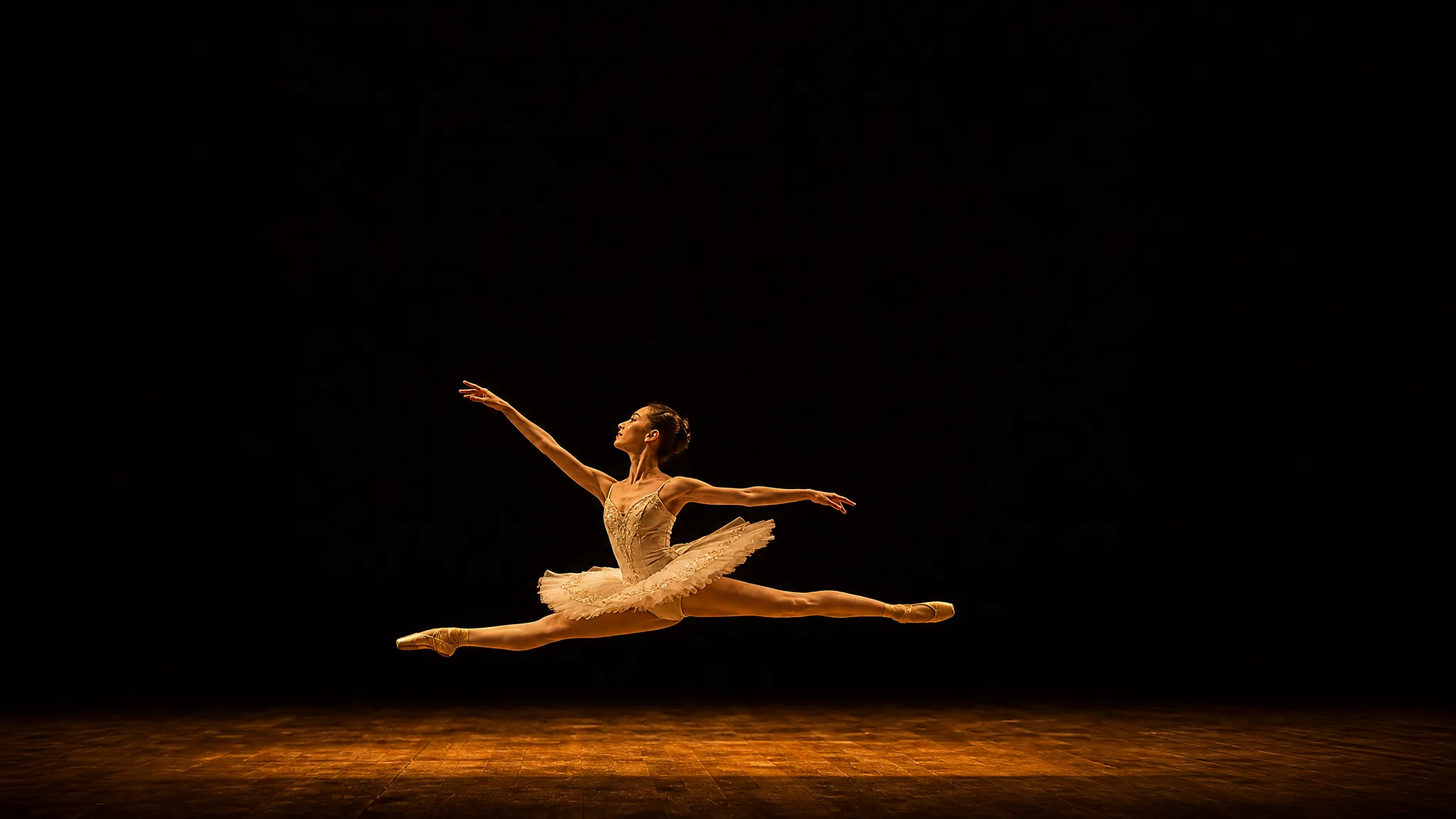
Ballerina mid-leap on a bare stage in the lower third with wide dark space above for a headline

A focused prompt for a complex scene

Complex scenes go wrong when every detail competes. Give the Seedream 5 image generator a readable order: the main subject, its action, the setting, then the camera view. Supporting objects should serve that center, and anything that does not can wait for a later take.

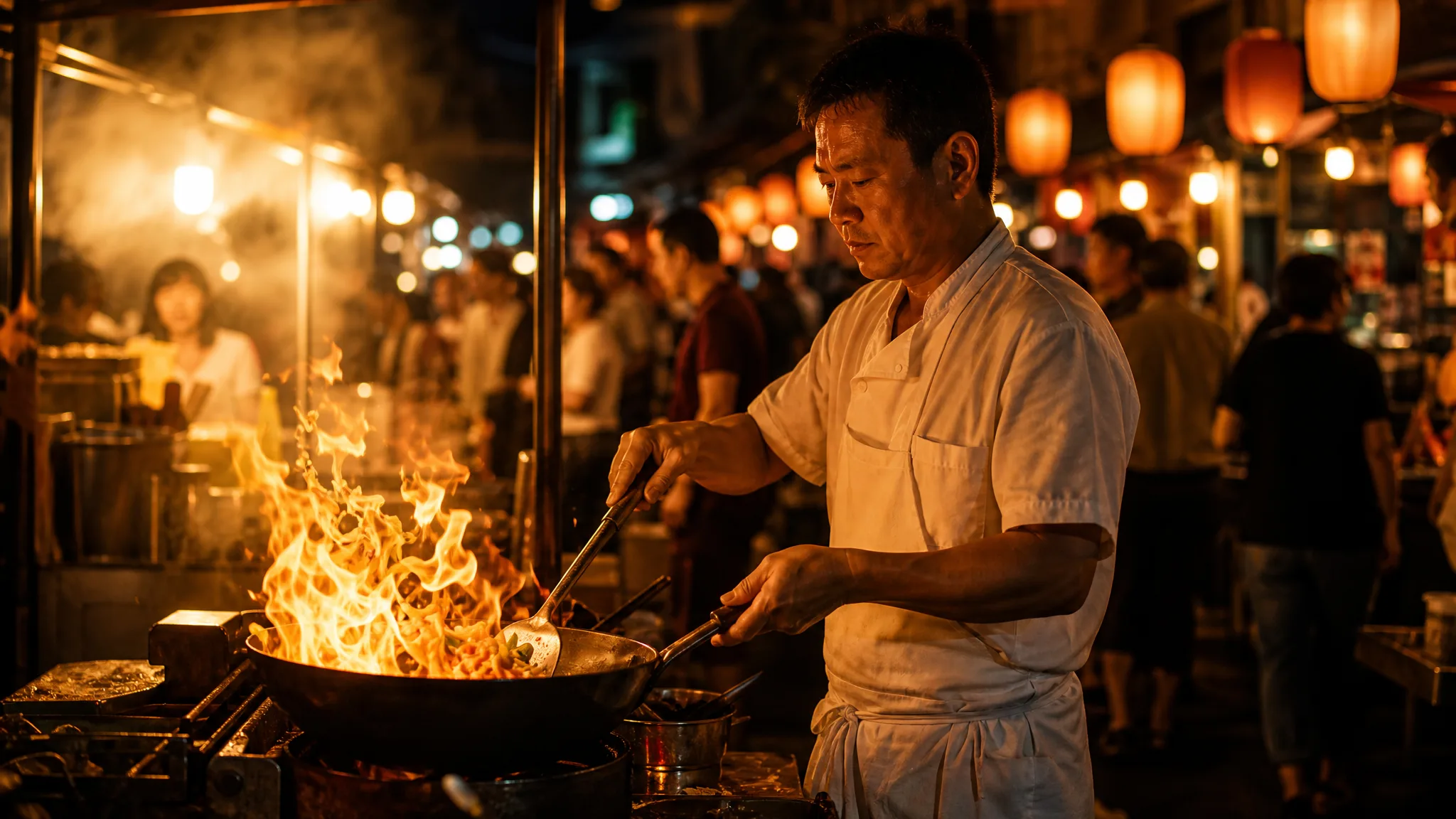
Street chef tossing vegetables in a flaming wok at a busy night market, shoppers and lanterns blurred behind

Seedream 5 Use Cases

Seedream 5 fits projects where a concept image has to exist before the final production. The four cases below pair a team role with the scene it would brief and where the result goes next.

Product scenes that tell a story

Product designers can place a bottle on sunlit stone or an accessory on a quiet studio backdrop with Seedream 5. Describe the material and setting so the concept explains the product idea, then hand the chosen image to the team as a reference before the real shoot.

Portraits with a clear visual mood

Portrait concept artists use Seedream 5 to test window light, an editorial palette or a cinematic setting for one character. Compare expressions across takes, check eyes and hands, and keep the selected image as a mood reference for the photographer or painter.

Illustrations from a written idea

Illustrators can turn a line from their notes, such as a lighthouse keeper's kitchen at dusk, into a Seedream 5 text to image scene. The result sets composition and palette for a hand-drawn piece rather than replacing the artist's own work.

Campaign concepts before the final layout

Campaign art directors can compare a warm lifestyle frame with a minimal graphic one around the same message in Seedream 5. Keep room for the headline in both, present them side by side, and build the final typography and brand assets in the design file once a direction wins.

Creative Scenarios with Seedream 5 Image Creation

Scenarios for using Seedream 5 image creation in real projects, from the photos or ideas you start with to the take you keep.

For a skincare launch concept, I'd describe frosted glass, pale stone and early morning light to the Seedream 5 image generator. I'd pick the take that gives the bottle a quiet setting and room for a headline, check the label against the real product, and bring it to the team before the final shoot.

Product Art Director
Creative workflow

Seedream 5 Frequently Asked Questions

These answers cover what Seedream 5 does on ImgVid, how references and prompts work, what access it requires and which image shapes you can pick before generating.

Seedream 5 is a ByteDance image model in the ImgVid image workspace that turns a written scene or a supplied reference into a still image. Describe the subject, setting, light and style, then pick the take that serves your brief and check its details before you publish it.

Yes — Seedream 5 image to image accepts up to 10 reference images on the selected variant. Attach a clear photo and say what should change and what should stay. You can also skip the photo and start from a text prompt.

A useful Seedream 5 prompt starts with the main subject, then adds setting, composition, lighting and style in that order. For a product, name the surface and background; for a portrait, name the crop and mood. One focused brief is easier to adjust than a long list of effects.

Seedream 5 needs eligible paid access when the paid-plan gate is enabled, and every generation spends credits. Before you start, the workspace shows the current credit estimate for the variant and settings you picked.

Seedream 5 offers these aspect ratios on the selected variant: 1:1, 4:3, 3:4, 16:9, 9:16, 2:3, 3:2, 21:9. Resolution choices are 1K, 2K, though the model may restrict some combinations. Compose the subject for the final crop instead of resizing afterward.

Seedream 5 images can support a launch or campaign once your inputs are cleared and each take is reviewed. Attach only photos you may use, check for trademarks, likenesses and factual slips, and finish type and brand assets in your editor; generation grants no third-party permissions.

Seedream 5 images are not published automatically, and reference photos you attach stay unpublished. Free accounts and visitors keep Public Visibility on, so a finished Seedream 5 still may be selected for Explore after review; a subscription or one-time pack starts generations private.

Bring Your Next Image Idea to Life with Seedream 5

Bring a written scene or a reference photo to Seedream 5, choose the frame, and generate a detailed concept image you can review and carry into a layout. Open the workspace and start your first brief.

Create with Seedream 5
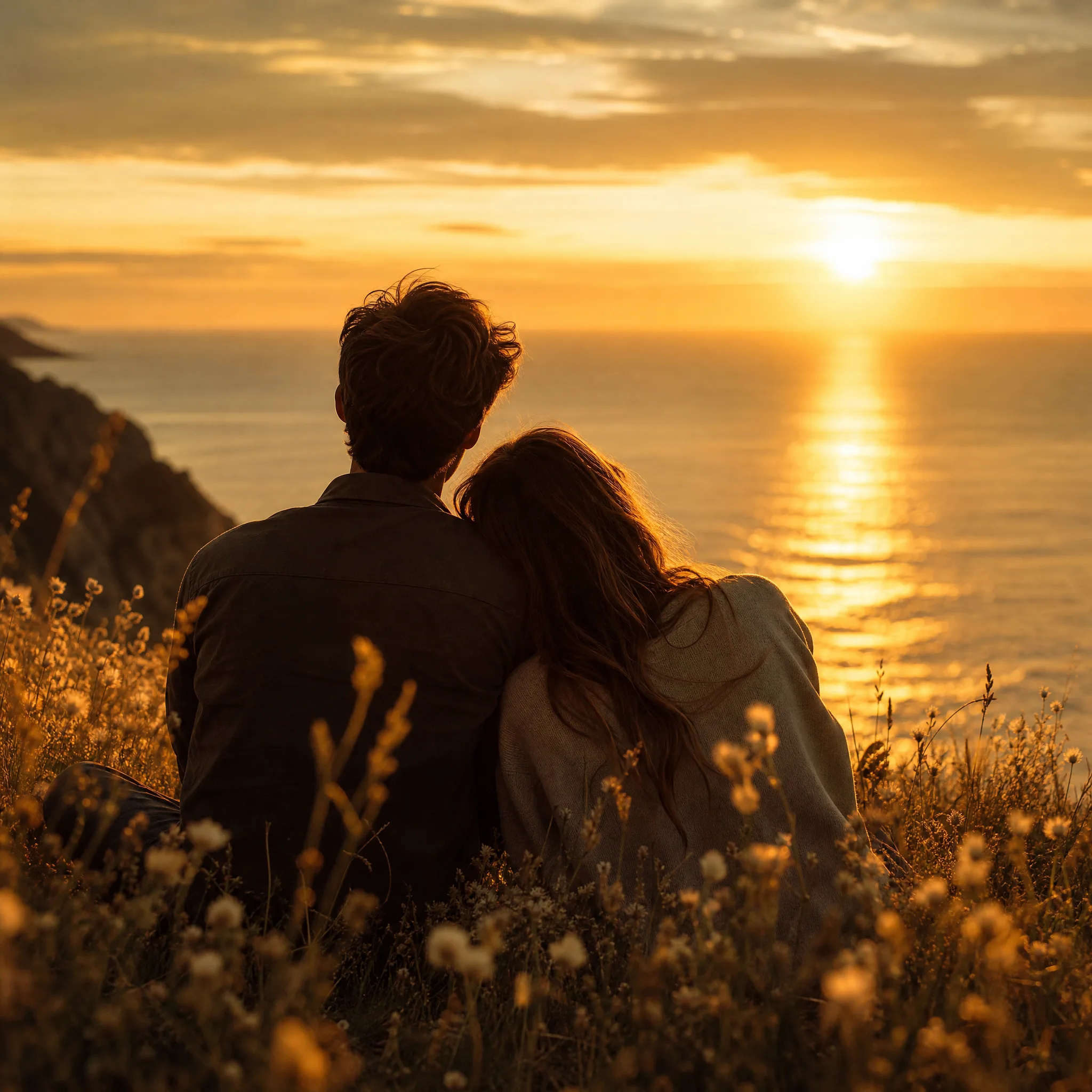
Young couple seen from behind on a grassy clifftop watching a golden sunrise over the sea