


Hailuo
First frame
Last frame
Prompt
0/7000
Video Length8s
Resolution
Number of outputs
Public Visibility
Required credits
128
Sample videos

Hailuo AI Image to Video with MiniMax H3

Explore a portrait, product or location as a moving scene

Explore a new moment inside a still image: a portrait turning toward the light, a quiet room coming alive or a product revealed by the camera. This Hailuo AI image to video page now opens MiniMax H3, which KIE’s model page also lists as Hailuo 03.

Try Hailuo Image to Video
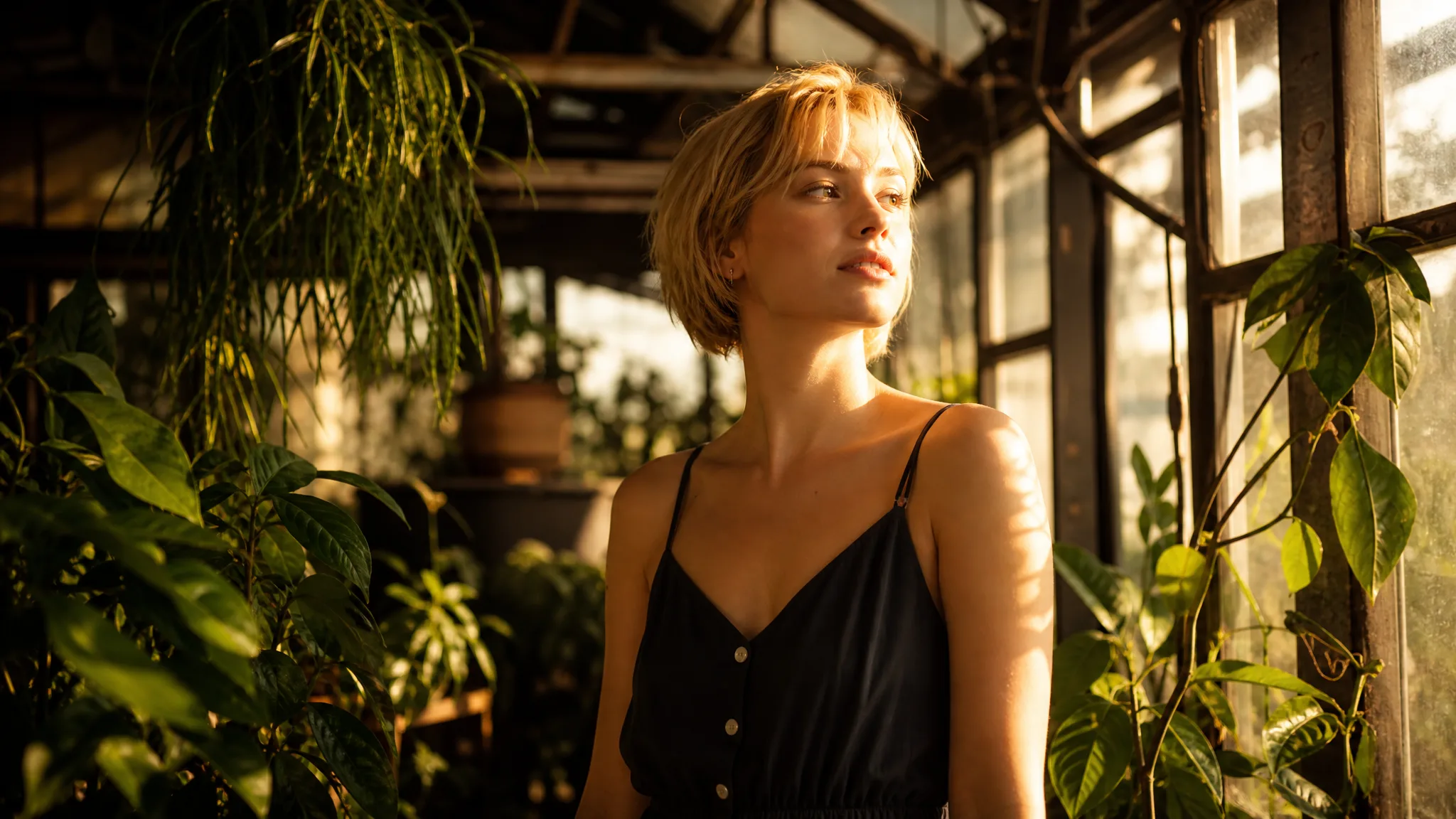
Woman with short blonde hair turning toward warm sunlight inside an old glass greenhouse full of plants
Portrait and location shot ideas|Camera-directed product scenes|Motion for food imagery|Clips guided by an image and prompt

How Hailuo AI Image to Video Works Here

Hailuo AI image to video on ImgVid starts with the scene in your photograph. Describe the moment for MiniMax H3 and review each take before you choose one.

1

Choose the scene in your photograph

Upload a portrait, room, product or landscape with a clear focal point and even light. Hailuo AI image to video treats that source as the opening frame, so its appearance, framing and atmosphere set the look of every take you generate from it.

2

Describe the moment with MiniMax H3

This Hailuo AI image to video page opens MiniMax H3. Write the subject action and camera idea, such as a glance toward the window or a close-up finding a product detail, then choose a length from 4 to 15 seconds and a 768p or 2K resolution; the framing follows your photo.

3

Select the shot for your project

Generate the clip, follow its job status and watch the completed preview. Compare the subject, framing and movement with your source photo, and listen to the generated sound that MiniMax H3 adds to every take. Download the take that carries the mood, then replace or mix the sound in your editor before it goes into a social edit or presentation.

Create a Photo-Led Moment with MiniMax H3

Hailuo AI image to video on MiniMax H3 can develop a portrait moment, a scenic reveal or a product detail from one photograph.

Make a portrait feel like a scene

Describe a small expression, head turn or camera approach around a clear portrait. The starting photograph gives the scene its face and mood, and the motion brief tells Hailuo AI image to video what should happen next. Small actions keep the likeness closer to the source than broad gestures, so check the eyes and mouth in every frame.
Add atmosphere to spaces and landscapes

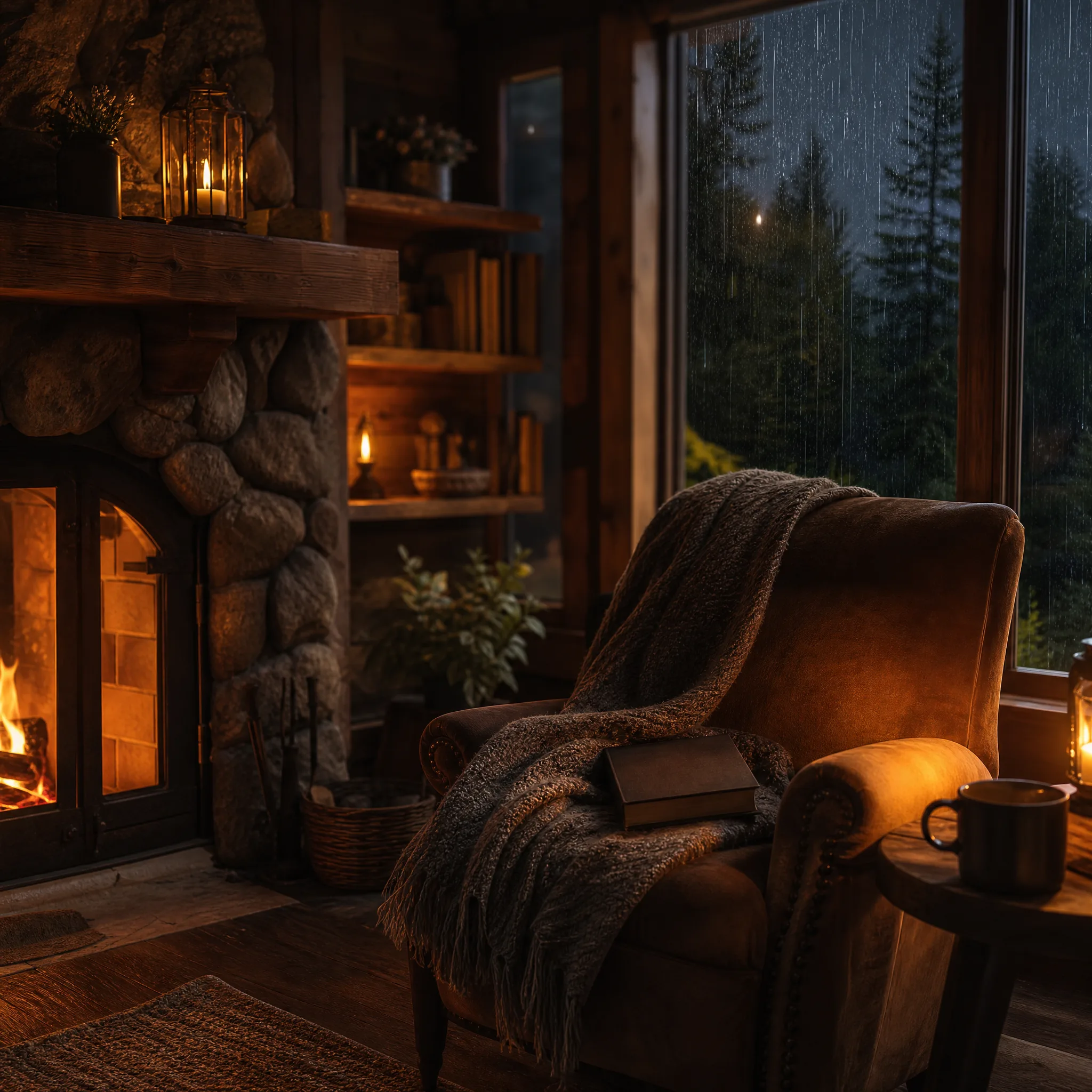
A room, garden or landscape can become a quiet establishing shot. Describe light, weather or a measured camera move, and use the preview to judge whether the scene communicates the mood you intended. Hailuo AI image to video suits this kind of shot because nothing in the frame has to perform; the space itself sets the tone.

Find a visual direction before the final edit

Use a source image to try a scene opener or a detail shot for a pitch. Compare the result with your reference and keep the take that fits the sequence. MiniMax H3 does not offer a timeline editor or video-to-video mode here, so add final titles, cuts and sound in the editor you already use.

Make a product detail the story

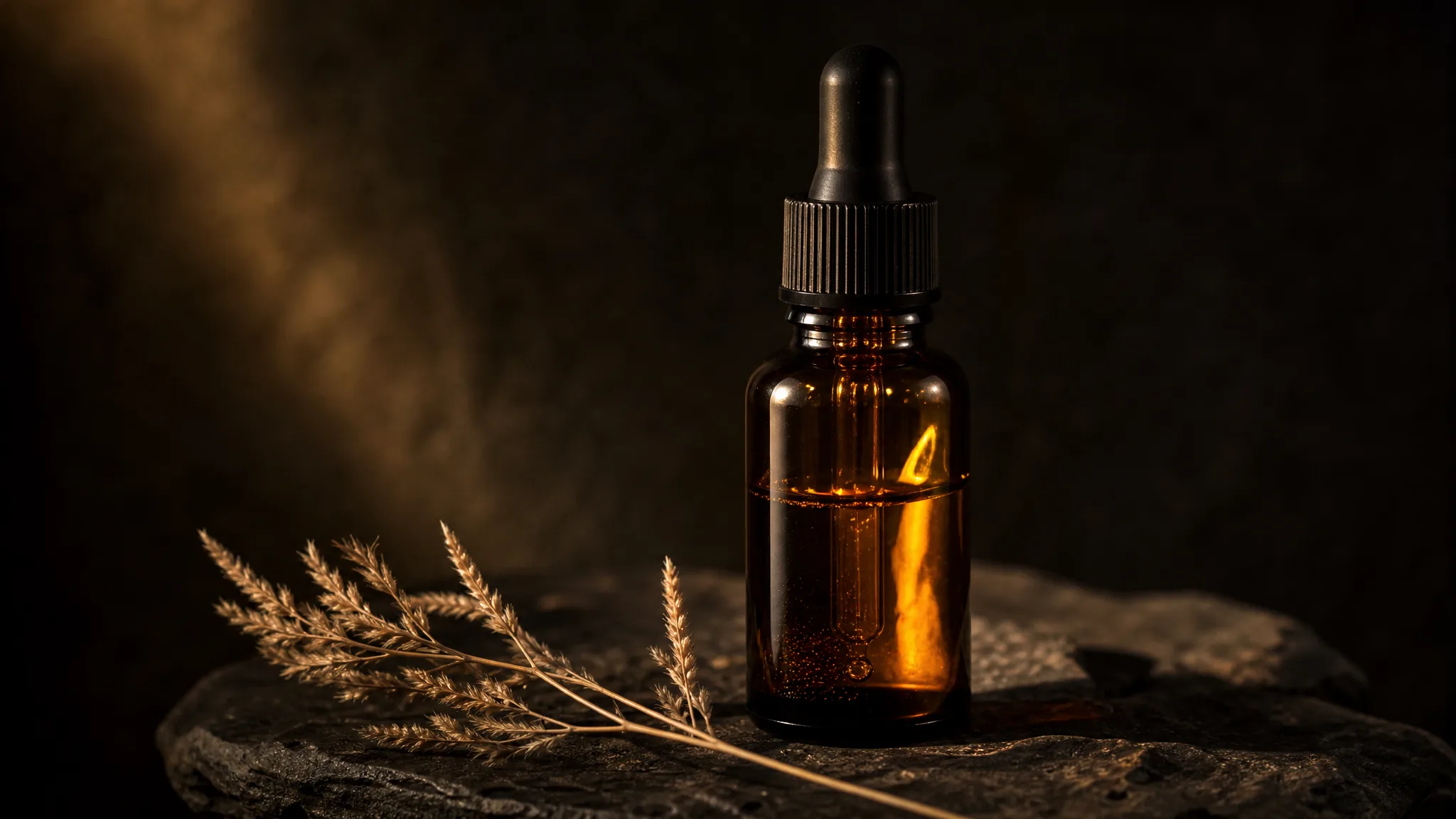
A light sweep or measured camera approach can focus attention on a material, label or shape. Start with a clear product photograph, describe the reveal and let Hailuo AI image to video build the shot. Check lettering, edges and reflections in the generated take before developing it into the final product presentation.

Amber glass dropper bottle on a dark stone tray as a sweep of warm light crosses the glass

MiniMax H3 Ideas for Photo-Led Projects

Hailuo AI image to video turns portrait, product, interior and scenic photos into short moving shots for real project needs.

Product presentation details

A marketer can begin with a clear packshot and use Hailuo AI image to video to explore a light sweep or slow camera approach. The chosen clip becomes a detail insert for a product presentation, a store page or a launch email, with its generated sound kept or replaced by music in the edit.

Interior story openers

A property photographer can upload a room image and explore a measured camera reveal across it. The short Hailuo AI image to video establishing shot introduces the setting before the walkthrough footage of a listing video or a rental showcase.

Portrait introductions

A speaker or coach can describe a small glance or smile around an existing headshot. Hailuo AI image to video produces a moving portrait that opens a conference bio slide, a course trailer or a profile video without a new photo shoot.

Food and menu stories

A restaurant owner or food creator can describe rising steam or changing light around a dish photograph. The short close-up gives a menu board, a delivery app story or an Instagram post a focused visual moment built from the photo already on file.

Creative Scenarios with Hailuo AI Image to Video

Scenarios for using Hailuo AI image to video in real projects, from the photos or ideas you start with to the take you keep.

A portrait is a starting point for a character moment, not just an asset to decorate. On this Hailuo AI image to video page, I'd let MiniMax H3 explore a small turn or glance from my reference. I'd check that the face stays consistent, then use the take to plan what the scene should communicate.

Reference Scene Artist
Creative workflow

Hailuo AI Image to Video FAQ

Find answers about Hailuo AI image to video, preparing references and refining a scene. Learn how to develop a visual idea and review the take for your project.

Hailuo AI image to video on this page opens MiniMax H3. According to KIE’s MiniMax H3 model page, MiniMax H3 is also known as Hailuo 03; that naming comes from the provider listing, not from ImgVid. Use an image and a motion prompt to explore a portrait action, product reveal or location shot. ImgVid is an independent operator.

Yes — the configured MiniMax H3 workspace supports text-led and image-led video modes. This Hailuo AI image to video page begins with Image to Video; choose a supported input mode and use the controls offered for that task.

Use the reference inputs shown for the selected mode. An image can establish the subject and composition, while reference-to-video and start/end modes have their own input requirements. Do not assume a provider’s separate audio or video-input features are exposed by this workspace.

For Hailuo AI image to video on ImgVid, MiniMax H3 creates clips from 4 to 15 seconds at 768p or 2K, and image-to-video keeps the framing of your uploaded photo. Hailuo 2.3 is an older version associated with this URL; its settings and free offers do not describe the current H3 default.

Yes — every MiniMax H3 clip on ImgVid includes generated audio, and there is no setting to turn it off. Listen to each Hailuo AI image to video take before using it, then keep, replace or mix the sound in your preferred editor; matching speech or exact sound timing is not guaranteed.

Yes — you can revise the motion brief and create a separate Hailuo AI image to video take. This workspace does not provide a manual timeline editor or a MiniMax video-to-video editing mode. Preview each result and assemble your final sequence separately.

MiniMax H3 requires eligible paid access and sufficient credits on ImgVid; older Hailuo free tier offers do not unlock it. You do not need to install or host MiniMax H3 to use this workspace. ImgVid provides hosted generation through the configured provider; you work in your browser rather than downloading model weights. Eligible paid generations export without an ImgVid watermark.

Explore character introductions, product details, room reveals or atmospheric scene openers. Choose a clear reference and one purposeful action, then review the take for the story or presentation you want to develop.

A Hailuo AI image to video clip can support commercial work when you hold rights to the photo. That covers any people, artwork or brands it shows. Check the MiniMax H3 model’s applicable terms and the platform’s rules; generating the clip grants no third-party permissions.

Photos you upload for Hailuo AI image to video are not published. Free accounts and visitors keep Public Visibility on, so a finished MiniMax H3 clip may be selected for Explore after review; a subscription or one-time pack starts generations private.

Create Your Next Photo-Led Moment with MiniMax H3

Choose a portrait, product photo or scene that already has the mood you want, describe its next moment, and Hailuo AI image to video develops a short moving shot with MiniMax H3. Review the take and its generated sound in your editor, and start from the photo you have today.

Create with MiniMax H3
Cosy cabin interior with a glowing stone fireplace, an armchair with a blanket and book, and rain on the window