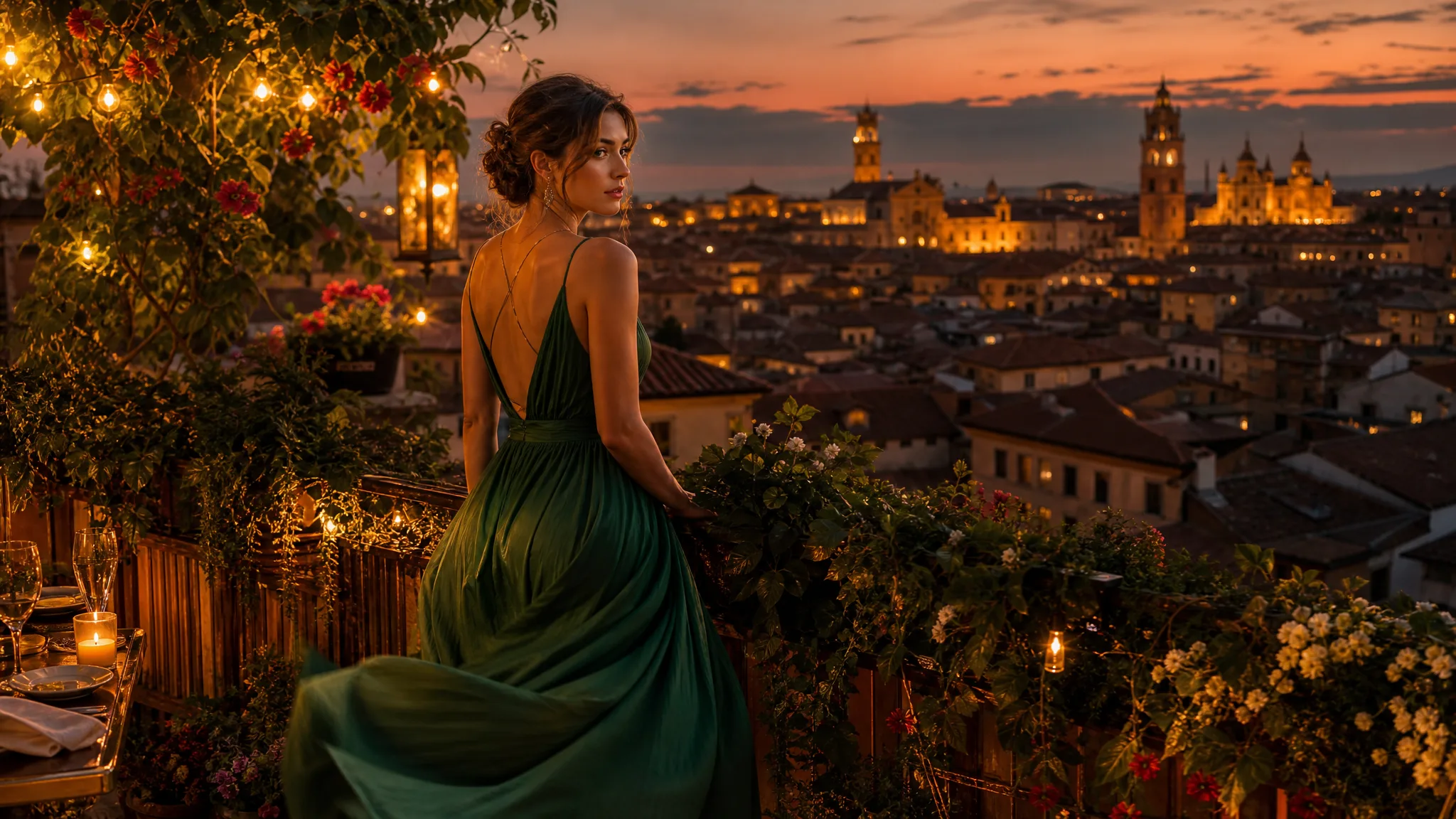
Image to Image AI: Edit Your Photo
Reference images

Up to 10 images · JPG, PNG or WebP · up to 20 MB each · max 6000 px per side or choose from

Prompt
0/5000
Aspect ratio
Image size
Number of generations
Public Visibility
Required credits
7
Examples
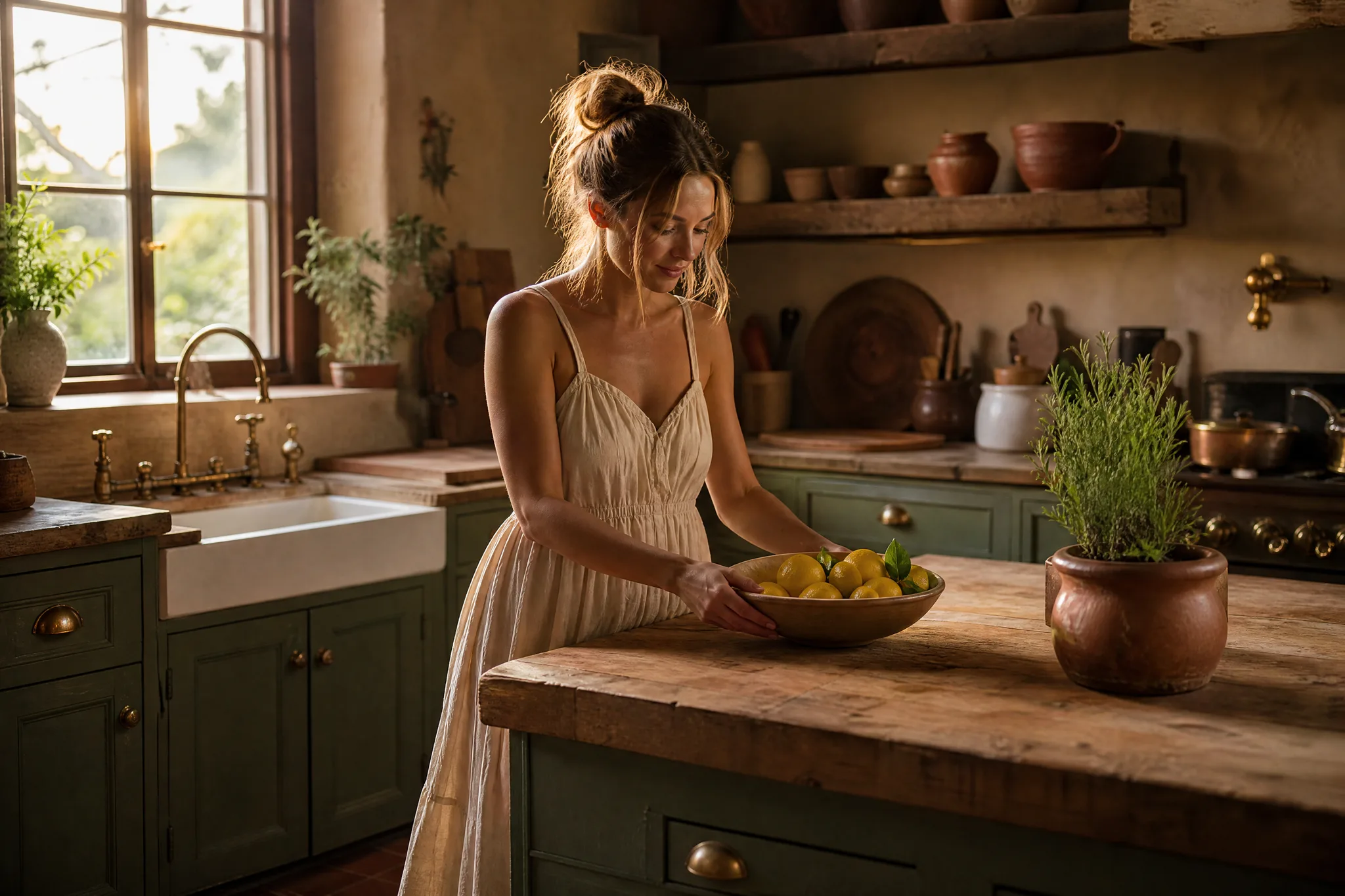
Farmhouse kitchen restyled with sage-green cabinets and brass taps as a woman sets down a bowl of lemons

Image to Image AI: Edit Your Photo

Turn a sketch, portrait or product photo into a new visual direction with image to image AI.

Keep the picture as your starting point and imagine what could change. Image to image helps you explore a different backdrop, a new visual style or a fresh product scene, guided by your photo and a prompt describing the result you want.

Edit a Photo with a Prompt
Farmhouse kitchen restyled with sage-green cabinets and brass taps as a woman sets down a bowl of lemons

How to Edit a Photo with Image to Image AI

Start with the picture you want to develop and describe what should change. Image to image AI then explores a new direction while keeping your source photograph as the reference.

1

Choose the image to build on

Upload the portrait, product still or scene you want to develop as the image to image source. Supported uploads are JPG, PNG and WebP. A clear photo with the subject in focus makes the details you want to keep easier to name in the next step.

2

Explain the change

Describe a different background, a new visual style or the atmosphere you want around the subject. Name the source details that matter, such as a face, an outfit or a product shape, so the image to image prompt states what to keep, then choose the available framing.

3

Keep your preferred direction

Click Generate and follow the job status until the images are ready. Compare each result with your source, download the one that suits your post, product idea or creative project, and refine the prompt when you want another direction.

Best AI Image Tools for Creative Projects

Create a new image from text or edit one you already have with the right image tool.

Explore What Image to Image AI Can Create

Start with a picture you already have. Describe a new style, setting or finish, and image to image AI develops artwork that belongs to your project.

Develop a Sketch into a Finished Art Direction

A drawing can communicate the pose and composition before the final look is settled. Upload your sketch and describe the materials, light and atmosphere you want. Image to image AI gives you a new interpretation to compare with your original idea. Check that the pose and proportions still match your drawing before you treat it as the art direction.
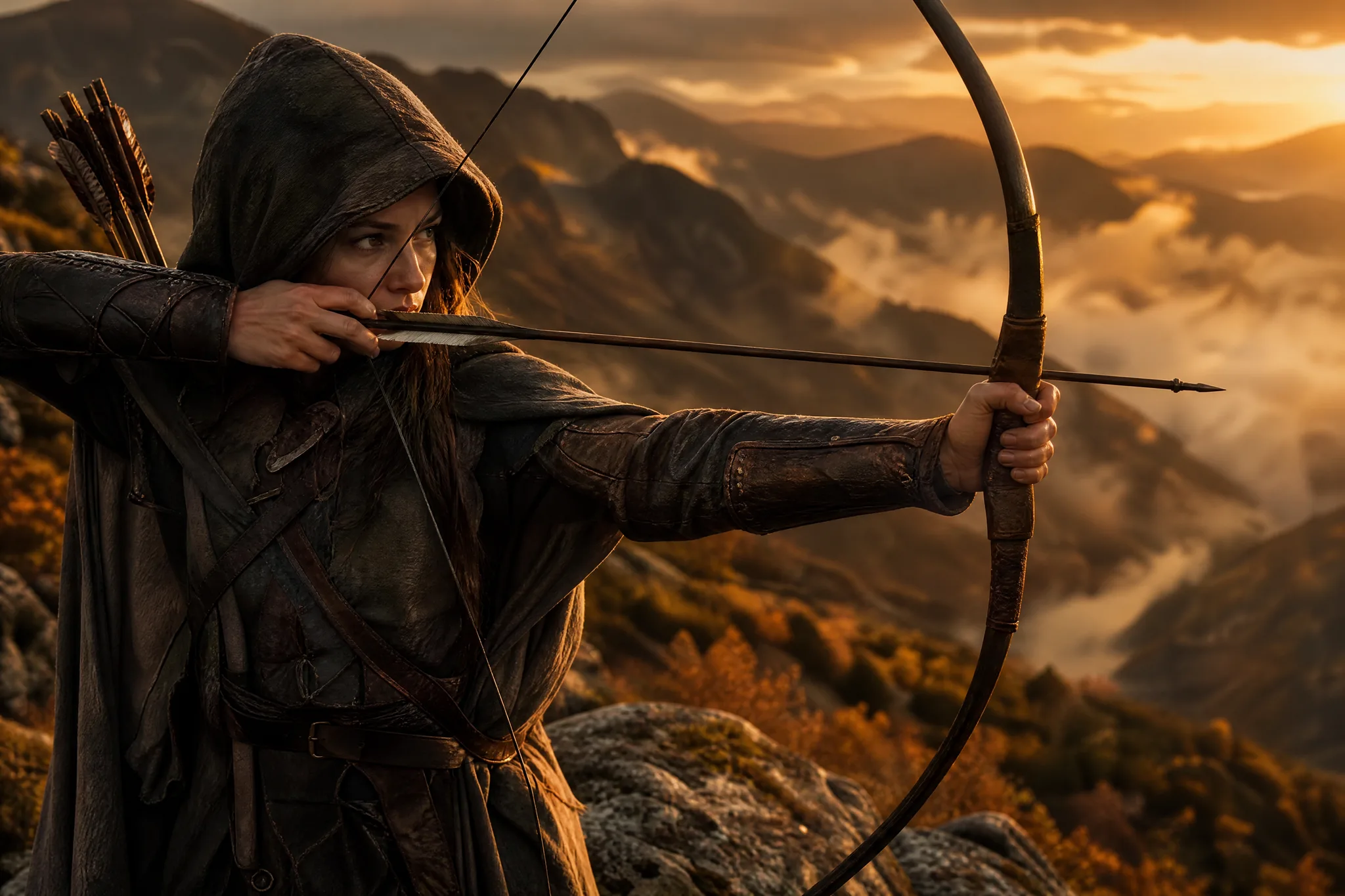
Hooded archer drawing a longbow on a misty mountain ridge, a sketched pose developed into a finished scene

Reimagine a Portrait in a Different Style

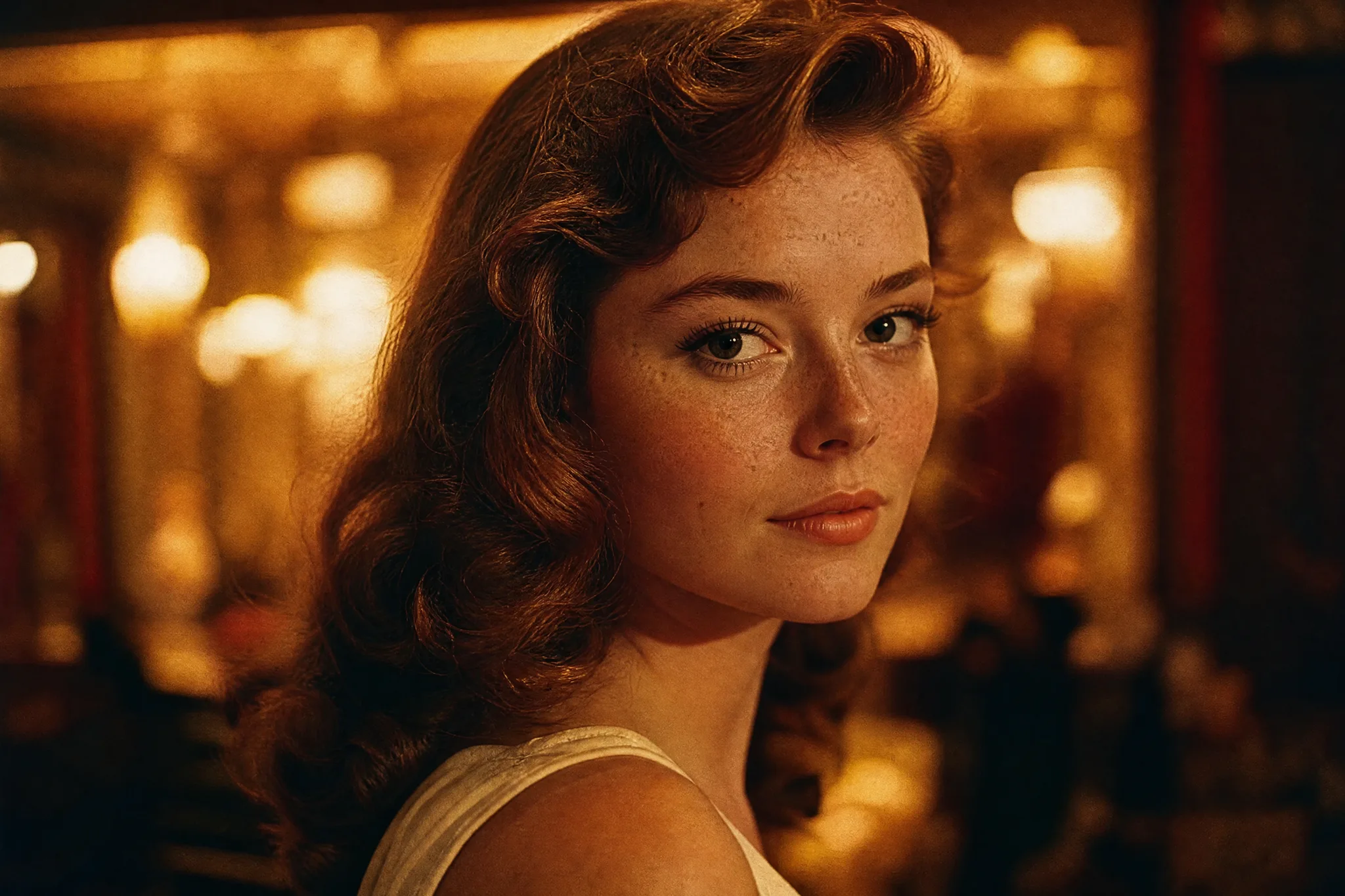
Explore an illustrated, painterly or cinematic direction from a portrait. Say which details of the face and pose should stay and what should change. Compare the result with your source and refine the prompt until the visual direction fits the story. Image to image keeps the portrait as a reference, but likeness can shift with the style, so review the face closely.

Portrait of a freckled woman with wavy chestnut hair restyled in a golden 1960s cinema look, her face and pose kept

Build a New Setting Around a Product

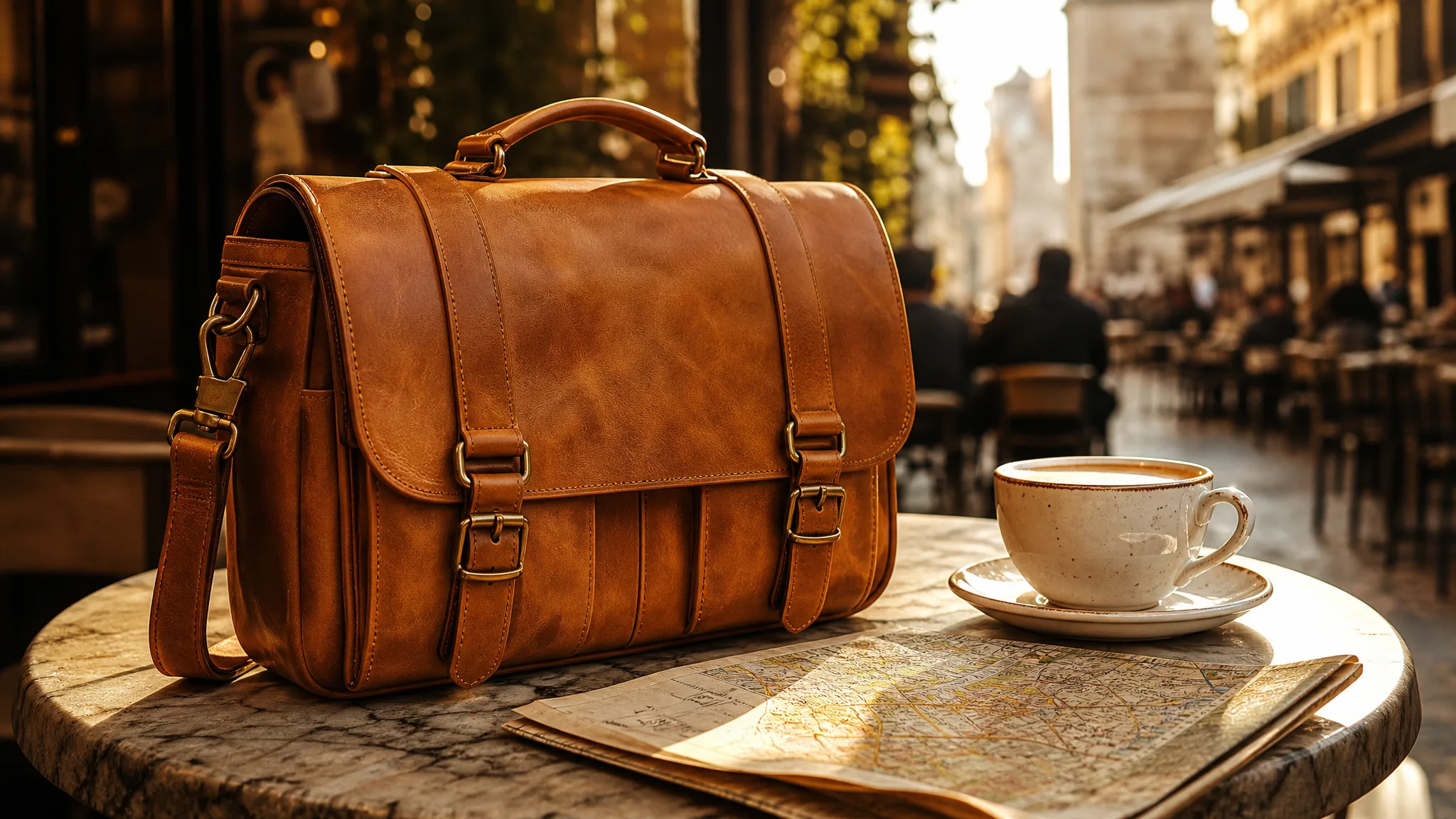
A clear product photograph is a useful starting point for campaign concepts. Request a studio backdrop, a tabletop scene or a lifestyle setting, then check the product details in the generated image. Choose a composition that communicates the product before finishing the final layout. Labels, logos and small print can change, so confirm them or add them in your editor.

Tan leather camera bag with brass buckles placed on a sunlit marble café table beside a cappuccino and a folded map

Why Create from an Image with ImgVid?

A source photograph gives image to image AI a starting subject and composition. Explore a different mood, setting or style, then compare each new interpretation with the image you began with.

Start with Your Own Visual Idea

Bring the subject, sketch or composition you want to build on. In image to image, your reference makes the creative brief more concrete than words alone, because the source shows the pose, layout and colors you mean instead of leaving them to a description.

Describe the Changes Naturally

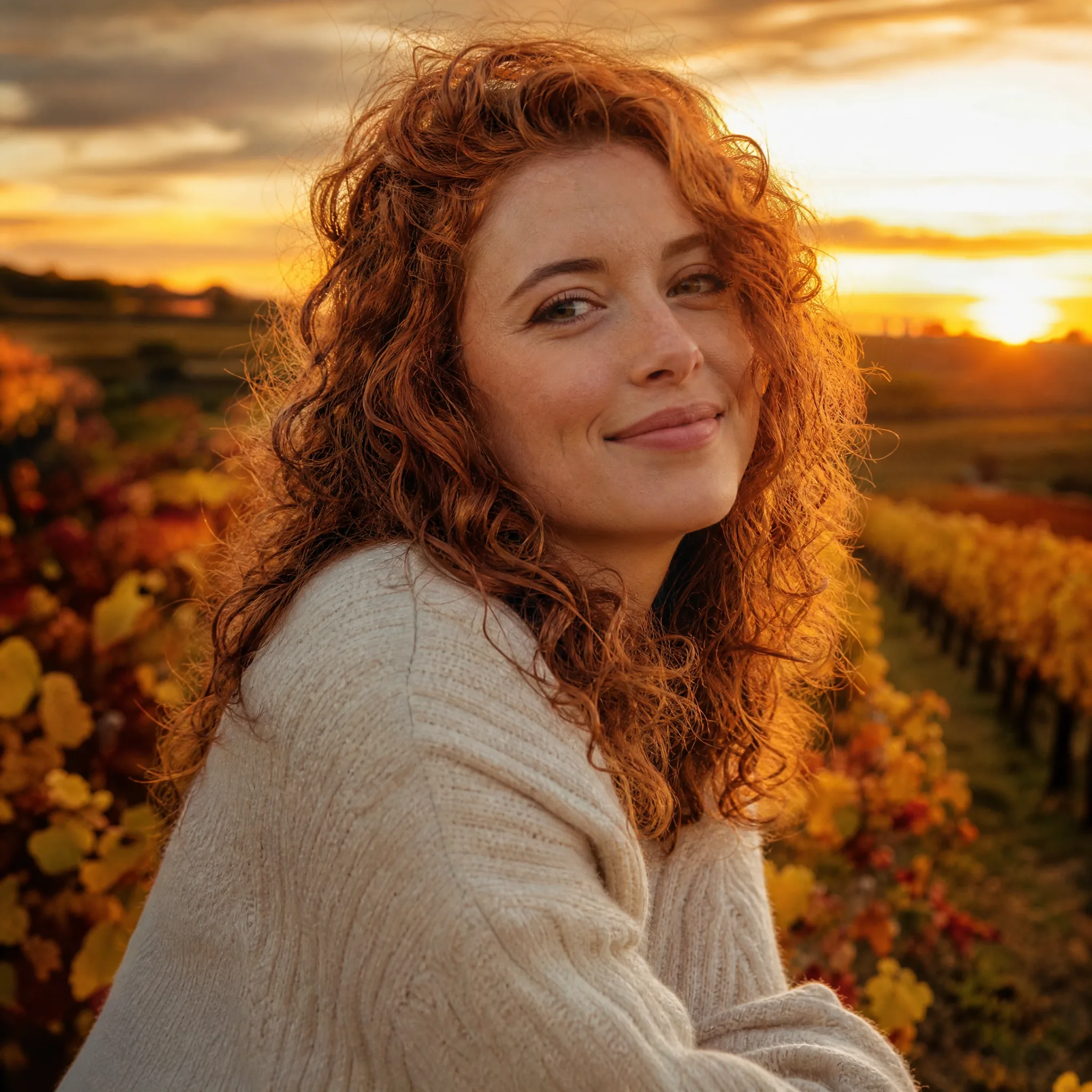
Ask for a different background, style or mood in everyday language. A useful image to image prompt names the details to keep as well as the changes you want, for example the same face and outfit placed in an autumn vineyard at sunset.

Compare Creative Directions

Explore another interpretation of the same source rather than settling on the first idea. Run the image to image request again or adjust one phrase, then review the images together and choose the direction that suits your project.

Develop Visuals for a Real Project

Use image to image AI to explore product scenes, illustrations and social concepts for a real campaign or post. Before publication, check each result for likenesses, trademarks and product details, and confirm you have permission for the photo or artwork you upload.

Refine a Picture Step by Step

Adjust your description when a scene needs different light, a quieter background or a more distinctive style. Each image to image iteration starts with a clearer brief, so change one detail at a time and compare it with the previous take.

Take the Result into Your Project

Give your picture a new setting, style or visual mood. Preview the interpretation you like and download it for a post, presentation or creative project; your results stay in My images and your Asset Library when you return to them later.

Creative Scenarios with Image to Image AI

Projects where image to image AI could reinterpret a picture you already have, from a rough sketch and a product photo to a room shown to a client.

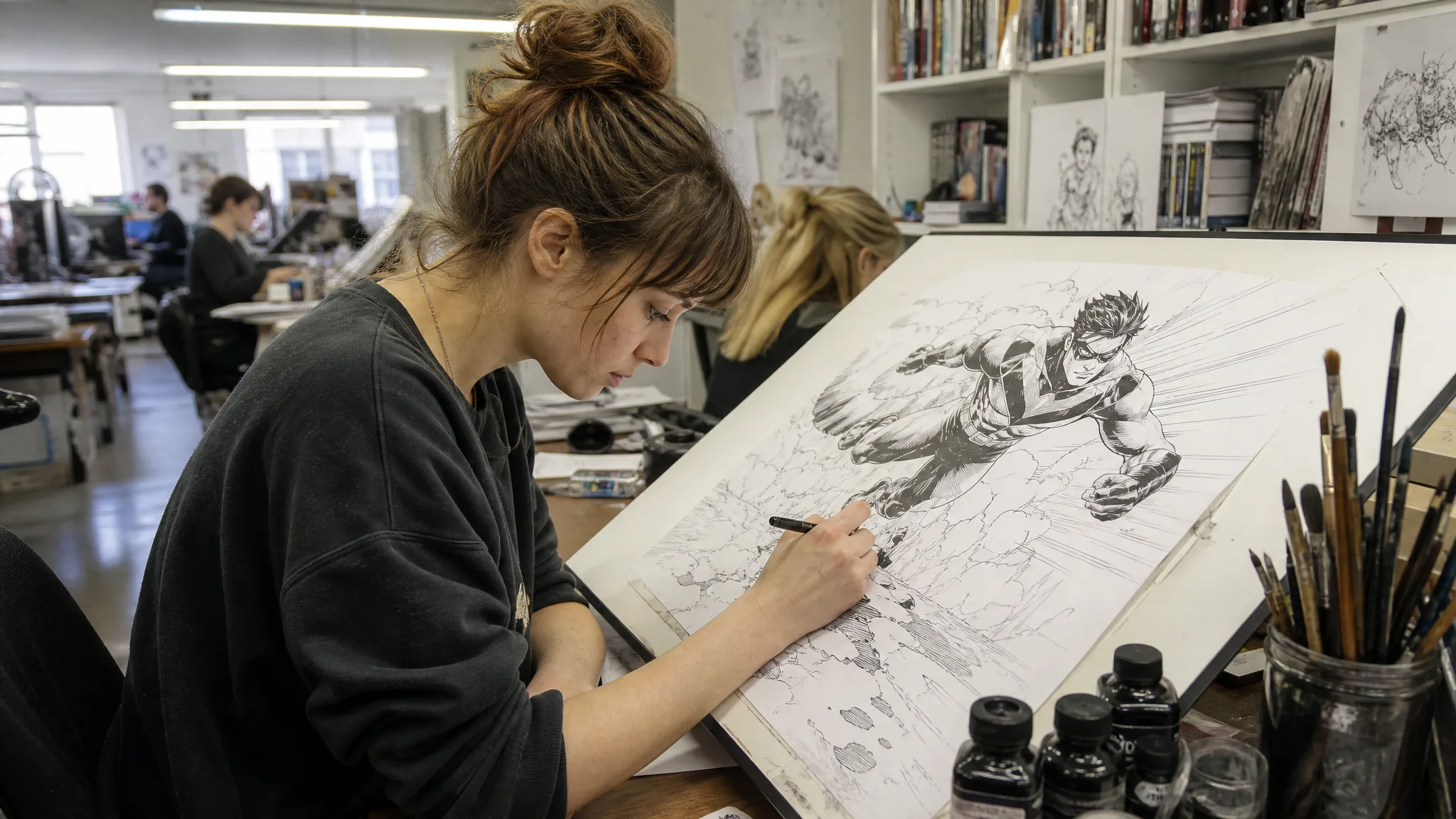
A rough sketch gives my team a composition but not the finished mood. I'd upload the sketch to image to image AI and describe the lighting and materials I have in mind. Then I'd compare the result with the original, keep the layout that still matches, and bring it to our next design review.

Visual Designer
Creative workflow

Image to Image AI Questions

Find answers about image to image AI, choosing a reference photograph and describing the new look you want. Learn how this workflow differs from starting with words alone.

Image to image AI is a generation workflow that creates a new picture from an uploaded image and a written prompt. The source sets the subject and composition, while the prompt describes the new style, setting or mood; it reinterprets the picture rather than editing pixels by hand.

Image to image uses an uploaded image as a reference along with your prompt. Text to image starts from your prompt without a reference image.

Use an existing photograph to explore a portrait style, a product setting or a different mood around a scene. Describe the edit and the details you want to preserve. Image to image creates a new interpretation; it is not a pixel-by-pixel manual photo editor.

It depends on the model, settings and number of generations, and the workspace shows the credit quote before you create; some models return multiple images in one generation. Image to image editing currently requires paid access, because Z-Image Turbo, the free-plan image model, only creates images from text.

No — image to image generation uses an online service: your reference image is uploaded and passed to the selected model provider for processing. Review the privacy policy before uploading sensitive material.

Yes — image to image AI can follow an anime, illustrated or painterly direction from your prompt. Explain the pose and source details you want to retain, then check the generated image; style and similarity depend on the model and the reference.

No — you can begin with a clear photo and a description of what should change. Image to image AI creates a new interpretation rather than offering manual pixel-level editing, so review the result and use your usual editor for final adjustments when needed.

Image to image AI results can support commercial projects when you have permission to use the photo or artwork you upload. Review each result for likenesses, trademarks and product details before publishing; generation does not grant third-party permissions.

Give Your Image a New Creative Direction

Bring a sketch, portrait or product photo and describe what it could become. Explore a new setting or style with image to image AI, then keep the result that fits your idea.

Start Creating from Your Image
Woman with curly auburn hair in a cream knit sweater, her portrait placed in an autumn vineyard at sunset