




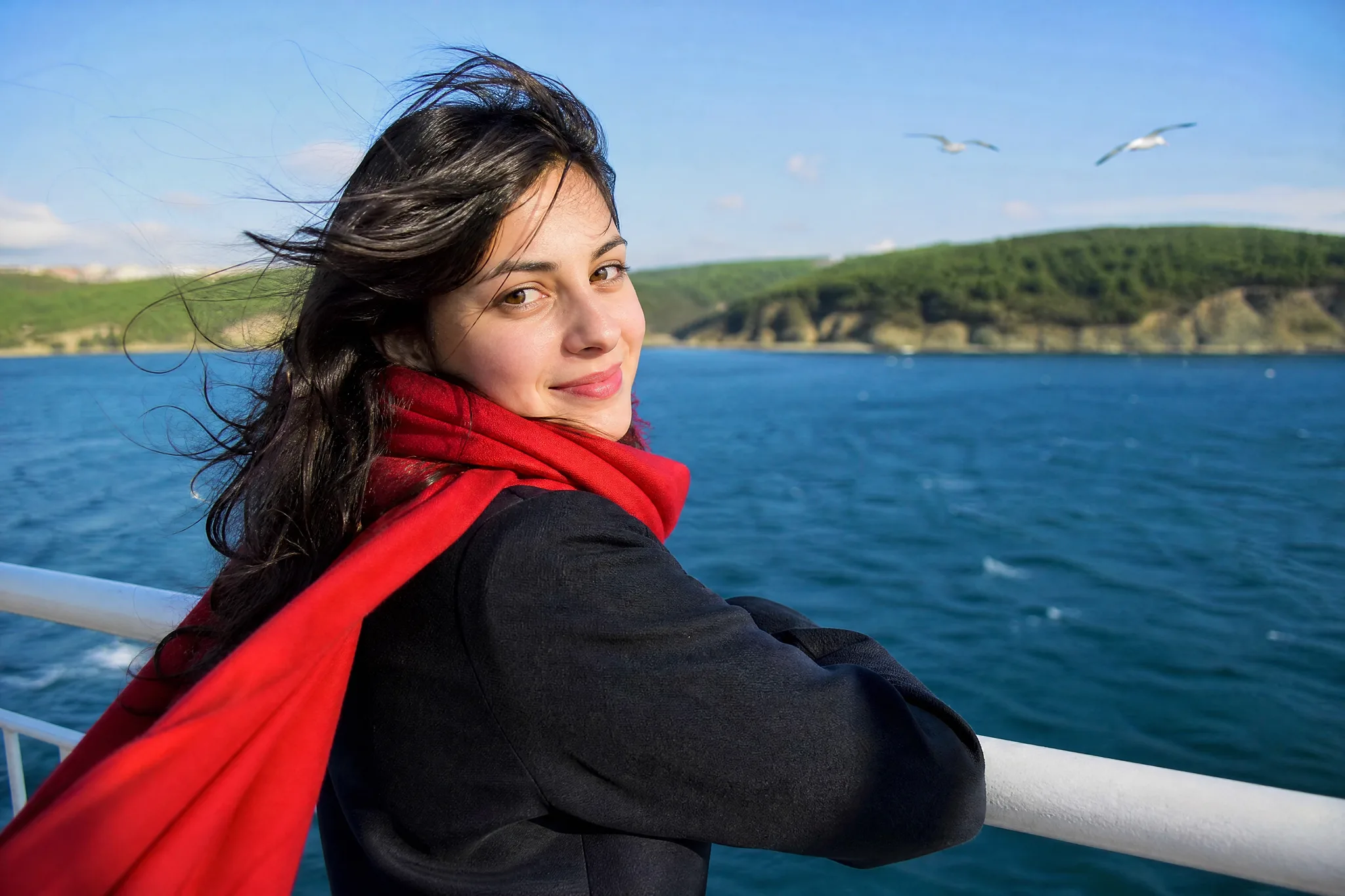
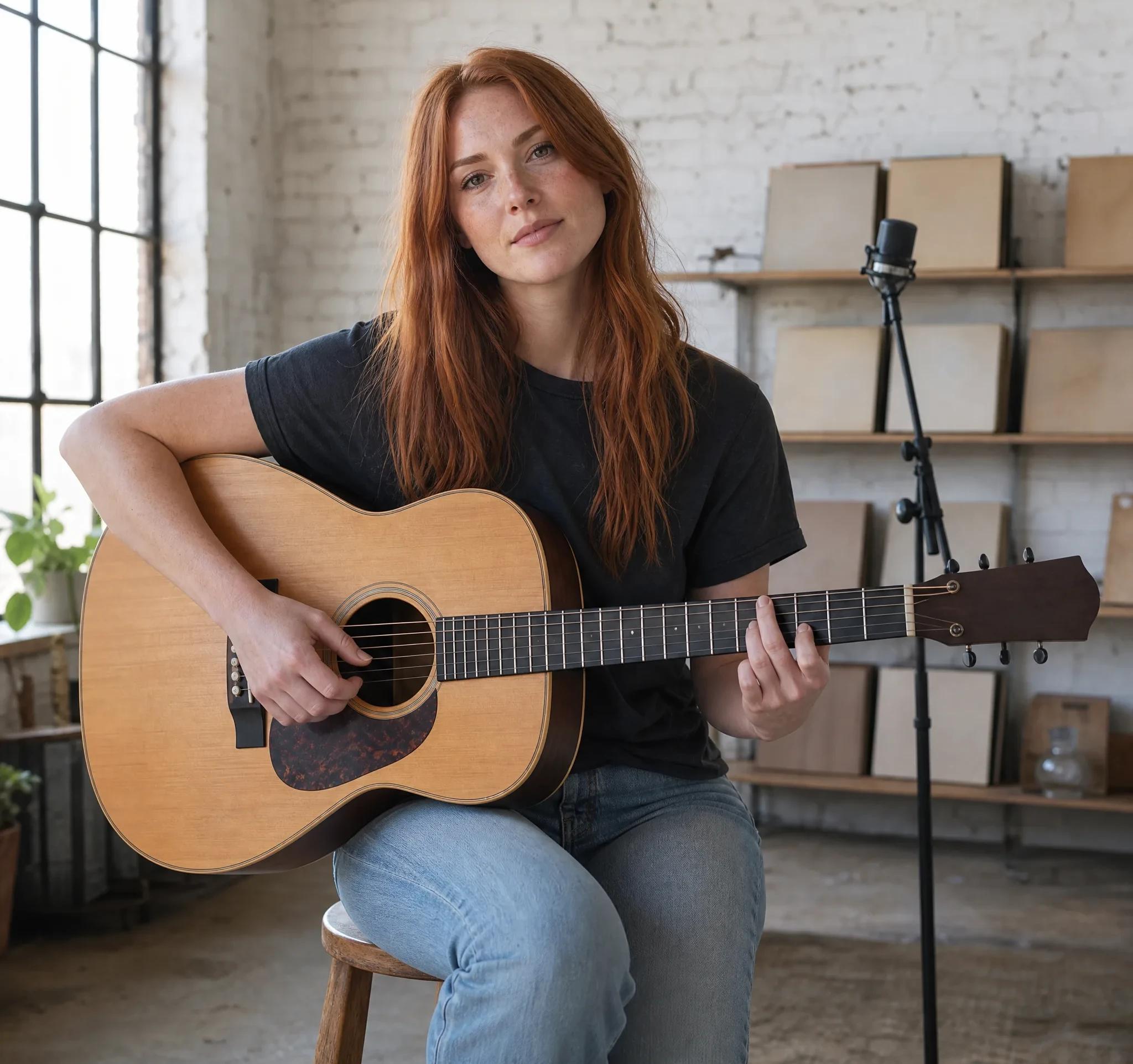
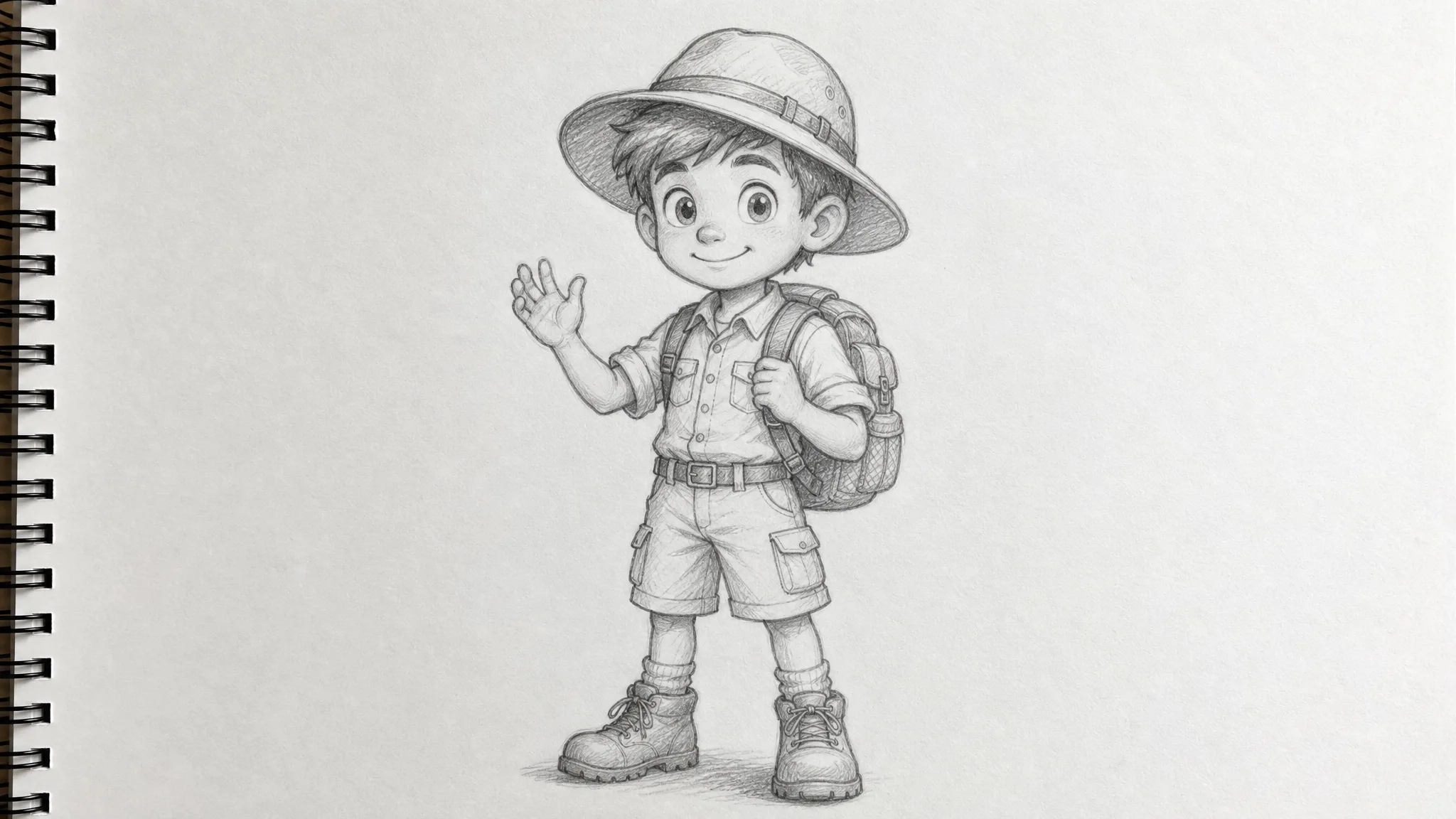
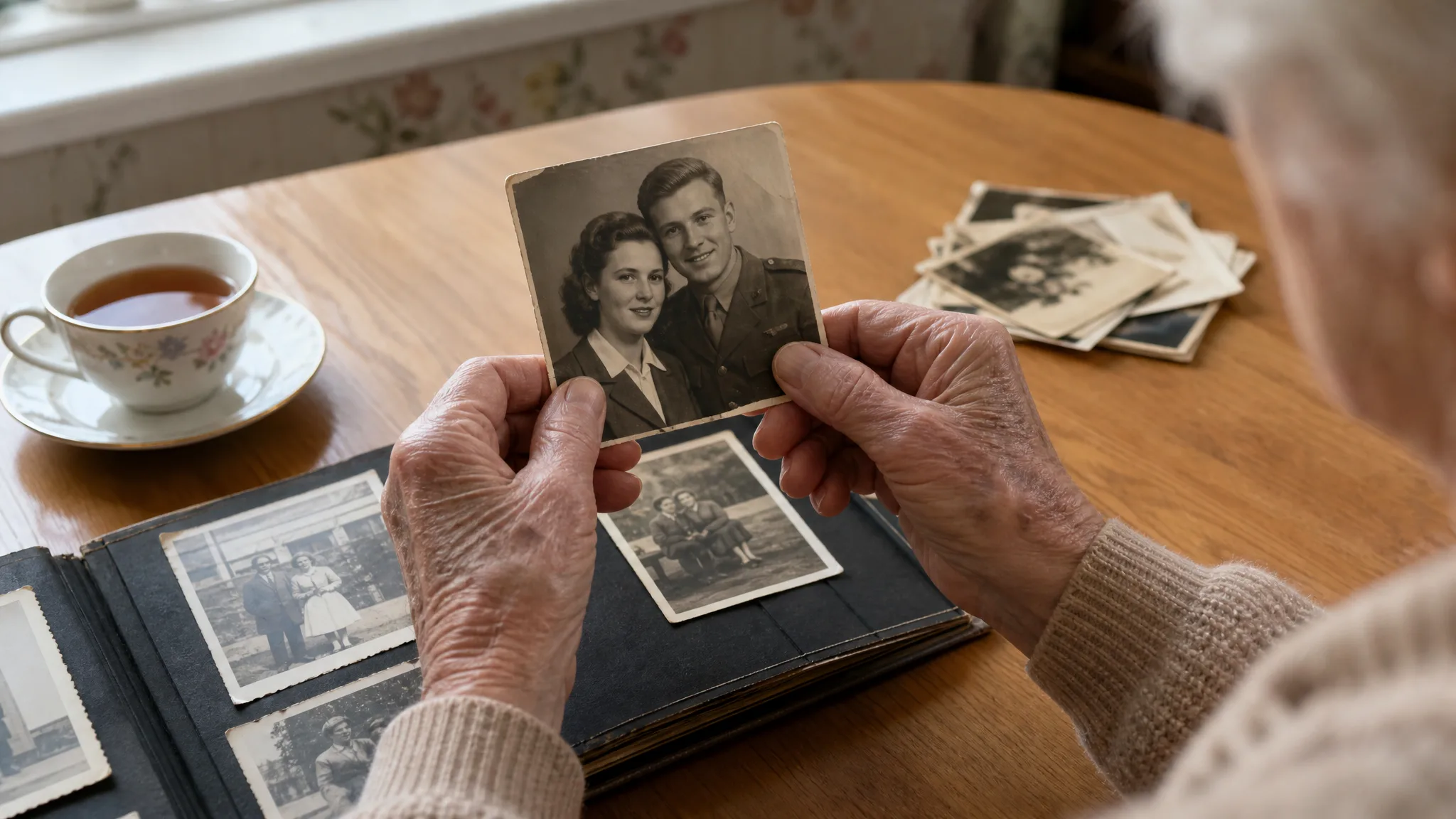

Instagram Reel Maker
Reference images
Prompt
0/4000
Duration
Resolution
Aspect ratio
Translate prompt
Number of outputs
Public Visibility
Required credits
30
Sample videos

Image to Reel: Animate a Photo for Instagram

Build a visual opening for your next Instagram Reel

Give your next Instagram post something to move with. Image to reel turns a product shot, a travel photo or a portrait into a short clip you can use in a Reel. Add captions, music and the rest of your edit in your preferred editor.

Create Your Instagram Reel
Content creator photographing a latte and croissant at an outdoor cafe table on an overcast morning
Photo-led Reel ideas|Moving openings|Creative scene prompts|Clip downloads

How to Turn a Photo into an Instagram Reel

The image to reel workflow has three steps: choose a photo, plan the movement and finish the selected clip in your Reel edit.

1

Choose one photograph for your opening

Upload a portrait, product, illustration or location image that carries the idea of your image to reel post. Prepare a vertical composition when you want a Reel, using the framing options available for the selected model, and keep the subject away from the top and bottom edges where captions usually sit.

2

Describe the action viewers should notice

Plan one clear movement and camera direction around the source. A reveal, a closer view or a playful reaction can give the short clip its purpose. Auto-framing image modes follow the source shape, so frame the photo for the placement you have in mind before you generate.

3

Finish and publish your Reel

Generate the image to reel clip once your photo, motion brief and settings are ready, then follow its job status. Watch the completed preview and check faces, text and product edges, then download the chosen take. Finish captions, licensed sound and timing in your editor, and publish through Instagram or your usual posting tools.

Make a Photograph Part of Your Reel Story

A moving portrait, a vertical product reveal or an atmospheric opening can give your Reel a clear starting point. Image to reel turns a photograph into a short scene that fits the story of your post.

Image to reel begins with the opening idea

Choose the detail viewers should notice first: an expression, a product shape or a change in light. Describe one movement that introduces that idea, and image to reel generates a short scene around it. Use the selected clip as the opening of your Reel so the rest of the post builds on that detail.
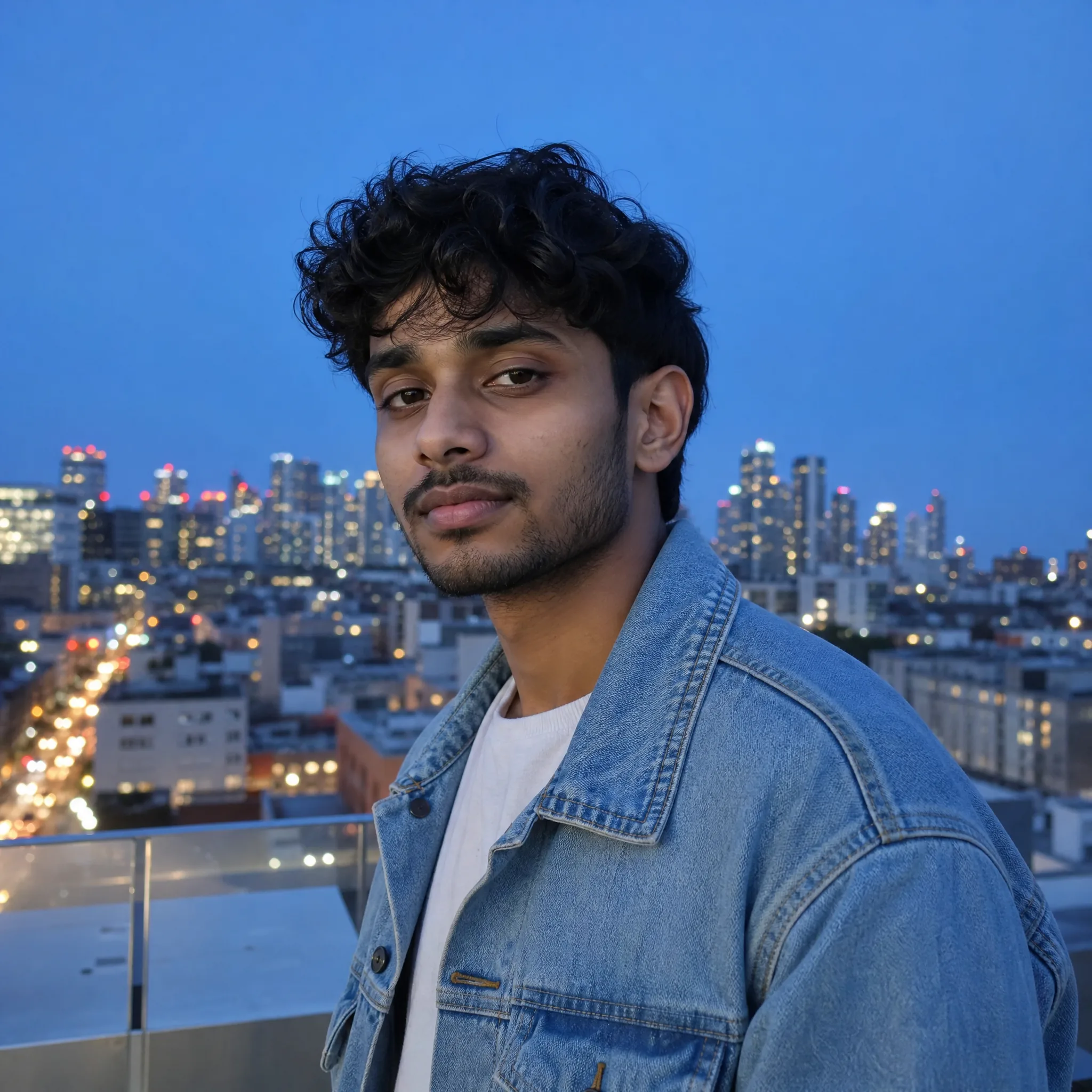
Compose a vertical scene before generating

Prepare a source that keeps the subject visible in a vertical composition. Image to reel uses the aspect controls available for the selected model, while auto-framing image modes follow the shape of the uploaded photo. If your photo is landscape, crop or recompose it to a vertical frame first so the person or product stays centered.

Use a photograph from your existing collection

A product still, portrait or illustration can provide the starting image for a new moving scene. Choose the picture that explains the post, then use image to reel to develop the action that gives it another beat, such as a hand reaching in, a head turning toward the camera or light moving across a surface.

Instagram reel maker with photos and your own finish

Download the chosen scene for your final edit. Finish the captions, sound and sequence in your editor or posting app so the complete Reel communicates your message, and check that any on-screen text stays readable on a phone-sized screen before you post it to your account.

A Reels Video Maker Starting Point from Your Photo

Image to reel lets you use the photo you already have to develop the movement your next post needs.

Compose around the subject

Give the product or person room to move in the source image. A useful vertical composition keeps the visual idea easy to see in the final edit, and image to reel has more space for generated motion when the subject is not pressed against the frame edges.

Movement beyond a photo transition

Generated frames develop a new scene action or change in light from one still. Image to reel gives you that moving detail when a photograph alone does not explain the idea, such as a jacket catching the wind or a lamp switching on in a quiet room.

Give the opening a purpose

A reveal can introduce a product; a reaction can introduce a joke. Choose movement that connects the first shot to the message that follows, so the caption and the visual tell the same story instead of competing for attention in a short post.

Explore another scene direction

A quiet approach and a quick reveal create different openings from the same picture. Run separate ideas through image to reel, compare the takes side by side and choose the one whose pacing suits your post, keeping the others for later variations or a different audience.

Build on existing photography

A clear source from a shoot or your phone collection can become the starting point. Pick the image whose appearance and composition fit the story; image to reel builds on that photo, so choose lighting, an outfit and a setting you are happy to see in motion.

Keep a clip for your wider edit

Download the selected take for your Reel project. Add final timing, captions and sound with the tools you already use, then review the full edit on a phone before publishing, since the workspace does not post to Instagram for you.

Creative Scenarios with Image to Reel

Scenarios for using image to reel in real projects, from the photos or ideas you start with to the take you keep.

To promote my candles, I’d upload a vertically composed candle photograph for an image to reel clip and describe flickering light with a slow camera approach. I’d check the product details in the chosen take, then add offer text and licensed sound in an editor before posting through Instagram.

Shop Owner
Creative workflow

Image to Reel Questions

Explore how image to reel creates a Reel scene from a photo, how to prepare a clip for a vertical edit and what to finish before posting it on Instagram.

Image to reel develops a short moving scene from a photograph for use in a Reel edit. The image establishes the subject; your prompt guides movement. The default model, Veo 3.1 Lite, returns clips with model-generated sound; on the free tier it runs at 720p for up to 8 seconds. Download the chosen clip and finish the complete post separately.

No — image to reel is a generation workspace rather than a long-video trimming or montage editor. Some models accept media references in supported modes, but those inputs guide a generated scene; they do not provide a video-to-Reel editing timeline.

No — download the image to reel clip and publish it through Instagram or your usual posting tools. The workspace does not connect to social accounts, schedule posts or upload a Reel for you.

Pair one readable photo with one action that fits the trend, generate an image to reel clip and finish it in an editor. A trend-inspired idea does not guarantee reach. Prepare a vertical source that keeps the subject visible; where the selected model and mode offer aspect controls, choose the framing, while auto-framing image modes follow the source image.

Eligible accounts can use this free AI reel creator online workflow with their available credits and supported free-tier settings. For a text-led scene, choose a model and mode that accept a written prompt; this page starts with a photograph. Final captions, music and a complete Reel are assembled separately. An account and enough credits for the displayed quote are required; some choices require a paid plan or credit pack. Free generations include an ImgVid watermark.

An image to reel clip can support brand or sponsored Reels when you own the photo. You also need permission for any people, products or logos in it. Follow the platform’s rules for branded content and label AI content where required; generating the clip grants no third-party rights.

Photos you upload for image to reel are not published, and nothing posts to Instagram. Free accounts and visitors keep Public Visibility on, so a finished Reel clip may be selected for ImgVid Explore after review; a subscription or one-time pack starts generations private.

Create a Moving Opening for Your Next Reel

Choose one photograph and the action that makes it worth watching. Image to reel creates a short clip from it, then you finish the Reel with captions, sound and your final edit before posting. Pick your photo and start the first scene.

Create Your Reel Clip
Young man in a denim jacket on a rooftop terrace at blue hour looking toward the camera