


Photo to Music Video
Reference images
Prompt
0/4000
Duration
Resolution
Aspect ratio
Translate prompt
Number of outputs
Public Visibility
Required credits
30
Sample videos

AI Music Video from Photos with Generated Sound

Create moving visuals for the music you want to share

Turn cover art, a portrait or a scene into a music-inspired clip. Describe the movement and musical mood, then create an AI music video from photos with a model that generates sound. Build a release teaser, a visual backdrop or a short social moment around your image.

Animate a Photo with Music
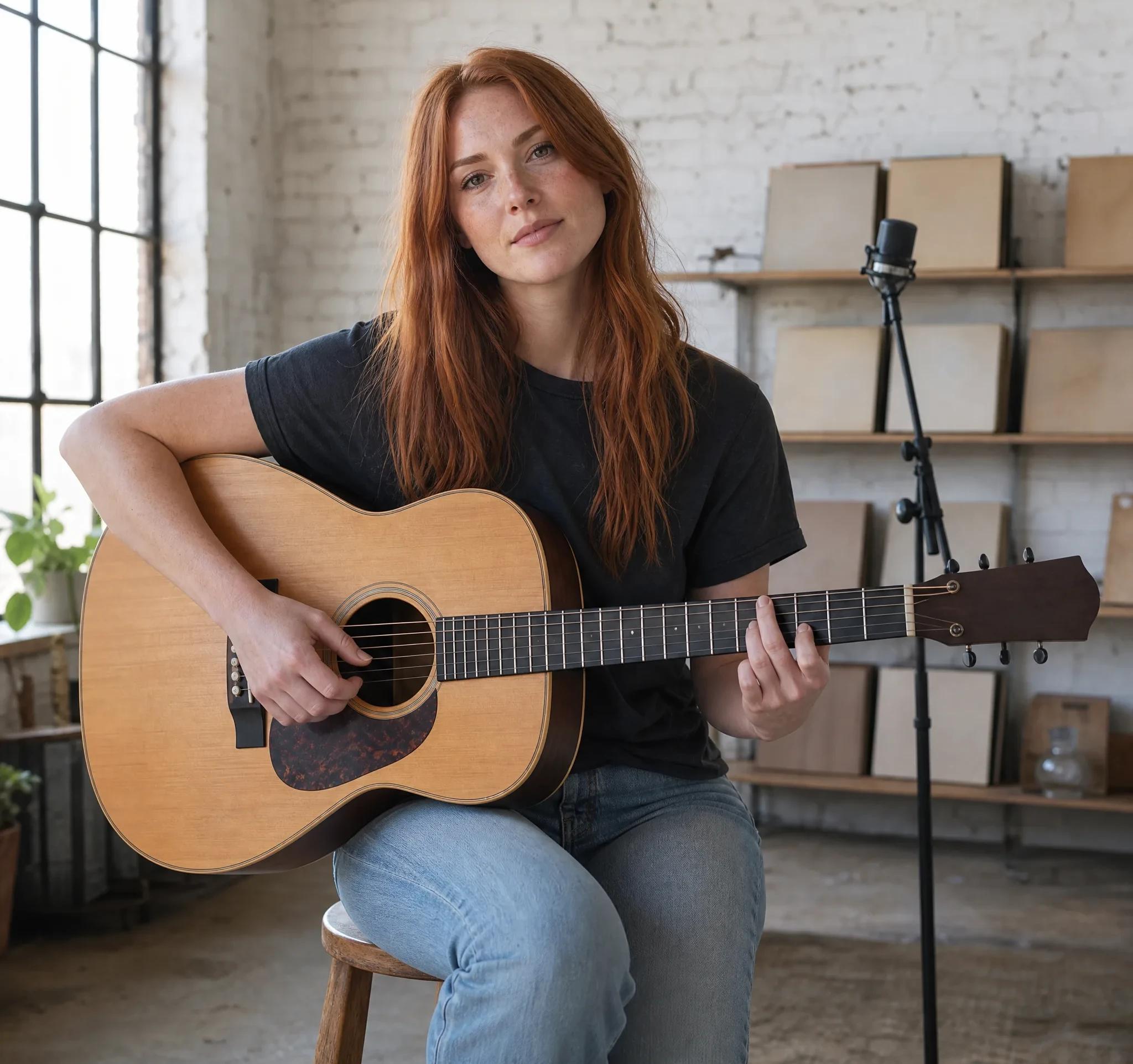
Auburn-haired singer-songwriter playing an acoustic guitar on a wooden stool beside a microphone in a white brick loft
Photo-led motion|Musical mood ideas|Audio-capable models|Clip previews and downloads

How to Make an AI Music Video from Photos

An AI music video from photos starts with the image's mood: describe its movement and sound, then choose a take for your project.

1

Choose the photograph and audio-capable model

Begin an AI music video from photos with an image that carries the mood of your project: a portrait, landscape, product or illustrated scene. Select a model that supports the audio workflow you want to explore, since generated sound and reference-audio inputs depend on the model, variant and mode.

2

Describe motion and musical atmosphere

Explain the visible action and the sound you imagine around it. An instrument, a pace and a mood make the direction concrete for an AI music video from photos; use the selected model's audio controls where they appear, and remember that a musical prompt guides sound without guaranteeing exact notes or lyrics.

3

Review the picture and sound together

Generate the AI music video from photos after choosing the motion brief and supported audio settings, then follow its job status. Watch and listen to the completed result together, checking whether the movement and sound share the same pace, then keep the take that supports your idea.

4

Download and finish your music edit

Download the chosen clip and review it on the device where people will watch it. Use an external editor when the final video needs one exact recording you have permission to use, precise music timing or titles; this workspace is not a full timeline editor.

Why Creators Make Music Videos from Photos

An AI music video from photos turns a familiar image and a sound idea into a moving moment for a release, greeting or creative edit.

Think about the scene and sound together

A quiet portrait might call for a restrained musical atmosphere, while an energetic reveal suggests a brighter pace. Describing both the picture and the sound before you generate gives an AI music video from photos a single mood to follow, so the visual and audio parts of the take feel related.

Give Your Photo a Visual and Musical Direction

Bring a photograph into a scene with a musical mood. Explore moving portraits, atmosphere and sound-led ideas for an AI music video from photos, then finish the edit around the recording you plan to use.

Generate video with music from photos

Start with the scene in your photograph and describe a musical mood alongside its action. An audio-capable model can generate picture and sound for the short clip, so the AI music video from photos arrives as a take to watch and listen to together. To create AI video from image and audio direction, use the preview to see how both develop the scene, then download a chosen take.
Give the image its next moment

A breeze through hair, movement in water or a camera approach can develop the photograph into a scene. Choose the action that suits the pace and feeling of the musical idea; a slow drift fits a ballad-like mood, while a quicker reveal suits an upbeat AI music video from photos for a party or launch.

Build a music-led short edit

Use a generated moment as an opening, background or visual detail in a release teaser or social story. Assemble the wider sequence and any exact soundtrack in your editor, where you also control cuts, titles and lyric text that this generation workspace does not produce for you.

Make Videos with Pictures and Music

Develop an AI music video from photos one image at a time, then use the chosen clip in your wider story or release edit.

Personal memory scenes

Families and friends can use a trip, wedding or birthday photograph to develop a quiet AI music video from photos for a shared memory. Pair the chosen clip with the original picture and your personal message in a wider edit, and listen to the generated sound before you send it to anyone.

Artist release teasers

Independent musicians can give cover art or a press image a camera reveal and musical atmosphere, using an AI music video from photos as a visual concept for a release teaser. Add the exact release recording in your editor when needed, since the model generates its own sound rather than playing the release.

Product-launch moodboards

Marketing teams can develop an energetic or restrained AI music video from photos of a product. Preview the picture and generated sound together to discuss the mood of a launch concept, then decide whether the final ad keeps that audio or uses a separate recording.

Social story openings

Creators can make a short moment from a photograph whose subject or atmosphere fits the story they are telling. Use the selected clip as the opening or background of a social edit, and keep any captions clear of the subject's face so the moving image still reads on a phone.

Event-memory highlights

Event hosts can turn a clear snapshot into an AI music video from photos for a party or travel recap. Add names, context and the wider sequence when assembling the final video, and repeat the workflow per photo when you want several moving moments.

Tribute and lyric backdrops

Tribute and lyric-video makers can develop a quiet visual from scenery or artwork as a background layer. Place readable lyric text in your editor and pair the scene with a recording you have permission to use, checking that the words never cover the main subject.

Creative Scenarios with AI Music Video from Photos

Scenarios for using AI music video from photos in real projects, from the photos or ideas you start with to the take you keep.

For our holiday recap, I’d upload a lakeside photograph and pick an audio-capable model to make an AI music video from photos, with rippling water and a quiet acoustic mood. I’d watch and listen together before placing the chosen scene between the original photos.

Family Video Maker
Creative workflow

Photo Music Video FAQ

Explore how an AI music video from photos handles generated sound, reference audio and your final edit. These answers clarify what starts here and what belongs in your editor.

An AI music video from photos is a short generated scene based on a still image, motion direction and sound idea. On ImgVid, an audio-capable model can return picture with generated sound. The workflow develops one scene rather than automatically assembling a complete song-length video.

To make an AI music video from photos, upload the image and select an audio-capable model. Describe the visible action and musical mood, then review the available controls. Generate the clip, watch and listen to the result, and download the take you want to use.

Audio input depends on the model and is available only where the workspace exposes it. Reference audio can guide generation but does not guarantee an exact song, lyrics or beat match. Use a separate editor when the finished video needs a specific licensed recording.

Yes — an audio-capable model can create AI video from image and audio together. It generates picture and sound from one image and your prompt, and some models also expose reference-audio inputs. Check the selected model’s supported media and listen to the completed output before choosing a take.

Veo 3.1 Lite, the default model here, always returns sound with an AI music video from photos. Other models differ by variant and mode: some return sound automatically while others expose an Audio option. Reference-audio support is a separate input capability shown in the model picker.

Yes, within limits — Veo 3.1 Lite generates sound and is on the free tier at 720p for up to 8 seconds. Sign in and spend free credits on that setting to make an AI music video from photos; other audio-capable choices need a paid plan or credit pack. Free generations include an ImgVid watermark.

Exact beat matching is not guaranteed. Describe the pace and action you want, then review the generated sound and movement together. Finish precise cuts or timing against an external recording in a video editor.

Apps for making videos with pictures and music usually arrange existing photographs over a background track. An AI music video from photos generates new frames from one image and direction, with generated audio on supported models. It develops a moving scene rather than an album timeline.

Choose a clear subject whose mood fits the music, such as an artist portrait, cover artwork or scenic photograph. Leave room in the composition for the requested action and describe the visual and musical directions separately.

Yes — the clip can promote a release when you hold the rights to the photo. You also need consent from anyone shown in it. Generated sound is not the official release recording, so place that recording in your editor and clear it for the platform.

Uploaded photos are not published. Free accounts keep Public Visibility on, so a successful AI music video from photos may be shown publicly after review; subscribers and one-time pack buyers start with it off. Use a paid account for unreleased cover art.

Bring Motion and Musical Mood to Your Photo

Choose a photograph and imagine the scene around it. Create an AI music video from photos with an audio-capable model by describing the motion and sound together, then develop the chosen clip into your music-led edit. Start with the image that already sets the mood.

Create Your Music-Led Clip
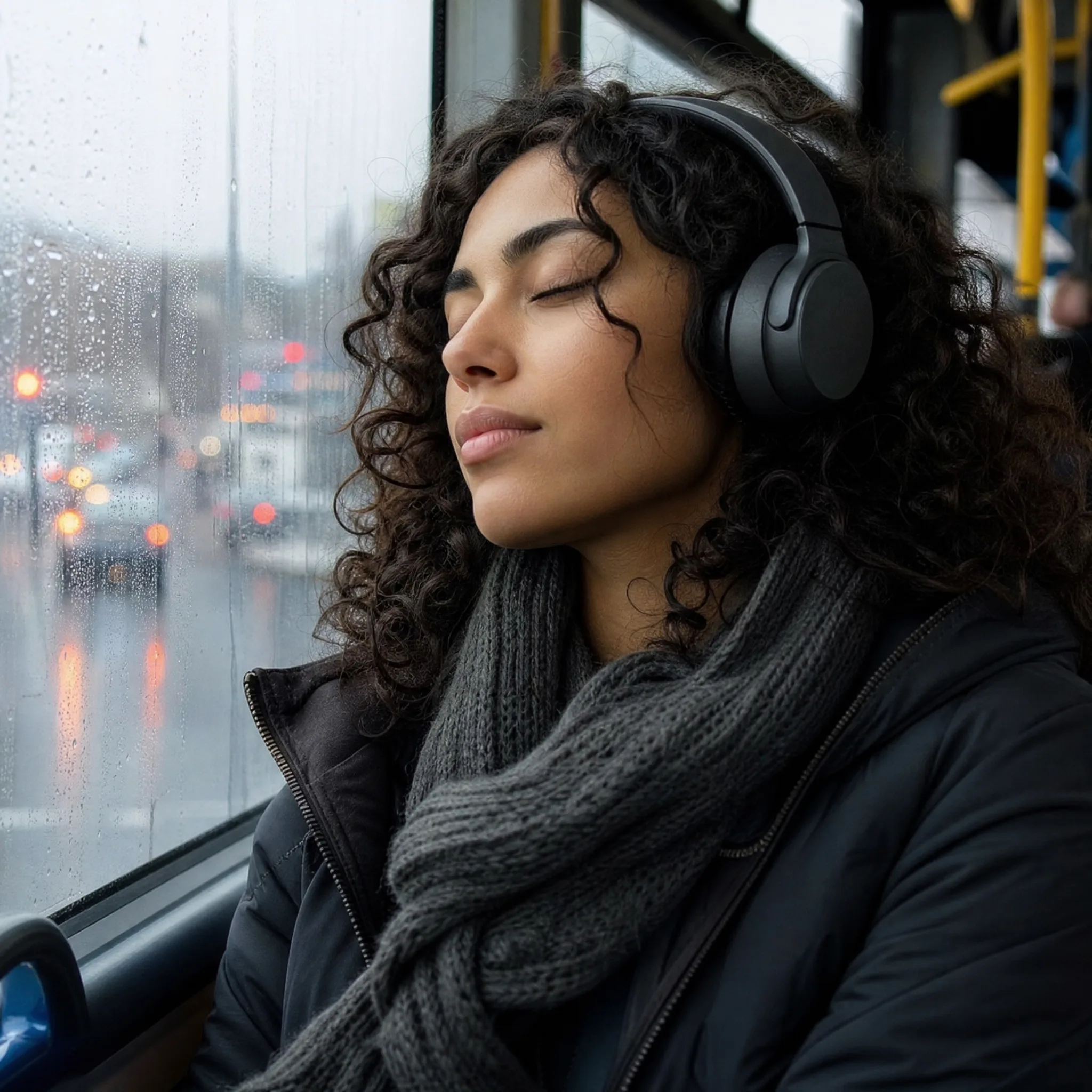
Young woman with curly hair and headphones listening to music with eyes closed by a rainy bus window