More AI Video Effects
Try another trending video effect with your own photos.
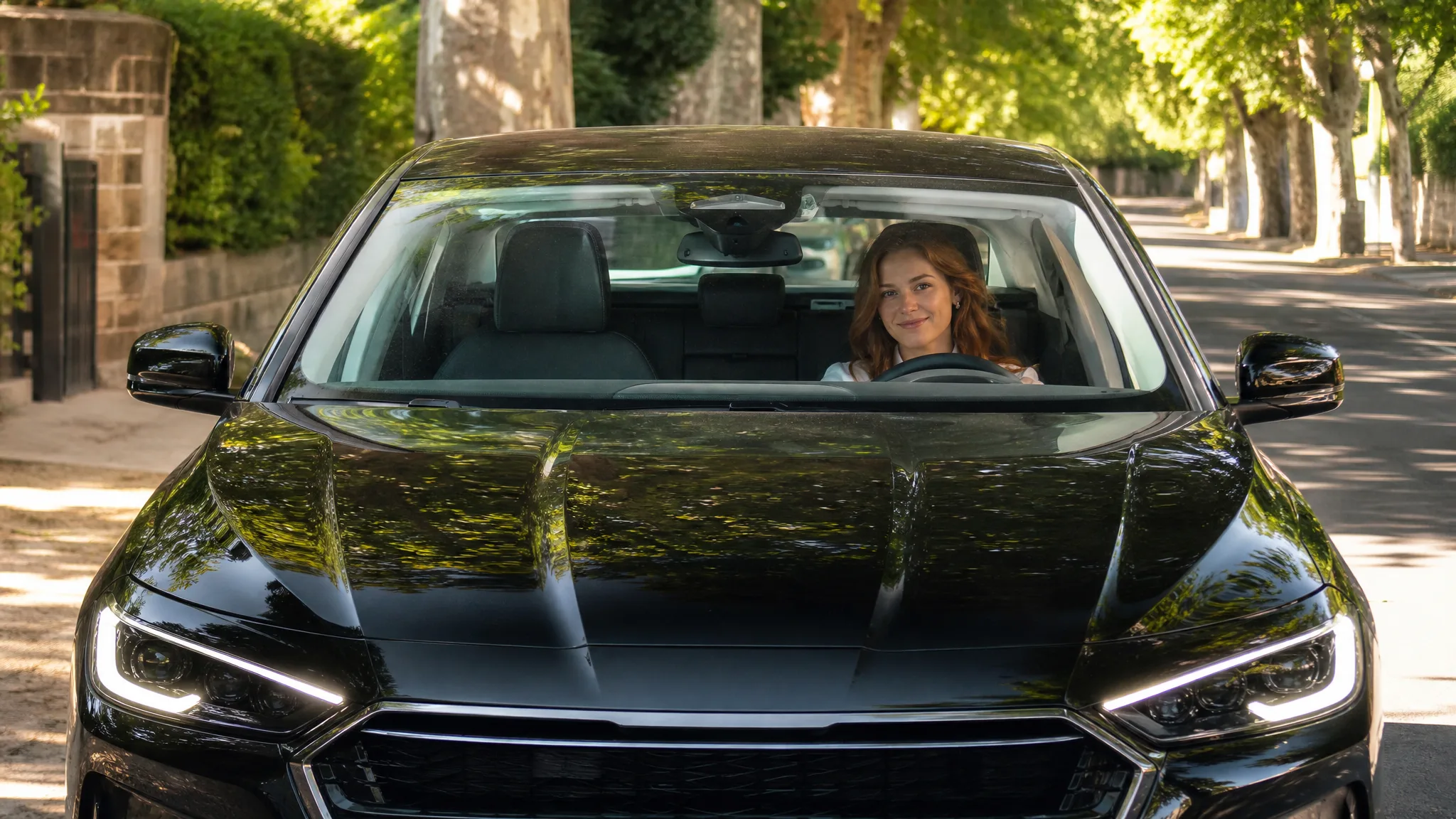

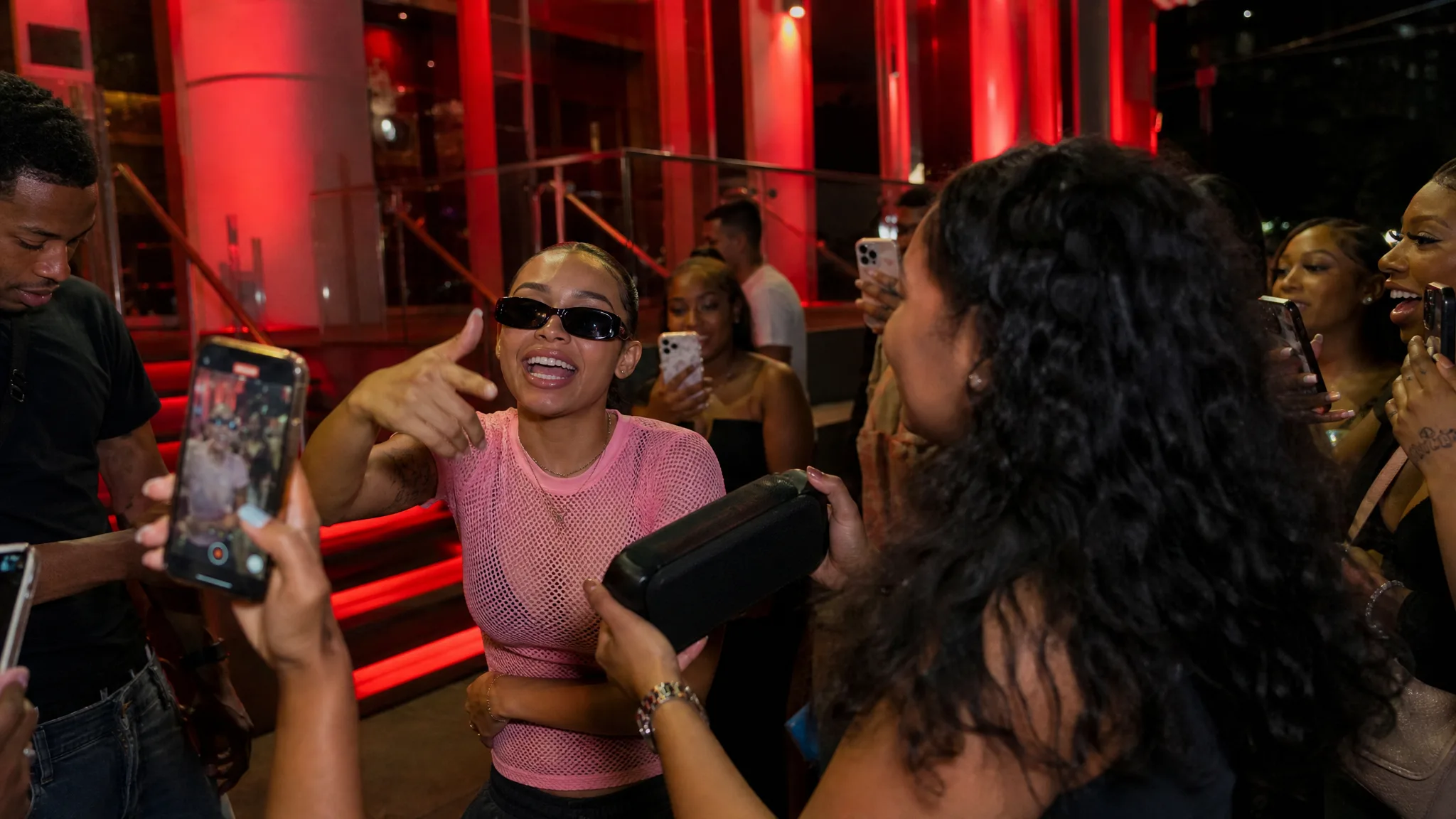
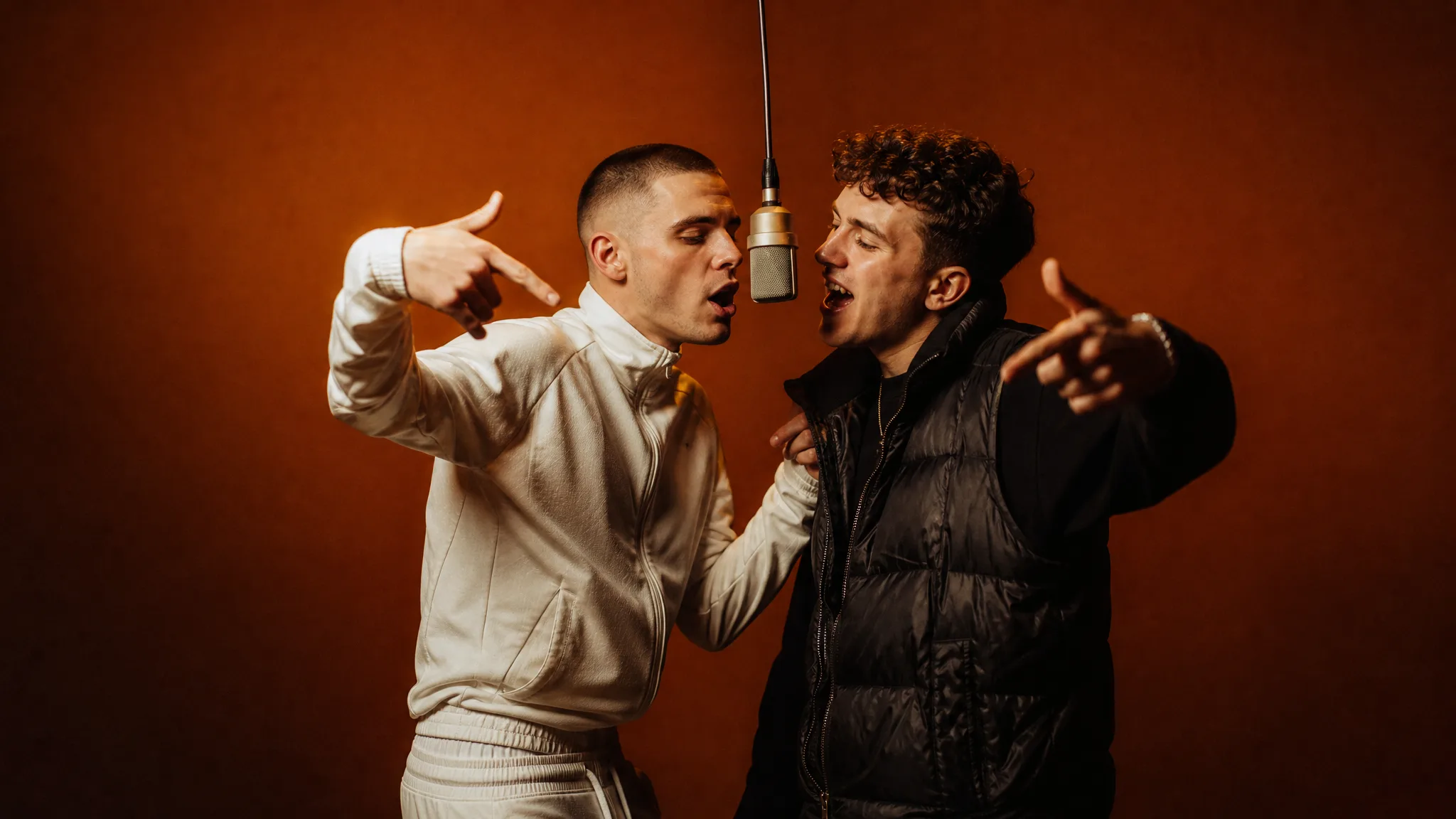
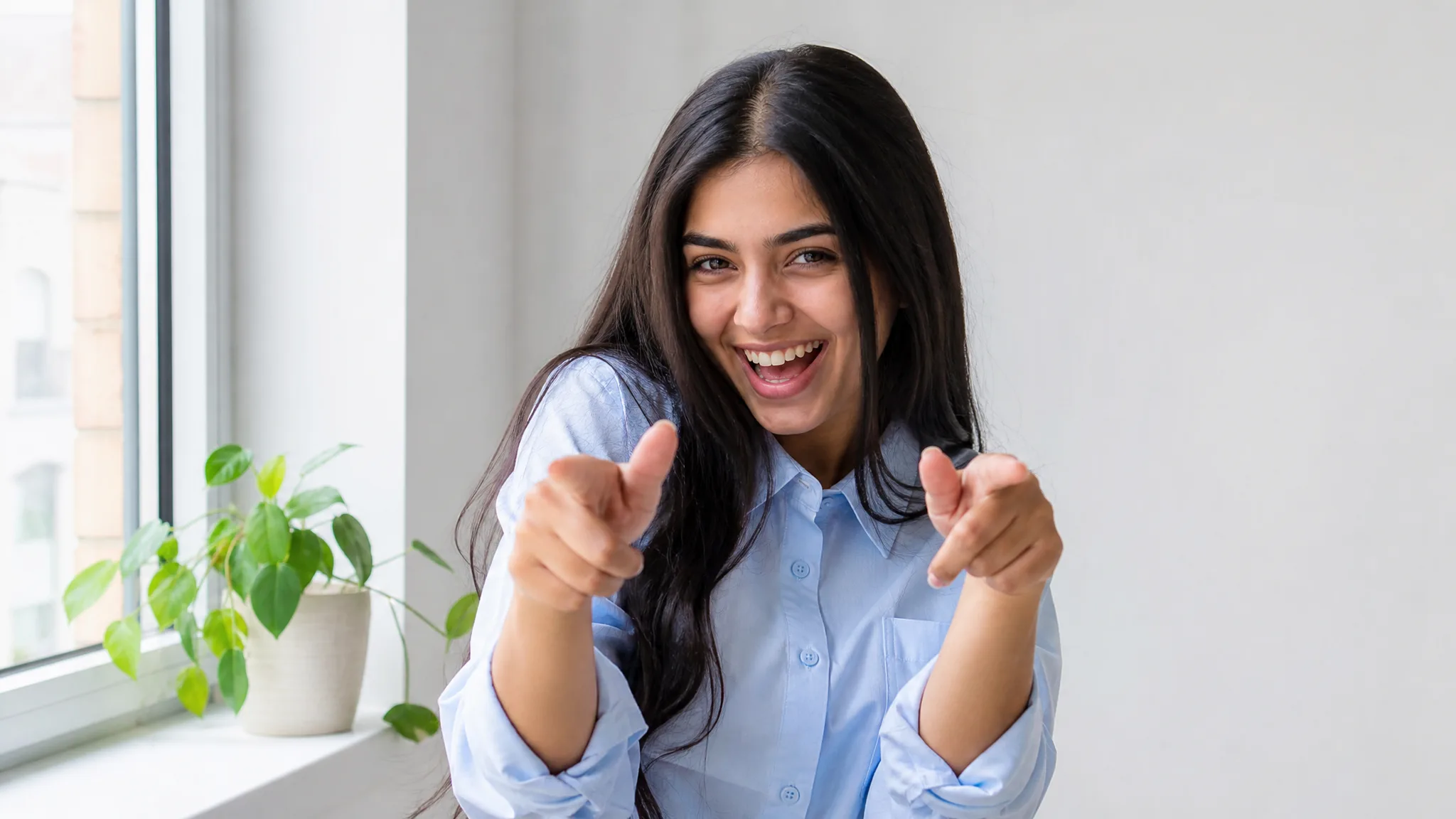
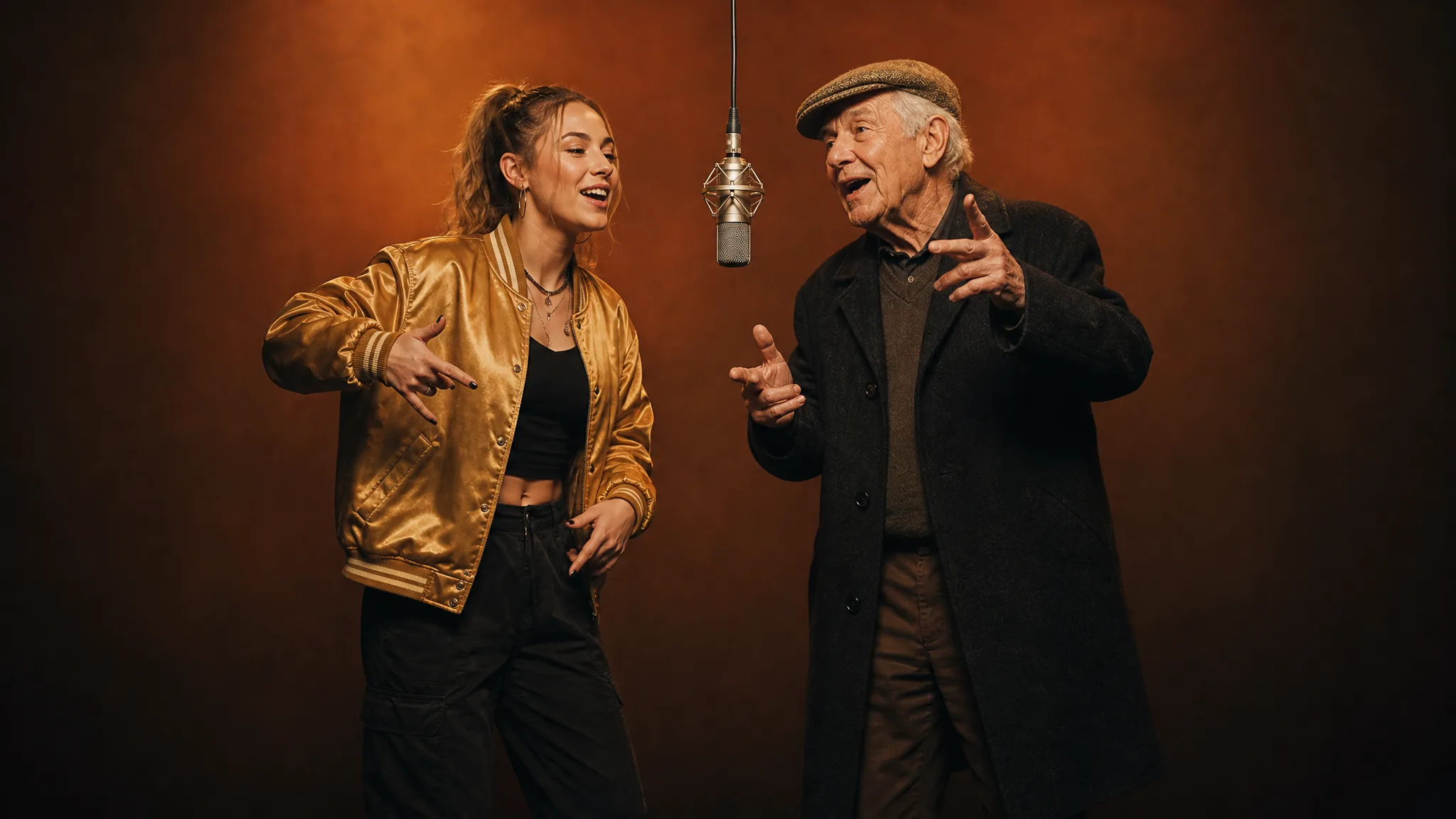
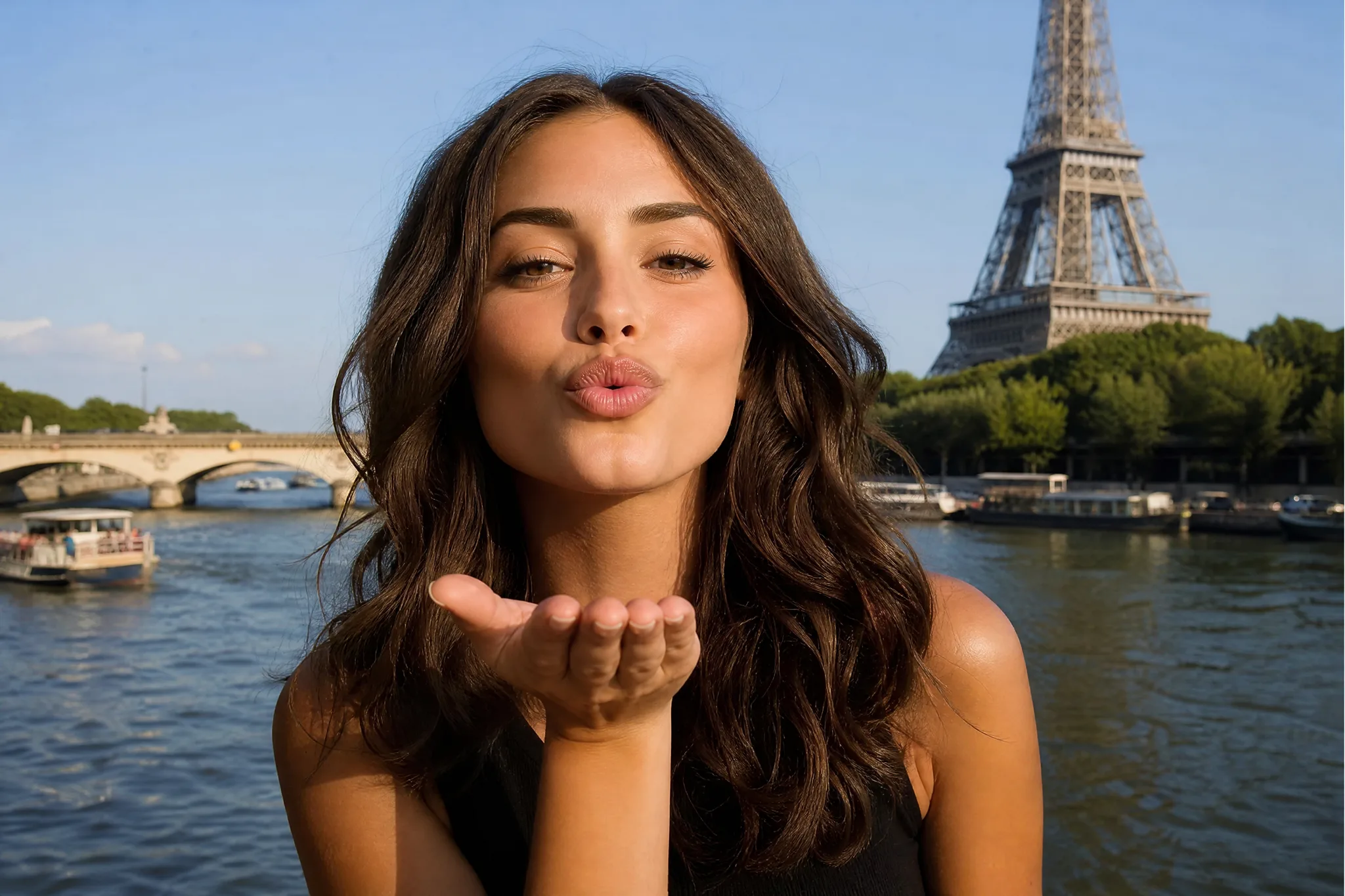
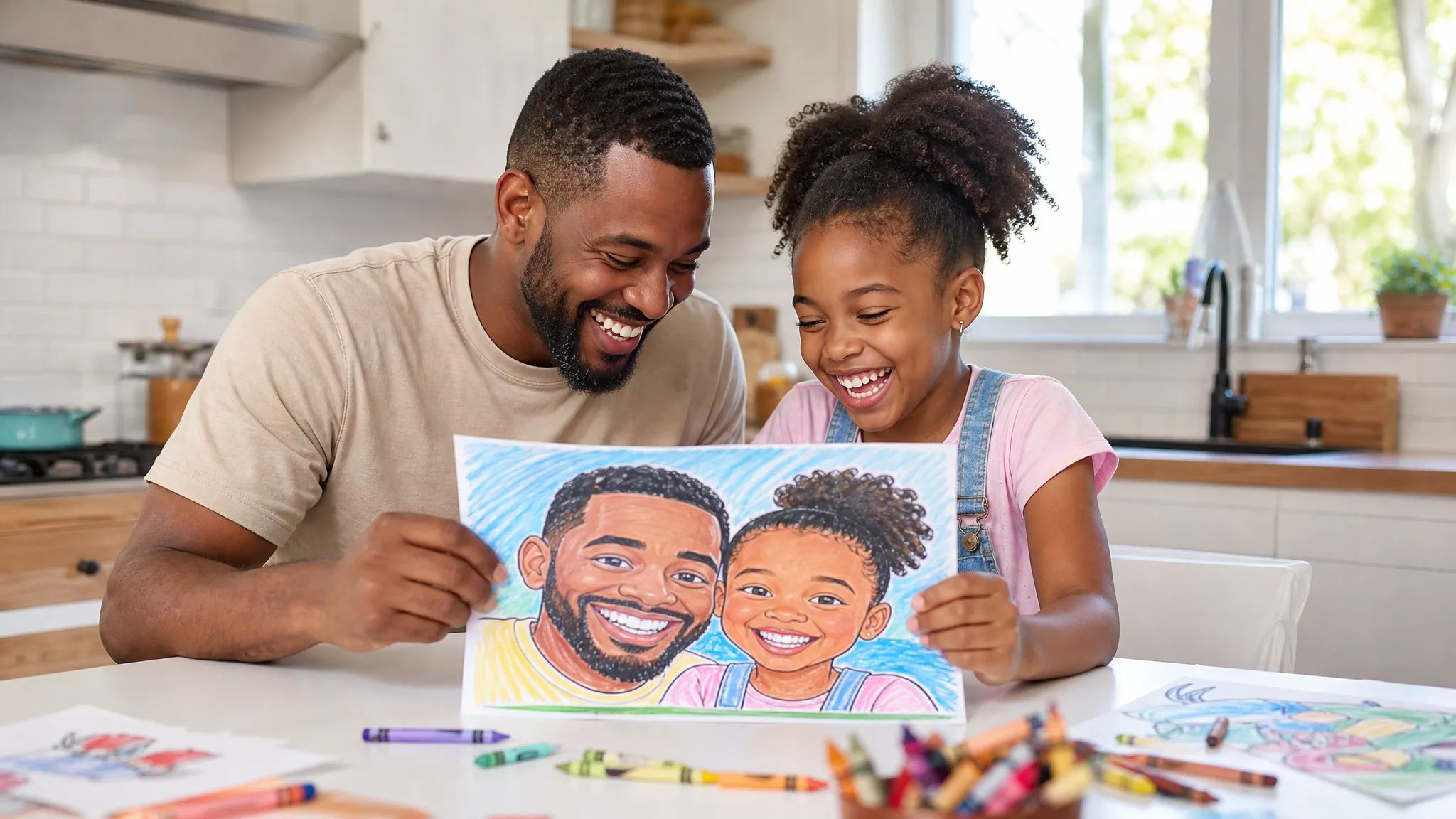
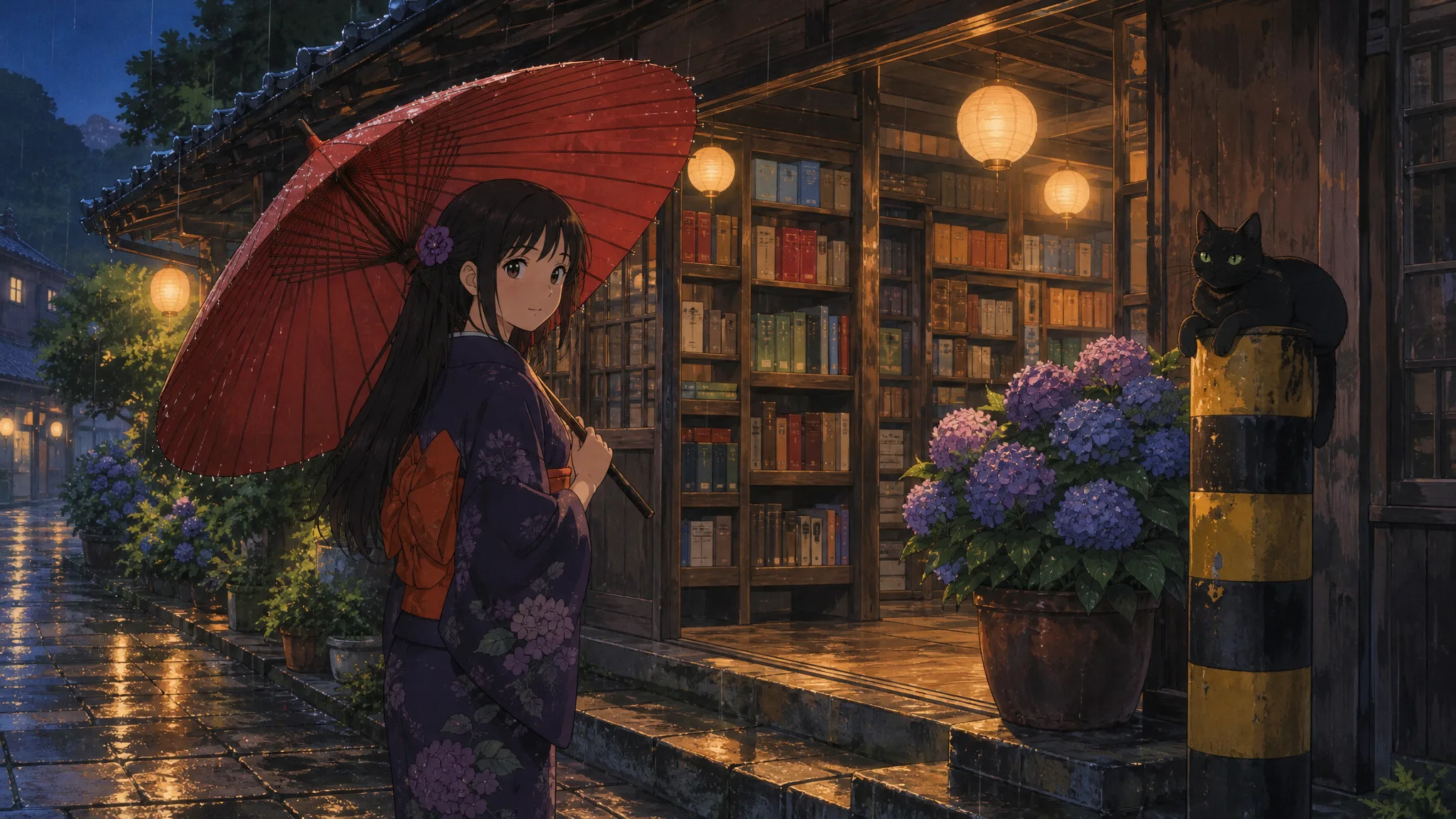
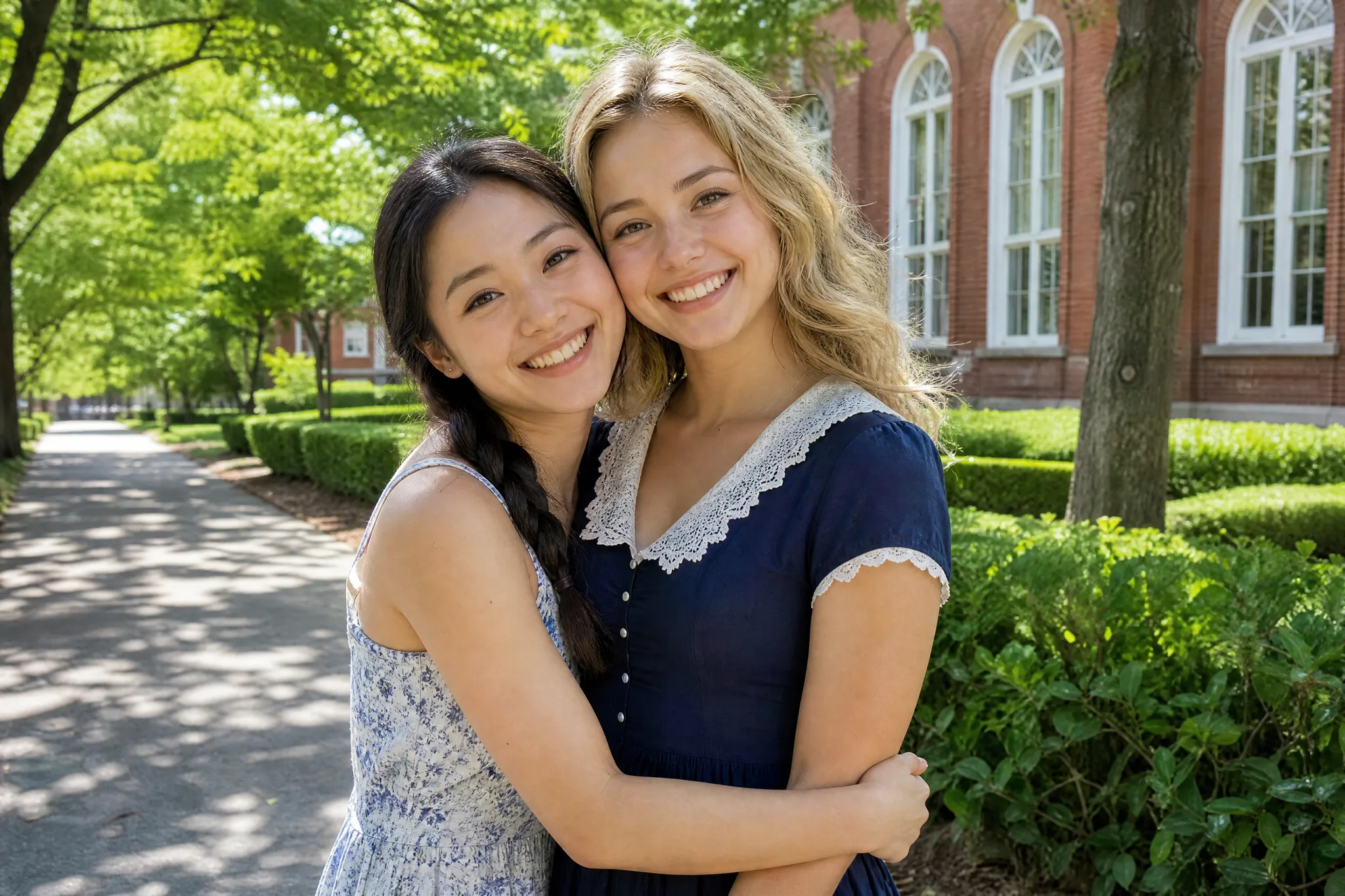
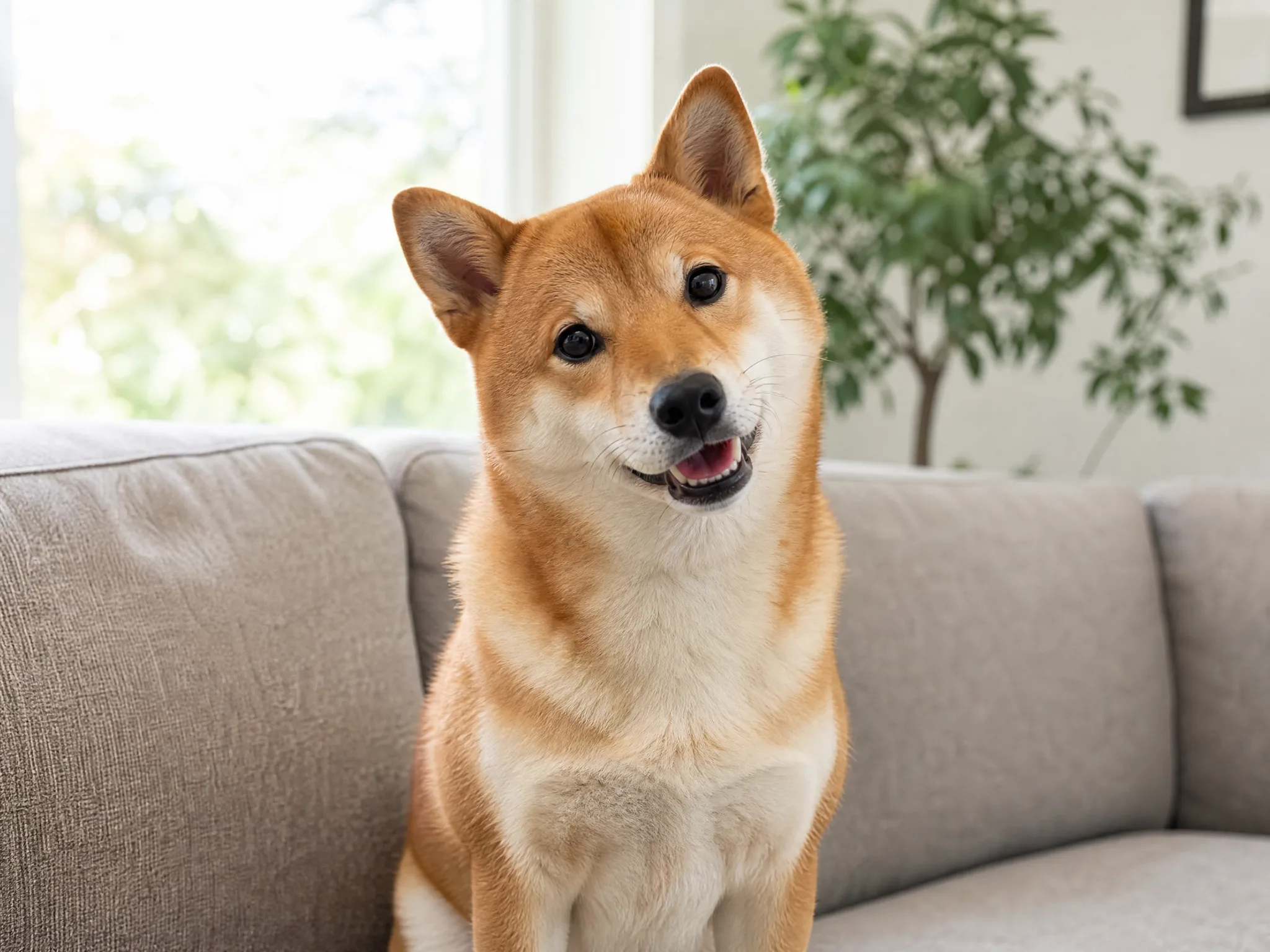
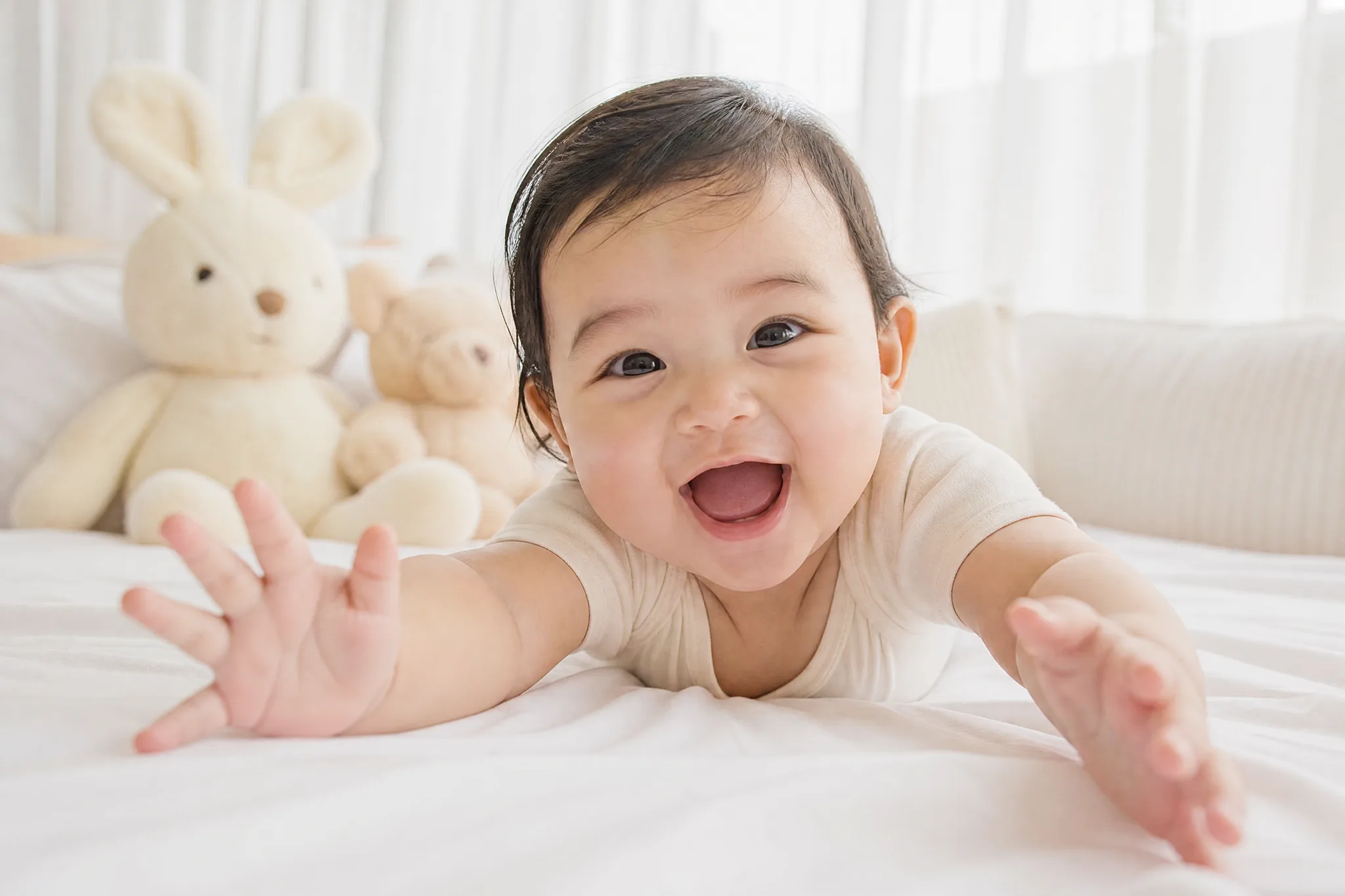
Image to Video AI: Animate Your Photo
Give a still photograph its next moment
Bring your favourite still into motion. Use image to video to turn a portrait, product shot or landscape into a short clip, with your photo setting the scene and your words directing what happens next.
Animate Your Image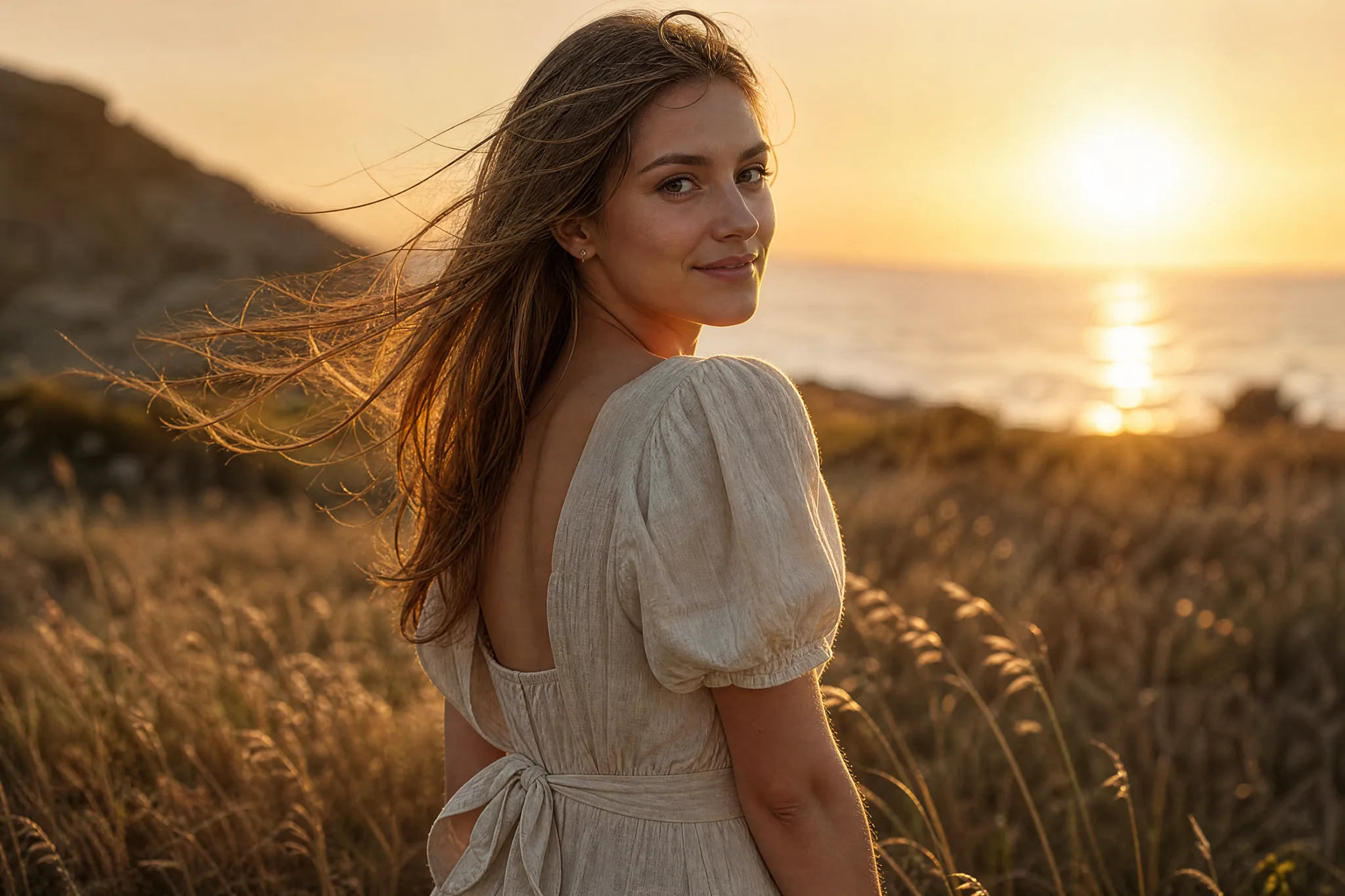
How Image to Video Works
Image to video takes four steps: choose the picture, describe what happens next, generate the clip and select a take for your project.
Choose the image that carries your idea
Upload a clear portrait, product, pet, illustration or landscape through the image panel; the selected model’s upload controls show its accepted formats and limits. Choose a source whose subject and setting already explain the scene, because image to video builds every new frame from that starting picture.
Describe what happens next
Give the subject one action and the camera one direction. A slow approach, a curious glance or shifting light develops the image without asking it to tell a whole story at once. Choose the image to video settings that fit the scene; aspect ratio and framing options depend on the selected model and mode.
Create the motion concept
When the image and motion brief are ready, generate the image to video clip. The job status tells you when the preview is ready, and a focused brief with one action gives you a take that is easier to judge against the idea you started with.
Keep a take for your story
Preview the full scene and check the subject’s face, hands, edges and any text against your photo. Choose the movement that suits your project and download the clip, then finish captions, sound or sequence in your editor when the wider story needs it.
Best AI Video Tools for Creative Projects
Create from text, images, references or start and end frames with the right video tool.

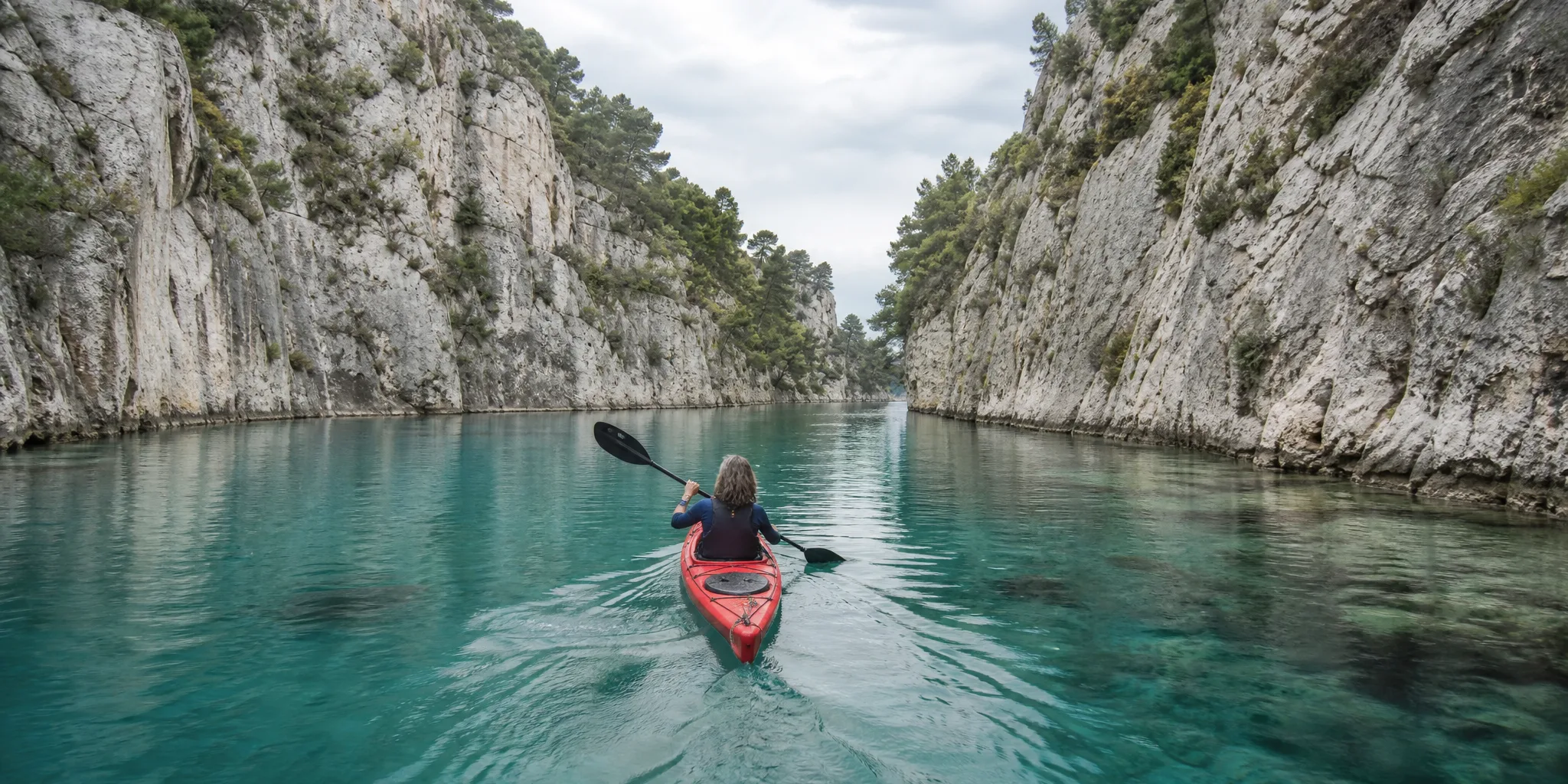
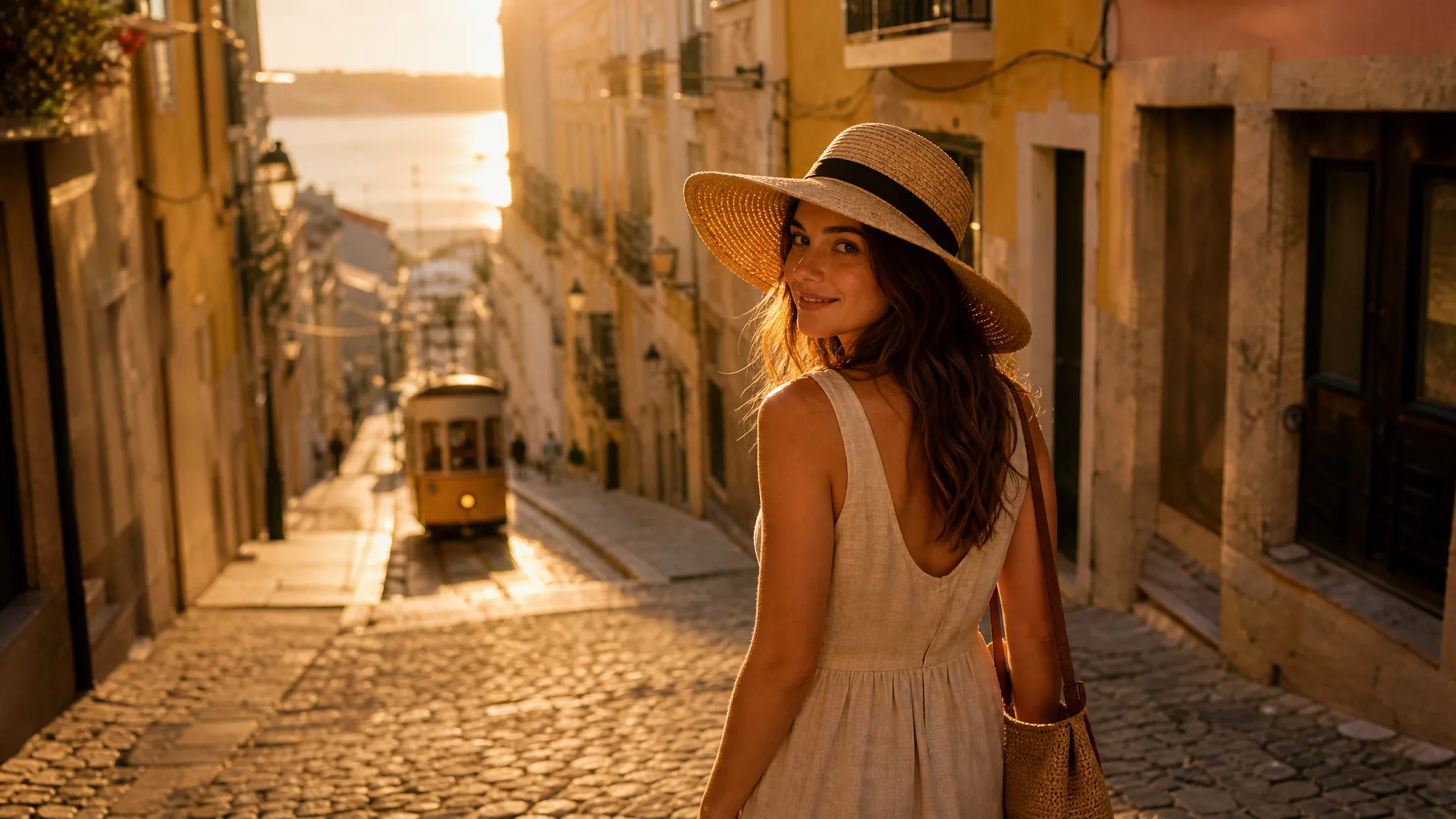
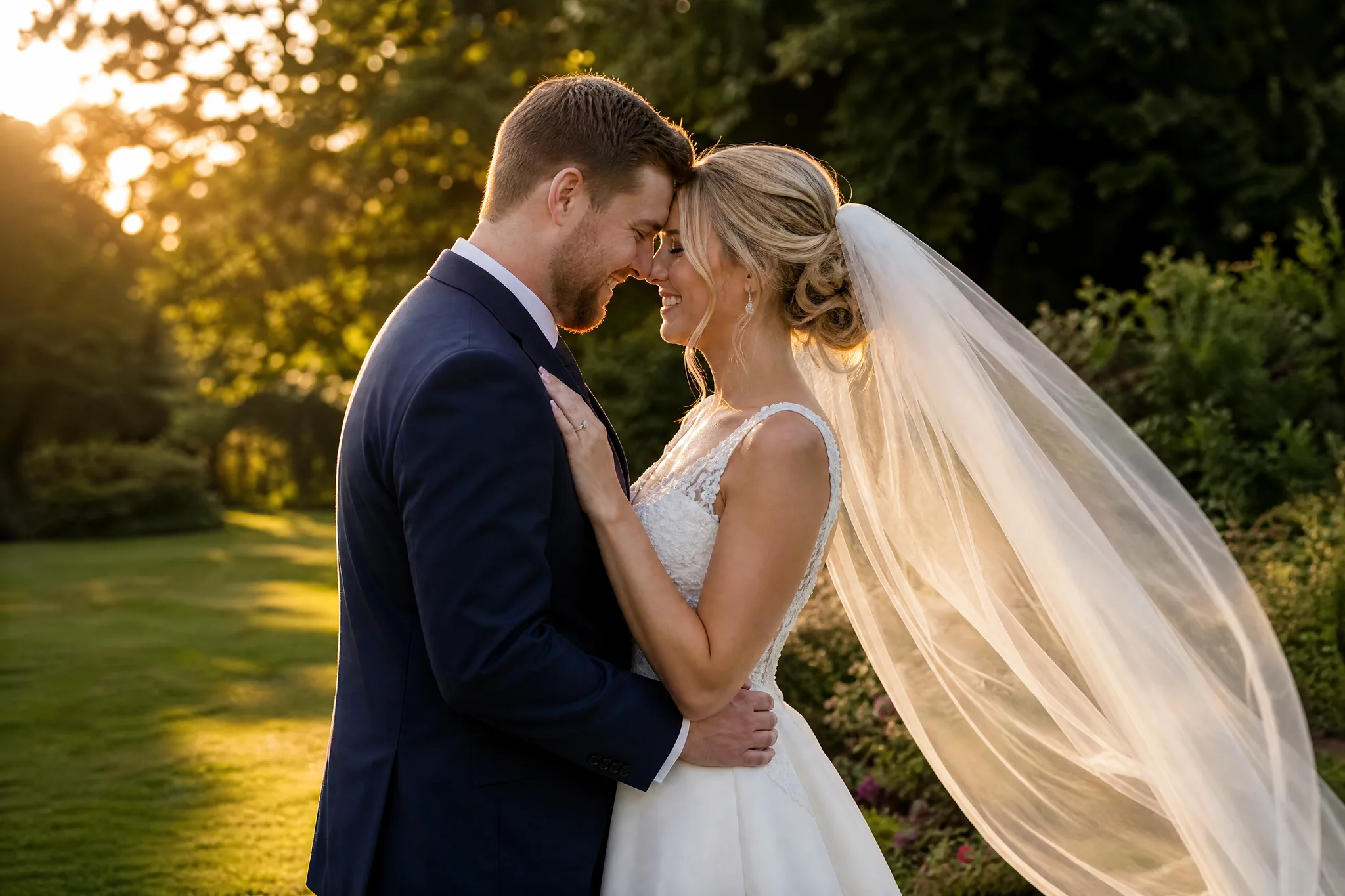

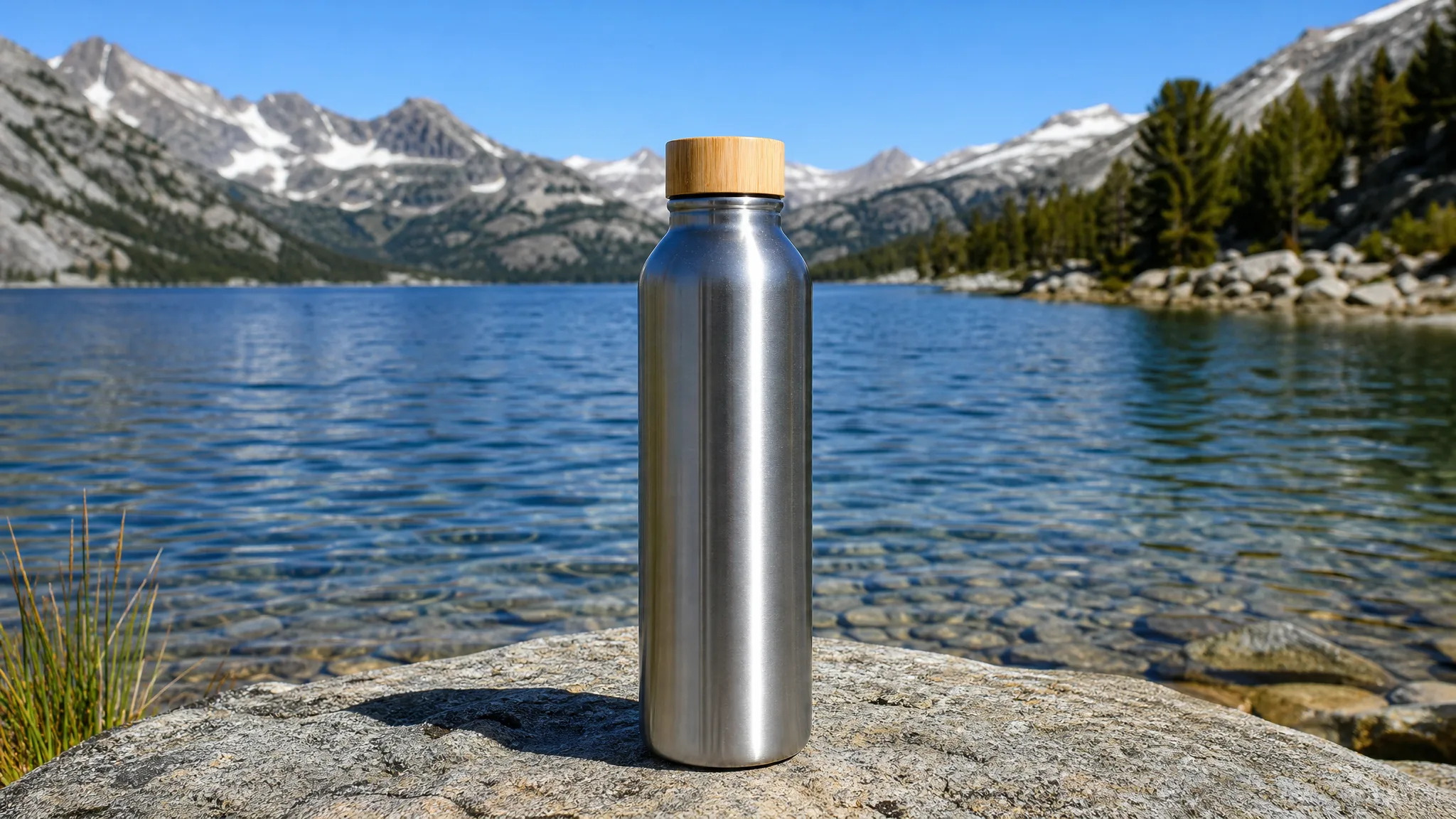
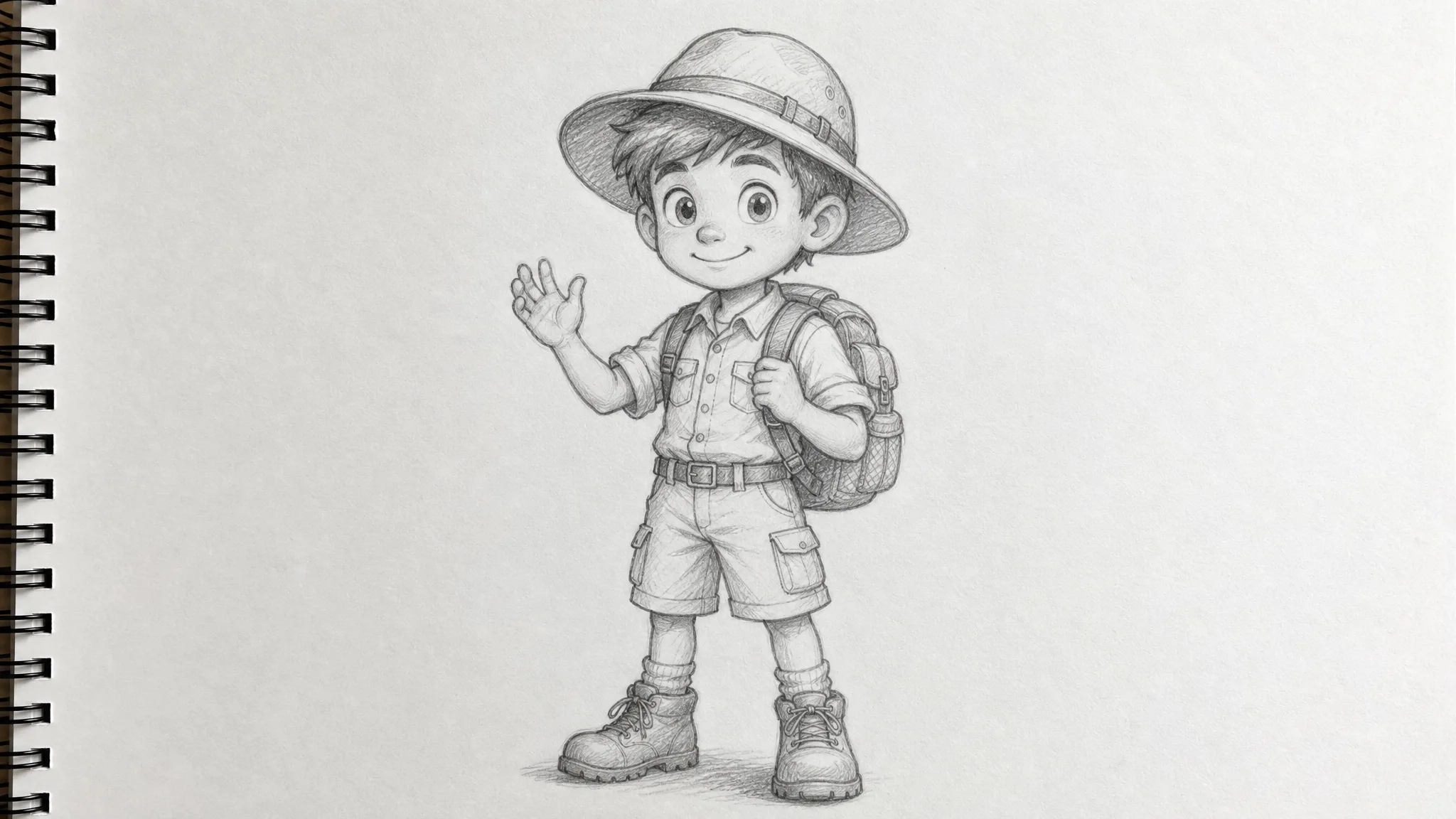
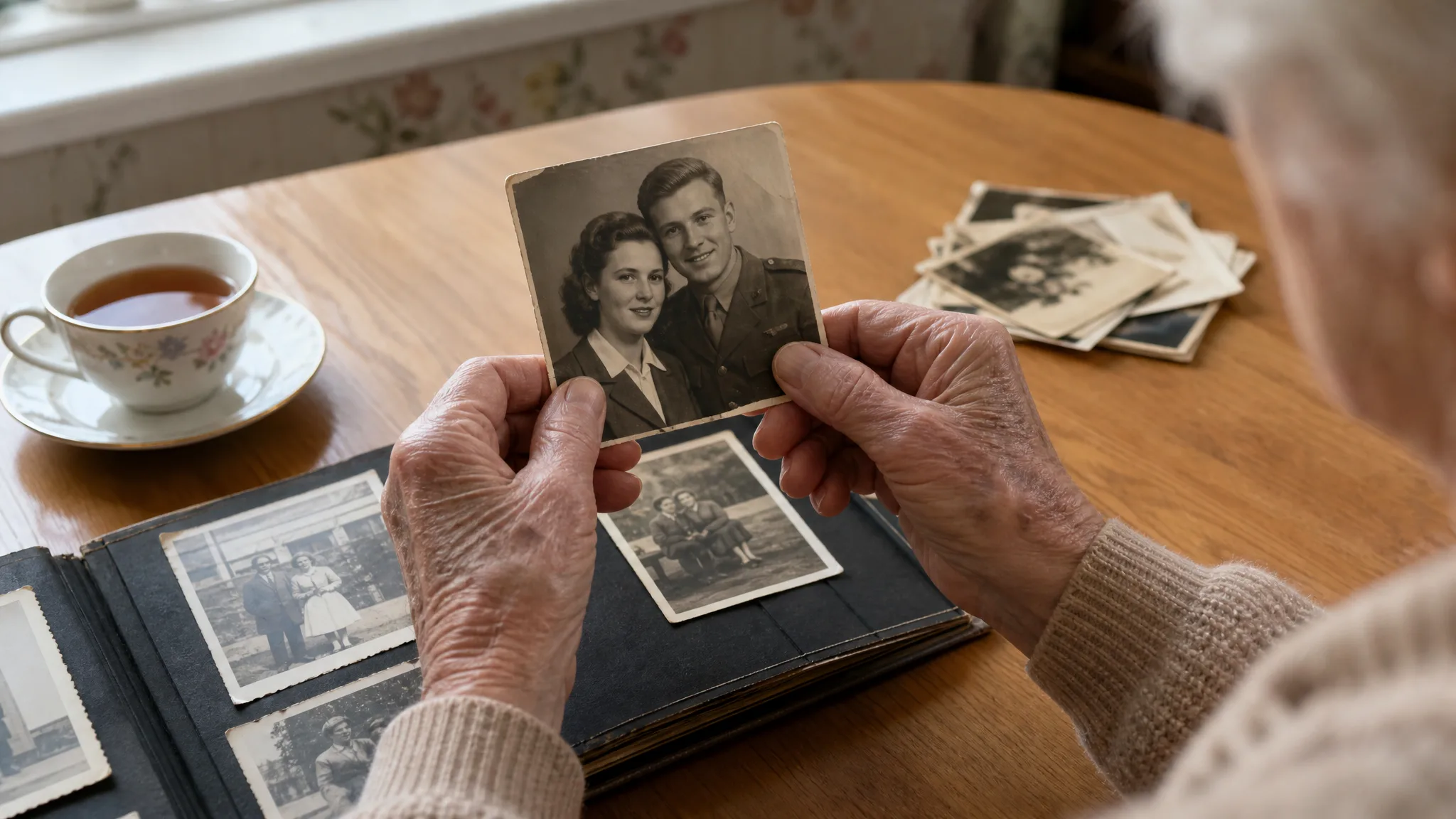
Develop the Scene Already in Your Photograph
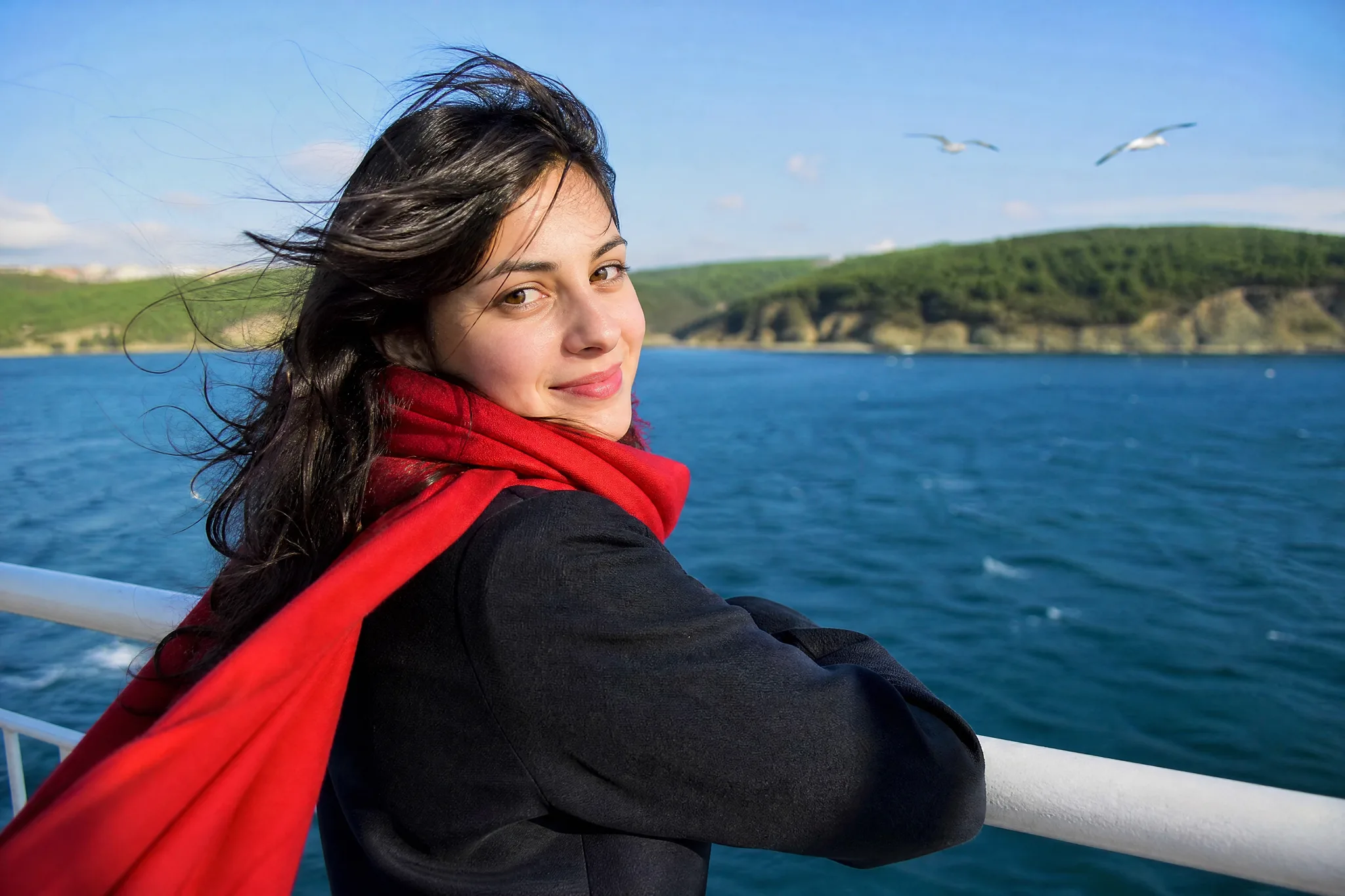
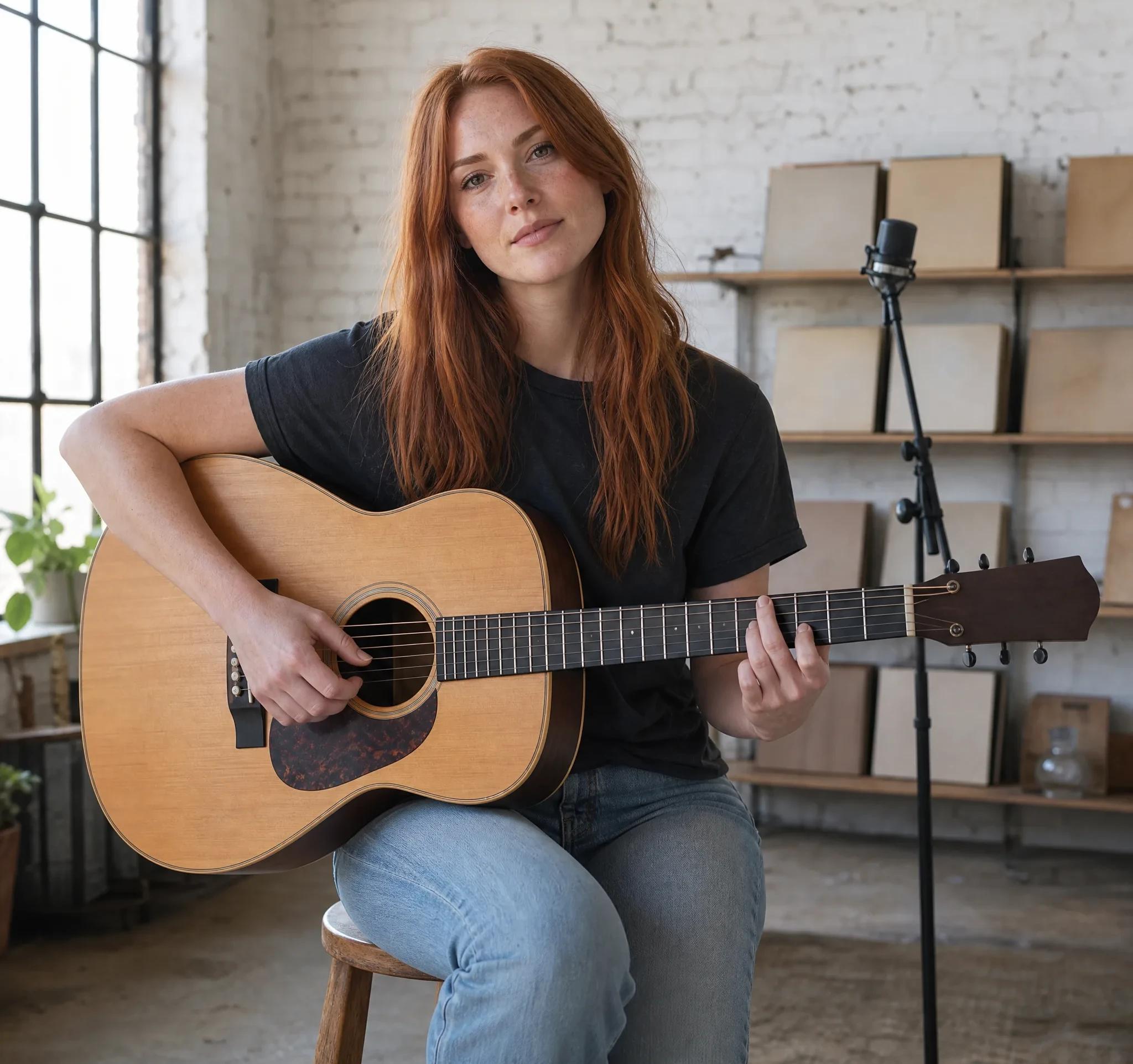
Start with the story already in your photograph. Image to video gives a portrait, a product or a landscape a next moment through subject movement, camera direction and atmosphere.
Direct a movement from the image
Describe what the viewer should notice: a small reaction, a drifting detail or an object coming closer. When you create an AI video from a photo, one clear action connects the source to the moment you want to show, and image to video generates the frames that carry the subject from stillness into that movement.
Let the photograph establish the scene
A portrait gives you an expression; a product still gives you shape and detail; a landscape gives you a place. Image to video lets the photo set the visual starting point instead of rebuilding every detail in words, so your prompt can focus on the action, the camera and the mood.
Turn photos into cinematic videos
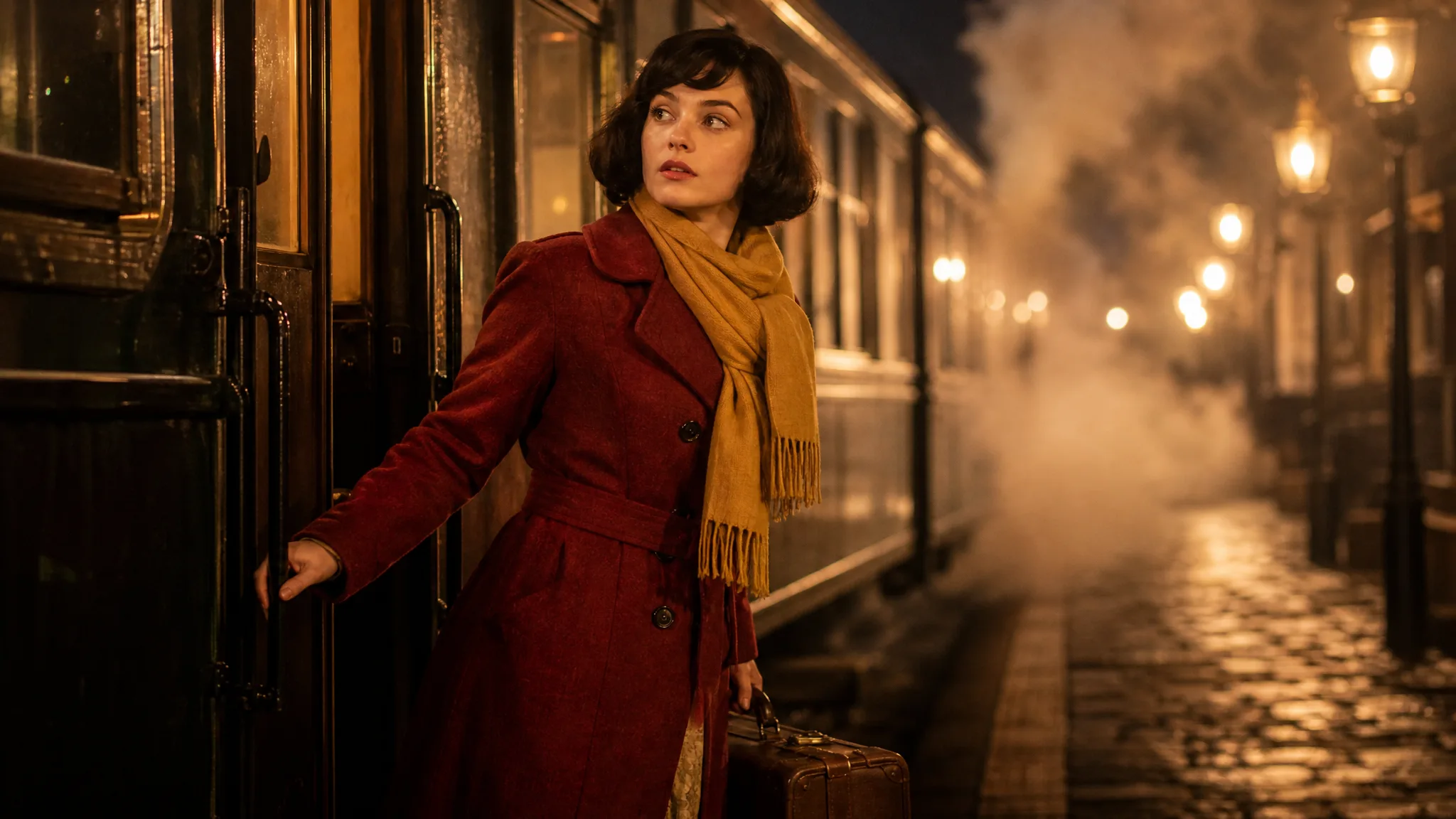
A quiet push-in can make a portrait feel intimate; a wider camera reveal can introduce the setting. Describe the viewpoint and atmosphere that help the moving shot communicate your story, and keep the camera move simple enough that the subject stays recognizable from the first frame to the last.
An AI Video Maker from Photo Ideas
With image to video, the source image gives you a subject and visual starting point; a clear movement gives that picture another moment.
Movement beyond a photo transition
Generated frames develop a new action or change in the scene. Image to video gives you that moving detail when a still photograph alone does not express the moment you have in mind, such as a coat lifting in the wind or a candle catching the light.
Choose a camera view with a purpose
A closer view can draw attention to an expression; a reveal can explain the place. Give the camera a direction that supports the subject and story, and avoid combining a zoom, a pan and a subject action in one short clip when one move would say enough.
Explore the image with different models
Only models that support image to video appear in this workspace, and they differ by supported inputs, duration, framing and audio. Choose the framing and visual direction that fit the project before creating a take, and compare results across models when the first one misses the mood.
Try a different scene direction
A small change in the action can give the same picture another meaning. Run separate image to video ideas from one photo, such as a glance toward the camera and a glance away from it, and keep the take that belongs in your project.
Creative Scenarios with Image to Video
Ways a family album maker, a product photographer or a pet owner could use image to video, each starting from one photo and one described movement.
I’d upload a picnic photograph and use image to video to add a light breeze in the trees. After comparing everyone’s faces with the original, I’d place the chosen clip between the still photos of our separately assembled album as an imagined moment in the memory.
Image to Video Questions
Find out how image to video turns a photo into a clip, how to write a motion prompt and which starting photograph to choose. These answers also explain the difference between animating one scene and assembling a slideshow.
Image to video AI is a generation workflow that turns one source image and a written direction into a short, newly generated clip. Photo to video and picture to video describe the same task: the uploaded photo establishes the appearance and your prompt guides what happens next.
To animate a photo with image to video, upload the source, describe one subject action and a camera view, then choose the available settings. Generate the scene, follow the job status and preview the complete take, checking faces, hands and edges, before downloading it.
Photo to video AI on ImgVid is free to try within limits, not unlimited: after you sign in, you can use free credits on eligible free-tier models and settings when those credits cover the displayed quote. Other models and settings require a paid plan or credit pack. Free generations include an ImgVid watermark; eligible paid generations export without it.
Describe an action, a camera direction and the atmosphere. A curious glance with a slow approach gives the scene a clear focus; several conflicting actions are harder to develop and review.
Veo 3.1 Lite is the default image to video model on this page, makes 4, 6 or 8-second clips and always generates sound; compare it with the other available models by supported inputs, duration, framing and audio. Choose the controls that fit the shot you want to create, then preview the resulting scene against that idea. Framing choices vary with the model and mode, and auto-framing modes keep the proportions of the uploaded photo.
No — image to video generates new frames from one source photo and your direction. It does not arrange a photo album into an editable slideshow timeline.
Image to video creates a short video clip from one photo; it does not export GIFs or assemble a long video. Combine several selected clips in your own editor when the story needs a longer sequence.
Choose a readable subject and a composition with room for the action. The upload panel shows accepted formats and limits for the selected model. Fine lettering, small faces and busy scenes need close review in the result.
Image to video clips can support commercial projects when you have permission to use the photo you upload and any people, artwork or brands in it. Review each take for likenesses, trademarks and product details; generation does not grant third-party permissions.
Your uploaded photos are not published, and clips are not published automatically. Free accounts and visitors keep Public Visibility on, so a successful image to video clip may be selected for Explore after review; a subscription or one-time pack starts generations private. Photos are processed by the selected model provider, so review the Privacy Policy before uploading sensitive images.
Turn Your Photo into a Video
Choose the photograph that carries your idea and describe what happens next. Image to video turns it into a short moving shot for a story, a product reveal or a personal memory, ready to preview and download. Upload your photo to start.