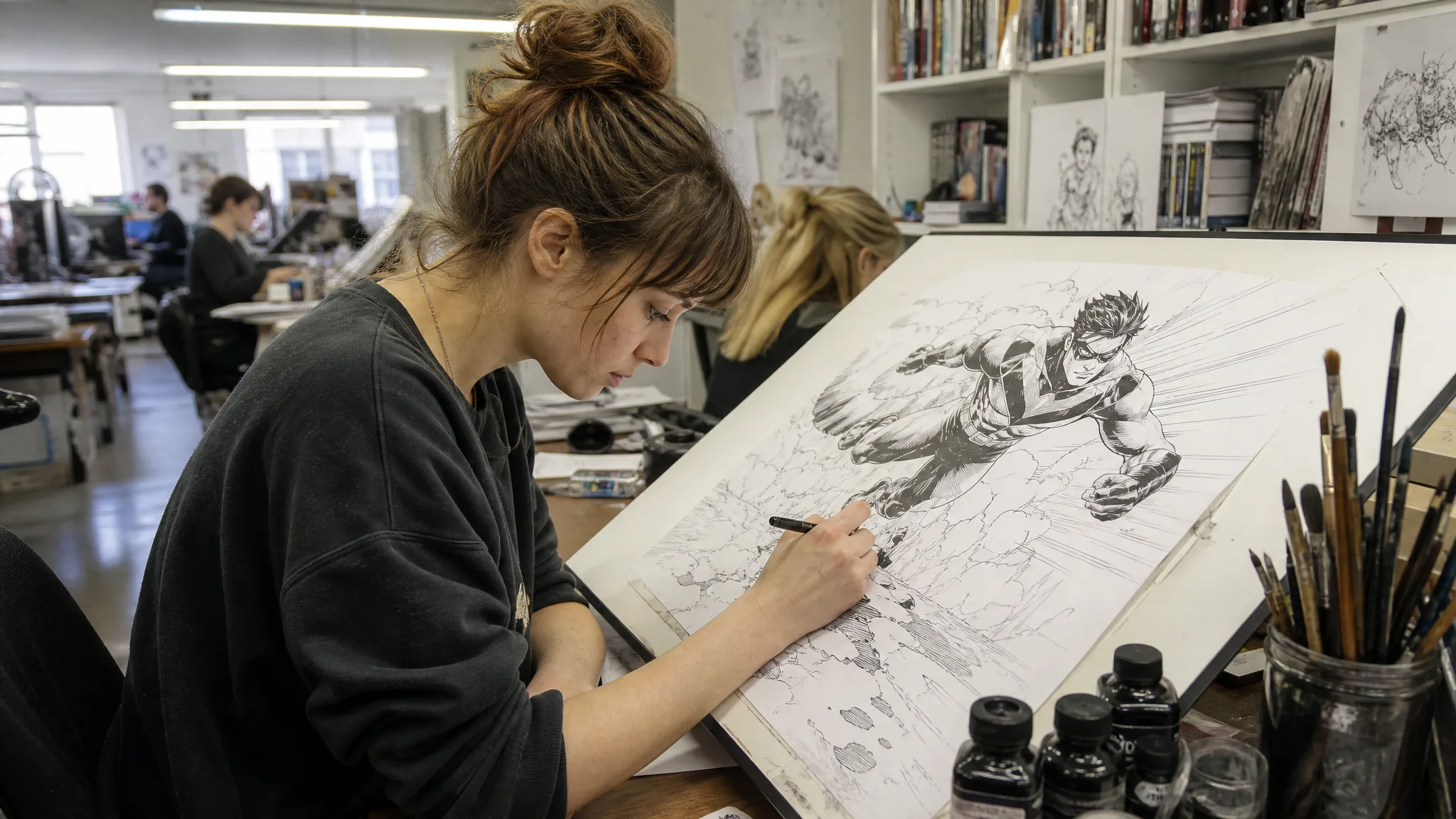
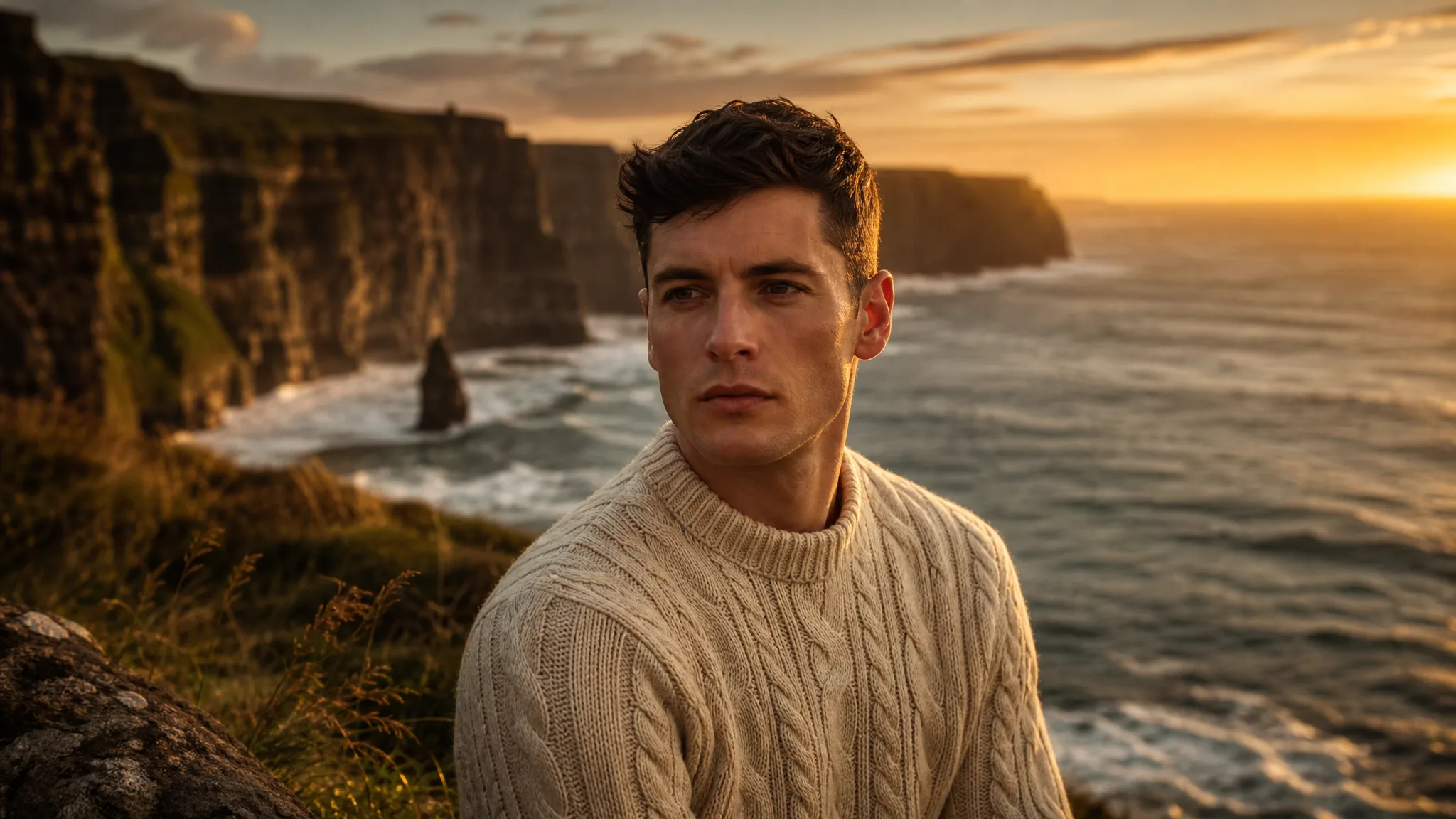
Text to Image
Prompt
0/5000
Aspect ratio
Image size
Number of generations
Public Visibility
Required credits
7
Examples
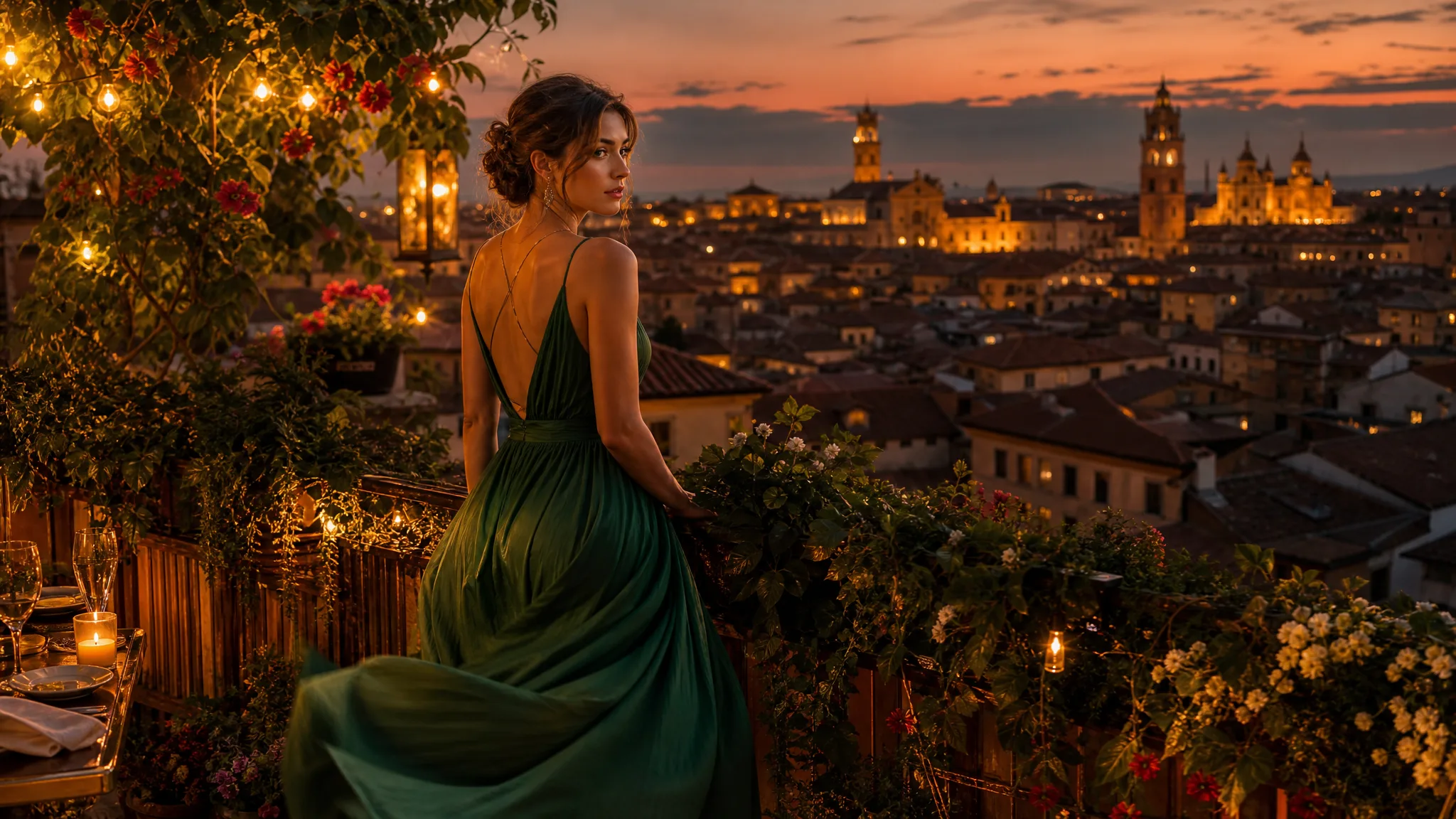
Woman in a flowing emerald dress on a rooftop garden with string lights, looking over a glowing old city at dusk

Text to Image AI: Create a Picture from Words

From a written idea to a picture worth developing

Describe the picture you want to make. The text to image generator turns a subject, setting and visual style into artwork for a story, a product concept or a personal project. Explore a direction and keep the images that bring the idea into focus.

Create an Image from Text
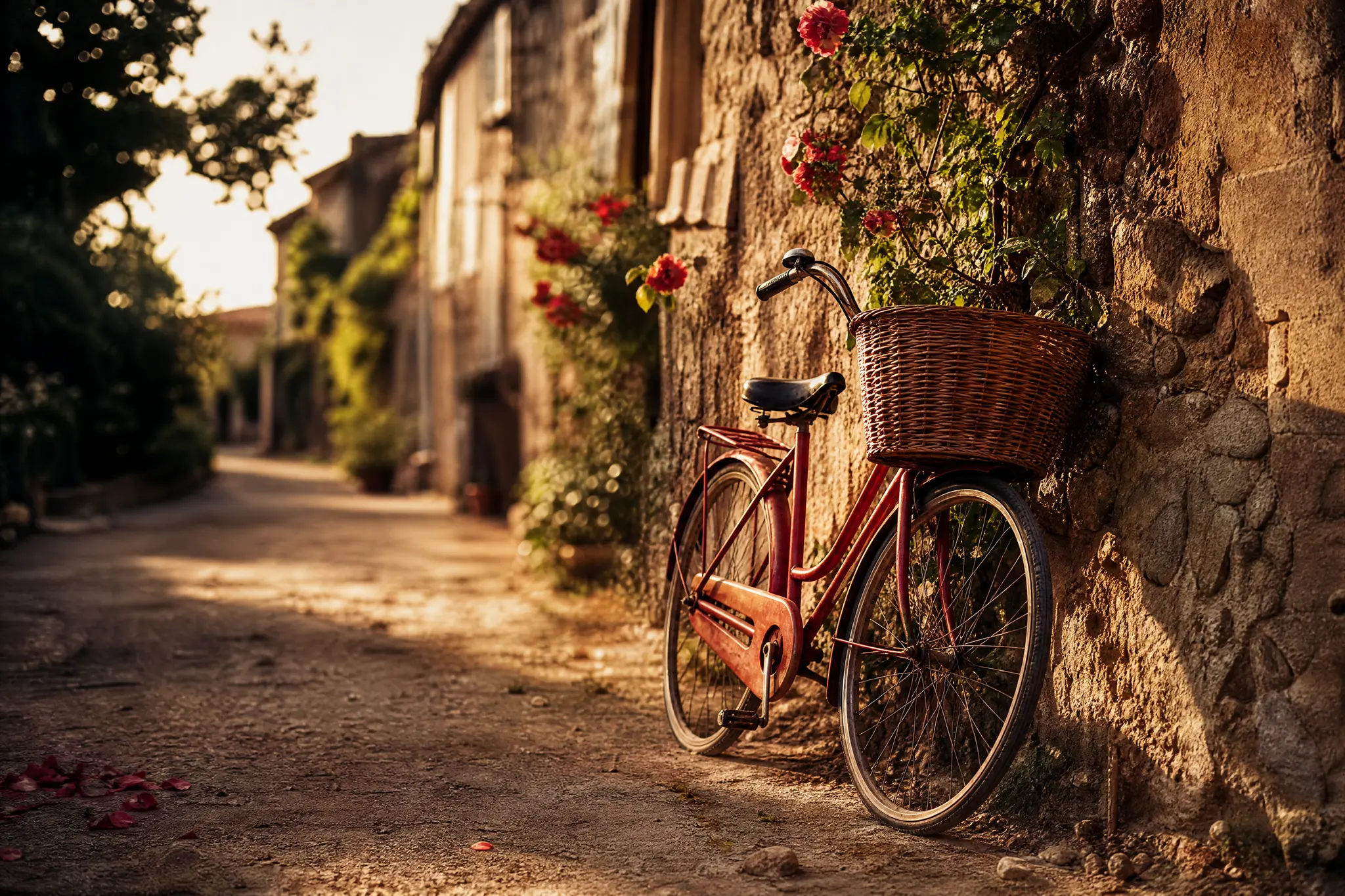
Red bicycle with a wicker basket leaning on a sunlit stone wall in a village lane, in a warm film-photo look
Subjects, places and styles|21 text-capable image models|Several takes per prompt|Asset Library downloads

How Text to Image AI Works

Text to image works in three steps: give the idea a subject, choose how it looks and develop the picture you want to keep.

1

Write the prompt

Give the text to image creator a clear subject, then the setting, style, lighting and framing. “A red bicycle leaning on a stone wall, morning light, film photo” gives the text to image generator more to work with than “a bicycle”.

2

Choose a visual direction

Pick a text to image model and the available shape or output settings for your project. Keep the subject and style clear so you can compare the resulting image with the picture you have in mind, and shape the image for the place you will use it, such as a square post or a wide slide.

3

Generate and download

Choose the number of generations shown by the workspace, check the total cost and press Generate. Each text to image generation is a separate job, and some models return multiple images. Open a completed result to view it at full size, check hands, faces and lettering, then download the one you want.

Best AI Image Tools for Creative Projects

Create a new image from text or edit one you already have with the right image tool.

Give Your Text to Image Idea a Visual Direction

With text to image, a subject, a style and a useful composition turn a written idea into a picture for your project.

Create the subject and its world

Describe the character or object, then give it a place and an action. A clear scene helps a text to image AI generator develop an image that explains the idea you want to show, such as an explorer with a lantern walking through a forest ruin rather than just an explorer.
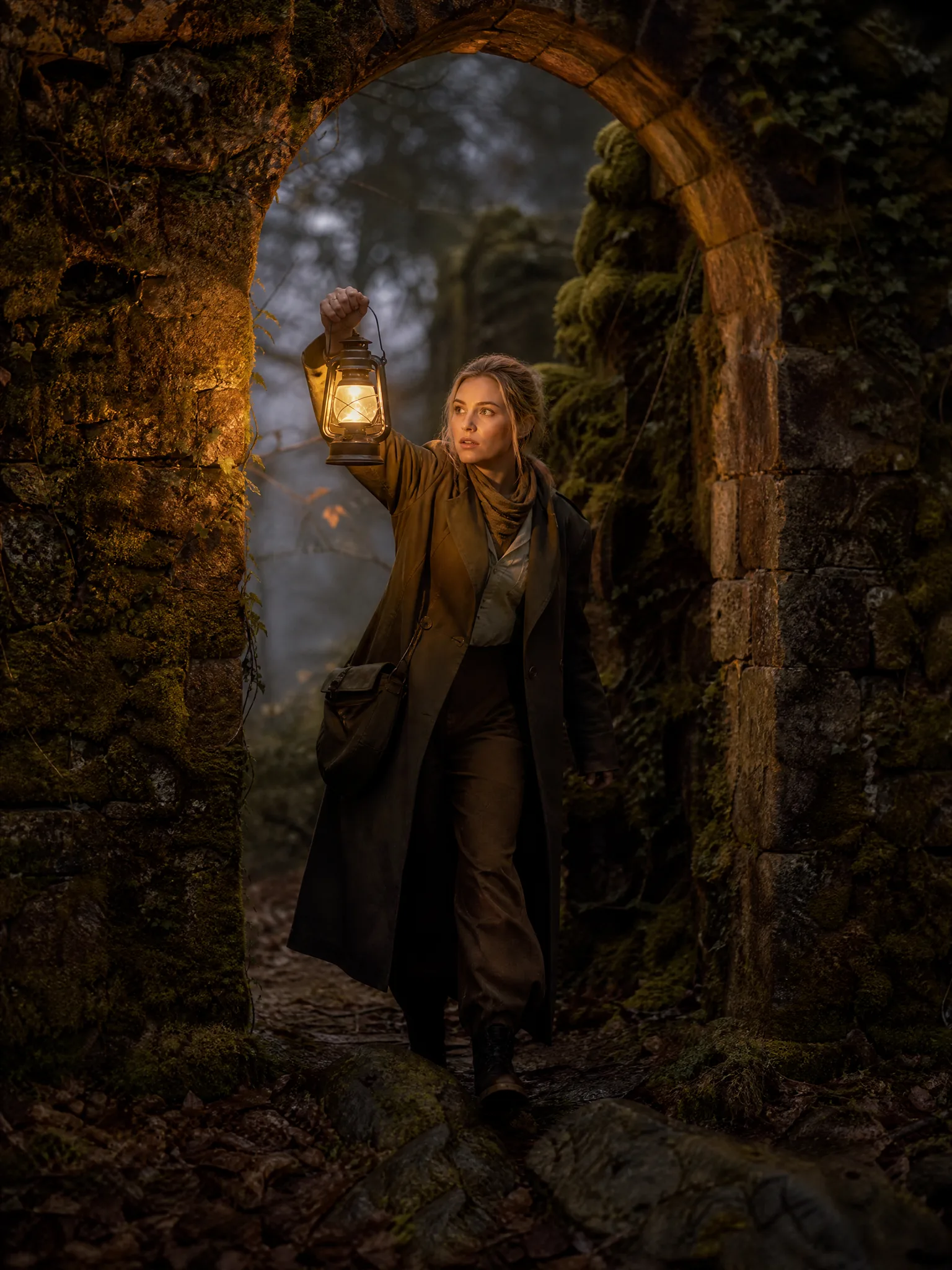
Woman explorer in a long coat raising a lantern as she steps through a mossy stone archway in a misty forest at dusk

Explore a visual style for the story

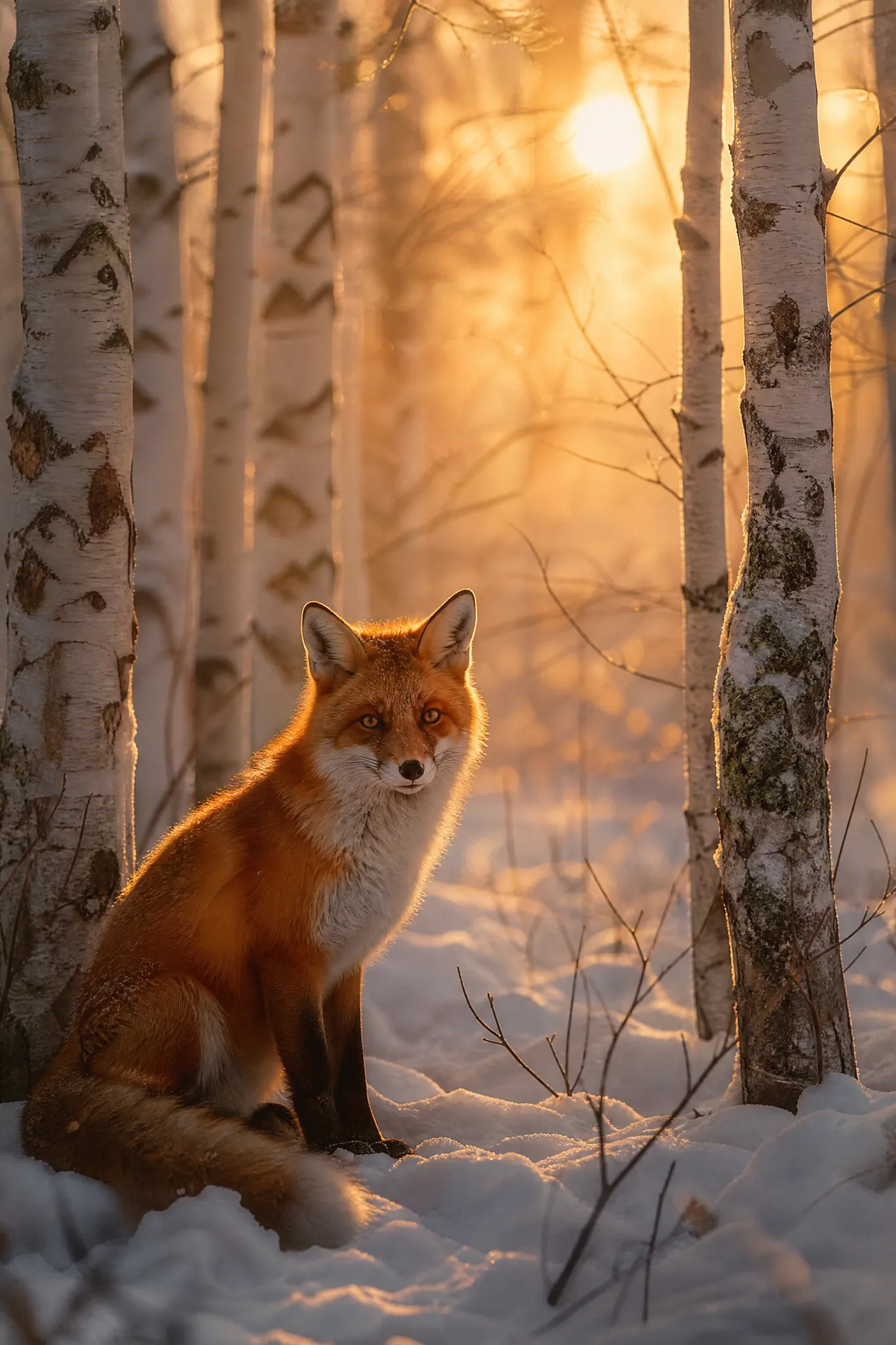
Clean ink, soft illustration or a photographic look give the same subject different meanings. Name the style in your text to image prompt, along with light and grain if they matter, then compare the selected images with that brief and keep the direction that suits the project.

Red fox sitting in snow among white birch trees at dawn, shown in a soft dreamy photographic style

Compose the picture for its purpose

An article image, character concept and presentation visual need different framing. Choose the shapes and output settings available for your model, then keep the artwork that fits the layout. The best text-to-image model depends on the task; one model will not be the best choice for every picture.

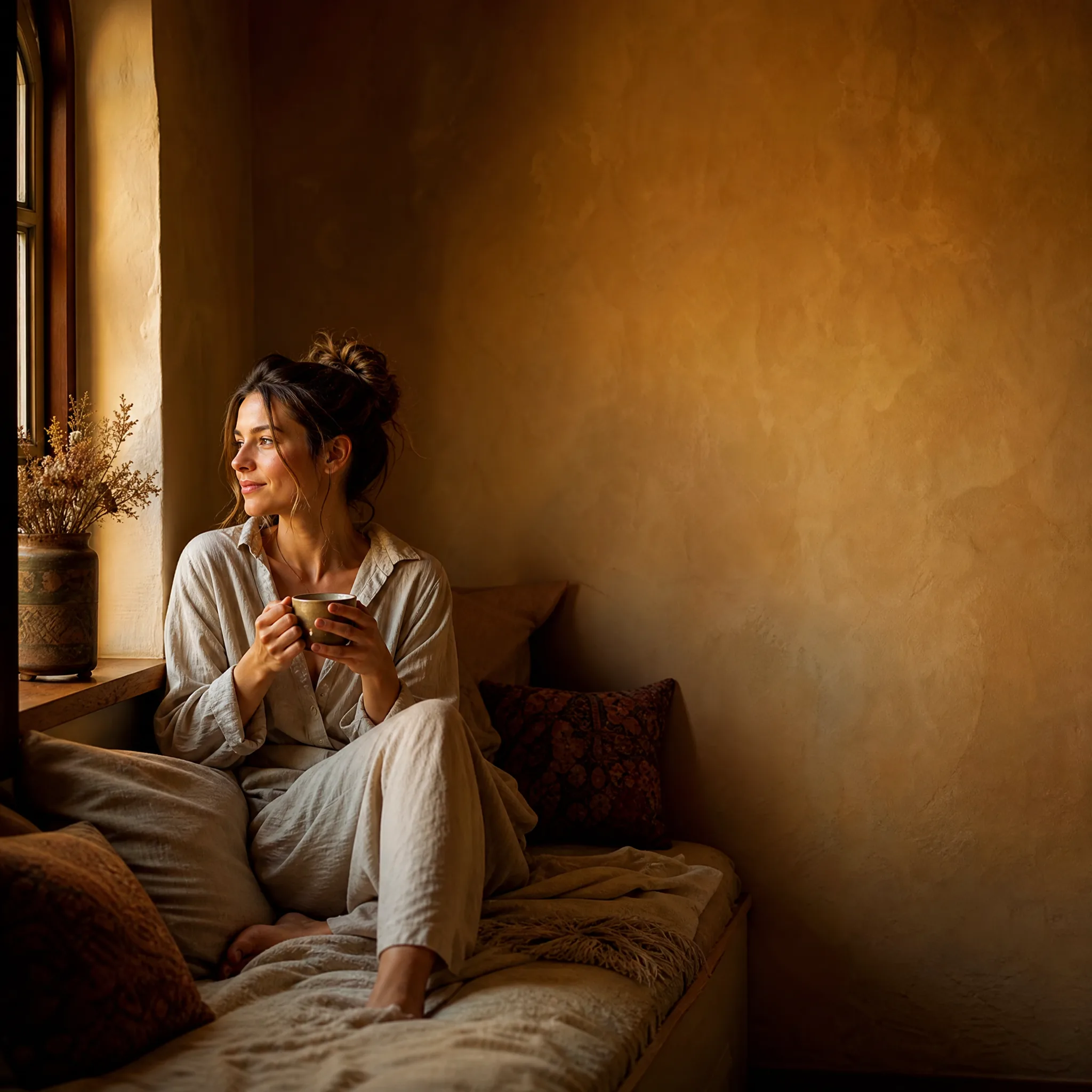
Woman with a cup of tea on a window seat at the left of a square frame, leaving calm open space on the right

Why Create with Text to Image AI?

Text to image turns a written idea into a visual starting point for the project you want to make.

Make an idea visible

A few words can describe a place that does not exist yet. Text to image AI gives a story, concept or presentation a concrete visual to discuss and develop, so a team can react to one picture instead of five different mental images of the same sentence.

Use the picture as a starting frame

A completed image can become the source photo for Image to Video. Choose a composition with room for movement, such as open sky above a figure or space in front of a moving car, then describe the action in the video workspace.

Create a scene without a source photo

Start with the person, object or setting in your imagination. Text to image builds a composition from the surroundings and light you describe, which suits messages, stories and concepts where no suitable photograph exists or a shoot would be too costly for an early idea.

Return to an earlier direction

Completed text to image results are saved to your Asset Library, so you can reopen an earlier take, compare it with a newer one and download the version you choose without generating the earlier image again.

Refine the idea through another take

Change the detail that matters: the expression, background or lighting. A focused revision of the text to image prompt makes it easier to compare the new image with the creative brief, because only one variable moved between the two takes.

Carry the picture into your project

Choose a completed image for your layout, pitch or personal story. Review the fine details, download the artwork and finish it with the typography and timing your project needs, since generated lettering and small text need checking before anything is printed or published.

Creative Scenarios with Text to Image

Written briefs that text to image could turn into a first picture, such as a book-cover concept, a game setting, a storyboard frame or a slide metaphor.

A book-cover idea starts with a character or setting I can describe before I can draw it. I'd write a text to image prompt about a lighthouse keeper under a stormy sky and compare the compositions. I'd leave space for the title and finish the lettering myself in my cover design layout.

Book Cover Artist
Creative workflow

Text to Image FAQ

Learn how text to image turns a written idea into a picture, how to choose a visual direction and when a reference-image workflow is a better starting point.

Text to image AI is a model that creates a new picture from a written description. You describe the subject, style and setting, and the model generates an image that matches the prompt as closely as it can.

Text to image AI on ImgVid is free to try only with the free-plan model, currently Z-Image Turbo, and generation is not unlimited. You need to sign in and have enough credits for the quoted generation cost. The default Seedream 5.0 Flash is a paid model that quotes 1K: 7 credits; 1.5K: 7 credits; 2K: 7 credits per generation at the listed output settings; review the workspace total for your chosen shape and settings before generating.

Seedream 5.0 Flash is the configured default. Choose a text-capable model according to its available shapes, resolution settings and the visual direction of your project. Compare the results against your prompt rather than assuming a model is best for every task.

The text to image generator runs as many separate takes as the generation count you choose in the workspace. Grok Imagine returns two images per take and the other models return one. Compare the composition and details of completed images in your Asset Library.

Yes — use Image to Image to upload your own photo and describe an edit, because this text to image page creates pictures from a prompt without a photo upload. The number of reference images depends on the selected editing model, and completed images from both tools are saved to your Asset Library.

Text to image results can support commercial projects after you review each image for likenesses, trademarks, legible text and factual details. Generation does not grant third-party permissions, so finish exact branding and titles separately.

Text to image results are not published automatically. Free accounts and visitors keep Public Visibility on, so a successful text to image result may be selected for Explore after review; a subscription or one-time pack starts generations private. Prompts are processed by the selected model provider, so review the Privacy Policy before including sensitive details.

Turn Your Prompt into a Picture

Describe the subject, setting and visual style you want to explore. Text to image creates a picture for a story, a product concept or a personal project, and you develop the version that brings your idea into focus.

Start Text to Image
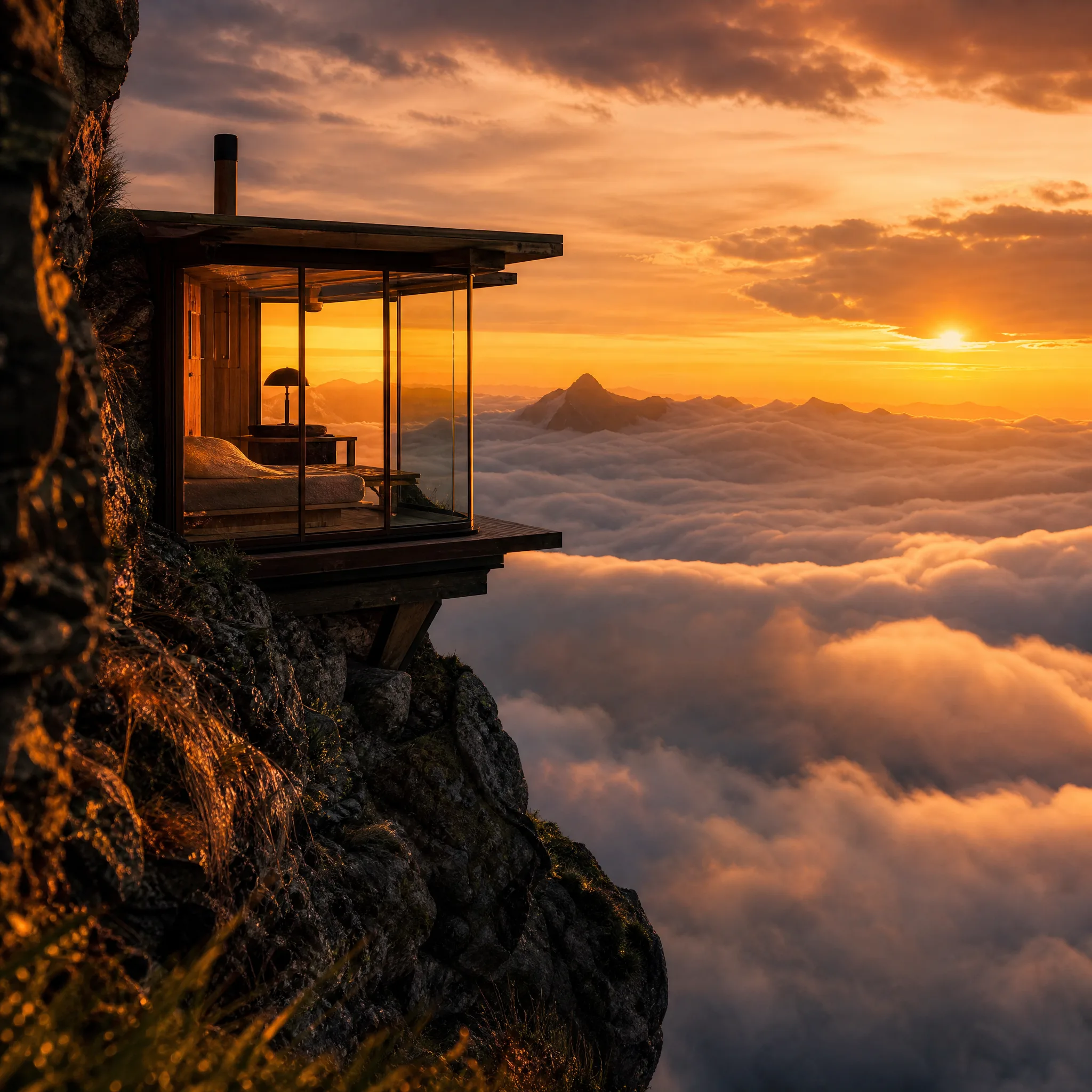
Glass-walled cabin glowing on a rocky mountain ledge above a sea of clouds at sunset