


Start & End Frame
Reference images

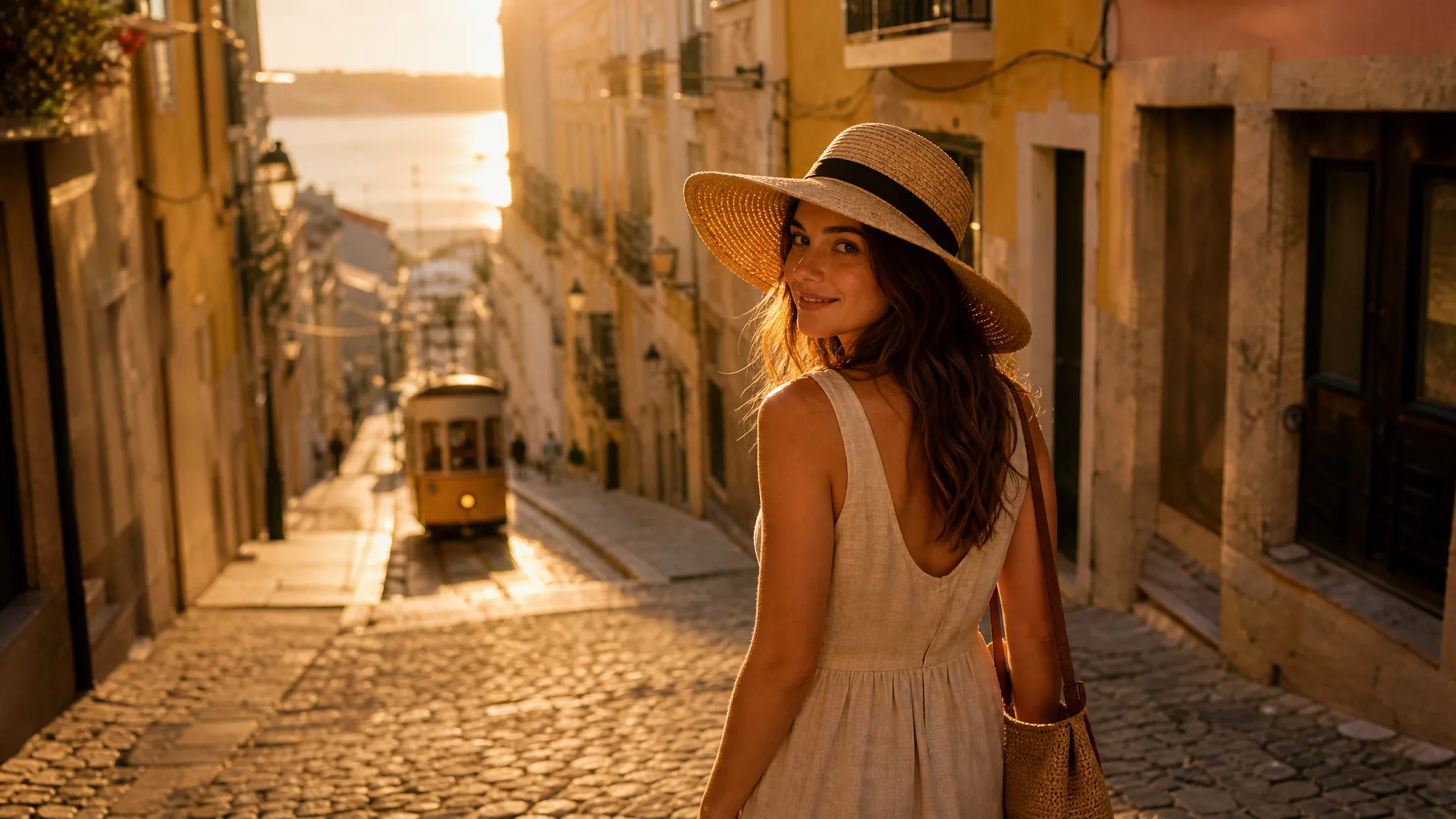
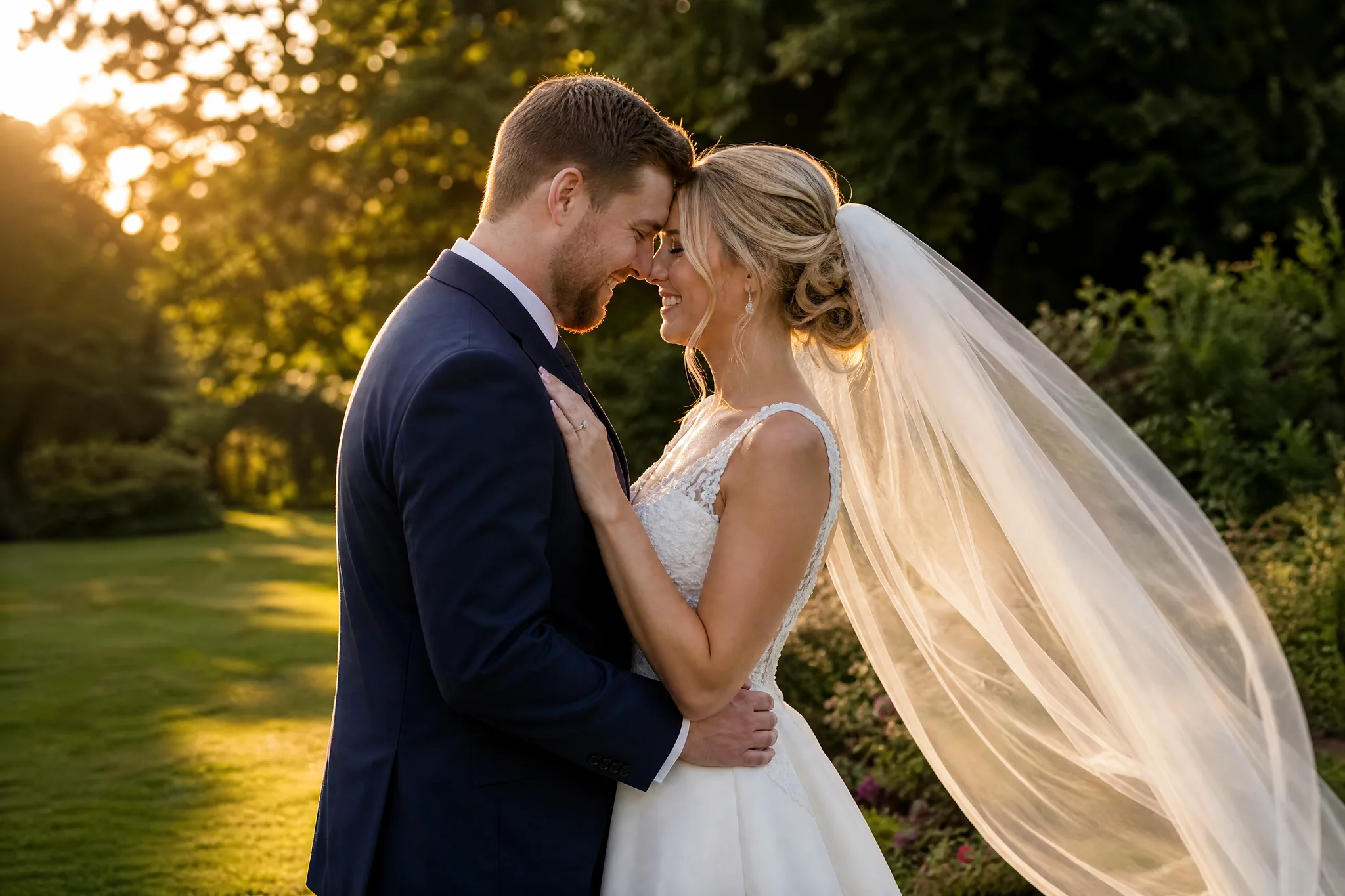
Add two images in order: the first is the start frame and the second is the end frame.

Prompt
0/4000
Duration
Resolution
Aspect ratio
Translate prompt
Number of outputs
Public Visibility
Required credits
30
Sample videos

Start and End Frame to Video AI: Animate the Change Between Two Images

Explore the motion between two chosen frames

Start with the scene you have and the ending you imagine. Start and end frame to video uses two pictures to guide a reveal, a change of setting or a story beat, while your prompt describes the journey between them.

Animate Your Start and End Frames
Two-frame scene ideas|Moving reveals|Creative transition direction|Clip downloads

How Start and End Frame to Video Works

Start and end frame to video needs three decisions: where the scene begins, where it ends and the movement that connects the idea.

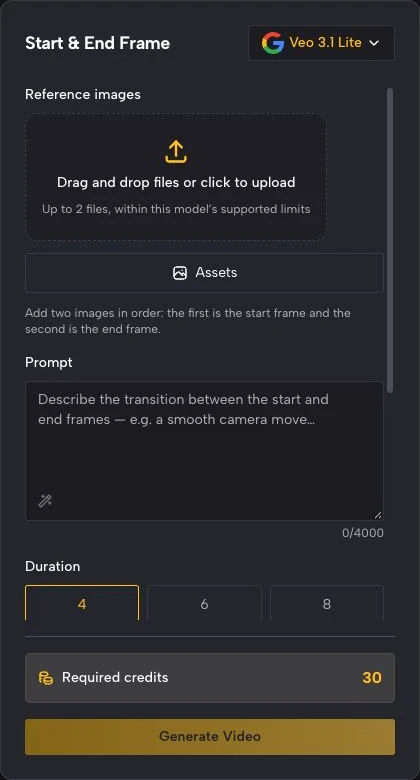
ImgVid Start & End Frame form with Veo 3.1 Lite selected, a two-image upload area, a prompt box and duration options

Choose the opening picture

Upload a clear start image that introduces the subject and setting. Think about the composition viewers should see at the opening of the reveal, because start and end frame to video treats this picture as the first visual state and builds the later frames toward the second image.

Give a Reveal an Opening and an Ending

Set the opening picture and the image you want to reach. Start and end frame to video can turn two stills into a reveal, a scene transition or a visual journey.

Two images explain the change

The opening and ending pictures give the shot two visual states. Use start and end frame to video when the idea depends on a reveal, a new expression or a change of appearance, such as a closed flower and the same flower in bloom, so viewers see both where the moment starts and where it lands.
First and last frame AI ideas for a reveal

A sketch can introduce the design before the finished render appears. First and last frame to video develops generated movement between those images, giving the reveal a new visual interpretation that works as a process story for a portfolio, a client update or a product page.

Describe the journey between the pictures

Give the transition a camera view, an atmosphere and a main action. In start and end frame to video, the prompt guides the movement rather than defining an exact path or timing for every intermediate frame, so describe the feeling of the change and judge the result by the whole take.

A Visual Starting Point for Both Ends of the Shot

With start and end frame to video, the two compositions explain the change your scene should communicate.

Begin with a clear visual change

A neutral and a smiling portrait, or an empty and a furnished room, make the intended change visible before you generate anything. Start and end frame to video works from that pair, so choose two images that communicate the same idea with the same subject, light and viewpoint.

Develop movement between the states

Generated frames interpret the transition rather than simply dissolving between still images. Review the start and end frame to video result against the reveal you intended, checking that both endpoints still look like your uploads and that faces or text stay intact in the middle.

Give a design reveal another moment

A rough sketch and a finished concept show where the idea begins and ends. Use the moving transition as a detail in a project presentation or case study, where it explains the design process in a few seconds instead of a slide of before-and-after images.

Choose the controls for the transition

Only models that accept both a start frame and an end frame appear here, and they offer different durations, framing and output settings. Choose the options that fit your visual idea before developing a start and end frame to video take, and compare models if the first transition feels rushed.

Creative Scenarios with Start and End Frame to Video

Pairs of frames people might connect with start and end frame to video, such as a closed and open gift box or a daytime and dusk view of the same place.

I’d upload a closed gift-box image as the start frame and an open box as the end frame, then describe a measured opening for start and end frame to video. I’d check packaging details across the in-between motion before the reviewed transition introduces our product edit.

Product Video Designer
Creative workflow

Start and End Frame to Video Questions

Learn how start and end frame to video guides a clip, how to choose two compatible images and what to consider when you want the scene to change between them.

Start and end frame to video uses two images to guide how a generated clip begins and ends. The model creates motion between them and can reinterpret details; it is not frame-perfect editing.

To connect two images with start and end frame to video, choose a compatible model, upload the start frame first and the end frame second, and describe the transition. Review settings before generating.

Veo 3.1 Lite, the default on this page, accepts both a start frame and an end frame and makes 4, 6 or 8-second clips. Models that currently support both inputs are Gemini Omni Flash 1.1, Veo 3.1 Basic, Veo 3.1 Lite, Seedance 2.5, Seedance 2.0, Seedance 2.0 Fast, Seedance 2.0 Mini, Wan 3.0 Prime, Wan 3.0, MiniMax H3, PixVerse V6, Wan 2.7, Kling 3.0 Omni. Framing depends on the model and mode; auto-framing matches the uploaded frames.

A start and end frame pair works best when both images share a similar framing and aspect ratio and show the same subject in two clear states. Strong differences can drive a transformation, but check faces, text and product details in the in-between motion.

Start and end frame videos can support commercial projects when you have permission to use both images and any people, artwork or brands in them. Review each take for likenesses and details; generation does not grant third-party permissions.

Your uploaded frames are not published, and videos are not published automatically. With a subscription or a one-time pack, Public Visibility starts off and your videos stay private; free accounts keep it on, meaning a successful video may be shown publicly after review. Frames are processed by the selected model provider, so review the Privacy Policy before uploading sensitive images.

Start and end frame AI video is free to try within limits, not unlimited. After you sign in, you can use free credits on eligible free-tier models and settings that the credits cover; other choices require a paid plan or credit pack. Free generations include an ImgVid watermark.

Create the Movement Between Your Two Frames

Choose where the shot begins and where it should end. Upload both images, describe the transition you imagine and let start and end frame to video develop a moving reveal between those two compositions. Review both endpoints before you download the take.

Start with Two Frames
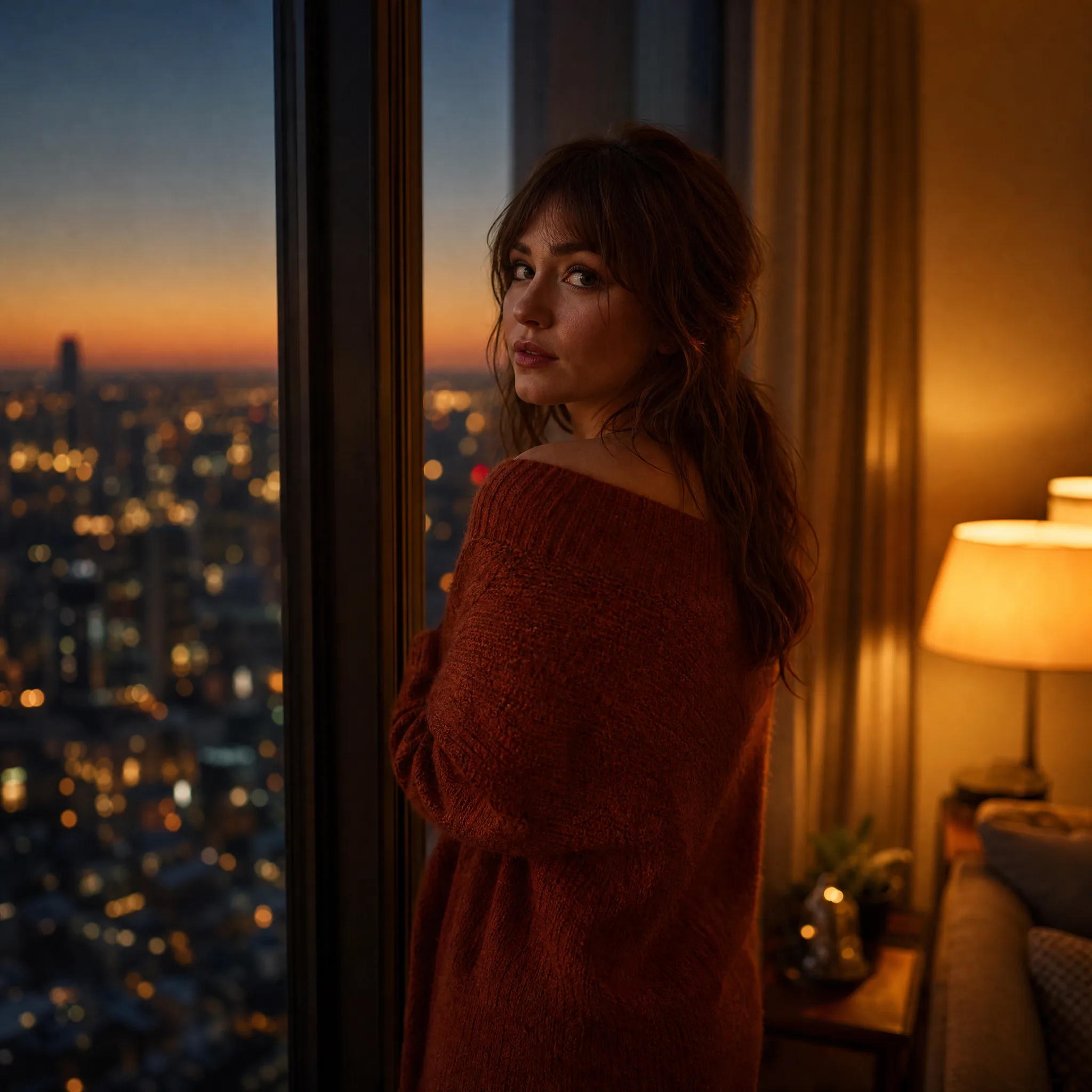
Woman in a red sweater by a high window as the city lights come on at dusk