FLUX Kontext Image Generator

Build a visual concept around the details that matter

Black Forest Labs' FLUX Kontext edits a single reference image with one targeted change. Keep the subject, pose and framing you already like, describe the new color, setting or season, and check that FLUX Kontext left everything else as it was.

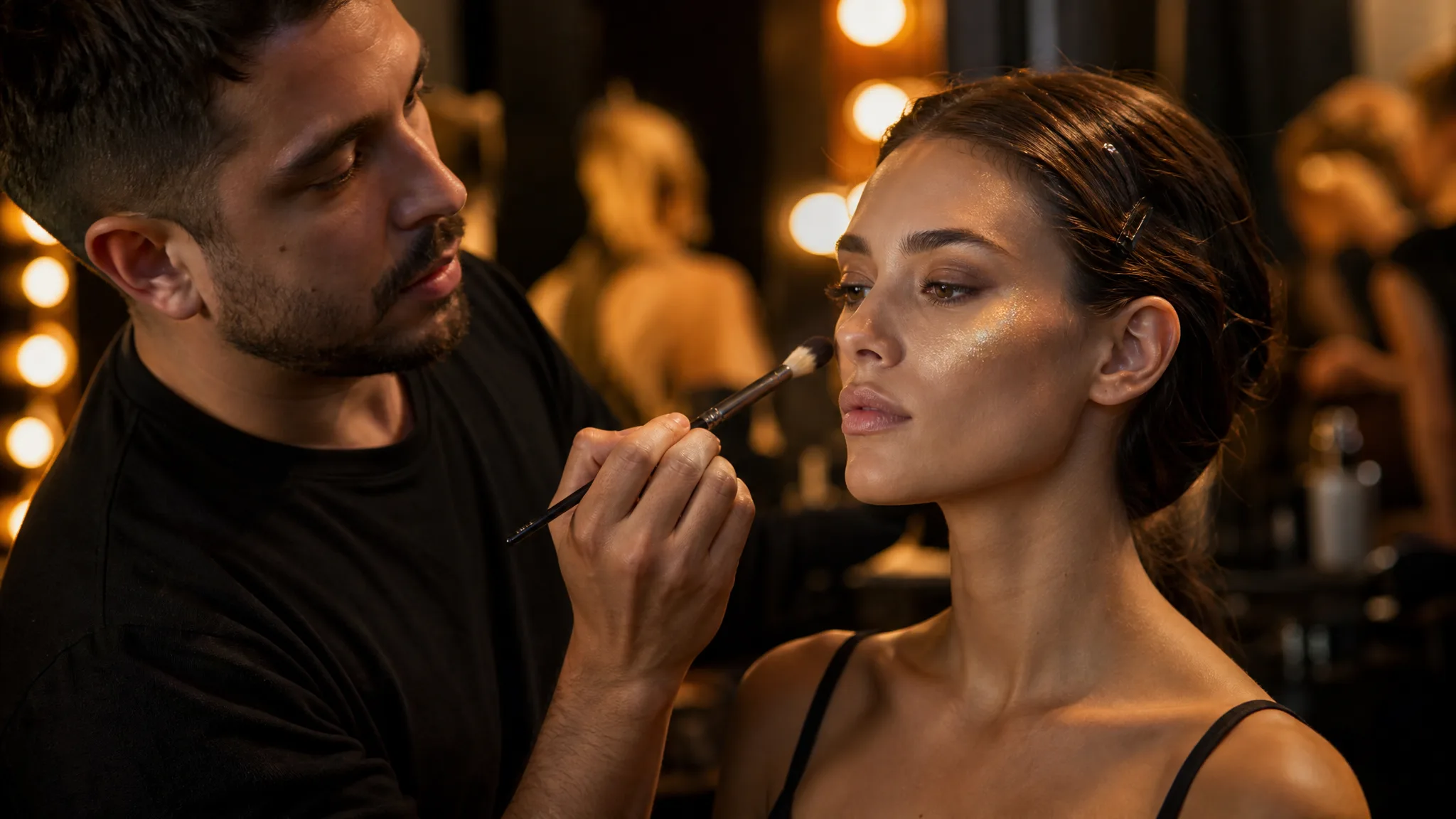
Makeup artist brushing gold highlighter onto a model's cheekbone backstage
A focused subject in your composition
Creative changes from a visual brief
Lighting that sets the scene
Styles for a coherent visual direction
New takes for your next design
FLUX Kontext
Prompt
0/4000
Translate prompt
Input image

This media input is not available yet.

Aspect ratio
Enhance prompt
Safety tolerance
Number of generations
Public Visibility
Required credits
10
Examples
Makeup artist brushing gold highlighter onto a model's cheekbone backstage

Explore Image Ideas with FLUX Kontext

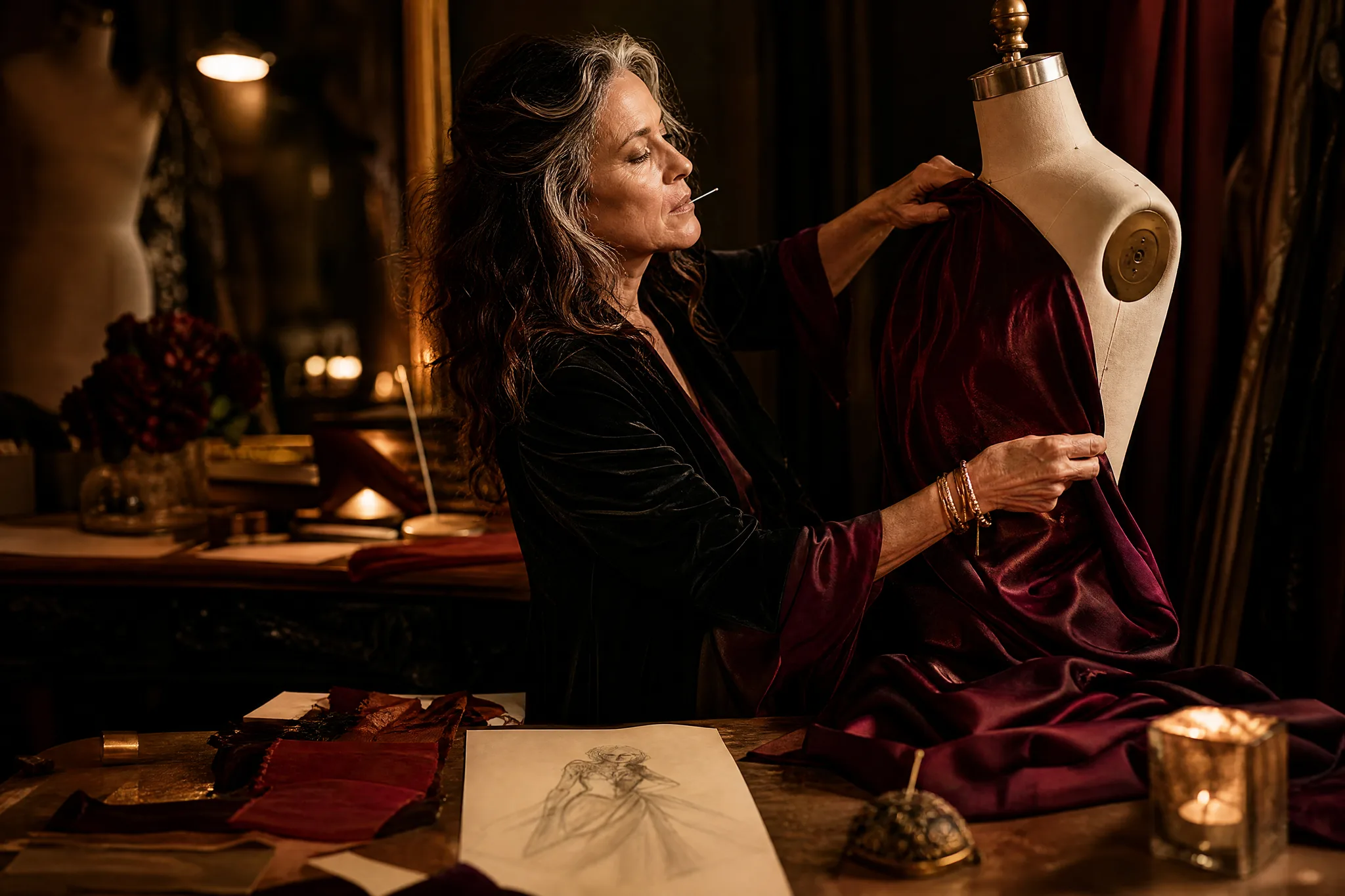
A costume designer draping burgundy silk beside a pencil sketch tests one change at a time. FLUX Kontext follows that habit: give it a single reference, name the fabric, color or setting you want to change, and compare the edit with your source before you commit.

Generate with FLUX Kontext
Costume designer draping burgundy silk on a dress form beside a pencil sketch

How to Create with FLUX Kontext

FLUX Kontext edits around a single reference or starts from a prompt, and it suits targeted changes. These four steps cover choosing the edit, framing it, comparing a take and finishing the image.

1

Describe your image idea

Attach one reference image to FLUX Kontext and write the specific change you want, such as a new jacket color or a different sky. Name what must stay untouched. With no reference, describe the whole scene in a text prompt instead.

2

Choose the composition

Choose an aspect ratio for the final placement, from 21:9 for a wide banner to 9:16 for a story. Keep the subject where the FLUX Kontext edit will not crowd the space reserved for a headline or graphic.

3

Explore the image

Generate a FLUX Kontext take and compare it with your reference: did the targeted detail change, and did everything else stay as it was? If not, rephrase only the instruction for that detail and try another take.

4

Choose and finish your take

Download the edited take and check the changed area and its edges at full size, plus faces, hands and text. Finish the crop, labels and layout in your design workflow with the FLUX Kontext image as the corrected base.

Best AI Image Tools for Creative Projects

Create a new image from text or edit one you already have with the right image tool.

What Can You Create with FLUX Kontext?

FLUX Kontext image to image works with one reference and a precise instruction. These five rows explain targeted edits, keeping the subject, adjusting light and color, and refining step by step.

Explore a new interpretation of your image

Your existing image is the anchor. FLUX Kontext accepts a single reference, so choose the clearest version of the photo or artwork, describe the new interpretation you have in mind, and check that the subject in the take still matches the person or product you started with.
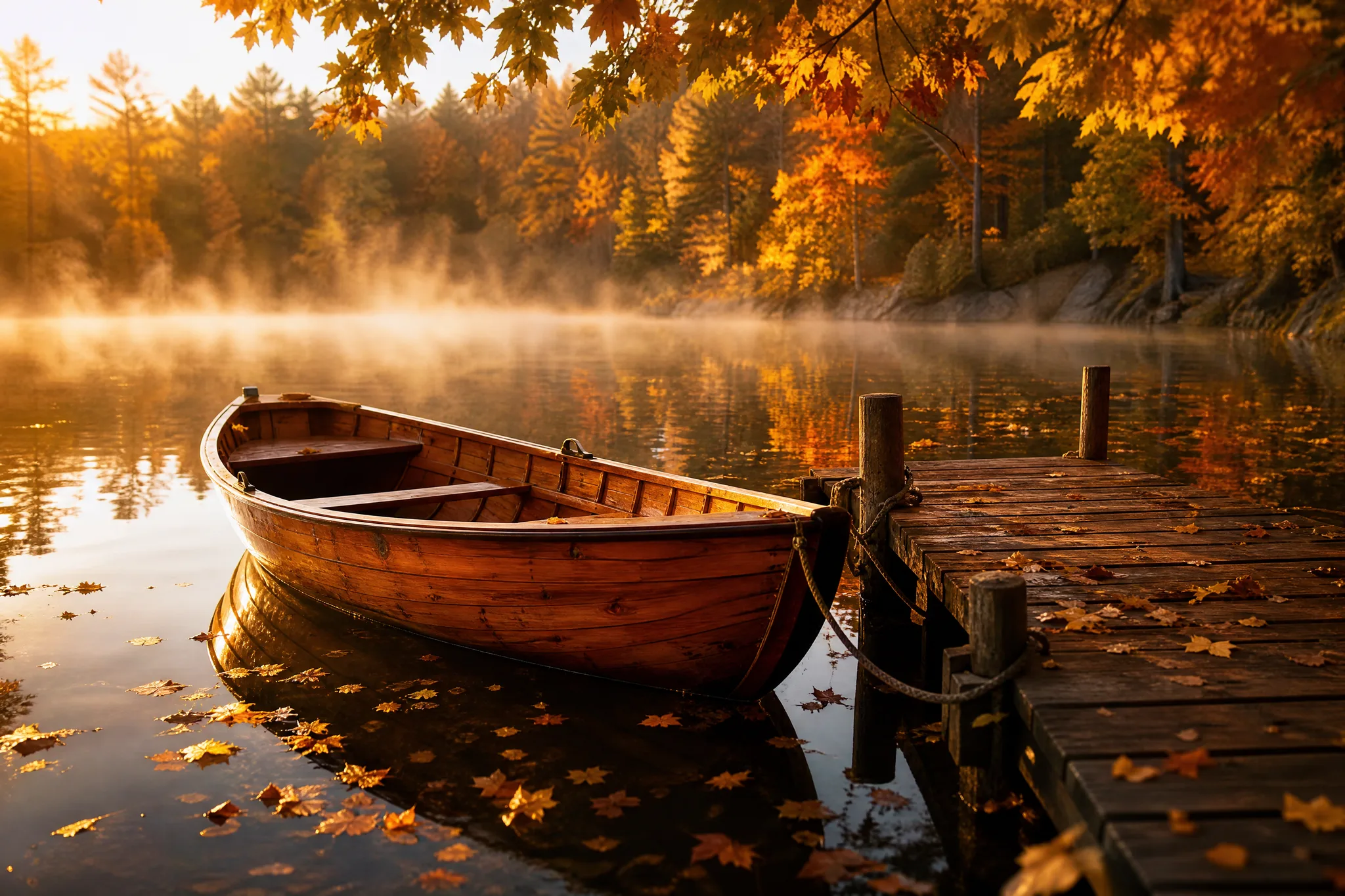
Varnished wooden rowboat at a jetty on a misty lake ringed by autumn trees

Name the detail you want to change

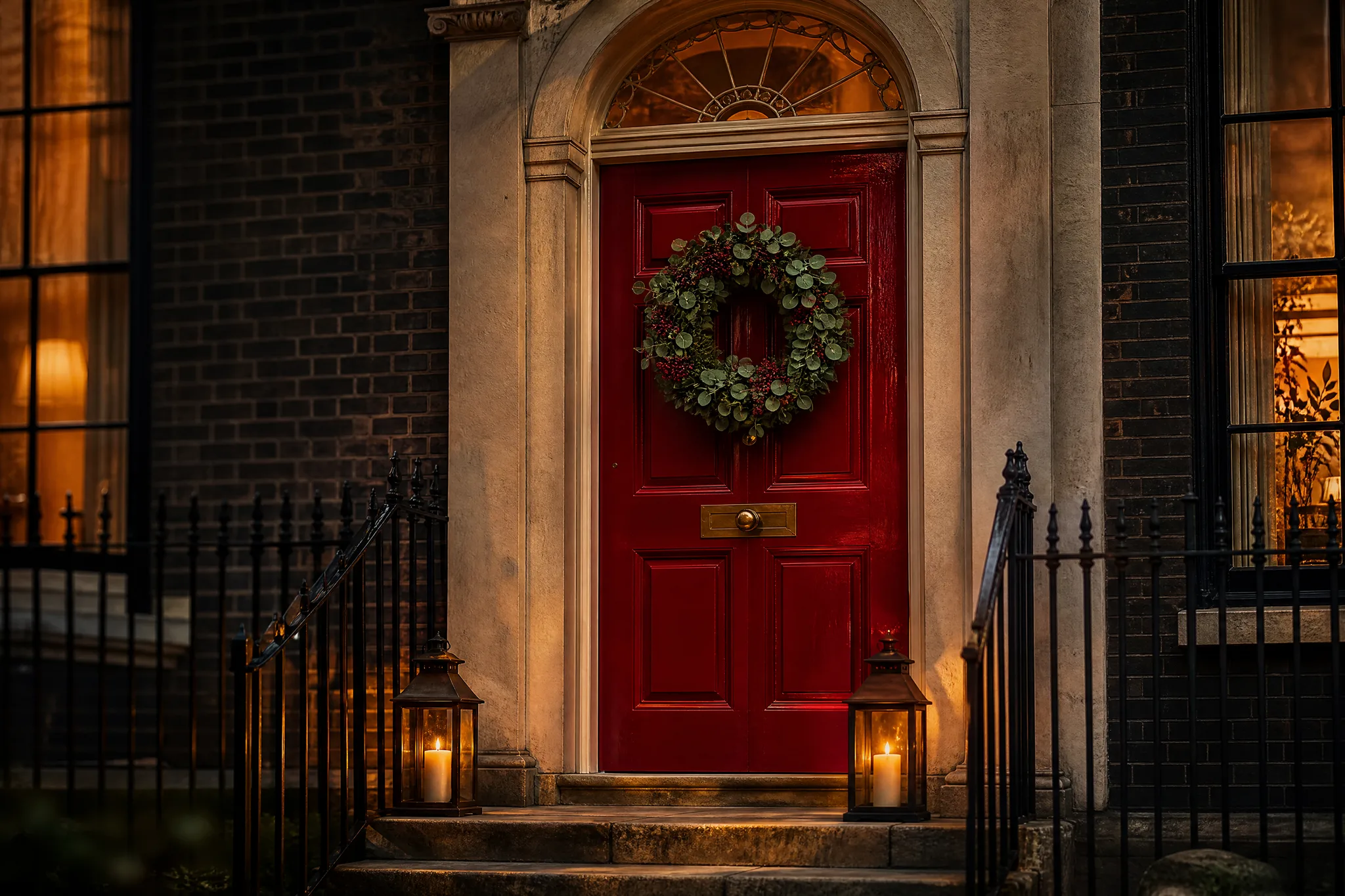
Name the exact detail to change: the color of a front door, the wreath hanging on it, the season outside a window. A FLUX Kontext edit stays easier to judge when one instruction targets one element, rather than several unrelated changes stacked into the same prompt.

Townhouse entrance with a glossy deep-red front door and a single wreath

Keep the subject central to the brief

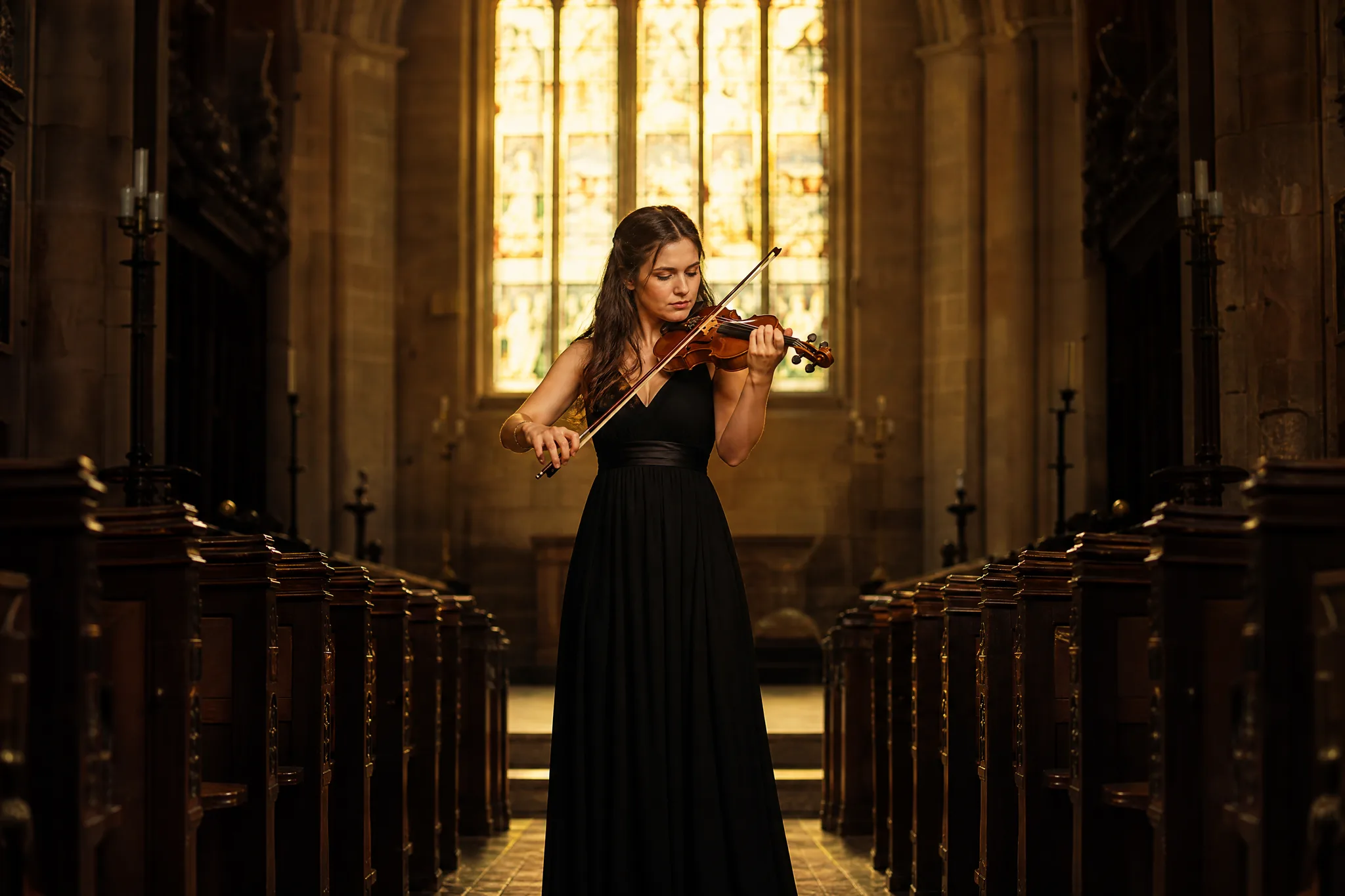
Keep the subject and its role clear in the instruction, for example the same violinist, now in a darker chapel. FLUX Kontext edits around that focus, and you review the composition and key features afterward to confirm the subject stayed recognizable before using the take in a design.

Violinist playing alone in the centre of an empty stone chapel aisle

Develop the lighting and color direction

Light and palette can shift the mood of an image without changing what it shows. Ask FLUX Kontext to turn midday light into dusk or to cool the colors of a room, and describe how that light should touch the subject so the edit feels consistent.

Candlelit dinner table for two in ruby and amber tones with brass candlesticks

Refine one prompt decision at a time

Refine in rounds. Change one decision per FLUX Kontext take, such as the background first and the light second, and compare each result with the reference. This shows which instruction produced which change and keeps you from losing parts of the image you already liked in earlier takes.

Chef placing a single herb garnish with tweezers on a finished scallop dish

FLUX Kontext Use Cases

FLUX Kontext suits people who already have an image and need one part of it changed. These six cases show the reference each would supply and where the edited take goes.

Product scenes that tell a story

Product teams can take an existing packshot into FLUX Kontext and change only the backdrop or surface, keeping the product as photographed. The edited take works as a concept for a seasonal listing or campaign.

Portraits with a clear visual mood

Portrait artists can keep a model's pose and expression while changing the lighting or background in FLUX Kontext. They check the face closely against the reference before using the edited take as a mood board reference.

Illustrations from a written idea

Illustrators can upload a finished drawing and ask FLUX Kontext to try a new palette or time of day. Comparing the edit with the original shows which version better suits the story before final coloring.

Campaign concepts before the final layout

Campaign art directors can adapt one approved key visual into a winter or night version with a FLUX Kontext edit. The team then adds final headlines and brand assets in the design file for each market.

Storyboard moments for a visual narrative

Storyboard artists can reuse one frame and change a single element, such as the weather or a prop, with FLUX Kontext. Small, targeted edits help show continuity between neighboring shots for the director and crew during planning.

Social visuals with a recognizable direction

Social designers can keep a recognizable photo and swap only its background or color treatment for each post using FLUX Kontext. Every take is reviewed against the reference before captions are added in the editor.

Creative Scenarios with FLUX Kontext Image Creation

Scenarios for using FLUX Kontext image creation in real projects, from the photos or ideas you start with to the take you keep.

Our product photo has the right angle but a cluttered kitchen behind it. I'd give FLUX Kontext that single photo and ask for a plain linen backdrop, leaving the product untouched. I'd compare the label, cap and shadow against the original before using the edit on our shop page.

Product Content Creator
Creative workflow

FLUX Kontext Frequently Asked Questions

These FLUX Kontext answers cover the single-reference workflow, prompt writing, available frame shapes and responsible campaign use.

FLUX Kontext is a Black Forest Labs image model in the ImgVid image workspace for targeted edits to one reference image, and it can also start from a text prompt. Describe the change, choose the take that fits your brief and review its details before publication.

Yes — FLUX Kontext accepts one reference image in image-to-image mode. Use a clear photo and describe the specific change you want; text-prompt generation is available too.

A good FLUX Kontext prompt names the element to change first, then the new setting, composition, light or style for it. For a product, describe the surface or backdrop; for a portrait, the framing and mood. One targeted instruction is easier to refine than many effects.

FLUX Kontext requires eligible paid access when the paid-plan gate is enabled, and every generation draws on your credits. The workspace shows the current estimate for the variant and settings you choose before you start.

FLUX Kontext offers these aspect ratios: 21:9, 16:9, 4:3, 1:1, 3:4, 9:16. It has no separate resolution control to choose. Frame the subject for the crop you will publish rather than resizing later.

FLUX Kontext edits can appear in a campaign once rights and review are covered. Upload only images you may use, check results for trademarks, likenesses, facts and suitability, and complete crop, typography and brand assets in your design tool. Generation does not provide third-party permissions.

FLUX Kontext edits are not published automatically, and the source image you upload stays unpublished. Free accounts and visitors keep Public Visibility on, so a finished FLUX Kontext edit may be selected for Explore after review; a subscription or one-time pack starts generations private.

Bring Your Next Image Idea to Life with FLUX Kontext

Upload one reference, name the detail to change, and let FLUX Kontext produce a targeted edit you can compare against the original. Review the take, then open the workspace for your next edit.

Create with FLUX Kontext
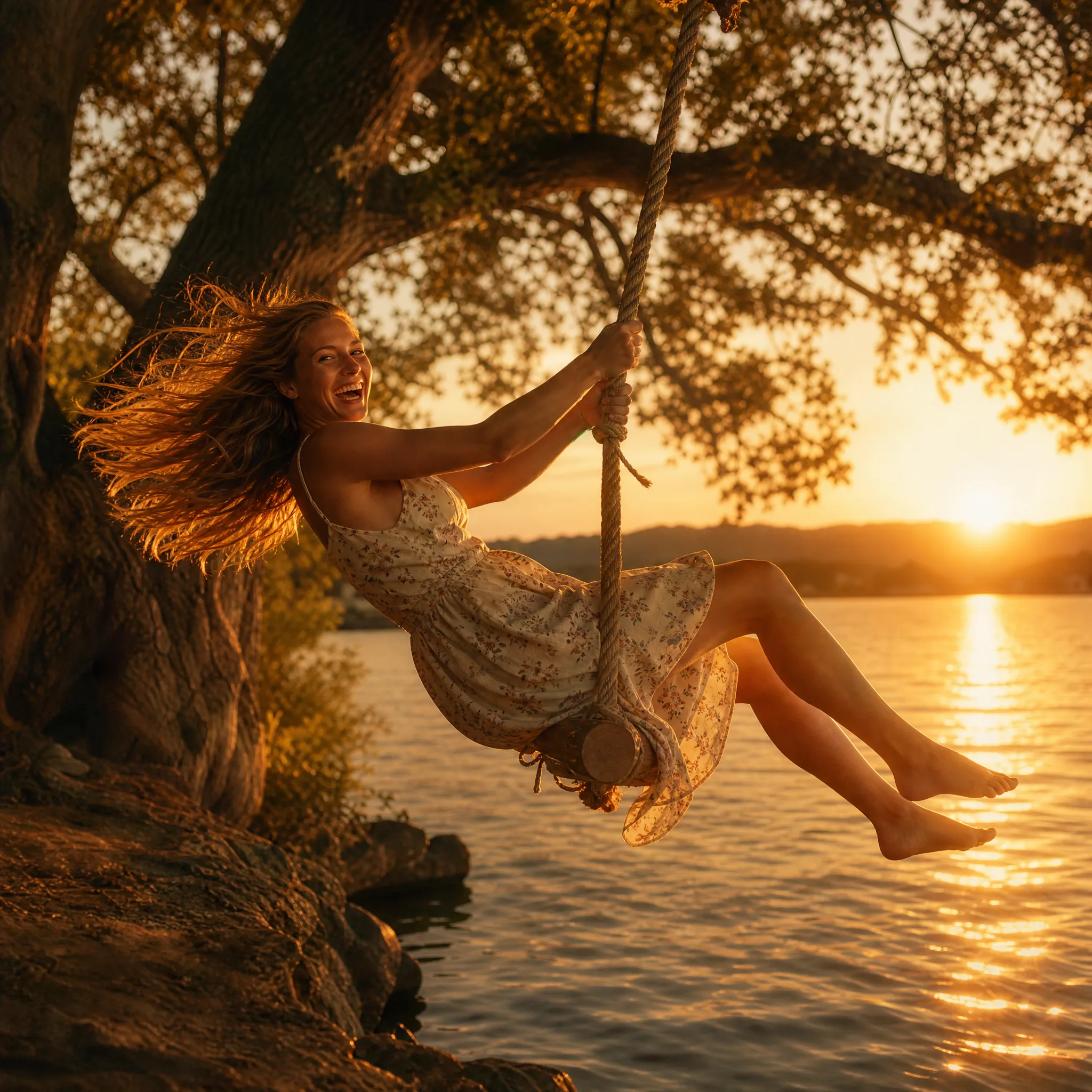
Laughing woman on a rope swing out over a lake at sunset