GPT Image 2 Image Generator

Create smarter visuals from your ideas

OpenAI's GPT Image 2 turns a detailed written brief into a still, including scenes where wording should appear in the picture. Describe the subject, the setting and any text, attach a reference when you have one, and compare GPT Image 2 takes before choosing.

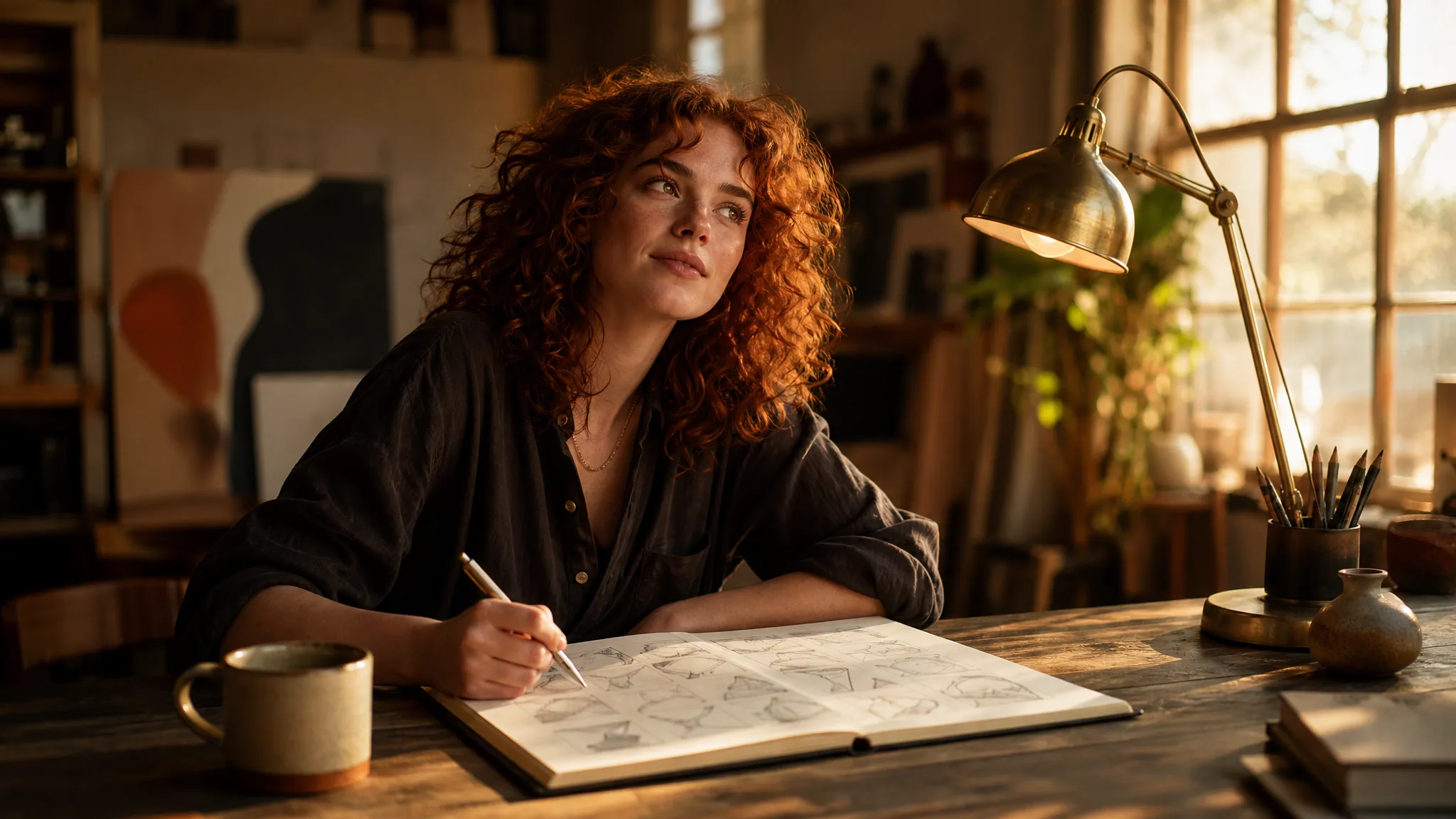
Creative director at a sunlit studio desk with an open notebook of small pencil thumbnails, pausing over an idea
Plan text inside your visual concept
Specific details in your visual brief
Photographic light and materials
Character-led creative directions
GPT Image 2
Prompt
0/20000
Aspect ratio
Resolution
Background
Number of generations
Public Visibility
Required credits
6
Examples
Creative director at a sunlit studio desk with an open notebook of small pencil thumbnails, pausing over an idea

Explore Image Ideas with GPT Image 2

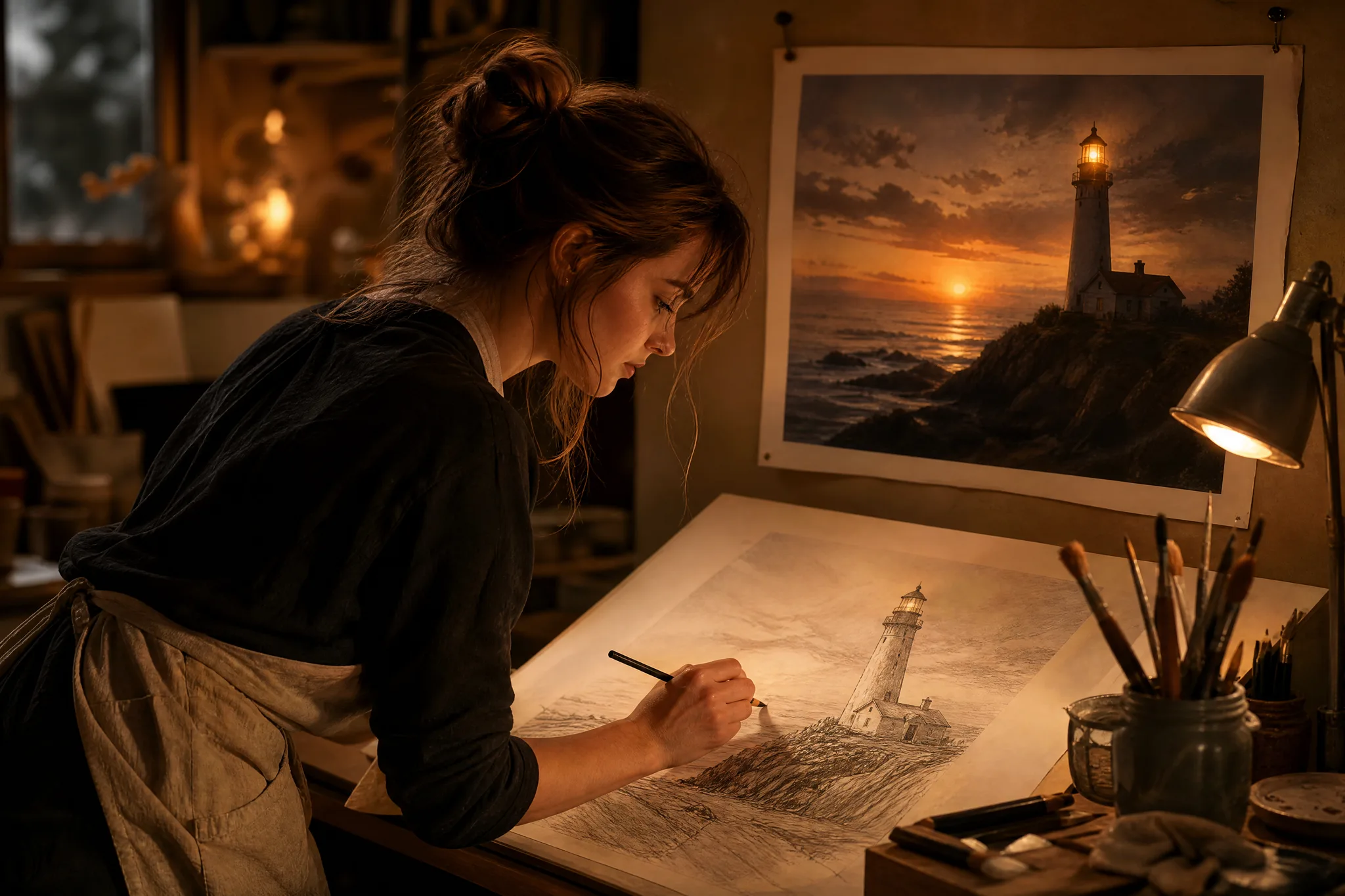
An illustrator moving from a lighthouse sketch to a finished dusk painting shows how an idea gains mood. With GPT Image 2, describe the scene, the light and the palette you imagine, then compare the generated still with your sketch to decide which direction to paint.

Generate with GPT Image 2
Illustrator at a drawing table with a lighthouse sketch below a finished dusk painting of the same lighthouse

How to Create with GPT Image 2

GPT Image 2 builds a still from specific details: objects, light, materials and any text in the frame. These four steps cover writing that detail, choosing a shape, comparing a take and checking it before design.

1

Describe your image idea

Describe the scene to GPT Image 2 the way a set designer would: the subject, the objects around it, the light source and the surface materials. If a character or product must match an existing image, attach it as a reference in image-to-image mode.

2

Choose the composition

Choose a shape that fits the destination; GPT Image 2 includes tall and wide options such as 1:3 and 3:1 alongside the usual ratios. Decide where any text belongs so the subject and the message do not compete for the same space.

3

Explore the image

Generate a GPT Image 2 take and check it against your details one by one: are the named objects present, does the light fall the way you described, is any rendered text spelled correctly? Change the single detail that missed and try again.

4

Choose and finish your take

Download the chosen take and zoom in on text, faces, hands and object edges. Correct spelling with real typography, add brand assets in your editor and treat the GPT Image 2 image as the visual foundation that the final design builds upon.

Best AI Image Tools for Creative Projects

Create a new image from text or edit one you already have with the right image tool.

What Can You Create with GPT Image 2?

GPT Image 2 responds to specific detail, from the place of text to the way light touches a material. The four rows describe how each kind of detail changes the concept you develop.

Plan text inside a visual layout

Words and picture support each other when the hierarchy is obvious. Tell GPT Image 2 where the text belongs, how large it should feel and what surrounds it, then check spelling and readability at the final size before finishing the layout with your own typography and brand rules.
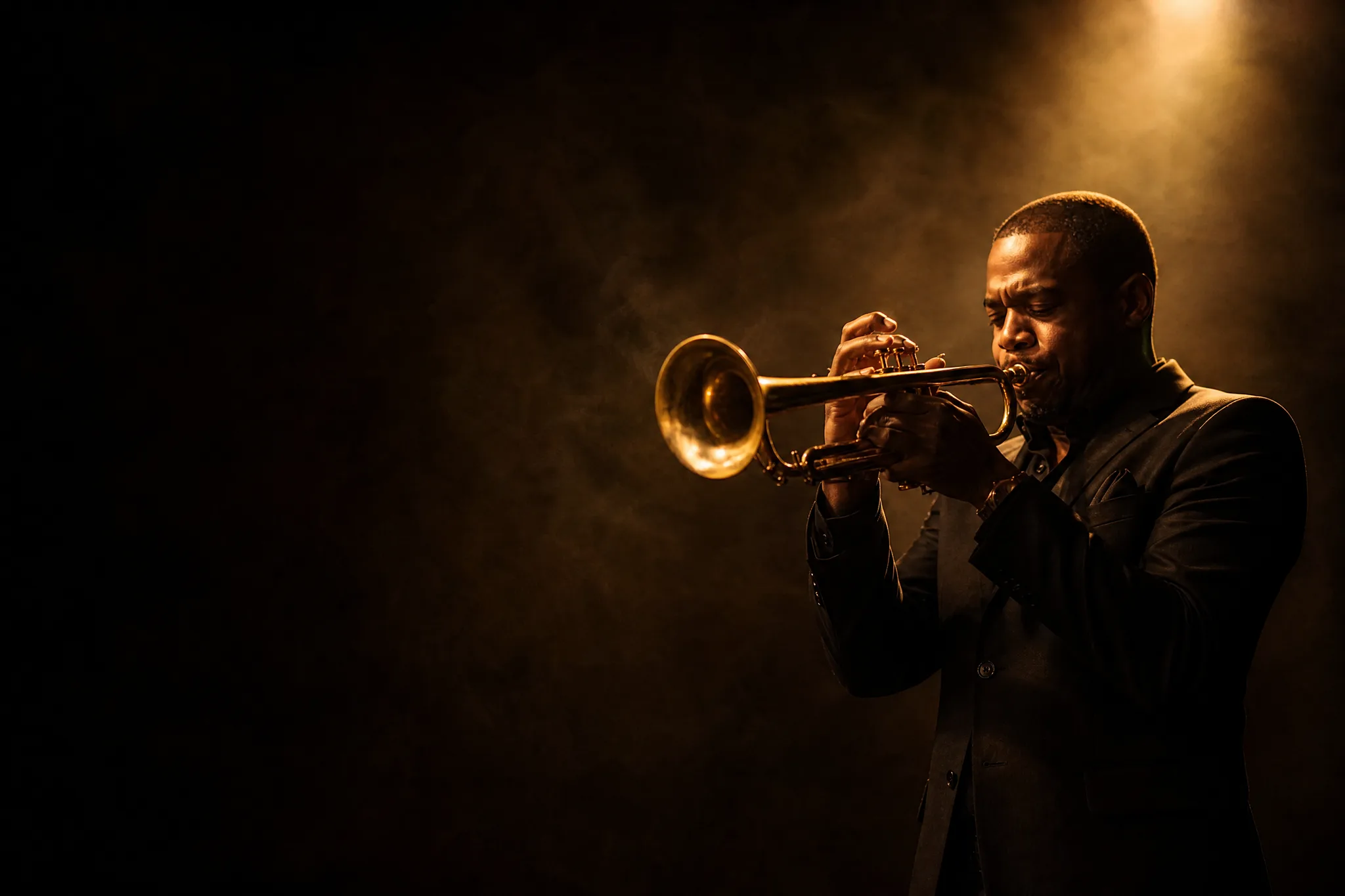
Jazz trumpeter in a warm spotlight on the right of the frame with open dark space on the left for a headline

Describe a familiar scene with specific detail

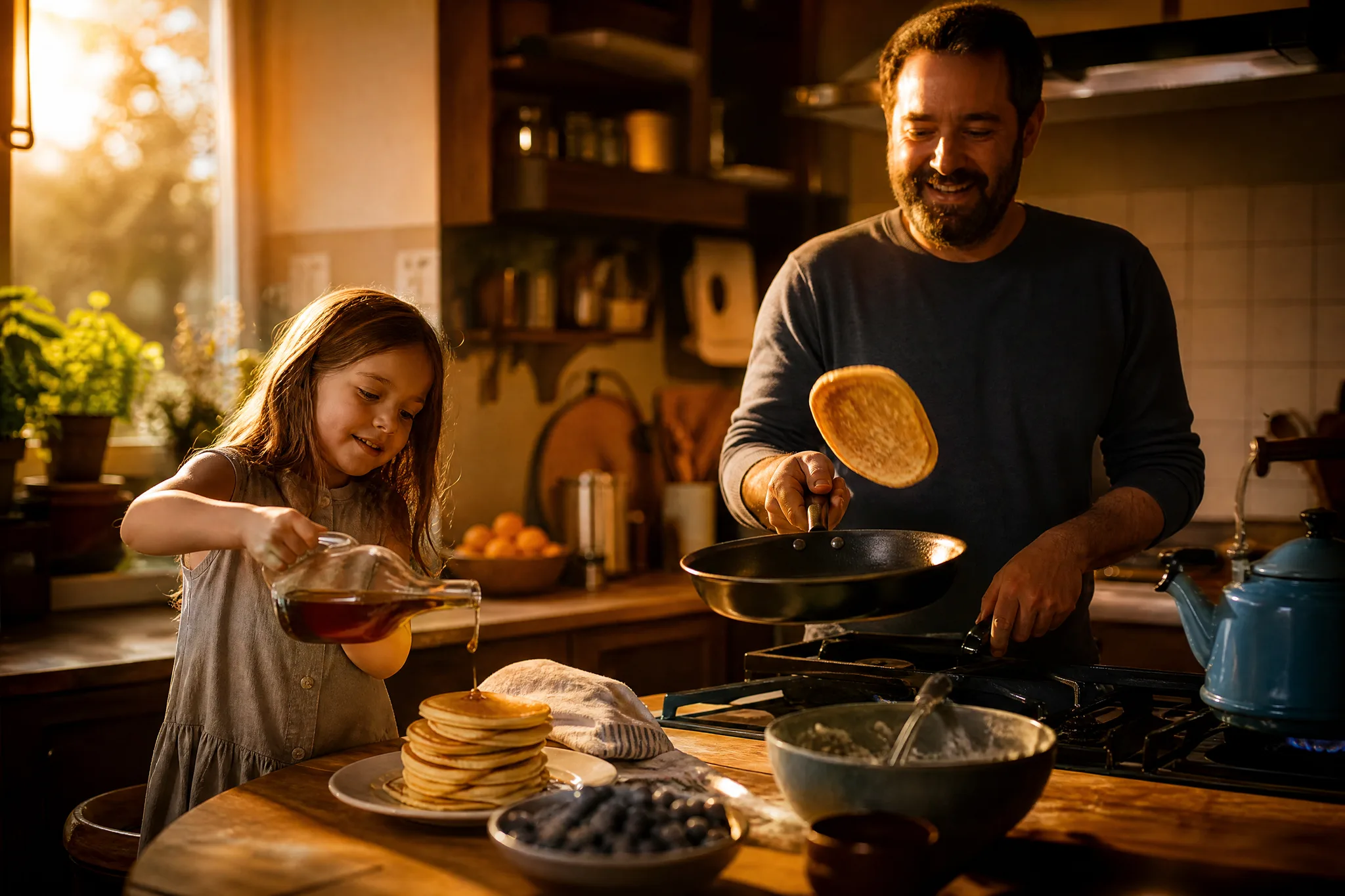
Specific objects, relationships and camera views make a familiar scene recognizable: a father flipping pancakes while his daughter pours syrup, shot from across the kitchen counter. Give GPT Image 2 details that explain the idea, and drop decorative effects that do not help the viewer understand what is happening.

Father flipping a pancake in a cast-iron pan while his daughter pours syrup in a sunny family kitchen

Explore photographic light and materials

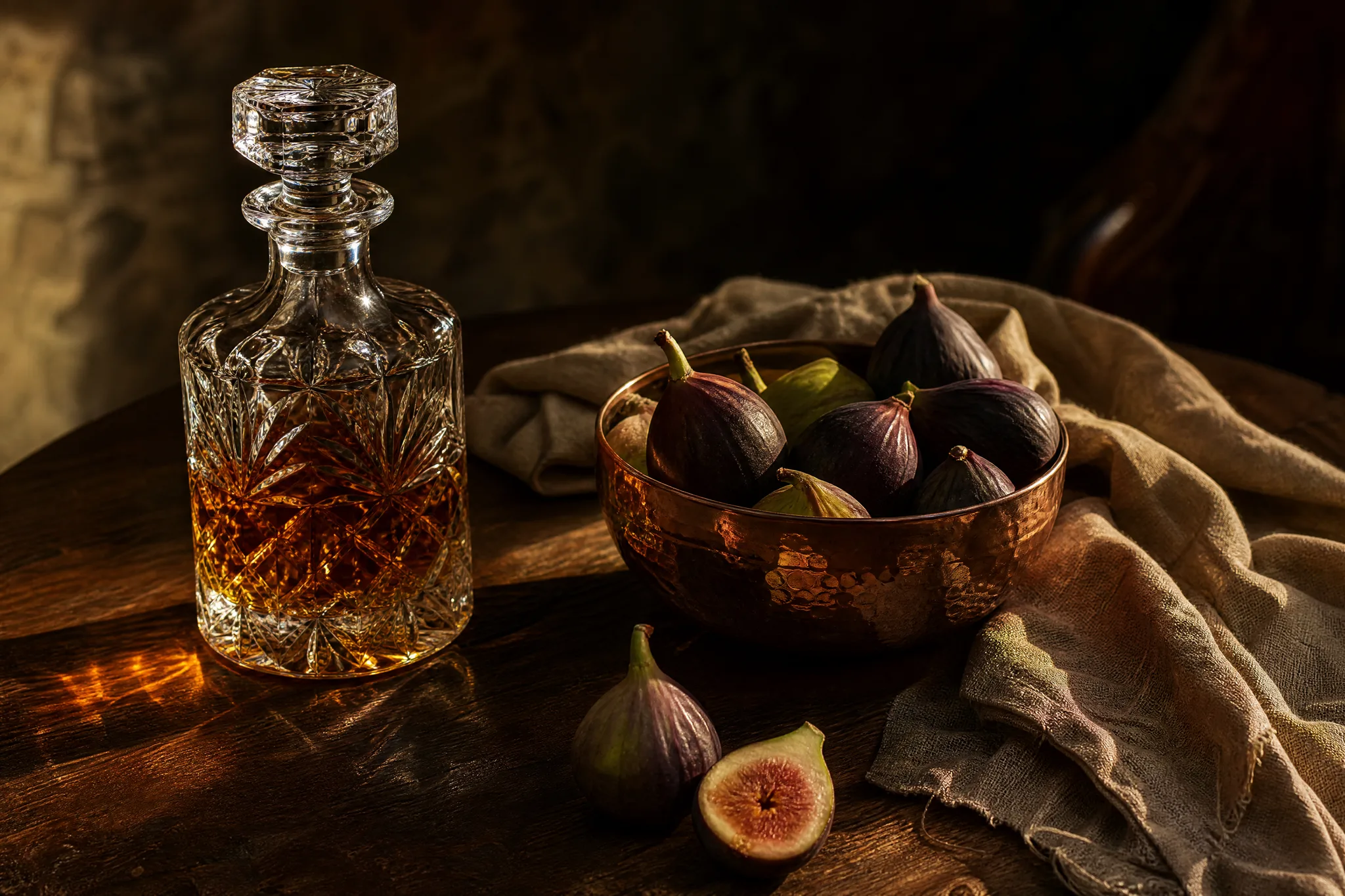
Describe how light meets the subject's materials, such as reflections in cut crystal, the hammered glow of a copper bowl or the weave of linen. In GPT Image 2 text to image prompts, those relationships are what set the mood of a photographic concept, so name them instead of generic style words.

Cut-crystal decanter, hammered copper bowl of figs and linen napkin in raking golden light on a walnut table

Carry a character idea across compositions

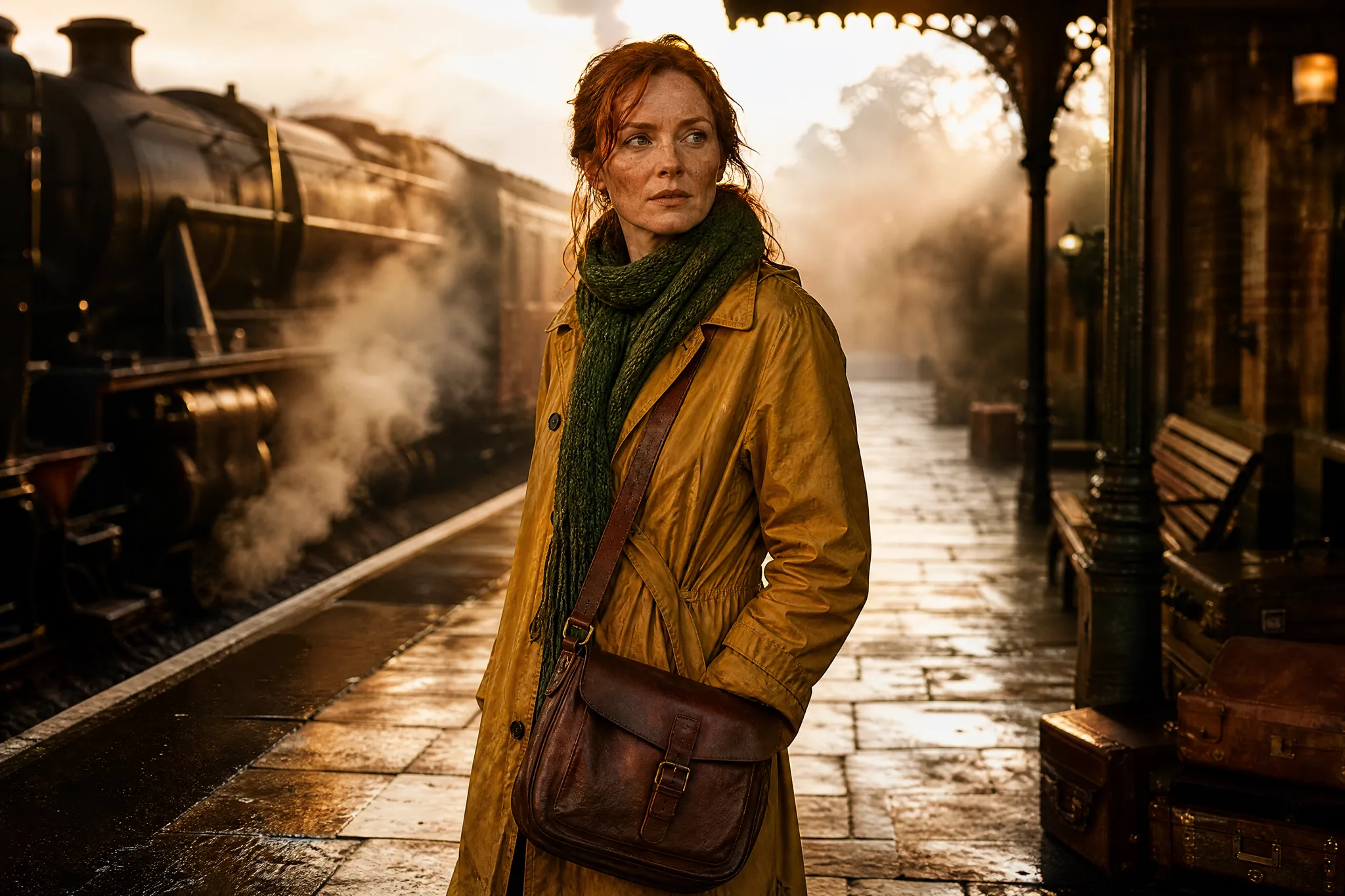
A reference and a consistent brief help carry a character across compositions, whether the next frame is a close-up or a wide street scene. Use GPT Image 2 image to image with the same character image each time, and compare face, costume and pose rather than assuming they match.

Red-haired explorer in a mustard raincoat with a leather satchel and green scarf on a misty railway platform

GPT Image 2 Use Cases

GPT Image 2 suits projects that depend on specific detail or readable text in the frame. Six roles below show the image each would request and where the reviewed result is used.

Product scenes that tell a story

Product designers can stage a new gadget on a cluttered workbench with labeled parts bins using GPT Image 2. The concept shows the product in context and gives the photo team a precise brief for the real set.

Portraits with a clear visual mood

Portrait artists can test an editorial look, like a jazz musician under a single tungsten bulb, with GPT Image 2. They compare expression and framing, check facial details and keep the strongest take as a lighting reference.

Illustrations from a written idea

Illustrators can describe a busy scene, such as a rooftop garden party with paper lanterns and string lights, in GPT Image 2. The take works as a composition study before the final illustration is drawn by hand.

Campaign concepts before the final layout

Campaign art directors can mock up a billboard with the slogan area planned inside the GPT Image 2 composition. After reviewing rendered words, the team sets the approved headline and logo in the design software.

Storyboard moments for a visual narrative

Storyboard artists can show a character stepping off a bus into rain, the frame the audience must remember, as a GPT Image 2 still. That frame helps the director and crew agree on angle, light and continuity.

Social visuals with a recognizable direction

Social designers can keep one character and palette across a carousel built from GPT Image 2 images. They review each slide separately, since details can drift, and write captions in the scheduling tool before posting.

Creative Scenarios with GPT Image 2 Image Creation

Scenarios for using GPT Image 2 image creation in real projects, from the photos or ideas you start with to the take you keep.

For a gig poster, I'd want the headline to belong inside the scene, so I'd describe it in the GPT Image 2 image generator. I'd check the rendered wording carefully and choose a layout with a clear subject and reading order, then finish it with approved typography in my design file.

Poster Designer
Creative workflow

GPT Image 2 Frequently Asked Questions

These GPT Image 2 answers cover the model itself, references, prompt writing, frame shapes and how to use results responsibly in campaign work.

GPT Image 2 is an OpenAI image model available in the ImgVid image workspace that produces stills from a text description or a reference. Give it a subject, setting, light and style, pick the take that serves your brief and check its details before publishing.

Yes — GPT Image 2 takes up to 16 reference images in the image-to-image mode. Choose a clear reference and describe the change you need; you can equally begin with a text prompt alone.

Open a GPT Image 2 prompt with the main subject, then describe setting, composition, lighting and style, adding exact wording if text should appear. For products give surface and backdrop; for portraits give crop and mood. A focused description beats a long list of unrelated effects.

GPT Image 2 requires eligible paid access whenever the paid-plan gate is active, and every generation uses credits. You can see the current estimate for your selected settings in the workspace before starting.

GPT Image 2 supports a wide range of aspect ratios: 1:1, 3:2, 2:3, 4:3, 3:4, 5:4, 4:5, 16:9, 9:16, 2:1, 1:2, 3:1, 1:3, 21:9, 9:21. Choose 1K, 2K, 4K resolution where available, as some combinations may be restricted. Pick the shape for its final use so the subject is framed correctly from the start.

Campaign use of GPT Image 2 images depends on your inputs and your review. Supply only material you hold rights to, check outputs for trademarks, likenesses, factual details and suitability, and finish crop, typography and brand assets in your editor. Generating does not supply third-party permissions.

GPT Image 2 images are not published automatically, and your briefs and references stay unpublished. Free accounts and visitors keep Public Visibility on, so a finished GPT Image 2 poster or still may be selected for Explore after review; a subscription or one-time pack starts generations private.

Bring Your Next Image Idea to Life with GPT Image 2

Describe the objects, light and text your scene needs, add a reference if a character must match, and let GPT Image 2 create a detailed still for your layout. Review it, then start your next concept in the workspace.

Create with GPT Image 2
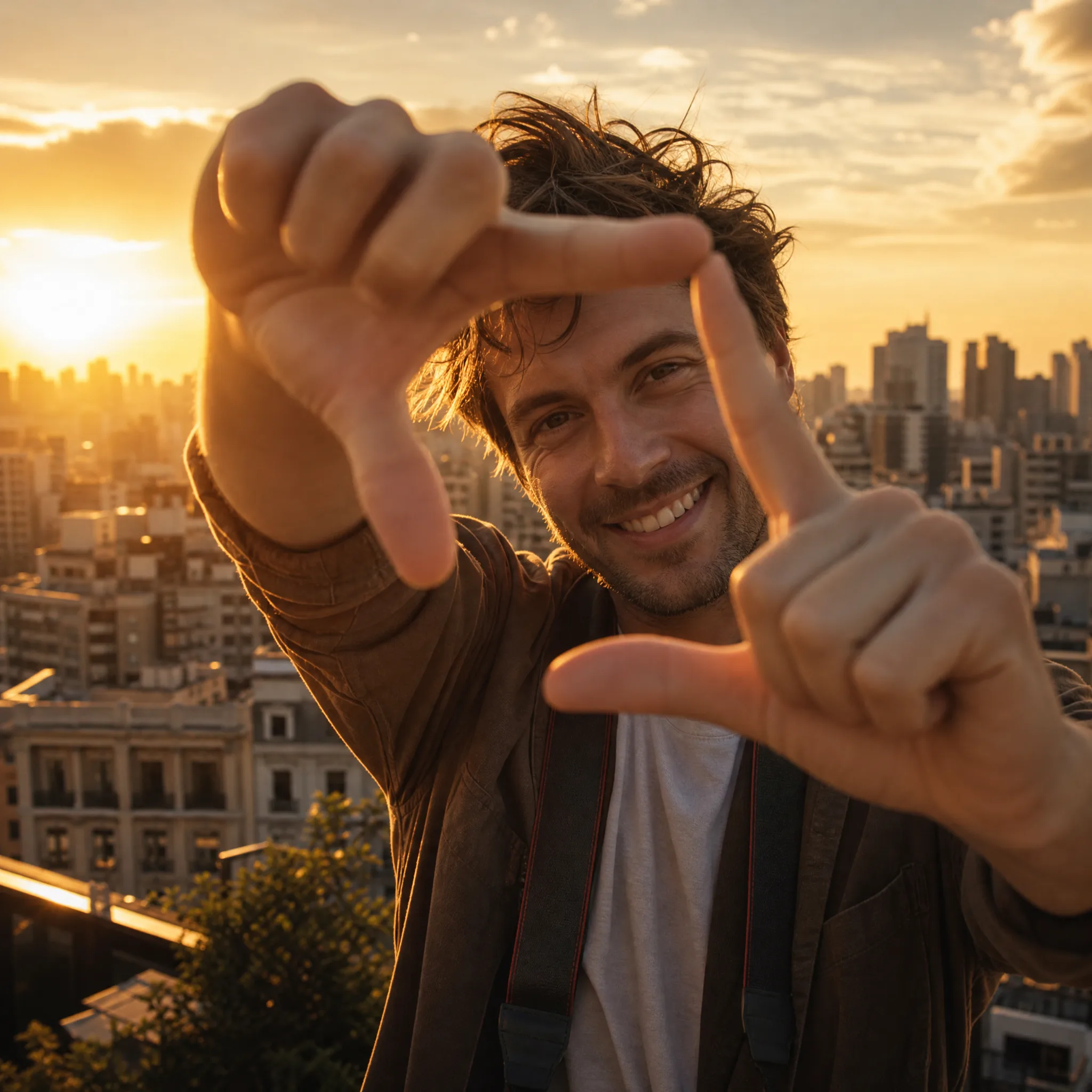
Young man on a rooftop framing a golden-hour city view with his fingers