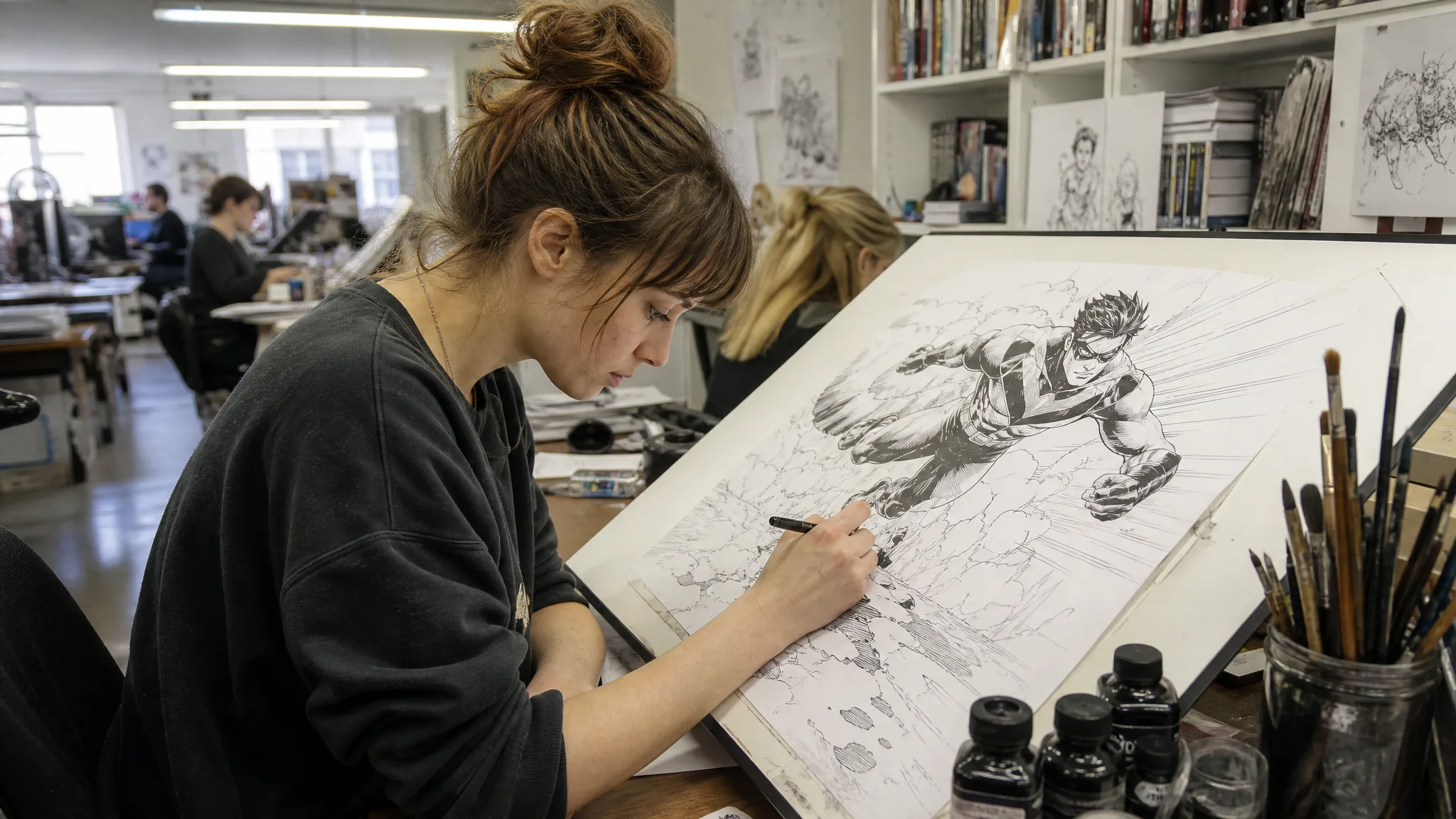
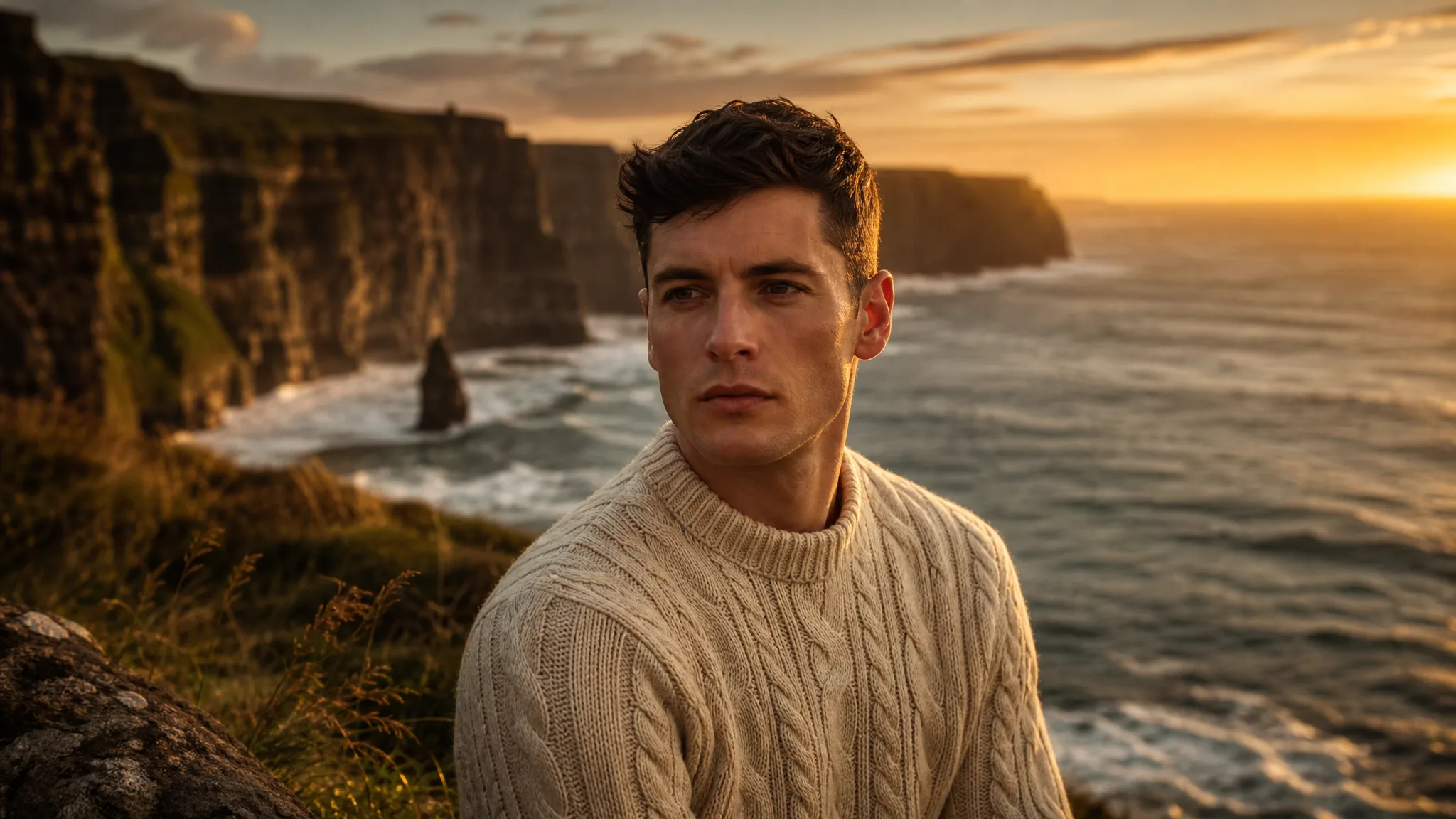
GPT Image 2.5
Prompt
0/20000
Aspect ratio
Resolution
Background
Number of generations
Public Visibility
Required credits
6
Examples
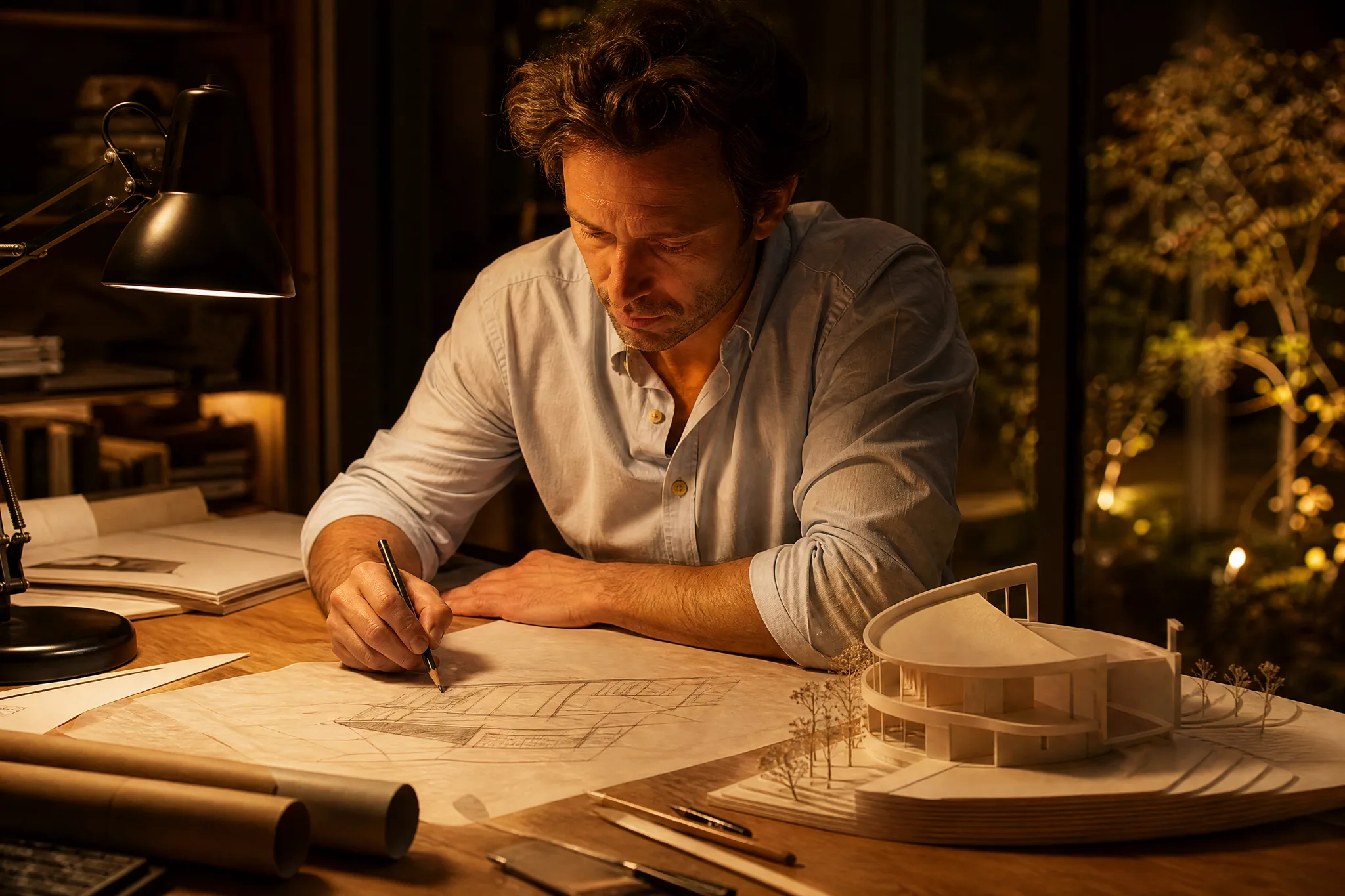
Architect sketching a building on tracing paper beside a white scale model under a desk lamp

GPT Image 2.5 Image Generator

Give a written concept a visual direction

OpenAI's GPT Image 2.5 gives a written concept a visual form, from a product on a styled set to an editorial illustration. Describe the subject, the materials and the light, attach a reference if you have one, and compare GPT Image 2.5 takes before you finish the design.

Generate with GPT Image 2.5
Architect sketching a building on tracing paper beside a white scale model under a desk lamp
Product scenes that tell a story|Portraits with a clear visual mood|Illustrations from a written idea|Campaign concepts before the final layout

How to Create with GPT Image 2.5

GPT Image 2.5 turns a written concept into a still, with an optional reference for direction. The four steps take you from the concept sentence through framing and comparison to a reviewed image ready for design work.

1

Describe your image idea

Write the concept as a sentence a colleague would understand, then give GPT Image 2.5 the subject, setting, mood and any words that should appear. If a reference image explains the direction better than words, attach it in image-to-image mode.

2

Choose the composition

Choose the frame, from square to less common shapes like 27:16 or 8:9, based on the final placement. Tell GPT Image 2.5 where text or a product should sit so the layout has a clear hierarchy before you generate anything.

3

Explore the image

Create a GPT Image 2.5 take and compare it with the concept sentence. Does the subject read first, is any rendered wording spelled correctly, does the style match the tone you wanted? Rewrite only the part of the prompt that missed.

4

Choose and finish your take

Download the take that best answers the concept and inspect lettering, faces and small objects at full size. Set final typography and exact brand assets in your editor, using the GPT Image 2.5 image as the visual base of the design.

Best AI Image Tools for Creative Projects

Create a new image from text or edit one you already have with the right image tool.

What Can You Create with GPT Image 2.5?

GPT Image 2.5 works best when the concept is settled before the layout. These rows explain how idea, style, text placement and references each shape the image you develop.

Develop the idea before the layout

Settle the central idea before you think about the layout. When the relationship between subject and setting is clear in your GPT Image 2.5 prompt, the resulting concept is easier for a team to discuss, critique and refine, and the layout can be designed around it afterward.
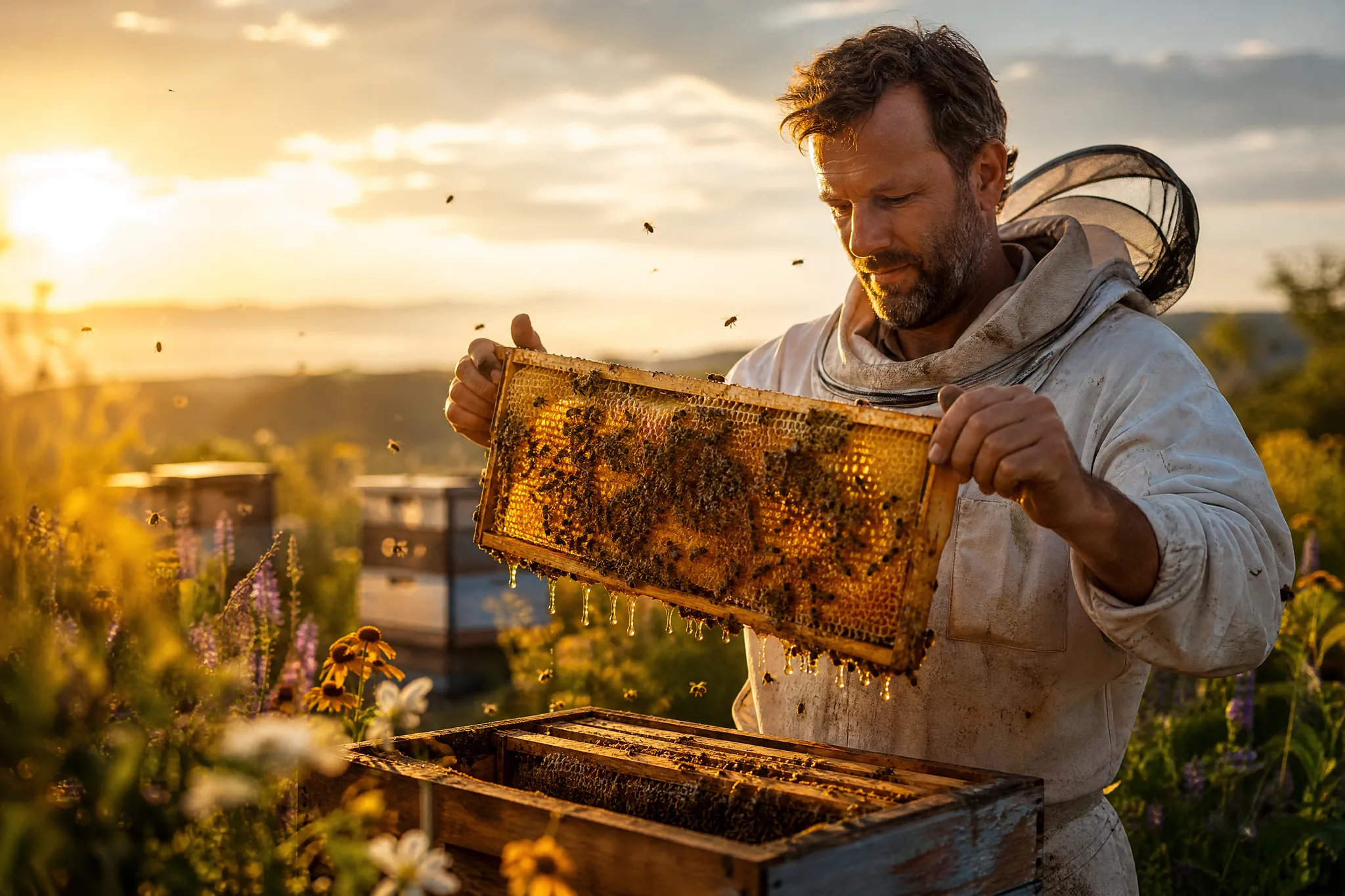
Beekeeper lifting a golden honeycomb frame from a hive in a sunlit wildflower meadow

Explore photographs and illustration styles

A photographic treatment and an illustrated one can say the same thing in different tones. Name the medium, the lighting and the atmosphere in GPT Image 2.5 text to image prompts, then put the versions side by side to see which interpretation fits the brief.

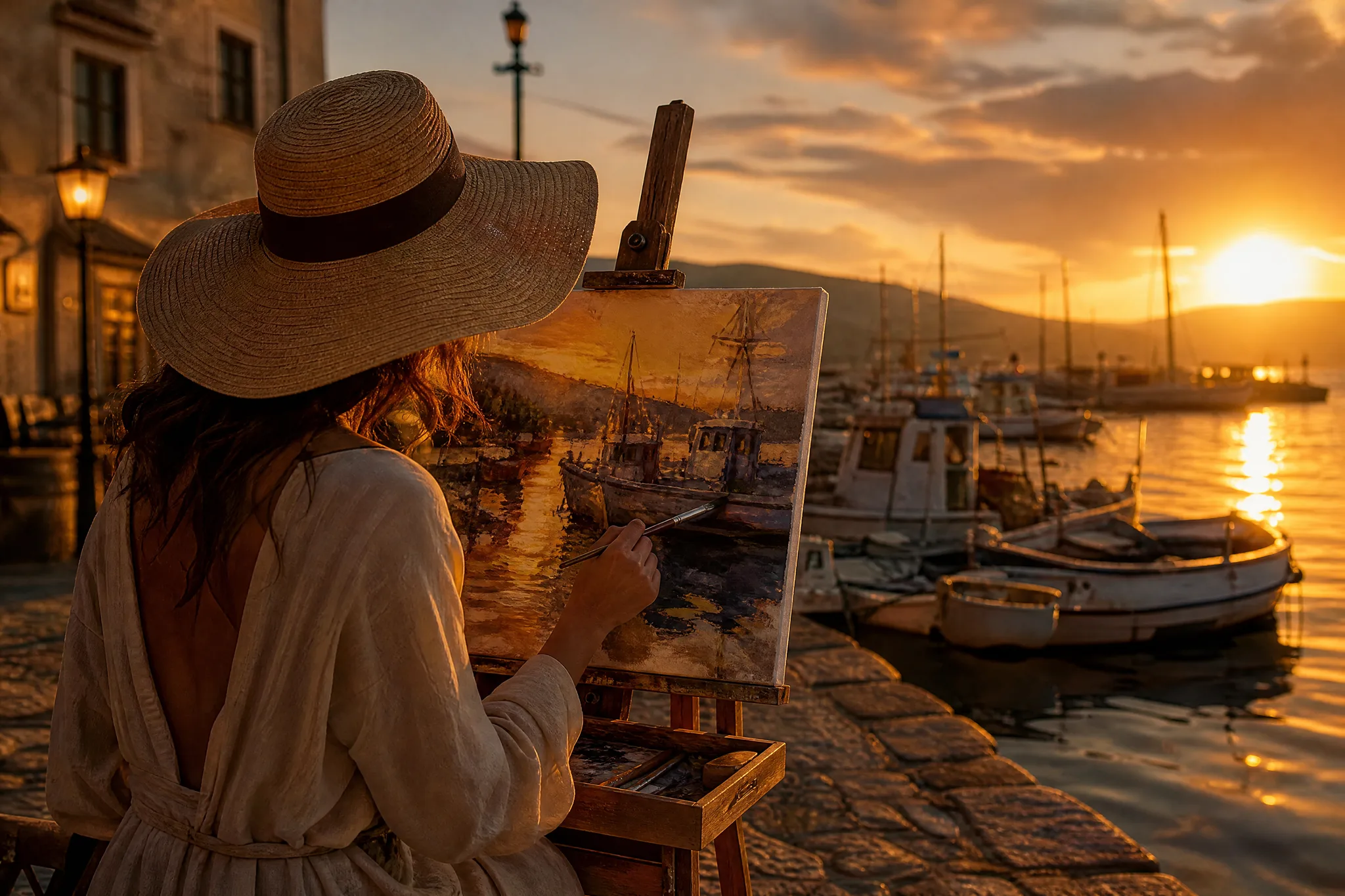
Plein-air painter at an easel painting the fishing harbour in front of her at sunrise

Plan text as part of the composition

Treat text as part of the composition from the start. Tell GPT Image 2.5 where a headline or label belongs and how prominent it should be, check every rendered word for spelling, and replace it with precise typography in your editor before the design ships.

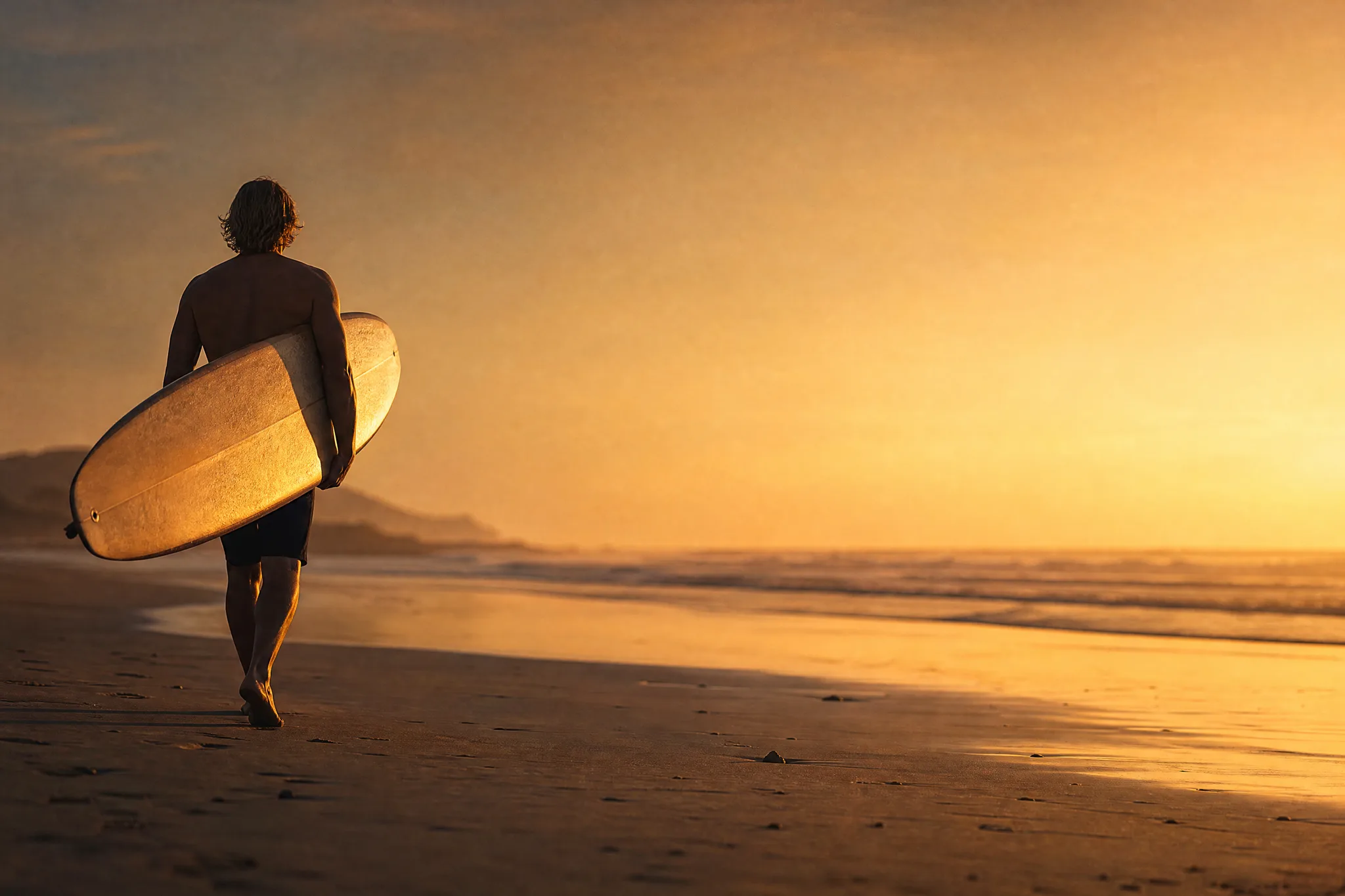
Surfer with a longboard on the left of an empty beach at dusk with clear space on the right

Refine the visual story with a reference

A supported reference shows direction faster than a paragraph. GPT Image 2.5 image to image accepts up to 16 references; describe the change that matters most and review the new take against your starting material to confirm that the subject, palette and other important elements still carried over.

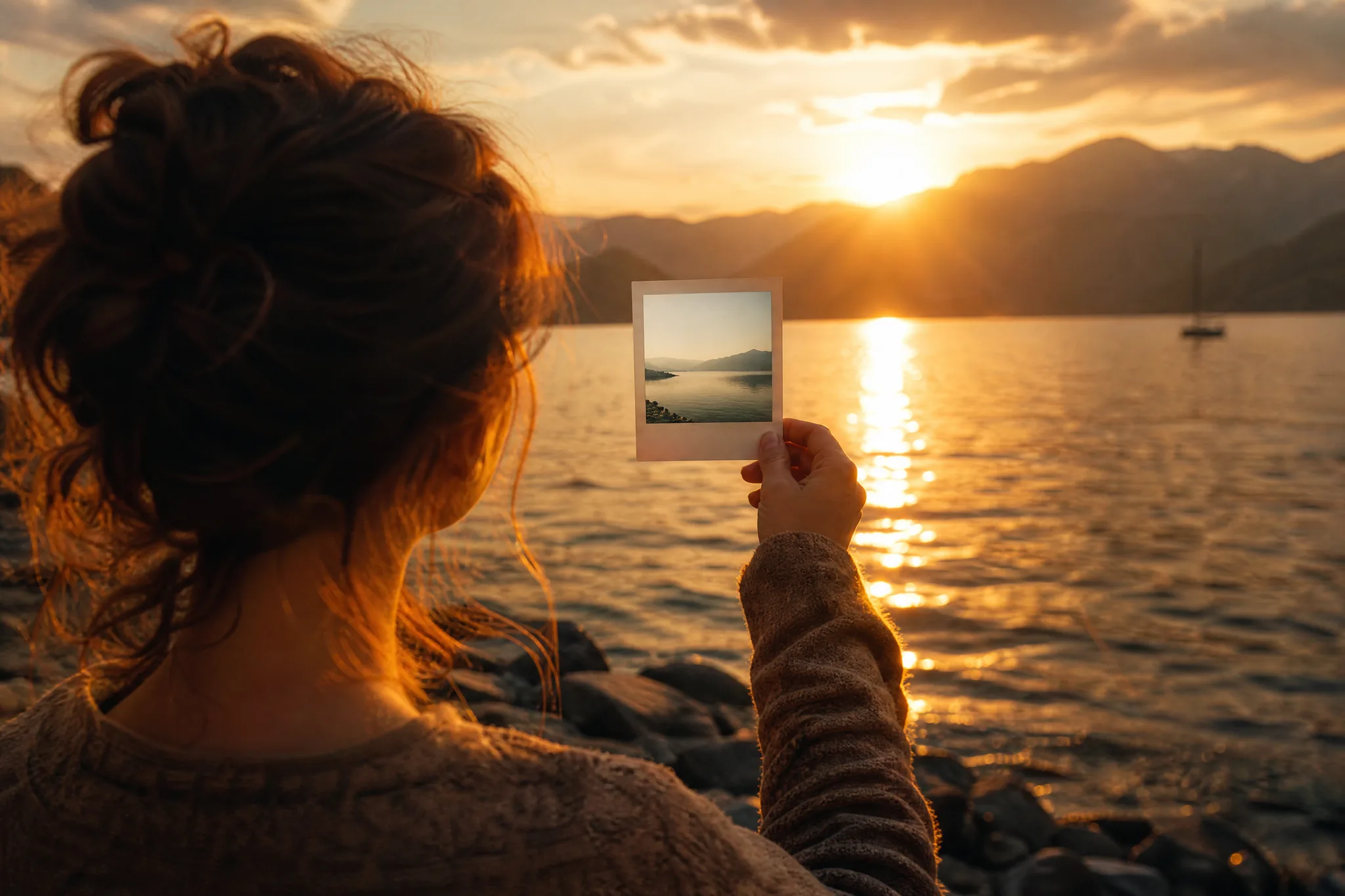
Woman holding a daylight instant print of a lake up against the same lake at sunset

GPT Image 2.5 Use Cases

GPT Image 2.5 fits work that starts as a written concept and ends in a designed piece. Five roles below show what each would brief and where the image goes after review.

Product scenes that tell a story

Product marketers can write a concept like a ceramic lamp on a reading table at dusk and get a GPT Image 2.5 scene to test the idea. The approved still guides the photo brief or the landing page mockup.

Portraits with a clear visual mood

Editorial designers can explore a portrait direction, such as a chef in a steamy kitchen under warm practical light, with GPT Image 2.5. The chosen take sets mood and framing for the commissioned photographer and stylist.

Illustrations from a written idea

Illustrators can test whether a poem or short story scene works better as linocut, watercolor or flat vector art in GPT Image 2.5. The preferred version becomes a style reference for the final illustration and its color palette.

Campaign concepts before the final layout

Campaign teams can mock up a poster with a headline area planned into the GPT Image 2.5 composition. After checking any rendered words, they replace them with approved type and brand assets in the design file.

Storyboard moments for a visual narrative

Storyboard artists can turn a script line into a GPT Image 2.5 key frame showing where the character enters and what the audience should notice. The frame helps directors agree on composition and staging before production.

Creative Scenarios with GPT Image 2.5 Image Creation

Scenarios for using GPT Image 2.5 image creation in real projects, from the photos or ideas you start with to the take you keep.

Before designing the final ad, I'd explore the concept in the GPT Image 2.5 image generator: a product, a distinct background and a planned headline area. The selected take would help me judge the hierarchy. The approved typography and exact brand assets would still go in through my usual design workflow.

Campaign Art Director
Creative workflow

GPT Image 2.5 Frequently Asked Questions

Answers about GPT Image 2.5 on ImgVid: what it does, how references and prompts work, which shapes you can choose and whether images suit a campaign.

GPT Image 2.5 is an OpenAI image model on ImgVid that creates stills from a written concept or a supported reference. Describe subject, setting, light and style, choose the take that carries your brief and check details before publication.

Yes — GPT Image 2.5 accepts up to 16 reference images in image-to-image mode. Attach a clear reference and explain the change you want, or start from a text prompt without one.

Put the subject first in a GPT Image 2.5 prompt, then cover setting, composition, light and style, plus any words that should appear and where. A product brief needs surface and background; a portrait needs framing and mood. Stay focused rather than listing effects.

Using GPT Image 2.5 requires eligible paid access when the paid-plan gate is turned on, and every generation consumes credits. Before you generate, the workspace lists the current estimate for the variant and settings you selected.

GPT Image 2.5 offers these aspect ratios: 1:1, 3:2, 2:3, 4:3, 3:4, 16:9, 9:16, 21:9, 27:16, 16:27, 9:8, 8:9. Resolution options are 1K, 2K, 4K; the model may restrict certain combinations. Set the frame for the final placement instead of cropping later.

GPT Image 2.5 images can be used in campaign work after you clear rights and review the output. Only supply material you may use, check results for trademarks, likenesses, facts and suitability, and complete crop, type and brand assets in your editor. Generation does not grant third-party rights.

GPT Image 2.5 images are not published automatically, and references you attach stay unpublished. Free accounts and visitors keep Public Visibility on, so a finished GPT Image 2.5 mockup or still may be selected for Explore after review; accounts with a subscription or one-time pack start private.

Bring Your Next Image Idea to Life with GPT Image 2.5

Write your concept, add a reference if it helps, choose the frame and let GPT Image 2.5 create a still with room for your message. Review the take, then open the workspace and start the next concept.

Create with GPT Image 2.5
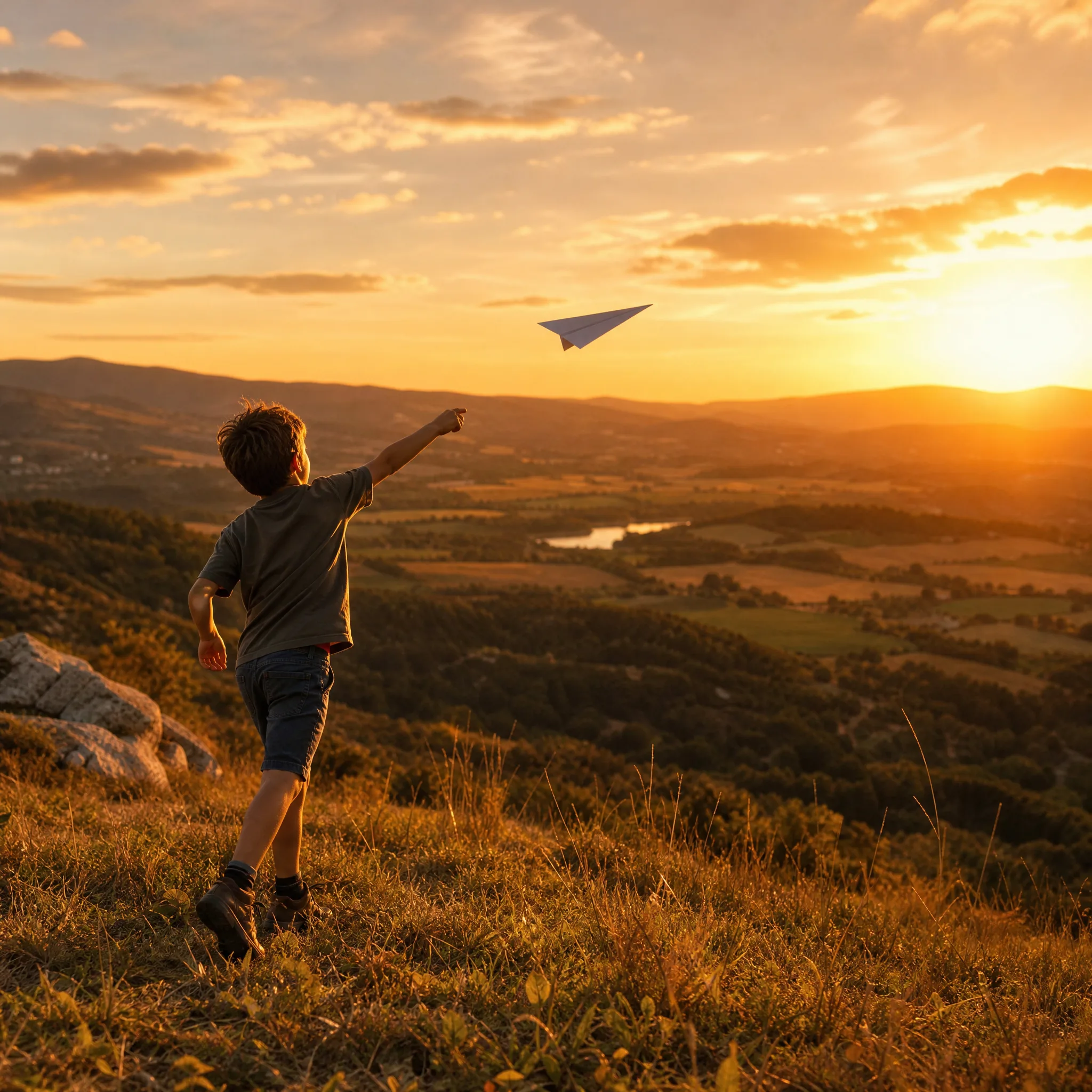
Boy launching a paper airplane from a grassy hilltop into the sunset