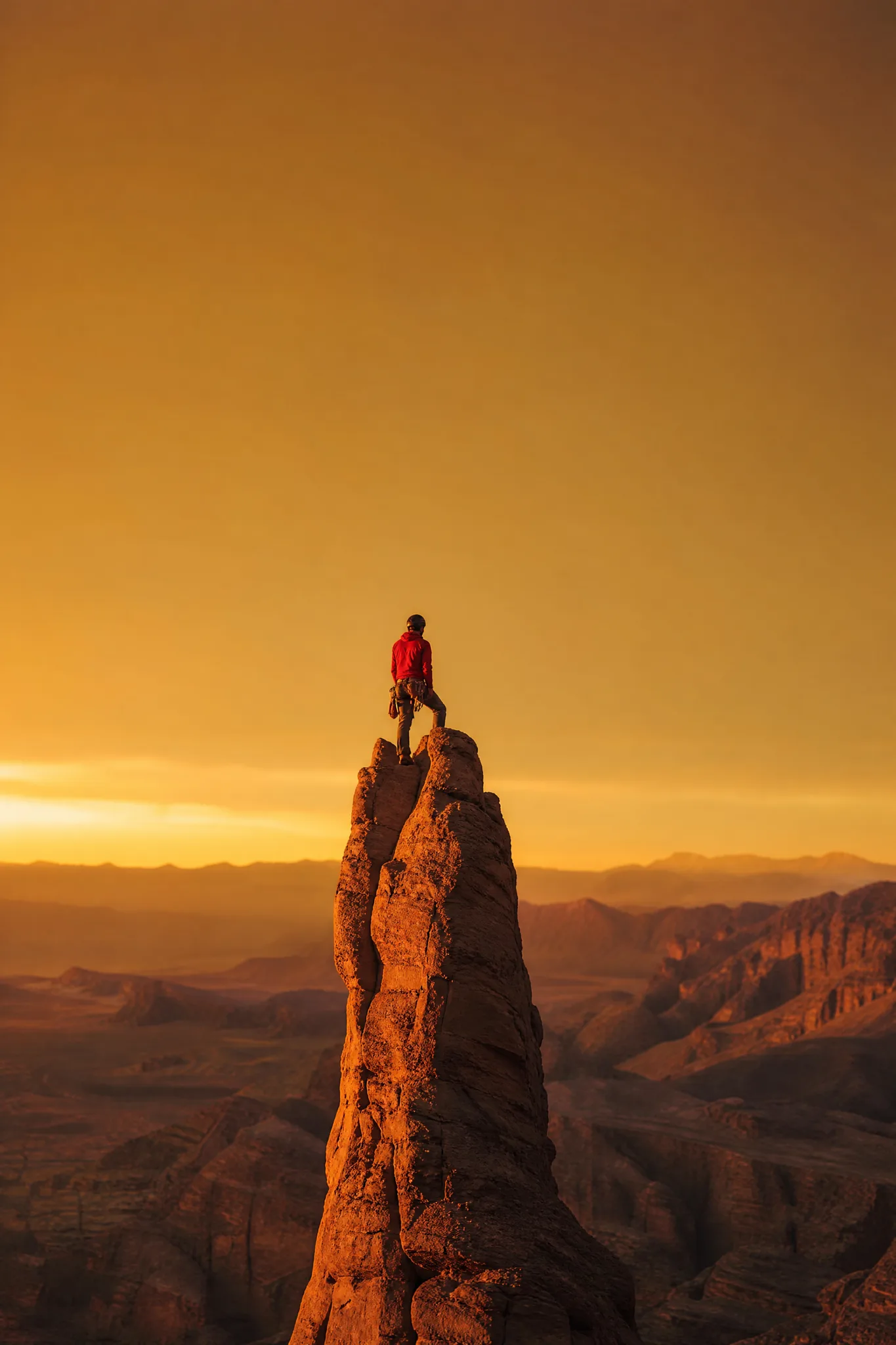
Grok Imagine Image
Prompt
0/5000
Aspect ratio
Pro quality
Number of generations
Public Visibility
Required credits
8
Examples
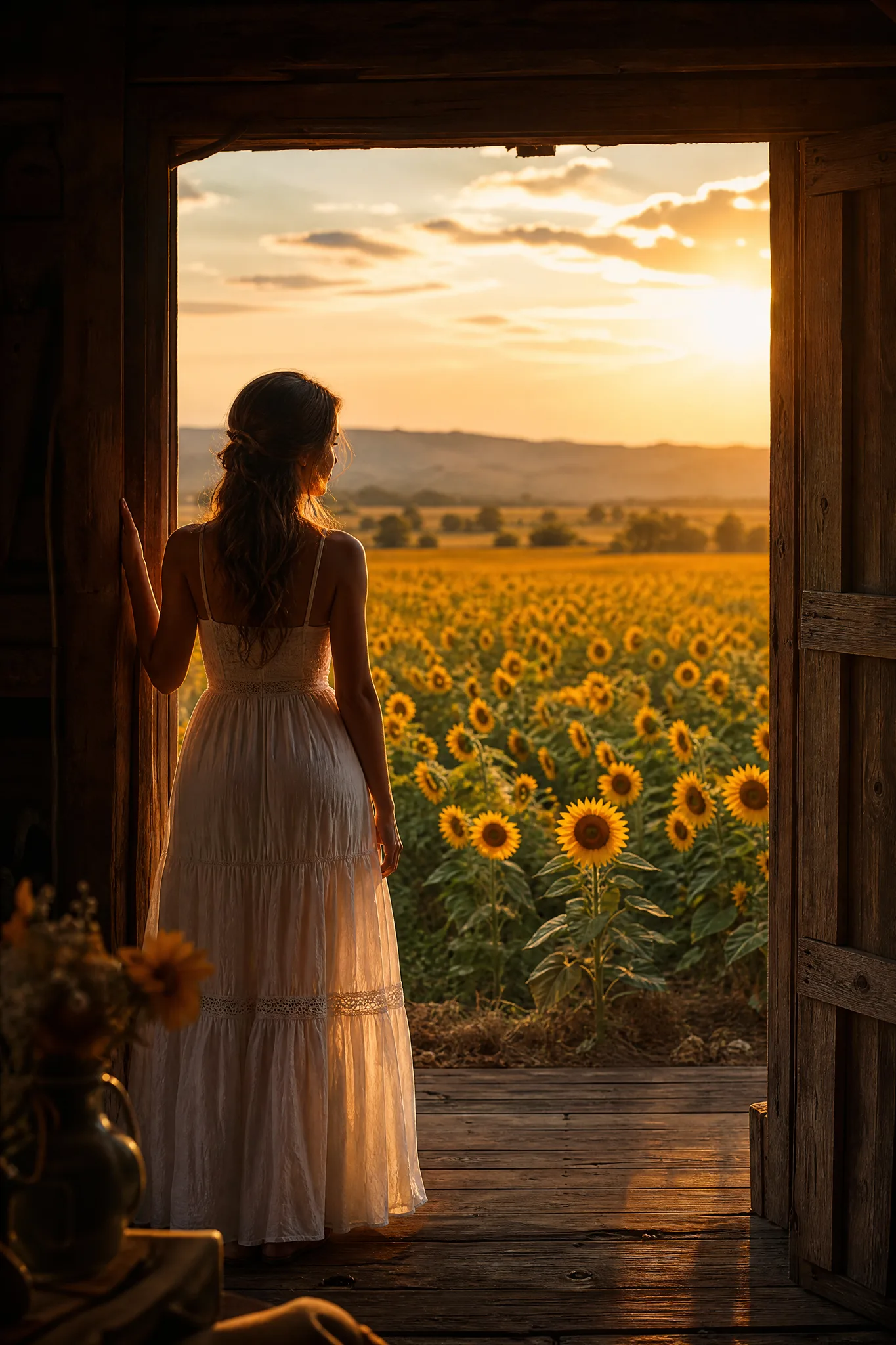
Woman in a white dress in a barn doorway looking out over a glowing sunflower field

Grok Imagine Image Generator

Imagine a scene, then explore its visual possibilities

xAI's Grok Imagine Image develops a scene from your description or a photo you attach. Name the subject, the mood and the camera angle for a product post, a portrait or an illustration, then compare Grok Imagine Image takes and keep the clearest one.

Generate with Grok Imagine Image
Woman in a white dress in a barn doorway looking out over a glowing sunflower field
Product scenes that tell a story|Portraits with a clear visual mood|Illustrations from a written idea|Campaign concepts before the final layout

How to Create with Grok Imagine Image

Grok Imagine Image starts from a written idea or a reference photo: a text prompt returns two stills per generation, and a reference edit returns one. These steps cover the prompt, the frame, comparing directions and checking the image you keep.

1

Describe your image idea

Describe your idea to Grok Imagine Image in plain language: the subject, what it is doing, the place and the mood. If a photo already captures part of the idea, attach it as a reference in image-to-image mode and explain the change.

2

Choose the composition

Choose one of the available shapes, from 2:3 portrait to 16:9 landscape, based on where the picture will appear. Tell Grok Imagine Image where the subject sits so there is room for a caption or graphic later.

3

Explore the image

Generate a Grok Imagine Image take, then try a second direction with a changed mood or viewpoint. Comparing the two side by side shows which interpretation suits the project before you invest more prompts in it.

4

Choose and finish your take

Download the take you prefer and look closely at faces, hands, small objects and the background. Add captions, final crop and layout in your editor, using the Grok Imagine Image picture as the visual base rather than the finished piece.

Best AI Image Tools for Creative Projects

Create a new image from text or edit one you already have with the right image tool.

What Can You Create with Grok Imagine Image?

Grok Imagine Image is suited to exploring a photographic idea from several angles. The four tabs explain how subject, mood, separate directions and composition shape the takes you compare.

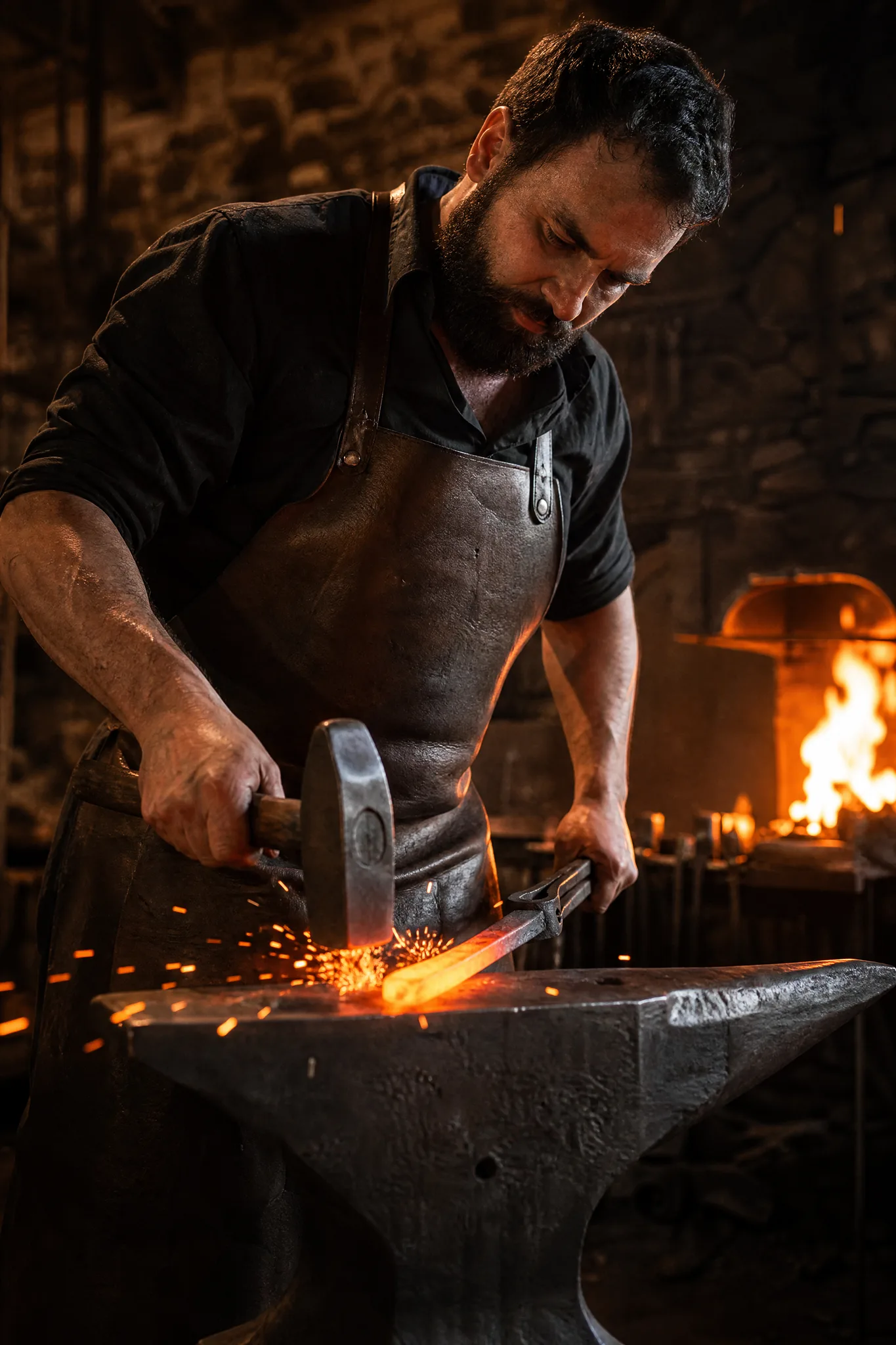
Low-angle view of a blacksmith hammering glowing steel on an anvil in a shower of sparks

Explore a photographic image idea

Build a photographic brief around light, materials and viewpoint, such as forge fire glowing on a hot iron bar and a scarred steel anvil. Grok Imagine Image uses those choices to set the scene, and they help communicate the mood you want the photo-style image to carry to its viewer.

Develop Your Grok Imagine Image Image Idea

Product, portrait and illustration ideas each use Grok Imagine Image differently. The three rows explain what to describe in each case and what to inspect before choosing a take.

Product scenes that tell a story

For a product idea, describe the object, its surface and the light around it, for example a ceramic dripper on a weathered oak bar. Grok Imagine Image can also start from a product photo you attach. Confirm that shape, glaze and color match the real item before sharing.

Handmade ceramic pour-over dripper on a carafe with rising steam on a wooden café bar

Portraits with a clear visual mood

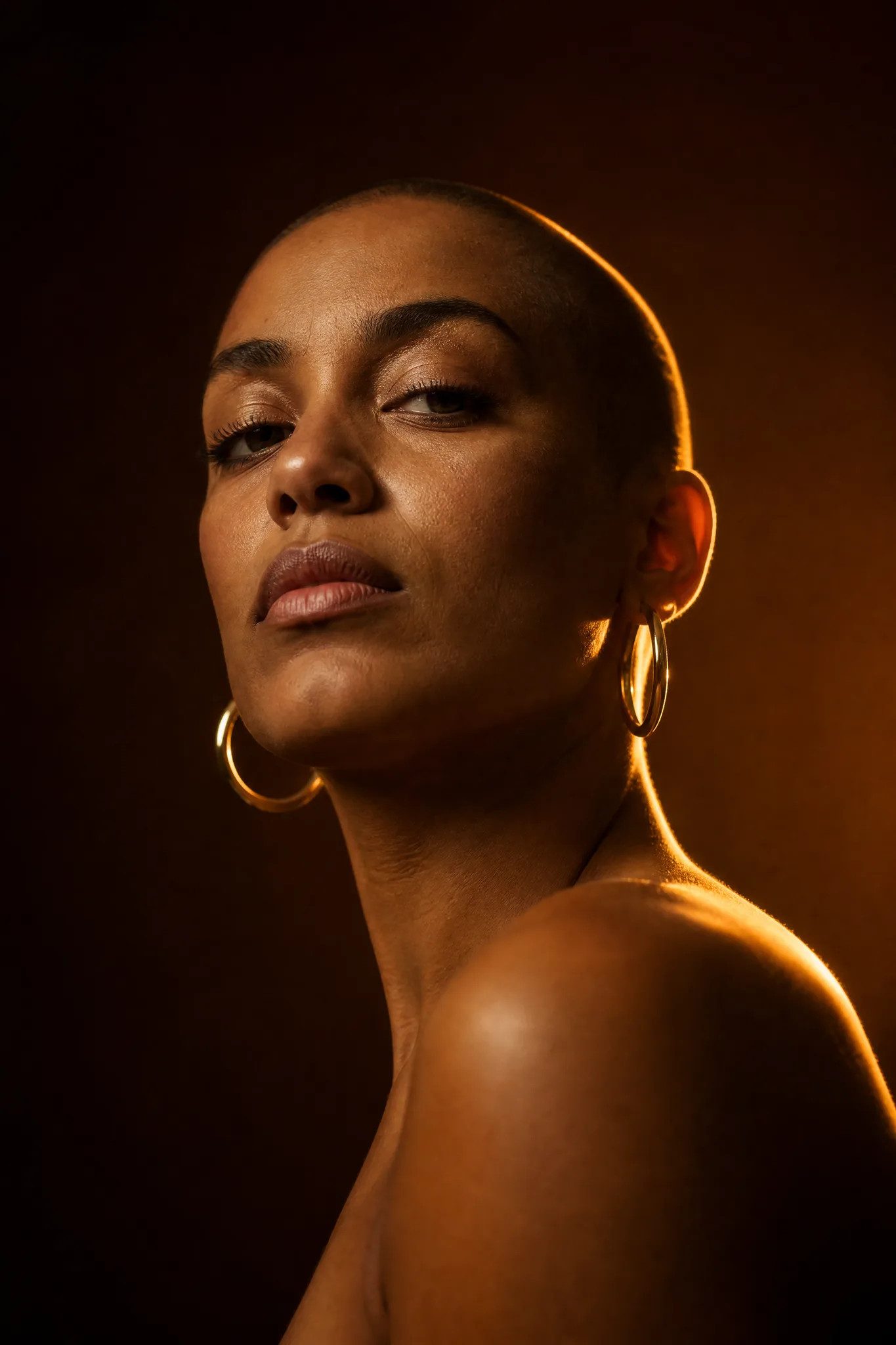
A portrait needs a direction for light, expression and viewpoint. Ask Grok Imagine Image for a candid smile in golden-hour light or a serious gaze under warm rim light, compare the takes and inspect eyes, teeth and hands before choosing the one to keep for your project.

Woman with a shaved head and gold hoops in warm rim light from a low viewpoint

Illustrations from a written idea

Illustration prompts work when the medium and palette are named, such as charcoal sketch, papercut layers or bright comic inks. Keep the colors linked to the central idea in your Grok Imagine Image text to image prompt, and compare how each style changes the story.

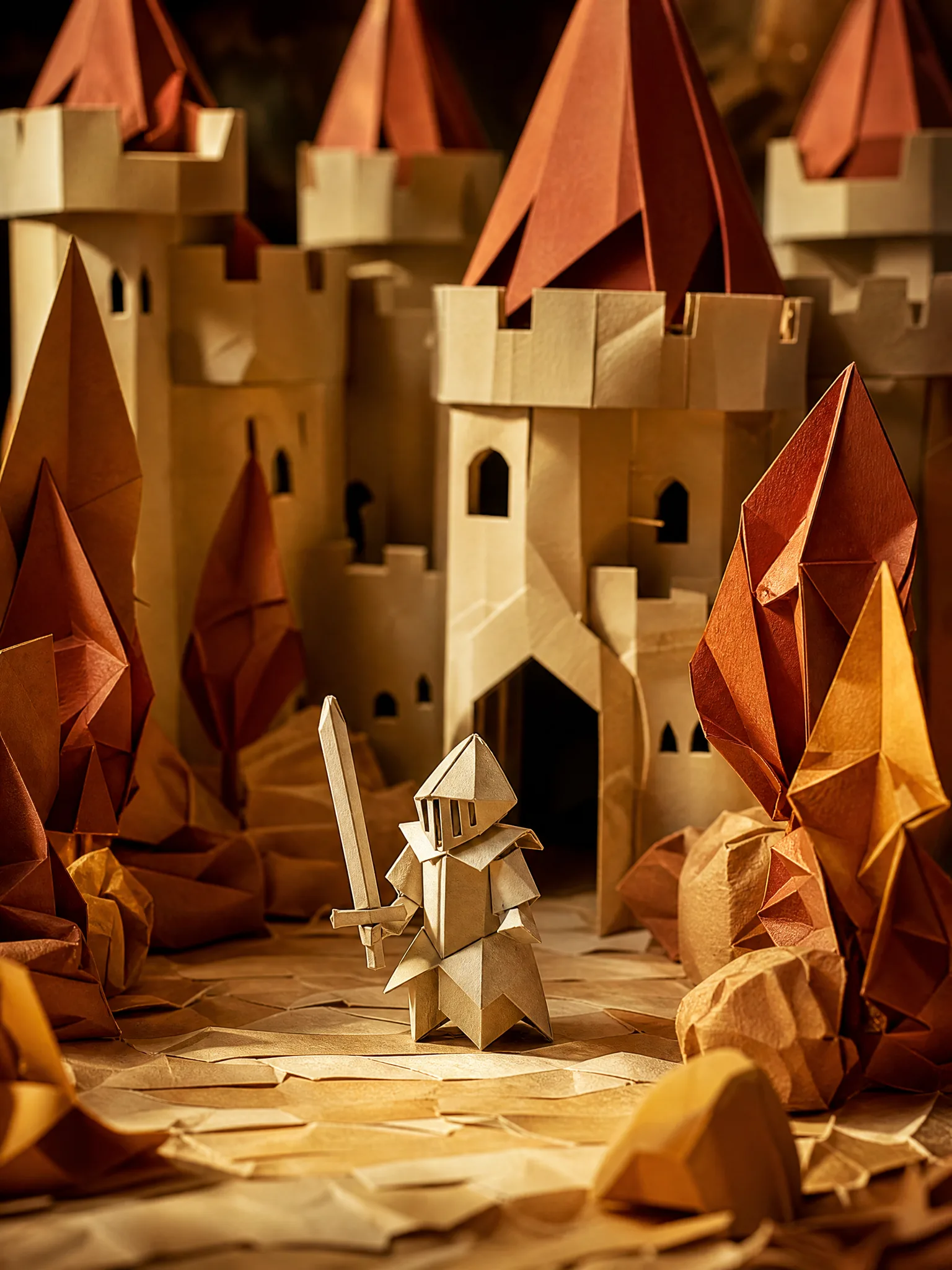
Folded-paper knight standing in a handmade paper castle courtyard

Grok Imagine Image Use Cases

Grok Imagine Image helps when you want to see an idea before you shoot, draw or design it. Six roles below show what each would ask for and where the chosen take goes.

Product scenes that tell a story

Small brands can imagine a candle on a rain-streaked windowsill or a backpack on a mountain trail with Grok Imagine Image. The concept clarifies the product story before anyone books a photographer or builds a set.

Portraits with a clear visual mood

Portrait artists can explore a subject in different moods, from playful to solemn, using Grok Imagine Image. They pick the expression and framing that fit the story and review facial details before treating the image as reference.

Illustrations from a written idea

Illustrators can describe a scene from a story idea, such as a robot tending a rooftop garden, in Grok Imagine Image. The take suggests composition and palette for an illustration they will finish by hand.

Campaign concepts before the final layout

Campaign art directors can compare a warm photographic take and a bold graphic take of one message in Grok Imagine Image. The direction the team prefers moves into the layout, where headline and logos are added.

Storyboard moments for a visual narrative

Storyboard artists can picture the first beat of a scene, such as headlights sweeping across a dark farmhouse, with Grok Imagine Image. That frame gives the crew something concrete to discuss about angle and atmosphere before production planning.

Social visuals with a recognizable direction

Social designers can produce a run of Grok Imagine Image posts around one subject and palette, choosing a 9:16 or 1:1 crop per platform. Each image is reviewed separately and captioned in the editor before posting.

Creative Scenarios with Grok Imagine Image Image Creation

Scenarios for using Grok Imagine Image image creation in real projects, from the photos or ideas you start with to the take you keep.

I'd describe a simple product scene to Grok Imagine Image, with strong side light and a quiet background. I'd select the take where the subject reads instantly and check the product edges for odd shapes. That image would help me develop the post concept before I add the campaign copy and final crop.

Product Content Designer
Creative workflow

Grok Imagine Image Frequently Asked Questions

These Grok Imagine Image answers cover references, prompting, access, image shapes, campaign rights, series continuity, motion, refining a take and the final check before download.

Grok Imagine Image is an xAI image model in the ImgVid image workspace that turns a written idea or a reference into a still. Describe subject, setting, light and style, pick the take that suits your brief, and check its details before publishing.

Yes — Grok Imagine Image accepts up to 5 reference images in image-to-image mode. Choose a clear reference and say what you want changed, or start with only a text prompt.

Write a Grok Imagine Image prompt subject-first, then add setting, composition, lighting and style. Product prompts should mention the surface and background; portrait prompts the framing and mood. A short, connected brief is easier to adjust than a list of unrelated effects.

Grok Imagine Image requires eligible paid access when the paid-plan gate is enabled, and each generation spends credits. You can review the current estimate for the selected settings in the workspace before starting.

Grok Imagine Image supports these aspect ratios: 2:3, 3:2, 1:1, 16:9, 9:16. Resolution is not a selectable setting for this model. Compose the subject for your final crop from the start.

Grok Imagine Image results can be used in campaigns after a rights check and a careful review. Supply only images you may use, check outputs for trademarks, likenesses, facts and suitability, and finish crop, type and brand assets in your editor. Generation does not include third-party permissions.

For a coherent Grok Imagine Image series, reuse a suitable reference image and keep the subject, palette and style wording of the brief consistent. Compare each result for continuity; a shared direction helps, but identical subjects or details are not guaranteed.

Grok Imagine Image creates still images in this workspace. To add motion, bring an image to the separate image-to-video tool, choose a compatible video model and describe the action or camera move you want.

Refine a Grok Imagine Image result by switching to image-to-image mode with a suitable reference and describing the new interpretation. Change one part of the brief at a time, like light, framing or background, and compare results before choosing.

Before downloading a Grok Imagine Image picture, check faces, hands, product shapes, text and background details at a useful size. Choose the take that serves your purpose and handle precise corrections and layout in a suitable editor.

Grok Imagine Image results are not published automatically, and photos you attach stay unpublished. Free accounts and visitors keep Public Visibility on, so a finished Grok Imagine Image take may be selected for Explore after review; a subscription or one-time pack starts generations private.

Bring Your Next Image Idea to Life with Grok Imagine Image

Describe a scene or attach a reference, compare a couple of directions, and let Grok Imagine Image produce a still for your post, pitch or storyboard. Review it closely, then start imagining in the workspace.

Create with Grok Imagine Image
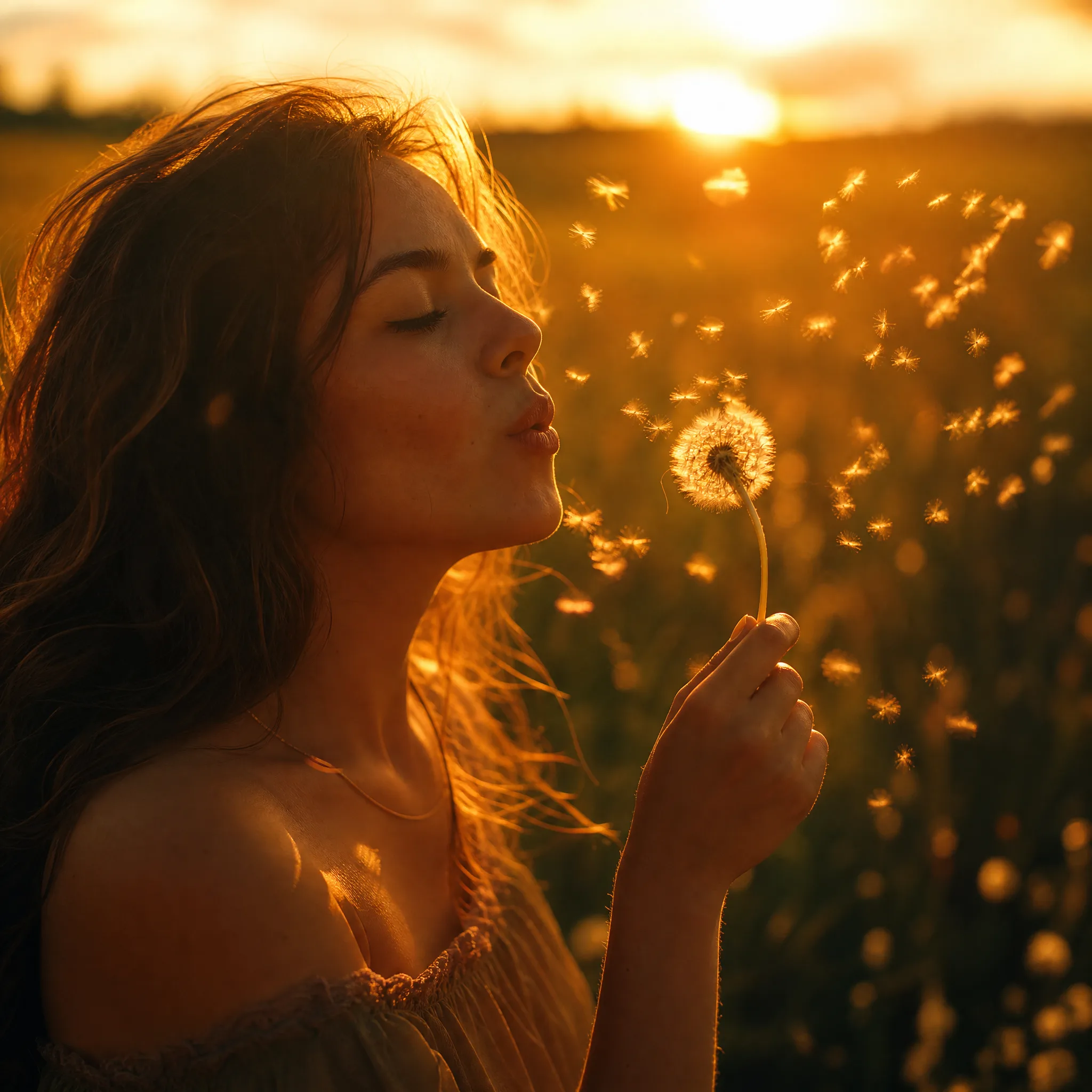
Young woman blowing dandelion seeds in golden sunset backlight