
Grok Imagine Image 2
Prompt
0/4000
Aspect ratio
Number of generations
Public Visibility
Required credits
8
Examples
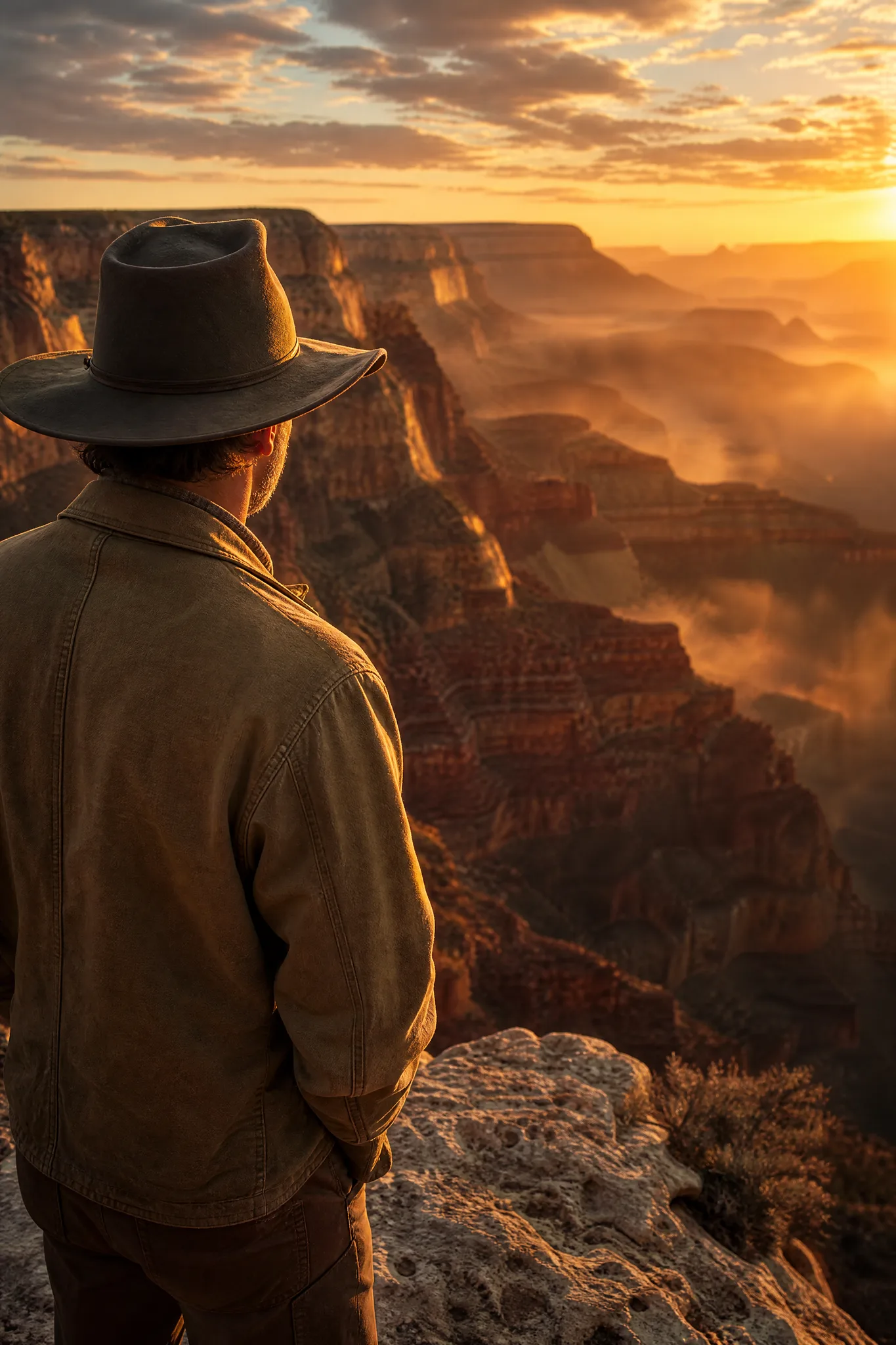
Man in a wide-brimmed hat at the rim of a glowing canyon at sunrise

Grok Imagine Image 2 Generator

Imagine a scene, then explore its visual possibilities

xAI's Grok Imagine Image 2 turns a written idea or an attached reference into a still for flyers, covers and social series. Set the frame, describe the subject and the light, and review Grok Imagine Image 2 takes for faces, hands and small details before you choose.

Generate with Grok Imagine Image 2
Man in a wide-brimmed hat at the rim of a glowing canyon at sunrise
Product scenes that tell a story|Portraits with a clear visual mood|Illustrations from a written idea|Campaign concepts before the final layout

How to Create with Grok Imagine Image 2

Grok Imagine Image 2 accepts a text prompt or a reference photo, and each run returns a single still. Follow the four steps to brief it, set the frame, weigh alternative directions and finish a reviewed image.

1

Describe your image idea

Start your Grok Imagine Image 2 brief with the one thing a viewer must see, then add where it is, what light falls on it and the feeling you want. To build on an existing photo, attach it in image-to-image mode and name the change.

2

Choose the composition

Set the frame before generating: 1:1 for a profile grid, 9:16 for vertical stories, 16:9 for a slide. Ask Grok Imagine Image 2 to keep the subject clear of the area where text or a sticker will go.

3

Explore the image

Produce one Grok Imagine Image 2 take, then a second with a single deliberate change, such as a closer camera or a cooler palette. Review both against your brief and keep developing whichever direction communicates the idea more clearly.

4

Choose and finish your take

Save the take you plan to use and inspect it at full size for errors in faces, fingers, edges and lettering. Do the final crop, captions and layout in your design app, treating the Grok Imagine Image 2 still as the visual starting point.

Best AI Image Tools for Creative Projects

Create a new image from text or edit one you already have with the right image tool.

What Can You Create with Grok Imagine Image 2?

Grok Imagine Image 2 features come down to four brief decisions: the photographic idea, subject and mood, parallel directions and the final composition. Each tab shows how that decision affects your image.

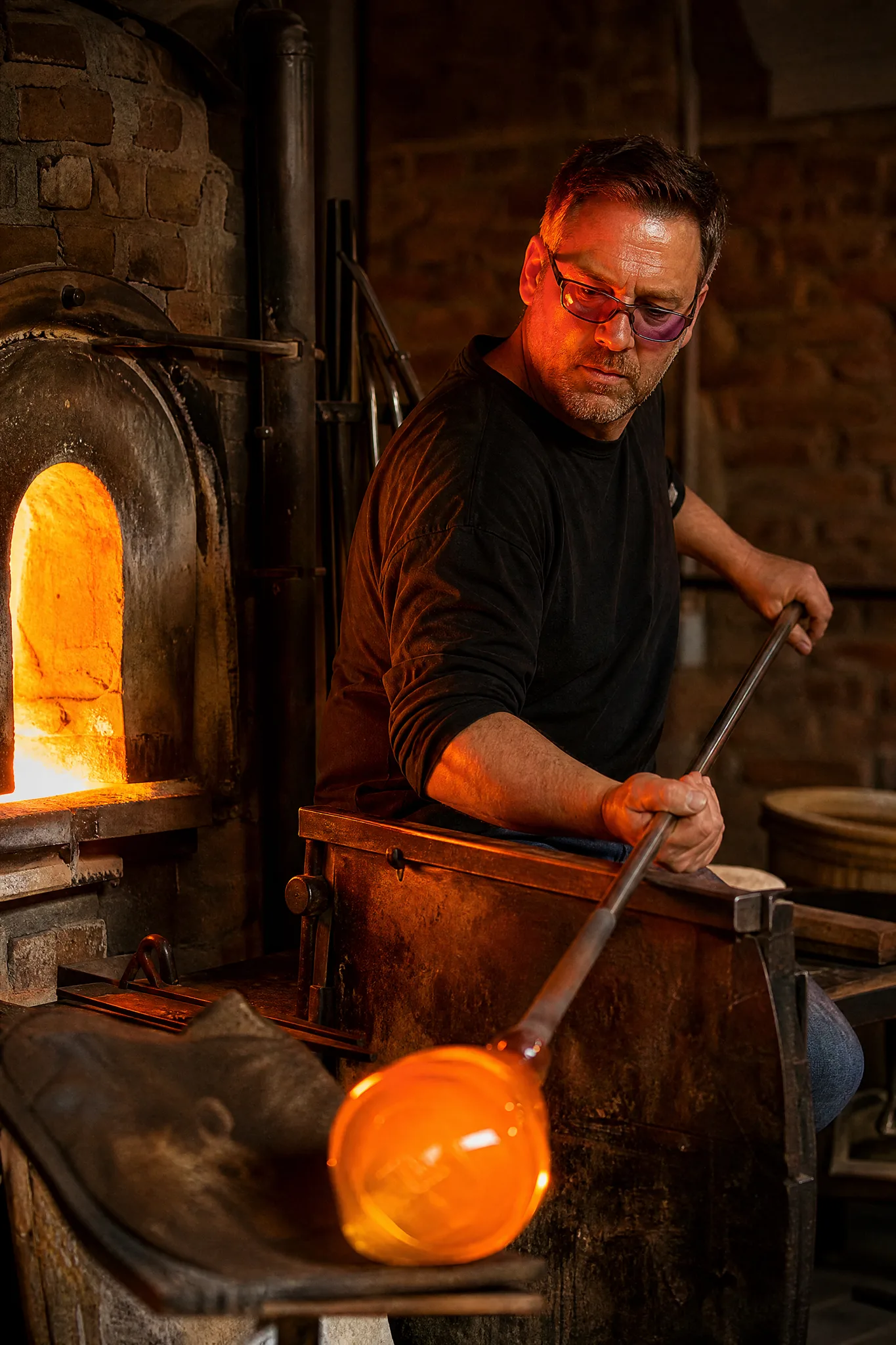
Glassblower turning glowing molten glass on a steel pipe beside a furnace

Explore a photographic image idea

For a photo-style concept, describe viewpoint, materials and light as a photographer would: eye level, molten glass on a steel pipe, furnace glow with deep shadows. Grok Imagine Image 2 builds the setting from those cues, and they decide whether the result reads as calm, tense or playful.

Develop Your Grok Imagine Image 2 Image Idea

Grok Imagine Image 2 handles product, portrait and illustration briefs in its own way. These three rows describe what to write for each and what to check before a take is used.

Product scenes that tell a story

Product briefs should name the object, the surface beneath it and the light direction, such as a glass olive oil bottle on old oak with side light. You can also attach a product photo for Grok Imagine Image 2 to work from, then confirm that cap, label and proportions match reality.

Unlabelled bottle of golden olive oil with crusty bread and an olive sprig on a rustic table

Portraits with a clear visual mood

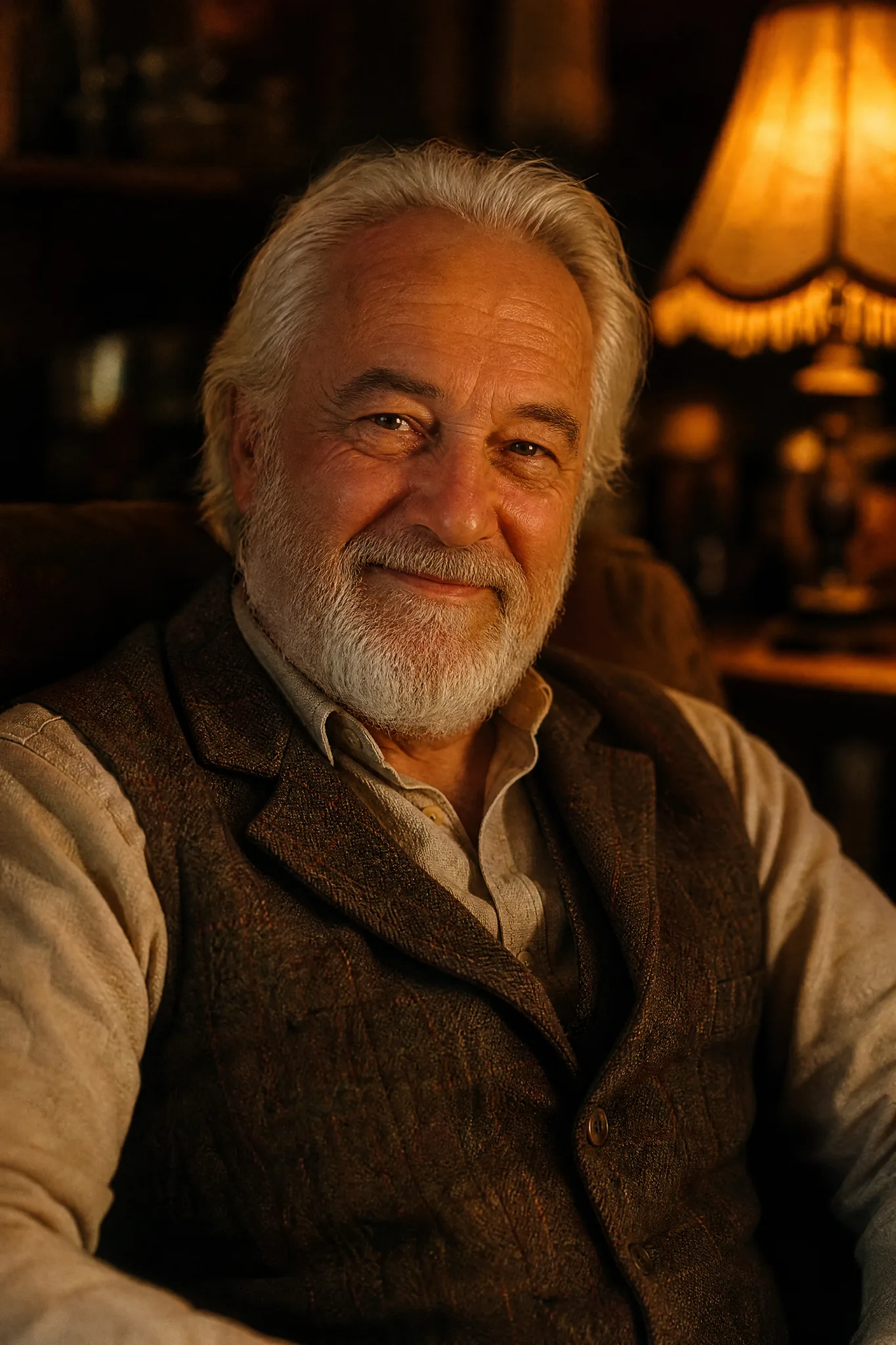
For portraits, decide the light, the expression and the camera height before writing. A Grok Imagine Image 2 prompt for a smiling grandfather lit by a table lamp reads differently from one lit by stage spotlights; compare the moods, then inspect eyes, hands and hair.

Older man with a white beard smiling gently in warm lamp light

Illustrations from a written idea

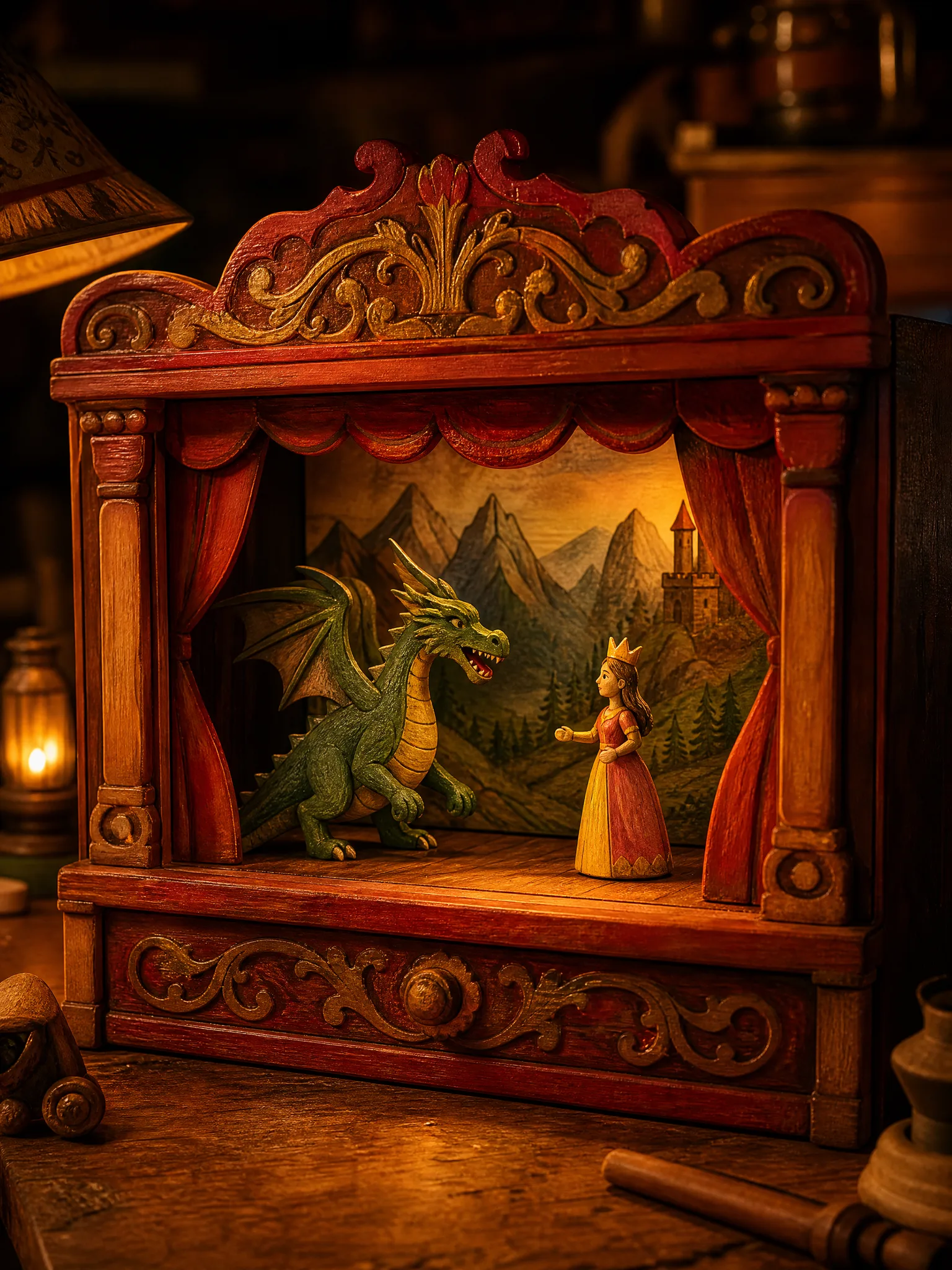
Illustration ideas need a named medium and a short palette, for example painted wooden toys in red and gold or soft crayon on kraft paper. Keeping those choices consistent in each Grok Imagine Image 2 prompt ties the atmosphere to the story you are illustrating.

Hand-painted wooden toy theatre with a wooden dragon and princess on its little stage

Grok Imagine Image 2 Use Cases

Grok Imagine Image 2 serves anyone who needs to see a concept before committing time to it. The six roles below describe the brief each would write and the destination of the reviewed take.

Product scenes that tell a story

Online shop owners can show a ceramic teapot steaming on a breakfast table or a scarf draped over a park bench with Grok Imagine Image 2. The concept helps decide the setting for real product photos.

Portraits with a clear visual mood

Character designers can try one portrait in several moods, cheerful, wary or tired, with Grok Imagine Image 2. Comparing expression and framing helps them pick a direction, and they check facial details before using it.

Illustrations from a written idea

Picture book illustrators can describe a moment like two kids building a raft on a lazy river in Grok Imagine Image 2. The take hints at staging and color for the spread they will paint themselves.

Campaign concepts before the final layout

Campaign art directors can put a photographic concept and a poster-style concept of one idea side by side using Grok Imagine Image 2. The chosen route goes into the design file for headline, logo and legal copy.

Storyboard moments for a visual narrative

Storyboard artists can visualize a turning point, like a hiker reaching a ridge as fog clears, with Grok Imagine Image 2. A concrete frame makes the conversation about pacing, angle and light easier for the whole crew.

Social visuals with a recognizable direction

Social designers can keep a cohesive look across a Grok Imagine Image 2 series by repeating subject and palette in every prompt. They review each image on its own and write captions in the scheduling tool.

Creative Scenarios with Grok Imagine Image 2 Image Creation

Scenarios for using Grok Imagine Image 2 image creation in real projects, from the photos or ideas you start with to the take you keep.

For a summer night market flyer, I'd describe lanterns, food stalls and a warm crowd to Grok Imagine Image 2. I'd pick the take with open sky for the event details, check faces in the background for distortions, and set the date and venue myself in the design file.

Event Promoter
Creative workflow

Grok Imagine Image 2 Frequently Asked Questions

Find out how Grok Imagine Image 2 handles references, prompts, frame shapes, campaign use, series consistency, motion, refinement and the last review before you download.

Grok Imagine Image 2 is an xAI image model on ImgVid that generates stills from a text prompt or a reference image. Explain the subject, setting, light and style, select the take that communicates your brief and review it before publishing.

Yes — Grok Imagine Image 2 takes up to 5 reference images through image-to-image mode. Provide a clear photo and state the change you need; a text prompt alone is also a valid start.

In a Grok Imagine Image 2 prompt, name the subject before anything else, then give setting, composition, light and style. Products need a surface and backdrop; portraits need a crop and mood. A brief that sticks to one idea is simpler to refine.

Grok Imagine Image 2 needs eligible paid access whenever the paid-plan gate is enabled, and credits are deducted for each generation. Before you run anything, the workspace shows the current estimate for your settings.

Grok Imagine Image 2 offers the following aspect ratios: 1:1, 2:3, 3:2, 16:9, 9:16. There is no resolution option to choose with this model. Plan the frame around the crop you will actually use.

Grok Imagine Image 2 images may be used in a campaign when your source material is cleared and the output is checked. Supply only images you have rights to, review for trademarks, likenesses, facts and suitability, and finish crop, type and brand assets in an editor. Generation gives no third-party permissions.

To keep a Grok Imagine Image 2 series coherent, use a suitable reference image together with a brief that repeats the same subject, palette and style. Review every result for continuity, as a shared direction does not guarantee identical subjects or details.

Grok Imagine Image 2 makes still images in this workspace, not clips. To explore motion, take a suitable image into the separate image-to-video tool, pick a compatible video model and describe the movement or camera move.

To refine a Grok Imagine Image 2 result, open image-to-image mode with a fitting reference and describe the new interpretation. Adjust one element per take, for example light, framing or background, and compare the versions before settling on one.

Check a Grok Imagine Image 2 image at a practical size before downloading: faces, hands, product shapes, any text and background details. Select the take that fits the job, then finish exact corrections and layout in an appropriate editor.

Grok Imagine Image 2 results are not published automatically, and references you attach stay unpublished. Free accounts and visitors keep Public Visibility on, so a finished cover or post from this model may be selected for Explore after review; accounts with a subscription or one-time pack start private.

Bring Your Next Image Idea to Life with Grok Imagine Image 2

Write a short brief or attach a photo, set the frame and let Grok Imagine Image 2 generate a still you can compare against a second direction. Pick the stronger take and start your next idea in the workspace.

Create with Grok Imagine Image 2
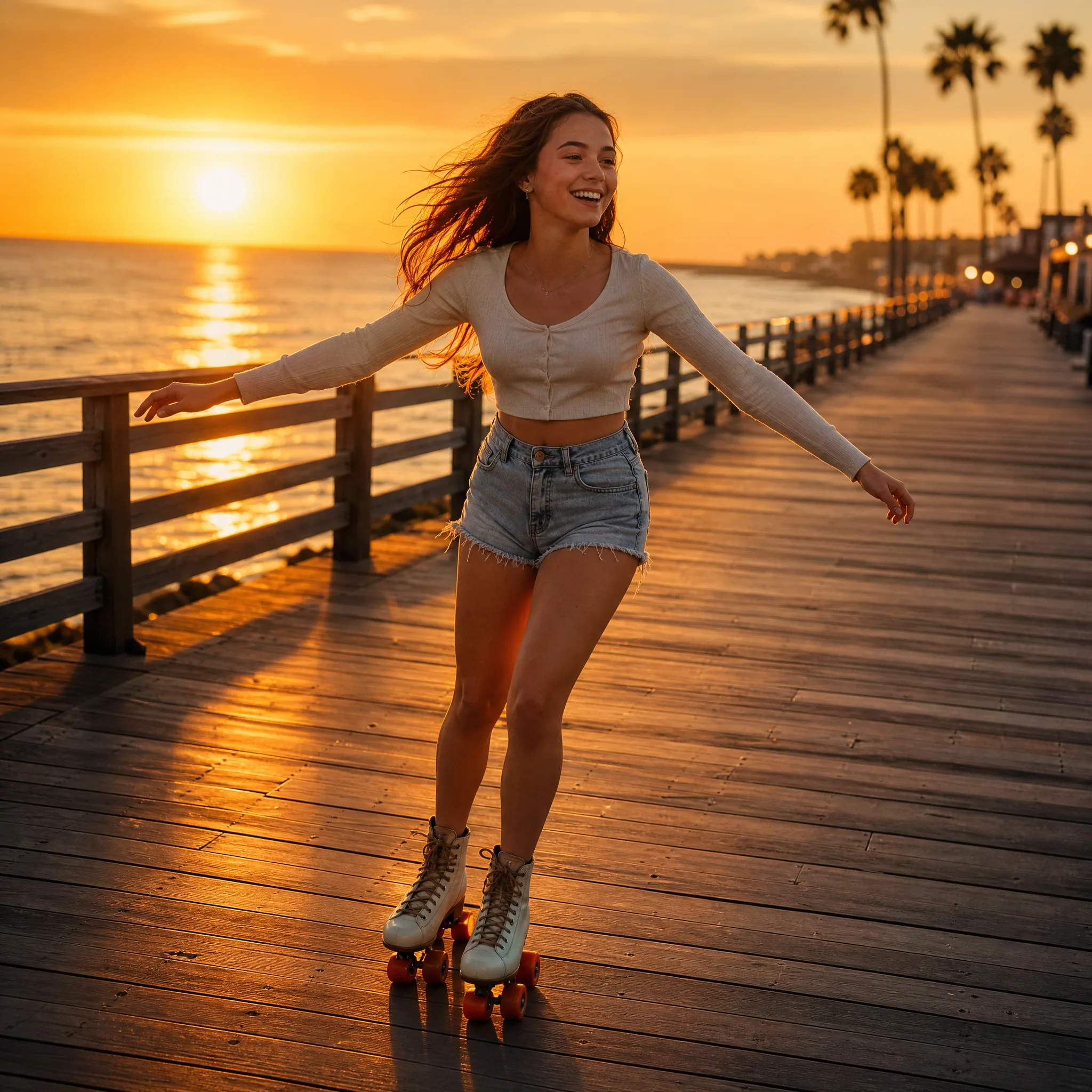
Young woman roller-skating along an empty seaside boardwalk at sunset