Nano Banana 2 Image Generator

Create the image your story needs next

Google's Nano Banana 2 develops a still from a written brief or from reference photos you attach, in frames from square to wide banner strips. Describe the subject and the setting, pick the shape for your destination, and compare Nano Banana 2 takes before finishing.

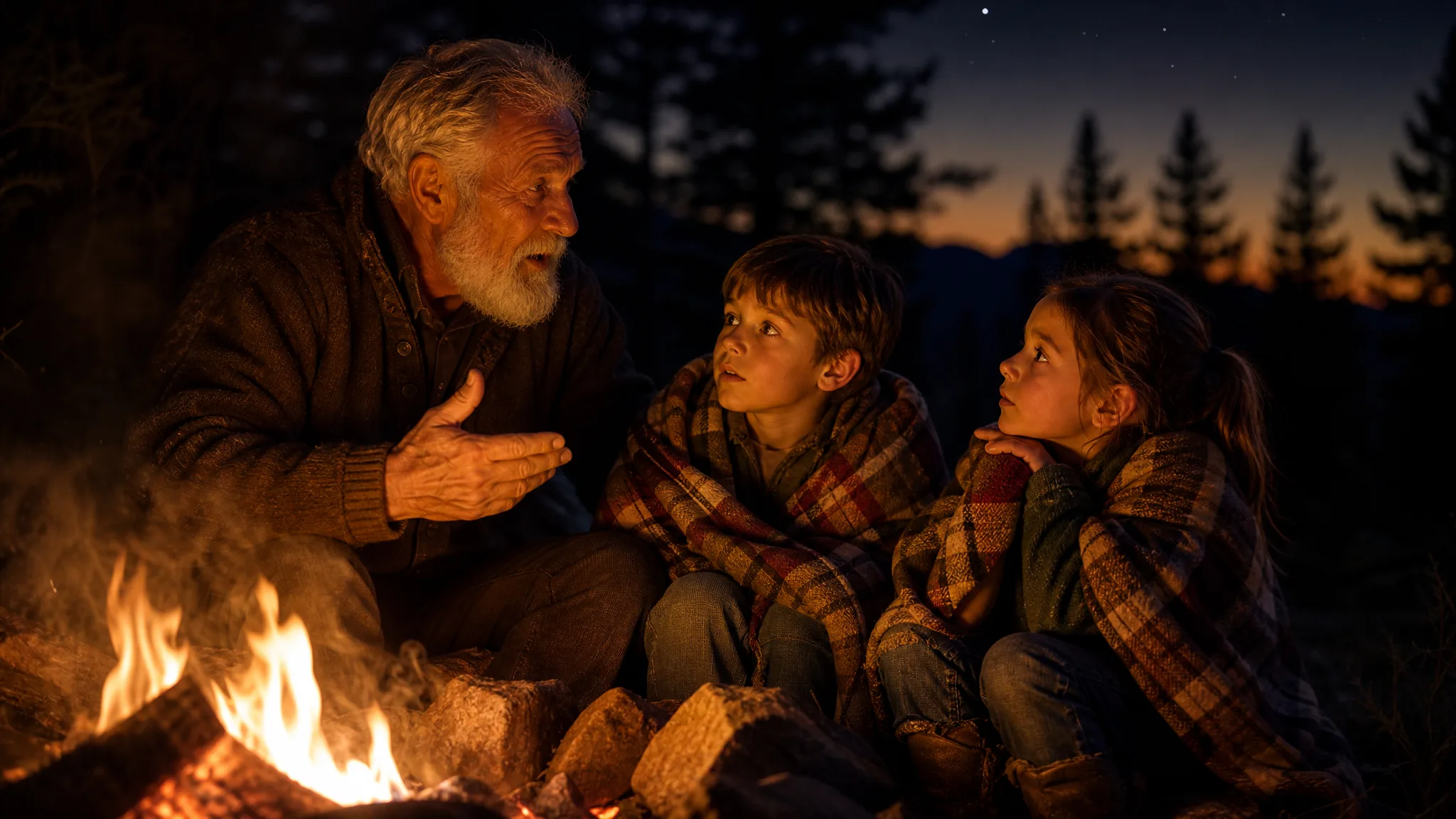
Grandfather telling a story to two children around a campfire at dusk
Visual ideas from a clear brief
Reference-led scene exploration
Creative styles for your subject
Compositions for a finished project
Nano Banana 2
Prompt
0/20000
Reference images

This media input is not available yet.

Aspect ratio
Resolution
Number of generations
Public Visibility
Required credits
10
Examples
Grandfather telling a story to two children around a campfire at dusk

Explore Image Ideas with Nano Banana 2

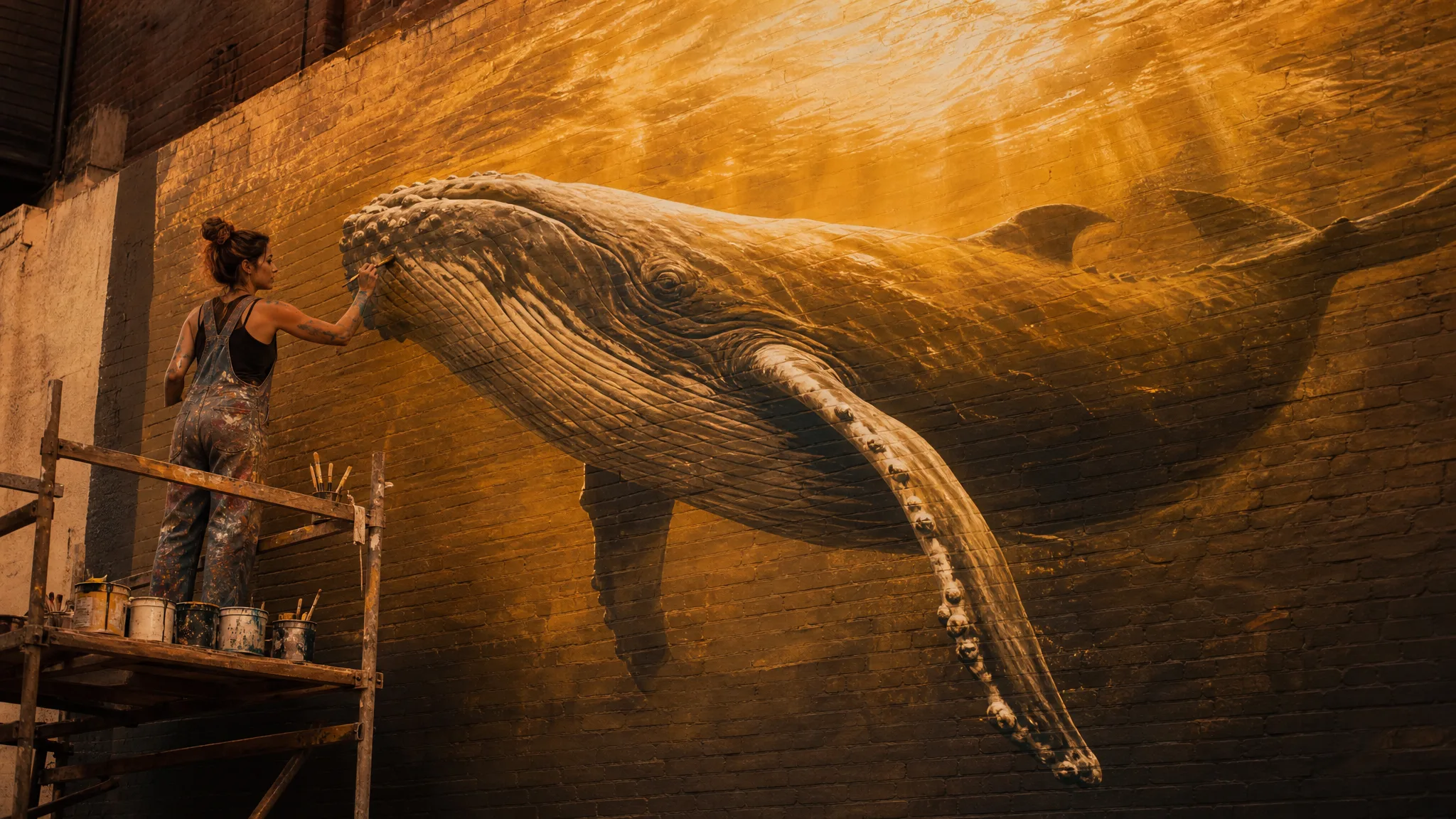
A muralist painting a humpback whale across a courtyard wall has to see the whole composition before the first stroke. Nano Banana 2 helps you plan at that scale: describe the subject and the frame it needs, then compare takes before you commit to one.

Generate with Nano Banana 2
Muralist on scaffolding painting a large humpback whale mural on a sunlit courtyard wall

How to Create with Nano Banana 2

Nano Banana 2 accepts a written idea, one photo or a set of references, and offers some unusually tall and wide frames. Follow these steps to brief it, pick the frame, compare takes and check the image you keep.

1

Describe your image idea

Describe your idea to Nano Banana 2 in a few sentences: who or what is in the scene, where it happens and how it should feel. Working from existing material? Attach one or more references in image-to-image mode and name what each one contributes.

2

Choose the composition

Pick a frame that matches the destination. Nano Banana 2 includes strip formats such as 4:1 and 1:8 alongside square and 16:9, which helps with banners and tall sidebars. Place the subject so a caption or headline still has room.

3

Explore the image

Run a Nano Banana 2 take and hold it against the brief. Check whether each reference shows up the way you intended and whether the subject sits where the layout needs it. Adjust one instruction at a time so you know what changed.

4

Choose and finish your take

Save the take you plan to use and review it at full size, especially faces, hands and edges near the crop. Finish captions, labels and layout in your editor; the Nano Banana 2 image supplies the visual, while the final design work happens there.

Best AI Image Tools for Creative Projects

Create a new image from text or edit one you already have with the right image tool.

What Can You Create with Nano Banana 2?

Nano Banana 2 can start from words, one photograph or several references. The four tabs explain how each starting point and the chosen frame shape the image you build next.

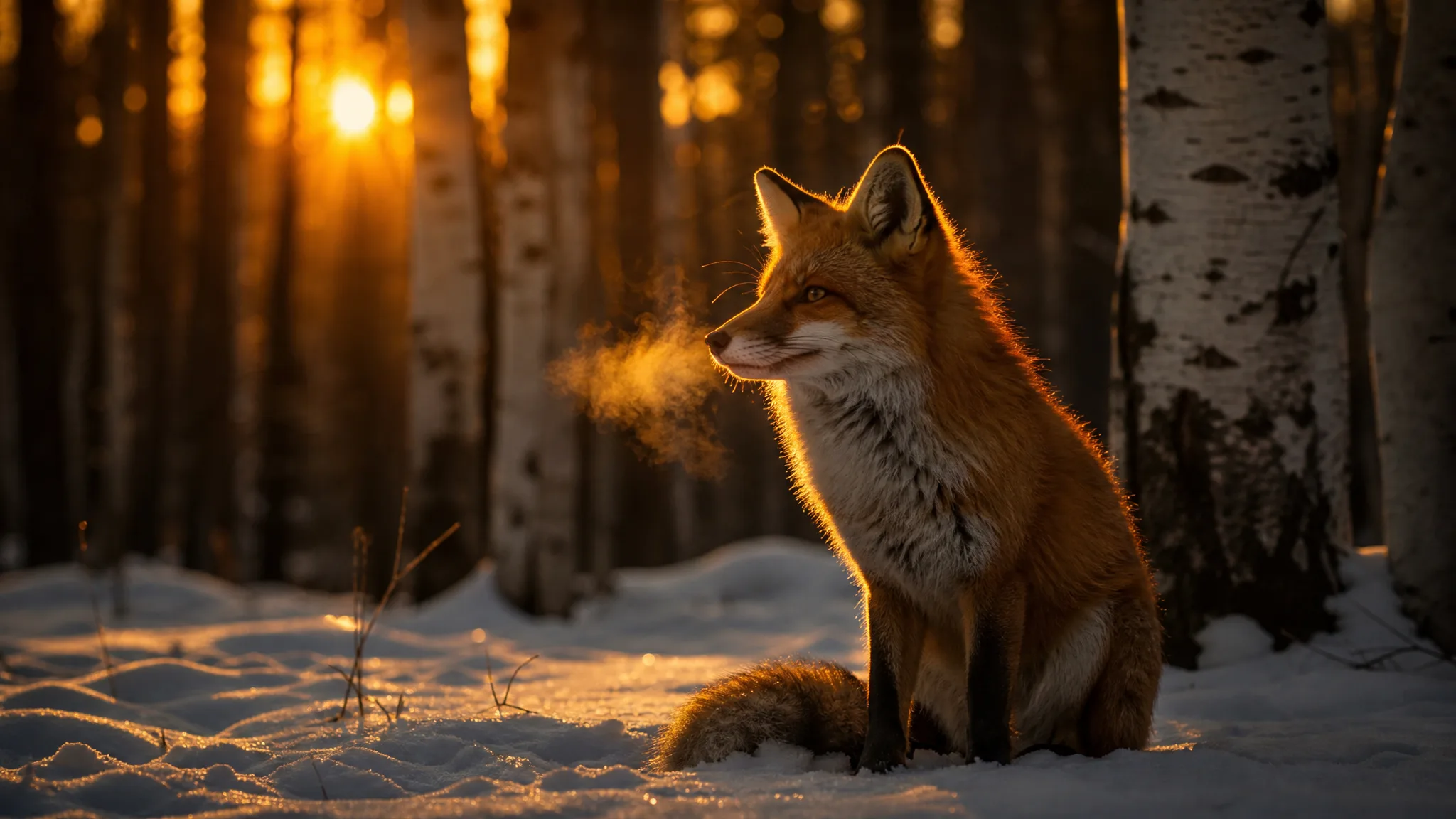
Red fox sitting in fresh snow among birch trees in warm twilight

Start from a written visual idea

A written brief is enough to start Nano Banana 2 text to image work. Establish the subject, the visual style and the mood in plain sentences, then grow the setting around them. If the first take misses, rewrite the part of the brief that caused it instead of piling on new adjectives.

Develop Your Nano Banana 2 Image Idea

Product, portrait and illustration work each ask something different of Nano Banana 2. These rows describe what to put in the brief and what to check in the take.

Product scenes that tell a story

For product scenes, attach the real item and describe its new surroundings: a sunlit limestone ledge, a picnic blanket, a shop window at dusk. Nano Banana 2 places the subject in that setting, and you confirm that the shape, color and label still match the original before sharing the concept.
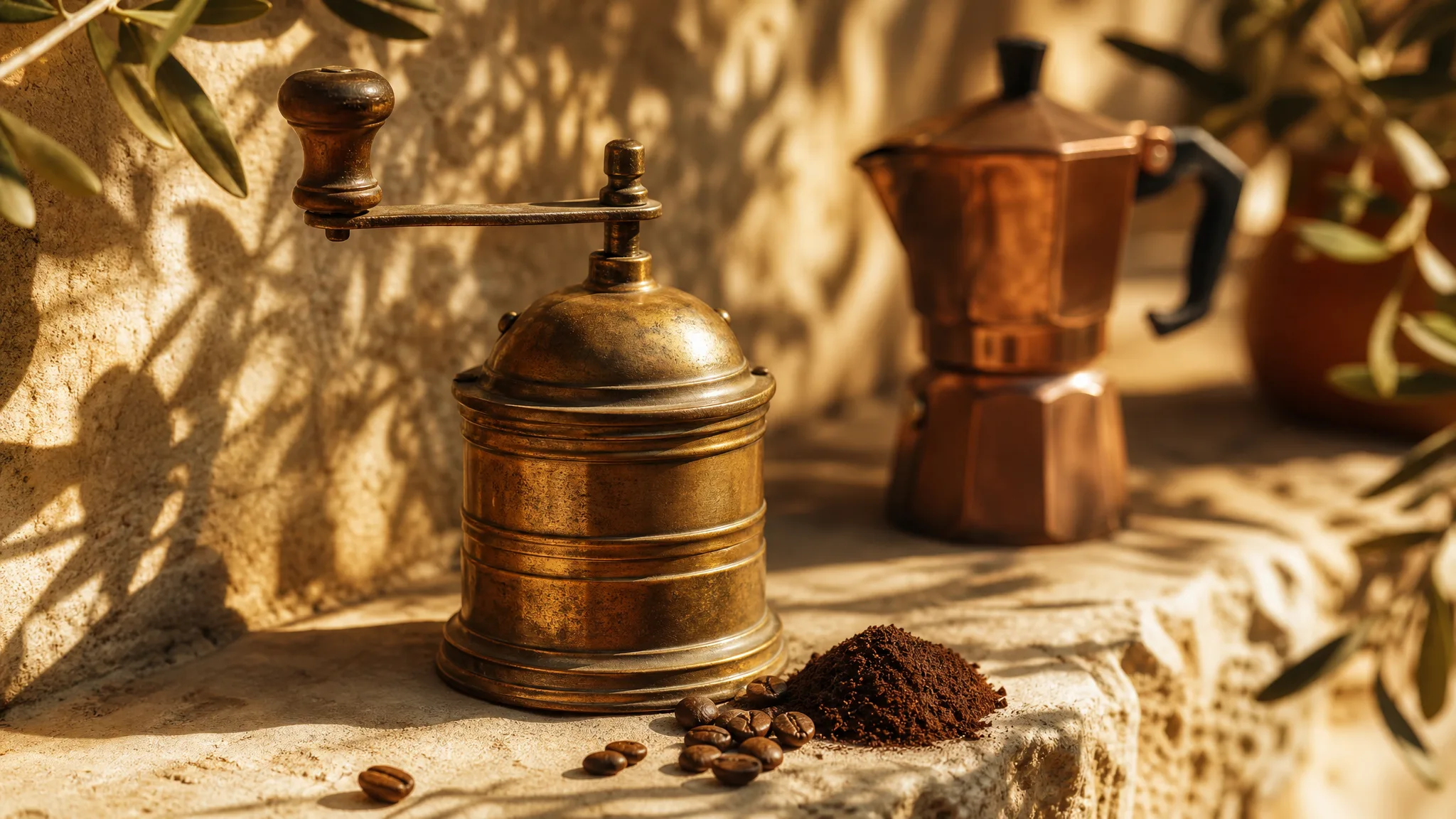
Vintage brass coffee grinder on a sunlit limestone ledge with olive-branch shadows

Portraits with a clear visual mood

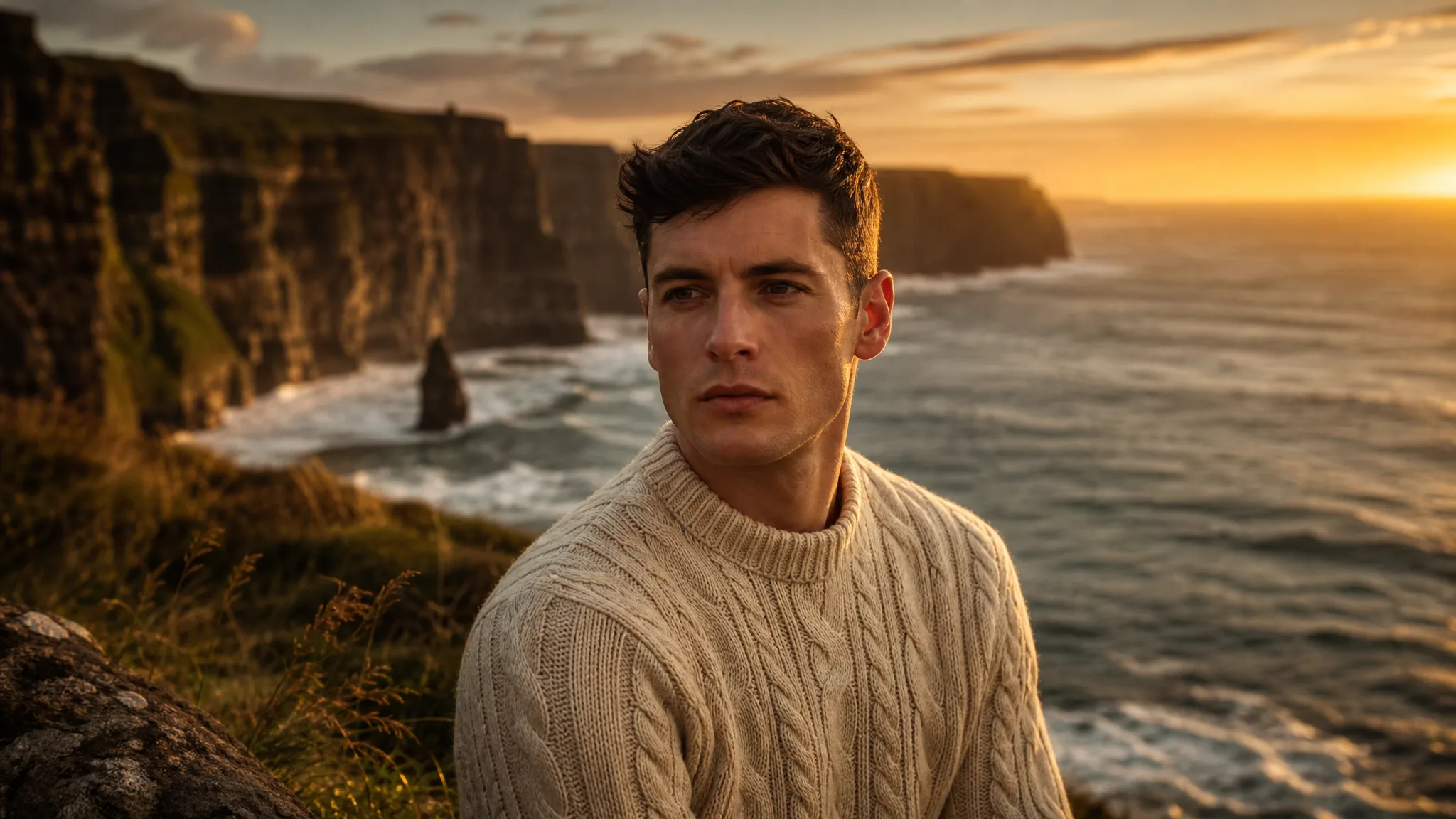
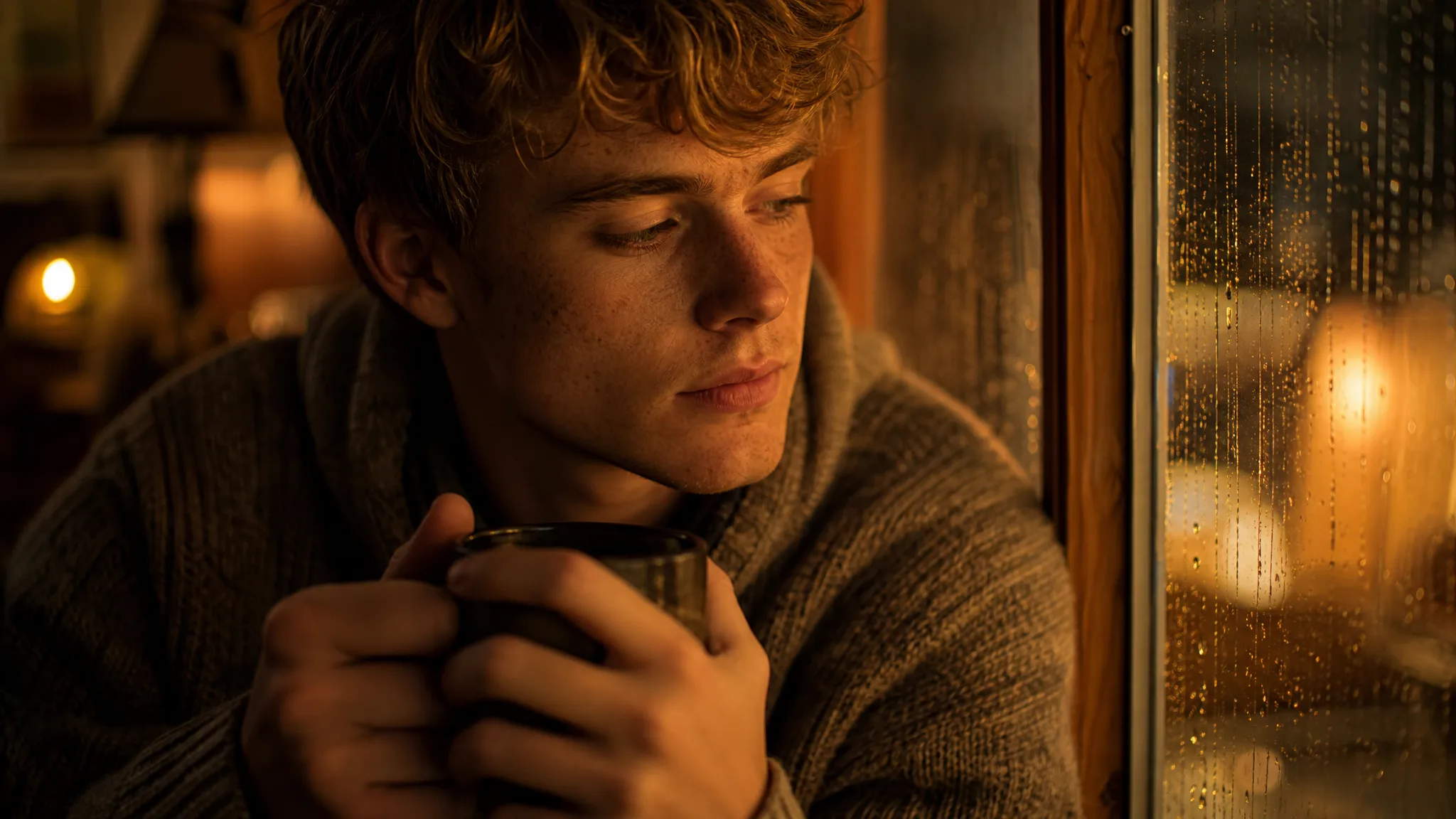
Portraits benefit from naming light direction, expression and camera height together. Ask Nano Banana 2 for a soft side light with a quiet, pensive look, or a hard top light with a serious look, and compare which mood suits the story before checking eyes and hands.

Freckled young man by a rain-streaked window in warm lamp light holding a mug

Illustrations from a written idea

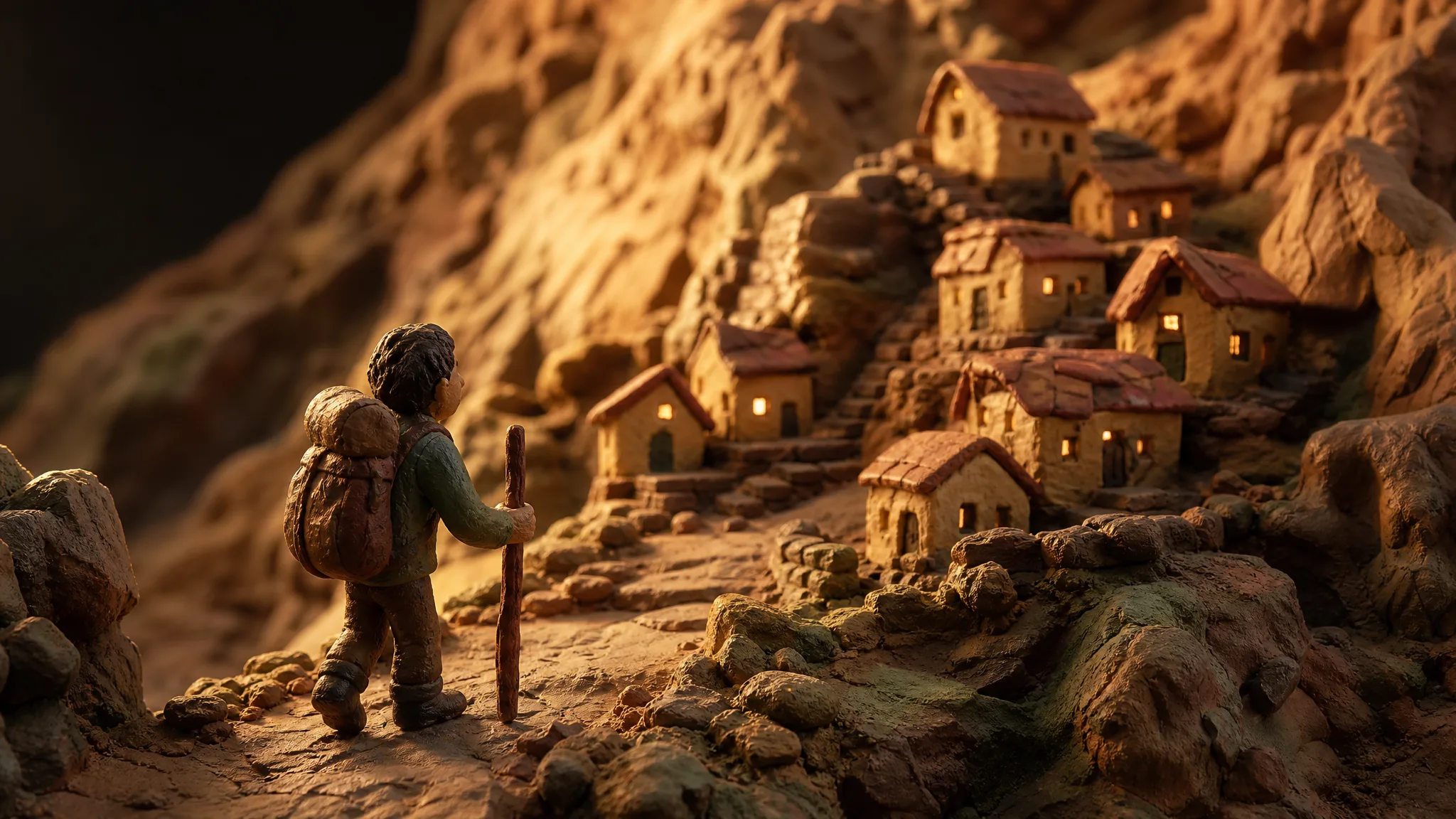
Illustration briefs should name the medium and the palette early, such as clay miniatures in warm earth tones or watercolor with muted greens. That gives Nano Banana 2 a clear style target, and you can keep the colors tied to the central idea across later takes.

Plasticine miniature of a clay traveler approaching a tiny mountain village

Nano Banana 2 Use Cases

Nano Banana 2 suits projects that need a picture in an unusual frame or one built from several references. Here are six roles, the image each would request and where it would be used.

Product scenes that tell a story

E-commerce teams can stage a product in a new room or season with Nano Banana 2 and a photo of the real item. The chosen still serves as a listing concept or as a brief for the next product shoot.

Portraits with a clear visual mood

Portrait artists can try a character in different light, from candlelit interiors to bright beach noon, using Nano Banana 2. Pick the expression and crop that suit the story, then check facial details before the image becomes a reference.

Illustrations from a written idea

Children's book illustrators can describe a spread, such as a fox carrying a lantern through snowy woods, and let Nano Banana 2 suggest staging. The take guides the hand-drawn spread rather than replacing the artist's own work.

Campaign concepts before the final layout

Campaign art directors can use the wide 4:1 and 8:1 frames in Nano Banana 2 for web banners and billboards. Compare a lifestyle version with a graphic version, then set final typography and logos in the design file.

Storyboard moments for a visual narrative

Storyboard artists can build a sequence of key frames with Nano Banana 2, reusing the same character reference across shots. Review continuity frame by frame, since details can shift, and use the boards to plan staging with the crew.

Social visuals with a recognizable direction

Social designers can make a vertical 9:16 story and a 1:1 feed post from the same Nano Banana 2 brief. Compare the crops, review each image separately and add captions in the scheduling tool before posting.

Creative Scenarios with Nano Banana 2 Image Creation

Scenarios for using Nano Banana 2 image creation in real projects, from the photos or ideas you start with to the take you keep.

A plain product photograph would be my starting point for a seasonal post. With Nano Banana 2 image to image, I'd describe a warmer setting and compare the object details in each take against the source. The selected image would set the campaign direction, while the original stays my reference for the final asset.

Product Content Creator
Creative workflow

Nano Banana 2 Frequently Asked Questions

These Nano Banana 2 answers cover references, prompts, shapes and resolution, campaign rights, series continuity, motion, refinement and the final review before download.

Nano Banana 2 is a Google image model in the ImgVid workspace that makes stills from a written idea, a single photo or a set of references. Describe what you want, choose the take that matches your brief and review details before you publish.

Yes — Nano Banana 2 image to image takes up to 14 reference images on the selected variant. Supply clear photos and explain the change you want; starting from a text prompt works as well.

Start a Nano Banana 2 prompt with the subject, then layer in setting, composition, light and style. Product briefs need a surface and background; portrait briefs need framing and mood. Keep instructions related to one idea so you can tell which change improved the result.

Nano Banana 2 needs eligible paid access while the paid-plan gate is enabled, and each image uses credits. The workspace displays the estimate for the selected variant and settings before you confirm a generation.

Nano Banana 2 gives you these aspect ratios on the selected variant: 1:1, 2:3, 3:2, 1:4, 4:1, 3:4, 4:3, 4:5, 5:4, 1:8, 8:1, 9:16, 16:9, 21:9. Resolution can be set to 1K, 2K, 4K, with some pairings possibly restricted by the model. Decide the crop first so the subject is framed for it.

Nano Banana 2 images can feed a campaign when the inputs are yours to use and the output has been reviewed. Check trademarks, likenesses, facts and fit for the placement, then finish crop, type and brand assets in your design tool. Generation itself grants no third-party permissions.

Pair a suitable reference with a consistent Nano Banana 2 brief to keep a series coherent, and keep palette and style wording identical between prompts. Compare every result, because a shared direction helps but identical subjects and details are not guaranteed.

Nano Banana 2 produces still images in this workspace, not video. To add motion, open the separate image-to-video tool with your image, pick a compatible video model and describe the movement or camera path.

Refine a Nano Banana 2 result in image-to-image mode, using it or another fitting reference as the starting point. Alter one part of the brief per take, such as background or light, and compare versions before choosing which to keep.

Before you download a Nano Banana 2 image, look at faces, hands, product outlines, any text and the background at a practical size. Pick the take that suits the purpose and make exact corrections and layout changes in an editor.

Nano Banana 2 images are not published automatically, and photos you attach stay unpublished. Free accounts and visitors keep Public Visibility on, so a finished Nano Banana 2 banner or still may be selected for Explore after review; with a subscription or one-time pack, generations start private.

Bring Your Next Image Idea to Life with Nano Banana 2

Describe a scene, attach one or more references, choose a frame from square to an 8:1 banner, and let Nano Banana 2 produce a still you can check and place in your design. Open the workspace to begin.

Create with Nano Banana 2
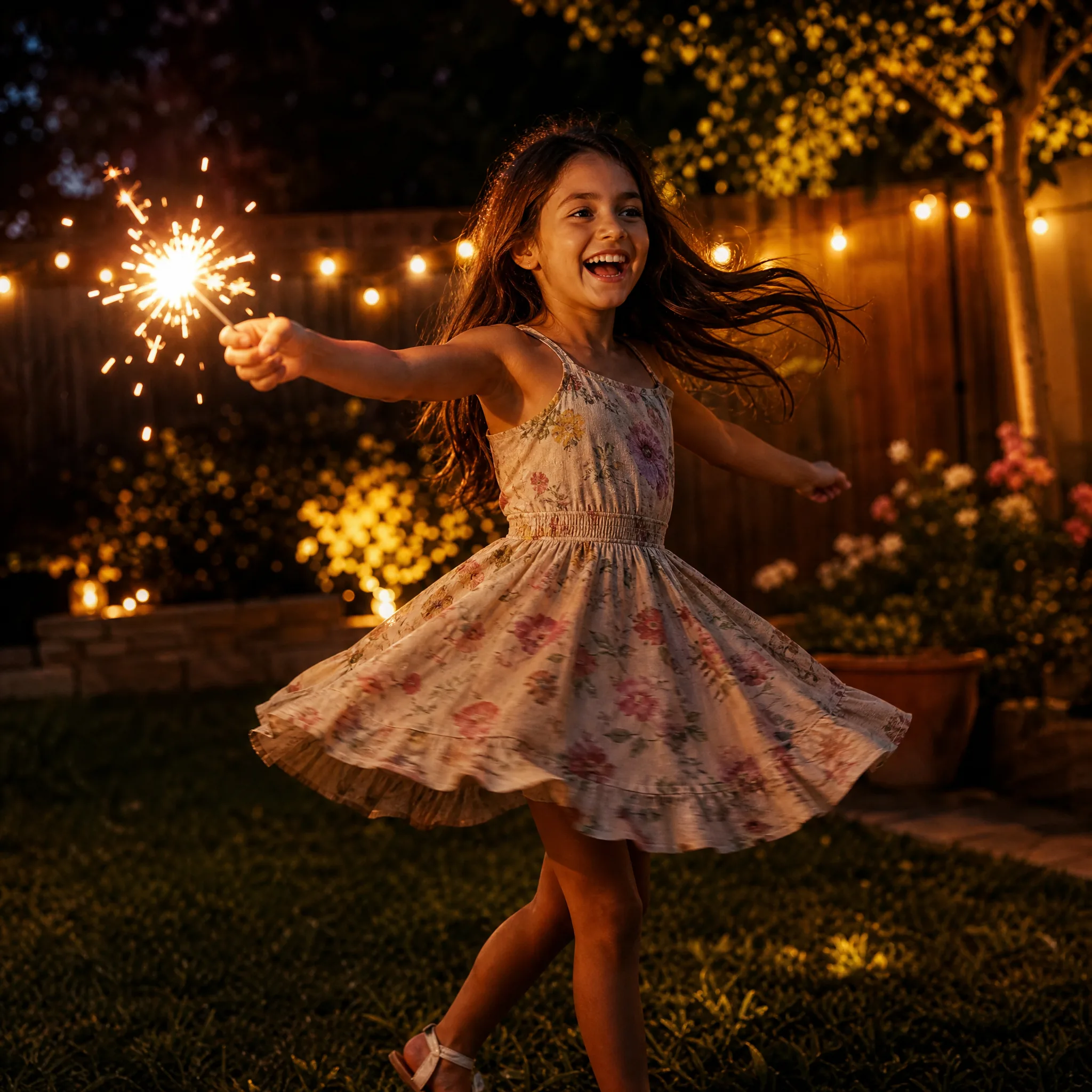
Laughing girl twirling a sparkler in a backyard at dusk