Qwen Image 2.1
Reference images

Up to 10 images · JPG, PNG or WebP · up to 20 MB each · max 6000 px per side or choose from

Prompt
0/5000
Mask image
Aspect ratio
Resolution
Background
Enhance prompt
Seed
Number of generations
Public Visibility
Required credits
8
Examples
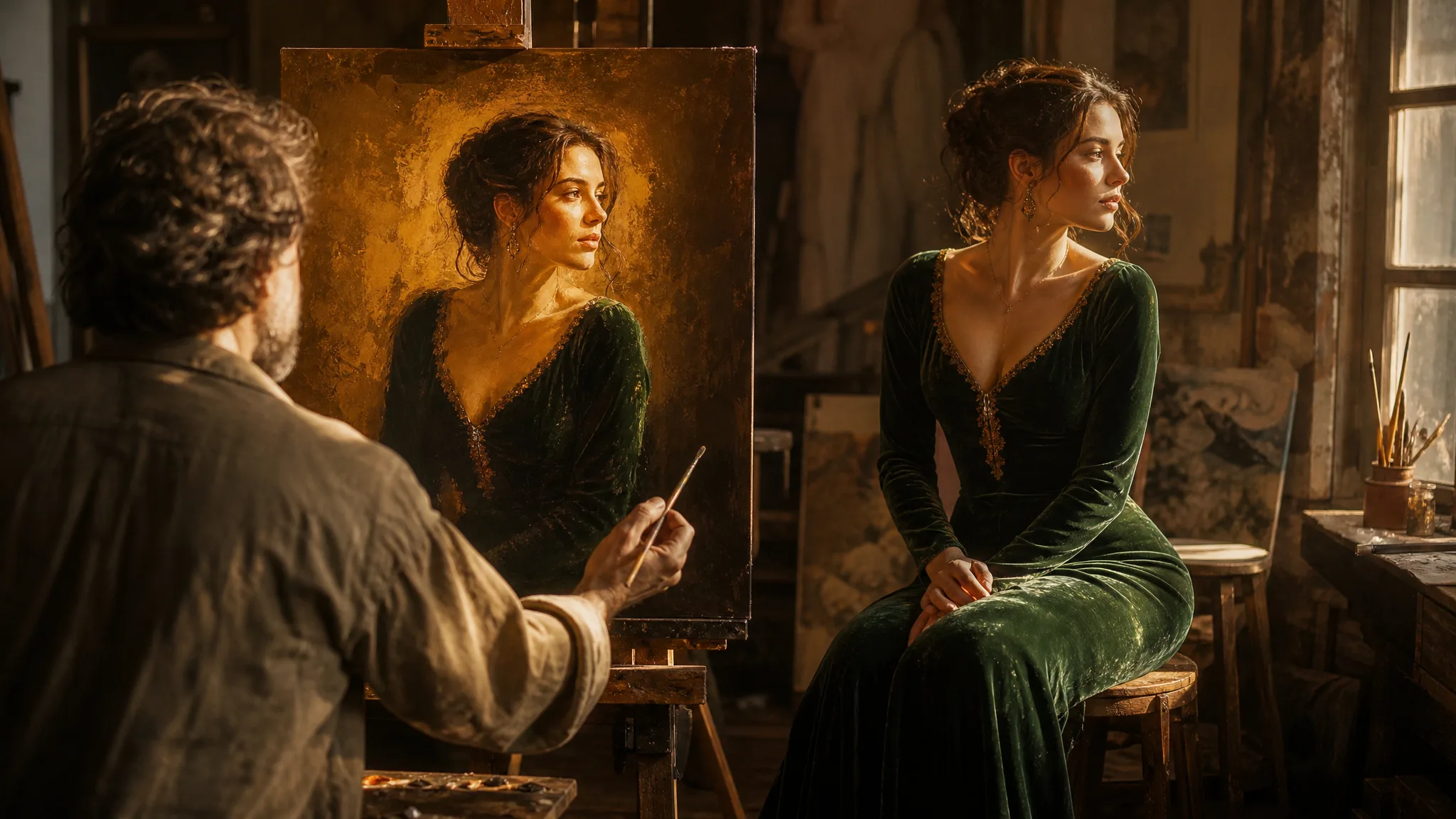
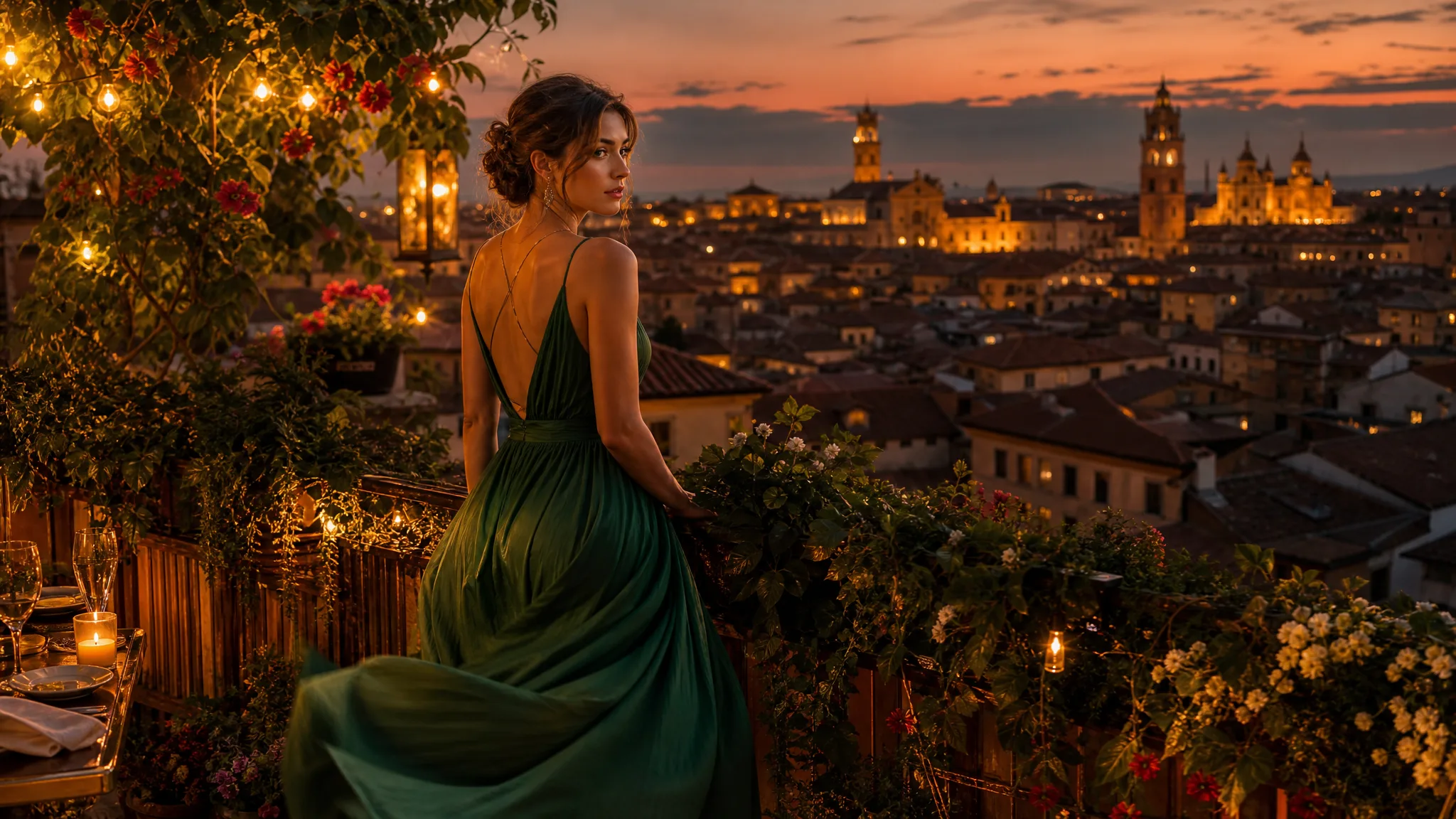
Portrait painter reinterpreting a seated woman in a green dress on a golden-toned canvas

Qwen Image 2.1 Image Editor

Explore a new interpretation of your reference image

Qwen Image 2.1 starts from an image you upload and reinterprets it from your description. Keep the subject you want to preserve, describe the new setting, light or style, and compare each Qwen Image 2.1 edit with the source before you use it.

Generate with Qwen Image 2.1
Portrait painter reinterpreting a seated woman in a green dress on a golden-toned canvas
Product scenes from a reference|Portraits with a new visual mood|Illustrated interpretations of a sketch|Campaign directions from an existing image

How to Create with Qwen Image 2.1

Qwen Image 2.1 always begins from an image you supply. These three steps cover choosing that reference, describing the new interpretation and checking the take against the original before you use it.

1

Choose your reference image

Upload a clear reference to Qwen Image 2.1, such as a product photo, a portrait or a sketch, and decide what must stay and what may change. Text-only generation is not available here, so the reference is the foundation of every take.

2

Explore the image

Pick an available shape, then describe the new interpretation: a different setting, palette, light or style. Generate a Qwen Image 2.1 take and compare its composition and subject details with the reference to see which instructions landed.

3

Choose and finish your take

Download the take that keeps what matters from the source and inspect faces, product shapes and small details closely. Finish crop, labels and layout in your design tool, keeping the original next to the Qwen Image 2.1 result for comparison.

Best AI Image Tools for Creative Projects

Create a new image from text or edit one you already have with the right image tool.

What Can You Create with Qwen Image 2.1?

Qwen Image 2.1 image editor features center on reinterpreting a source you upload. The four rows cover mood, setting, color and style, and how to judge the result against the original.

Reinterpret the mood of your reference

Start with a reference image and describe a different atmosphere, perhaps the same cottage under a stormy dusk sky or the same room lit by candles. Qwen Image 2.1 reinterprets light and color around your source, and the original stays available so you can judge how far the mood has moved.
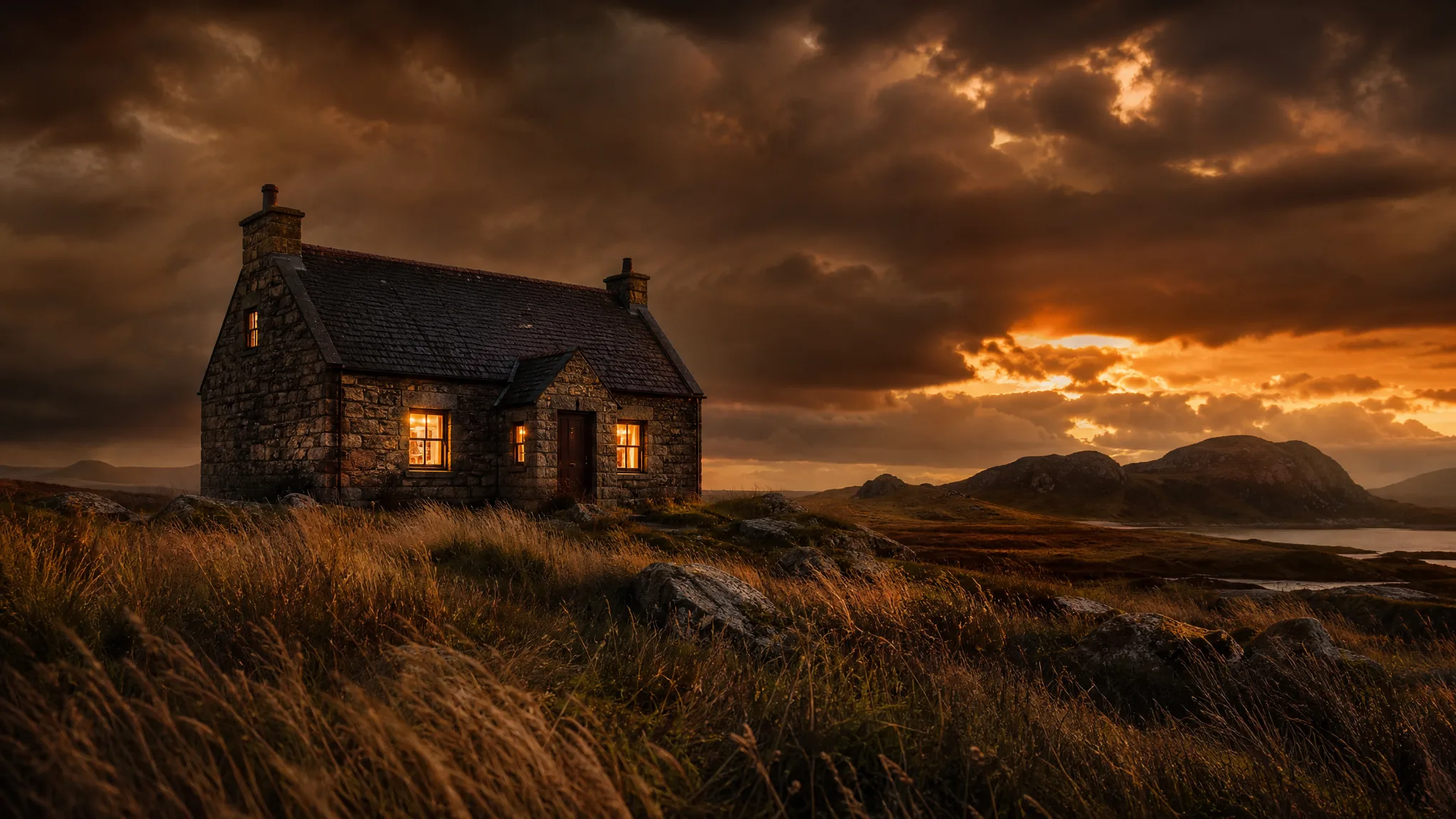

Stone cottage with glowing windows in a windswept meadow under a stormy amber sky

Explore a new setting around a subject

Upload the subject reference, then describe the setting you want around it, from an empty desert highway at sunset to a bright tiled kitchen. In Qwen Image 2.1 image to image, spell out the relationship between subject and background in a sentence or two so the brief keeps a clear focus.

Young woman in a mustard sweater sitting on a vintage suitcase beside an empty desert road

Develop the colors and visual style

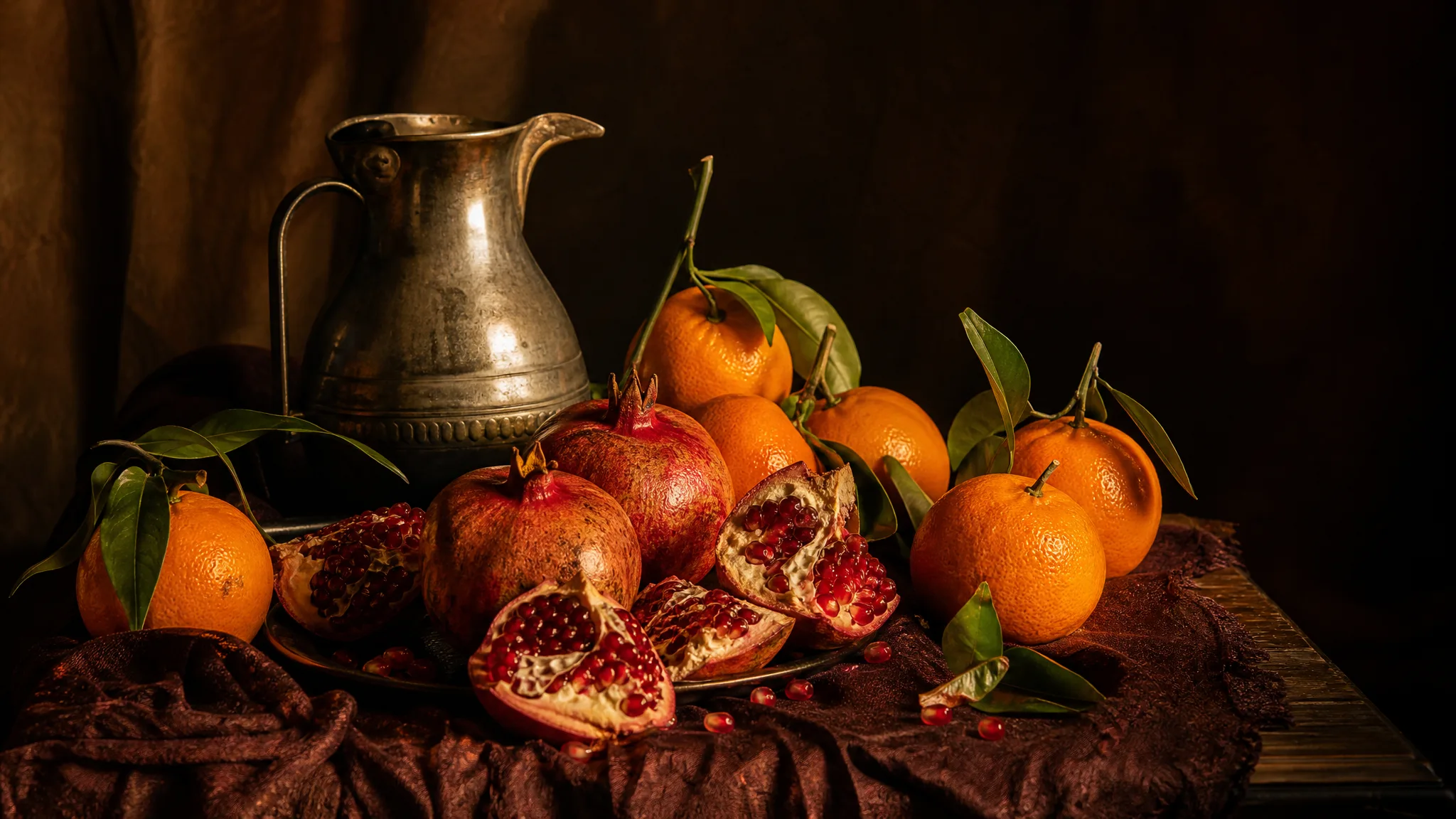
Use your photograph or sketch as the starting point for a new palette or visual style, such as a fruit still-life photo reworked as a Dutch-master oil painting. Name the treatment in your Qwen Image 2.1 brief and compare each take with the source to see which choices carried through.

Oranges, split pomegranates and a pewter jug lit like an old master still-life painting

Compare the details with your starting image

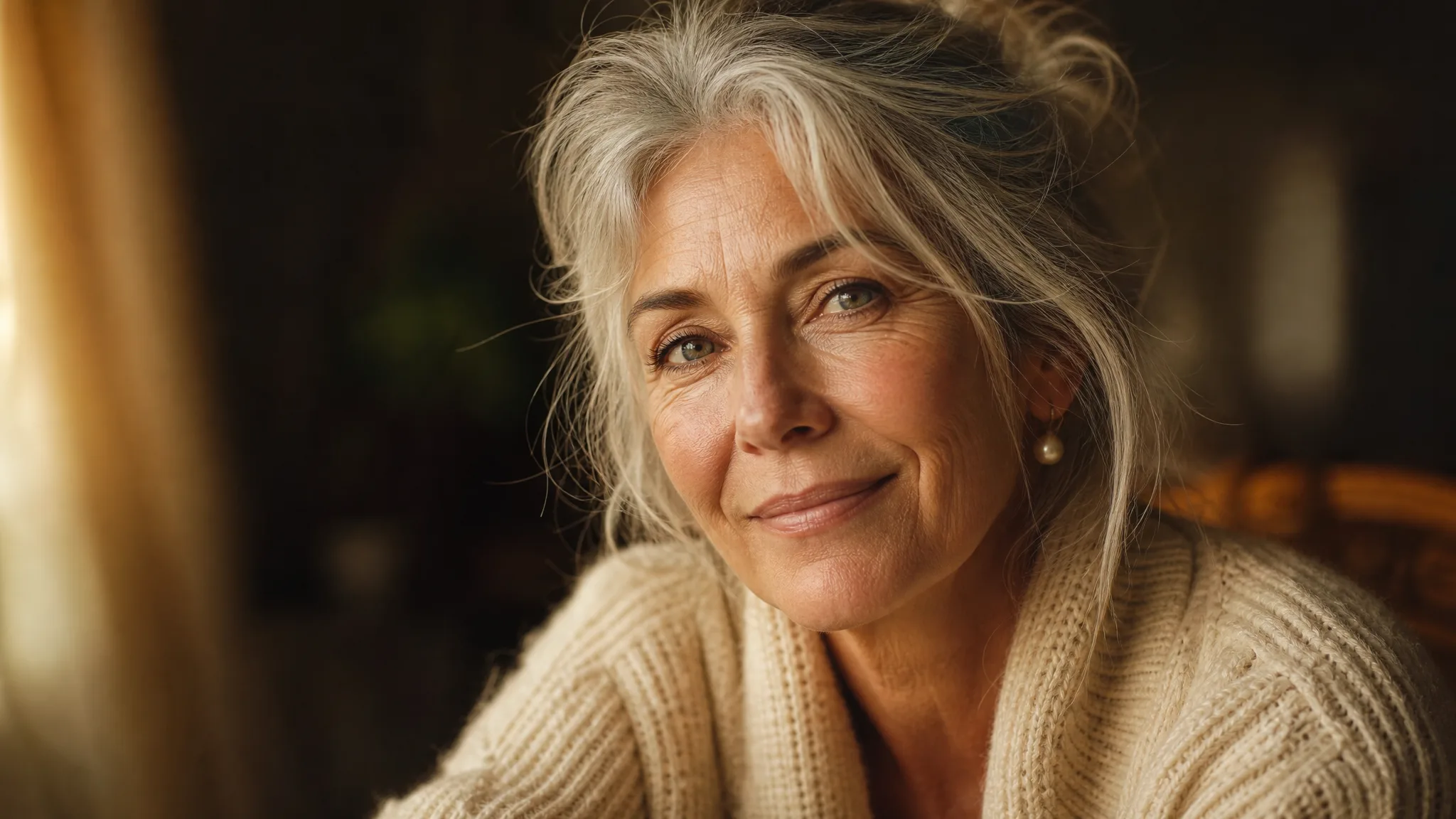
A source image makes review concrete. Place the Qwen Image 2.1 take beside the original and check faces, object shapes, logos and small details before choosing it for a project; anything that drifted from the reference should be fixed or rejected now, not after layout.

Close portrait of a silver-haired woman with a pearl earring and finely detailed knit cardigan

Qwen Image 2.1 Use Cases

Qwen Image 2.1 serves teams that already have an image and need a new direction from it. These four cases show the reference each would upload and where the result is used.

Product scenes from a reference

Product campaign designers can upload a product photo to Qwen Image 2.1 and describe a new setting, light and mood around it. They compare subject details with the original and pick a take for the campaign concept board.

Portraits with a new visual mood

Portrait concept artists can start from a portrait reference and ask Qwen Image 2.1 for a different background, light or style. Reviewing face and framing in each take helps them select the interpretation that suits the story.

Illustrated interpretations of a sketch

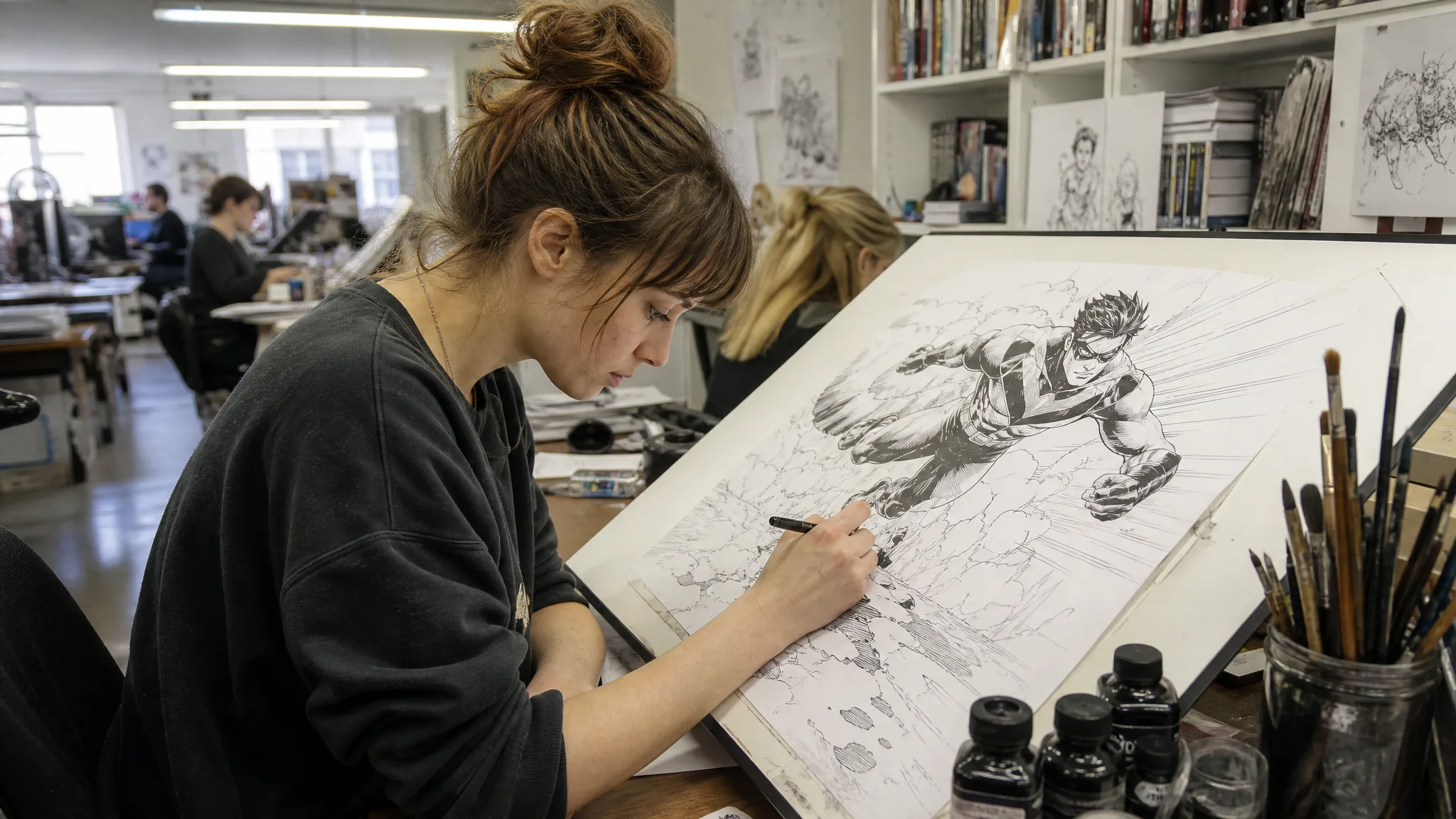
Illustrators can upload a rough drawing and describe the finished direction, such as a moody palette or a storybook setting, in Qwen Image 2.1. The original composition anchors the take while the new treatment is explored.

Campaign directions from an existing image

Campaign art directors can bring an existing campaign photo into Qwen Image 2.1 and try a seasonal palette or a new location. They compare it with the source, then finish typography and brand assets in the design workflow.

Creative Scenarios with Qwen Image 2.1 Image Creation

Scenarios for using Qwen Image 2.1 image creation in real projects, from the photos or ideas you start with to the take you keep.

I'd bring a product photograph into the Qwen Image 2.1 image editor and describe a different setting around it. Comparing the new image with the source would help me choose the campaign mood while checking the object's shape and label. I'd refine that concept before preparing the final asset.

Product Campaign Designer
Creative workflow

Qwen Image 2.1 Frequently Asked Questions

These answers explain how the Qwen Image 2.1 image editor works on ImgVid, what a reference needs, what access it requires and which shapes and resolutions are available.

Qwen Image 2.1 is an AI image model in the ImgVid workspace that reinterprets an image you upload. Start from a reference, describe the interpretation you want, then choose the take that fits your brief and review its details before publication.

Yes — Qwen Image 2.1 accepts up to 10 reference images in the image-to-image mode, and it requires a reference image: text-only generation is not available in this workspace. Use a clear source and describe the change you want.

A useful Qwen Image 2.1 prompt names what to keep from the reference first, then the new setting, composition, light or style. For a product, say what surface and background you want; for a portrait, the framing and mood. Keep it focused on related changes.

Qwen Image 2.1 requires eligible paid access when the paid-plan gate is on, and each generation consumes credits. The workspace shows the current estimate for your selected settings before you begin.

Qwen Image 2.1 can output these aspect ratios: 1:1, 4:3, 3:4, 3:2, 2:3, 16:9, 9:16, 21:9, 9:21. Resolution choices are 1K, 2K, and some combinations may be restricted by the model. Choose the frame for the final crop rather than resizing the result later.

Qwen Image 2.1 edits can go into a campaign once you are sure of your rights. Upload only images you may use, review results for trademarks, likenesses, factual details and fit, and finish crop, type and brand assets in your design tool. Generation provides no third-party permissions.

Qwen Image 2.1 edits are not published automatically, and the photo you upload stays unpublished. Free accounts and visitors keep Public Visibility on, so a finished Qwen Image 2.1 edit may be selected for Explore after review; a subscription or one-time pack starts generations private.

Bring Your Next Image Idea to Life with Qwen Image 2.1

Upload a product photo, portrait or sketch, describe the new setting or style, and let Qwen Image 2.1 create a reinterpretation you can compare with the original. Start with your reference in the workspace.

Create with Qwen Image 2.1
Grandfather and grandson flying an orange kite on a windy beach at sunset