Qwen Image 3 Image Generator

Bring a scene from your imagination into view

Qwen Image 3 develops a scene from a written brief or a reference image you attach. Describe the subject, the camera angle and the atmosphere for a story frame, a campaign or an editorial idea, then compare Qwen Image 3 takes and keep the clearest.

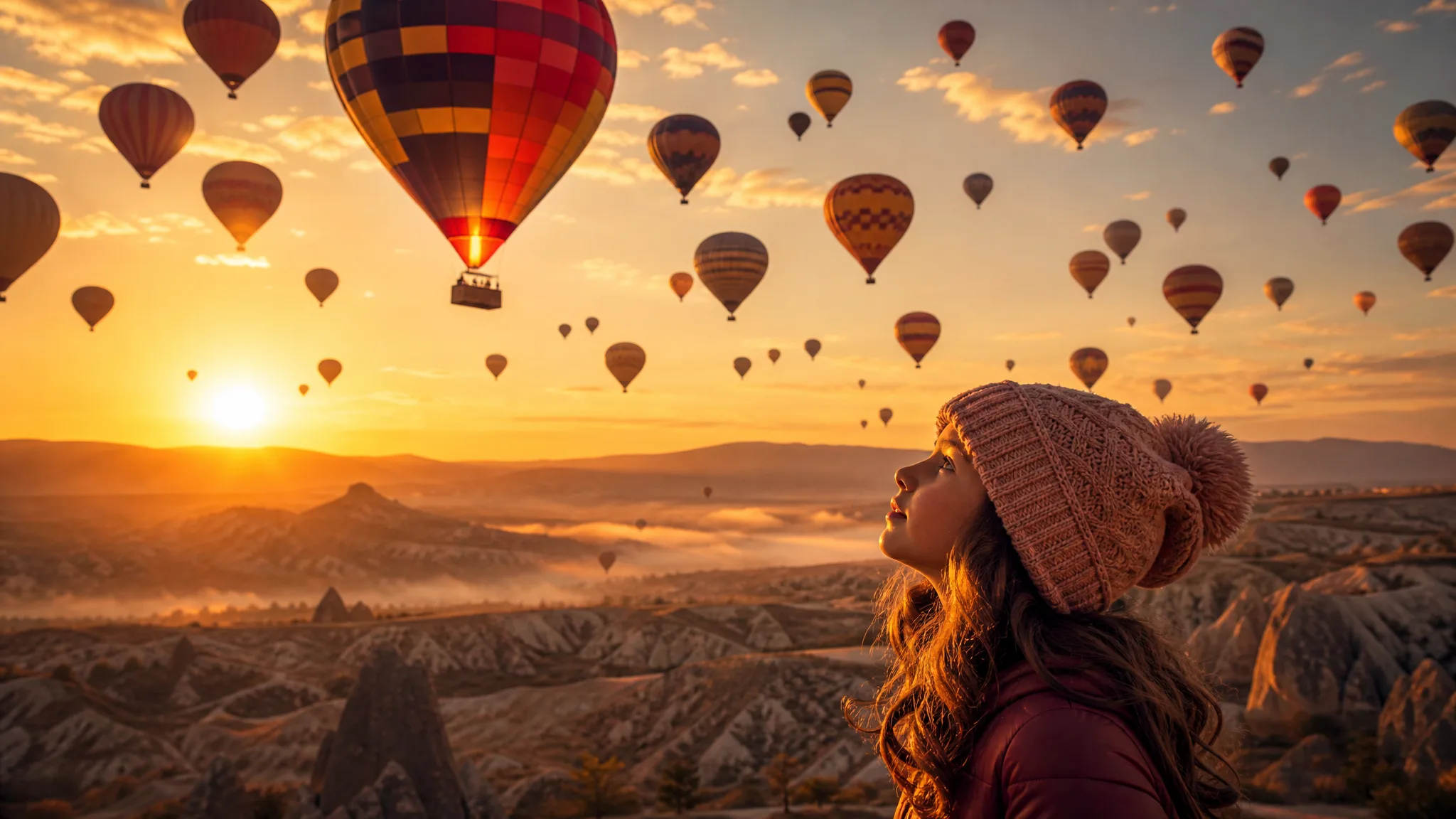
Girl looking up at dozens of hot-air balloons rising over a misty valley at dawn
A clear subject and composition
Portraits with a distinct mood
Illustrated and photographic directions
Visual takes for your project
Qwen Image 3
Prompt
0/5000
Resolution
Image size
Extend prompt
Negative prompt
Seed
Number of generations
Public Visibility
Required credits
13
Examples
Girl looking up at dozens of hot-air balloons rising over a misty valley at dawn

Explore Image Ideas with Qwen Image 3

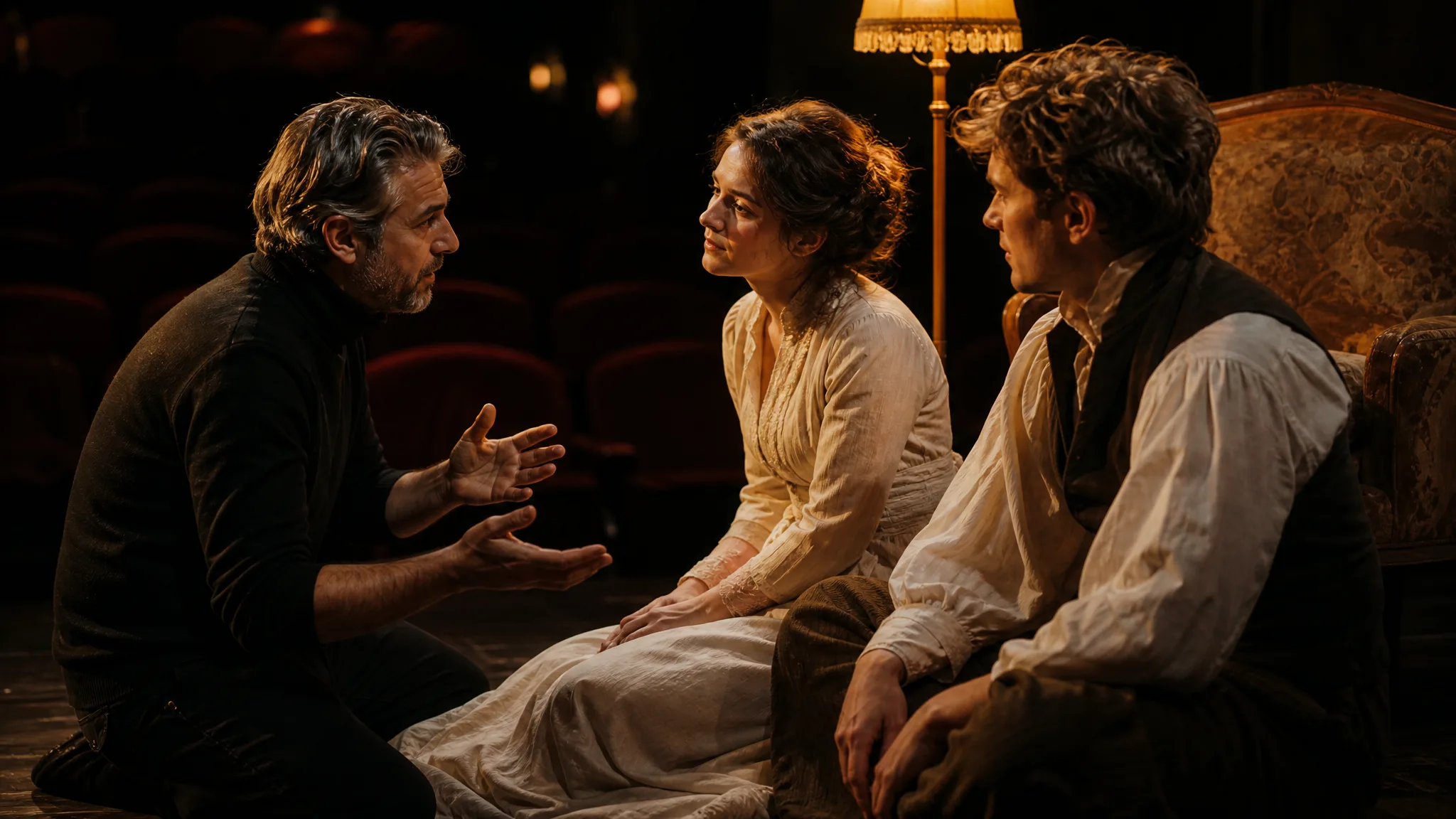
A theatre director placing two costumed actors under a single lamp decides what the audience should notice. Qwen Image 3 asks for the same direction: describe who stands where, how the light falls and what mood the scene carries, then compare takes with that plan.

Generate with Qwen Image 3
Theatre director guiding two costumed actors on a lamp-lit stage

How to Create with Qwen Image 3

Qwen Image 3 can work from words alone or from up to 3 references. Use these four steps to imagine the scene, frame it, compare a take and finish a reviewed image for your design.

1

Describe your image idea

Write the scene for Qwen Image 3 as if describing a single frame of film: subject, action, location and time of day. When you have a sketch or photo that shows the idea, attach it in image-to-image mode as a starting reference.

2

Choose the composition

Select the aspect ratio for the finished piece, such as 3:2 for a slide or 9:16 for a phone screen. Tell Qwen Image 3 where the subject should sit so a later title or caption has its own space.

3

Explore the image

Generate a Qwen Image 3 take and compare it to the scene you wrote. Look at whether the subject is clear, the light matches the time of day and the framing suits the layout, then adjust one phrase if needed.

4

Choose and finish your take

Download the take you want and check faces, hands, edges and background objects at full size. Complete the crop, captions and layout in your design workflow, using the Qwen Image 3 picture as the scene the design is built around.

Best AI Image Tools for Creative Projects

Create a new image from text or edit one you already have with the right image tool.

What Can You Create with Qwen Image 3?

Qwen Image 3 text to image prompts can describe a complete scene, and a reference can steer it. These rows explain scene writing, mood, layout planning and reference-led concepts.

Imagine a complete scene from words

Subject, setting and camera view turn a written idea into a coherent scene brief. Tell Qwen Image 3 the moment you want to capture, such as a man and his terrier paddling a canoe across a misty lake at sunrise, seen from water level, and let each element support that single moment rather than compete with it.
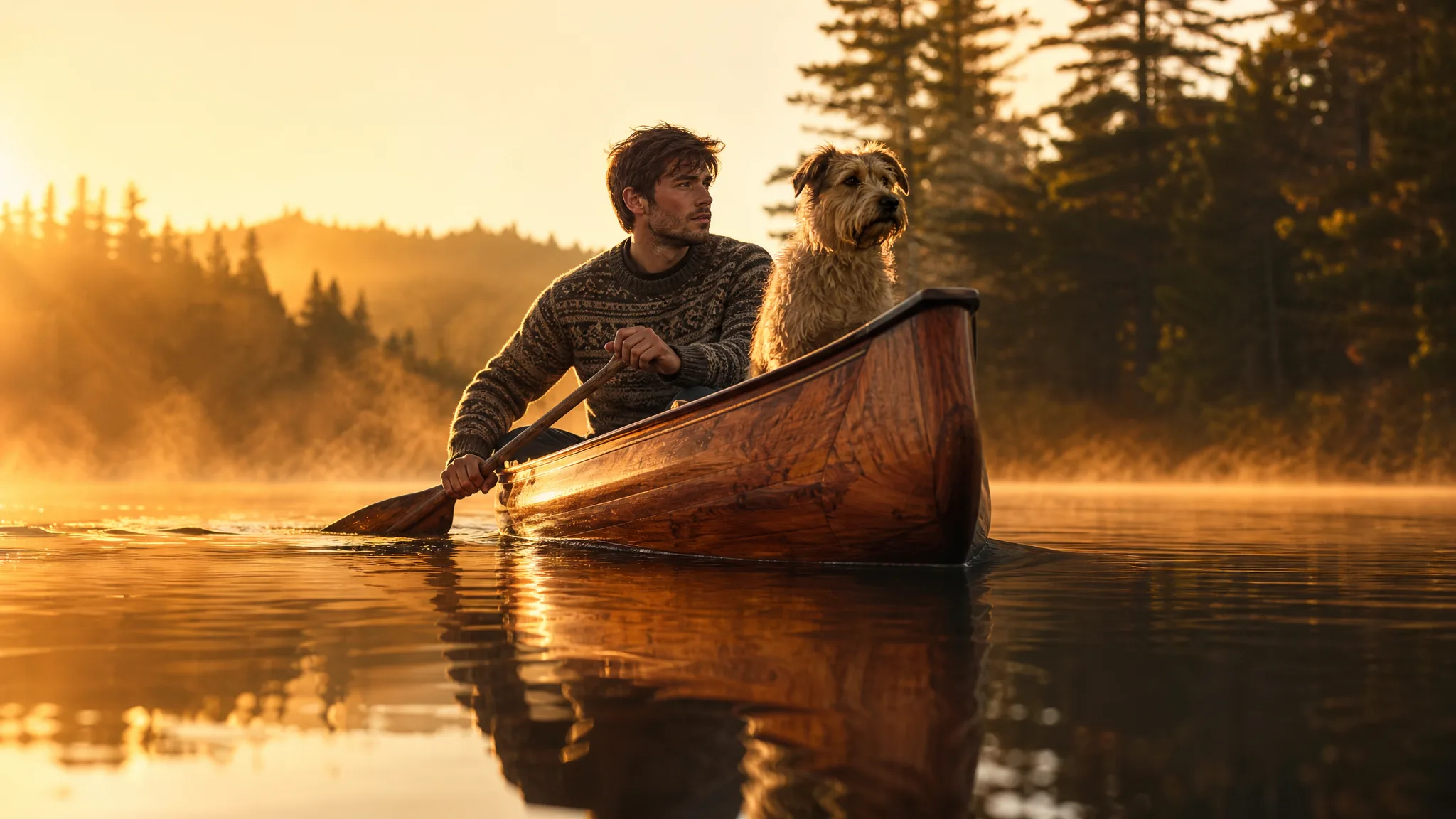
Young man paddling a wooden canoe with his terrier on a misty lake at dawn, seen from water level

Explore a photographic or illustrated mood

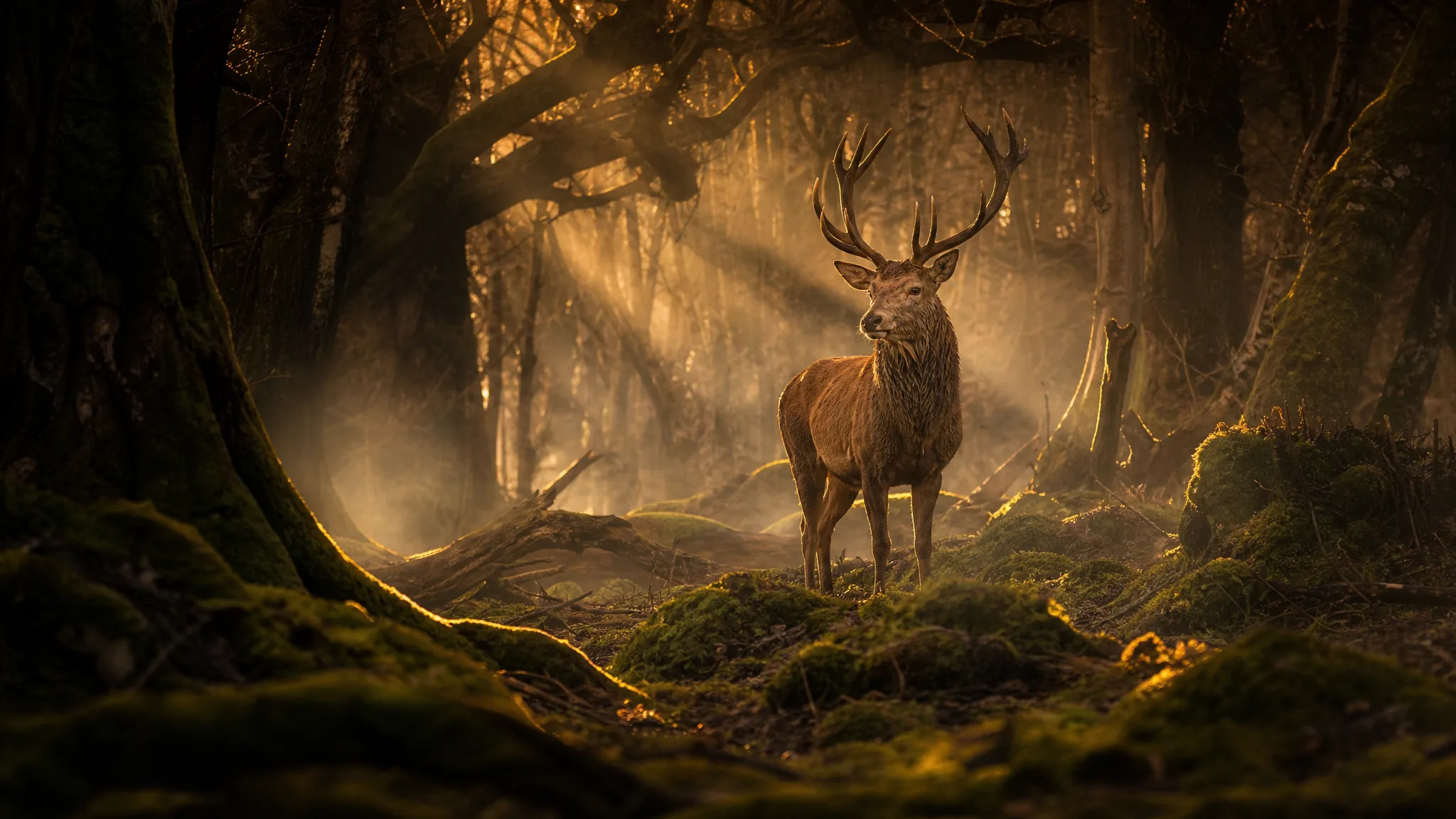
A photographic treatment and an illustrated one express different moods. Name the intended medium and atmosphere in your Qwen Image 3 prompt, perhaps documentary photography or soft pastel illustration, and generate both to compare how the same scene feels before choosing one direction for the project.

Red deer stag in a foggy forest under shafts of golden light

Plan the image for a designed layout

Compose the image for the finished design. A distinct focal point and suitable space around it make a Qwen Image 3 picture easier to develop into a poster, slide or post, so describe where the subject sits and which area stays quiet for text added later.

Tennis player mid-serve on the left of a warmly lit clay court with open space on the right

Develop the concept from a reference

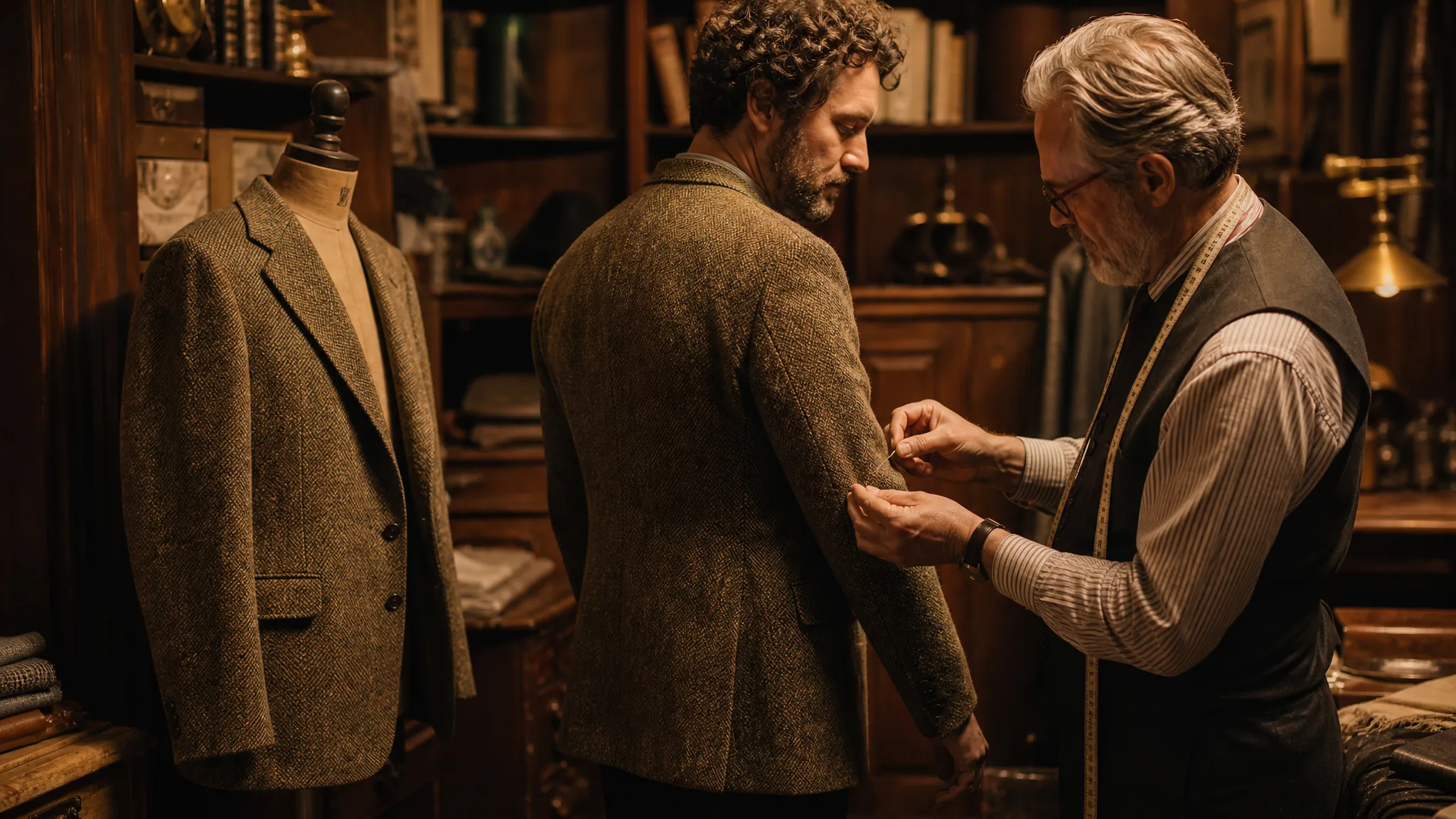
A supported reference helps communicate a visual starting point. Qwen Image 3 image to image accepts up to 3 references; describe what you want to reinterpret, such as the setting or the style, and compare the resulting composition and subject details with that reference before keeping it.

Tailor pinning a tweed jacket on a client beside an older reference jacket on a dress form

Qwen Image 3 Use Cases

Qwen Image 3 helps when a story idea needs a picture before production starts. The six roles below show what each would describe and where the reviewed image ends up.

Product scenes that tell a story

Product designers can imagine a thermos on a frosty campsite table at dawn in Qwen Image 3. The concept shows the product's setting and mood, and the chosen take guides the photographer or 3D artist.

Portraits with a clear visual mood

Portrait artists can explore a character mood, such as a fisherman under grey morning light, with Qwen Image 3. Comparing expressions and framing across takes helps choose a direction before painting or photographing the final portrait.

Illustrations from a written idea

Illustrators can turn a written scene, like a floating market with lanterns reflected on water, into a Qwen Image 3 picture. Naming style and focal point gives the illustration a direction for the hand-drawn version.

Campaign concepts before the final layout

Campaign art directors can create two Qwen Image 3 concepts for one message, one warm lifestyle and one minimal graphic. Room for the headline is planned in both, and final typography is added in the design file.

Storyboard moments for a visual narrative

Storyboard artists can generate the opening frame of a scene with Qwen Image 3, such as a train pulling into an empty station. The concrete image makes it easier to discuss composition and continuity with the crew.

Social visuals with a recognizable direction

Social designers can keep one subject and palette consistent across Qwen Image 3 posts. They explore several compositions, choose crops that fit each post and add final captions in their editor after reviewing every image.

Creative Scenarios with Qwen Image 3 Image Creation

Scenarios for using Qwen Image 3 image creation in real projects, from the photos or ideas you start with to the take you keep.

I'd describe a traveler arriving at a mountain village to the Qwen Image 3 image generator, including the path, weather and camera angle. I'd pick the composition that makes the destination clear and check the figure's proportions, giving our story meeting a concrete opening image instead of a written paragraph.

Story Concept Artist
Creative workflow

Qwen Image 3 Frequently Asked Questions

These Qwen Image 3 answers cover what it is, using photos, writing prompts, shapes, campaign rights and keeping a series consistent.

Qwen Image 3 is an AI image model in the ImgVid image workspace that turns a written scene or a reference into a still. Describe the subject, setting, light and style, then pick the take that conveys your brief and review its details before publishing.

Yes — Qwen Image 3 accepts up to 3 reference images in image-to-image mode. Choose clear references and describe the change you want, or begin with a text prompt instead.

Begin a Qwen Image 3 prompt with the main subject and its action, then the setting, composition, lighting and style. For a product, mention surface and background; for a portrait, the framing and mood. A focused scene is easier to refine than a stack of effects.

Qwen Image 3 requires eligible paid access when the paid-plan gate is enabled, with credits used for every generation. Check the workspace estimate for your selected settings before starting a request.

Qwen Image 3 offers these aspect ratios: 1:1, 3:2, 2:3, 4:3, 3:4, 16:9, 9:16, 21:9. You can choose 1K, 2K resolution, though the model may restrict some pairings. Frame the subject for the crop you need instead of resizing after generation.

Qwen Image 3 images can support a campaign if you control the inputs and check the outputs. Provide only images you have rights to, review for trademarks, likenesses, facts and suitability, and finish crop, typography and brand assets in your design tool. Generation does not give third-party permissions.

Keep a Qwen Image 3 series coherent by pairing a suitable reference image with a brief whose subject, palette and style wording stays the same. Compare each result for continuity, since a shared direction helps exploration but identical subjects or details are not guaranteed.

Qwen Image 3 images are not published automatically, and references you attach stay unpublished. Free accounts and visitors keep Public Visibility on, so a finished Qwen Image 3 story frame may be selected for Explore after review; with a subscription or one-time pack, generations start private.

Bring Your Next Image Idea to Life with Qwen Image 3

Write a scene or attach a reference, choose the frame, and let Qwen Image 3 bring it into view as a still for your poster, slide or post. Review the take, then start your next scene in the workspace.

Create with Qwen Image 3
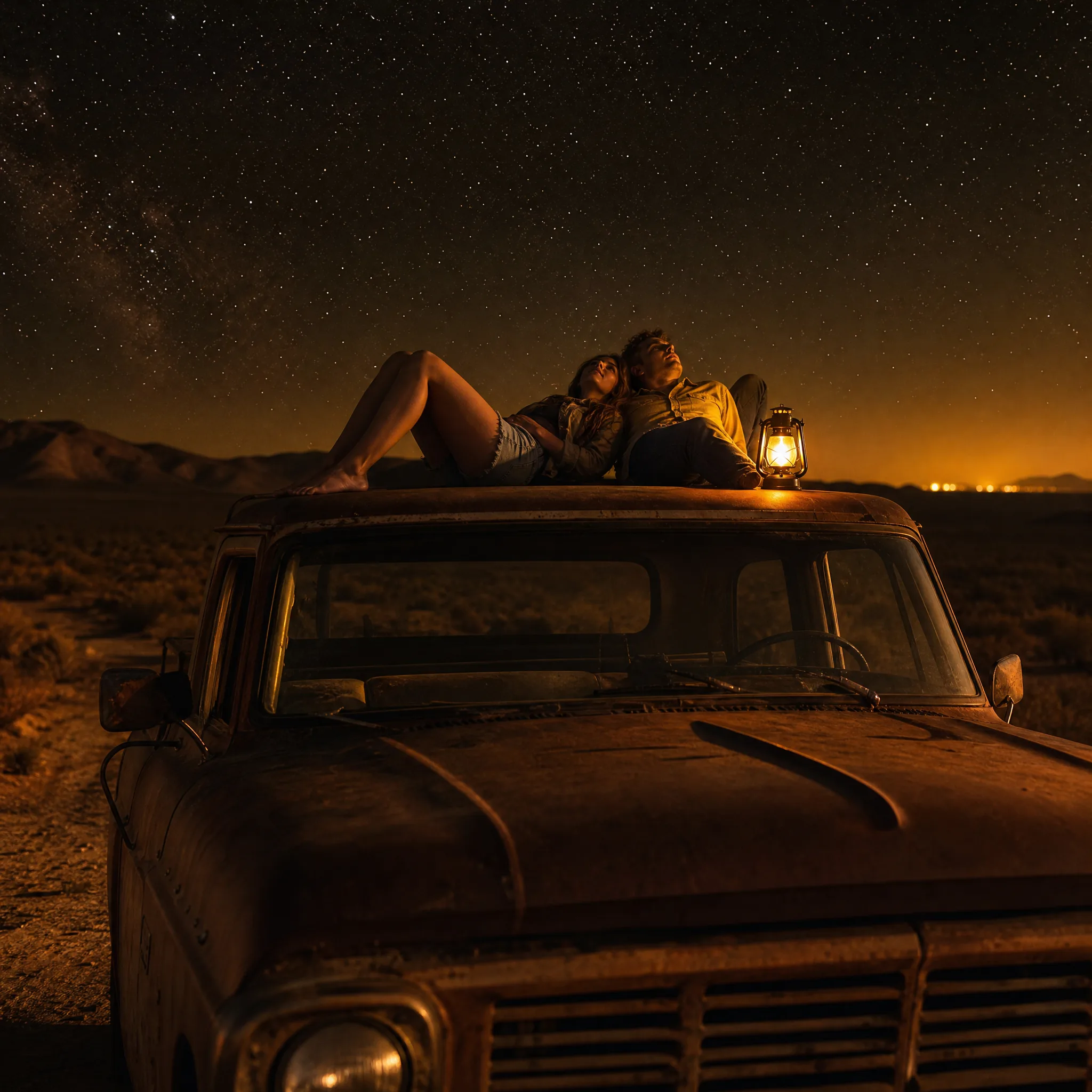
Young couple lying on a pickup roof under a starry desert sky beside a warm lantern