Z-Image Turbo
Prompt
0/1000
Aspect ratio
Number of generations
Public Visibility
Required credits
2
Examples
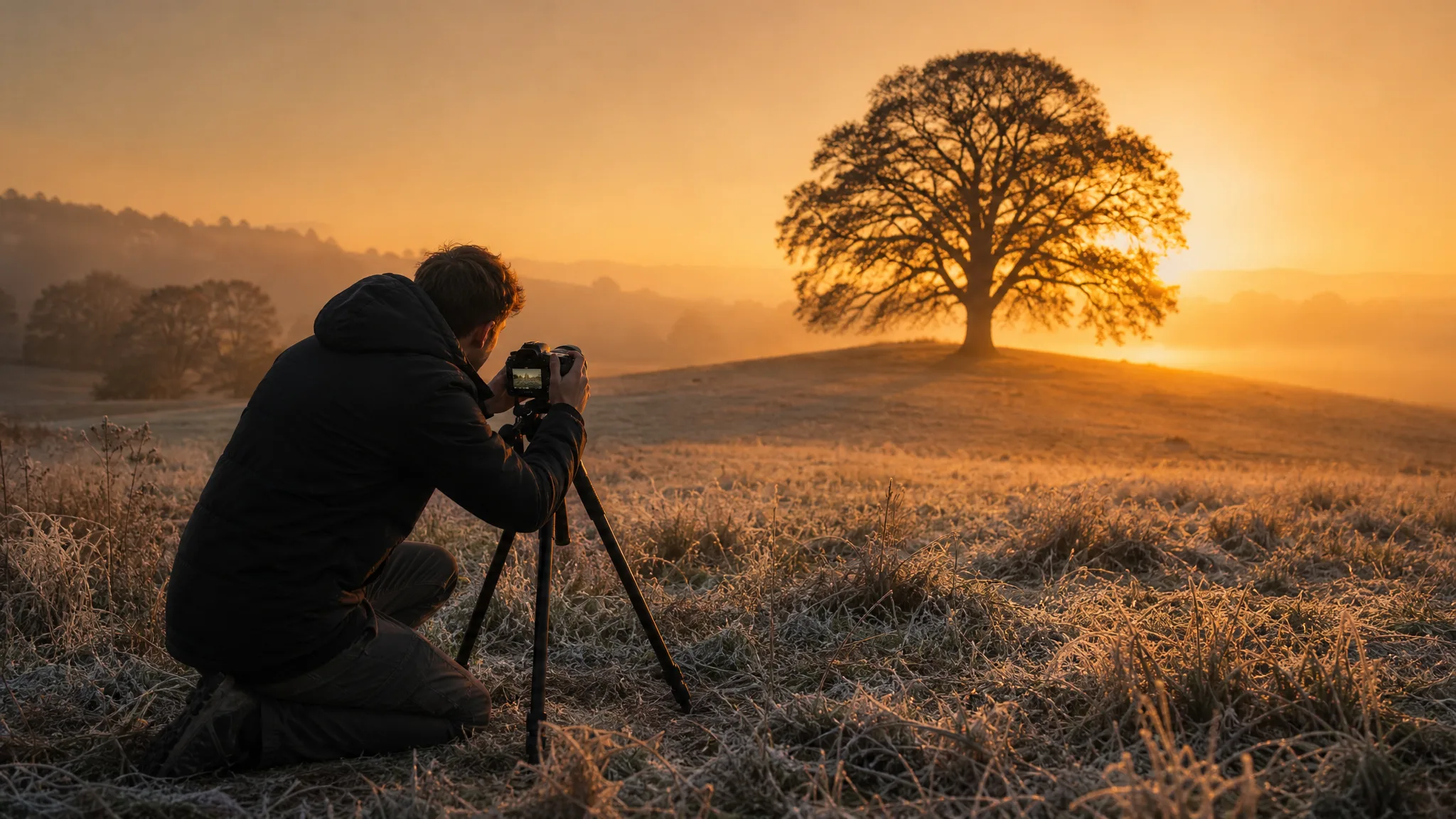
Photographer adjusting a tripod camera toward a lone oak tree in a frosty dawn field

Z-Image Turbo Image Generator

Turn a clear prompt into an image concept

Z-Image Turbo builds an image from words alone, so describe everything a reference would normally show: the subject, its surface, the light and the frame. Compare Z-Image Turbo takes, keep the one that matches your brief and finish the details in your design tool.

Generate with Z-Image Turbo
Photographer adjusting a tripod camera toward a lone oak tree in a frosty dawn field
Product scenes that tell a story|Portraits with a clear visual mood|Illustrations from a written idea|Campaign concepts before the final layout

How to Create with Z-Image Turbo

Z-Image Turbo works from text alone, so the prompt carries the whole brief. These three steps cover writing that prompt, generating and comparing a take, and checking the image before you use it.

1

Describe your image idea

Write a focused Z-Image Turbo prompt: one subject, its setting, the camera view and the mood, in a few clear sentences. This model starts only from words, so describe anything a reference would normally show, such as materials, colors and lighting.

2

Explore the image

Choose an available shape, such as 4:3 for a slide or 9:16 for a phone story, and generate a Z-Image Turbo take. Compare its light, texture and framing with your prompt, and rewrite the one phrase that missed before trying again.

3

Choose and finish your take

Download the take you prefer, then check surfaces, faces, hands and edges at full size. Finish captions, crop and layout in your design tool, and keep the Z-Image Turbo prompt with the file so you can return to the same direction later.

Best AI Image Tools for Creative Projects

Create a new image from text or edit one you already have with the right image tool.

What Can You Create with Z-Image Turbo?

Z-Image Turbo text to image prompts turn a clear brief into an image concept. The four tabs explain how subject, light and texture, composition and separate takes shape what you get.

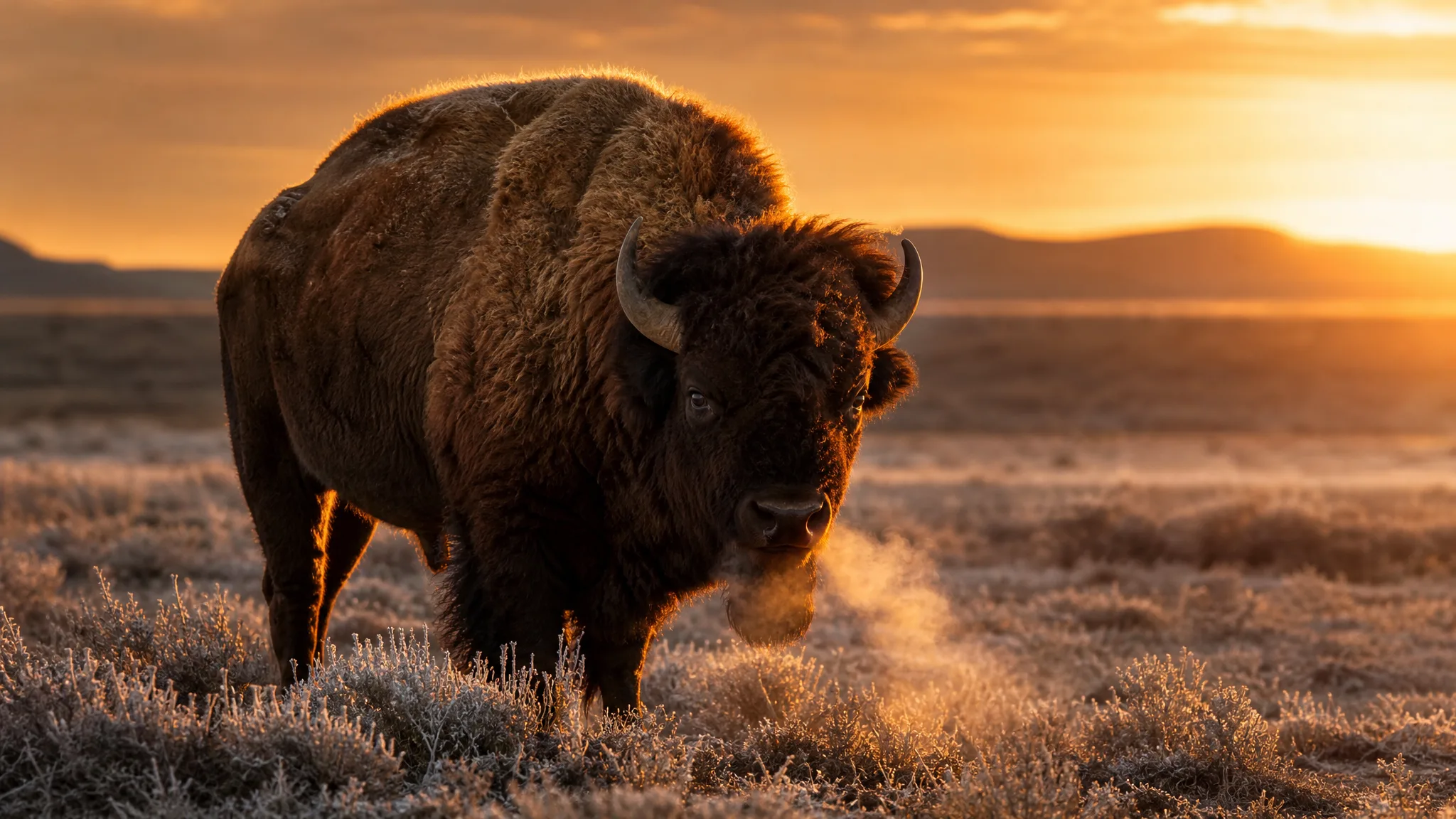
Lone bison steaming in a frosty prairie at sunrise with golden rim light

Start with a focused image prompt

Start from a written brief with one clear subject, such as a lone bison breathing steam on a frosty prairie at sunrise. Add the setting, camera view and visual mood that make the idea understandable. With Z-Image Turbo the prompt is the only input, so each sentence should earn its place.

Develop Your Z-Image Turbo Image Idea

Z-Image Turbo can support product, portrait and illustration ideas from a written prompt. These rows show what to describe for each and what to review before choosing a take.

Product scenes that tell a story

Without a reference photo, a product scene has to be described in words: the object's shape, finish and color, the surface it sits on and the light. Z-Image Turbo builds the concept from that description, so compare the result with the real product before showing it to anyone.
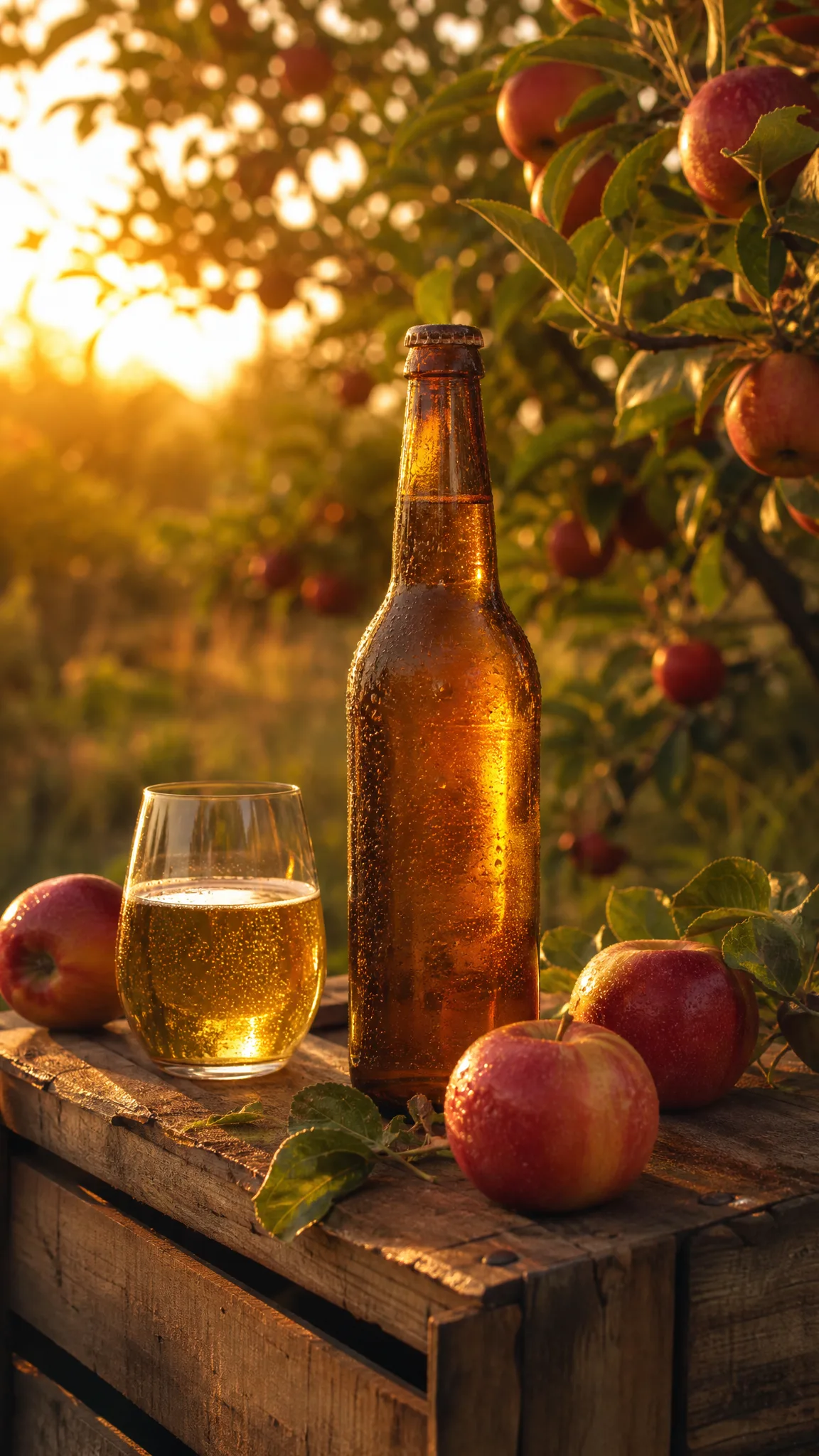
Unlabelled bottle of craft cider on an apple crate in a golden-hour orchard

Portraits with a clear visual mood

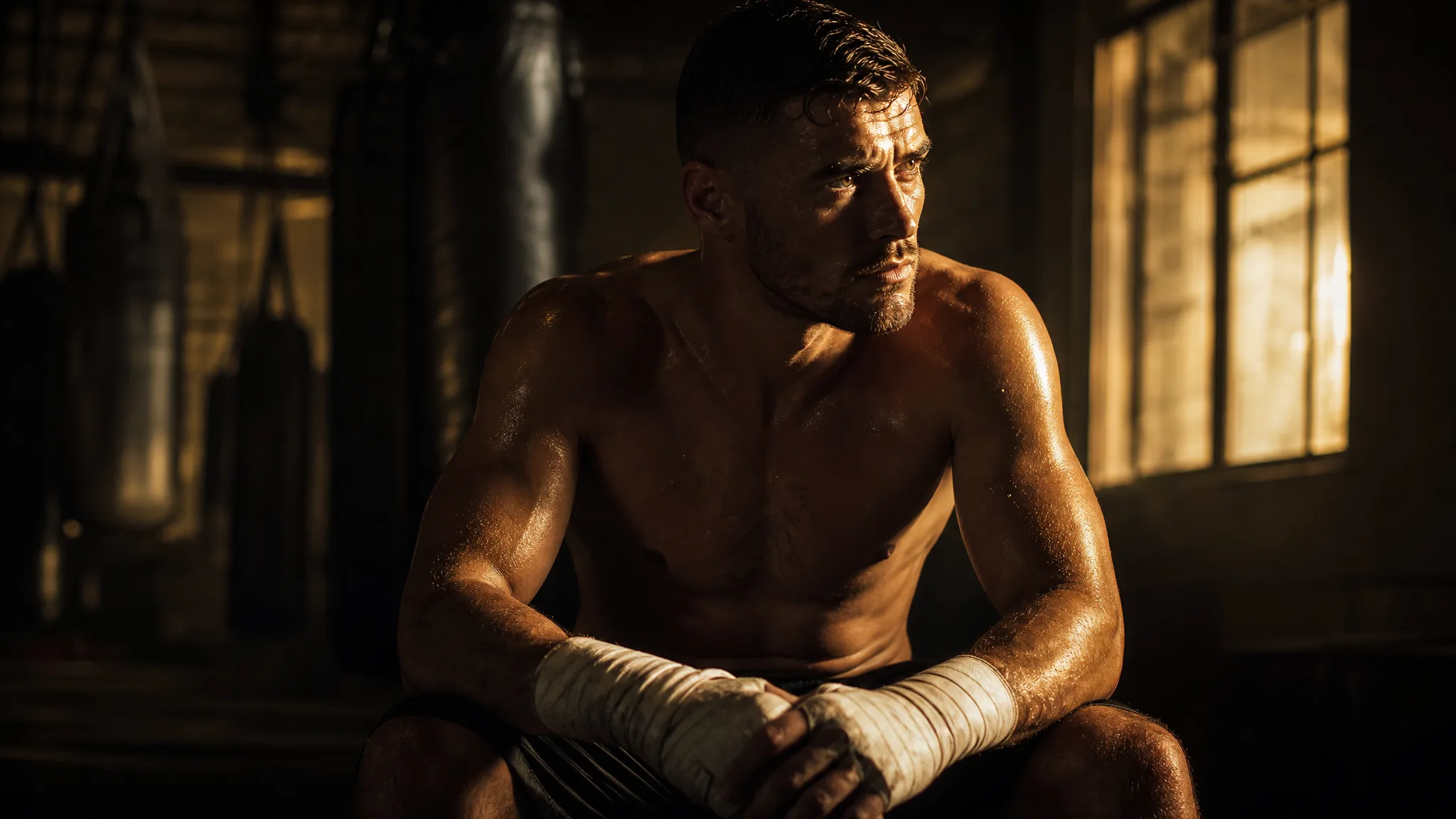
Portrait prompts need light, expression and viewpoint, for example a boxer resting in a dim gym, lit from the side by a warm window. Generate a few Z-Image Turbo takes with different lighting, compare which mood fits the brief and inspect faces and hands before you keep one for the project.

Boxer with taped hands in a dim gym, window light across his determined face

Illustrations from a written idea

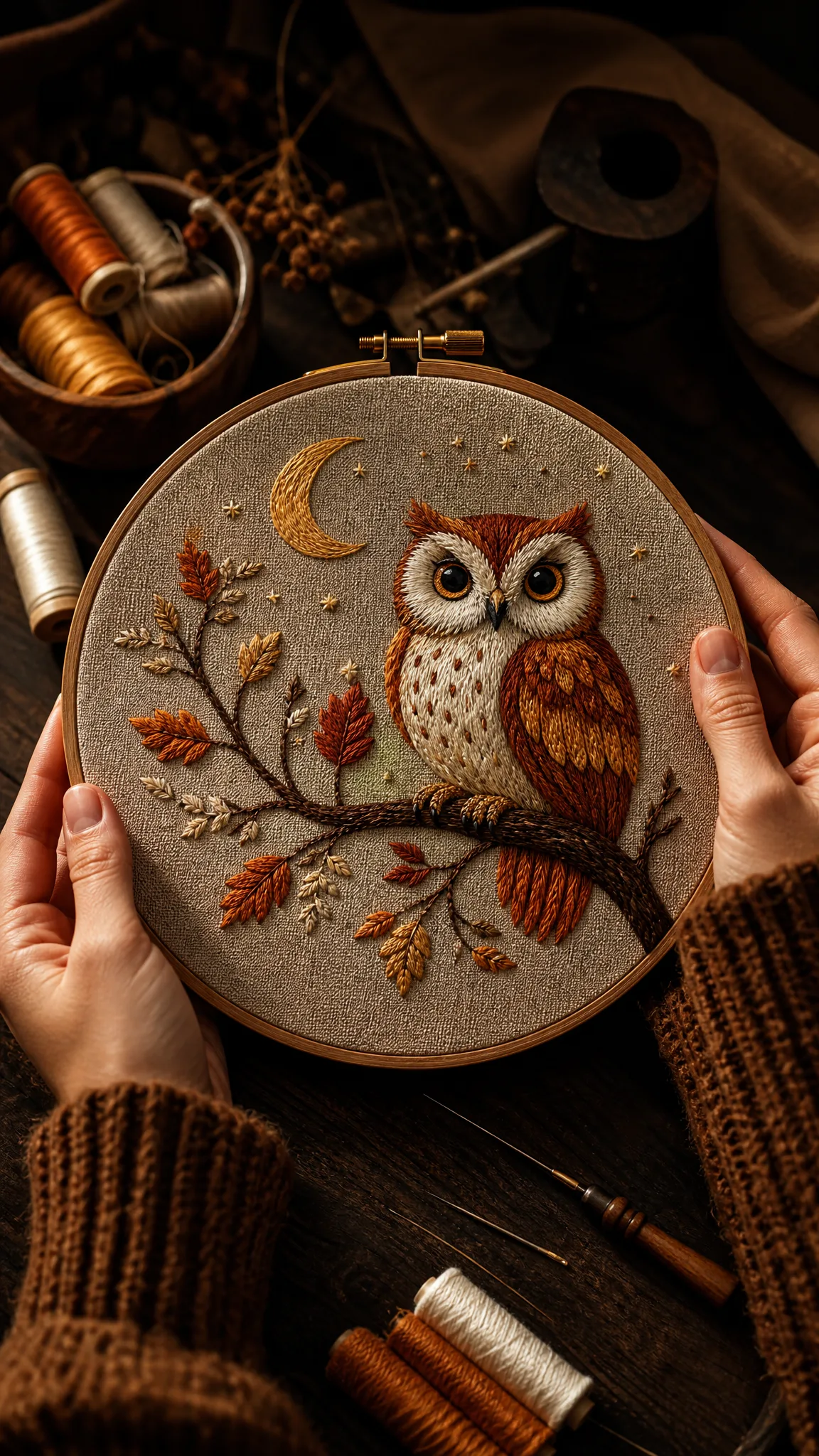
For illustration, name the medium and style up front, such as embroidered thread textures or loose watercolor washes, and keep the palette tied to the central idea. Z-Image Turbo text-only prompts then give each take a consistent visual direction you can compare side by side.

Hands holding an embroidery hoop with a stitched owl on a moonlit branch

Z-Image Turbo Use Cases

Z-Image Turbo fits concept work that starts from a written idea alone. Six roles below show the prompt each would write and how the reviewed take is used afterward.

Product scenes that tell a story

Product marketers can describe a new water bottle on a gym bench under morning light in Z-Image Turbo. The concept helps them decide on the setting and mood before the real product is photographed for the store.

Portraits with a clear visual mood

Portrait concept artists can describe a character, such as a mountain guide with a windburned face, to Z-Image Turbo and compare expressions and framing. Facial details are checked before the image joins the mood board.

Illustrations from a written idea

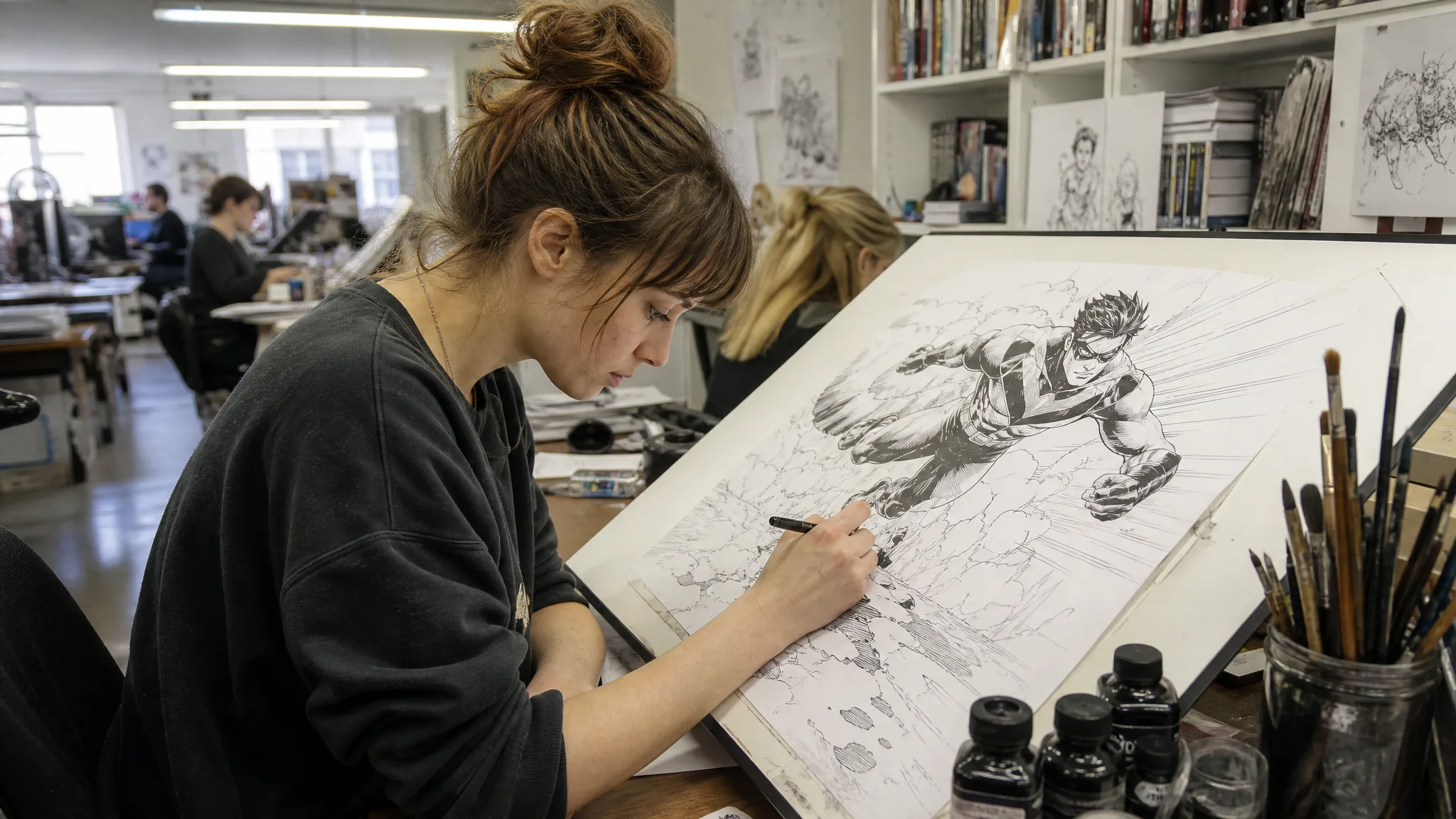
Writers and illustrators can paste a scene description, like a cat napping in a bakery window, into Z-Image Turbo to explore its staging. The chosen take guides the palette and focal point of the final artwork.

Campaign concepts before the final layout

Campaign art directors can write two versions of one concept, warm lifestyle and stark graphic, as Z-Image Turbo prompts. Both keep space for the headline, and final typography and brand assets are set in the design file.

Storyboard moments for a visual narrative

Storyboard artists can turn script lines into Z-Image Turbo frames, such as a door creaking open onto a dark hallway. These stills help the team agree on composition and mood before planning the shot list.

Social visuals with a recognizable direction

Social designers can write a reusable Z-Image Turbo prompt with a fixed subject and palette, then vary only the composition per post. Each take is reviewed separately for detail errors and captioned in the editor before publishing.

Creative Scenarios with Z-Image Turbo Image Creation

Scenarios for using Z-Image Turbo image creation in real projects, from the photos or ideas you start with to the take you keep.

I'd start with a written brief in Z-Image Turbo: a bottle on a stone shelf, soft side light, a plain background. Since it works from text alone, I'd check the bottle's shape and label area against our real product before treating the image as a reference for the campaign layout.

Product Designer
Creative workflow

Z-Image Turbo Frequently Asked Questions

These Z-Image Turbo answers cover the text-only workflow, prompt writing, shapes, campaign rights, series consistency and turning a still toward motion.

Z-Image Turbo is an AI image model in the ImgVid image workspace that creates stills from a written prompt. Describe the subject, setting, light and style, choose the take that carries your brief and review its details before publication.

Z-Image Turbo starts from a written prompt and does not accept reference images in this workspace. If you need to edit an existing photo, open the image-to-image tool and choose a supported model there.

Lead your Z-Image Turbo prompt with the main subject, then add setting, composition, lighting and style. Name the surface and backdrop for products, the framing and mood for portraits. Because words are the only input, a focused brief is easier to refine than scattered effects.

Z-Image Turbo has no paid-plan requirement, but every generation still uses credits. Check the live credit estimate before starting; your available rewards and account balance decide whether the request can run.

Z-Image Turbo supports these aspect ratios: 1:1, 4:3, 3:4, 16:9, 9:16. It does not expose a resolution setting. Compose for the crop you plan to publish.

Z-Image Turbo images can go into a campaign when the output passes your review. Check results for trademarks, likenesses, factual details and suitability, and finish crop, typography and brand assets in your design tool. Generation alone does not provide third-party permissions.

Keep a Z-Image Turbo series coherent by repeating the same subject description, palette and style wording across prompts. Compare each result for continuity, because a shared prompt direction helps exploration but does not guarantee identical subjects or details.

Z-Image Turbo makes still images in this workspace. For movement, take a suitable image to the separate image-to-video tool, choose a compatible video model and describe the action or camera move you have in mind.

Z-Image Turbo images are not published automatically, and the prompt is never shown publicly. Free accounts and visitors keep Public Visibility on, so a finished Z-Image Turbo concept may be selected for Explore after review; accounts with a subscription or one-time pack start private.

Bring Your Next Image Idea to Life with Z-Image Turbo

Write a focused prompt with subject, light and mood, pick a frame, and let Z-Image Turbo turn your words into an image concept you can review and use in your design. Start writing in the workspace.

Create with Z-Image Turbo
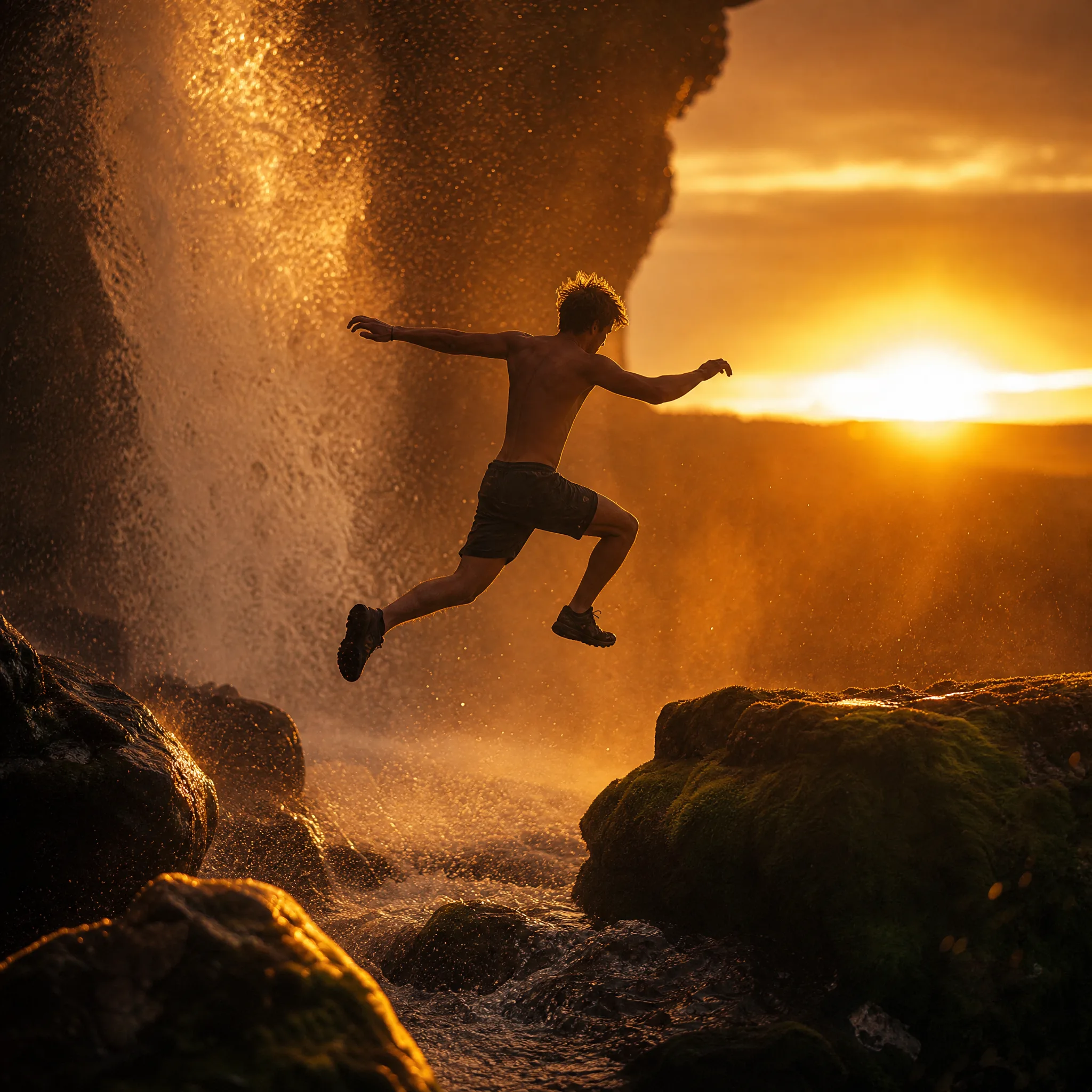
Young man leaping between boulders below a waterfall glowing at sunset