

Grok Image to Video: Give Your Photo Its Next Moment

Give a photograph or AI artwork its next moment

Give a portrait a new expression, bring a product into the light or explore movement around your artwork. Grok image to video starts with your source image and the next action you imagine. Describe that moment and develop a short clip with xAI’s Grok Imagine.

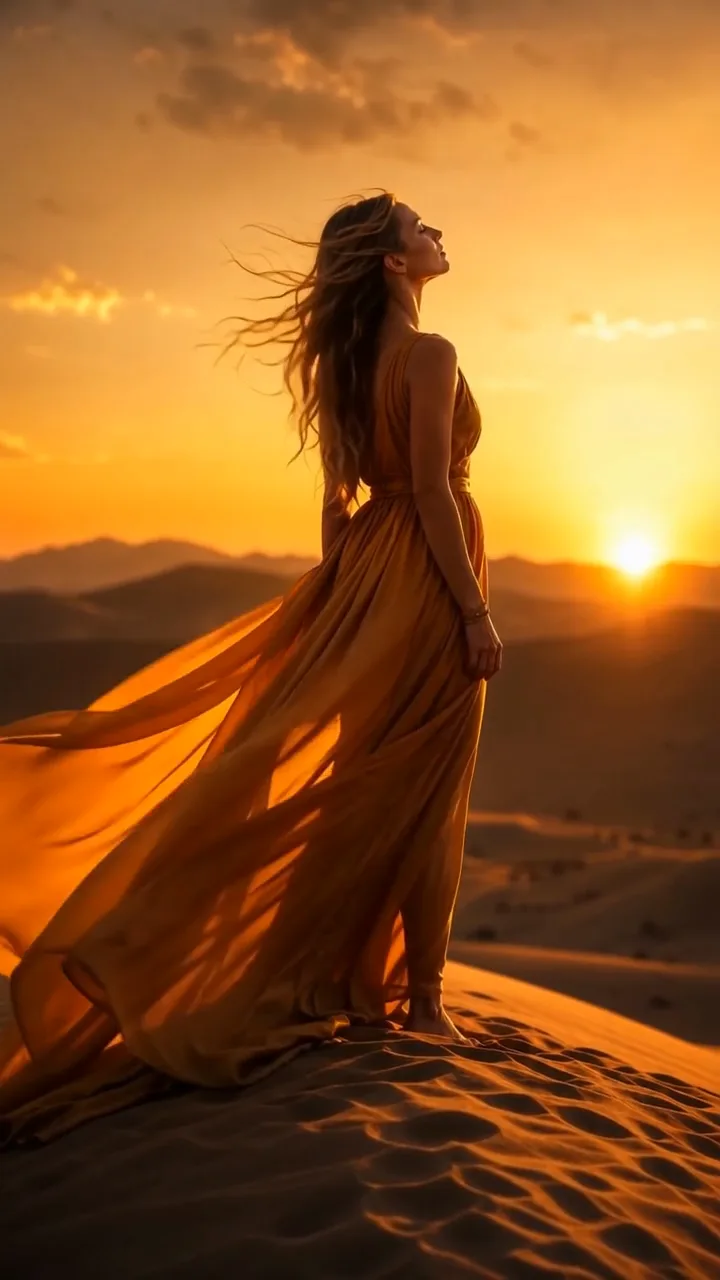
Wind ripples a long amber gown and her hair as a woman on a sand dune lifts her face toward the low sun
Motion for photographs and AI art
Prompt-directed subject actions
Camera and atmosphere ideas
Short clips for social edits
New scenes from an imaginative starting image
Grok
Reference images
Prompt
0/4000
Index
Generation mode
Duration
Resolution
Aspect ratio

With one reference image, the video keeps that image’s shape. The aspect ratio setting applies only to multiple reference images.

Number of outputs
Public Visibility
Required credits
29
Sample videos

Explore Motion Around Your Image with Grok

A finished image can be the beginning of a character moment, a product reveal or an atmospheric scene. Grok image to video turns that starting picture and your direction into a short moving concept. Choose the action that matters and explore how the shot could feel.

Try Grok Image to Video
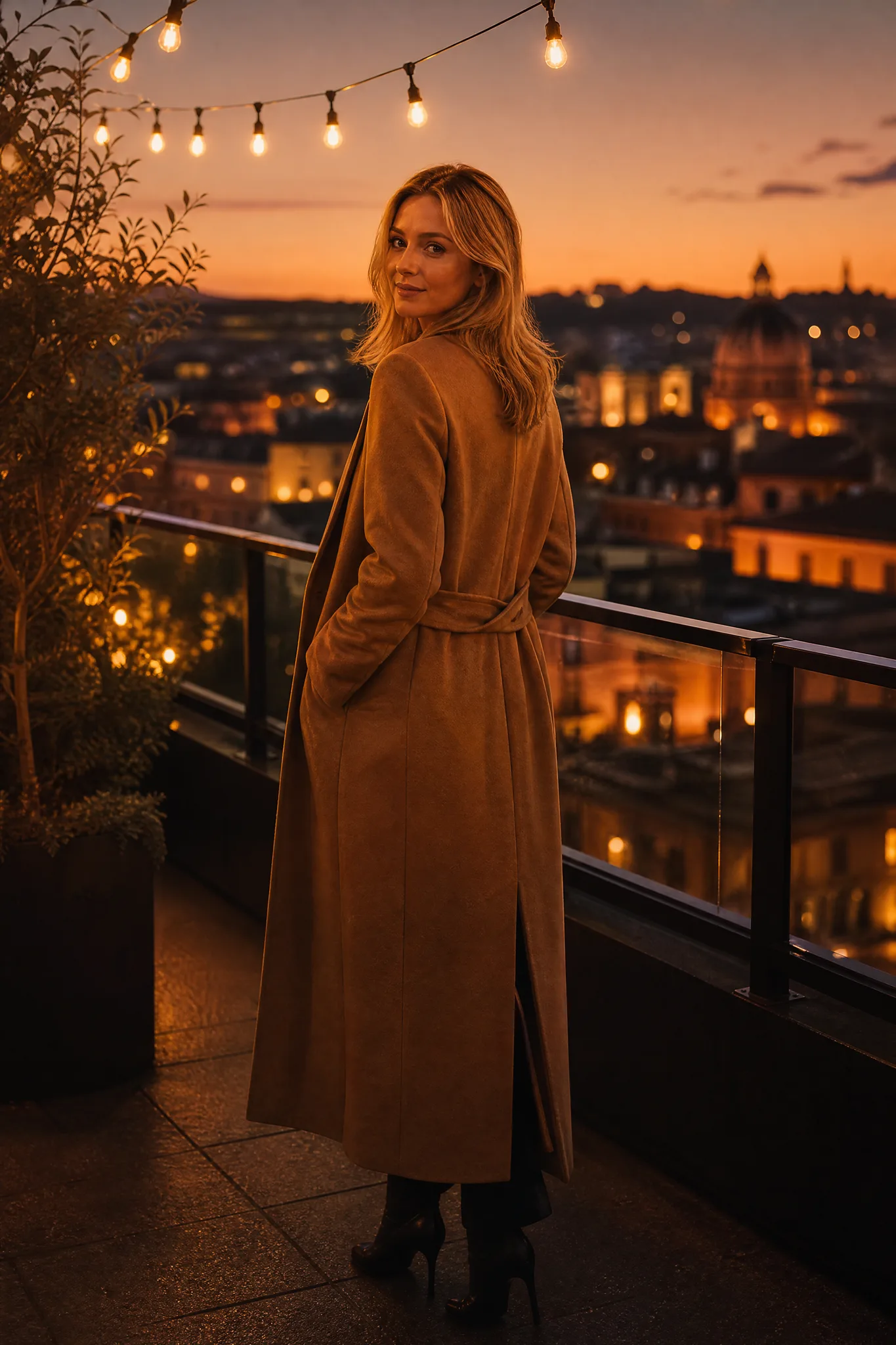
Woman in a long camel coat looking back over her shoulder on a rooftop terrace with string lights at dusk

How to Create a Grok Image to Video Clip

Grok image to video starts with your photo or AI artwork. Describe one visible next action, generate the clip and keep the take that carries the idea.

1

Bring in your photo or AI artwork

Upload a clear image with the subject and setting you want to explore. Grok image to video accepts your own photography as well as artwork from Grok Imagine or another image tool, and whatever you upload becomes the starting frame of the clip.

2

Describe a visible next action

Name the movement that makes the scene interesting: fabric catches the wind, a character looks up, or the camera finds a product detail. Then set the Grok image to video clip to between 6 and 30 seconds, choose 480p, 720p or 1080p, and pick a 2:3, 3:2, 1:1, 16:9 or 9:16 frame.

3

Choose a clip for your visual story

Generate the clip, follow its job status and preview the full result to decide whether the movement supports the idea. Grok image to video has no audio setting here, so listen to the take as delivered, download the one you prefer and finish titles, sequencing and sound in your editor.

Bring Your Grok Video Idea into Focus

Grok image to video extends a photograph or AI artwork into one visible action for your next creative project.

Take your AI artwork into motion

Upload a finished image, whether it came from Grok Imagine, another image tool or your camera. Describe a simple action that belongs in that scene, such as a gown moving in desert wind or a character turning toward the light. Grok image to video then gives artwork that only existed as a still a few seconds of life you can share or build on.
Build the hook around one visible action

A small reveal can give a short clip its purpose: a close-up finding a face, a product turning toward the viewer or clouds parting over a summit. Put that action at the center of your Grok image to video prompt, and keep the rest of the scene calm so the viewer’s eye goes straight to the moment that matters.

Choose a take for your social story

Watch the full preview and choose the movement that fits your idea, paying attention to the last second as well as the first. Download that Grok image to video clip as material for a Reel, a story or a visual introduction, then add captions, music and final timing in your editor.

Find the take that fits the story

Keep the source image and adjust one detail in the motion prompt: a slower reveal, a closer camera or a quieter action. Comparing separate Grok takes side by side helps you choose which moment belongs in the edit, and because only one instruction changed, you can tell exactly what made the better version work.

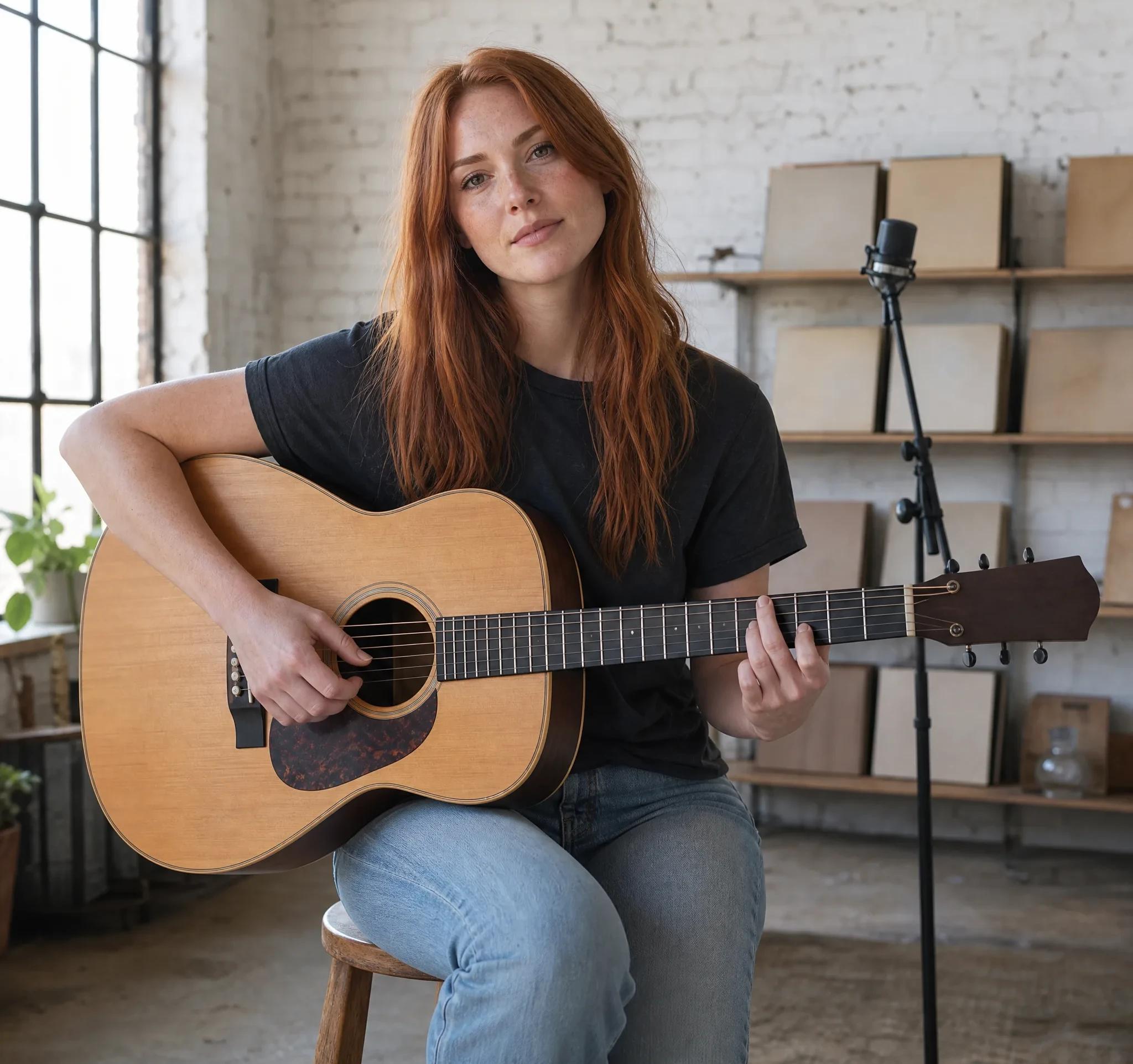
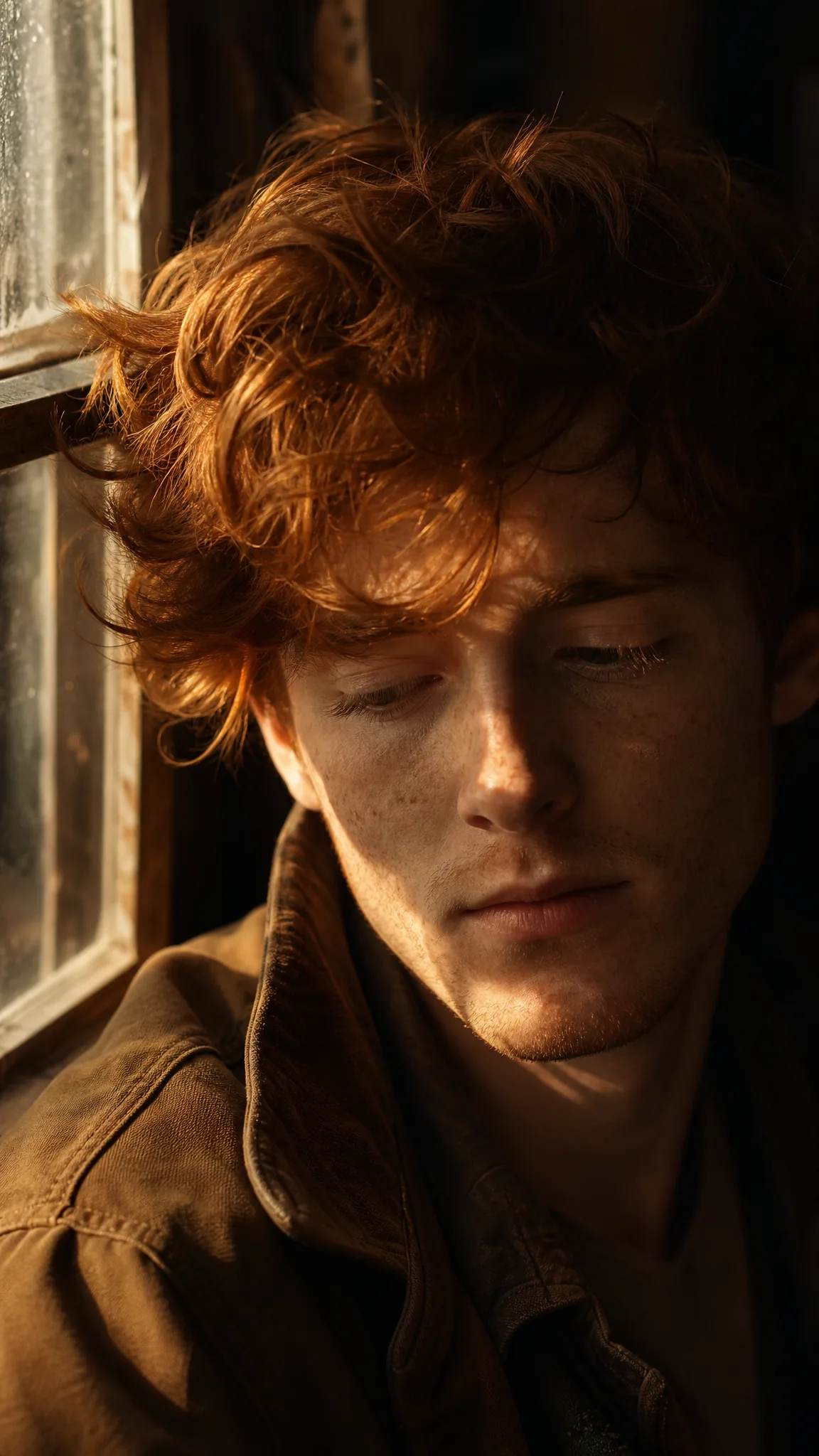
Close-up of a young man with freckles and tousled red hair in soft window light, eyes lowered

Grok Image to Video Ideas for Creators

Grok image to video gives AI artists, photographers and social creators a short moving moment built from an image they already made.

AI-art story moments

An AI artist can upload a finished image from Grok Imagine or another image tool and describe what happens next. Grok image to video turns it into a motion idea around a character or setting that already exists in the artwork, ready for an art account or a story thread.

Photo-led social openings

A social creator can build a short opening around a reveal, a glance or a laugh in a café photo with Grok image to video. Complete the Reel or TikTok with titles, timing and other footage in a mobile editor so the hook leads into the full story.

Product detail concepts

A campaign designer can explore a camera approach around a product photograph using Grok image to video. The selected take gives a client pitch or a launch edit a concrete visual starting point, with labels and logos checked before it is shared.

Character portfolio pieces

An illustrator can describe a restrained action around a finished character design, such as a blink or a cape lifting. Display the moving study alongside the source image on a portfolio page or an art community post to show the imagined scene.

Travel atmosphere

A travel photographer can explore motion in clouds, water or light around a scenic still with Grok image to video. The clip introduces the mood of a location at the top of a travel story, a blog header or a destination guide.

Personal visual messages

A hobbyist can animate a meaningful photograph around one clear action, like a pet turning its head or a friend raising a glass. Add a personal caption or combine the Grok image to video take with other clips to finish a birthday or farewell message.

Creative Scenarios with Grok Image to Video

Scenarios for using Grok image to video in real projects, from the photos or ideas you start with to the take you keep.

After creating an image concept, I'd want to know how its next moment could look. I'd use Grok image to video for the motion step, describing a small action like a kite lifting off the hill. I'd check the subject's shape in every frame before using the take beyond a static post.

Subject Scene Planner
Creative workflow

Grok Image to Video FAQ

Find answers about Grok image to video, scene direction and generated sound. Learn how to compare the resulting shot with the picture and story you started with.

Grok image to video animates an existing photograph or artwork from a motion prompt. This page opens the configured Grok Imagine video model on ImgVid, an independent service with its own creative workspace.

No — no single model, including the one behind Grok image to video, is best for every subject or creative task. Use a clear image and focused action, then compare the completed take with the scene you intended. Other configured engines can give the same idea a different interpretation.

Grok image to video on ImgVid creates Grok Imagine clips from 6 to 30 seconds at 480p, 720p or 1080p, framed as 2:3, 3:2, 1:1, 16:9 or 9:16. Choose the settings for your project before creating a take, and do not assume options from another Grok service apply here.

Not on request — ImgVid’s Grok Imagine workflow has no audio or voice setting. According to KIE’s Grok Imagine model page, xAI describes the model as producing native audio, but that is a vendor description, not a guarantee of sound in every Grok image to video take. Handle the soundtrack or recorded voice in your final edit.

No — Grok image to video on ImgVid requires eligible paid access and credits. A Grok or X Premium subscription is not required and does not pay for ImgVid generations. You start in your browser with a source image and a short description of the next action, and eligible paid generations export without an ImgVid watermark.

Compare the source interpretation, subject action and camera movement for your particular shot. Look at important details throughout the clip, not just the opening frame. Choose the take that serves the story and finish captions, music and timing separately.

A Grok image to video clip can support commercial work when you have rights to the source photo. You also need permission for any people, artwork or brands in it. Review the take, the model’s applicable terms and each platform’s rules; generation grants no third-party rights.

Photos uploaded for Grok image to video stay unpublished. Free accounts and visitors keep Public Visibility on, so a finished Grok Imagine clip may be selected for Explore after review; accounts with a subscription or one-time pack start private.

Give Your Image a Grok Motion Idea

Upload a photograph or piece of AI art, describe the action that makes the scene interesting, and Grok image to video creates a short Grok Imagine clip from it. Check the movement, add sound in your editor and use the take to start your next visual story.

Create with Grok
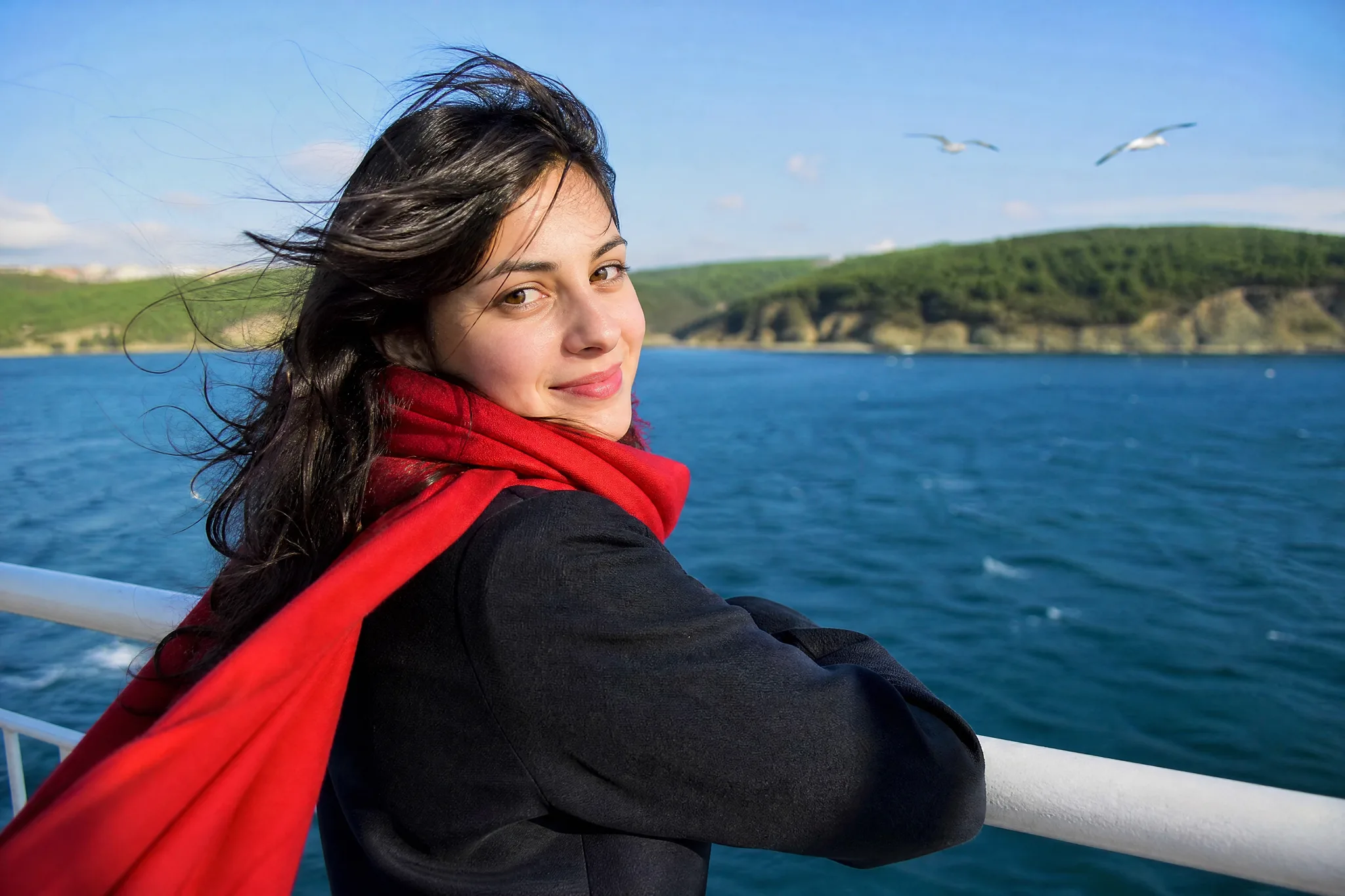
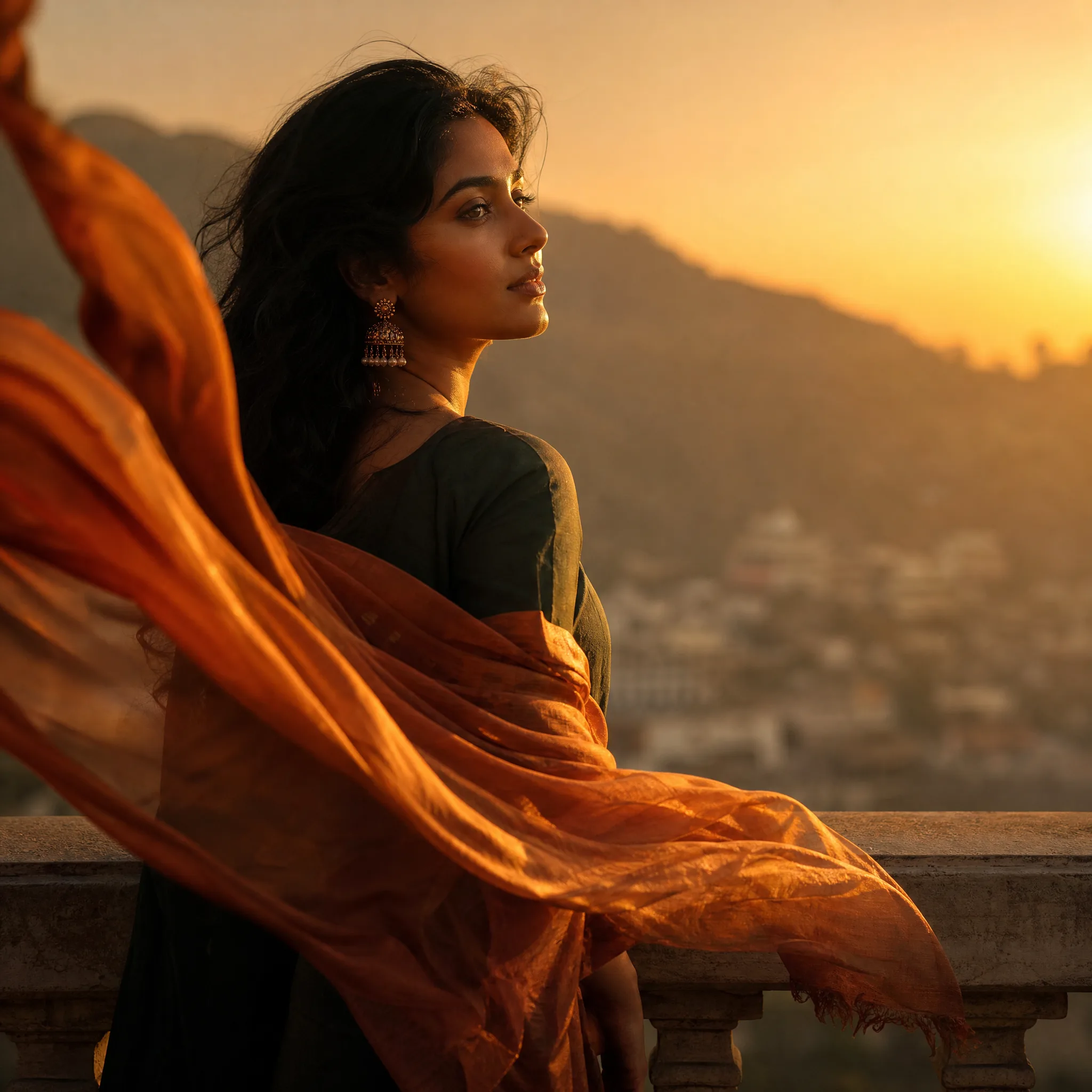
Woman at a stone balustrade at sunset as a long burnt-orange silk scarf ripples in the wind