


Runway AI Image to Video with Gen-4 Turbo

Explore a shot before building the final sequence

Runway AI image to video on ImgVid turns a still composition into a shot you can build a story around. With Runway Gen-4 Turbo, use your image to establish the subject and a motion prompt to direct the action, camera and mood of a short clip.

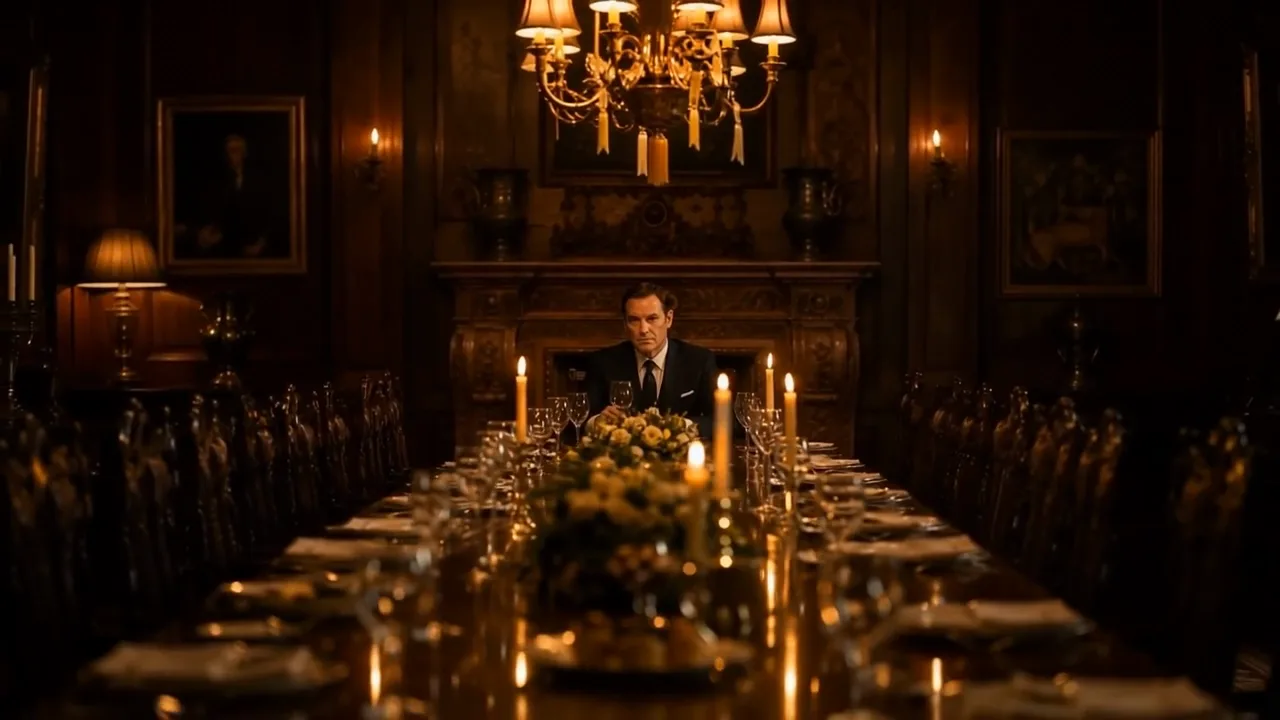
Camera pulling back along a long candlelit table to reveal the panelled dining room around a man seated alone
Storyboard shots from concept images
Product reveal ideas
Motion for artwork and portfolios
Photo-led social clips
A new story beat from your starting frame
Runway
Reference image
Prompt
0/1800
Duration
Quality
Number of outputs
Public Visibility
Required credits
24
Sample videos

Develop Your Photo into a Runway Scene

A storyboard image or photograph gives the shot a visual starting point. Runway image to video lets you explore a subject action, a camera move or a change in atmosphere. Compare the take with your creative brief and develop the scene that belongs in your sequence.

Try Runway Image to Video
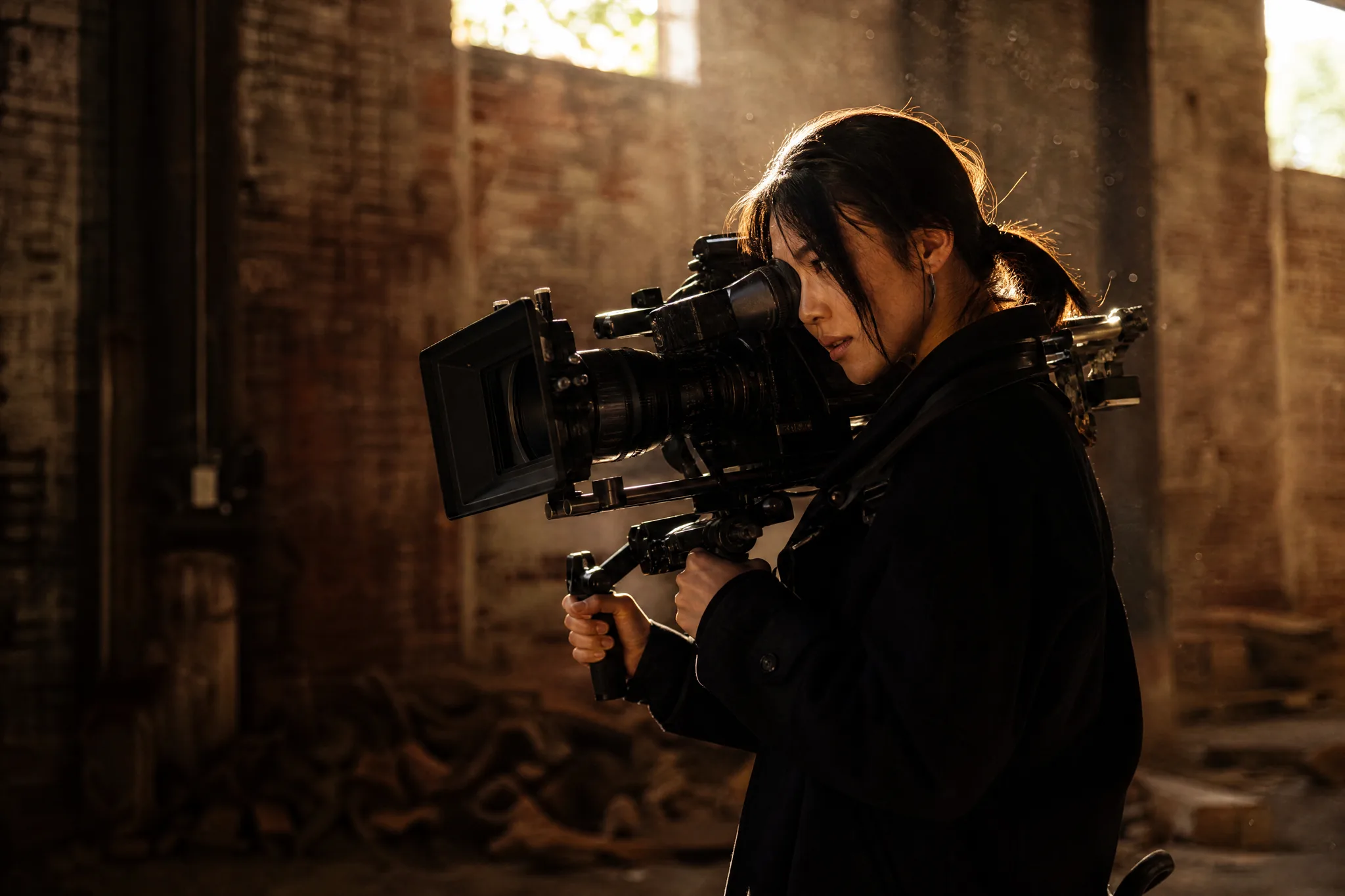
Camera operator framing a shot with a shoulder-rig cinema camera in a dusty brick warehouse lit by sunlight

How Runway AI Image to Video Works

Runway AI image to video turns one composition into a shot. Choose the image, describe the movement for Gen-4 Turbo and keep the take that suits your sequence.

1

Choose the composition to explore

Upload a JPG, PNG or WebP photograph, character artwork or scene reference for your shot. Runway AI image to video keeps the framing of your upload, so crop to the final composition first; a readable subject gives Runway Gen-4 Turbo a useful place to begin.

2

Describe the movement in the shot

Write the subject action and camera path you want to explore. A slow approach to a face or a measured reveal of a room gives the motion idea a clear purpose. Then set Runway AI image to video to 5 or 10 seconds at 720p, or 5 seconds at 1080p.

3

Use the take that fits the sequence

Generate your shot when the image, motion brief and settings are ready, then follow its job status. Watch the completed preview and compare its pacing, subject details and camera movement with your brief. Download the chosen clip for a storyboard, pitch or finished edit.

Develop Your Next Shot with Runway

Use Runway AI image to video to explore a character action, camera direction or insert shot before developing the rest of the sequence.

Test the camera idea before a shoot

Upload a composition and describe one camera path, such as moving closer to a detail or revealing the room around a subject. A short Runway AI image to video take gives you a moving concept to discuss in a storyboard review or pitch meeting, so the crew can agree on lenses, blocking and pacing before anyone sets up a shot.
Give a character a moment on screen

Choose a portrait or character illustration with a readable pose and an unobstructed face. Describe a small action and the mood of the scene, then let Runway AI image to video develop the beat. Compare the face, hands and framing with the source before selecting the take, since small drifts are easiest to spot side by side.

Make a still asset useful in a video edit

Turn a product image, artwork or landscape into a short insert of five or ten seconds. Download the selected shot and combine it with your existing footage, text and sound in your editor. A still asset that previously had no place in a video timeline becomes a cutaway, an opener or a transition between scenes.

Explore Your Runway Shot Direction

Runway AI image to video develops a shot around the movement that matters: a subject’s action, a camera approach or a change in the setting. Give the still image a clear next moment.

Give your storyboard subject one clear action

A moment the viewer can read

Use your storyboard image to establish the opening frame for Runway Gen-4 Turbo. Describe a single purposeful action, such as a character looking up or an object moving into view, and Runway AI image to video develops that still into a shot. A single action keeps the take easy to compare with the panel it came from.

Runway Shots for Storyboards and Social Edits

Runway AI image to video helps when a storyboard, pitch or social edit has the still but not yet the moving shot.

Storyboard camera studies

A filmmaker can use Runway AI image to video on a scene reference to explore a push-in or lateral camera move. The short shot gives a storyboard discussion a visible motion idea, which helps the director and the camera team agree on coverage before the shoot day.

Character entrances

A character artist can begin with a readable pose and describe a small action, such as stepping forward or raising a hand. Runway AI image to video turns the pose into a short entrance that serves as a concept for an introduction, a comic trailer or a game pitch.

Product detail inserts

A campaign designer can explore a restrained reveal around a packshot with Runway AI image to video, such as light moving across a bottle or the camera easing toward a logo. Finish the selected insert with campaign text, pricing and timing in the final edit.

Location mood studies

A location scout or photographer can animate environmental details in a landscape or interior image, like drifting dust or moving foliage. The short clip communicates how a place feels in a creative pitch or a scouting report, where a still alone reads as static.

Artwork portfolio motion

An illustrator can describe movement that supports a finished image and run it through Runway AI image to video. Place the selected clip beside the still artwork on a portfolio site or Behance page to show another dimension of the composition.

Short-form opening shots

A creator can build the first seconds of a Reel or TikTok around one visible action in a source photo. Runway AI image to video supplies the opening shot; crop the photo to vertical before upload, then add captions and the rest of the edit.

Creative Scenarios with Runway AI Image to Video

How a storyboard planner, product editor or illustrator might use Runway AI image to video to test a camera move, a portrait beat or an insert shot.

A storyboard frame can show the composition but leave the camera move unclear. I'd test that move with Runway AI image to video, which opens Gen-4 Turbo here, and check whether the subject stays readable. The short take would give the team something to discuss before planning the finished sequence.

Storyboard Shot Planner
Creative workflow

Runway Image to Video FAQ

Answers about how Runway AI image to video starts from a photograph, how to guide a shot and what to consider when the clip is part of a larger creative project.

Runway AI image to video creates a short shot from a source image and a motion prompt. This page uses Runway Gen-4 Turbo to create photo-led storyboards, product concepts, artwork and social clips.

No — ImgVid is an independent service, not Runway’s official app or website. It offers a Runway AI video generator workflow with the Gen-4 Turbo model through ImgVid’s own workspace and account, so Runway subscriptions do not apply here.

Runway AI image to video on this page uses Runway Gen-4 Turbo. Runway versions covered in Runway’s own website and tutorials, such as Gen-4.5, are not offered in the ImgVid workspace, so controls described for those versions may not appear here. Plan your shot with the settings shown for Gen-4 Turbo.

Upload your source image, keep Runway Gen-4 Turbo selected and describe the subject action and camera direction for Runway AI image to video. Generate a take, preview it and download the clip you want to use. To develop another direction, revise the prompt and make a separate take.

Partly — Runway Gen-4 Turbo is one of ImgVid’s free-tier models, limited to 720p clips of up to five seconds, and each generation still uses credits from your balance. 1080p, 10-second clips and premium models need a subscription or credit pack, and the exact credit quote appears before you generate.

Free generations include an ImgVid watermark; eligible paid generations export without it. Check your plan before you export a Runway AI image to video clip for a client or a public channel.

Clear, high-resolution images give the AI more detail to animate, but portraits, products, landscapes, sketches, and artwork all work. A simple, well-lit subject with a clear focal point usually gives Runway AI image to video the most convincing motion. Very dark, heavily blurred or crowded photos give the model less to work with, so the movement can look uncertain.

For Runway AI image to video, Gen-4 Turbo on ImgVid creates clips of 5 or 10 seconds at 720p, or 5 seconds at 1080p. Text-to-video lets you choose 16:9, 4:3, 1:1, 3:4 or 9:16 framing; image-to-video has no aspect ratio control, so crop the photo to the frame you want before uploading. You can upload JPG, PNG or WebP images.

Processing time varies with the model, settings and provider queue. Review the finished result before downloading. Revise the motion brief if you want another interpretation.

Yes — the Runway AI video generator workspace runs in the browser on desktop and mobile. Use a clear source image and a focused motion prompt, then review the take before downloading it for your project.

Under ImgVid’s Terms of Service, you own the videos you generate from your uploads, subject to the rights in any source material you did not create. Before using a Runway Gen-4 Turbo clip in a campaign or client project, confirm you have rights to the photo, any people or brands in it, and the publishing rules of the platform.

Your photograph is passed to the selected generation service and is not published. Free accounts and visitors keep Public Visibility on, so a finished Runway AI image to video clip may be selected for Explore after review; with a subscription or one-time pack, generations start private. Read the privacy policy before submitting sensitive images.

Start a Runway Gen-4 Turbo Shot from Your Photo

Upload a composition you want to explore, describe a camera direction, character action or atmospheric insert, and Runway AI image to video develops a 5- or 10-second Gen-4 Turbo shot from it. Review the take against your storyboard, then build the rest of the sequence around it.

Create a Runway Shot
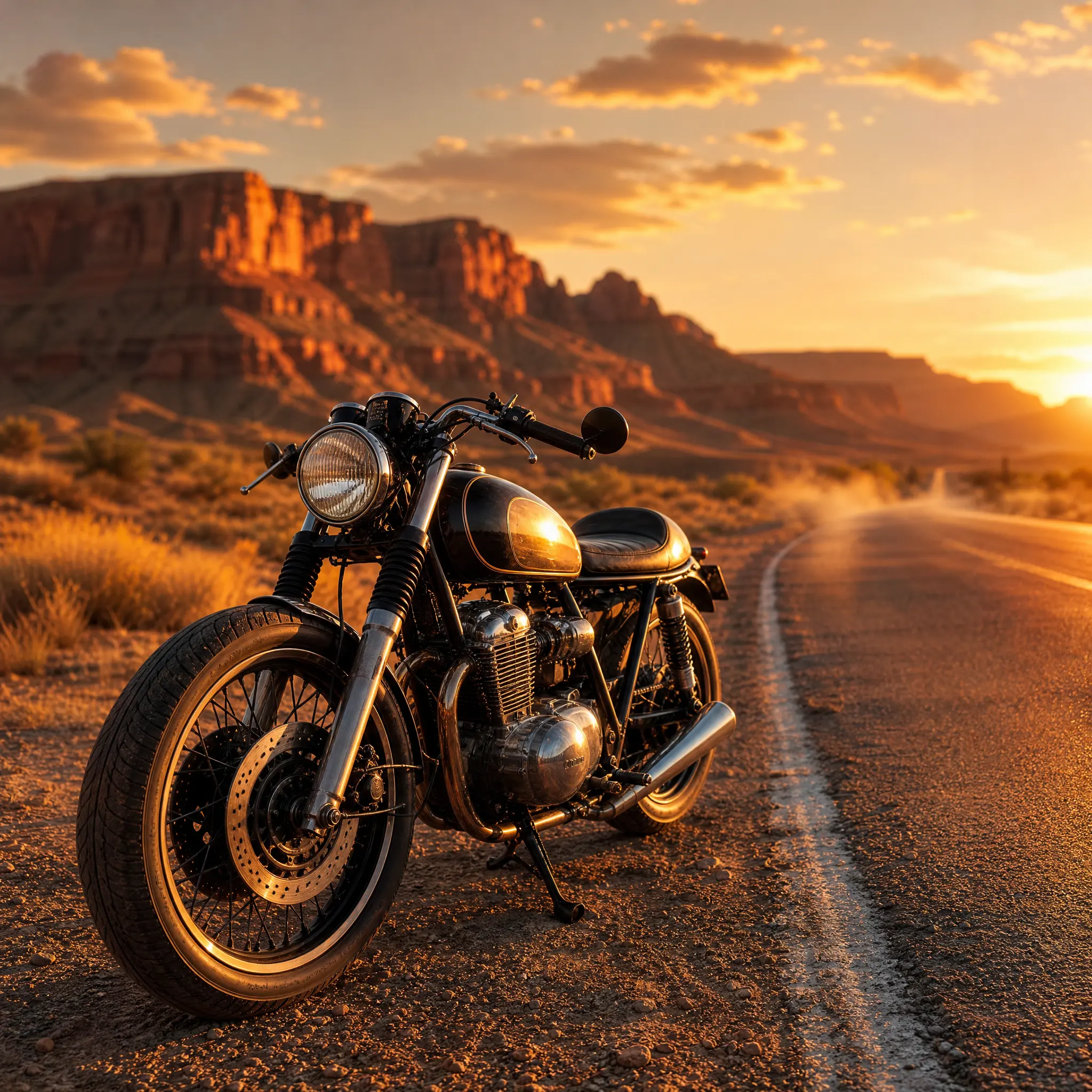
Vintage cafe-racer motorcycle parked beside an empty desert highway with red rock mesas at sunset