




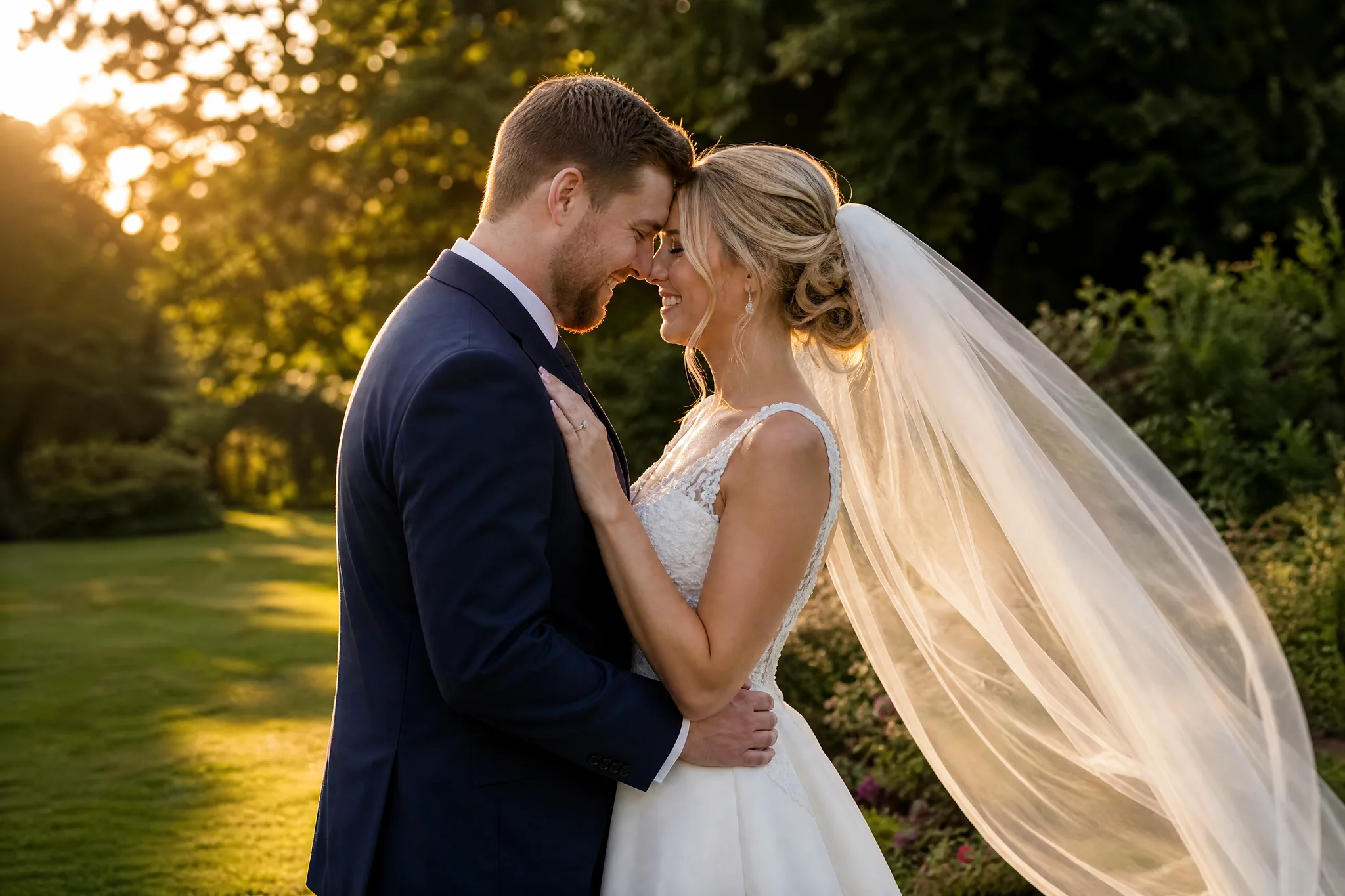
Veo Image to Video with Google Veo 3.1 Lite

Explore a cinematic moment around your photo

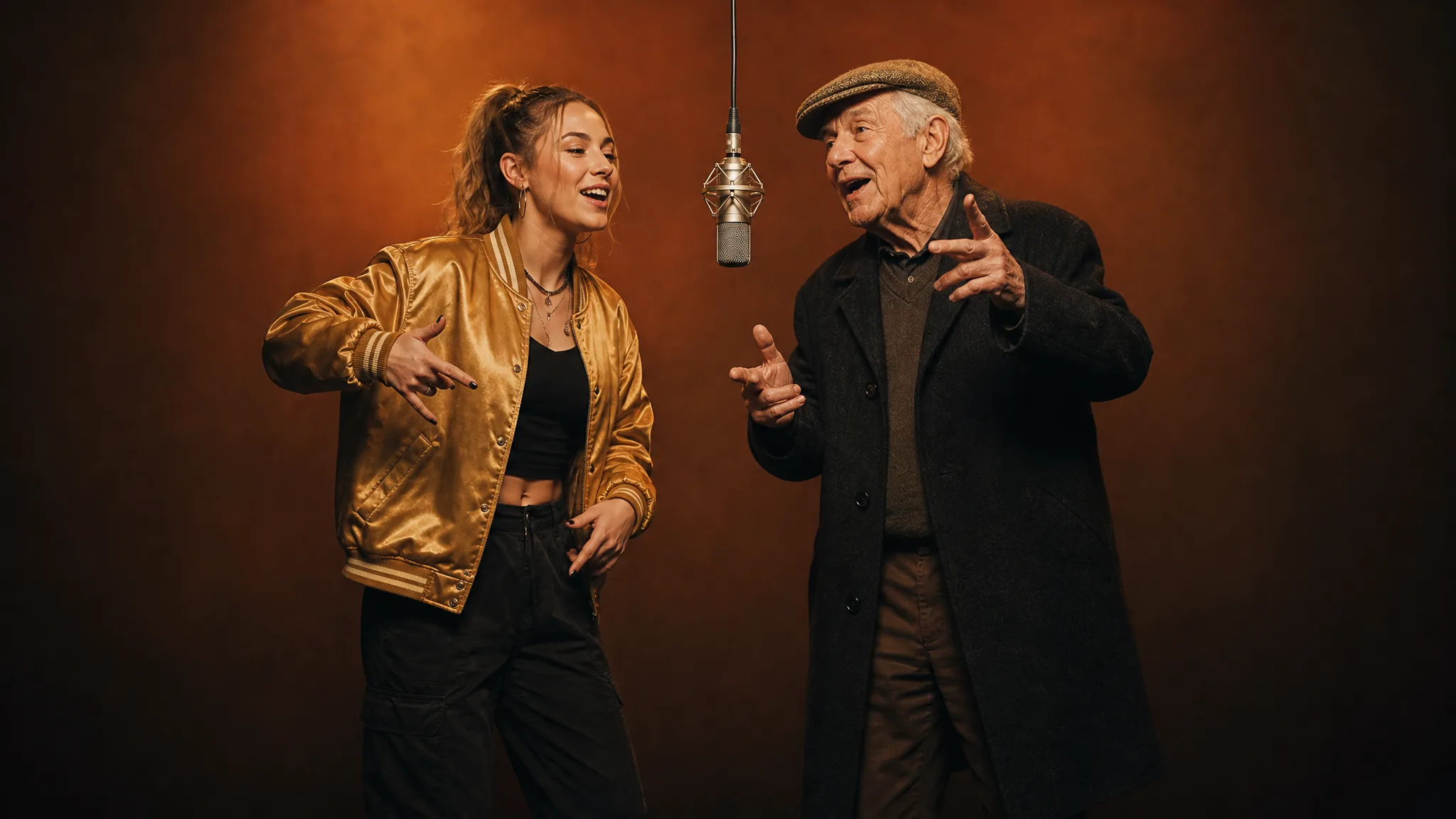
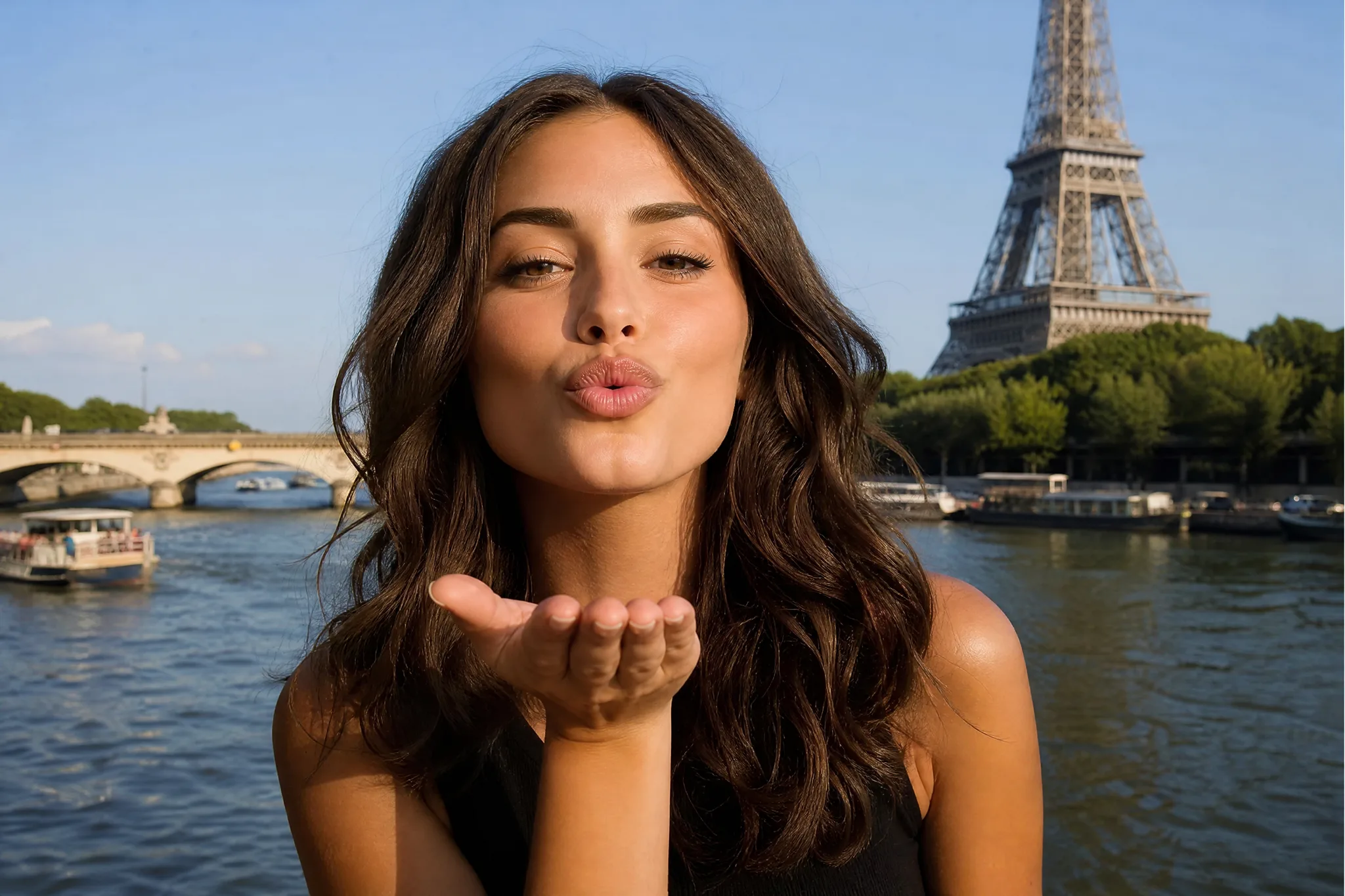
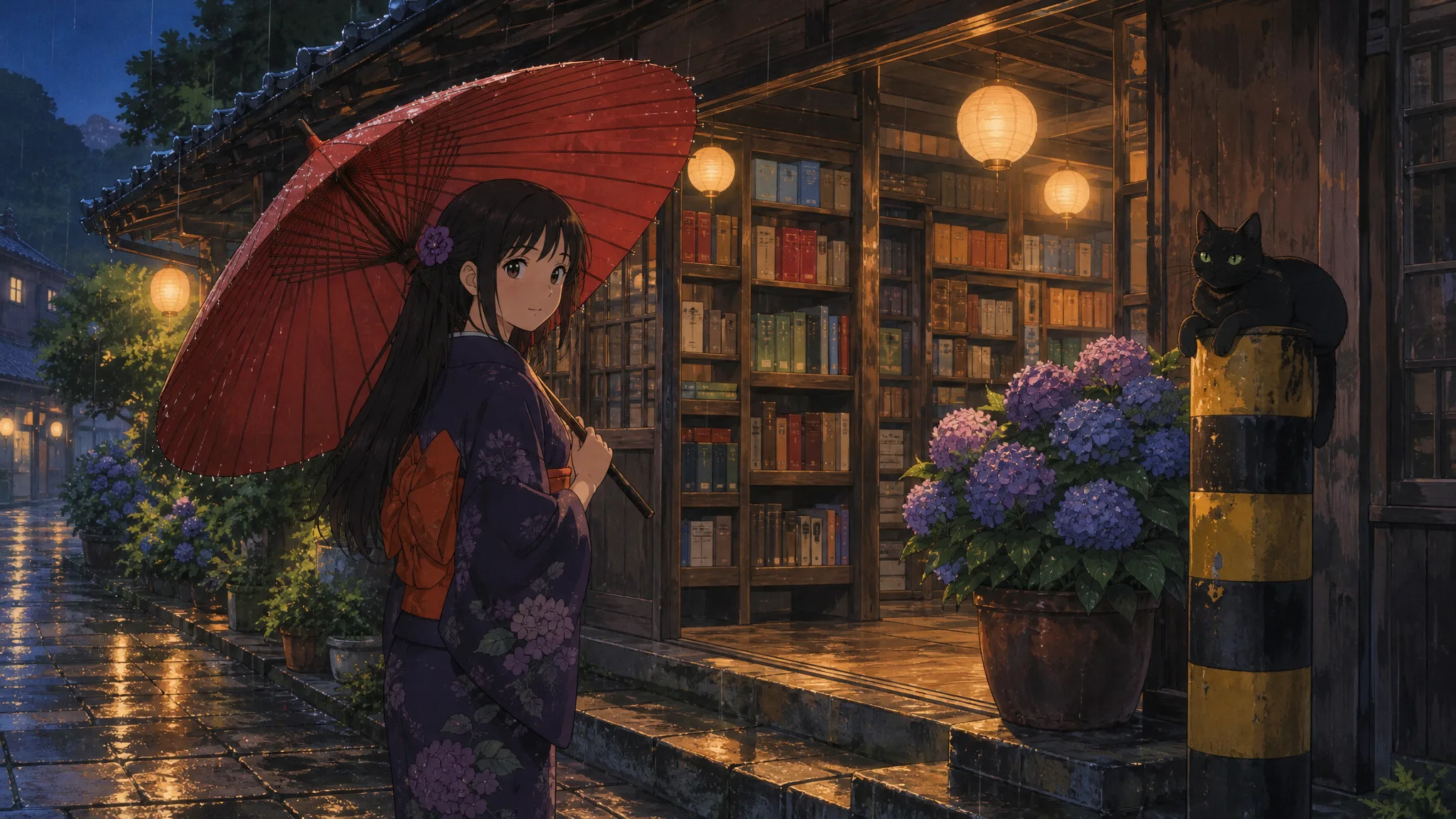
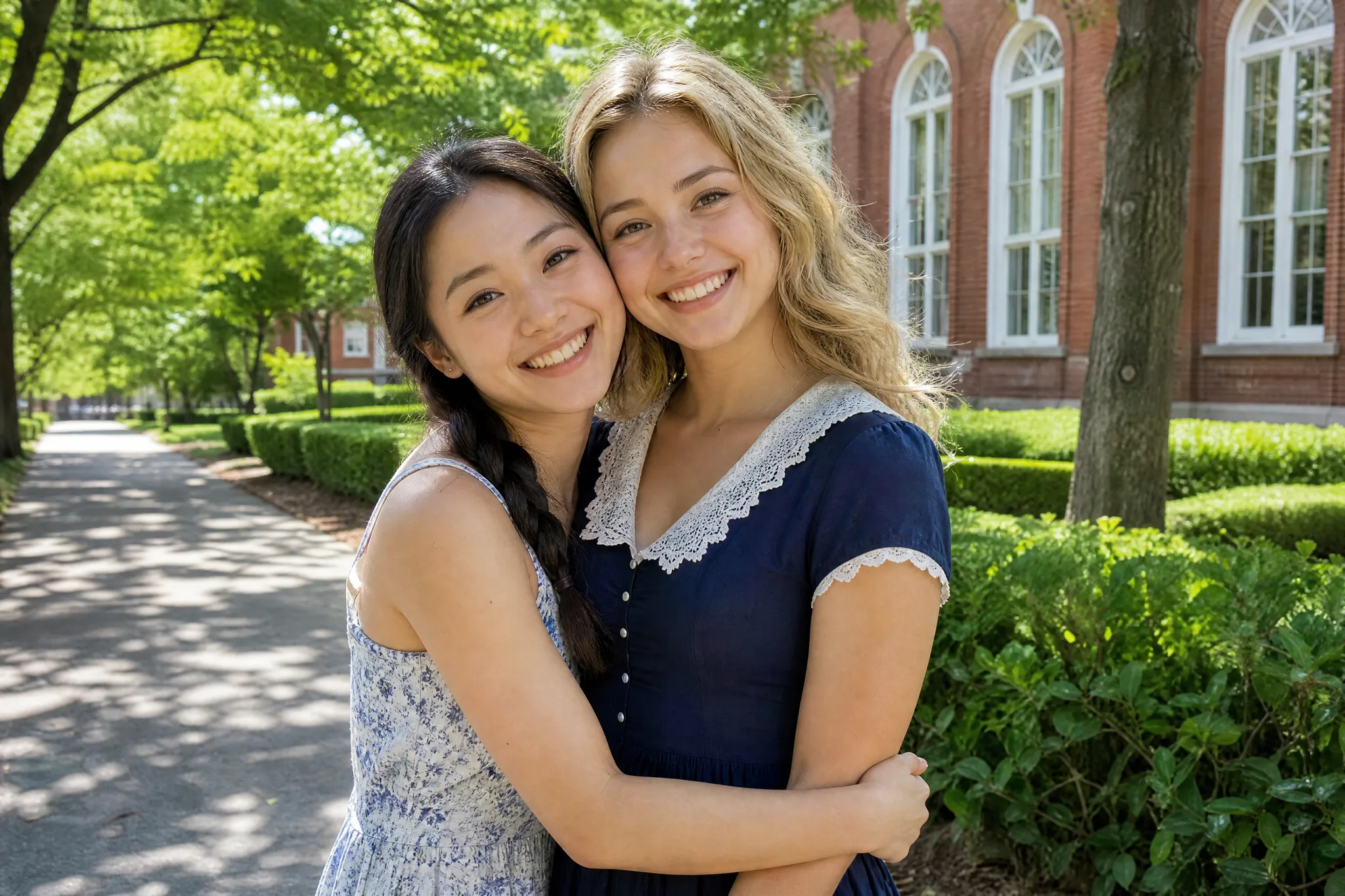
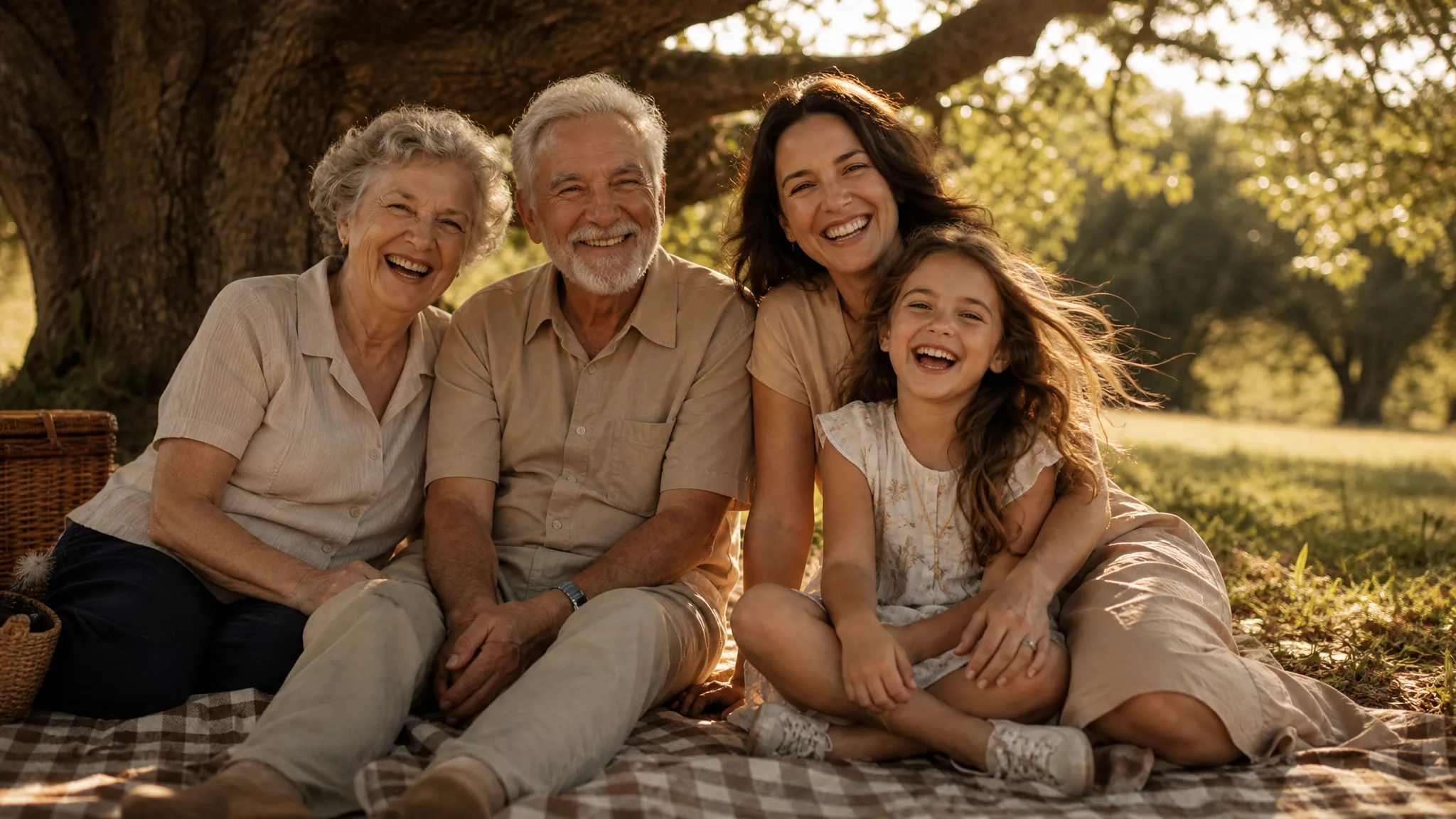
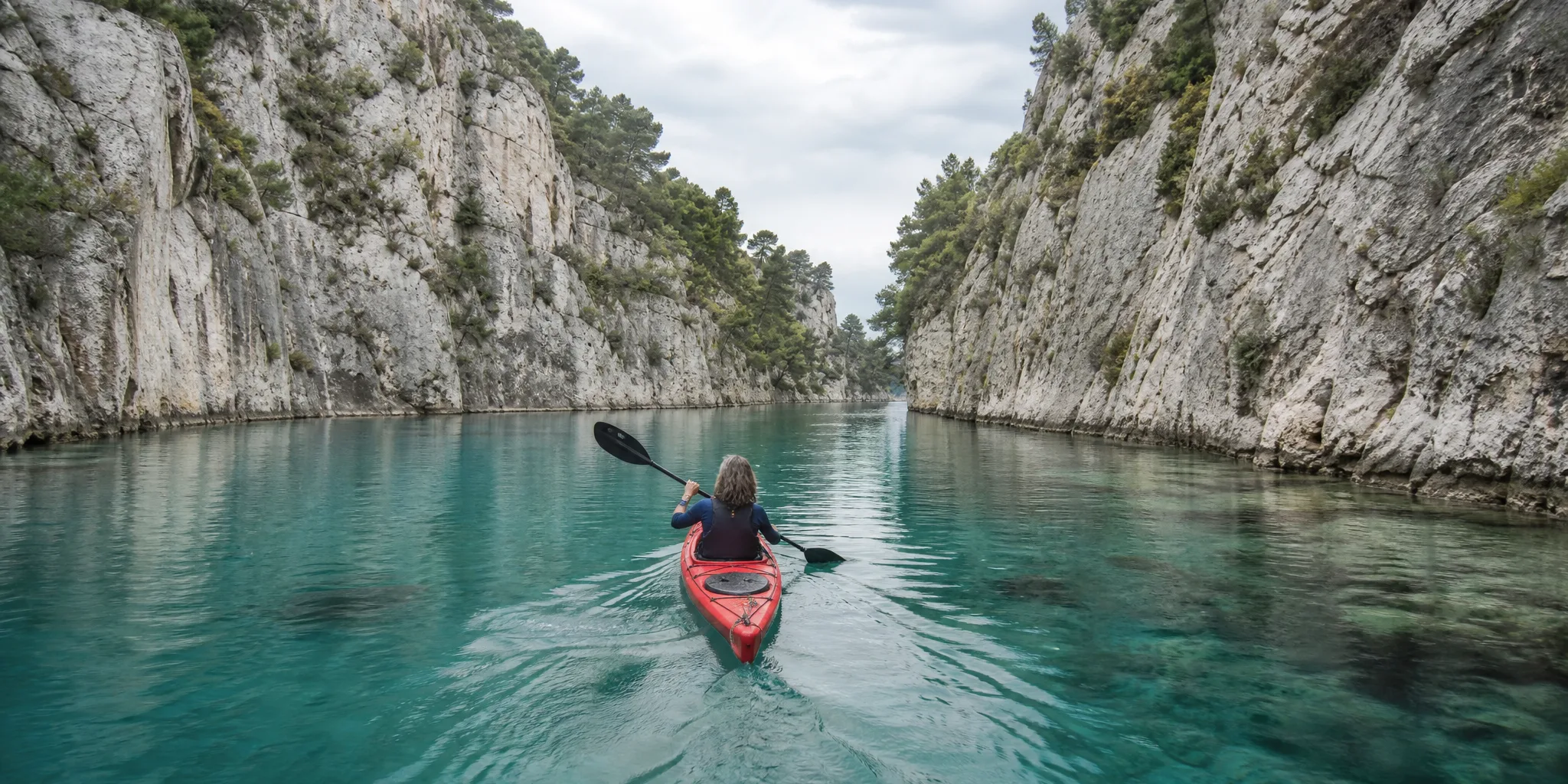
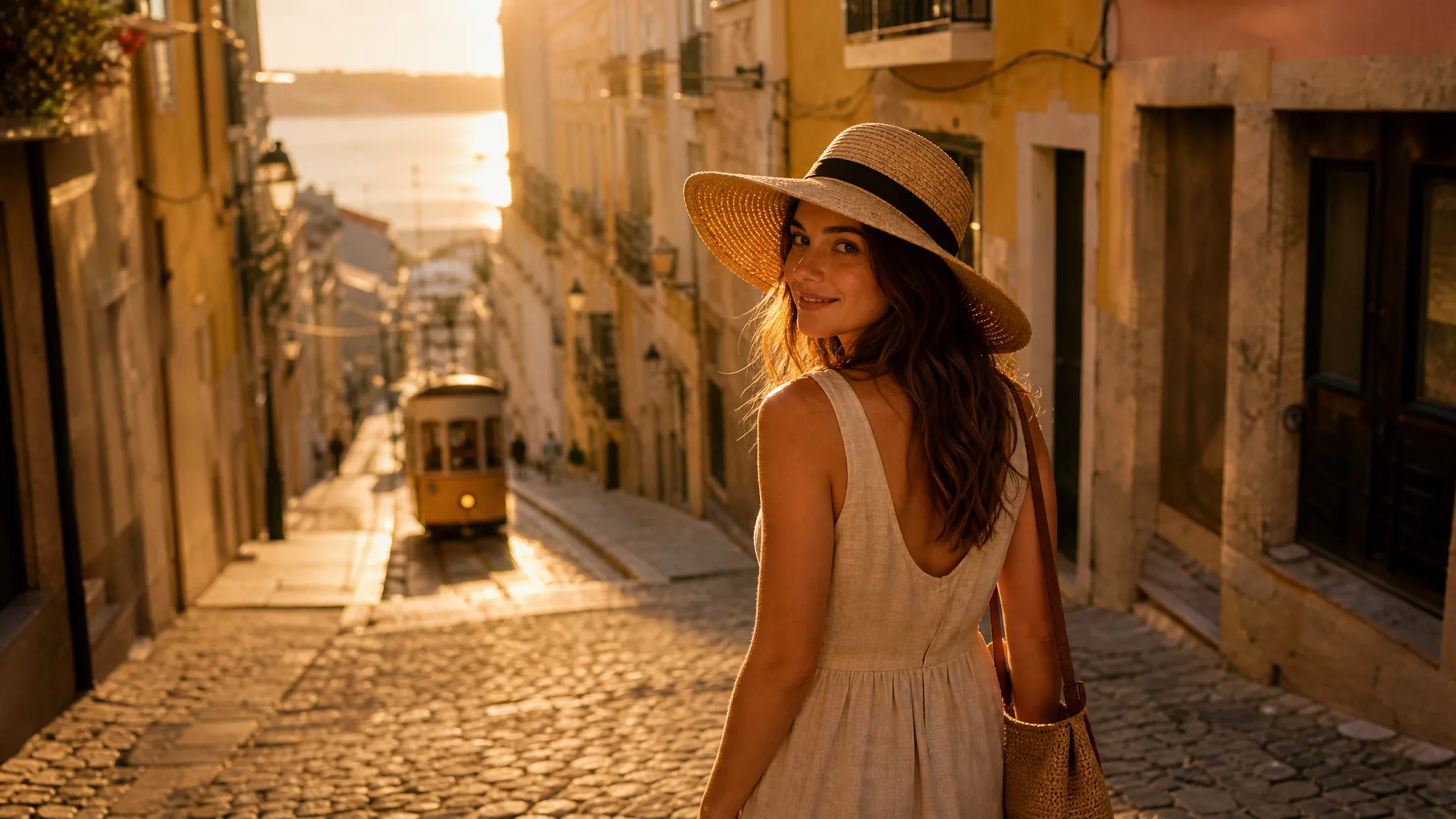
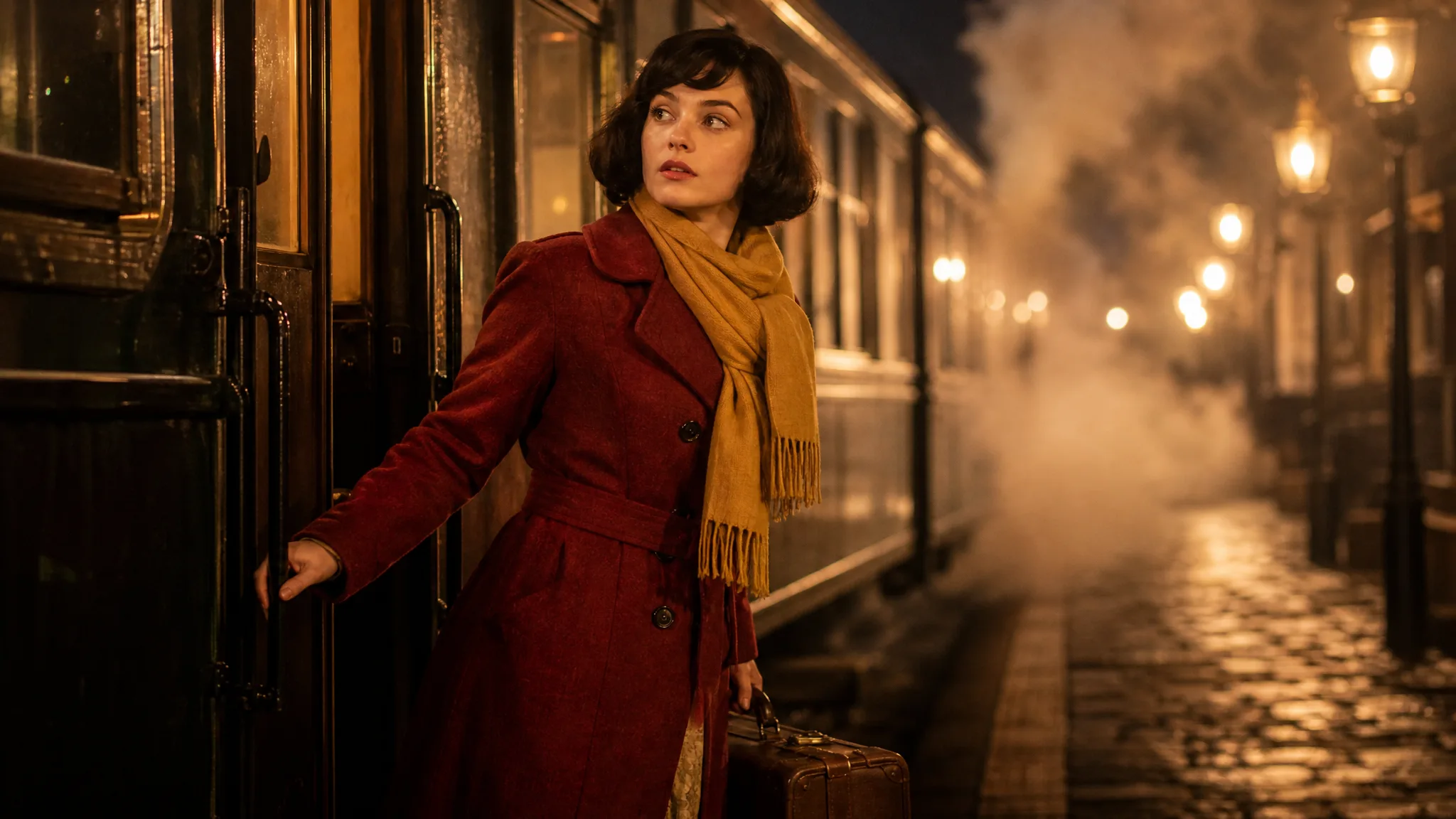
Turn a still scene into a shot worth watching. Use Veo image to video with Google Veo 3.1 Lite to explore a portrait moment, a product reveal or movement in a landscape, with your photo as the starting point and your prompt as the direction.

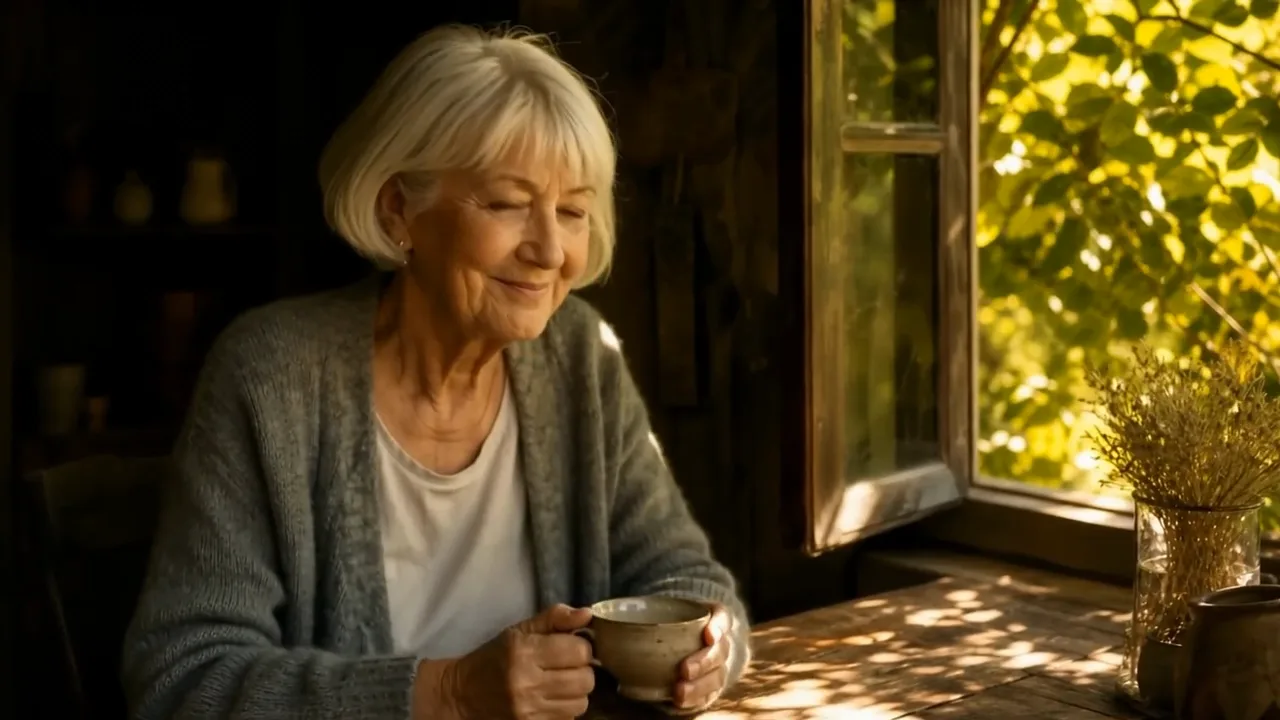
Older woman at a window table as leaves stir outside and sunlight drifts across the table before she looks up and smiles
Photo-led portrait moments
Camera moves around products
Atmospheric landscape clips
Storyboard shots from still images
A cinematic direction for your next story
Veo
Reference images
Prompt
0/4000
Duration
Resolution
Aspect ratio
Translate prompt
Number of outputs
Public Visibility
Required credits
60
Sample videos

Create a Photo-Led Scene with Veo

A portrait, product photograph or scenic still can suggest a moving moment. Veo image to video lets you explore the action, atmosphere and camera direction around that source. Develop a short take and choose how it fits the story you want to tell.

Try Veo Image to Video
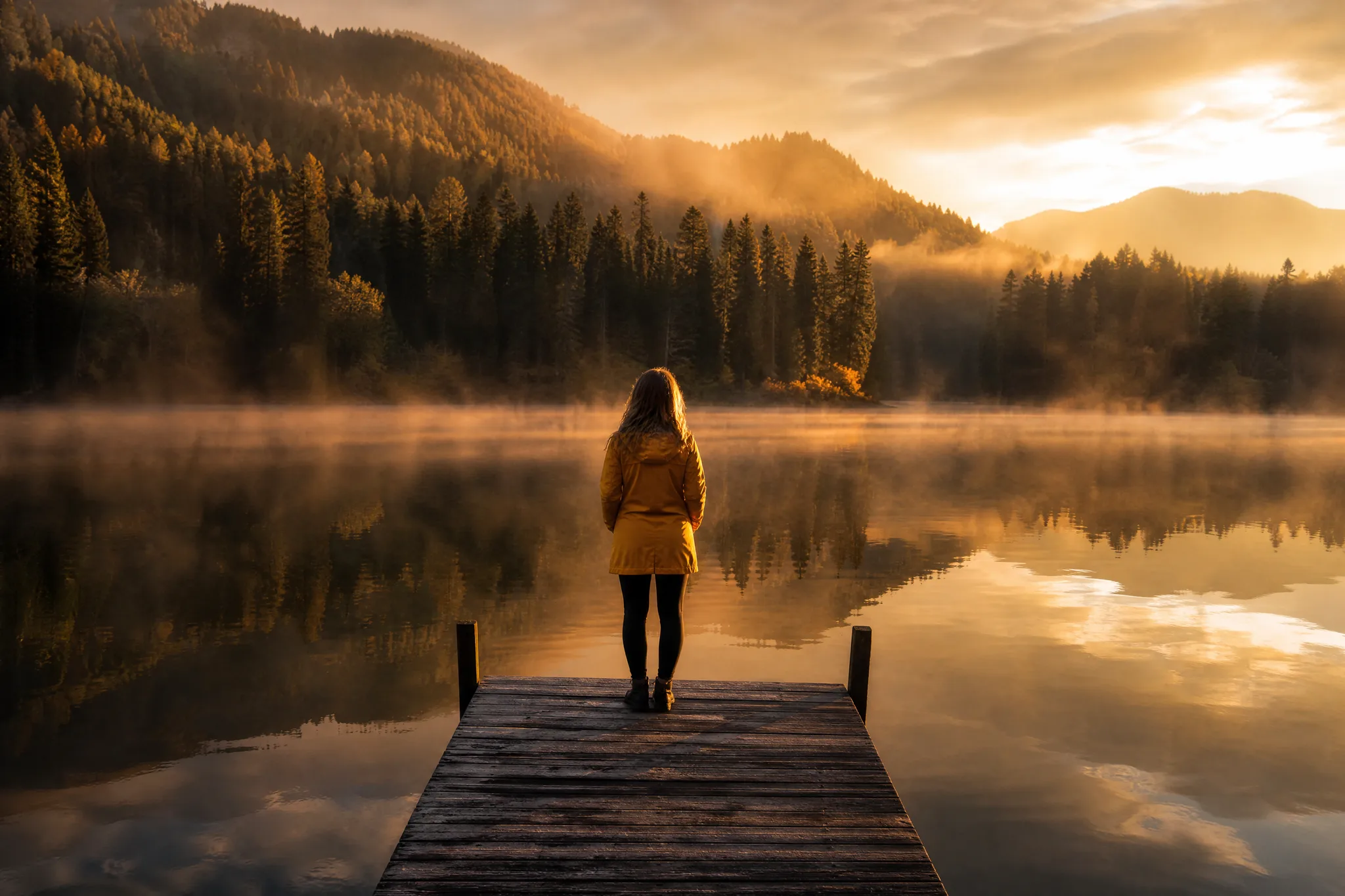
Woman in a yellow rain jacket standing at the end of a wooden dock on a misty lake at dawn

How Veo Image to Video Works

Veo image to video begins with a photograph that sets the mood. Write the action and camera view for Veo 3.1 Lite, then compare the takes before you use one.

1

Start with a photograph that sets the mood

Upload a JPG, PNG or WebP portrait, landscape or product image with a clear subject. The photograph gives Veo image to video its composition, light and opening frame, so crop it to the view you want before you write the motion brief.

2

Write the action and camera view

Describe what happens next and how the viewer sees it: leaves moving beside a window, a quiet glance or a slow approach toward a product. Then set the Veo image to video framing to 16:9, 9:16 or Auto and pick a 4-, 6- or 8-second length.

3

Preview the whole scene

Generate the clip once your photograph, motion brief and settings are ready, then follow its job status. Watch the completed scene, including the subject, movement and ending, before choosing your clip. Download a take that fits the intended atmosphere, then finish the sequence with your usual editing tools.

Build a Scene with Veo 3.1 Lite

Use Veo image to video to build the action, camera view and atmosphere around the photograph you want to animate.

Start with the scene you already see

Your photograph establishes the subject, lighting and composition before anything moves. Describe what happens next: a person looking toward the camera, leaves stirring beside a window or light passing across a tabletop. Veo image to video keeps that scene as the opening frame, so the motion should feel like a continuation of the moment in the still.
Direct attention with a camera move

A gentle push-in invites viewers to notice a detail, while a wider reveal introduces the setting. Choose one camera idea that supports the story you want to tell, then watch how the Veo image to video shot interprets it. If the camera wanders, shorten the instruction rather than adding more adjectives.

Create a useful piece for a longer edit

Generate a short scenic insert, a product close-up or a character beat at 720p, 1080p or 4K, depending on the model tier you can access. Download the take you choose and place it alongside your footage, captions and music in your usual editor, where exact titles and timing are easier to control.

Explore the Shape of Your Veo Scene

Veo image to video shapes a scene through three choices: the action, the camera view and the atmosphere. A clear visual idea helps you move from a still image toward a shot that belongs in your story.

Make the subject’s next action clear

A moment the viewer can read

Give your Veo shot one visible action: a glance across the room, a hand reaching for a product or a subject turning toward the camera. Your photo establishes the opening composition, and the prompt tells Veo image to video what happens next. One clear action is easier to check than several competing ones.

Where a Veo Photo Animation Fits

Veo image to video suits projects that already have a photograph and now need a moving insert, portrait beat or reveal with sound.

Atmospheric scene inserts

A filmmaker can upload a location still and use Veo image to video to explore clouds, foliage or changing light over it. The short shot, with its generated ambient sound, supplies an atmospheric insert that bridges the main scenes of a short film or documentary cut.

Portrait moments

A portrait photographer can describe a quiet glance or a gentle camera approach around a finished headshot. Veo image to video turns the still into a few seconds of moving portrait for a client gallery, an about page or a profile introduction.

Product story details

A marketer can turn a packshot into a close-up centered on a texture or silhouette with Veo image to video. Develop the chosen clip into a product presentation or a 9:16 story ad, adding final lettering and prices separately in the editor.

Travel-photo storytelling

A travel creator can give a favorite landscape photo a measured camera reveal, like a slow rise over a ridge or a drift along a shoreline. The image-led shot opens a travel vlog or bridges two locations in a trip recap.

Illustrated world studies

An artist can describe weather, light and small movements in the world around a character illustration. Veo image to video produces a study of atmosphere and movement that shows how the setting feels before a longer animated scene is assembled.

Creative pitch visuals

A creative director can use a mood image to explain how a proposed shot might feel on screen. A short Veo image to video take gives the team and the client something visible to react to in a pitch deck, before anyone commits to a full shoot.

Creative Scenarios with Veo Image to Video

Landscape, product, portrait and pitch ideas showing where Veo image to video might add changing light, a reveal or a camera move to a photo you already have.

A landscape photograph already has the light and composition I want. I'd bring it to Veo image to video and ask for clouds drifting over the ridge or a slow camera approach. I'd check that the mountains and trees keep their shape, then use the clip to open my landscape story.

Landscape Story Creator
Creative workflow

Veo Image to Video FAQ

Find answers about Veo image to video, preparing a source picture and creating a clip online. Review the practical considerations before choosing the take for your project.

Veo image to video develops a short moving clip with generated sound from a source image and a motion prompt. This page opens Google Veo 3.1 Lite on ImgVid, an independent service with its own creative workspace, not Google’s official app.

Partly — Google Veo 3.1 Lite is one of ImgVid’s free-tier models, limited to 720p clips of up to eight seconds, and each generation still uses credits. Veo 3.1 Basic, Veo 3.1 Premium, 1080p and 4K need a subscription or credit pack. Check the credit quote and your balance in the workspace before generating.

Yes — Veo image to video runs in the browser workspace on desktop and mobile. Choose an image, describe the action and review the available controls. Prepare the source composition for the screen or layout where the clip will be used.

Veo image to video works best from a clear portrait, product view or scene with a readable subject. Describe one purposeful action and the camera movement around it. Compare the completed take with the source and your intended scene.

The image goes to the configured model provider for processing and is not published. Free accounts and visitors keep Public Visibility on, so a finished Veo image to video clip may be selected for Explore after review; a subscription or one-time pack starts generations private. Avoid uploading sensitive material from a free account.

For Veo image to video on ImgVid, Google Veo 3.1 Lite, Basic and Premium create 4-, 6- or 8-second clips at 720p, 1080p or 4K, and every clip includes generated audio. Image-to-video framing can be 16:9, 9:16 or Auto. This page uses Veo 3.1, not Veo 2, so details written for older Veo 2 tools do not apply here.

Use JPG, PNG or WebP within the limits displayed by the workspace. A supported file type does not guarantee a particular result; choose a readable subject and an intentional composition for the motion brief.

Yes — a selected Veo image to video take can become part of a Reel, presentation or creative project. Check the rights to your inputs, the model’s applicable terms and the publishing rules of the platform first.

Veo image to video processing time depends on the settings and the provider queue. The workspace shows the job state while the clip is being prepared. Review the finished take before downloading and compare it with your original scene idea.

A Veo take does not guarantee a polished final video. It can develop a useful visual direction, but important faces, product details, lettering and movement still need review. Check the generated audio, then finish exact titles, music and longer sequences in your preferred editor.

Create Your Next Moving Scene with Veo

Upload the photograph that sets the mood, describe what should happen next, and Veo image to video develops a portrait moment, a product reveal or a scenic insert with generated sound on Veo 3.1 Lite. Review the take, then bring your next still scene to life.

Create a Veo Clip
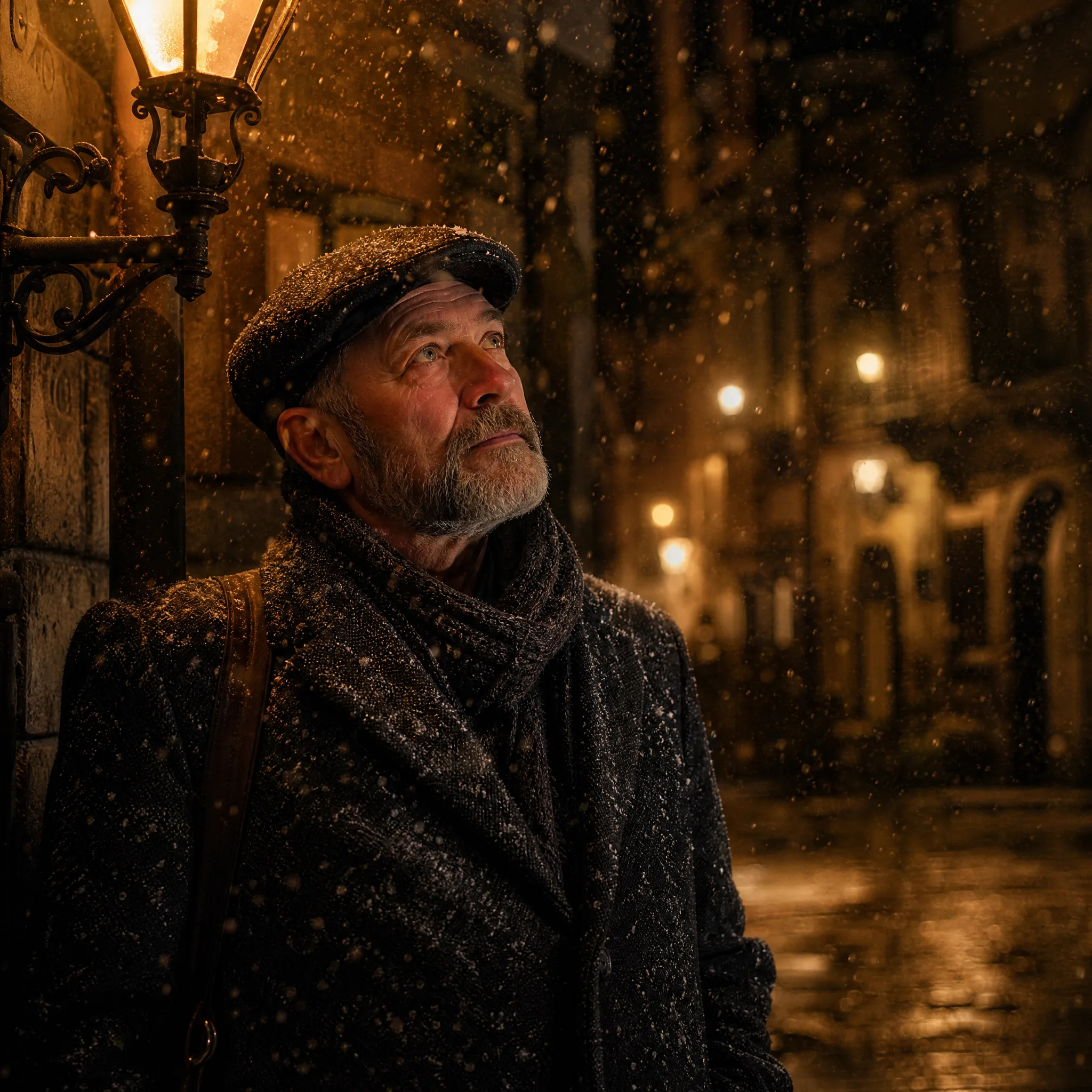
Older bearded man in a flat cap and wool coat looking up at falling snow beside a warm wall lantern at dusk