







Wan Image to Video with Wan 2.7

Develop a visual reference into a moving story beat

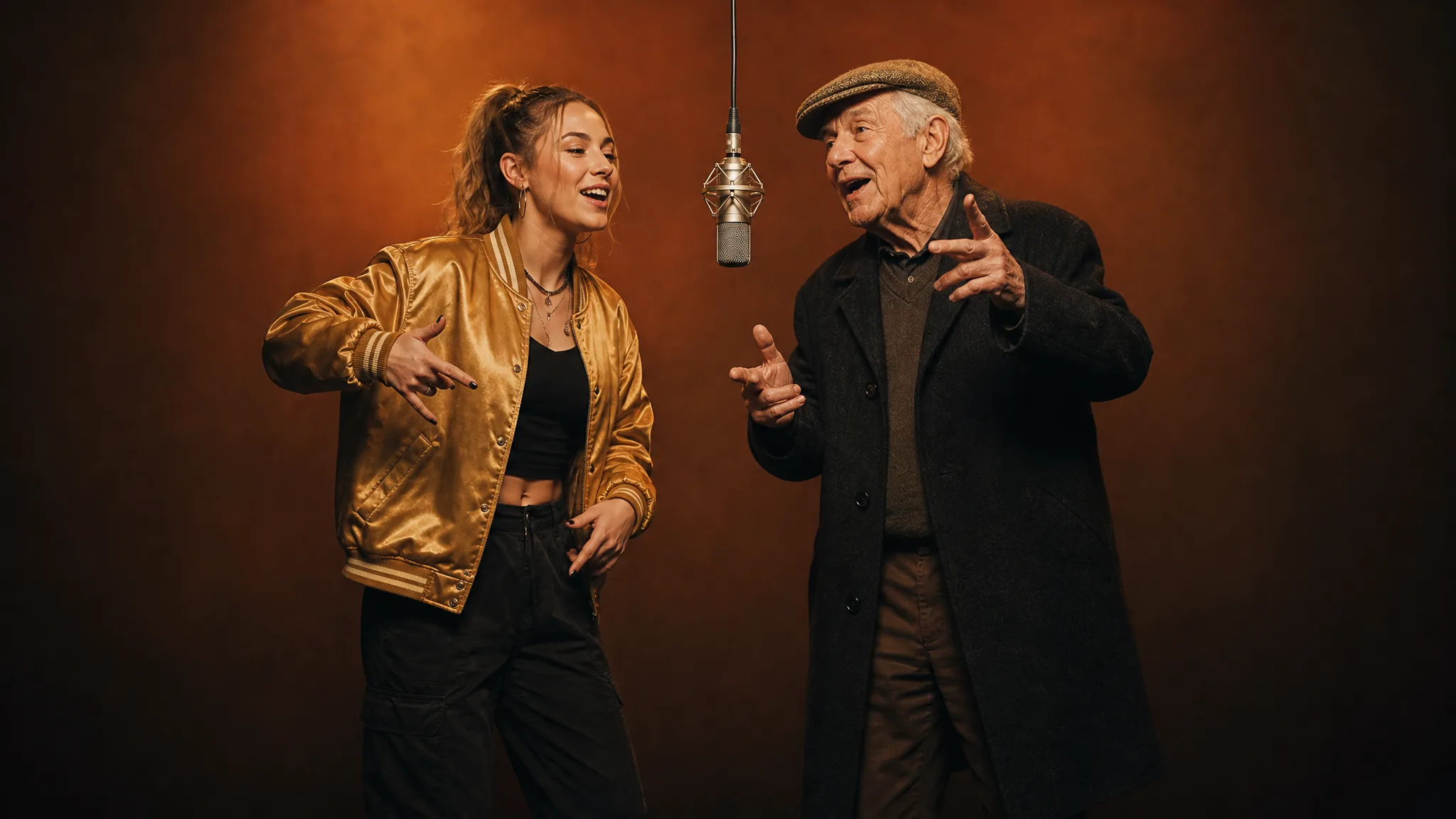
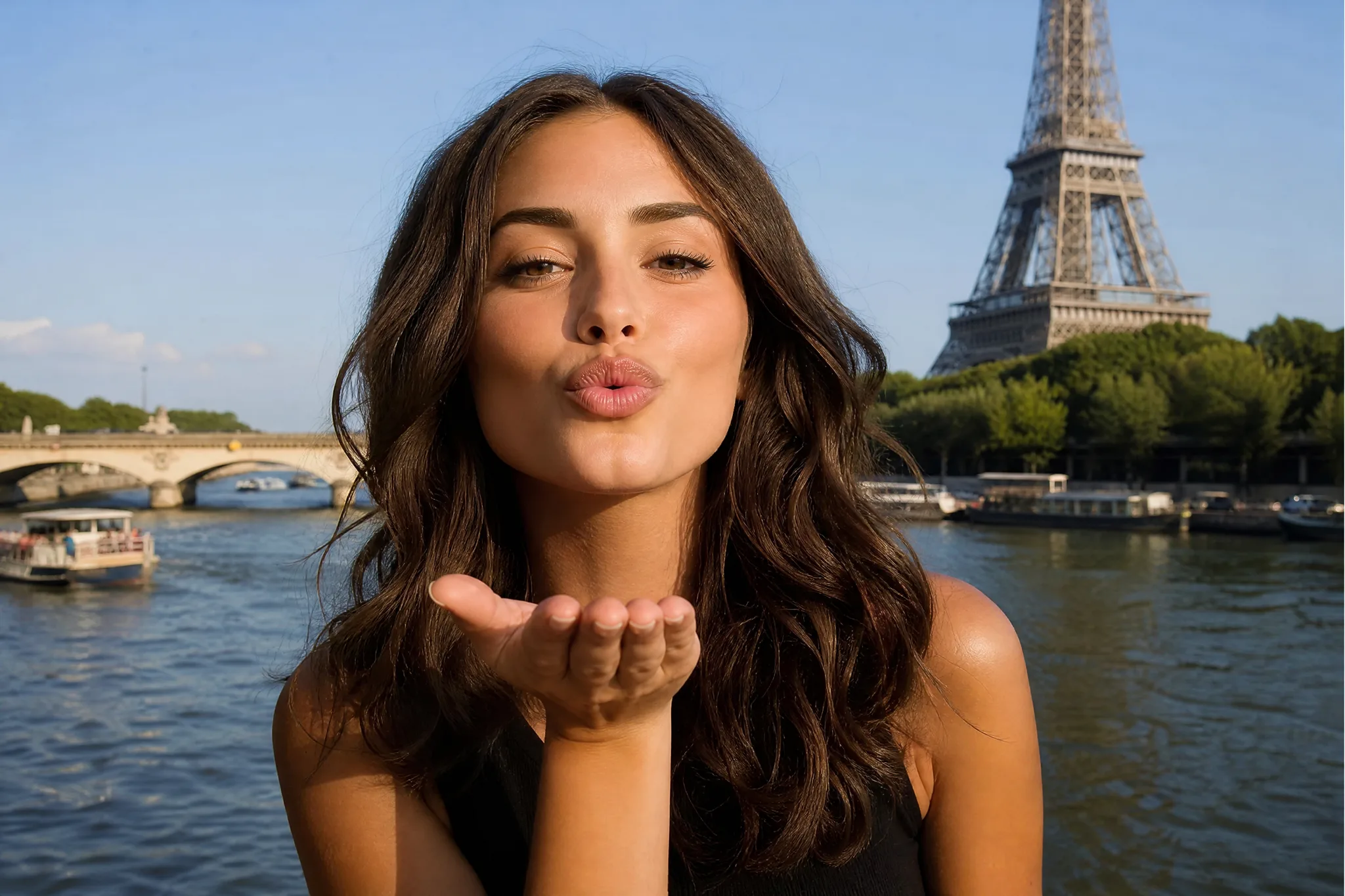
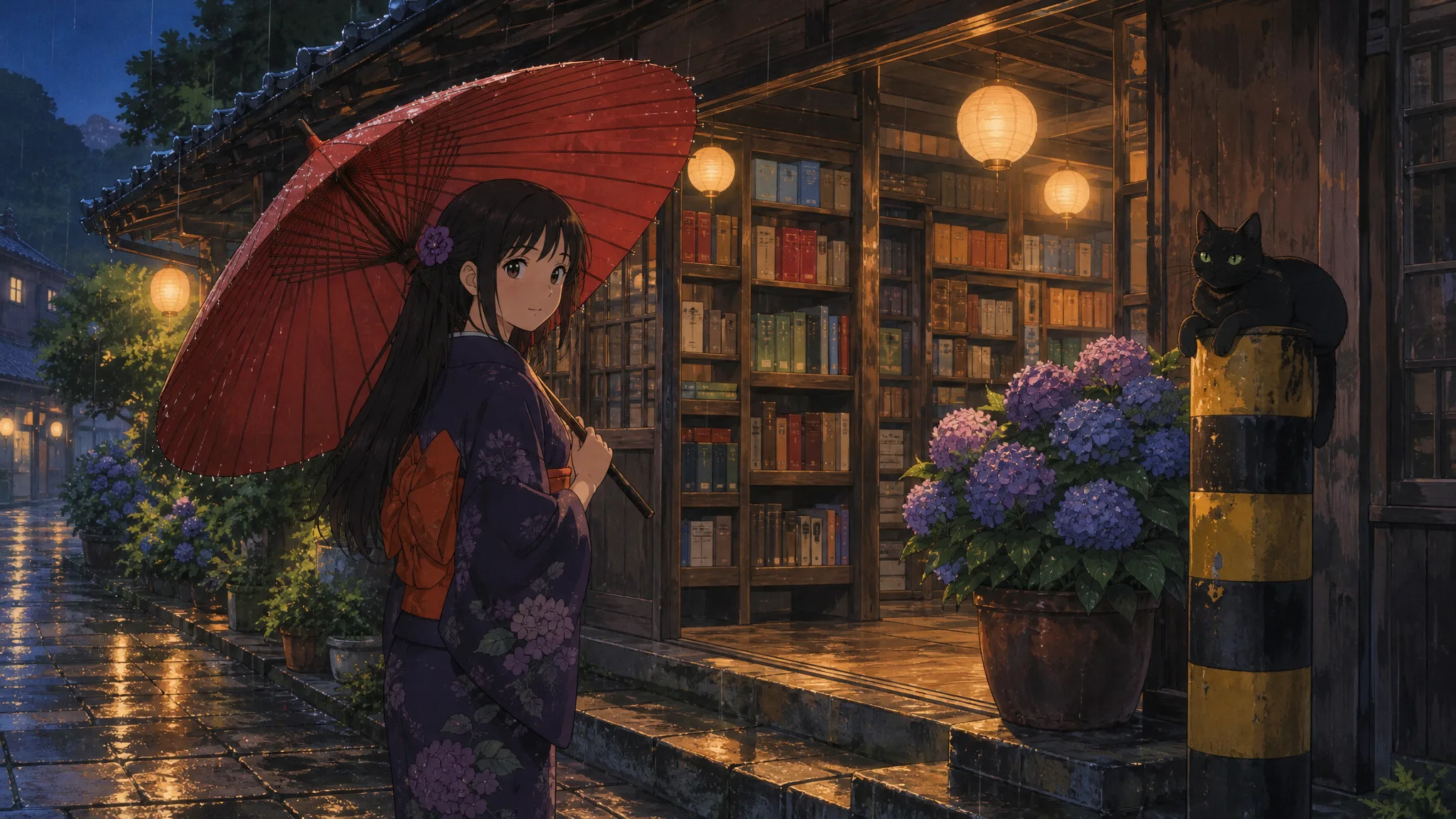
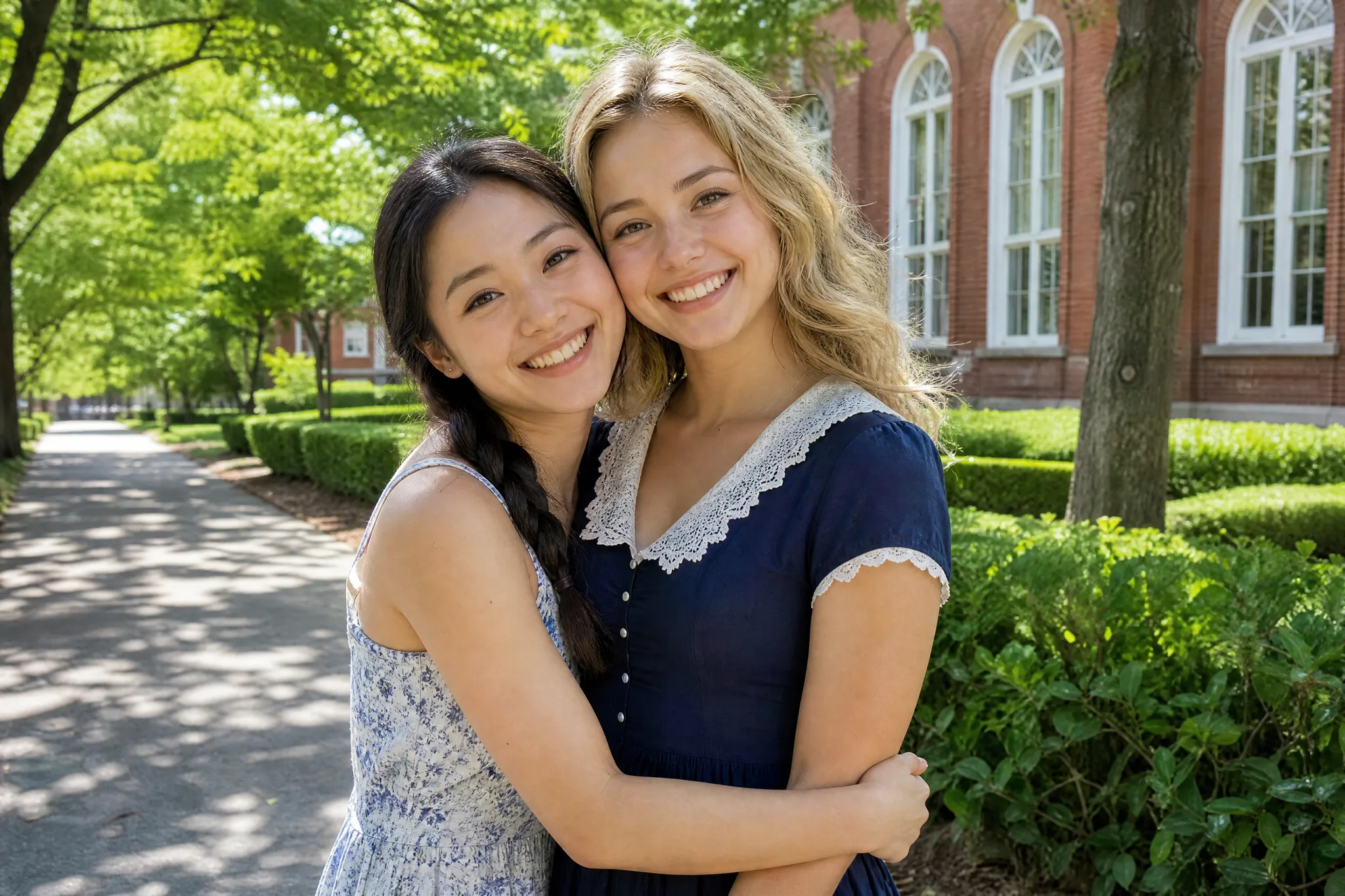
Bring your visual idea beyond the still frame. Wan image to video runs Alibaba’s Wan 2.7 and starts with a photograph or illustration and a description of the action, helping you explore character movement, atmosphere and camera-led reveals.

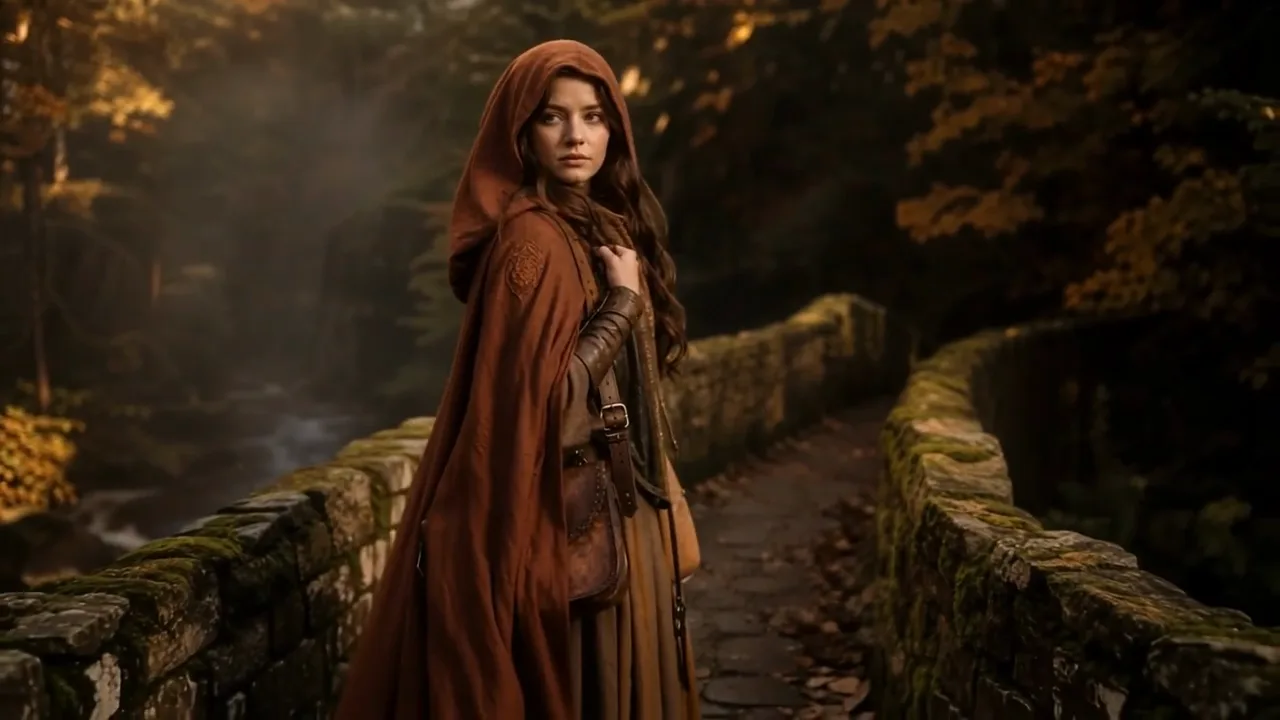
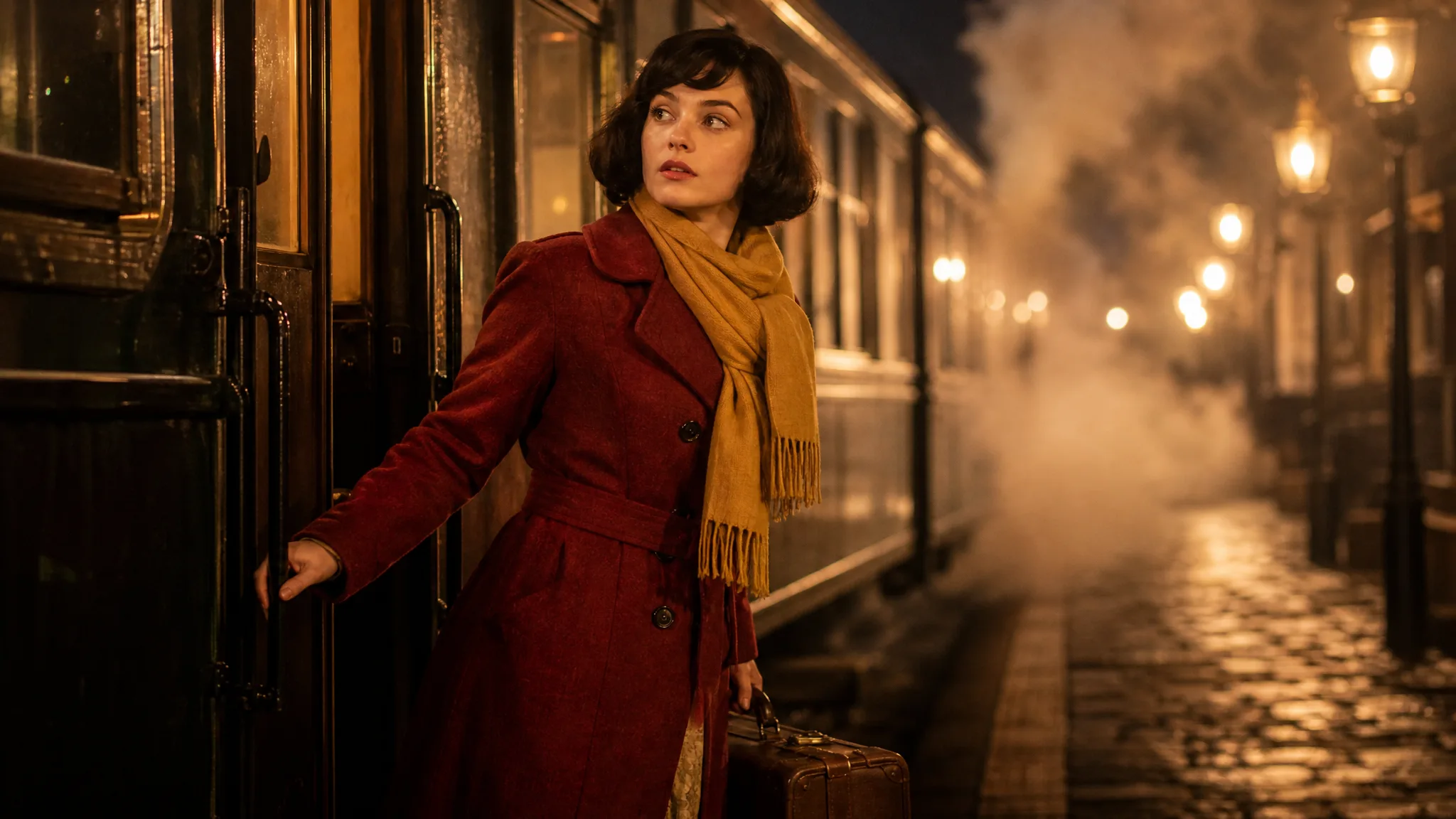
A woman in a hooded rust-red travelling cloak on a mossy stone bridge turns her head toward the camera and steps forward
Character actions from a still
Camera-led product shots
Illustration and scene concepts
Short clips for creative edits
New story moments from familiar images
Wan
First frame
Last frame
First video clip
Driving audio
Prompt
0/5000
Negative prompt
Resolution
Duration
Extend prompt
Seed
Number of outputs
Public Visibility
Required credits
160
Sample videos

Bring Your Reference Scene into Motion with Wan

A character illustration, product photograph or scenic still gives a video idea a visual starting point. Wan image to video helps you explore the action and camera movement around that scene. Describe the next moment and choose the take that belongs in your story.

Try Wan Image to Video
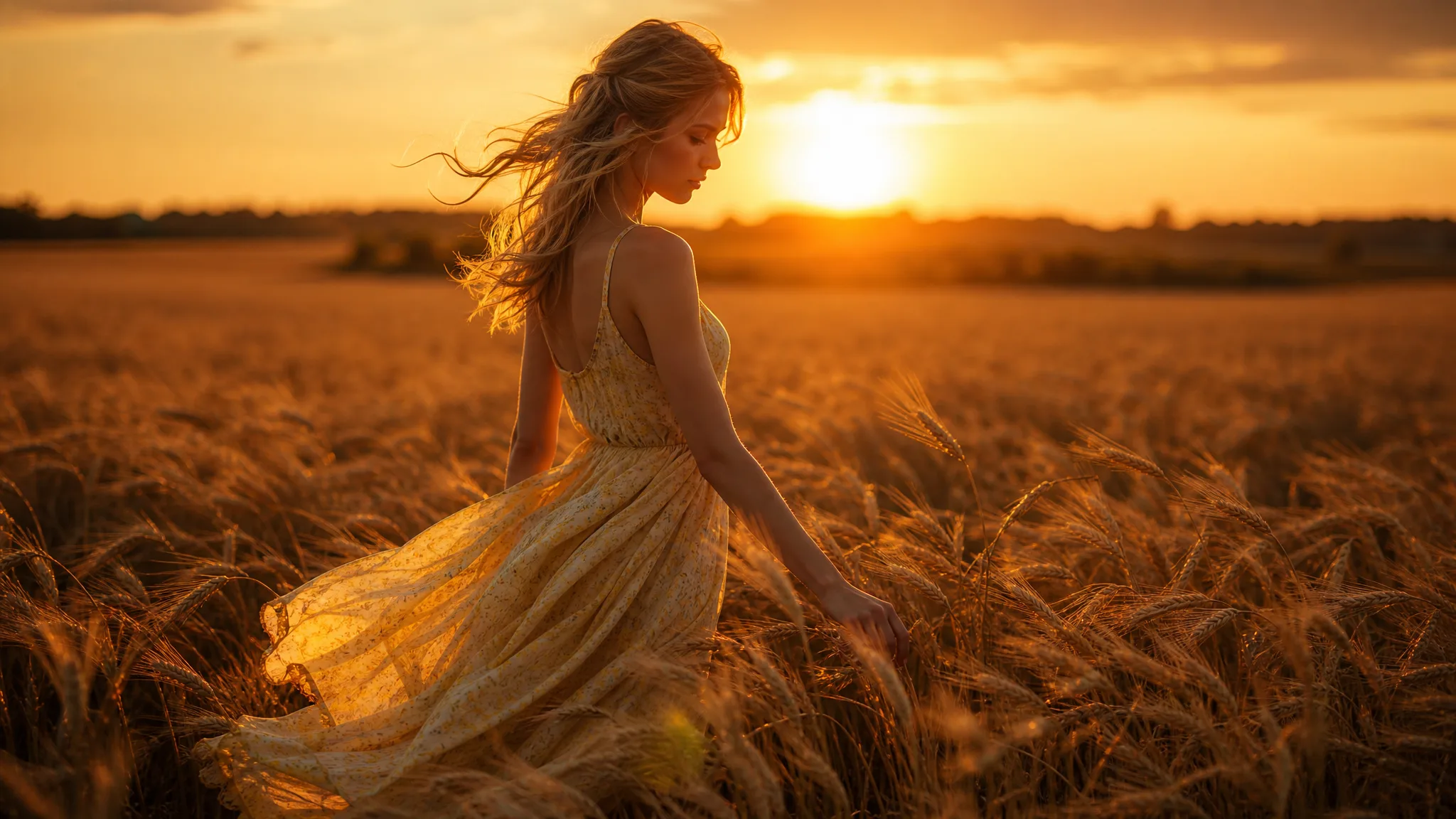
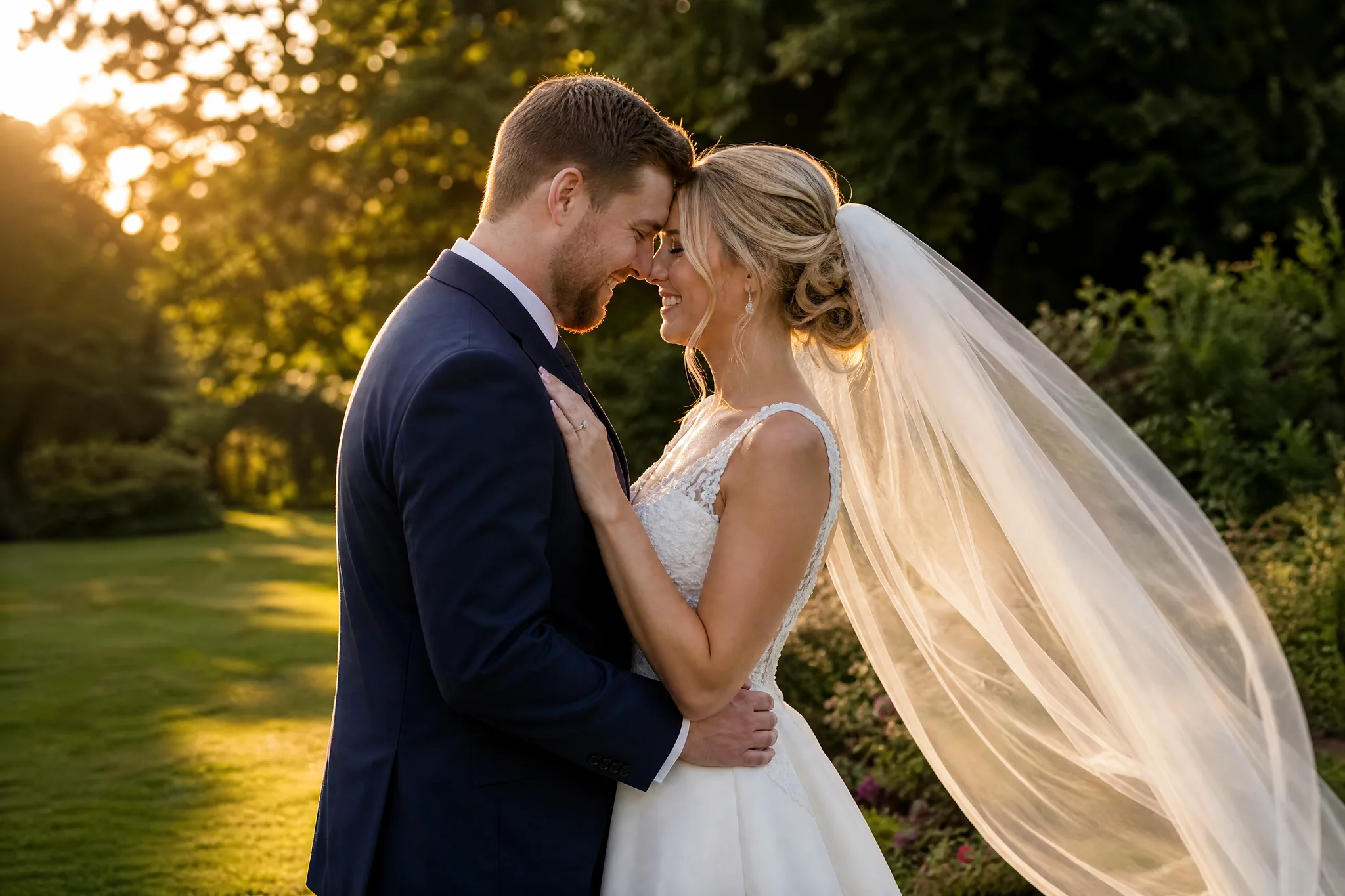
Woman in a flowing pale-yellow dress walking through a golden wheat field at sunset as the wind lifts her hair

How Wan Image to Video Works

Wan image to video works best when one frame and one action lead. Prepare the frame, direct the movement and choose the take for your project.

1

Prepare the frame for your Wan shot

Upload a clear photograph or illustration of the character, object or place you want to animate. Wan image to video starts from that frame, so crop the source around the detail that should remain the focus and remove clutter that might start moving on its own.

2

Direct one action

Describe one character movement, environmental change or camera reveal in plain language, such as a cyclist rolling past or clouds drifting over a valley. The page opens Wan 2.7, and a single action keeps the shot readable.

3

Generate the scene you directed

Choose a length between 2 and 15 seconds and a 720p or 1080p resolution. Wan image to video takes its framing from your uploaded image, so there is no aspect ratio setting in this mode. Start generating when your reference image and motion direction describe the moment you want to explore.

4

Develop the selected clip

Compare the Wan image to video take with your source: faces, clothing, labels and the path of the camera. The workflow adds no audio here, so download the take that communicates the idea and add sound when you place it as an insert or scene opener.

What You Can Create with Wan 2.7

Wan image to video develops character movement, scenic atmosphere and product reveals from images you already have.

Give a character a small action

A still character design can become an entrance, a glance or a gentle change in pose. Describe the movement and name the important appearance details in your brief, such as a scarf color or a scar, so you can compare the Wan image to video take with your original. Consistency is not guaranteed, which is why a short, focused action is the safer first test.
Let the setting tell part of the story

Use a landscape, room or street photograph to explore movement in the environment. Drifting clouds, shifting light or a slow camera reveal can add atmosphere before the main action begins. Wan image to video handles these scenes without a central performer, so the result often works as an establishing shot or a quiet background loop.

Make a product photograph move

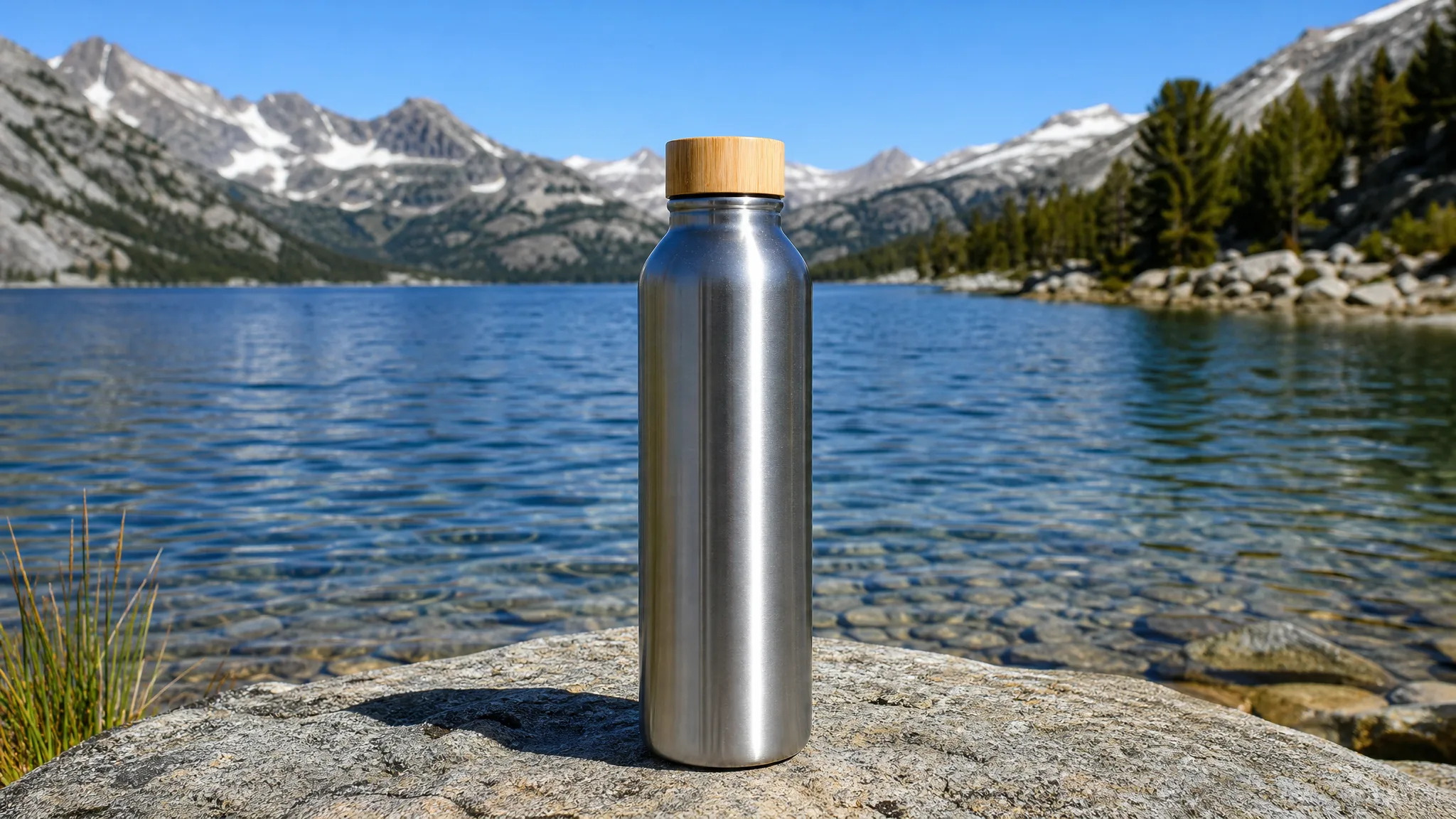
Plan a restrained camera pass or a close-up reveal around a packshot, such as a watch face catching light as the camera glides by. Wan image to video keeps the product as the opening frame; inspect the label, logo and shape in the preview before choosing the clip for a presentation or campaign edit.

Turn a concept into footage for an edit

Create one shot at a time from separate stills and compare each with your intended sequence. Keep the takes that communicate the idea, then assemble them with titles and sound in your video editor. A storyboard of five or six images can become a rough cut this way, one Wan 2.7 clip per panel.

Wan Image to Video Project Ideas

Wan image to video gives illustrators, filmmakers, shops and social creators a moving version of the still they already trust.

Character concept motion

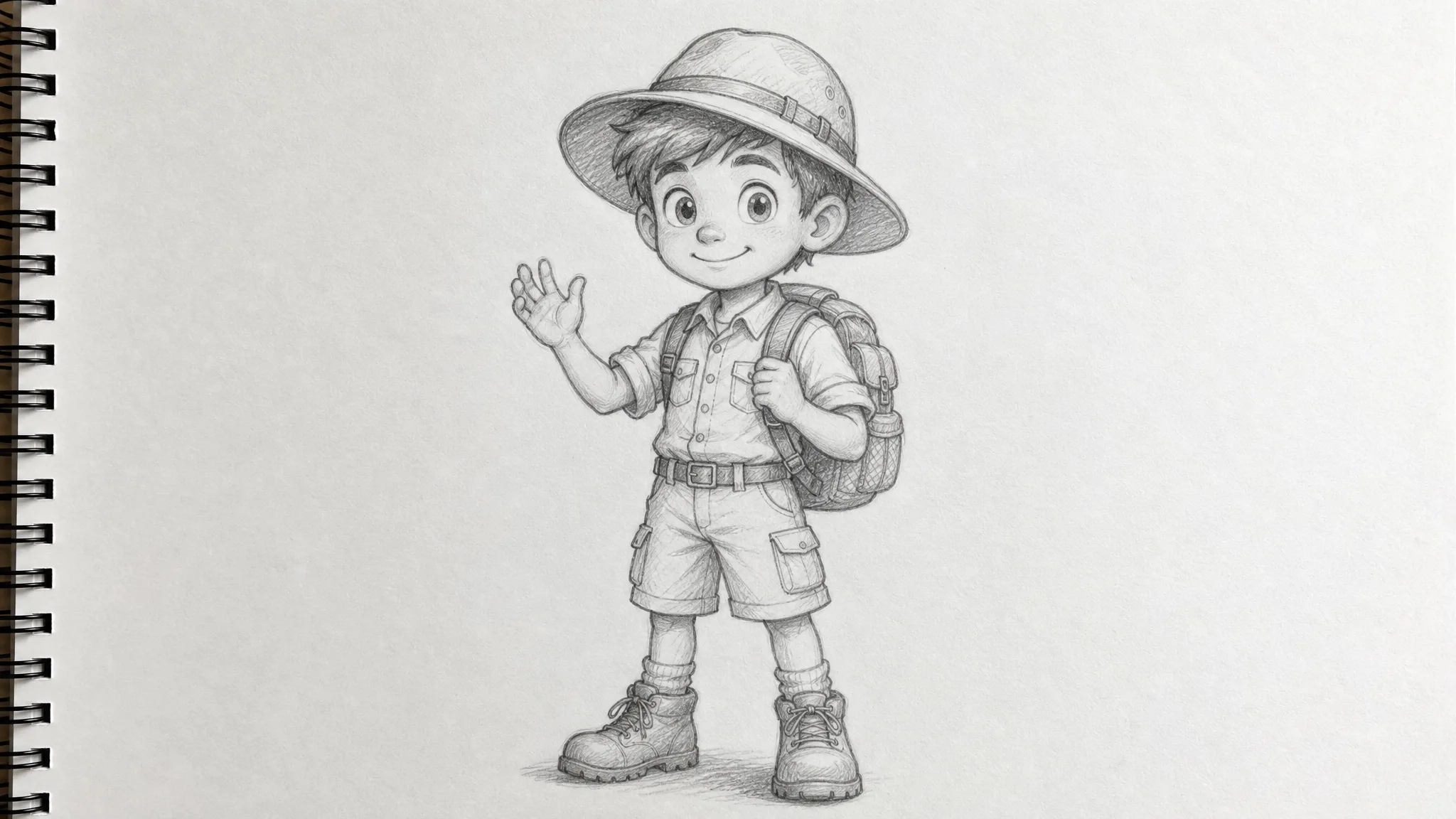
An illustrator can begin with a character image and describe a small pose change, like a head tilt or a step forward. Wan image to video turns it into a concept clip for an entrance, a reaction or a story beat in an animation pitch or a webcomic teaser.

Product presentation footage

A small brand can plan a restrained camera pass around a clear product photograph using Wan image to video. The selected clip becomes a visual piece for a launch edit or a store banner, with labels and identifying details checked before use.

Location establishing shots

An indie filmmaker can describe environmental movement around a room, street or landscape still, such as rain on a window or traffic in the distance. The Wan image to video take sets the mood of a location before the main action is shot or cut in.

Storyboarding from artwork

A storyboard artist can use a finished composition to explore framing and movement across a panel. Compare the clip with the intended sequence and keep the version that communicates the story, then share it with a director as a moving reference.

Social visual hooks

A social creator can focus Wan image to video on one unexpected or satisfying action in a source photo, like a coffee pour or a skateboard trick. The first seconds of a TikTok or Reel then hook the viewer before captions and the rest of the edit take over.

Moving art presentations

A painter can explore subtle movement around a painting or illustration, such as moving water or flickering candlelight. Pair the chosen Wan image to video clip with the original artwork on a portfolio page, a gallery screen or an artist talk slide.

Creative Scenarios with Wan Image to Video

Scenarios for using wan image to video in real projects, from the photos or ideas you start with to the take you keep.

A character design needs a first moment on screen before I plan the whole story. I'd use Wan image to video to explore a small turn or an entrance from the source artwork, checking that the outfit and proportions hold. That motion study would make the character easier to place in a sequence.

Character Storyboard Artist
Creative workflow

Wan Image to Video FAQ

Explore Wan image to video for a subject’s next action or a new camera view. These answers cover source images, creative direction and choosing a take for your next edit.

Wan image to video develops a moving clip from an image and a motion prompt. This page opens Wan 2.7; the workspace also exposes the other modes supported by the current configuration.

Wan image to video takes its starting appearance from a clear reference. Describe a focused action and check the generated face, clothing and important details throughout the take. Consistency is not guaranteed, so compare the result with your source before using it in a finished story.

Wan image to video on ImgVid creates Wan 2.7 clips from 2 to 15 seconds at 720p or 1080p. Image-to-video keeps the framing of your uploaded picture, so crop it to the final shape first. Other Wan 2.7 modes in the workspace show their own controls.

The current ImgVid Wan workflow does not expose an audio-generation control. The provider’s separate audio-input capabilities are not a sound switch in this workspace. Add the soundtrack or voice in your final edit.

Yes — the Wan video generator runs in your browser with an image and a short motion brief. Name the subject action and the camera movement you want to see. Review the completed take, then download it for your project; longer sequences and final titles are assembled separately.

Wan 2.7 has limited free-tier settings: 720p and up to 5 seconds, with sufficient credits. Review the quote and balance before generating; settings outside the free tier require eligible paid access. ImgVid credits and access are separate from the provider’s own offers. Free generations include an ImgVid watermark; eligible paid generations export without it.

Yes — a Wan image to video clip can go into a campaign or client edit when you hold rights to the photo. That includes any people, artwork or brands it shows. Check the model’s applicable terms and the platform’s publishing rules too; generating the clip grants no third-party permissions.

Photos you upload for Wan image to video are not published. Free accounts and visitors keep Public Visibility on, so a finished Wan clip may be selected for Explore after review; with a subscription or one-time pack, generations start private.

Bring Your Wan Video Idea into Motion

Upload a source image that establishes the character, product or place, describe one clear action, and Wan image to video creates a Wan 2.7 shot from it. Check the details against your still, add sound in your editor and build your next sequence from there.

Create with Wan
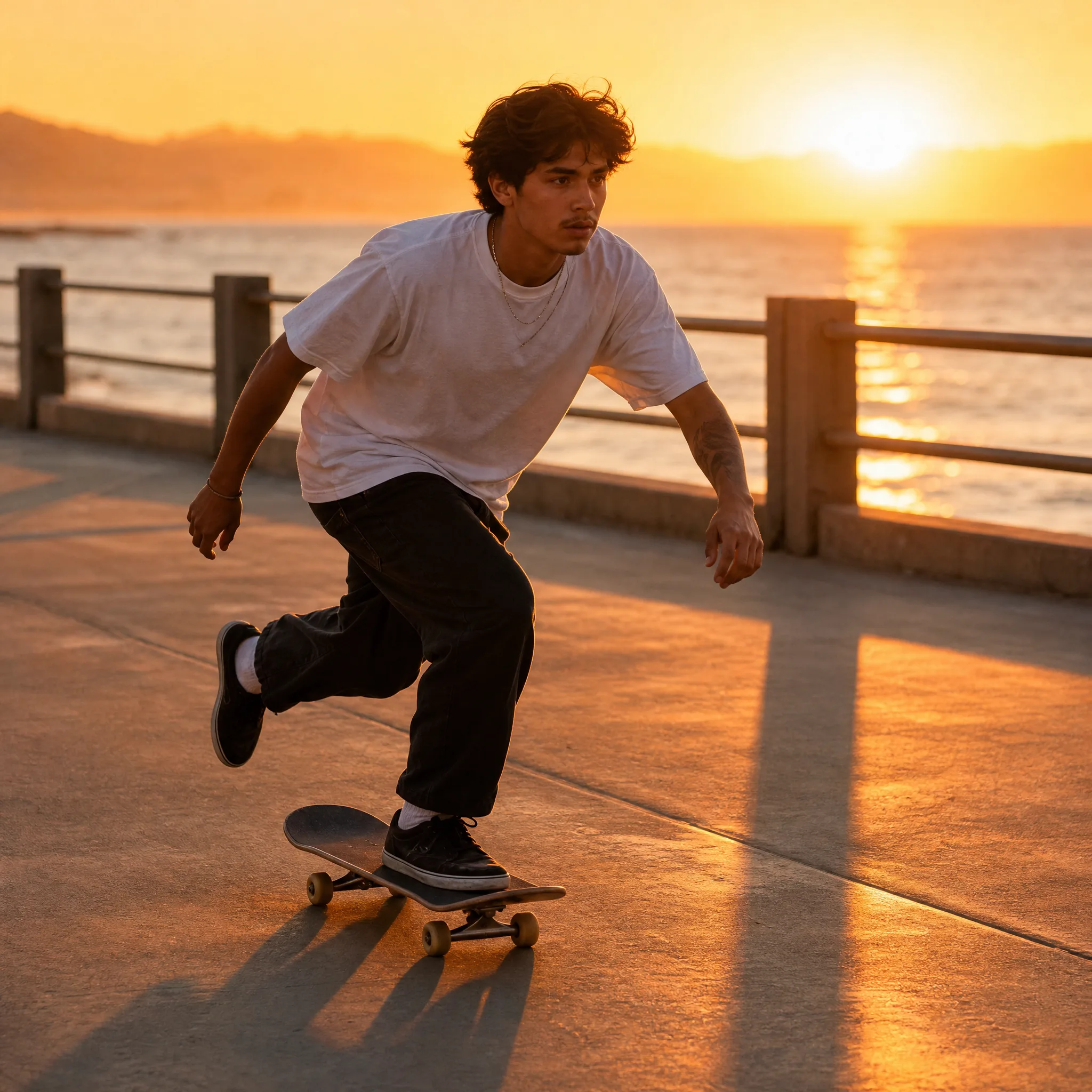
Young skateboarder in a white T-shirt riding along a seaside promenade at sunset