


Kling Image to Video: Turn a Photo into a Scene

Direct a character moment or a camera-led reveal

A character looks up, a camera reveals the setting or a product catches a moving highlight. Kling image to video gives your source photo an action to explore. Describe the movement and develop a scene with Kling 4.0 from Kling AI for your next story or creative edit.

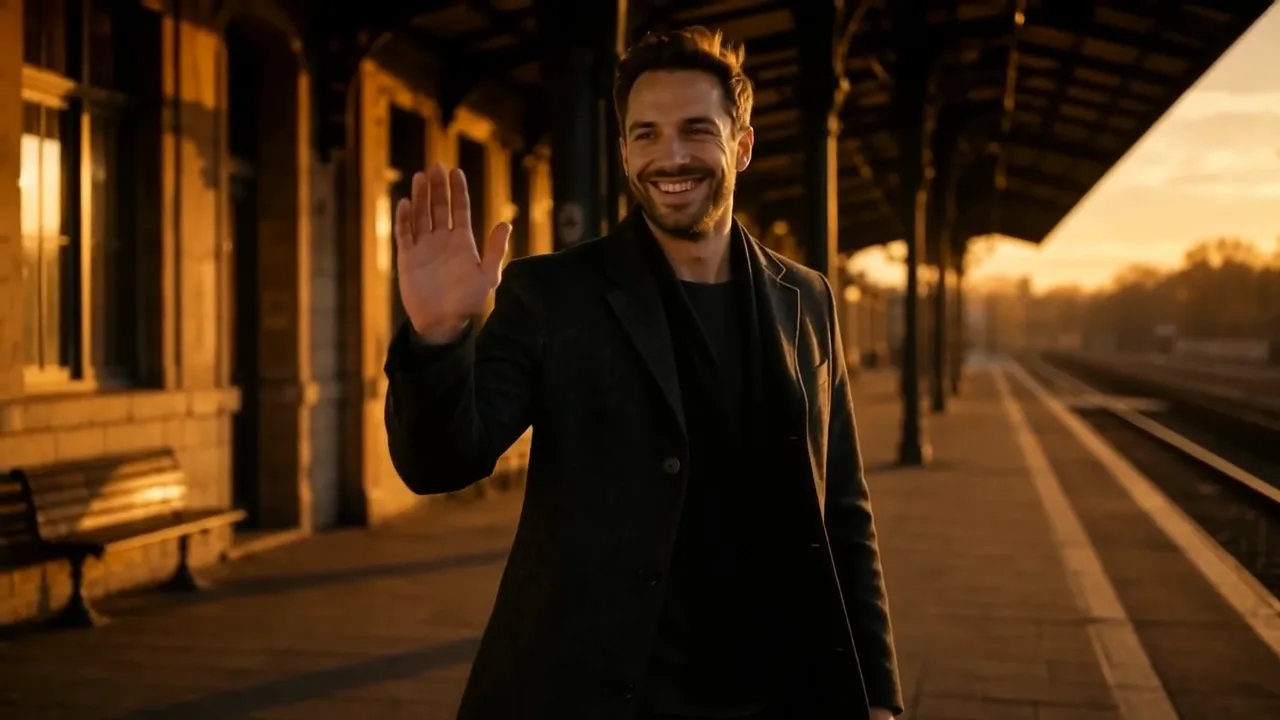
A bearded man in a charcoal coat on a sunlit station platform turns, smiles and raises a hand to wave
Photo-led character scenes
Prompted camera direction
Product and artwork concepts
Separate takes for a creative edit
A visual starting point for your next story
Kling
Reference images

JPG / PNG · Up to 2 files · Max 9.54 MiB per file

Subjects
Prompt
0/2500
Audio
Video Length5s
Aspect ratio
Generation mode
Multiple shots
Shots
Number of outputs
Public Visibility
Required credits
180
Sample videos

Create Your Next Scene with Kling Image to Video

A photograph already gives you a subject and a setting. Kling image to video lets you explore what happens next: a character turns, the camera discovers a detail, or a product comes into view. Describe the action and develop a short shot around the scene you already have.

Try Kling Image to Video
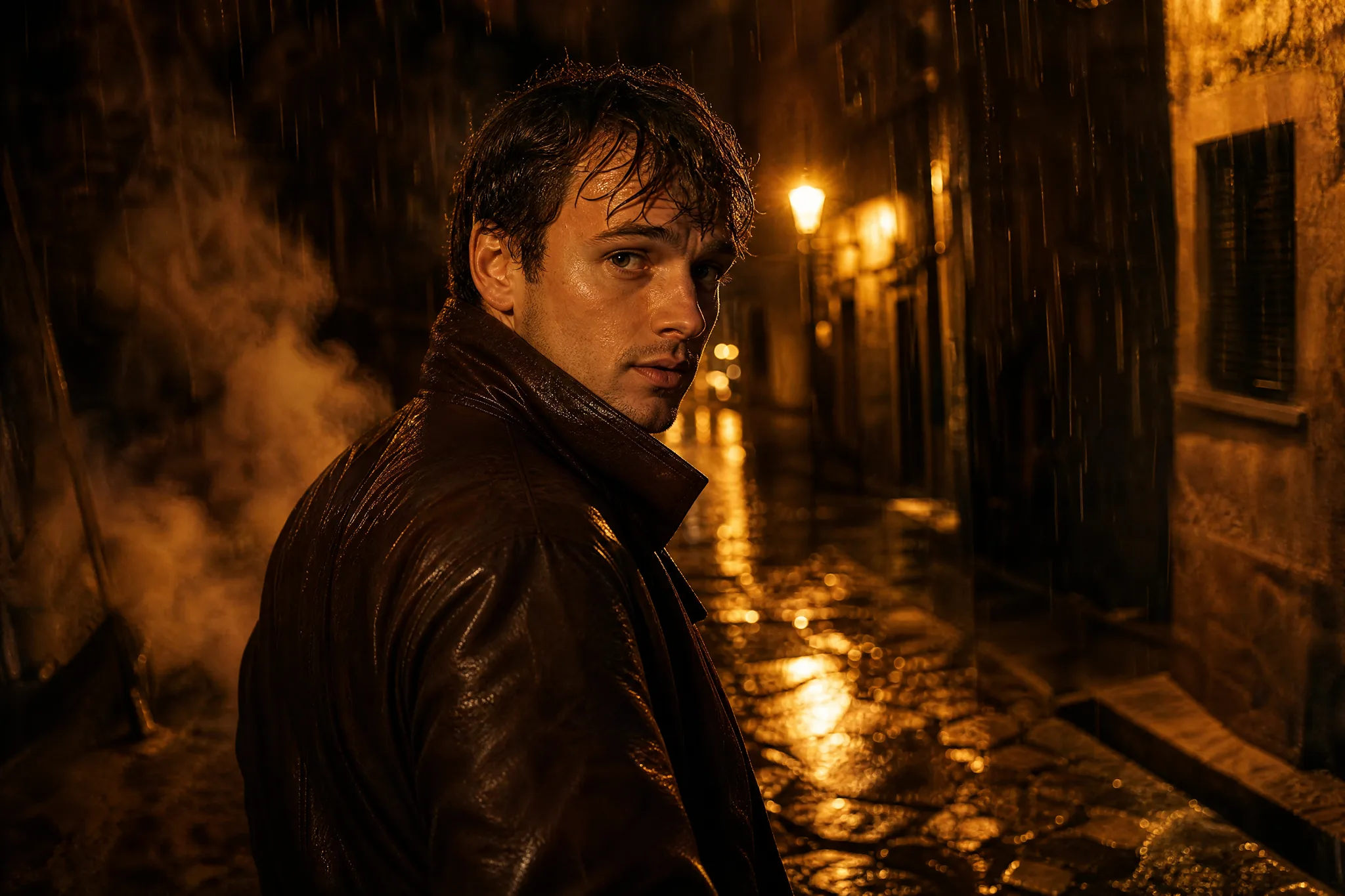
Man in a brown leather jacket turning toward the camera in a rain-soaked alley lit by warm lamps

How Kling AI Image to Video Works Here

Kling AI image to video on ImgVid starts with a clear reference image. Give the action a camera direction, generate and pick the take that fits your edit.

1

Start with a clear reference image

Upload a portrait, product view or scene with one readable subject and an uncluttered background. Crop it to the composition you want the Kling image to video shot to develop, because the framing of the still becomes the opening frame of the take.

2

Give the action a camera direction

Describe what the subject does and which detail the camera should reveal, such as a turn toward the lens or a slow push past a doorway. This page opens Kling 4.0; use the controls available for the selected mode to shape the action.

3

Generate the directed shot

Choose a duration of 3 to 30 seconds and 720p or 1080p for Kling 4.0, whose takes always carry native sound, then run Kling image to video on your still and motion brief. Each run produces one take you can keep, compare or replace with a revised prompt.

4

Review the shot in motion

Play the Kling image to video take from start to finish and watch faces, hands, product edges and the camera path. Download the take that fits your scene, then place it in your editor alongside titles, music and the rest of your project.

Direct a Photo-Led Scene with Kling

Kling image to video works best when you plan the subject action and camera direction around one clear visual reference.

Plan a readable character moment

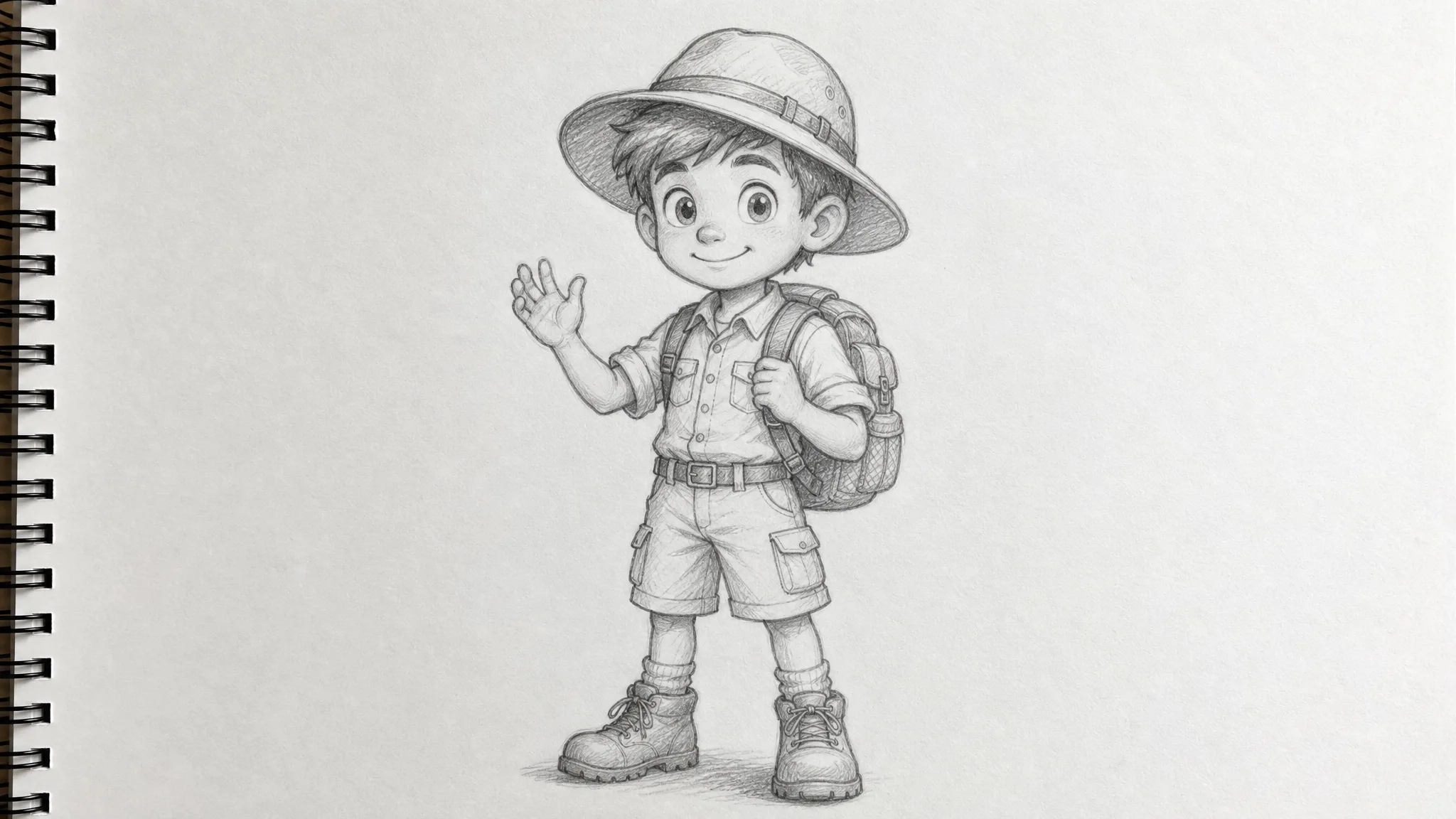
Begin with a clear pose and describe a small action that follows from it. A wave, a glance or a careful turn lets Kling image to video test how a character introduction feels before you plan a longer sequence. Keep the action to one beat per take, and check that the face and hands stay consistent with your still through the final frame.
Reveal the setting through the camera

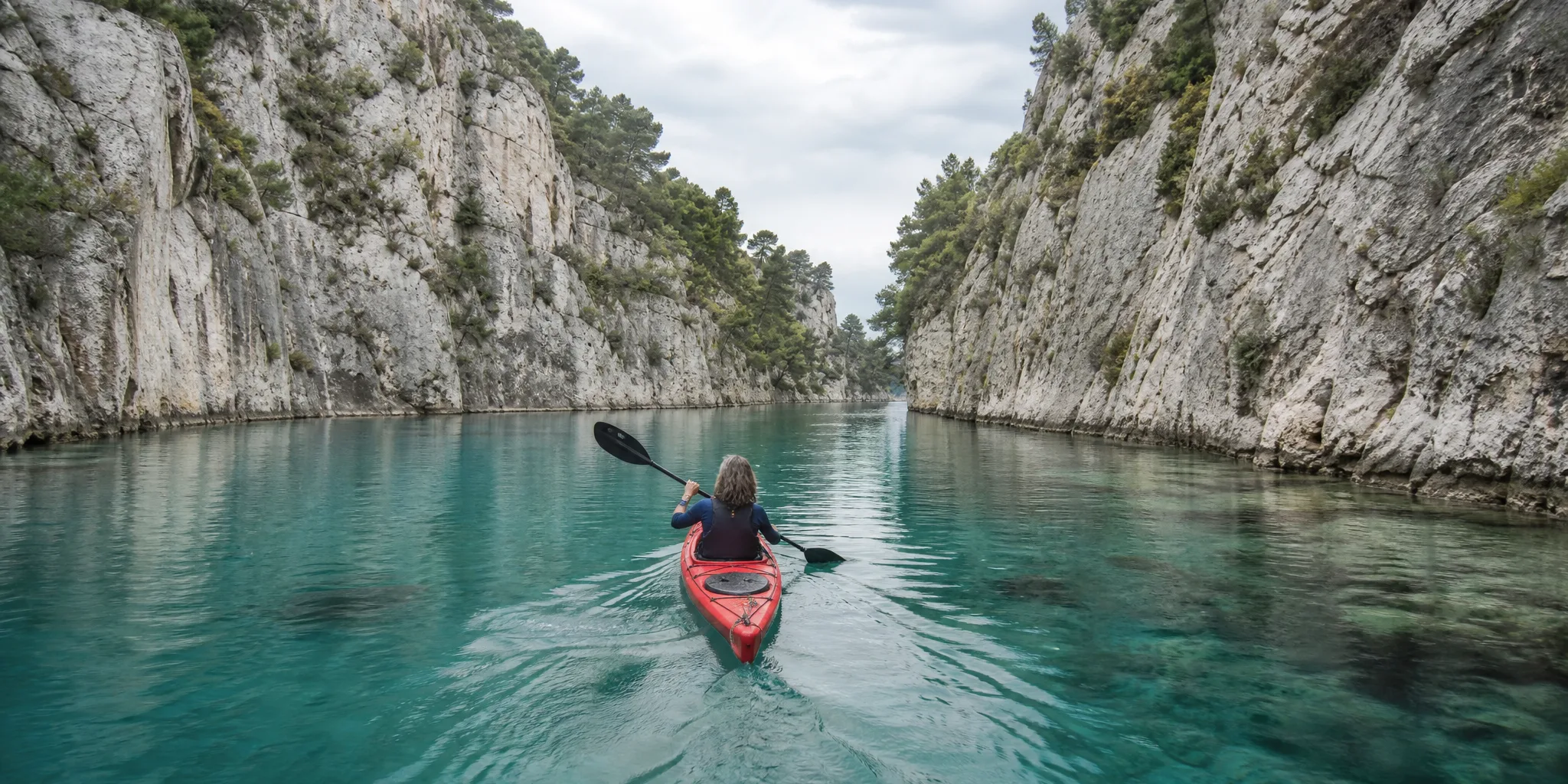
Use a wide image to explore a slow push or a gentle lateral move. Decide which part of the scene viewers should notice first, then describe the camera direction around that choice. With Kling image to video, a landscape, interior or street photo becomes an establishing shot you can cut in before the closer action of your story.

Create a shot for a product story

Turn a still product view into a short reveal or detail insert, such as light sweeping across a surface or a slow orbit toward a clasp. Kling image to video keeps the product as the subject, but check surfaces, lettering and logos in the preview before you place the chosen clip in a presentation or a finished ad edit.

Compare the performance of a scene

The same source image can suggest a quiet glance or a more expressive movement. Run Kling image to video again with one focused change to the action or camera direction, then compare the takes side by side for the story beat you want to communicate. Changing a single instruction at a time makes it clear which edit shaped the performance.

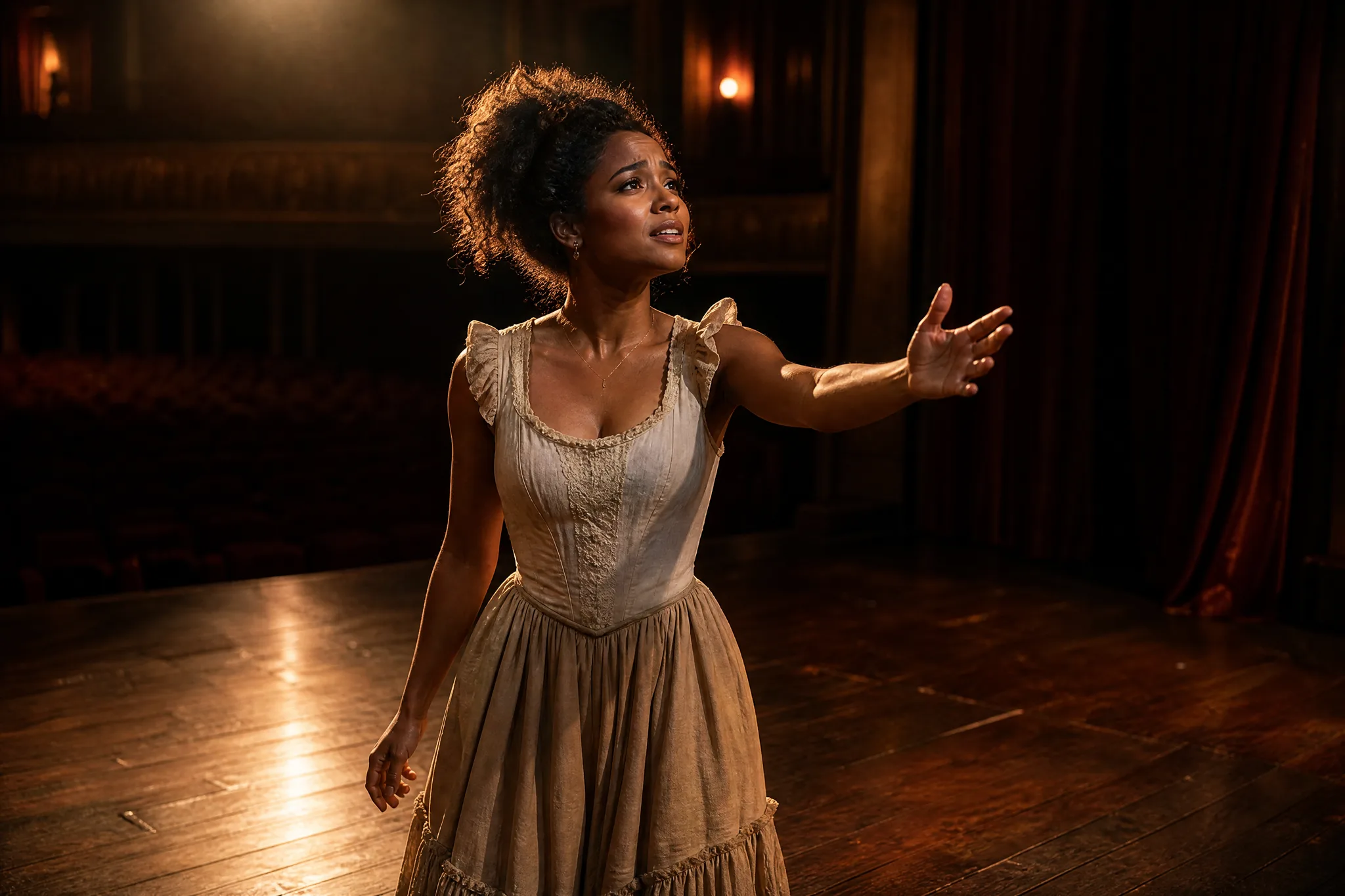
Actress on a dim theatre stage reaching one arm toward the empty seats under a warm spotlight

Kling Video Ideas from Your Images

Kling image to video fits projects that already have a strong still and need the next moving shot: an entrance, a reveal or a quiet background.

Character introductions

A storyteller with a finished character portrait can use Kling image to video to explore an entrance, a glance or a turn. The take shows how that figure first appears on screen, which helps decide pacing before an animatic, a comic trailer or a pitch reel is built.

Camera-led scene reveals

A filmmaker preparing a pitch can upload a wide location still and describe a measured camera path across it. The Kling image to video shot becomes a moving storyboard panel that shows framing and timing to collaborators long before a crew or a location booking is arranged.

Product close-up concepts

A campaign designer can explore a restrained reveal around a product detail, such as stitching, a clasp or a label. Kling image to video provides the moving close-up; keep the take that fits the idea and add final text, pricing and timing separately in the ad edit.

Illustration motion studies

An illustrator can describe a small action or background change around a finished drawing, like drifting cloth or a shifting sky. The selected Kling take extends the portfolio piece into an imagined moment for a portfolio site, a social teaser or a client concept presentation.

Portrait-based social stories

A creator can turn a headshot or personal photograph into the opening seconds of a Reel or Short with Kling image to video. Add captions, music and other footage in a mobile editor so the generated moment leads into the rest of the vertical story.

Scenic visual backgrounds

An event or web designer can use Kling image to video to add quiet motion to a venue or location photograph, such as moving water or drifting clouds. Trim the chosen footage to loop behind a stage screen, a hero banner or a waiting-room display.

What Creators Say About Kling Image to Video

The red scarf in our character concept needed to lead the eye toward the ruined gate. I used Kling image to video to explore that movement from the opening frame. Seeing the scene unfold helped our cinematic team discuss the order of the reveal, rather than guessing from a still storyboard panel.

David Sinclair
Game Cinematics Designer

Is Kling AI Image to Video Free? Questions Answered

Explore Kling image to video for your next creative scene. These answers cover source images, motion prompts, sound and the difference between this workspace and an official provider account.

Kling image to video develops a moving scene from one source image and a motion prompt. This page opens Kling 4.0 on ImgVid, an independent operator with its own creative workspace, not the official Kling app.

For Kling image to video on ImgVid, Kling 4.0 creates 3- to 30-second clips at 720p or 1080p with native sound. It keeps the aspect ratio of your image. Kling 3.0, also on this page, creates 3- to 15-second clips at 720p, 1080p or 4K framed as 16:9, 9:16 or 1:1, and Kling 3.0 Turbo offers visual-only takes of 3 to 15 seconds at 720p or 1080p.

Kling 4.0 is the newest Kling AI model on ImgVid, with clips up to 30 seconds and native stereo sound in every take. It also reads up to 10 reference images and 5 reference clips; Kling 3.0 remains on this page when a scene needs 4K or a visual-only clip.

Yes — Kling 4.0 generates native stereo sound with every clip. Kling 3.0 keeps an optional sound setting in the configured workspace. Preview the sound with your Kling image to video scene. Listen to the completed take for speech, ambience and timing, then keep it or mix in music in your editor.

To use Kling AI image to video, upload a photo with one clear subject, then describe the visible action, pace and camera direction. Choose the duration and resolution for Kling 4.0, generate the clip and preview it with its sound. Download the take that fits, checking faces, hands and product details.

Kling 3.0 is the newer of the two and stays on this page next to Kling 4.0. It makes 3- to 15-second clips at 720p, 1080p or 4K with an optional sound setting. Kling 2.6, also in the ImgVid model list, makes 5- or 10-second clips with optional sound, a good fit for simple single-shot animations.

Yes — a selected Kling image to video take can be developed into a presentation, campaign or story edit. Check the rights to your inputs, including any person’s likeness, artwork or brand, along with the model terms and the publishing rules of the platform you post to.

Kling image to video on ImgVid runs on ImgVid credits, separate from Kling free credits in the official app, and you can start with free ones. Free credits land in your account at sign-up, and a daily check-in keeps adding to them, rising over a streak to the biggest reward on day 7. Spend them on images and videos, with Veo 3.1 Lite and MiniMax H3 among the free-tier video models.

Photos uploaded for Kling image to video are not published. Free accounts and visitors keep Public Visibility on, so a finished Kling 4.0 clip may be selected for Explore after review; with a subscription or one-time pack, generations start private unless you switch visibility on.

Create a Photo-Led Scene with Kling

Upload your reference image, describe a character action or camera reveal, and Kling image to video develops a short Kling 4.0 clip from that still. Review the take for faces, hands and details, then drop it into your edit. Start your next scene from the photo you already have.

Create a Kling Scene
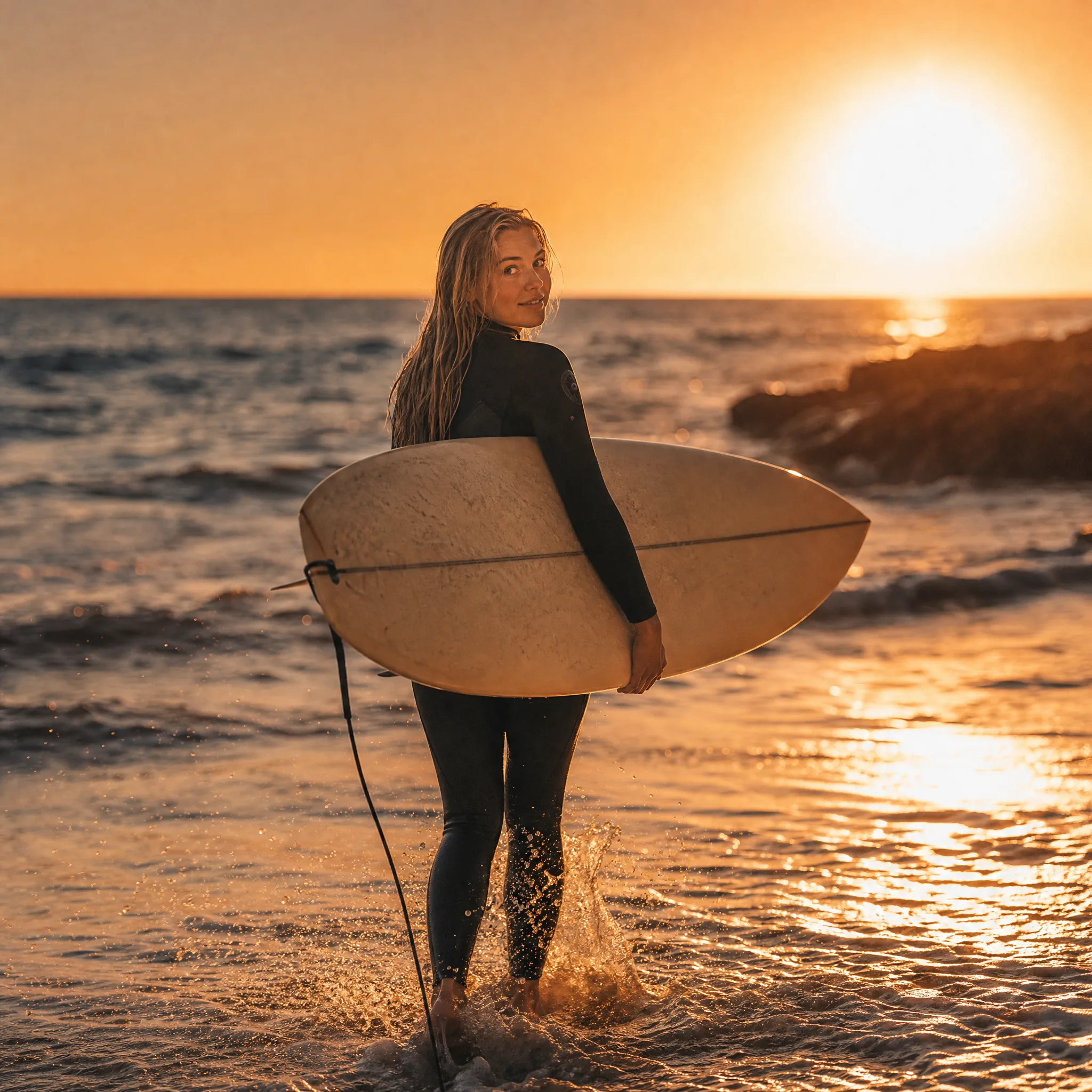
Surfer in a black wetsuit carrying a longboard into the waves and glancing back at sunset