 Tools
ToolsImage to Video Ad
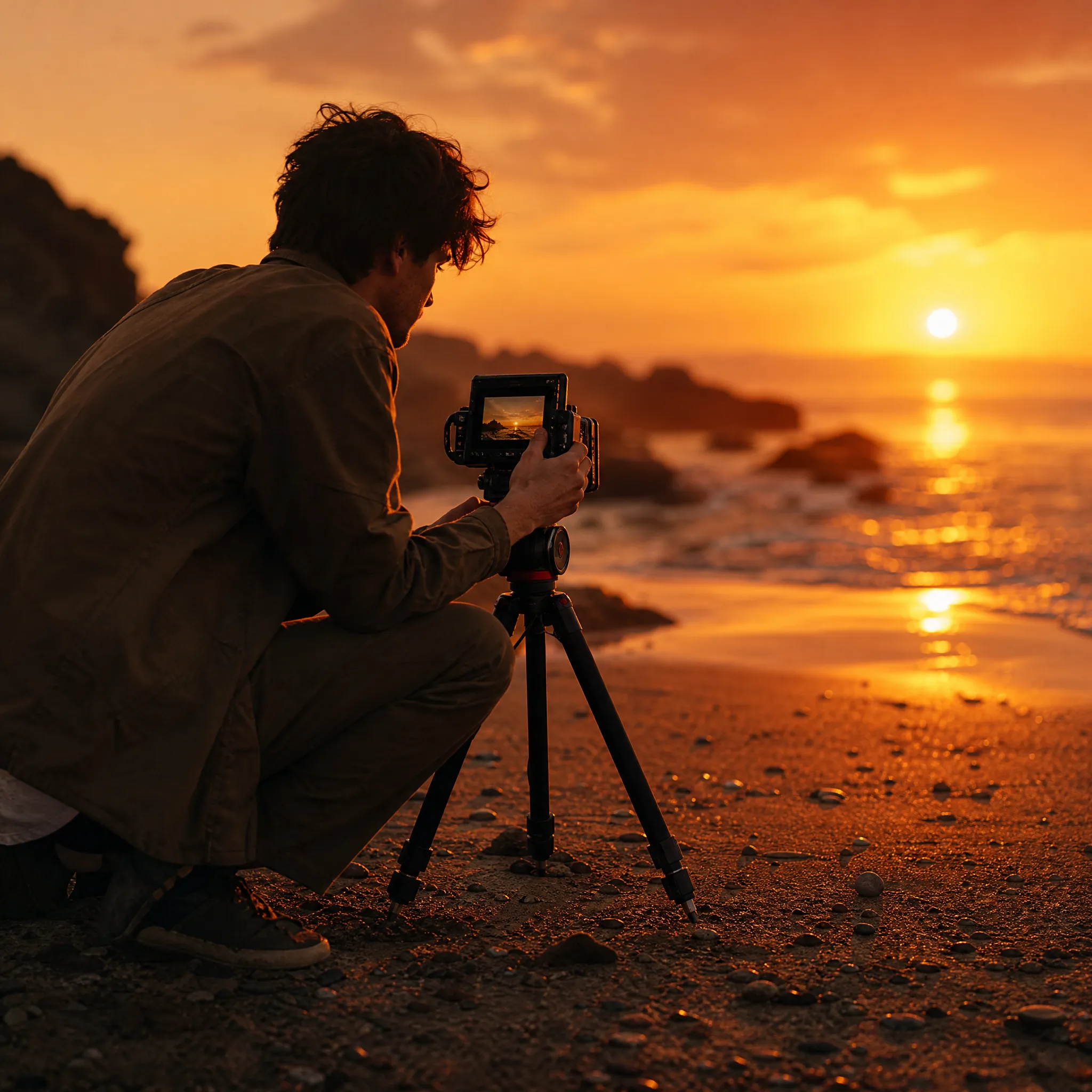
Make your product photo the opening shot of your next promotion. Use an image to video UGC ad generator workflow to explore a close-up, a lifestyle moment or a camera-led reveal, then take the clip into your ad edit.
ExploreExplore AI video tools and effects
Choose a creative idea and make it your own.
ToolsImage to Video Ad
Make your product photo the opening shot of your next promotion. Use an image to video UGC ad generator workflow to explore a close-up, a lifestyle moment or a camera-led reveal, then take the clip into your ad edit.
Explore Tools
ToolsAnimate Photo
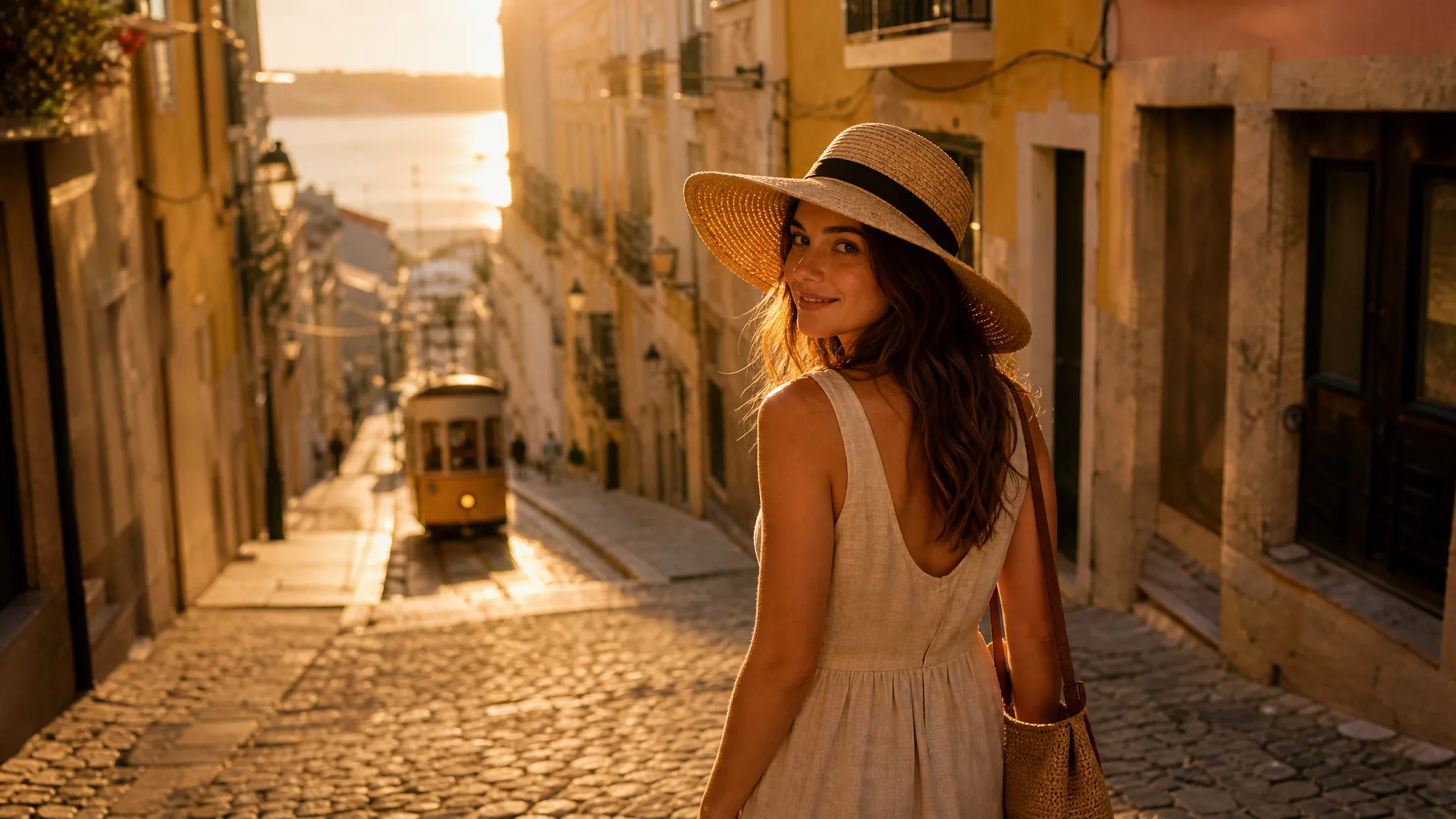
A glance, a breeze, a little movement in the background: small details can give a still picture a new story. Use the AI image animation generator to animate your photo for a post, a keepsake or a creative project.
Explore Tools
ToolsPhoto to Music Video
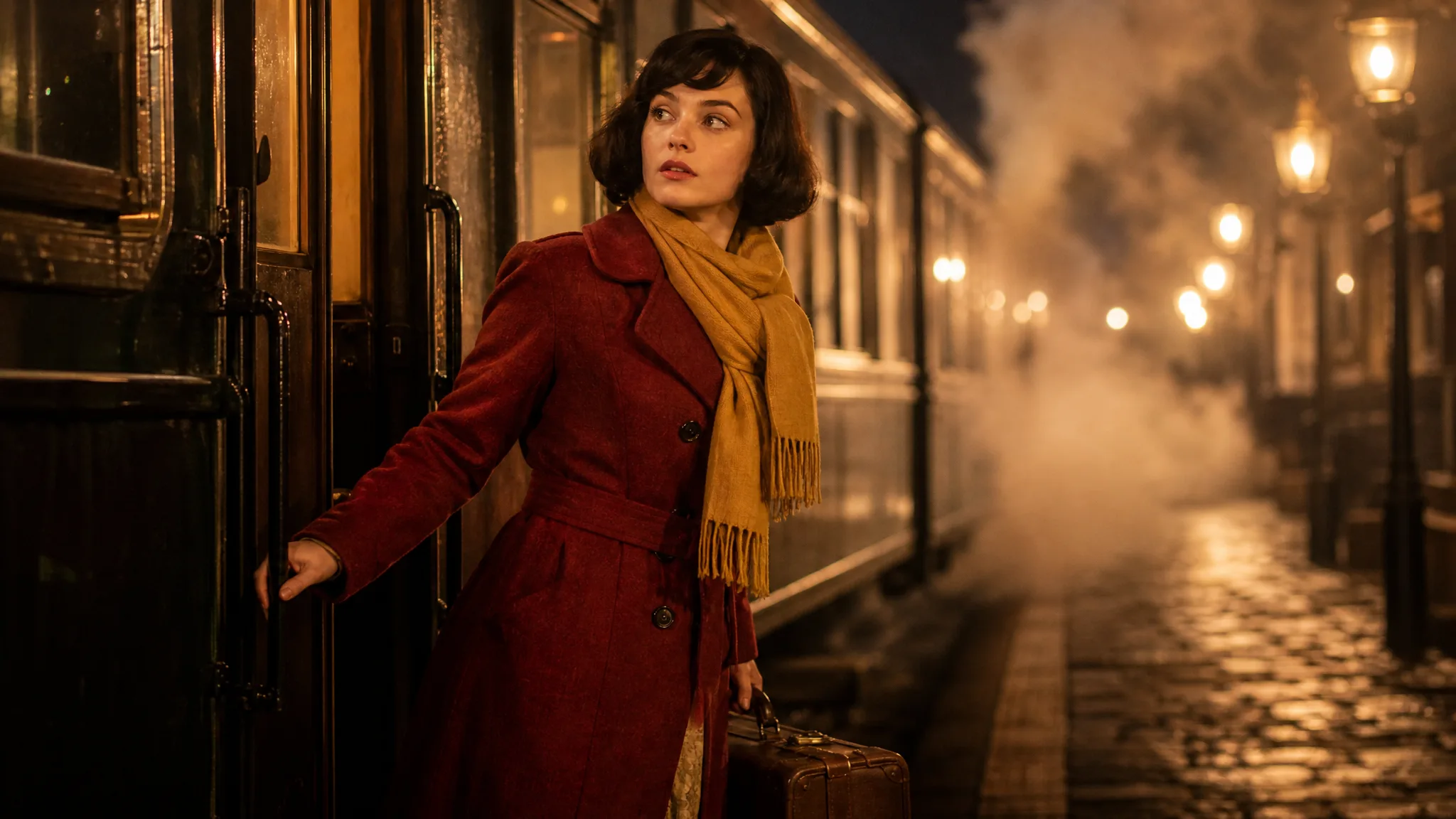
Turn cover art, a portrait or a scene into a music-inspired clip. Describe the movement and musical mood, then create an AI music video from photos with a model that generates sound. Build a release teaser, a visual backdrop or a short social moment around your image.
Explore Tools
ToolsSketch to Video
Sketch to video with AI gives your drawing its next moment. Upload a sketch and describe the action, from a character looking up to a landscape coming alive. Turn your visual idea into a moving concept you can share or develop further.
Explore Tools
ToolsOld Photo Animation
See a treasured photograph in a new way. AI old photo animation adds imagined movement to a family portrait or scanned print, creating a short clip for a family story, an anniversary or a personal keepsake.
Explore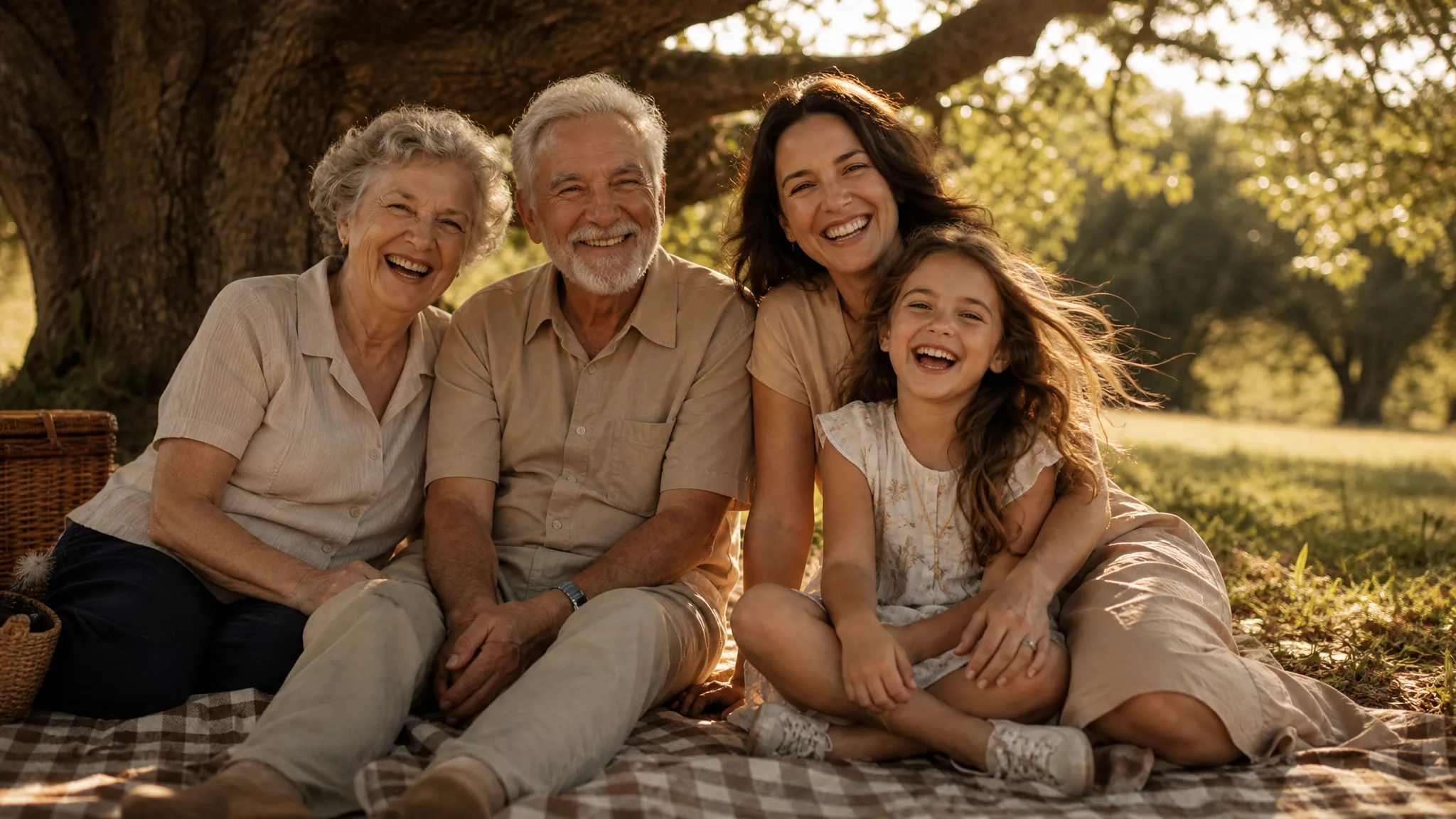 Tools
ToolsImage to Video
Bring your favourite still into motion. Use image to video to turn a portrait, product shot or landscape into a short clip, with your photo setting the scene and your words directing what happens next.
Explore Tools
ToolsText to Video
Put the scene in your head into words, then see it move. Text to video creates a short clip from your description of a subject, an action and a camera move. Explore story ideas, product concepts and social visuals without starting from a photograph.
Explore Tools
ToolsBirthday Video Maker
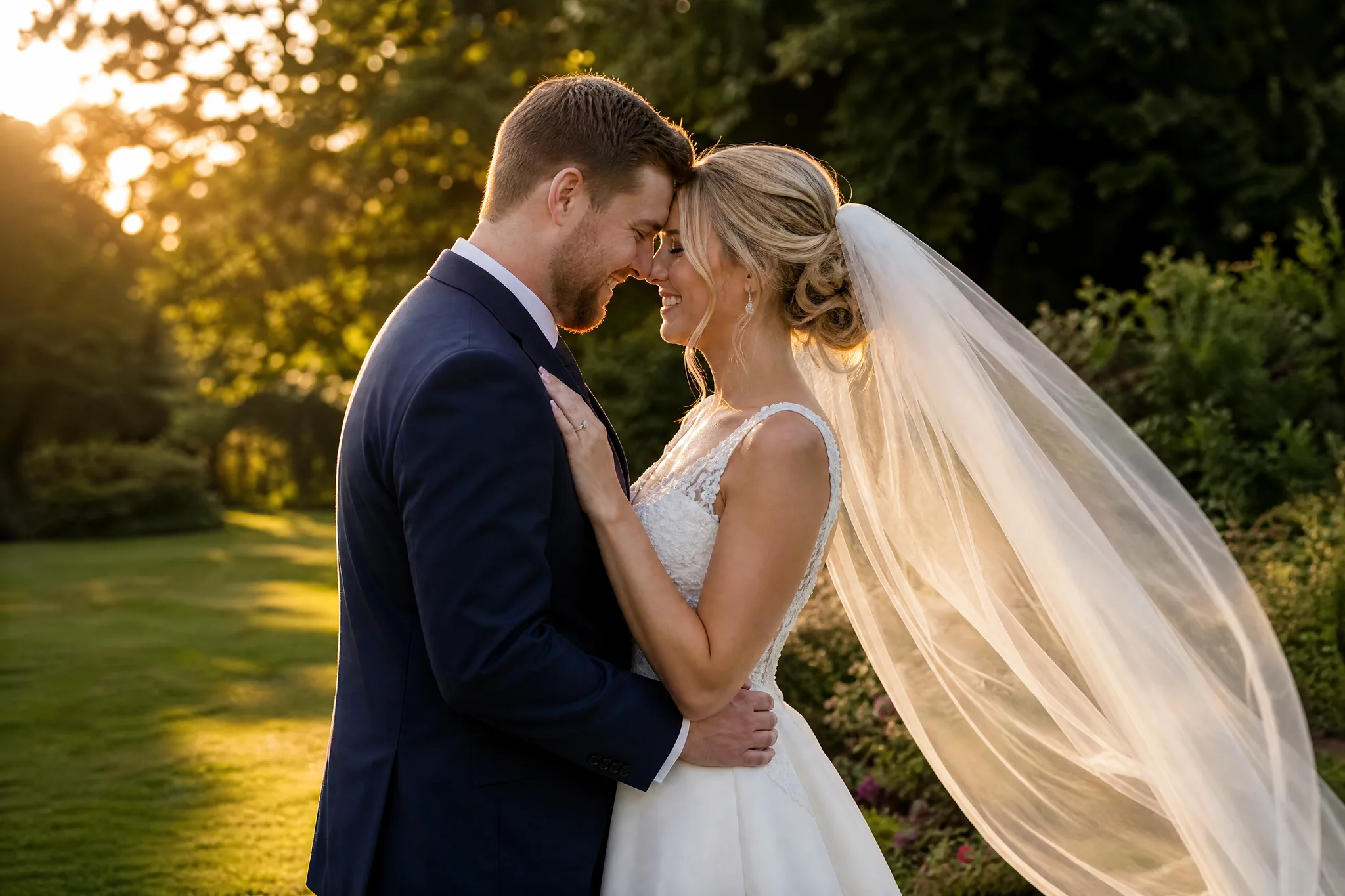
Make a favourite photo part of the celebration. Create a birthday AI reel with a playful scene, a candle moment or a warm camera move, then share the clip in a greeting or add it to your birthday edit.
ExploreFind the starting point for your next scene. Turn words into a clip, animate a photograph, guide a subject with references or connect two visual moments. Explore AI video tools, models and effects for the story you want to tell.
Try it now
Start from an idea, a photograph or two visual moments with ImgVid AI video tools. Give the shot an action and a reason to move.
Picture a subject, a setting and one visible action. Describe the camera view and the light with text to video, one of the AI video tools that works without a source photo, then explore a short scene for a storyboard, pitch or creative opening.
A glance, passing clouds or a gentle camera approach can bring attention to a still image. Among the AI video tools, image to video explores the movement that belongs to a portrait, product photograph or illustration.
Choose the opening and ending images for the shot, then describe how the scene changes between them. Start and end frames give the AI video tools a visual direction for the transition, which you can compare with the generated take.
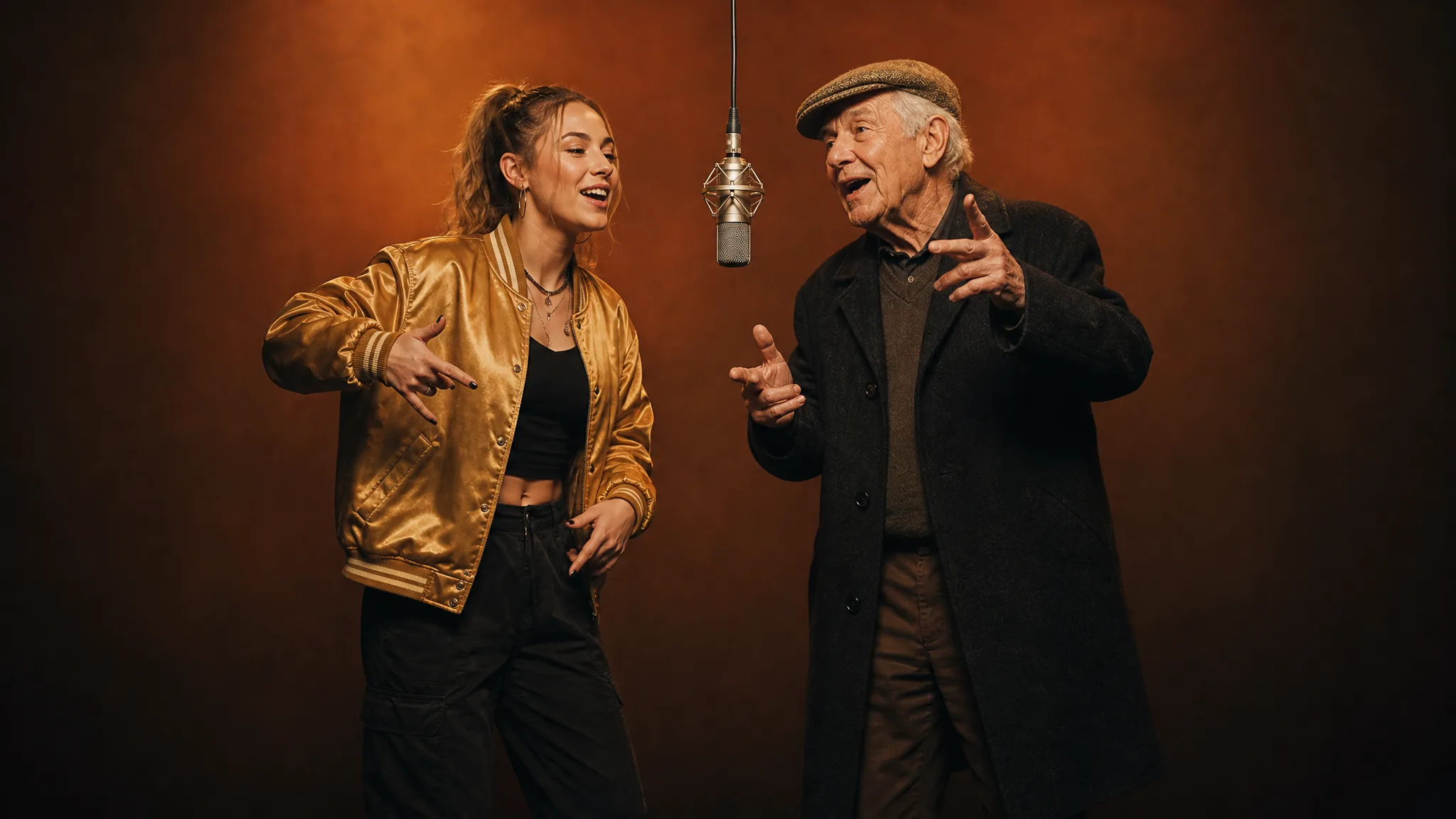
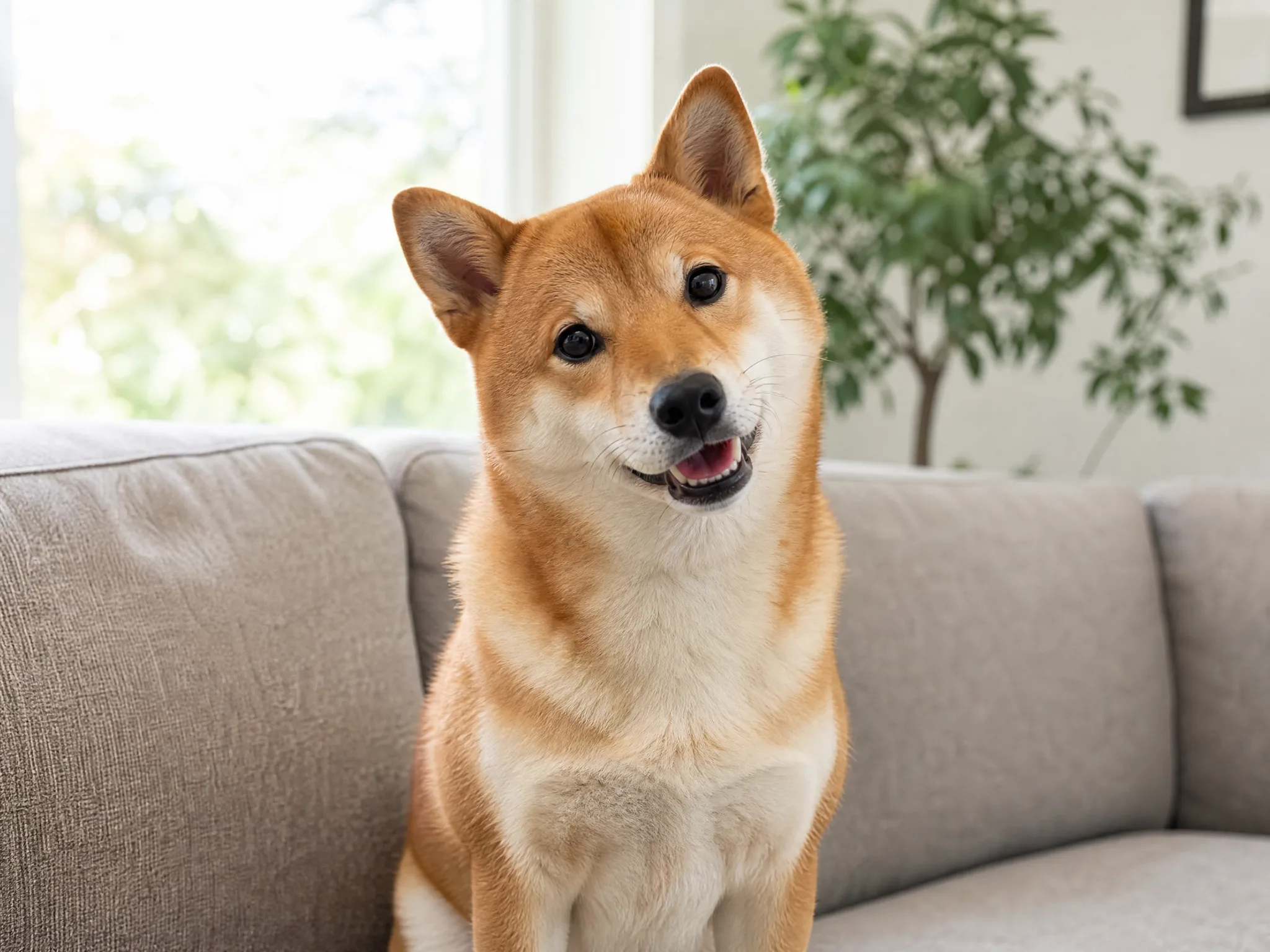
Bring two familiar faces into a performance-inspired duet, or give a pet portrait a Halloween scene. Choose an effect whose premise fits the message and review the clip before making it part of your post.
Explore More AI Creation Tools
Discover more workflows and creative directions for your next project.
Give the action, camera and atmosphere a role in the story before you open the AI video tools, then choose a take for the idea you want to communicate.
A product turns toward the light, a character notices the viewer or a quiet scene begins to change. Ask the AI video tools for the movement that makes the shot useful instead of adding several unrelated effects.
A close approach emphasizes a detail; a wider reveal explains the setting. Tell the AI video tools what the viewer should discover and compare the result with your intended composition.
Soft light, a breeze or clouds moving over a landscape can support the mood of a photograph. In the AI video tools, ask for restrained motion when the subject or memory matters more than the effect.
Watch the complete preview and choose the clip that belongs in your project. Finish exact captions, sequencing and final sound in your editor, with the selected shot as your creative material.
Go from a prompt or photo to a downloadable clip with the AI video maker: choose your input, add details, and review the options before generating.
Start the AI video tools from text, one photo, a start and end frame, or a ready-made effect, depending on what you already have for the scene.
Upload JPG, PNG or WebP photos or write what should happen in the clip; the AI video tools show which inputs the selected mode accepts.
Choose a model and the available framing, resolution and length in the AI video tools to suit a social clip, presentation or story scene.
Click Generate, follow the job status until the clip is ready, then preview it on the page, download the take you want and find it later in Assets.
Explore a social opening, a product reveal, a family-photo moment or a scene for a creative pitch. Your intended story helps you choose which of the AI video tools to start with.
Develop a moving opening from a photo or written scene with the AI video tools. Prepare the source and available framing for your format, then finish captions and sound in your final edit.
Use Reference to Video in the AI video tools to guide a short product scene for an ad or a store page, then check the label, shape and color of the product in the take you keep.
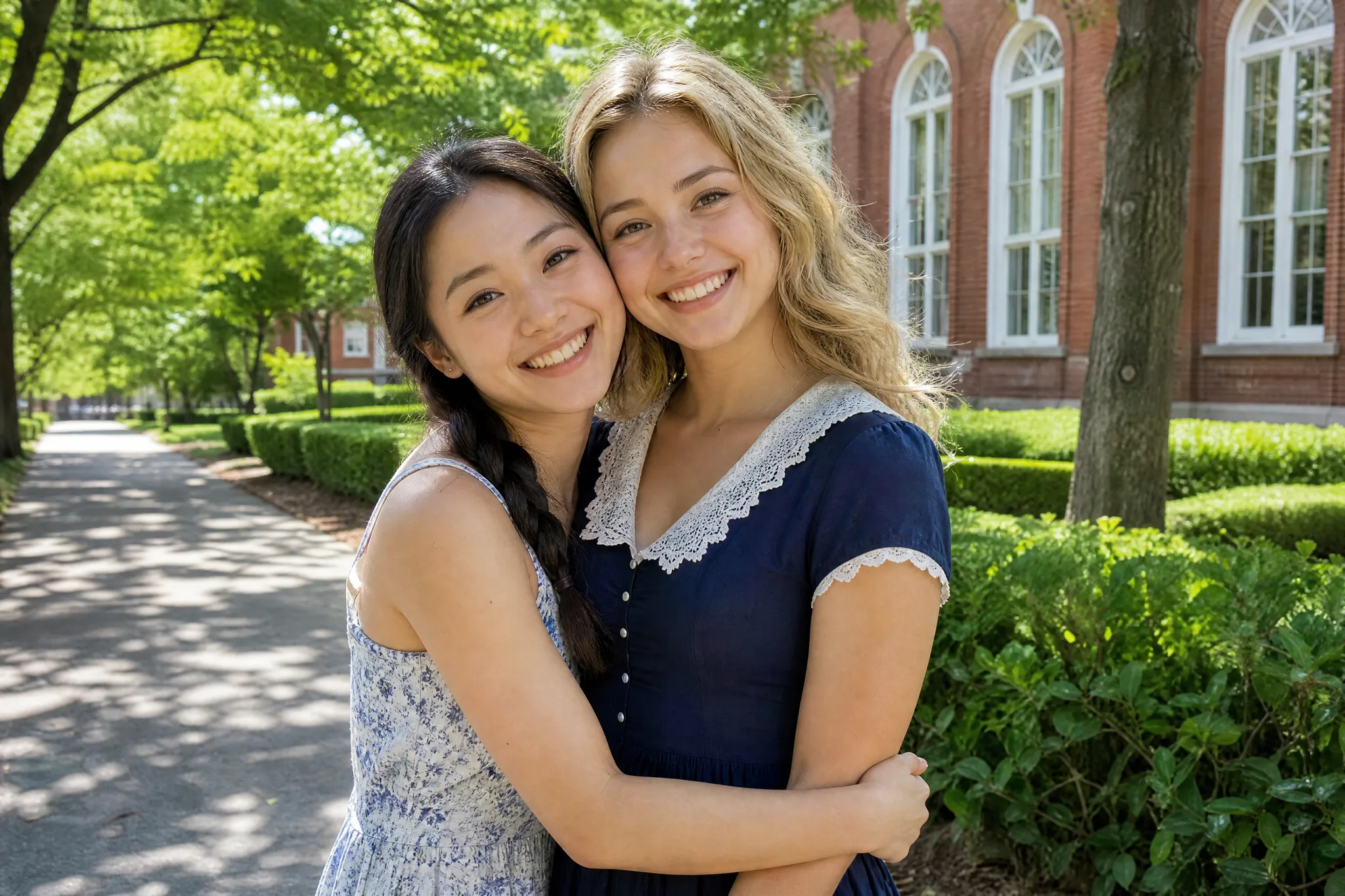
Create a gentle imagined moment from a clear family portrait with the AI video tools. Pair the selected take with the original image and a personal message.
Set a first and last frame in the AI video tools to test a shot idea before you film or animate it, then compare the generated transition with the beat your storyboard needs.
Make a short greeting clip from a birthday photo. Describe candlelight, confetti or a gentle camera move, then add the name and message in your final edit.
Choose a focused workflow for a familiar format, then prepare its required portraits or image. Some presets supply the scene direction; other effects use the prompt you write.
A still concept leaves the camera movement to the imagination. I'd bring my keyframe into the AI video tools and describe a slow reveal or a small character action around it. I'd watch the faces and hands across the whole take, then keep the clearest version as the opening shot of my pitch reel.
Find out how AI video tools turn prompts and photos into clips, which models and inputs you can choose, and how to review a take before you use it.
An AI video maker is an online tool that creates a short clip from your prompt or uploaded images. On ImgVid, the selected model processes the request while your browser lets you configure it, follow progress and preview completed results.
Yes — the free AI video generator here runs on a credit-based free tier: eligible accounts receive 64 signup credits. Free-tier generation depends on the model and settings and requires enough balance for the quote. Daily check-in offers 6 to 24 credits a day over a 7-day streak; daily credits expire at the end of the UTC day. A current lowest-cost eligible option, Runway Gen-4 Turbo at 720p for 5 seconds, costs 24 credits. Review the workspace quote; other settings have their own eligibility and cost.
The AI video tools list the available models and variants for the chosen mode. Compare supported inputs, output settings and audio before selecting a model; model-specific pages explain their own workflows. Configured model names: Runway Gen-4 Turbo, Gemini Omni Flash 1.1, Gemini Omni, Veo 3.1 Premium, Veo 3.1 Basic, Veo 3.1 Lite, Seedance 2.5, Seedance 2.0, Seedance 2.0 Fast, Seedance 2.0 Mini, HappyHorse 1.0, HappyHorse 1.1, Wan 3.0 Prime, Wan 3.0, Kling 3.0, Kling 3.0 Turbo, Kling 2.6, Grok Imagine, Grok Imagine Video 1.5, MiniMax H3, PixVerse V6, Wan 2.7 and Kling 3.0 Omni.
It depends on the model, resolution, length and whether sound is on. The Generate button shows the exact cost before you start. For example, Veo 3.1 Lite at 720p for 4 seconds costs 30 credits.
In the AI video tools, an AI video can run up to 30 seconds, depending on the model. Veo 3.1 Lite: 4, 6 or 8 seconds; Kling 3.0: 3, 4, 5, 6, 7, 8, 9, 10, 11, 12, 13, 14 or 15 seconds; Seedance 2.0: 4 to 15 seconds; Wan 2.7: 2 to 15 seconds; MiniMax H3: 4, 5, 6, 7, 8, 9, 10, 11, 12, 13, 14 or 15 seconds; Runway Gen-4 Turbo: 5 or 10 seconds.
Yes — use Text to Video in the AI video tools to describe a scene without a source image. Its picker shows compatible models and settings; image-only models belong in a photo-based workflow.
No — open the AI video maker in a desktop or mobile browser and develop your scene there.
Yes, when the selected model supports Reference to Video. Use the reference inputs shown for that mode and describe the scene you want to explore. References guide the request; identical appearance and details are not guaranteed.
Yes, with a compatible Start and End Frames model. Choose the opening and ending images, describe the transition and review the resulting motion. The available modes and limits depend on the selected model.
Yes — watch the whole clip for faces, product details, movement and any generated sound. Choose a suitable take and complete exact titles, branding and the final sequence in your preferred editor before publishing.
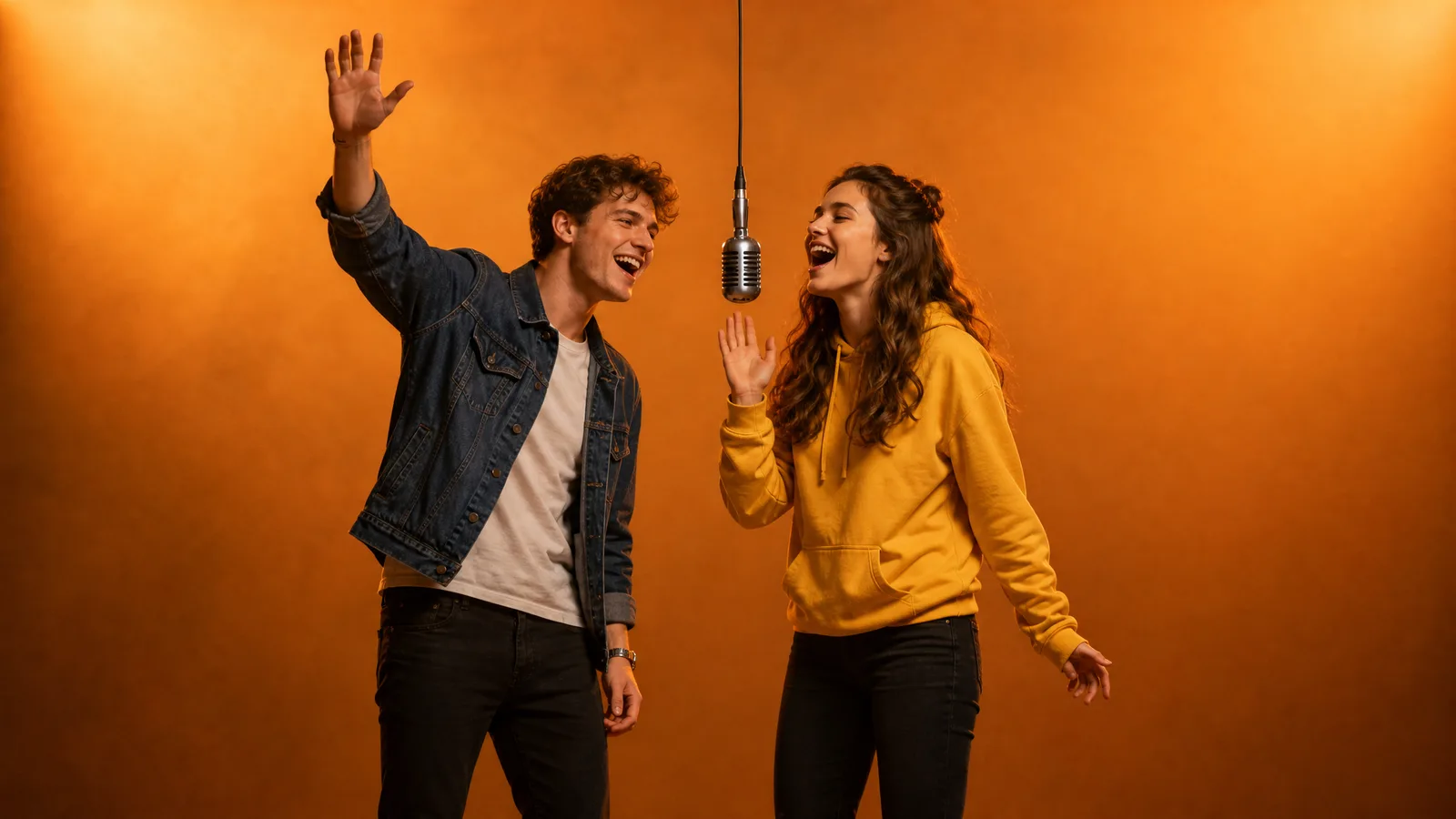
2026/09/28
How to Make Hotel Lobby AI Video (Quavo & Takeoff Trend)
How to make hotel lobby AI video: the Quavo & Takeoff Hotel Lobby trend explained, the two-photo rule, a copy-paste hotel lobby prompt, and mistakes to avoid.

2026/07/29
Is Higgsfield AI Free? Pricing and Limits Explained
Is Higgsfield AI free? A plain look at its pricing tiers, what a free plan actually covers, where the limits bite, and how to judge any AI video free tier.
2026/07/18
Image to Video Leaderboard: How to Pick the Best AI Model
Image to video leaderboard guide: pick the best AI image to video model by matching your inputs, comparing defaults, access and credits, then testing.
Start from a written scene, a photograph or two frames, choose a model in the AI video tools and create a short clip for your story, pitch or social post. Open the video workspace to begin.